
How to Fix ERR_CONNECTION_RESET in Chrome
Fix the ERR_CONNECTION_RESET error in Google Chrome by checking your connection, restarting Chrome, testing extensions and VPN settings, and troubleshooting DNS carefully.
Editorial Team
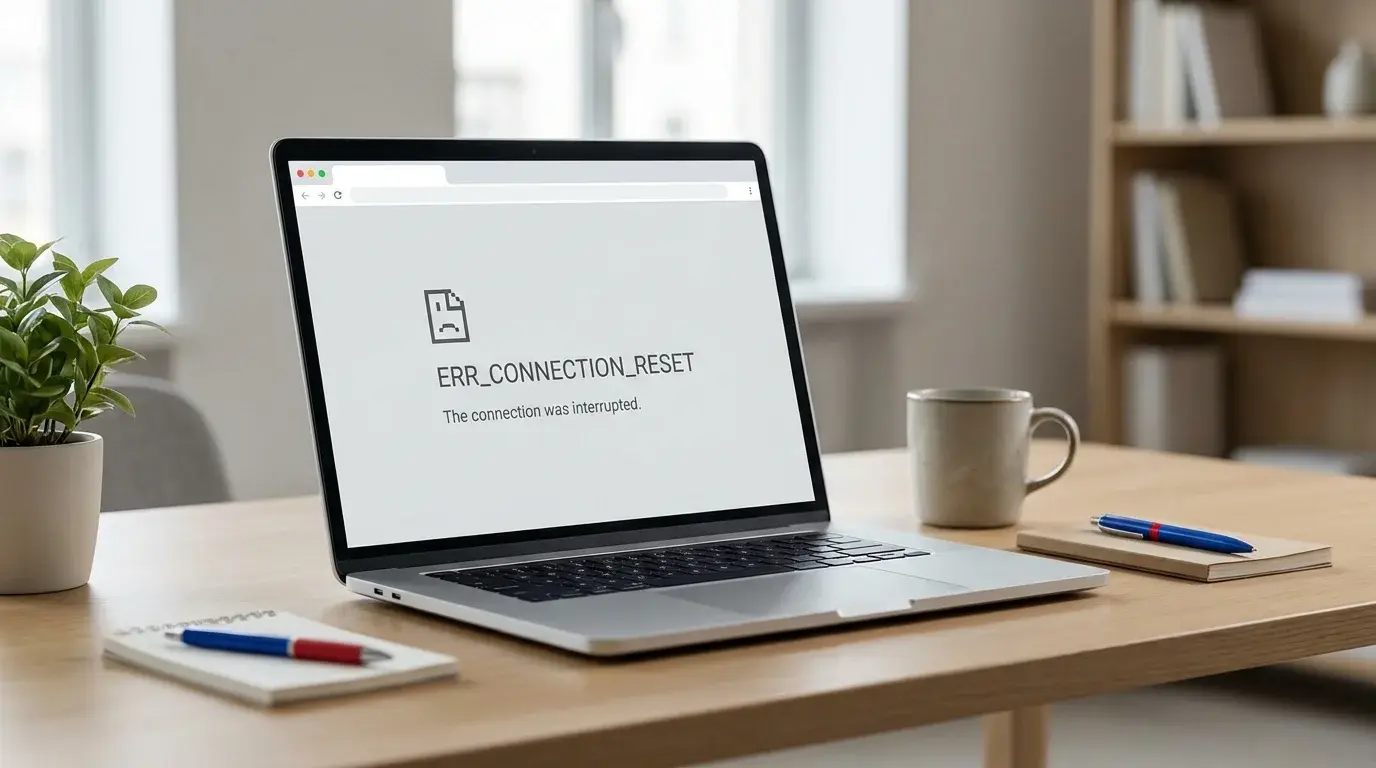
Laptop displaying a Chrome-style page loading error while troubleshooting an interrupted internet connection
Table of Contents (17 sections)
- Quick diagnostic matrix
- 1. Verify whether the problem affects one website or every website
- 2. Power-cycle your network equipment
- 3. Relaunch Chrome and verify pending updates
- 4. Test the page in an Incognito window
- 5. Disable network-filtering extensions
- 6. Audit active VPN and proxy configurations
- 7. Clear Chrome cached files and site data
- 8. Flush the Windows DNS resolver cache
- 9. Inspect firewall and antivirus web shields safely
- 10. Differentiate ERRCONNECTIONRESET from related Chrome errors
- Frequently asked questions
- What causes ERRCONNECTIONRESET in Chrome?
- Does clearing browser history fix ERRCONNECTIONRESET?
- Why does ERRCONNECTIONRESET happen on only one website?
- Is ERRCONNECTIONRESET a virus?
- Summary checklist
The ERR_CONNECTION_RESET error in Google Chrome indicates that the communication between your browser and the web server was abruptly severed before data transfer could complete. In technical terms, the remote host, local network firewall, or proxy sent a TCP reset (RST) packet, terminating the socket connection.
Because a connection reset can originate from local network equipment, aggressive antivirus web shields, misconfigured proxy/VPN servers, or temporary destination server downtime, the error code alone does not pinpoint the exact cause. You do not need to reinstall your operating system or erase your browser profile to solve it.
This guide provides a structured troubleshooting sequence to isolate and resolve ERR_CONNECTION_RESET on Windows 11, Windows 10, and macOS, starting with basic connectivity checks and progressing to system-level DNS and proxy adjustments.
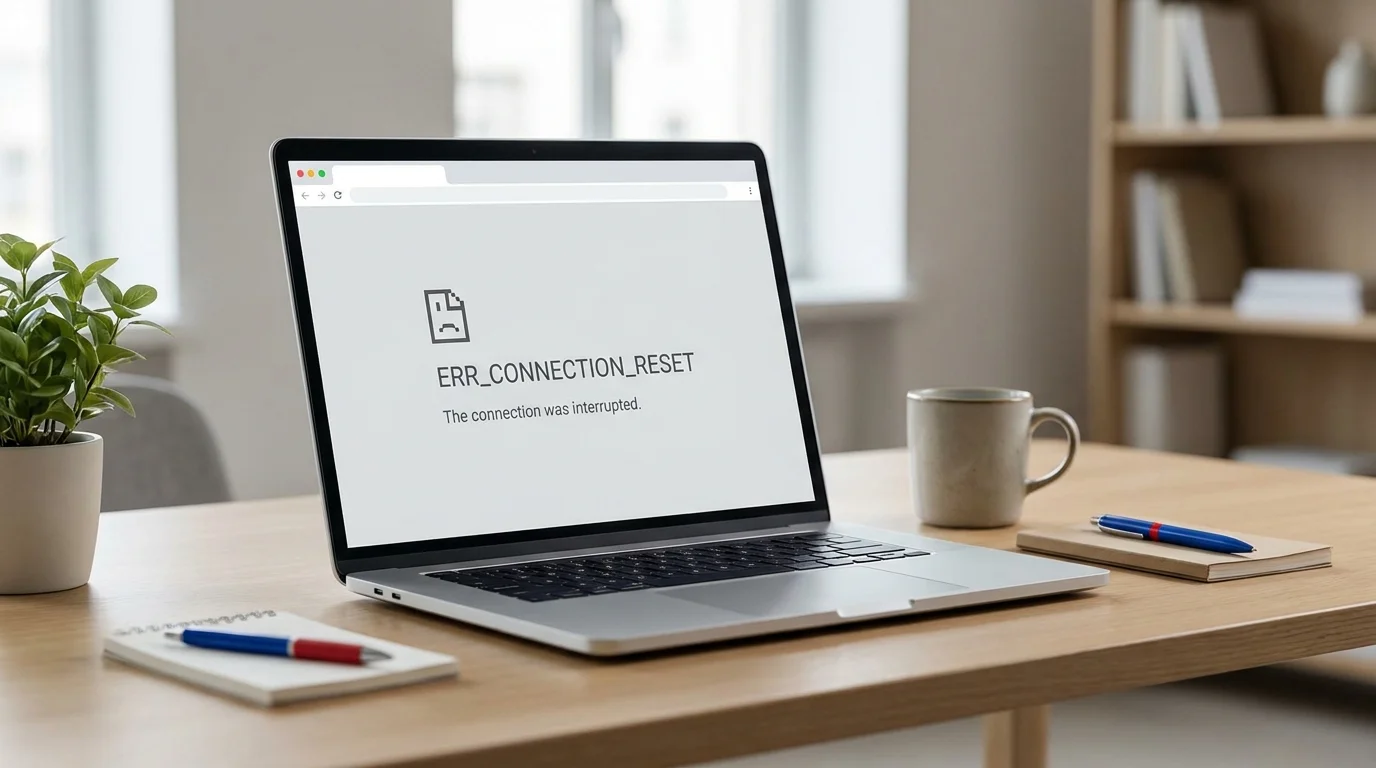
Quick diagnostic matrix
| Finding | Most likely culprit | Recommended next step |
|---|---|---|
| Only one specific website fails | Server maintenance, firewall filter, or destination downtime | Test the site on another device or mobile network; check server status. |
| Every website displays connection reset | Router outage, active VPN disconnect, or local network failure | Restart network router and toggle off VPN or proxy connections. |
| Page works in Incognito mode | Rogue browser extension or corrupted cookies | Disable active extensions in chrome://extensions and clear site data. |
| Page fails across all installed browsers | Windows network stack, DNS cache, or security suite filter | Flush local DNS cache (ipconfig /flushdns) and inspect firewall logs. |
| Browser itself freezes or crashes | Resource exhaustion or graphics acceleration error | Follow our guide on how to fix Chrome not opening or crashing on Windows and Mac. |
| File downloads fail or stop midway | Socket termination or download security block | Follow our walkthrough on how to fix Chrome downloads not working on Windows and Mac. |
| Page prompts for form resubmission | Expired POST data or navigation flow conflict | Follow our guide on how to fix ERR_CACHE_MISS in Chrome. |
| Browser displays SSL certificate or privacy error | Expired certificate, wrong device clock, or captive portal | Follow our guide on how to fix Your connection is not private in Chrome. |
1. Verify whether the problem affects one website or every website
Start by isolating whether the error is specific to a single domain or reflects a wider network failure:
- Open a new tab in Chrome and attempt to load two reliable, high-uptime domains (such as a search engine or news site).
- Double-check the spelling of the target URL to ensure an invalid port or mistyped subdomain is not causing the server to reject the handshake.
- If the error occurs across all websites, the issue resides within your local internet connection, Wi-Fi router, or operating system network configuration.
- If the error occurs on only one website, test that same URL on another device (such as your smartphone) connected to the same Wi-Fi. If it fails on your phone as well, the destination web server is actively resetting incoming connections (if the failure happens specifically when initiating or resuming file transfers, consult our dedicated guide on how to fix Chrome downloads not working on Windows and Mac).
2. Power-cycle your network equipment
Temporary IP conflicts or state table overflows on consumer Wi-Fi routers frequently trigger connection resets:
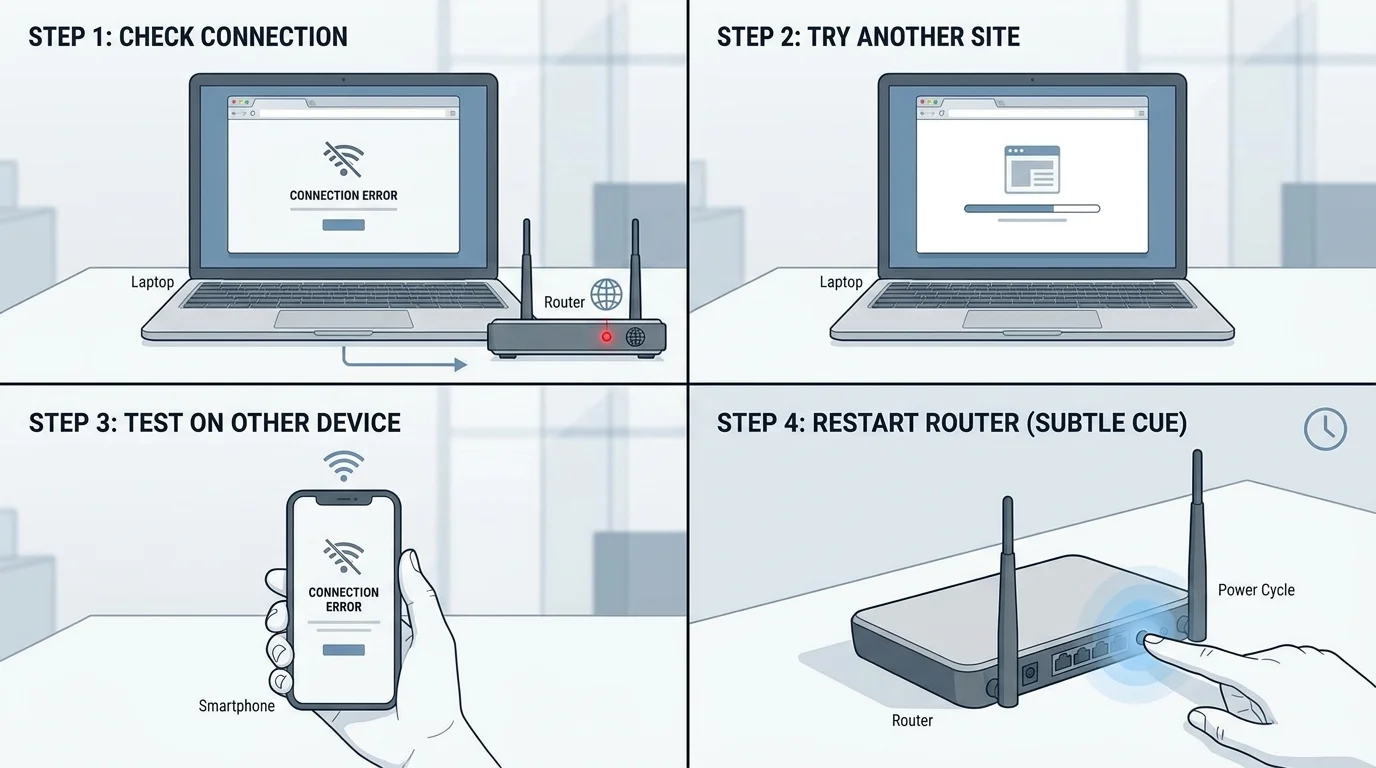
- Save any in-progress work on connected devices.
- Unplug the power cable from your modem and wireless router.
- Wait 30 seconds to allow the capacitors to discharge fully and clear the local device cache.
- Reconnect the power cable and wait 2 to 3 minutes until all internet status indicator lights stabilize.
- Relaunch Chrome and reload the target webpage.
Tip: If you are connected to public Wi-Fi (such as an airport or coffee shop), open a standard HTTP page to ensure you have agreed to the network's captive portal terms. If your browser displays an SSL certificate warning instead of the login portal, follow our guide on how to fix Your connection is not private in Chrome.
3. Relaunch Chrome and verify pending updates
Running an outdated version of Chrome can lead to protocol incompatibilities, especially as web servers adopt newer TLS 1.3 standards and HTTP/3 QUIC specifications:
- Close all active Chrome windows completely.
- Reopen Chrome, click the three-dot menu in the upper-right corner, and select Help > About Google Chrome (or enter
chrome://settings/help). - Allow Chrome to check for and apply any pending updates.
- Click Relaunch if an update was installed.
For full cross-platform update instructions, review our guide on how to update Google Chrome on desktop and mobile.
4. Test the page in an Incognito window
Chrome's Incognito mode disables all installed extensions by default and bypasses your primary profile's stored cookie session data:
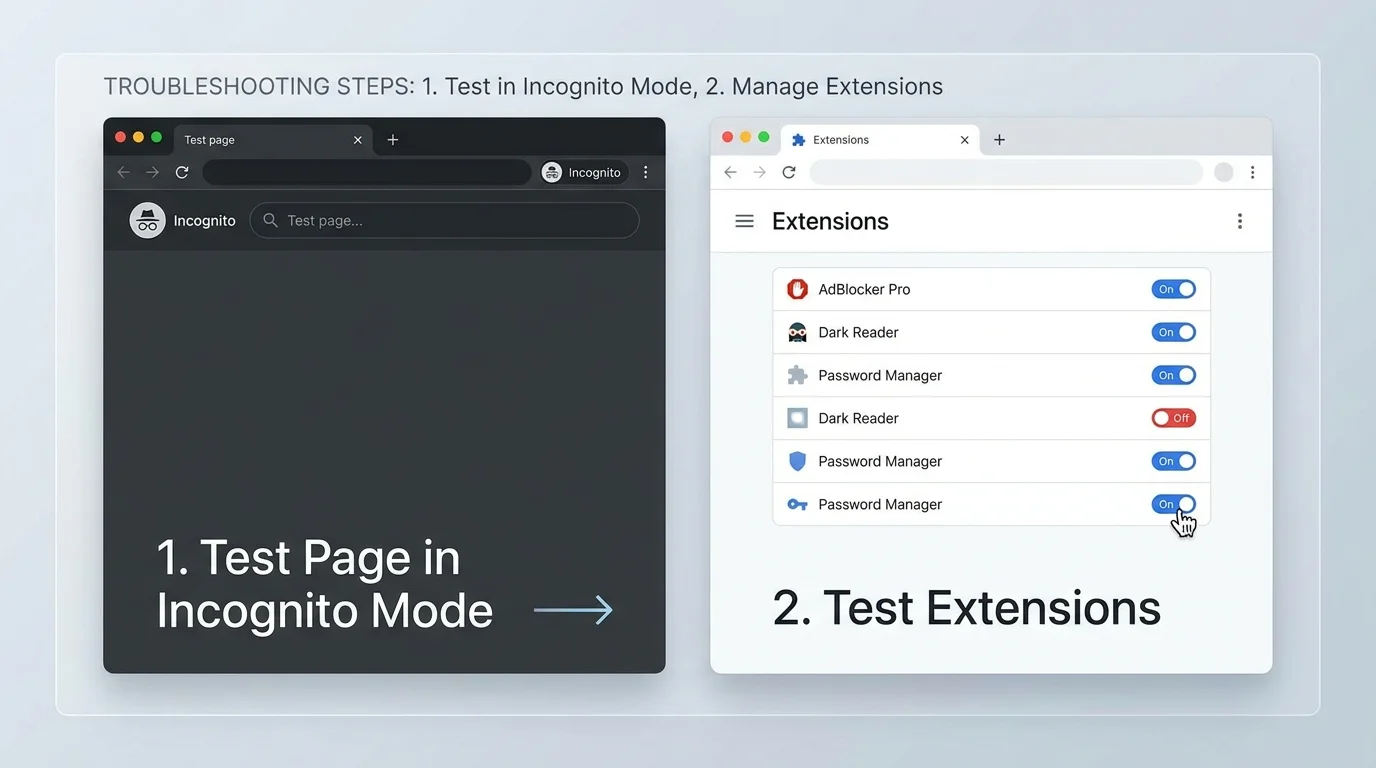
- Press Ctrl + Shift + N (Windows) or Command + Shift + N (macOS) to launch a fresh Incognito window.
- Enter the destination URL into the address bar and press Enter.
- If the page loads successfully in Incognito: An installed browser extension, corrupted cookie, or tracking script in your standard profile is causing the socket reset. Proceed to Step 5.
- If the page still produces
ERR_CONNECTION_RESETin Incognito: Browser extensions and local cookies are unlikely to be the primary cause; proceed to Step 6.
5. Disable network-filtering extensions
Browser extensions designed for ad blocking, VPN tunneling, script injection, or privacy protection inspect and modify web traffic at the socket level. A flawed extension rule can prematurely close web connections:
- In Chrome's omnibox, type
chrome://extensionsand press Enter. - Toggle off any active VPNs, ad blockers, or proxy extensions.
- Return to the affected website and refresh the page.
- If the error resolves, re-enable extensions one by one to pinpoint the culprit.
- Permanently remove problematic add-ons using our guide on how to remove extensions from Chrome.
6. Audit active VPN and proxy configurations
Virtual Private Networks (VPNs) and HTTP proxies redirect your traffic through encrypted intermediate tunnels. If the proxy server drops the handshake or the VPN client encounters a packet MTU mismatch, Chrome displays ERR_CONNECTION_RESET:
- Dedicated VPN apps: Temporarily disconnect your third-party VPN client (or switch server locations) and reload the page.
- Windows proxy settings: Open Windows Settings > Network & internet > Proxy. Under Automatic proxy setup, ensure Automatically detect settings is enabled, and verify that Use a proxy server is turned Off unless your network administrator specifically mandates one.
- macOS proxy settings: Navigate to System Settings > Network > Wi-Fi (or Ethernet) > Details > Proxies and confirm no unwanted proxy protocols are checked.
Note: On workplace or school devices, proxies and VPNs are frequently enforced via group policy. Do not alter managed enterprise proxy settings without consulting your IT department.
7. Clear Chrome cached files and site data
Corrupted HTTP cache files or stale security tokens can trigger invalid socket responses from web servers:
- In Chrome's address bar, type
chrome://settings/clearBrowserDataand press Enter. - Select the Advanced tab.
- Set the Time range to All time.
- Check Cached images and files.
- Leave Cookies and other site data unchecked initially to avoid logging out of all active web accounts (for clearing individual site cookies without signing out of everything, see how to delete cookies in Chrome).
- Click Clear data, restart Chrome, and test the site again.
- For a deeper breakdown of cache management, read how to clear cache in Chrome.
8. Flush the Windows DNS resolver cache
A stale or poisoned DNS lookup can direct Chrome to an obsolete IP address where the server immediately rejects the connection with an RST packet:
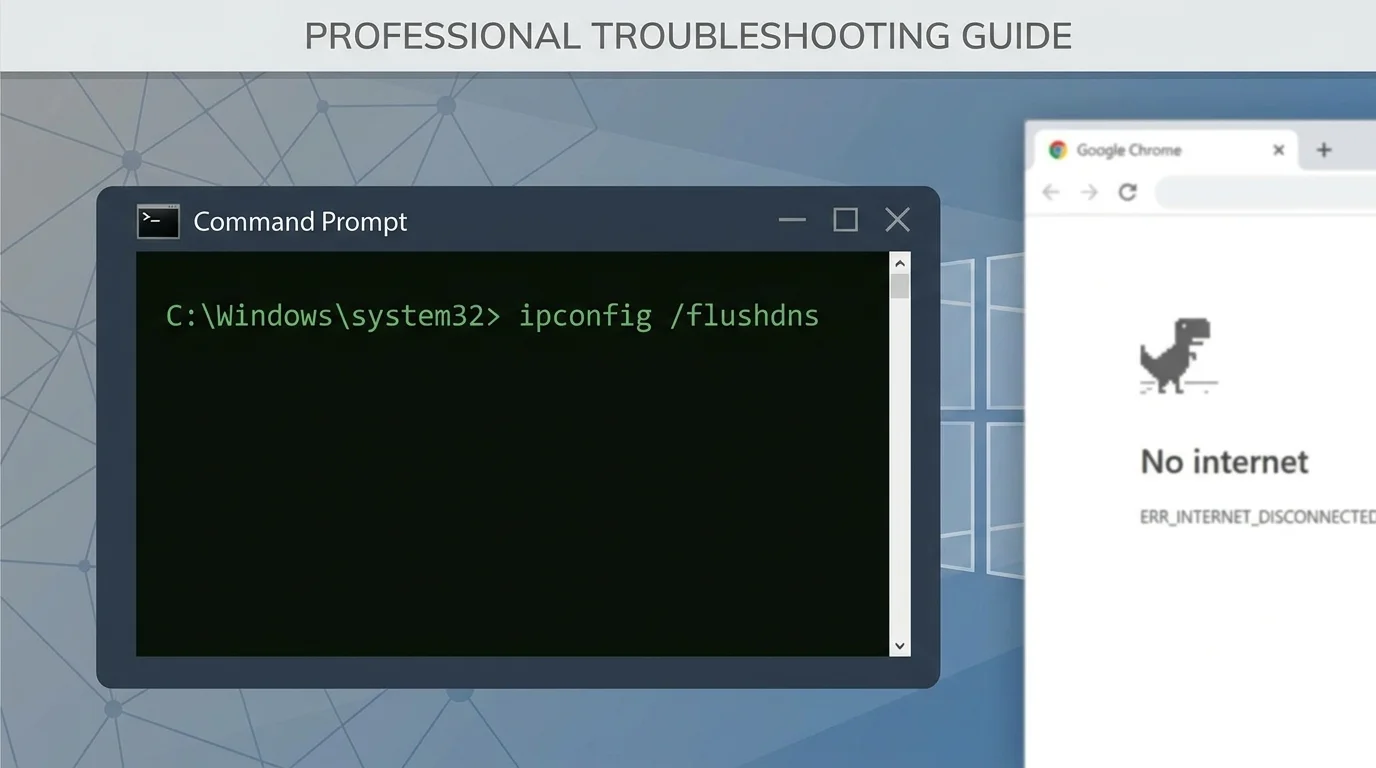
Open the Windows Start menu, type
cmd, right-click Command Prompt, and select Run as administrator.In the terminal window, execute:
ipconfig /flushdnsYou will see the confirmation message: "Successfully flushed the DNS Resolver Cache."
Next, release and renew your local IP lease:
ipconfig /release
ipconfig /renew
Close the terminal, relaunch Chrome, and test the target webpage.
Note: The ipconfig /flushdns command clears only local operating system DNS records; it does not reset your home router or alter saved browser bookmarks.
9. Inspect firewall and antivirus web shields safely
Third-party antivirus suites (such as Norton, Bitdefender, or Avast) employ HTTPS scanning web shields that intercept encrypted traffic to inspect certificates. If an inspection failure occurs, the shield drops the connection:
- Review your antivirus application's quarantine or alert logs to confirm whether
chrome.exewas blocked. - Verify that Google Chrome is listed as an allowed application in Windows Defender Firewall (
Control Panel > System and Security > Windows Defender Firewall > Allowed apps). - Never disable your firewall or antivirus permanently. If a temporary diagnostic test is necessary, disable web scanning for 60 seconds under vendor supervision, test the URL, and immediately turn protection back on.
- Never ignore browser certificate warnings or install unverified root certificates to bypass connection drops.
10. Differentiate ERR_CONNECTION_RESET from related Chrome errors
Chrome utilizes distinct error codes for different networking failure points:
| Error code | What it means | Key distinction |
|---|---|---|
ERR_CONNECTION_RESET |
Connection established but unexpectedly terminated by peer/firewall. | Handshake started, but an RST packet severed the session. |
ERR_CONNECTION_TIMED_OUT |
Server took too long to respond to initial connection requests. | No response received within the allowable socket timeout window. |
ERR_NAME_NOT_RESOLVED |
Domain name could not be translated to an IP address. | DNS lookup failed entirely; no connection attempt made. |
ERR_INTERNET_DISCONNECTED |
Local device has no active network adapter connection. | Physical cable unplugged or Wi-Fi disconnected. |
If Chrome is functioning properly but feels generally unresponsive or slow, consult our companion tutorial on how to fix Chrome running slow on Windows and Mac. If browser settings have been altered by suspicious software, follow how to reset Chrome settings to default.
Frequently asked questions
What causes ERR_CONNECTION_RESET in Chrome?
The error occurs when a TCP connection is established between Chrome and a web server, but an unexpected reset (RST) packet is received before data transfer completes. Common triggers include Wi-Fi drops, proxy/VPN failures, antivirus web shield interference, or destination server crashes.
Does clearing browser history fix ERR_CONNECTION_RESET?
No. Browsing history is simply a log of visited URLs and does not affect live socket communication. Clearing cached web files or flushing your DNS resolver cache is far more relevant.
Why does ERR_CONNECTION_RESET happen on only one website?
When only one website fails, the issue is almost always destination-side. The website's web server may be overwhelmed, its firewall may be blocking your regional IP range, or its load balancer may be malfunctioning. Verify the site on another network (such as cellular data) before modifying your computer.
Is ERR_CONNECTION_RESET a virus?
Not directly. While adware or malicious browser extensions can intercept network traffic and cause connection resets, the error itself is a standard networking message indicating an interrupted TCP socket.
Summary checklist
- Check whether the error is isolated to a single website or affects all internet browsing.
- Power-cycle your modem and router to resolve local network packet drops.
- Test the target URL in an Incognito window to isolate extension conflicts.
- Temporarily disable VPN tunnels and verify proxy configuration in system settings.
- Clear cached files in Chrome and flush the Windows DNS cache via
ipconfig /flushdns. - Verify firewall permissions without disabling security software permanently.
Verified Primary Sources & Citations
NextTechExplained verifies facts against official documentation, engineering whitepapers, and regulatory filings.
- Google Chrome Help: Get help with common error messages in ChromeView Official Source
- Google Chrome Help: Fix connection and loading errors in ChromeView Official Source
- Microsoft Support: Fix Wi-Fi connection issues in WindowsView Official Source
- Microsoft Support: Fix Ethernet connection problems in WindowsView Official Source
- Google Chrome Help: Fix Chrome if it crashes or will not openView Official Source
Published by NextTechExplained
Editorial Team • Institutional Publication Byline
Articles published under this byline are prepared through rigorous research and verified against official engineering specifications, standards documentation, and primary sources. Learn more about our process on our About page and Editorial Policy.
Related Explanations & Guides
How to Block Pop-Ups in Chrome on Desktop and Mobile
Stop unwanted pop-ups and redirects in Google Chrome on Windows, Mac, Android, and iPhone. Learn how to configure site exceptions and stop persistent ads.
How to Change the Download Location in Chrome
Learn how to change where Google Chrome saves downloaded files on Windows, Mac, Linux, and Chromebook, or configure Chrome to ask for a save folder every time.
How to Delete Browsing History in Chrome on Desktop and Mobile
Delete all Chrome browsing history or remove selected websites on Windows, Mac, Android, and iPhone. Learn what history deletion removes and what it does not.