
How to Fix ERR_CACHE_MISS in Chrome
Understand what ERR_CACHE_MISS means in Chrome and troubleshoot it safely with verified form resubmission, extension, cache, and website checks.
Editorial Team
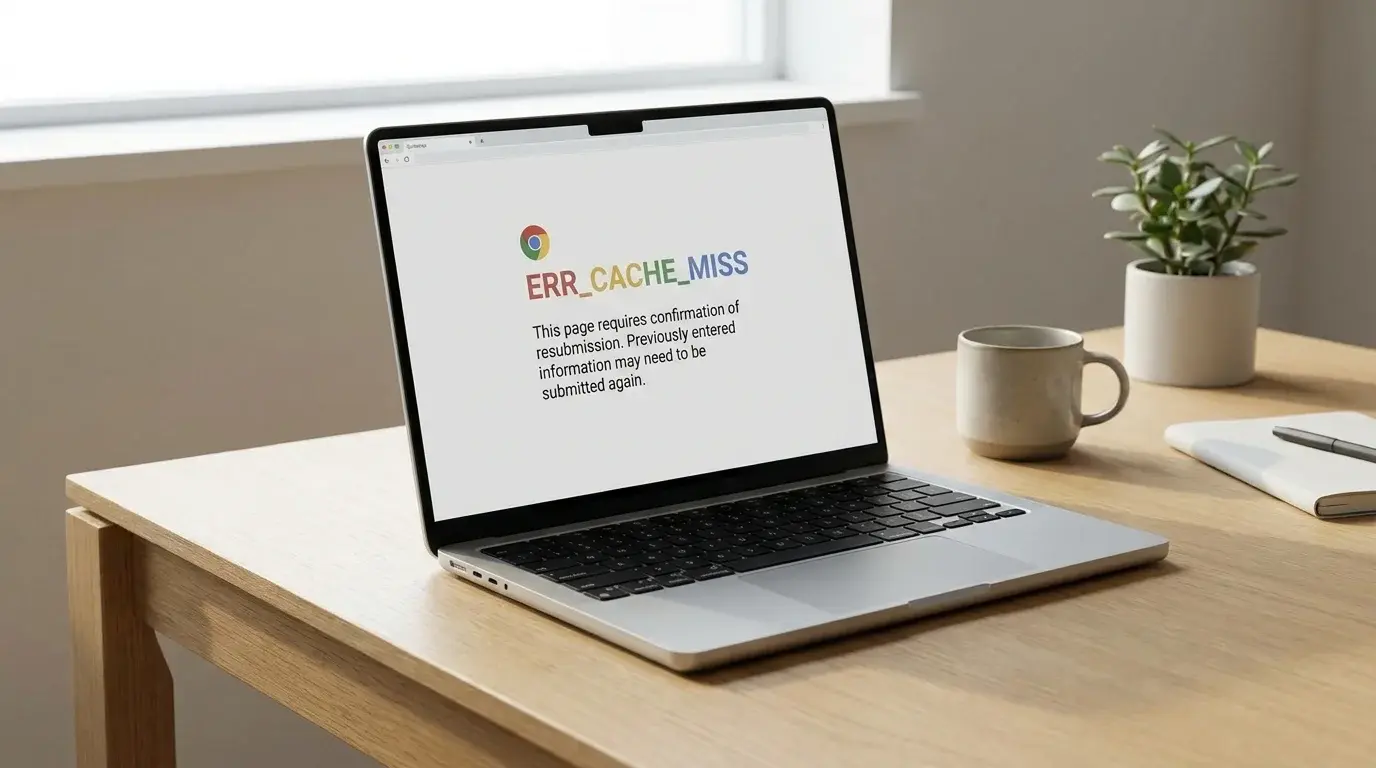
Laptop displaying a Chrome-style ERR_CACHE_MISS error message during browser troubleshooting
Table of Contents (18 sections)
- Quick diagnostic matrix
- What does ERRCACHEMISS actually mean?
- 1. Verify whether your form submission already succeeded
- 2. Reload the page carefully
- 3. Check whether other websites load normally
- 4. Test the page in an Incognito window
- 5. Check browser extensions one by one
- 6. Clear browsing data selectively
- 7. Update and restart Google Chrome
- 8. When the error is isolated to a single website
- 9. When to stop troubleshooting
- Frequently asked questions
- Does ERRCACHEMISS mean my browser cache is full?
- Is it safe to click "Confirm Form Resubmission"?
- Will clearing the Chrome cache always fix ERRCACHEMISS?
- Why does ERRCACHEMISS occur only when clicking the Back button?
- Should I reset Chrome to fix this error?
- Summary checklist
The ERR_CACHE_MISS error message in Google Chrome indicates that the webpage requires information entered previously to be submitted again. Unlike socket-level connection errors, Google categorizes ERR_CACHE_MISS primarily as a page-loading notification indicating that Chrome is attempting to access a cached copy of a POST request that is no longer retained in local memory.
This situation commonly occurs when clicking the back or forward button after submitting an online form, refreshing a dynamic search or order confirmation page, or navigating through multi-step checkout workflows. The appropriate remedy depends on whether the notice appears after a transaction or on an ordinary static page. Never repeatedly resubmit high-stakes forms (such as financial transactions, flight bookings, or government submissions) without first verifying whether your initial submission went through.
Quick diagnostic matrix
| Finding or symptom | Most likely underlying condition | Recommended initial action |
|---|---|---|
| Error appears after submitting payment or form | Server processed initial request; cached POST data expired | Check email/bank confirmation before resubmitting; avoid duplicate clicks. |
| Error appears upon standard reload | Page was generated dynamically via HTTP POST | Navigate back to the source form rather than confirming a blind reload. |
| Page loads normally in Incognito mode | Conflicting browser extension or corrupted site cookie | Test extensions individually; clear cookies for that specific domain. |
| Error appears across multiple unrelated websites | General network connectivity issue or stale DNS cache | Follow our guide on how to fix ERR_CONNECTION_RESET in Chrome. |
| Browser interface sluggish or unresponsive | High memory pressure or corrupted profile state | Inspect task manager or see how to fix Chrome running slow. |
What does ERR_CACHE_MISS actually mean?
Despite the word "cache" in the error title, ERR_CACHE_MISS does not signify that your hard drive is out of storage space or that your browser cache is fundamentally broken.
In standard HTTP architecture, web browsers cache GET requests (such as images, CSS stylesheets, and static HTML files) so that pages load quickly on subsequent visits. However, HTTP POST requests (typically used for search queries, sign-ins, and form submissions) often carry sensitive or transactional payloads that web browsers intentionally refrain from caching indefinitely for privacy and security reasons.
When you reload a POST-generated page or click the browser's Back button to return to it, Chrome detects that the required response data is not in cache memory and prompts that the data must be resubmitted. If the underlying website does not implement Post/Redirect/Get (PRG) patterns, Chrome displays ERR_CACHE_MISS.
1. Verify whether your form submission already succeeded
If ERR_CACHE_MISS appears immediately after clicking a "Submit", "Pay Now", or "Confirm Order" button, treat the action with care:
- Check for confirmation emails or receipts: Open a separate tab or check your email account to see if an automated order acknowledgement or confirmation message was generated.
- Review your financial or account statements: For payment portals, inspect your online banking or transaction portal to determine whether a temporary authorization or completed charge was recorded.
- Inspect your user profile dashboard: Log in to the merchant or portal from a separate browser tab to check whether the new record, support ticket, or reservation is visible.
- If the transaction status is ambiguous: Contact the service provider's customer support team directly before attempting a duplicate submission.
A browser error badge does not mean the server rejected or failed to process the request. Resubmitting an unconfirmed financial form can inadvertently trigger duplicate authorizations.
2. Reload the page carefully
If the page is an ordinary informational page or search query that does not carry financial or account implications, proceed with a structured reload:
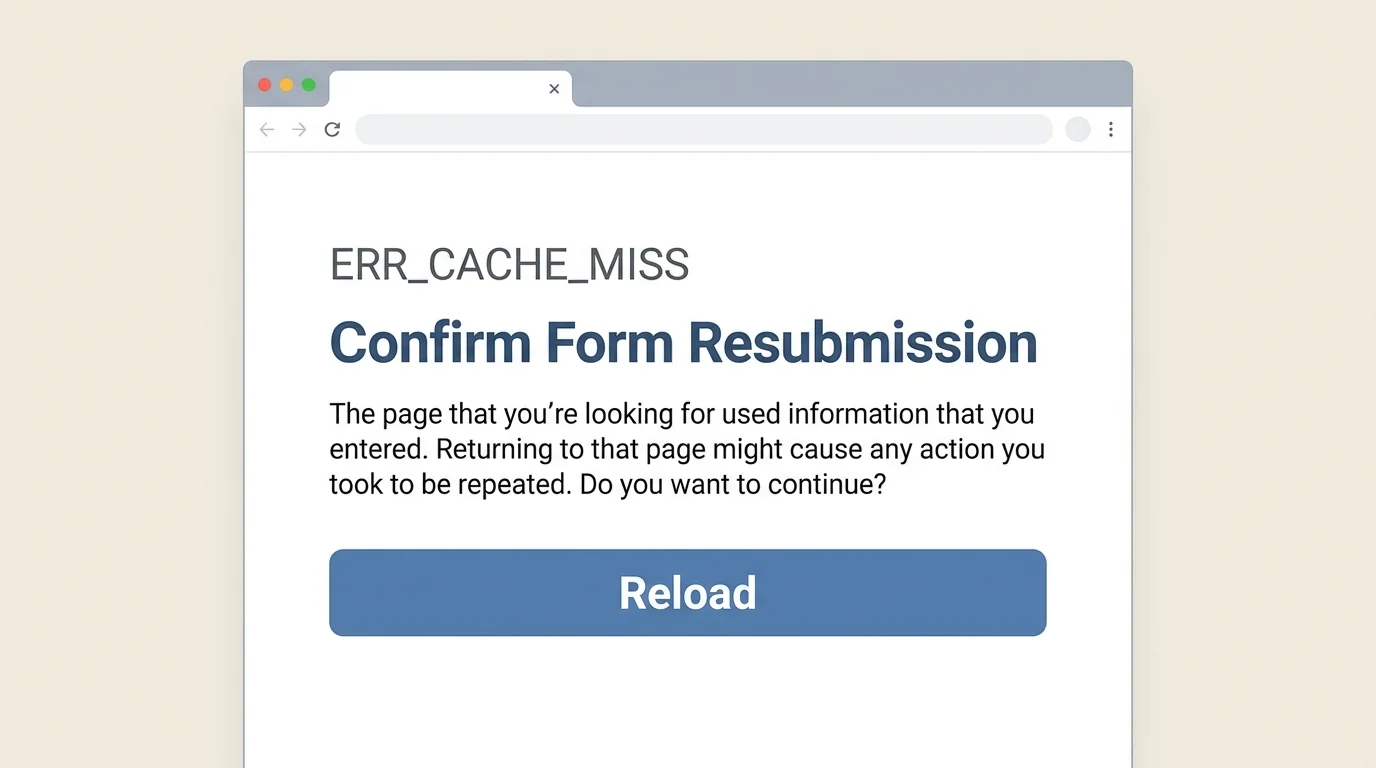
- Click the Reload icon beside the Omnibox address bar, or press Ctrl + R (Windows) or Command + R (Mac).
- If Chrome displays a dialogue box warning "Confirm Form Resubmission - The page that you're looking for used information that you entered", read the prompt carefully.
- If you are certain that resending the query is safe (such as refreshing a search filter), click Continue.
- If you are unsure, click Cancel, navigate back to the site's primary homepage, and reopen the form from its starting menu.
3. Check whether other websites load normally
To isolate whether the error is website-specific or system-wide, open two or three unrelated high-uptime domains (such as a search engine or news portal) in separate tabs:
- If all other websites load cleanly: The issue is isolated to the specific website's form handling, session architecture, or web server script.
- If multiple unrelated websites fail: Your local network equipment, DNS cache, or proxy configuration may be interrupting browser socket handshakes. Follow our comprehensive tutorial on how to fix ERR_CONNECTION_RESET in Chrome to troubleshoot local network adapters and flush DNS caches safely.
4. Test the page in an Incognito window
Testing in an Incognito window provides a clean diagnostic baseline by running Chrome without active third-party extensions and without using existing session cookies:
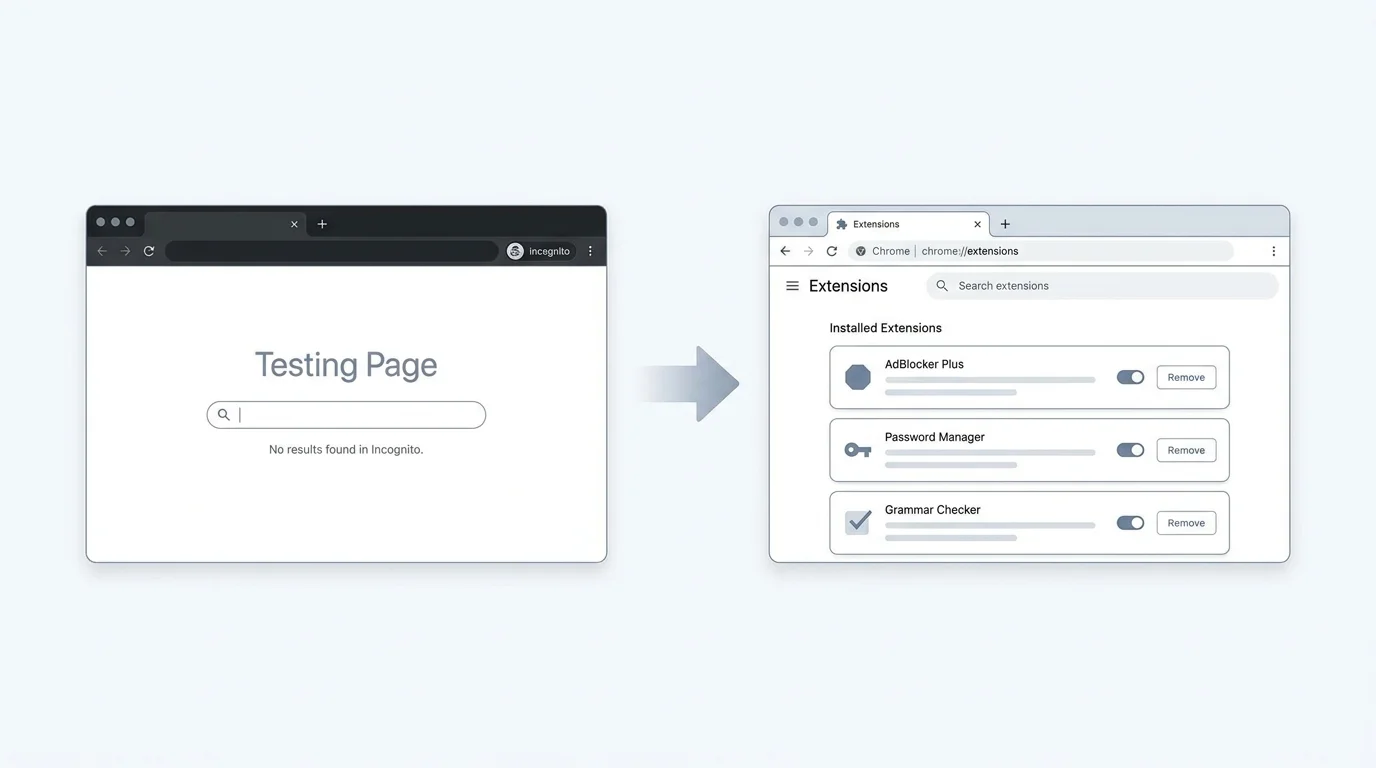
- Click the three-dot menu icon in the upper-right corner of Chrome and select New Incognito window (or press Ctrl + Shift + N on Windows, Command + Shift + N on Mac).
- Navigate directly to the affected webpage.
- If the page loads and submits without error in Incognito mode, the issue is likely caused by an interfering browser extension or stale session cookies in your primary profile.
- Keep in mind that Incognito mode is a diagnostic test rather than a permanent workaround, as it does not retain your signed-in account state.
5. Check browser extensions one by one
Browser extensions (specifically ad-blockers, script-blockers, password managers, and automated form fillers) can modify HTTP header payloads or strip POST tokens required by web servers:
- In your address bar, navigate to
chrome://extensions. - Toggle off all active extensions.
- Return to the affected website and attempt the submission again.
- If the page functions correctly, re-enable your extensions one at a time, testing between each activation, to isolate the conflicting add-on.
- If an extension consistently breaks web forms, review our guide on how to remove extensions from Chrome to uninstall it cleanly.
6. Clear browsing data selectively
If previous diagnostic steps suggest that corrupted session data or stale temporary files in your user profile are causing the conflict, clearing browsing data can help:
- Click Chrome's three-dot menu and select Clear browsing data (or press Ctrl + Shift + Delete on Windows, Command + Shift + Delete on Mac).
- Select the Advanced tab and choose a focused time range (such as "Last 24 hours" or "Last 7 days").
- Check Cached images and files to clear temporary visual resources without losing sign-ins.
- If the error persists on a site requiring authentication, check Cookies and other site data (note that this will sign you out of most active sessions). For dedicated instructions on clearing site-specific data, see our guides on how to clear cache in Chrome and how to delete cookies in Chrome.
- Never paste sensitive passwords, payment details, or authentication tokens into external troubleshooting tools or public forums.
7. Update and restart Google Chrome
Running an outdated browser build can cause protocol incompatibilities with modern web server security headers or HTTP/3 form handling:
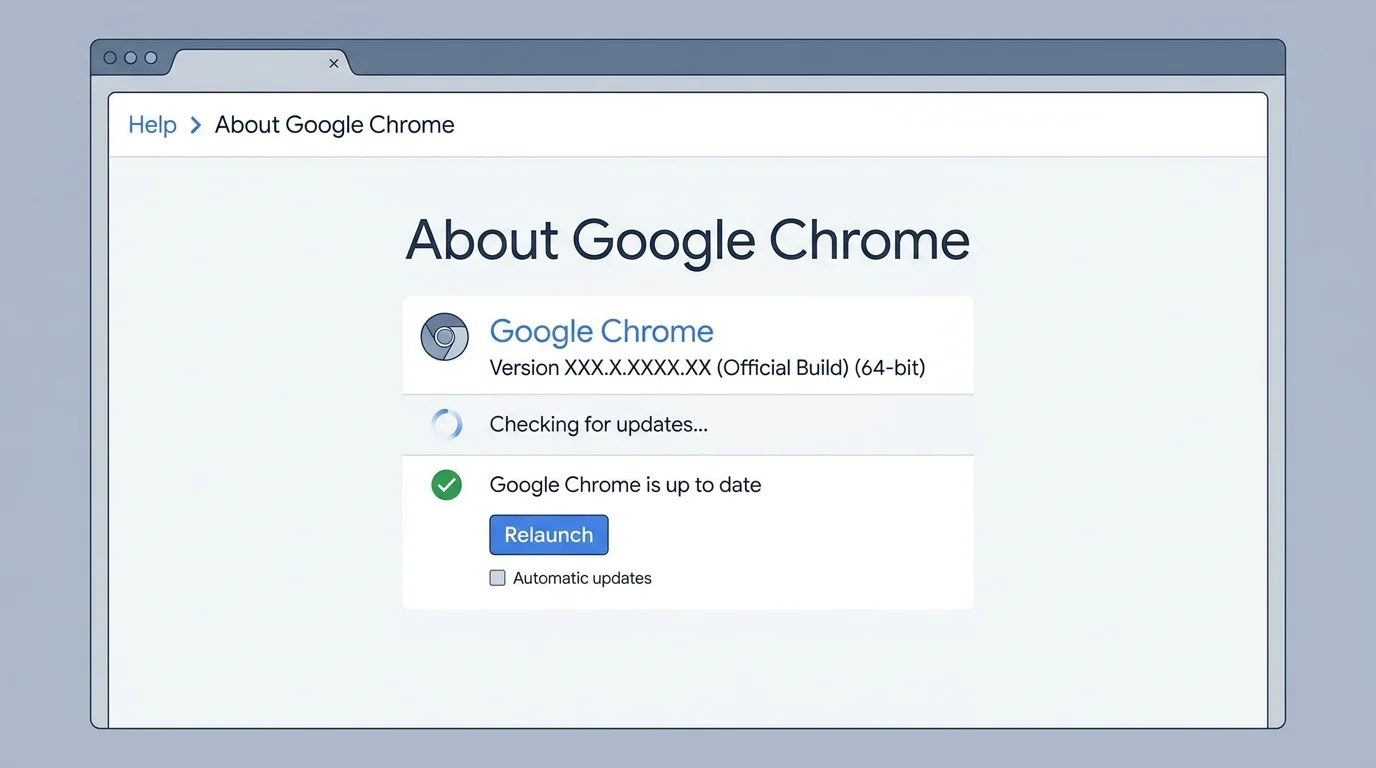
- Open Chrome's menu and select Help > About Google Chrome (or navigate to
chrome://settings/help). - Allow Chrome to check for pending updates and apply them automatically.
- Click Relaunch if an update was installed.
- On mobile devices, check the Google Play Store (Android) or Apple App Store (iOS) for pending updates.
For a comprehensive walkthrough on update channels across desktop and mobile devices, see our tutorial on how to update Google Chrome on desktop and mobile.
8. When the error is isolated to a single website
When all other online services function properly and ERR_CACHE_MISS recurs exclusively on one particular web application or checkout flow, the root cause resides within the website's software architecture:
- The server may be missing appropriate HTTP cache-control headers (
Cache-Control: no-store, must-revalidate). - The web developers may not have implemented the standard Post/Redirect/Get (PRG) pattern, causing back-button navigation to fail.
- Session timeout thresholds on the server may be dropping client state prematurely.
If you encounter this issue on an essential website, contact the site administrator or support department. Detail the exact URL, the browser version, and the sequence of steps that triggered the error. Never send sensitive credentials or full credit card numbers in support tickets.
9. When to stop troubleshooting
If basic reload, Incognito testing, extension disabling, and cache clearing do not resolve the error on a specific site:
- Do not edit the Windows Registry: Registry tweaks cannot resolve web application form handling errors.
- Do not delete Chrome internal profile folders: Erasing arbitrary user folders risks deleting local bookmarks, saved passwords, and history.
- Do not disable your antivirus or firewall permanently: Security suites are rarely the cause of form resubmission notices, and disabling them exposes your computer to malware.
- Do not install third-party "PC cleaner" or "browser repair" utilities: These programs frequently bundle unwanted software and do not fix HTTP POST protocol behaviors.
If your browser demonstrates broader dysfunction across all sites (such as failing to remember preferences or crashing on launch), you can reset Chrome preferences to their defaults by following our guide on how to reset Chrome settings to default.
Frequently asked questions
Does ERR_CACHE_MISS mean my browser cache is full?
No. ERR_CACHE_MISS does not indicate that Chrome has exceeded its storage quota. Google defines this error code as a notification that a webpage requires information entered earlier to be resubmitted because the temporary response to a previous form submission is no longer retained in cache memory.
Is it safe to click "Confirm Form Resubmission"?
It depends on the purpose of the form. If you are refreshing a search filter, catalogue query, or public directory, confirming form resubmission is safe. However, on payment gateways, checkout forms, or booking reservations, resubmitting can produce duplicate orders or multiple charges. Always verify your bank or account history before confirming resubmission on transactional pages.
Will clearing the Chrome cache always fix ERR_CACHE_MISS?
No. While clearing browsing data can resolve corrupted local session artifacts, it is not a guaranteed remedy. If the error stems from an expired server-side token or website code that fails to handle back-button navigation properly, clearing your local cache will not prevent the error from returning.
Why does ERR_CACHE_MISS occur only when clicking the Back button?
When you submit a form via an HTTP POST request, the web server responds with the next page. If you subsequently click the Back button, Chrome attempts to reload the previous POST response. Because Chrome does not store sensitive POST payloads in permanent cache, it issues ERR_CACHE_MISS to alert you that the form data must be retransmitted.
Should I reset Chrome to fix this error?
Resetting Chrome is not recommended as an initial troubleshooting step for form resubmission messages. Start with simple verification checks, Incognito testing, and extension auditing. Only consider a settings reset if Chrome displays persistent errors across all websites and fails to retain basic configuration settings.
Summary checklist
- Check your email and account statements before re-submitting payment forms.
- Reload the page carefully, paying close attention to any "Confirm Form Resubmission" prompts.
- Test other websites to verify whether your internet connection is operating normally.
- Open an Incognito window to determine whether an extension or cookie is interfering.
- Temporarily disable third-party extensions in
chrome://extensionsto isolate add-on conflicts. - Clear cached files and cookies selectively rather than wiping all browser history.
- Ensure Google Chrome is updated to the latest stable release.
- Avoid invasive measures such as Windows Registry edits or downloading third-party cleanup software.
Verified Primary Sources & Citations
NextTechExplained verifies facts against official documentation, engineering whitepapers, and regulatory filings.
- Google Chrome Help: Get help with common error messages in ChromeView Official Source
- Google Chrome Help: Fix connection and loading errors in ChromeView Official Source
- Google Chrome Help: Delete browsing data in ChromeView Official Source
- Google Chrome Help: Browse in Incognito modeView Official Source
- Google Chrome Help: Update Google ChromeView Official Source
Published by NextTechExplained
Editorial Team • Institutional Publication Byline
Articles published under this byline are prepared through rigorous research and verified against official engineering specifications, standards documentation, and primary sources. Learn more about our process on our About page and Editorial Policy.
Related Explanations & Guides
How to Fix Chrome Downloads Not Working on Windows and Mac
Fix Chrome downloads that fail, get stuck at 100%, or trigger security blocks with step-by-step troubleshooting for network, storage, permissions, and Safe Browsing.
How to Fix Chrome Not Opening or Crashing on Windows and Mac
Fix Chrome when it will not open, freezes, or keeps crashing. Try safe restart, process, extension, update, and hardware acceleration checks first.

How to Fix Google Chrome Running Slow on Windows and Mac
Speed up a slow Chrome browser by checking tabs, extensions, memory usage, updates, and Performance settings on Windows and Mac without deleting important data unnecessarily.