
How to Block Pop-Ups in Chrome on Desktop and Mobile
Stop unwanted pop-ups and redirects in Google Chrome on Windows, Mac, Android, and iPhone. Learn how to configure site exceptions and stop persistent ads.
Editorial Team
Laptop showing a Chrome-style pop-up and redirect settings panel
Table of Contents (25 sections)
- Quick reference: where to find pop-up controls
- Block pop-ups in Chrome on Windows, Mac, or Chromebook
- Set default pop-up blocking for all websites
- Block pop-ups on a specific website
- Allow pop-ups for a trusted website
- Block pop-ups in Chrome on Android
- Enable pop-up blocking on Android
- Allow pop-ups on trusted Android pages
- Block pop-ups in Chrome on iPhone and iPad
- Enable pop-up blocking on iOS
- Allow pop-ups on iOS for trusted sites
- Pop-ups vs. notifications vs. ads: what is appearing?
- Why pop-ups continue to appear and how to stop them
- 1. Close deceptive virus warnings immediately
- 2. Audit and remove suspicious Chrome extensions
- 3. Clear cached data and site cookies
- 4. Reset Chrome settings to default
- 5. Keep Google Chrome updated
- Frequently asked questions
- Does Chrome block pop-ups by default?
- Can I allow pop-ups for one website while blocking all others?
- Does blocking pop-ups also block website notifications?
- Why do some pop-ups still get through the blocker?
- Is it safe to allow pop-ups for my bank or school portal?
- Summary checklist
Pop-up windows and automated redirects can interrupt your browsing session, hijack your active tab, or attempt to steer you toward deceptive marketing offers. By default, Google Chrome automatically blocks pop-ups from opening on websites. However, you can verify your configuration, adjust default blocking behavior, create exceptions for trusted portals, or block specific domains that bypass ordinary controls.
Because desktop, Android, and iOS releases of Chrome use distinct interface layouts, the exact setting paths differ across devices. Official guidance from Google Chrome Help (opens in new tab) details these device-specific options.
This guide walks you through blocking pop-ups and redirects on Windows, macOS, Android, and iPhone or iPad, allowing legitimate pop-up windows when required, and identifying what to do when unwanted windows continue to surface.
Quick reference: where to find pop-up controls
| Device / Operating System | Settings path | Action required |
|---|---|---|
| Windows & macOS (Desktop) | Settings > Privacy and security > Site settings > Pop-ups and redirects | Select Don't allow sites to send pop-ups or use redirects |
| Android Phone / Tablet | Settings > Site settings > Pop-ups and redirects | Toggle the switch Off (gray) to block pop-ups |
| iPhone & iPad (iOS) | Settings > Content Settings > Block Pop-ups | Toggle the switch On (blue) to block pop-ups |
| Persistent Alerts / Push Prompts | Settings > Privacy and security > Site settings > Notifications | Revoke site notification permission (see how to turn off notifications in Chrome) |
If you are experiencing issues on a single website, managing site-specific permissions is generally safer than altering browser-wide security defaults.
Block pop-ups in Chrome on Windows, Mac, or Chromebook
Desktop versions of Chrome provide centralized controls over both pop-ups and automated URL redirects.
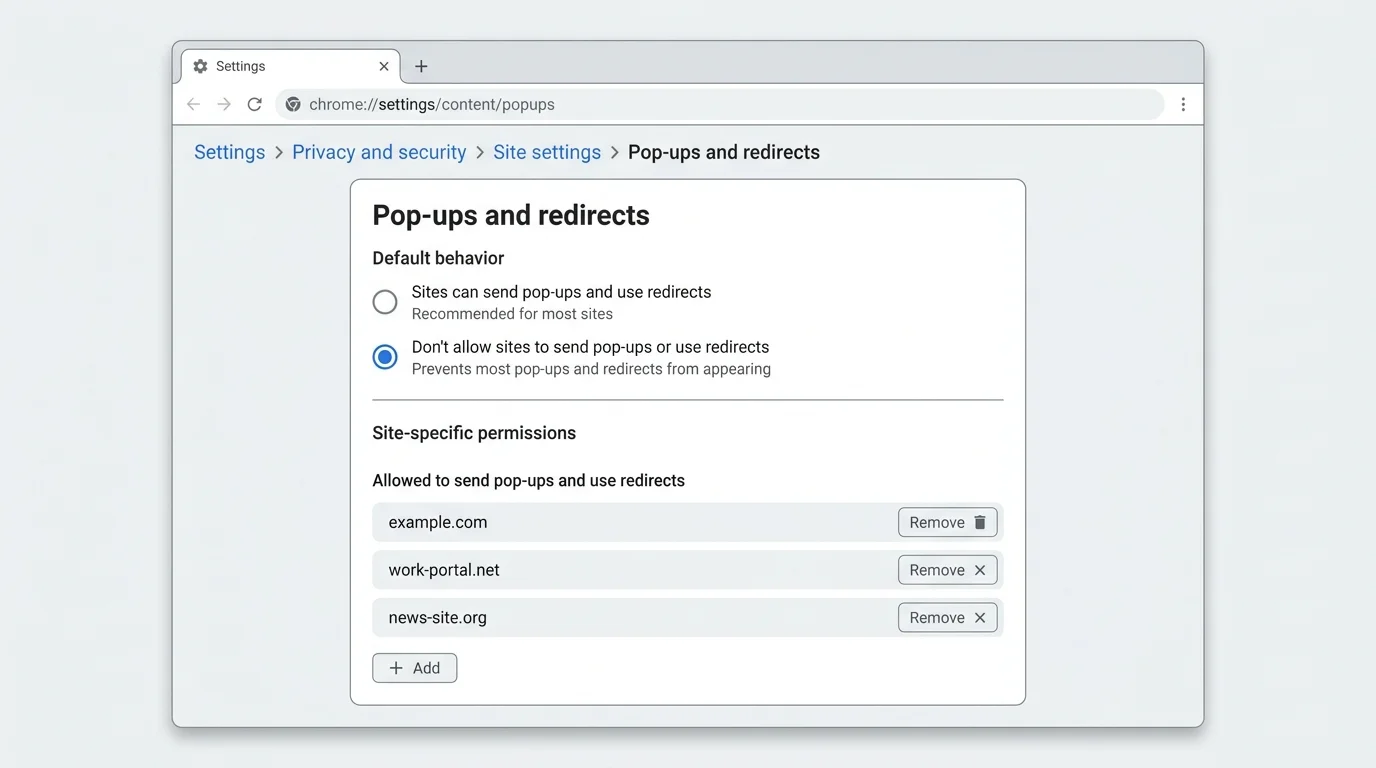
Set default pop-up blocking for all websites
- Open Google Chrome on your computer.
- Click the three-dot More menu in the top-right corner and select Settings (or type
chrome://settings/content/popupsdirectly into the address bar and press Enter). - In the left navigation sidebar, click Privacy and security.
- Click Site settings.
- Scroll down to the Content section and click Pop-ups and redirects.
- Under Default behavior, select Don't allow sites to send pop-ups or use redirects.
Selecting this option instructs Chrome to automatically suppress newly spawned child windows and automated URL redirections across the web.
Block pop-ups on a specific website
If you have allowed pop-ups globally or want to restrict a specific domain that frequently attempts to spawn windows:
- In the Pop-ups and redirects settings page (
chrome://settings/content/popups), locate the Customized behaviors section. - Next to Not allowed to send pop-ups or use redirects, click Add.
- Enter the exact website address (for example,
[*.]example.com) and click Add.
Alternatively, while viewing the problematic website:
- Click the View site information icon (the tune/padlock icon) immediately to the left of the URL in the omnibox.
- Click Site settings.
- Locate Pop-ups and redirects in the permissions list and change its value from Allow to Block.
Allow pop-ups for a trusted website
Certain legitimate portals (including banking interfaces, university portals, tax filing tools, and payment gateways) rely on pop-up windows to display receipts, secondary authentication prompts, or downloaded statements.
When Chrome blocks a pop-up window from opening:
- Look at the right edge of the address bar for the Pop-up blocked icon (a browser window icon with a red symbol).
- Click the icon to see a list of blocked pop-up URLs.
- Select Always allow pop-ups and redirects from [website], then click Done.
- Refresh the webpage to trigger the window again.
To keep your browser secure, never choose "Sites can send pop-ups and use redirects" as your global default just to accommodate one site. Use per-site exceptions instead.
Block pop-ups in Chrome on Android
The Android edition of Google Chrome provides built-in pop-up and redirect suppression through its mobile Site settings menu.
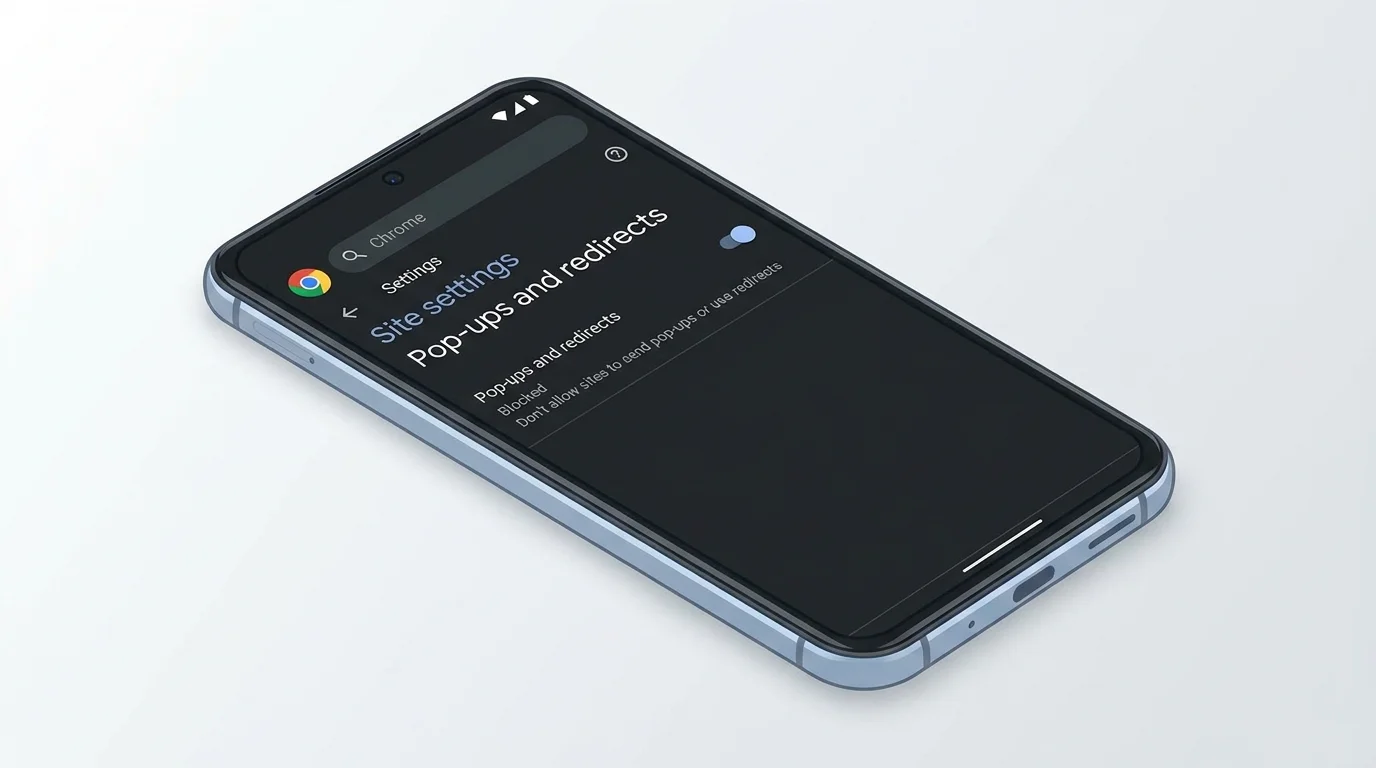
Enable pop-up blocking on Android
- Open the Chrome app on your Android smartphone or tablet.
- Tap the three-dot More menu adjacent to the address bar.
- Tap Settings.
- Under the Advanced section, tap Site settings.
- Tap Pop-ups and redirects.
- Ensure the toggle switch is turned Off (the status label will read Block sites from showing pop-ups and redirects (recommended)).
Allow pop-ups on trusted Android pages
If a legitimate mobile site attempts to open a document or payment dialog:
- Look for a banner at the bottom of the screen reading Pop-ups blocked.
- Tap Always show if you recognize and trust the destination.
- The selected page will display its intended window without modifying your global blocking rule for other sites.
Block pop-ups in Chrome on iPhone and iPad
On iOS and iPadOS, Chrome utilizes Apple's WebKit rendering engine and structures its menus under a dedicated Content Settings panel.
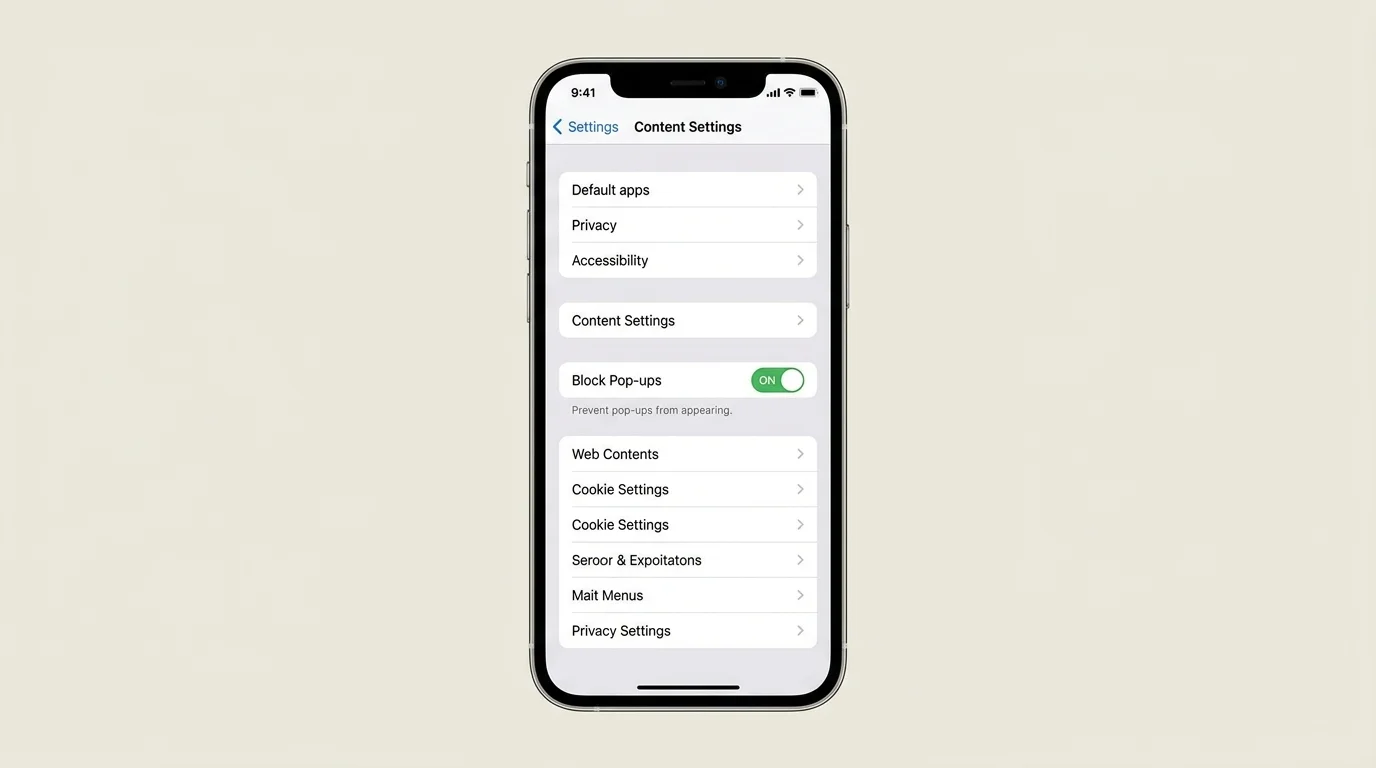
Enable pop-up blocking on iOS
- Open the Chrome app on your iPhone or iPad.
- Tap the three-dot More icon (located in the bottom-right corner on iPhone or top-right on iPad).
- Swipe across the top row if necessary and tap Settings.
- Tap Content Settings.
- Tap Block Pop-ups.
- Turn the Block Pop-ups switch On (the switch will turn blue).
Allow pop-ups on iOS for trusted sites
When Chrome blocks a pop-up on an iPhone or iPad, a banner labeled Pop-ups blocked appears near the bottom or top of your screen. Tap Always show to grant a temporary exception for that specific session.
Pop-ups vs. notifications vs. ads: what is appearing?
If unwanted windows or alerts persist after you have enabled pop-up blocking, you may be encountering a different mechanism.
| Symptom | Underlying mechanism | How to resolve it |
|---|---|---|
| A secondary window or tab opens when clicking | Pop-up or redirect | Verify Chrome's Pop-ups and redirects setting is set to blocked. |
| A rectangular banner appears outside Chrome with system sounds | Web Push Notification | Open chrome://settings/content/notifications and revoke site permissions. See our guide on how to turn off notifications in Chrome. |
| Static or video ads appear inside page paragraphs | In-page display ad | Standard advertising embedded in the site's layout. Chrome filters intrusive ads complying with Better Ads Standards. |
| Browser opens unfamiliar search engines or ads on launch | Unwanted extension or malware | Follow our guide to remove unwanted extensions from Chrome or perform a browser settings reset. |
Why pop-ups continue to appear and how to stop them
If pop-ups, redirects, or new tabs keep appearing despite strict settings, review the following troubleshooting steps:
1. Close deceptive virus warnings immediately
A common scam technique involves displaying a full-screen pop-up or redirect claiming that your computer or smartphone is infected with viruses, demanding that you call a phone number or install security software.
- Never call the phone number displayed. Legitimate operating system security tools (such as Windows Defender or Apple XProtect) do not display browser pop-ups asking you to call a toll-free number.
- Do not download software from the prompt.
- Close the tab immediately. On desktop, press
Ctrl + W(Windows) orCmd + W(Mac). If the page prevents tab closure with a dialog loop, open Chrome's Task Manager (Shift + Esc) or use Windows Task Manager / macOS Activity Monitor to terminate the specific tab process.
2. Audit and remove suspicious Chrome extensions
Malicious or abandoned browser extensions frequently inject code that spawns pop-up windows and redirects web searches to affiliate landing pages (for full step-by-step instructions, see our dedicated guide on how to remove extensions from Chrome).
- In Chrome's address bar, navigate to
chrome://extensions. - Review every installed extension.
- If you see an extension you did not install or no longer need, click Remove.
- If an extension is managed by an administrator on a corporate or school device, contact your organization's IT department to request its removal.
3. Clear cached data and site cookies
Corrupted cache files or tracking scripts stored in your browser can cause persistent redirect loops.
- Remove temporary script data by following our step-by-step tutorial on how to clear cache in Chrome.
- Reset site-specific storage tokens using our walkthrough on how to delete cookies in Chrome.
- Remove visited redirect URLs from your record using our guide on how to delete browsing history in Chrome.
4. Reset Chrome settings to default
If rogue pop-ups or unexpected homepages persist on desktop, reset Chrome to its original installation profile:
- Open Chrome Settings and navigate to Reset settings (
chrome://settings/reset). - Click Restore settings to their original defaults.
- Click Reset settings.
This action resets your startup page, new tab page, search engine, and pinned tabs, while disabling all extensions and clearing temporary site cookies. Your bookmarks, saved passwords, and browsing history will remain intact.
5. Keep Google Chrome updated
Google regularly releases security patches that patch zero-day vulnerabilities in the V8 JavaScript engine and tighten pop-up suppression rules. Check our guide on how to update Google Chrome on desktop and mobile to verify you are running the latest stable release.
Frequently asked questions
Does Chrome block pop-ups by default?
Yes. In standard out-of-the-box configurations across desktop, Android, and iOS, Chrome is configured to block pop-ups and automated redirects automatically.
Can I allow pop-ups for one website while blocking all others?
Yes. On desktop, navigate to chrome://settings/content/popups and add the specific domain under Allowed to send pop-ups and use redirects, or click the Pop-up blocked icon in the address bar when visiting the site. On Android and iOS, tap Always show when the pop-up blocked prompt appears on a trusted site.
Does blocking pop-ups also block website notifications?
No. Pop-up windows and web push notifications are controlled by two separate permission systems in Chrome. Pop-ups open secondary browser windows or tabs, while notifications appear as system-level alert cards outside the browser window.
Why do some pop-ups still get through the blocker?
Some websites use in-page modal dialogs (HTML overlays) or trigger new tabs through explicit user clicks. Because these interactions appear to stem from direct user intent, the browser's automated filter may not classify them as unprompted pop-ups. In addition, compromised extensions can bypass standard blocking rules.
Is it safe to allow pop-ups for my bank or school portal?
Yes, as long as you have verified that you are on the authentic domain. Many financial and academic institutions use pop-up windows to display PDF statements, tax forms, or multi-factor authentication dialogs. Always grant exceptions per-site rather than disabling the pop-up blocker globally.
Summary checklist
- Keep Chrome's global pop-up blocker set to Don't allow sites to send pop-ups or use redirects on desktop.
- On Android, ensure Pop-ups and redirects is toggled off in Site settings.
- On iPhone and iPad, confirm Block Pop-ups is toggled on in Content Settings.
- Grant site-specific exceptions only to verified, trusted portals.
- Treat full-screen virus warnings or tech-support phone numbers as scams and close the tab immediately.
- Regularly audit installed extensions and maintain the latest version of Chrome.
Verified Primary Sources & Citations
NextTechExplained verifies facts against official documentation, engineering whitepapers, and regulatory filings.
- Google Chrome Help: Block or allow pop-ups in Chrome - ComputerView Official Source
- Google Chrome Help: Block or allow pop-ups in Chrome - AndroidView Official Source
- Google Chrome Help: Block or allow pop-ups in Chrome - iPhone and iPadView Official Source
- Google Chrome Help: Remove unwanted ads, pop-ups and malwareView Official Source
- Google Chrome Help: Use notifications to get alerts in ChromeView Official Source
- Google Chrome Help: Visit a site by turning off Chrome's ad blockerView Official Source
Published by NextTechExplained
Editorial Team • Institutional Publication Byline
Articles published under this byline are prepared through rigorous research and verified against official engineering specifications, standards documentation, and primary sources. Learn more about our process on our About page and Editorial Policy.
Related Explanations & Guides
How to Delete Browsing History in Chrome on Desktop and Mobile
Delete all Chrome browsing history or remove selected websites on Windows, Mac, Android, and iPhone. Learn what history deletion removes and what it does not.
How to Turn Off Notifications in Chrome on Desktop and Mobile
Stop unwanted Chrome notifications by blocking all sites or one website on Windows, Mac, Android, and iPhone. Learn the difference between notifications and pop-ups.
How to Delete Cookies in Chrome on Desktop and Mobile
Learn how to delete all cookies in Chrome or remove data for one website on Windows, Mac, Android, and iPhone without clearing more browsing data than you intend.