
How to Reset Chrome Settings to Default
Restore Chrome's original desktop settings to troubleshoot unwanted changes, search redirects, startup pages, or extension problems without deleting saved bookmarks and passwords.
Editorial Team
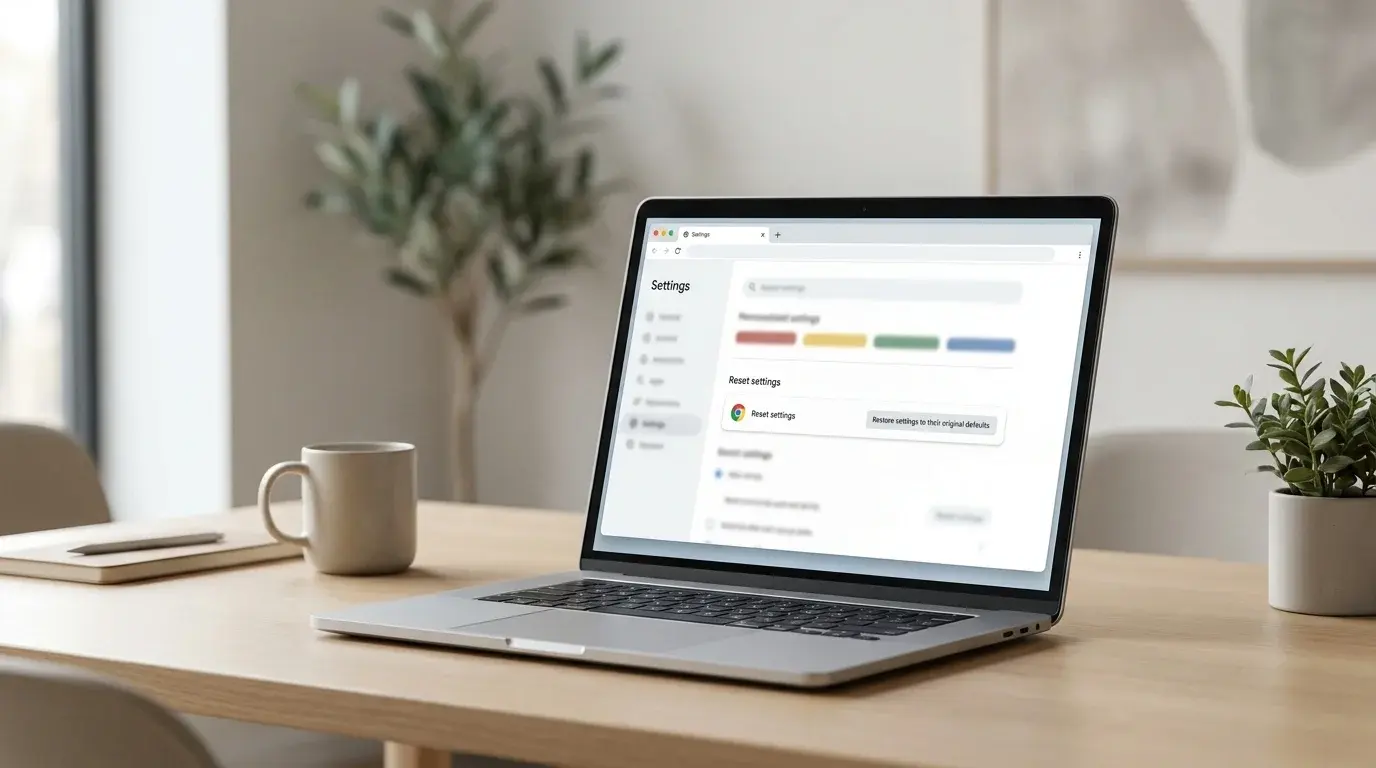
Laptop showing a Chrome-inspired settings screen for restoring browser settings to their defaults
Table of Contents (18 sections)
- Before you reset Chrome
- How to reset Chrome settings on a computer
- What changes when you reset Chrome?
- What stays saved and is NOT deleted
- What to do after resetting Chrome
- Troubleshooting: Chrome keeps changing settings after the reset
- 1. Check for companion desktop software
- 2. Inspect enterprise management policies
- 3. Clear cached files and cookies
- 4. Keep Google Chrome up to date
- What if the Reset settings option is missing or fails to open?
- Can you reset Chrome settings on Android or iPhone?
- Frequently asked questions
- Does resetting Chrome delete my bookmarks?
- Will resetting Chrome log me out of websites?
- Why did all my extensions disappear?
- Does a reset remove computer viruses?
- Summary checklist
If Chrome's homepage changed unexpectedly, unfamiliar extensions are altering webpage layouts, or every search query redirects to an unknown search engine, restoring Chrome's original settings is one of the most effective troubleshooting steps available. The reset tool returns core browser settings to their clean, default configurations without forcing you to completely reinstall the browser or delete your profile.
Google's built-in reset feature is available on desktop versions of Chrome (Windows, macOS, Linux, and ChromeOS). It does not erase your saved bookmarks, passwords, or navigation history, but it does revert customization settings, disable extensions, and clear temporary site data.
This guide explains how to restore Chrome's default settings on desktop, details exactly what changes and what stays saved, and outlines what to do if unwanted redirects or settings persist after the reset.
Before you reset Chrome
A browser settings reset is appropriate when standard troubleshooting (such as toggling individual site permissions or clearing browser cache) has failed to resolve erratic behavior.
Before proceeding with a reset:
- Note any custom startup URLs or preferred search engines you want to configure again afterward.
- Review your active add-ons, because Chrome disables all extensions during the reset process (for uninstalling tools permanently, see our guide on how to remove extensions from Chrome).
- If your device is managed by an employer or school, check with your network administrator before attempting to troubleshoot policy-enforced settings.
- If search hijacking or persistent pop-ups return immediately after the reset, investigate installed desktop software. A settings reset modifies Chrome's profile files but cannot remove external background malware.
How to reset Chrome settings on a computer
These steps apply to Chrome on Windows, macOS, Linux, and ChromeOS.
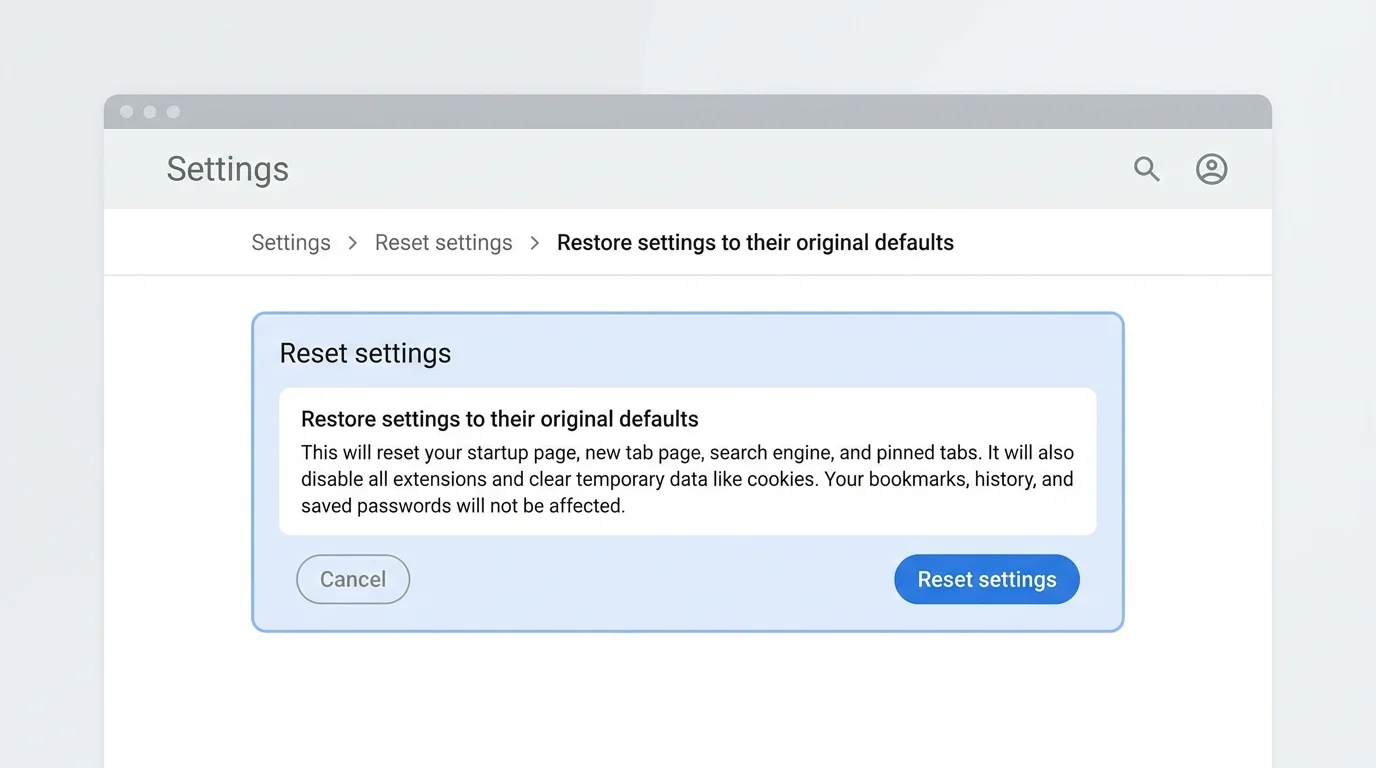
- Open Google Chrome on your computer.
- Click the three-dot More menu in the upper-right corner and select Settings (or type
chrome://settings/resetdirectly into the address bar and press Enter). - In the left navigation menu, click Reset settings.
- Click Restore settings to their original defaults.
- Read the confirmation dialog carefully.
- Click the blue Reset settings button.
- Restart Chrome and test the website or feature that previously failed.
Chrome will reset the active profile in a few seconds.
What changes when you reset Chrome?
Understanding which parameters revert to default helps prevent surprises after running the reset tool:
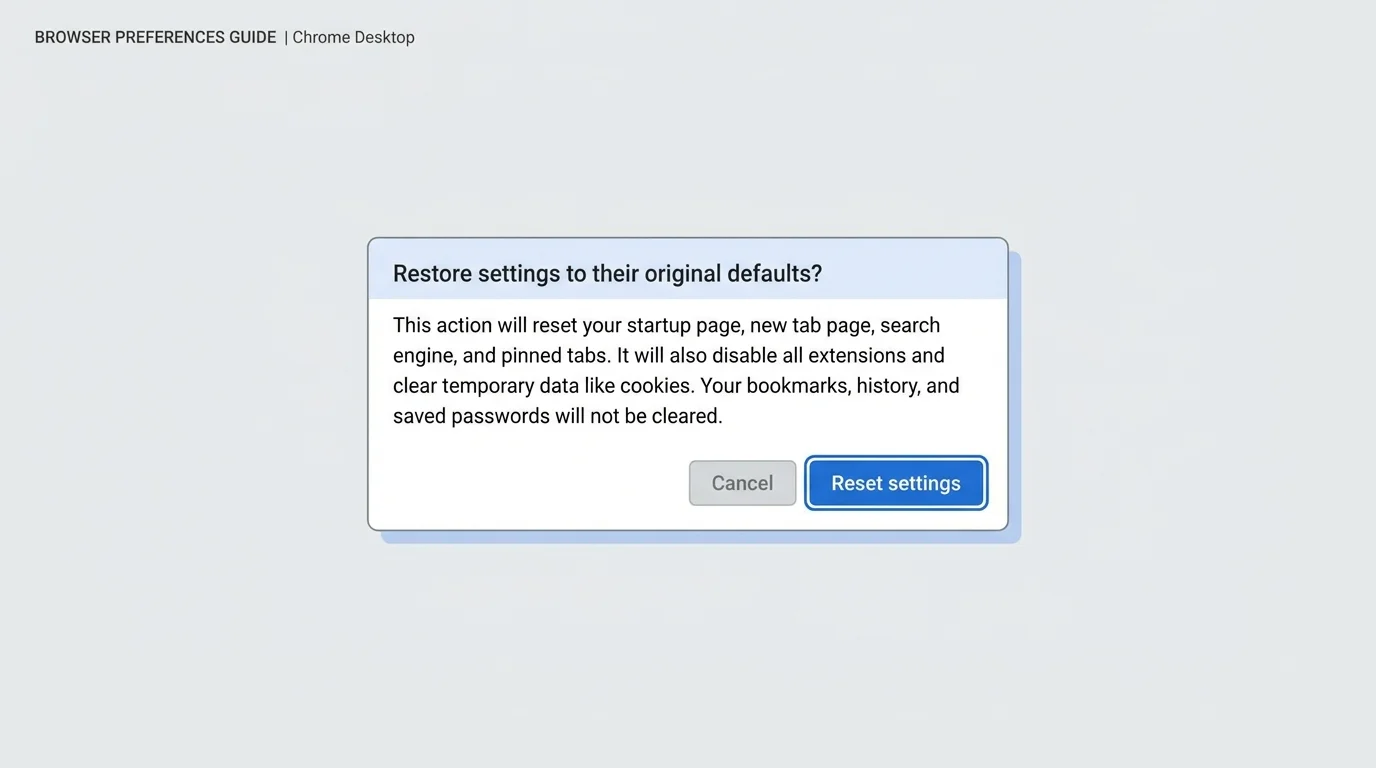
| Browser component | What happens during reset |
|---|---|
| Default search engine | Reverts to Google (or the default engine configured by your OS/region). |
| Homepage and startup pages | Custom startup tabs and home buttons are cleared; the New Tab page opens by default. |
| New Tab page | Cleared of third-party modifications and returns to standard layout. |
| Pinned tabs | All pinned tabs are unpinned and closed. |
| Content settings & permissions | Site permissions (such as microphone, camera, location, notifications, and pop-up exceptions) revert to default ask/block states. |
| Cookies and site data | Local site storage and session cookies are cleared, signing you out of web accounts. |
| Extensions and themes | All extensions and themes are disabled (turned off), but not uninstalled. |
What stays saved and is NOT deleted
Resetting Chrome settings is significantly different from deleting your browser profile or reinstalling the browser. According to Google's official documentation, the reset does not delete or alter:
- Bookmarks: All saved bookmarks, folders, and reading list entries remain completely intact.
- Saved passwords: Passwords stored in Google Password Manager are never deleted or modified.
- Browsing history: Visited website history is preserved (to clear history manually, see our walkthrough on how to delete browsing history in Chrome).
- Downloaded files: Files saved to your computer are untouched.
- Fonts & accessibility settings: Display zoom levels, font selections, and accessibility adaptations remain configured.
What to do after resetting Chrome
After running the reset, take a structured approach to restoring your everyday workflow rather than re-enabling everything at once:
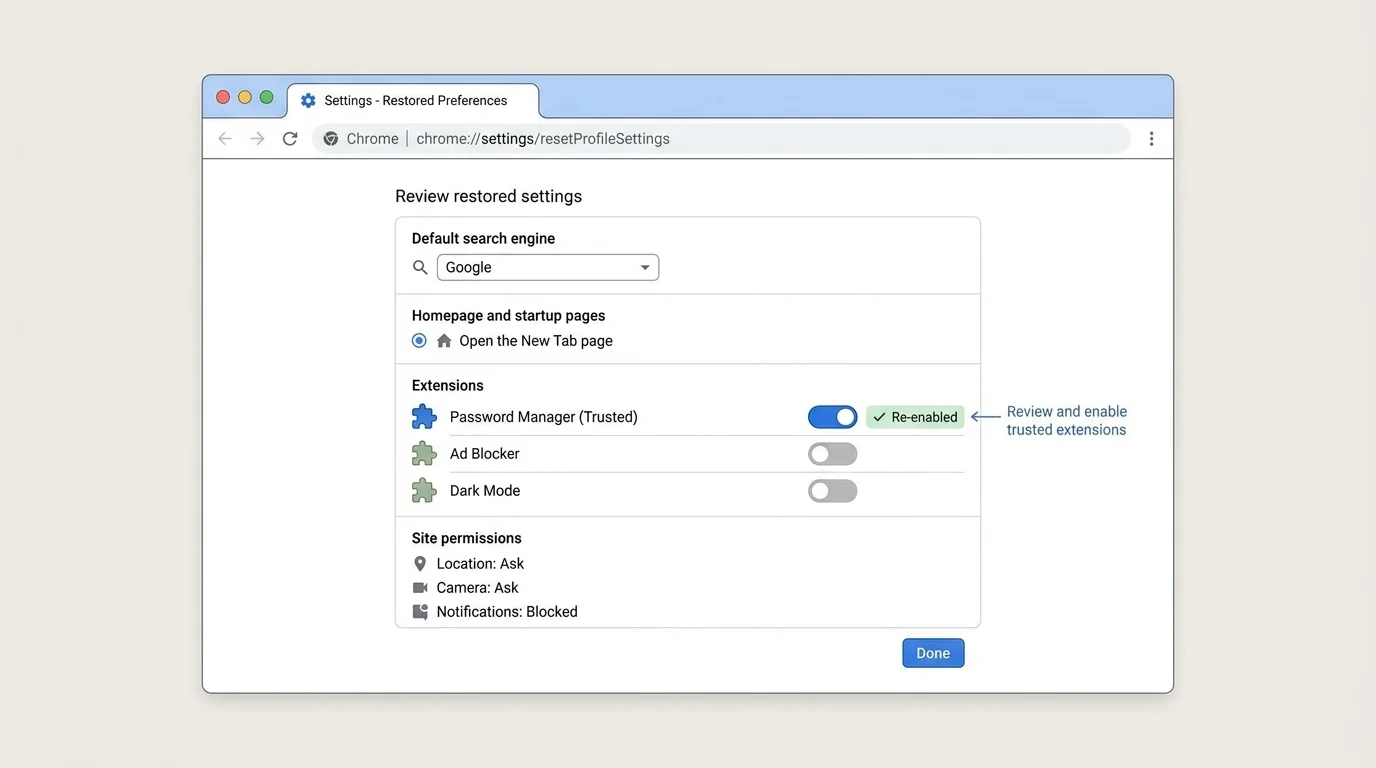
- Test the original problem first: Before re-enabling any add-ons, visit the website that was previously malfunctioning or perform a web search to confirm normal operation.
- Re-enable trusted extensions one by one: Open
chrome://extensionsand turn on only the extensions you recognize and need. If the problem returns immediately after enabling a specific tool, uninstall that extension. - Configure your preferred search engine: Navigate to
chrome://settings/searchand set your preferred default provider. - Re-establish startup preferences: Under
chrome://settings/onStartup, choose whether you want Chrome to open the New Tab page, continue where you left off, or open specific URLs. - Re-grant necessary site permissions: When visiting trusted web portals that require camera or pop-up access, follow our guide on how to block pop-ups in Chrome to grant granular per-site permissions.
Troubleshooting: Chrome keeps changing settings after the reset
If your search engine, homepage, or new tab page is hijacked again within minutes of completing a reset, the issue originates outside of Chrome's internal configuration:
1. Check for companion desktop software
Deceptive software downloaded from the internet often installs background system services or helper applications that continuously re-inject unwanted settings into Chrome profile directories.
- Windows: Open Settings > Apps > Installed apps, sort by install date, and uninstall any unfamiliar programs installed around the time the issue began.
- macOS: Open Finder > Applications, check the Library/LaunchAgents and Library/LaunchDaemons folders for unauthorized background plists, and remove unrecognized items.
2. Inspect enterprise management policies
On corporate, school, or compromised personal computers, management policies can lock browser settings:
- Open a new tab and navigate to
chrome://management. - Check if the page states that your browser is managed.
- Enter
chrome://policyto inspect the exact configuration keys applied to the browser. - If an unauthorized policy is active on a personal computer, you may need to clean malicious Windows Group Policy entries or remove unrecognized macOS device management profiles.
3. Clear cached files and cookies
If a specific website continues to behave abnormally despite default settings, clear cached resources that may contain outdated scripts. Follow our dedicated guide on how to clear cache in Chrome and how to delete cookies in Chrome.
4. Keep Google Chrome up to date
Browser bugs or outdated security binaries can prevent settings resets from applying properly. Follow our tutorial on how to update Google Chrome on desktop and mobile to ensure Chrome is running the latest stable build.
What if the Reset settings option is missing or fails to open?
If navigating to chrome://settings/reset displays a blank page or Chrome crashes immediately upon launch, you may be facing a stuck background process, extension conflict, or hardware acceleration failure. See our comprehensive guide on how to fix Chrome not opening or crashing on Windows and Mac.
- Restart your computer or end hung processes: A background Chrome process may be hung, holding a lock on the
Preferencesfile. - Launch in Safe/Guest mode: Test whether settings open when using a clean Guest profile.
- Reinstall Chrome: If core application binaries are corrupted, back up your profile data and download a fresh copy of Google Chrome directly from the official Google website.
Can you reset Chrome settings on Android or iPhone?
Google's Restore settings to their original defaults menu is exclusive to desktop computers. The mobile editions of Chrome on Android and iOS do not include a unified desktop-style reset button.
- On Android: You can reset individual website permissions via Chrome Settings > Site settings, or reset the app's local data via Android Settings > Apps > Chrome > Storage & cache > Clear storage. Be aware that clearing storage will remove local tabs and sign you out.
- On iPhone & iPad: Because iOS sandboxes application data, you can reset browsing data via Chrome Settings > Privacy and security > Delete Browsing Data, or uninstall and reinstall the Chrome app from the Apple App Store.
Frequently asked questions
Does resetting Chrome delete my bookmarks?
No. Google's reset routine explicitly preserves your bookmarks, reading list, and password manager data. Only temporary cookies, site permissions, and custom search/startup preferences are reset.
Will resetting Chrome log me out of websites?
Yes. Because the reset clears cookies and local site data, you will be signed out of active web sessions across all websites, including Google accounts. You will need to log back in.
Why did all my extensions disappear?
Your extensions have not been deleted; Chrome disables them during a reset to prevent misbehaving add-ons from interfering with browser recovery. Open chrome://extensions to re-enable your trusted extensions.
Does a reset remove computer viruses?
No. A settings reset only restores browser configuration files. If your operating system is infected with adware, a rootkit, or background hijacking software, you must run a reputable antivirus scan or remove the offending desktop program.
Summary checklist
- Use Settings > Reset settings > Restore settings to their original defaults on desktop Chrome.
- Bookmarks and saved passwords remain intact; cookies and site permissions reset.
- Extensions are turned off for safety and can be re-enabled at
chrome://extensions. - If unwanted homepages or search redirects return, audit recently installed desktop applications.
- Update Google Chrome regularly to protect against browser hijacking vulnerabilities.
Verified Primary Sources & Citations
NextTechExplained verifies facts against official documentation, engineering whitepapers, and regulatory filings.
- Google Chrome Help: Reset Chrome settings to defaultView Official Source
- Google Chrome Help: Remove unwanted ads, pop-ups, and malwareView Official Source
- Google Chrome Help: Install and manage Chrome extensionsView Official Source
- Google Chrome Help: Fix connection and loading errors in ChromeView Official Source
- Google Chrome Help: Change Chrome settingsView Official Source
Published by NextTechExplained
Editorial Team • Institutional Publication Byline
Articles published under this byline are prepared through rigorous research and verified against official engineering specifications, standards documentation, and primary sources. Learn more about our process on our About page and Editorial Policy.
Related Explanations & Guides
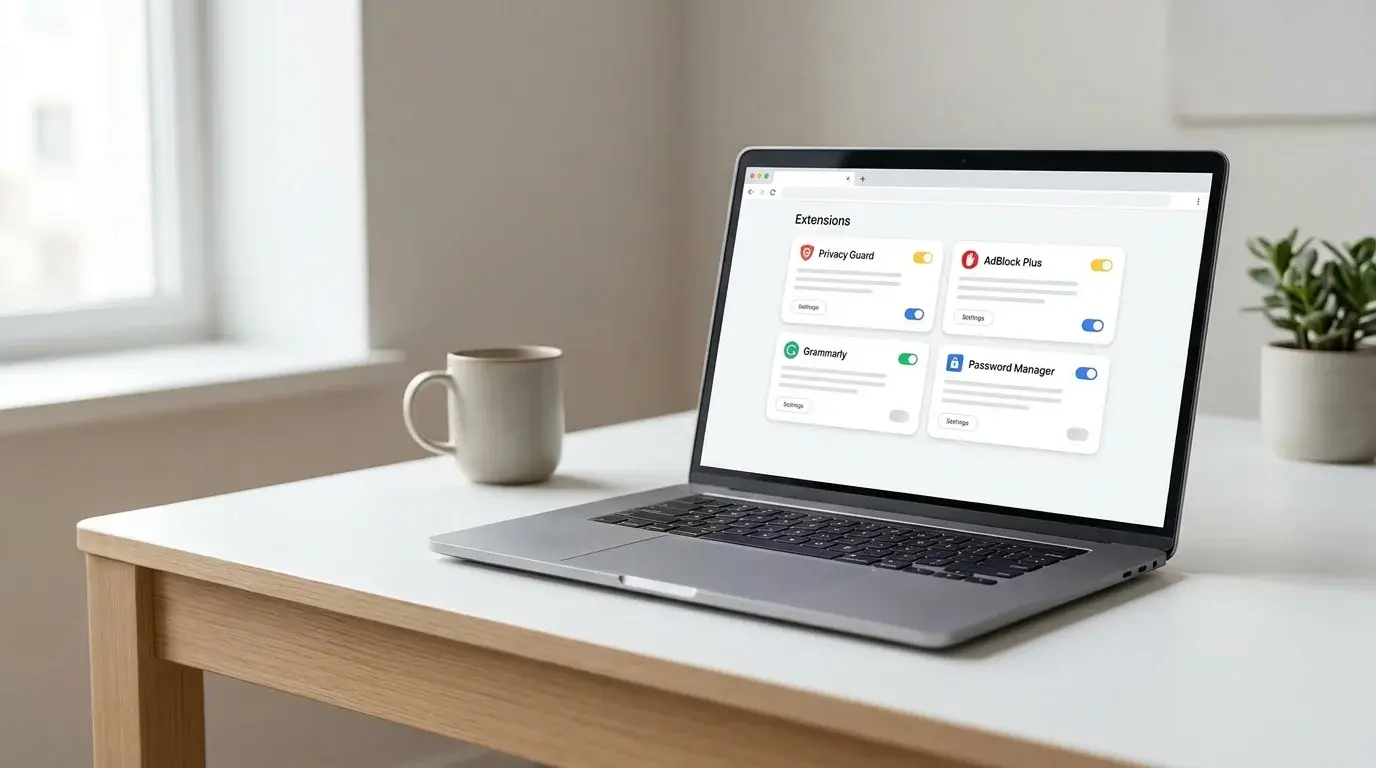
How to Remove Extensions from Chrome on Windows, Mac, and Linux
Remove unwanted Chrome extensions, disable one temporarily, and troubleshoot extensions that return or change browser settings on Windows, macOS, and Linux.
How to Fix Chrome Not Opening or Crashing on Windows and Mac
Fix Chrome when it will not open, freezes, or keeps crashing. Try safe restart, process, extension, update, and hardware acceleration checks first.
How to Fix Google Chrome Running Slow on Windows and Mac
Speed up a slow Chrome browser by checking tabs, extensions, memory usage, updates, and Performance settings on Windows and Mac without deleting important data unnecessarily.