
How to Fix Chrome Downloads Not Working on Windows and Mac
Fix Chrome downloads that fail, get stuck at 100%, or trigger security blocks with step-by-step troubleshooting for network, storage, permissions, and Safe Browsing.
Editorial Team
A laptop showing Chrome's downloads page while troubleshooting a file that will not download
Table of Contents (19 sections)
- Quick diagnostic matrix
- 1. Check the download status and exact error message
- 2. Check your internet connection and remote server availability
- 3. Resume the download or generate a fresh download request
- 4. Check available storage and verify the save location
- 5. Address folder permissions without compromising system security
- 6. Understand Chrome Safe Browsing and security warnings
- 7. Update Chrome to the latest stable release
- 8. Test extensions and browser profile interference
- 9. Comprehensive error reference and resolution guide
- 10. When browser reset or reinstallation is warranted
- Quick summary checklist
- Frequently asked questions
- Why does Chrome say a download is blocked?
- Why does my Chrome download reach 100% and never finish?
- Why do files download in another browser but fail in Chrome?
- Does clearing Chrome's browsing cache resolve download errors?
- Should I disable antivirus software to fix a blocked Chrome download?
- When to seek additional technical support
When a file download fails to start in Google Chrome, stops partway through, hangs indefinitely at 100%, or displays an explicit error badge, the root cause can stem from an unstable network connection, an exhausted local drive, an inaccessible save directory, permission restrictions, or a built-in security check. Because each download error code points to a fundamentally different subsystem, the appropriate fix depends on the exact message displayed in Chrome's download manager.
This guide provides verified troubleshooting steps for desktop Google Chrome on Windows 11, Windows 10, and macOS. If Chrome blocks a file as dangerous or suspicious, never disable your operating system's security protections or browser defenses as a shortcut. Confirm that you trust the publishing source and understand why the security engine flagged the payload before proceeding.
Quick diagnostic matrix
| Error or symptom | Most probable cause | Recommended initial action |
|---|---|---|
| Network failed or download stops | Broken TCP connection, dropped Wi-Fi packet, or server timeout | Check local connectivity; see our guide on how to fix ERR_CONNECTION_RESET in Chrome. |
| Download blocked or Virus detected | Chrome Safe Browsing or antivirus engine flagged payload | Review publisher authenticity; keep protection enabled. |
| Disk full | Insufficient storage on designated destination drive | Free up local disk space or designate an alternate drive in Chrome settings (see our guide to change Chrome download location). |
| Insufficient permissions or System busy | Target directory is write-protected or locked by another process | Save file to a standard user directory (Downloads or Documents). |
| No file or File missing | Server-side URL broken, file deleted, or link expired | Contact site owner or verify URL on the hosting website. |
| Needs authorization or Forbidden | Session expired or access restricted behind authentication | Sign in to the hosting website account before initiating the download. |
| Stuck at 100% | Final disk write pending, antivirus scan in progress, or locked temp file | Inspect designated download folder to verify if file is already present. |
| Browser unresponsive during download | Background process contention or high memory pressure | Open Chrome Task Manager or consult our guide on how to fix Chrome running slow. |
1. Check the download status and exact error message
Open Chrome's dedicated Downloads interface by pressing Ctrl + J on Windows or Command + Option + L (or Command + Shift + J) on macOS. Alternatively, click the three-dot menu icon in the upper-right corner of Chrome and select Downloads.
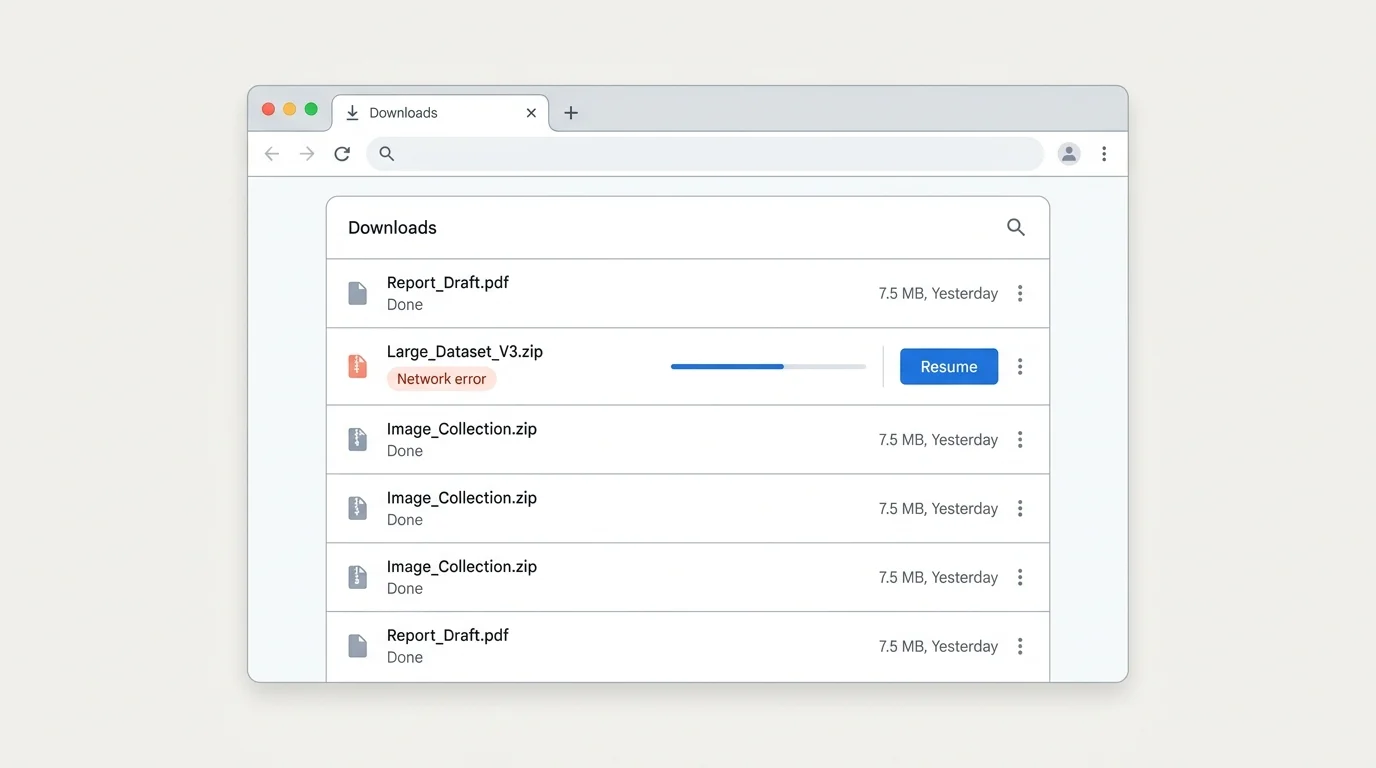
Examine the specific text printed underneath the failed file. The phrasing identifies the exact failure domain:
- Network failed: The data stream between the remote web server and your local machine was interrupted.
- Disk full: Your computer's internal storage drive lacks the contiguous capacity needed to write the completed file.
- Insufficient permissions or System busy: Chrome is barred from writing into the specified directory because of operating system file permissions or a file lock held by another background process.
- No file or File missing: The file path requested on the web server does not exist or has been relocated by the host.
- Virus detected or Download blocked: Chrome Safe Browsing or your system antivirus flagged the downloaded binary or archive as potentially harmful.
If Chrome indicates that a download has finished successfully but you cannot locate it on your desktop, inspect your actual physical Downloads directory. On dynamic web applications, files may download silently into the default operating system folder even if a visual notification was dismissed.
2. Check your internet connection and remote server availability
A momentary drop in network signal can cause an active download stream to abort, even if lightweight text web pages continue to load from local cache:
- Open two or three unrelated websites in new tabs to confirm active, stable internet throughput.
- If the download originates from a single niche hosting portal, the remote web server may be experiencing temporary bandwidth exhaustion or rate-limiting. Wait a few minutes before retrying.
- If internet connectivity fails across all applications, power-cycle your local Wi-Fi router if appropriate for your home network, or switch from Wi-Fi to a wired Ethernet cable.
- On public or commercial Wi-Fi hotspots (such as hotels, airports, or cafes), ensure you have completed the network's captive portal agreement page. Unauthenticated public sessions frequently permit basic DNS resolution while severing large binary transfers.
If you observe recurring socket drops or connection terminations across multiple sites, follow our specialized troubleshooting guide on how to fix ERR_CONNECTION_RESET in Chrome. Never search for unverified third-party mirror links to obtain executable software simply because the official server link temporarily timed out.
3. Resume the download or generate a fresh download request
For a paused or unexpectedly interrupted transfer, open Chrome's Downloads tab (chrome://downloads) and click Resume if the option appears. If the connection cannot be resumed because the remote server does not support byte-range HTTP requests, click Cancel to purge the incomplete .crdownload file and start the transfer again from the original website.
Before initiating a new transfer, verify whether the source link has expired:
- Many file-sharing platforms and documentation portals generate temporary, time-sensitive download tokens. If you pause a download or leave a page idle, the server invalidates the security token.
- If Chrome reports Needs authorization, Forbidden, or Failed - Forbidden, you must log in to your authenticated account on the host portal. Repeatedly retrying a download without proper session credentials will not bypass server-side access controls.
- If a download appears permanently frozen at 100%, open your operating system file manager and navigate to your save directory. When downloading large archives or installation packages, Chrome initially writes to a temporary file (
.crdownload) before renaming it to the final extension. If your antivirus program is conducting a heuristic scan on the completed file, this finalize step may take an extra minute. Check disk activity before aborting.
4. Check available storage and verify the save location
Google Chrome cannot commit downloaded data to disk if the target drive is depleted or if the configured save path points to an unavailable volume.
To inspect and reconfigure Chrome's download path:
- Click the three-dot menu in Chrome and choose Settings (or navigate to
chrome://settings/downloads). - Select Downloads from the left-hand navigation menu.
- Review the current directory listed under Location.
- Click Change and select a verified local folder located on your primary internal drive, such as your standard user
DownloadsorDocumentsfolder. - Optionally, enable the toggle labeled Ask where to save each file before downloading. This allows you to designate an explicit save target for each transfer, avoiding automated path errors.
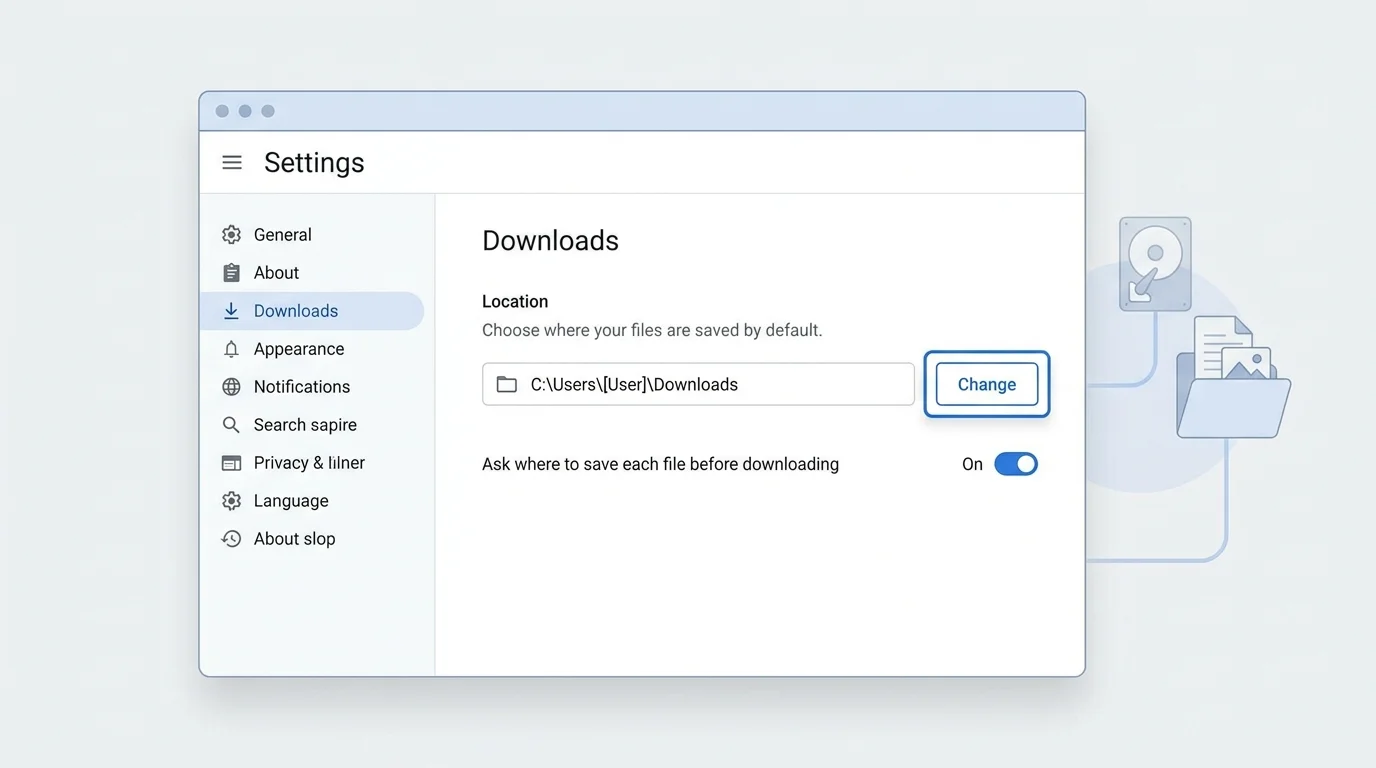
For full platform-specific instructions on reconfiguring save folders across Windows, macOS, Linux, and Chromebooks, see our dedicated guide on how to change the download location in Chrome.
On both Windows and macOS, Chrome's factory default save path is the current user's local Downloads directory. If your downloads path was previously assigned to an external USB drive, a network-attached storage (NAS) share, or a cloud-synced directory (such as OneDrive, Google Drive for Desktop, or iCloud Drive), an unmounted drive or synchronization lock can cause Chrome to fail immediately. Reverting to a local internal folder resolves these pathing conflicts.
5. Address folder permissions without compromising system security
When Chrome reports Insufficient permissions or System busy, the browser process does not have write access to the targeted directory:
- Right-click the download link on the webpage and select Save link as....
- Manually choose a directory that resides within your primary user profile (such as
C:\Users\<Username>\Downloadson Windows or/Users/<Username>/Downloadson macOS). - If saving succeeds in your user folder, the prior target folder possesses restrictive Access Control Lists (ACLs) or is managed by enterprise group policies.
On enterprise, corporate, or academic workstations, administrative endpoint management software frequently blocks downloads into unauthorized directories or restricts executable (.exe, .msi, .pkg, .dmg) file extensions entirely. If your device is managed by an organization, contact your system administrator rather than attempting to circumvent security baselines.
Security Precaution: Never grant broad "Full Control" permissions to the root directory (C:\ or /) or execute Chrome permanently as an Administrator or root user to force downloads. Running web browsers with elevated privileges dramatically increases your attack surface if you interact with malicious web scripts.
6. Understand Chrome Safe Browsing and security warnings
Chrome integrates Google Safe Browsing and operating system security APIs to protect your machine against malware, ransomware, credential harvesters, and deceptive software. If Chrome halts a download and displays a security banner, this behavior is a critical protective safeguard rather than a browser malfunction.
Common security warning categories include:
- Dangerous file: The cryptographic hash of the file matches known malicious binaries in Google's threat intelligence database.
- Suspicious or unverified file: The file is an uncommon executable that lacks a trusted digital signature and has not been indexed widely across the web.
- Insecure download: The source file is served over unencrypted HTTP from a page that was loaded over HTTPS (mixed content), exposing the payload to potential man-in-the-middle tampering.
When encountering a security warning:
- Verify that you are connected to the genuine, official web domain of the software vendor.
- Confirm that the application is required and published by an authentic, verified developer.
- Keep Chrome Safe Browsing protection enabled (
chrome://settings/security). Never switch Safe Browsing to "No protection" to bypass a security flag. - Do not comply with third-party web pages that instruct you to turn off your antivirus or firewall to complete a software installation.
- If you are an enterprise developer experiencing false positives on newly compiled binaries, submit the software for review via Google's official Search Console and developer verification channels rather than hosting files on unofficial mirrors.
7. Update Chrome to the latest stable release
Software bugs in outdated browser versions can disrupt modern HTTP/3 file streaming, blob URL assembly, or background file-saving APIs:
- Open Chrome's menu and navigate to Help > About Google Chrome (or enter
chrome://settings/help). - Allow Chrome to query Google's update servers. If an update is detected, Chrome will download and stage the packages automatically.
- Click Relaunch once installation completes.
For a full walkthrough on verifying release versions across desktop and mobile platforms, consult our detailed tutorial on how to update Google Chrome on desktop and mobile.
If Chrome is already updated to the latest build, close the browser completely and restart your computer to release any hung operating system file handles before testing the download again.
8. Test extensions and browser profile interference
Third-party extensions (particularly aggressive ad-blockers, third-party download accelerators, and privacy shields) can intercept web requests and break programmatic download links:
- Open an Incognito window by pressing Ctrl + Shift + N on Windows or Command + Shift + N on macOS.
- Navigate to the trusted download page and test the file.
- Because extensions are disabled in Incognito mode by default, successful downloads in Incognito point toward an extension conflict.
- To isolate the offending extension, type
chrome://extensionsinto your address bar, disable non-essential add-ons one by one, and retry the transfer.
For step-by-step instructions on auditing and removing problematic browser add-ons, see our guide on how to remove extensions from Chrome.
Diagnostic Note: Incognito mode does not carry over stored login sessions or cookies. If a download fails in Incognito because the site requires authentication, log in before concluding that an extension is responsible.
9. Comprehensive error reference and resolution guide
The table below outlines specific Chrome download error strings and their verified remedies:
| Chrome error message | Underlying condition | Verified resolution |
|---|---|---|
| Network failed | Broken TCP connection or network timeout | Test connection; power-cycle router; check site status. |
| Download blocked | Safe Browsing identified high-risk content | Inspect source authenticity; verify file origin; keep protections enabled. |
| Virus detected / Virus scan failed | Local antivirus software flagged binary | Review antivirus quarantine logs; confirm file signature with vendor. |
| Disk full | Local drive storage exhausted | Clear temporary files; select alternate drive in chrome://settings/downloads. |
| Insufficient permissions / System busy | Folder write lock or restrictive ACLs | Save to local user folder (Downloads); check background file locks. |
| No file / File missing | Server link points to nonexistent resource | Confirm URL accuracy; contact website administrator. |
| Needs authorization / Forbidden | Missing access rights or expired session token | Sign in to account on source website; regenerate dynamic download link. |
| Stuck at 100% | Heuristic virus scan or .crdownload renaming pending |
Wait for scan completion; check file manager before restarting. |
10. When browser reset or reinstallation is warranted
Reinstalling Chrome should never be the initial reaction to an isolated download failure. Always rule out server-side downtime, drive capacity limitations, folder permissions, and security alerts first.
If download handlers remain permanently corrupted across all domains, consider resetting Chrome preferences to their defaults:
- Navigate to
chrome://settings/reset. - Select Restore settings to their original defaults.
- Confirm by clicking Reset settings.
This action resets your startup pages, new tab page, search engine, and pinned tabs, while disabling all extensions without erasing your saved bookmarks, history, or passwords. For comprehensive instructions, see our walkthrough on how to reset Chrome settings to default.
If Chrome exhibits widespread instability, persistent crashes, or corrupted application binaries that prevent it from launching reliably, review our troubleshooting guide on how to fix Chrome not opening or crashing on Windows and Mac. Before performing a full application reinstall, ensure any unsynced local profile data is backed up, and download replacement installers exclusively from the official Google Chrome portal (https://www.google.com/chrome/).
Quick summary checklist
- Inspect the exact error message displayed in Chrome > Downloads (
Ctrl + JorCmd + Option + L). - Verify that the target website is operational and that your user account has valid access authorization.
- Confirm that your destination hard drive has ample free storage capacity.
- Choose a verified local directory (such as your user
Downloadsfolder) rather than network drives or external media. - Take Safe Browsing alerts seriously; never disable security software or antivirus shields to force a download.
- Keep Google Chrome updated to the latest stable release.
- Test in Incognito mode to determine whether an extension or download accelerator is intercepting requests.
- Contact the website administrator if server links are broken, missing, or return forbidden errors.
Frequently asked questions
Why does Chrome say a download is blocked?
Chrome blocks downloads when Google Safe Browsing or your system security software classifies a file as dangerous, deceptive, unverified, or served insecurely over HTTP mixed content. Review the warning details, verify the developer's credentials, and never disable browser defenses simply to force an unverified download.
Why does my Chrome download reach 100% and never finish?
When a download reaches 100%, Chrome performs integrity checks, triggers local antivirus heuristic scanning, and renames the temporary .crdownload file to its final filename. If your antivirus scan hangs, or if the destination directory has an active file lock, the status remains pending. Check your destination folder in your operating system file manager to see if the file is already accessible.
Why do files download in another browser but fail in Chrome?
Different web browsers utilize distinct download engines, security threat lists, and extension configurations. A download that succeeds in Microsoft Edge or Apple Safari may fail in Chrome due to an active Chrome extension conflict, a differing default save path, or Chrome's strict handling of insecure HTTP downloads on HTTPS pages.
Does clearing Chrome's browsing cache resolve download errors?
Clearing temporary cached files can resolve stale website scripts or broken session data that prevent download buttons from triggering. However, cache clearing will not fix storage depletion, missing server files, or network-level socket resets. To learn how to clear temporary files safely, see our guide on how to clear cache in Chrome and how to delete cookies in Chrome.
Should I disable antivirus software to fix a blocked Chrome download?
No. Disabling antivirus protection leaves your entire operating system vulnerable to malicious payloads. If your security software alerts you that a file is malicious, treat the alert as a valid warning. If you suspect a false positive on a known corporate tool, submit the binary to your security team or software vendor for signature validation instead of disabling protection.
When to seek additional technical support
If download failures persist after verifying local storage, network stability, and browser settings:
- Contact the website administrator: When files consistently return 404 (File Not Found) or 403 (Forbidden) HTTP status codes, the problem resides on the host server.
- Consult your IT department: If you are operating a corporate or school laptop, endpoint security agents and group policies often enforce strict download filters that require administrative override.
- Visit Google Chrome Help: If the issue is isolated to Chrome across all websites, consult the official Google Chrome Help Center (opens in new tab) with your specific operating system version and error text.
Verified Primary Sources & Citations
NextTechExplained verifies facts against official documentation, engineering whitepapers, and regulatory filings.
- Google Chrome Help: Fix file download errorsView Official Source
- Google Chrome Help: Download a fileView Official Source
- Google Chrome Help: Google Chrome blocks some downloadsView Official Source
- Google Chrome Help: Update Google ChromeView Official Source
- Google Chrome Help: Fix connection and loading errors in ChromeView Official Source
Published by NextTechExplained
Editorial Team • Institutional Publication Byline
Articles published under this byline are prepared through rigorous research and verified against official engineering specifications, standards documentation, and primary sources. Learn more about our process on our About page and Editorial Policy.
Related Explanations & Guides
How to Change the Download Location in Chrome
Learn how to change where Google Chrome saves downloaded files on Windows, Mac, Linux, and Chromebook, or configure Chrome to ask for a save folder every time.
How to Fix ERR_CONNECTION_RESET in Chrome
Fix the ERR_CONNECTION_RESET error in Google Chrome by checking your connection, restarting Chrome, testing extensions and VPN settings, and troubleshooting DNS carefully.
How to Block Pop-Ups in Chrome on Desktop and Mobile
Stop unwanted pop-ups and redirects in Google Chrome on Windows, Mac, Android, and iPhone. Learn how to configure site exceptions and stop persistent ads.