
How to Clear Cache in Chrome
Learn how to clear cached images and files in Google Chrome on Windows, Mac, Android, and iPhone, without deleting more browsing data than you need.
Editorial Team

Laptop showing a browser's clear browsing data screen for removing cached files in Chrome
Table of Contents (15 sections)
- What does clearing the Chrome cache do?
- How to clear the cache in Chrome on Windows or Mac
- Which time range should you choose?
- How to clear the cache in Chrome on Android
- How to clear the cache in Chrome on iPhone or iPad
- Should you clear cache and cookies together?
- What to do if clearing the cache does not fix the problem
- Frequently asked questions
- Does clearing the Chrome cache delete bookmarks?
- Will clearing the cache log me out of websites?
- Is it safe to clear the Chrome cache?
- How often should I clear the Chrome cache?
- Does clearing the cache delete my Google search history?
- Why does a website load more slowly after I clear the cache?
- Final checklist
If a website keeps showing an outdated layout, images refuse to load, or a page looks broken in Google Chrome, clearing the browser cache can help. Chrome saves copies of parts of websites so they can load faster next time. When that saved content becomes stale or damaged, the browser may keep using files that no longer match the current page.
You usually do not need to erase your entire browsing history or remove cookies just to clear the cache. The important step is to select Cached images and files and leave other data types unchecked unless you specifically want to remove them.

What does clearing the Chrome cache do?
The cache stores temporary items such as images, stylesheets, scripts, and other files that websites use. Chrome can reuse these files instead of downloading them again, which can make familiar pages load faster.
Clearing the cache removes those locally stored copies. The next time you visit a site, Chrome must download them again from the web server, so that site can load a little more slowly on the first visit while the browser builds a fresh cache.
Cache, cookies, and other browsing data are not the same thing:
| Data type | What it stores or does | What happens when you delete it |
|---|---|---|
| Cached images and files | Temporary website resources | Chrome downloads fresh copies as needed |
| Cookies and other site data | Site-related information, preferences, and session data | You may be signed out of websites or need to reset site preferences |
| Browsing history | A list of pages you visited | Entries are removed from Chrome history |
| Saved passwords and passkeys | Sign-in credentials managed by Chrome or Google Password Manager | These are managed separately and should not be selected when you only want to clear cache |
The exact labels and layout can vary by Chrome version and device platform. Before confirming, review the selected categories rather than assuming that the browser will clear only the cache. For modern credential security and how login tokens are separated from browser cache, see our deep dive on how passkeys work and setup recovery.
How to clear the cache in Chrome on Windows or Mac
The desktop steps are very similar across Windows, macOS, Linux, and ChromeOS.
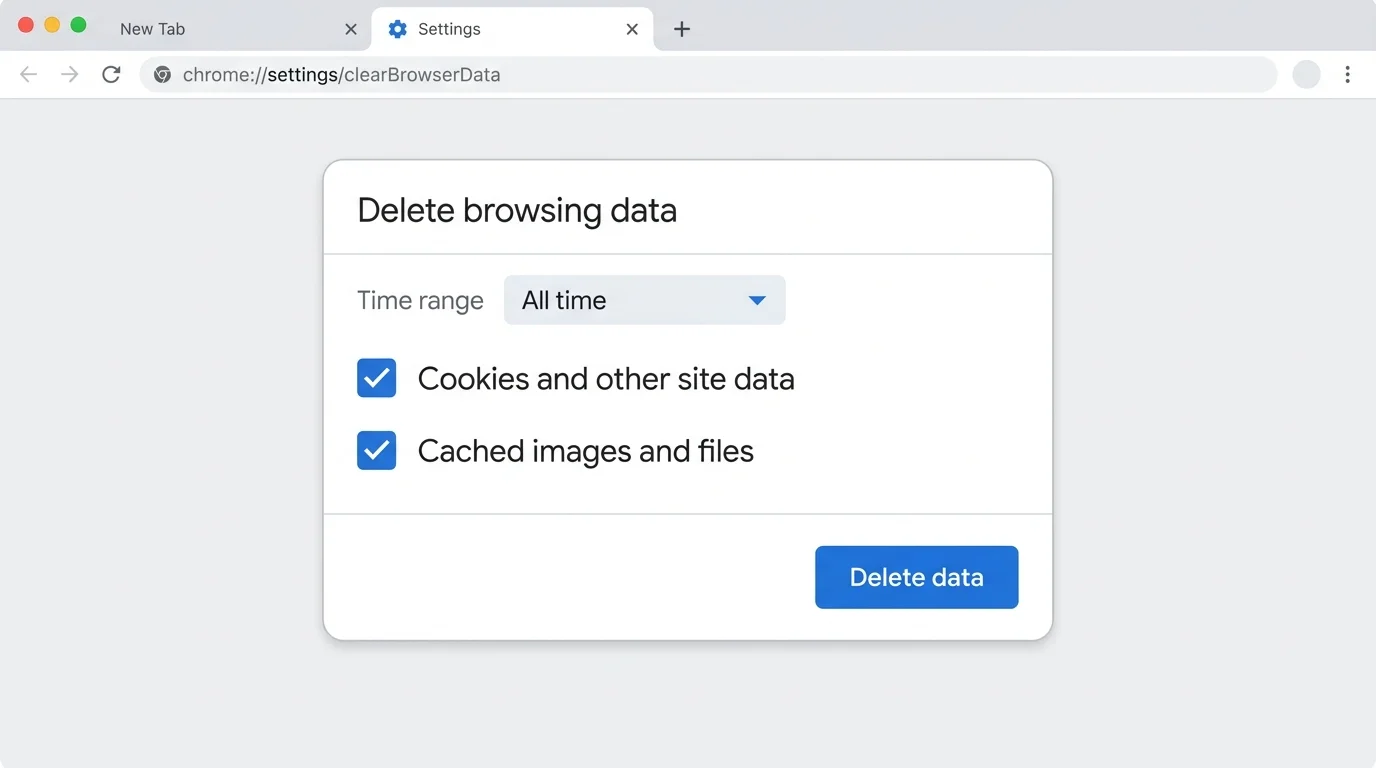
- Open Google Chrome on your computer.
- Select the three-dot More menu in the top-right corner.
- Choose Delete browsing data (or press the keyboard shortcut
Ctrl + Shift + Deleteon Windows/Linux, orCommand + Shift + Deleteon macOS). - Choose a time range. Select All time to clear cached files from the whole available period, or choose a shorter range if the loading issue began recently.
- In the available data types, select Cached images and files.
- If your goal is to clear only the cache, deselect Browsing history and Cookies and other site data if they are checked. Leave passwords, autofill data, and other categories unselected.
- Select Delete data to confirm.
- Return to the site that was giving you trouble and reload it.
If you cannot find the command in the menu, type chrome://settings/clearBrowserData directly into Chrome's address bar and press Enter.
Which time range should you choose?
Choose All time if you want to remove all cached files stored across the entire browsing profile. Choose a shorter range (such as "Last hour" or "Last 24 hours") if you only want to clear recent data and the issue started recently. A time-range choice does not replace checking the categories: make sure you have selected cached files and left unwanted data types unchecked.
How to clear the cache in Chrome on Android
On Android, use Chrome's own in-app browsing-data controls. Do not use Android's system-level app storage "Clear data" or "Clear storage" option as a substitute for clearing the browser cache; that is a broad system action that can reset Chrome's app preferences and local settings.
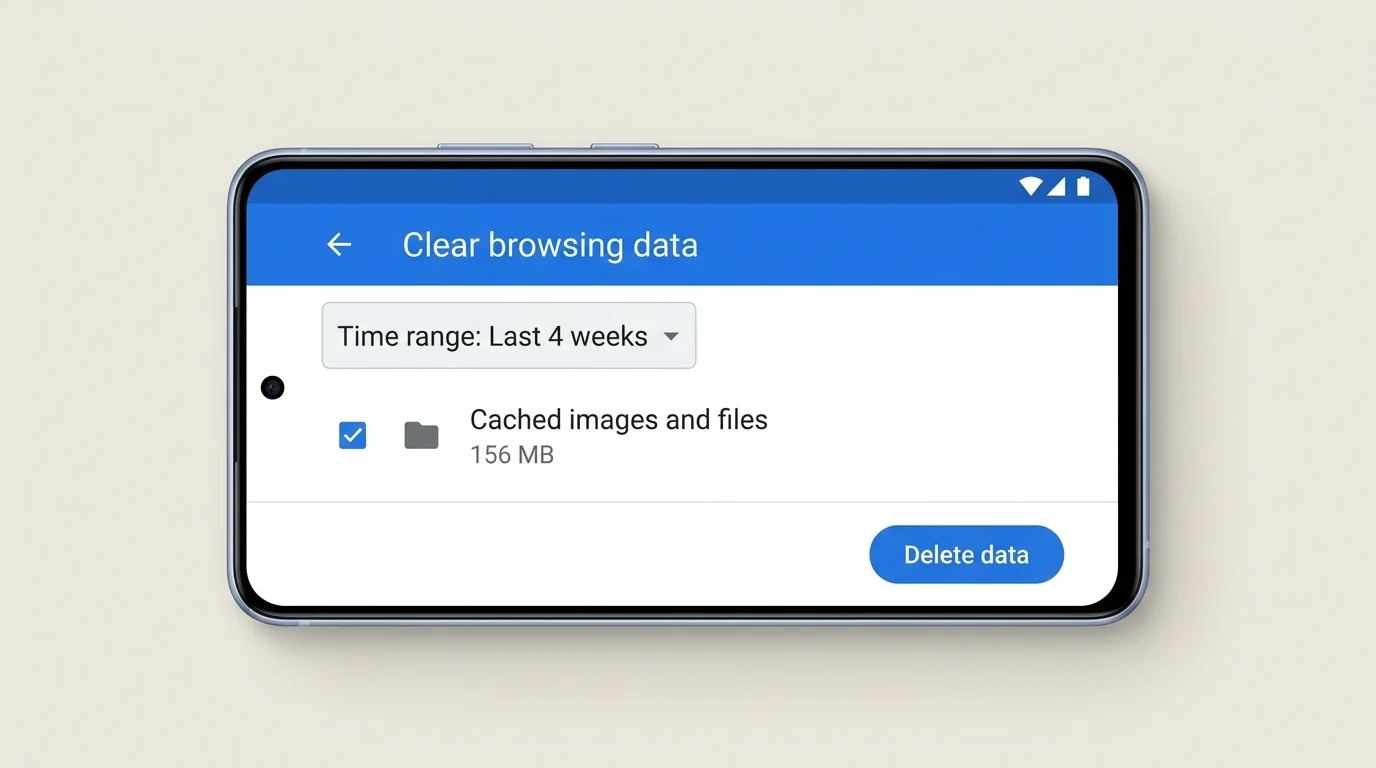
- Open Chrome on your Android phone or tablet.
- Tap the three-dot More menu beside the address bar.
- Tap Delete browsing data (on some versions, you can also access this via Settings > Privacy and security > Delete browsing data or from the History screen).
- Choose the time range you want to clear.
- Open the data options and check Cached images and files.
- Deselect cookies, browsing history, saved passwords, and any other categories you do not intend to delete.
- Tap Delete data and confirm if Chrome prompts you.
- Reopen the affected website and check whether the layout or image issue is resolved.
If the menu on your Android device uses slightly different wording across regional builds, look for the control that lets you choose specific browsing-data categories. Do not select every category by default.
How to clear the cache in Chrome on iPhone or iPad
Chrome on iOS uses its own in-app browsing-data controls. The wording and order may differ slightly between app releases, but you can choose the data categories before confirming.
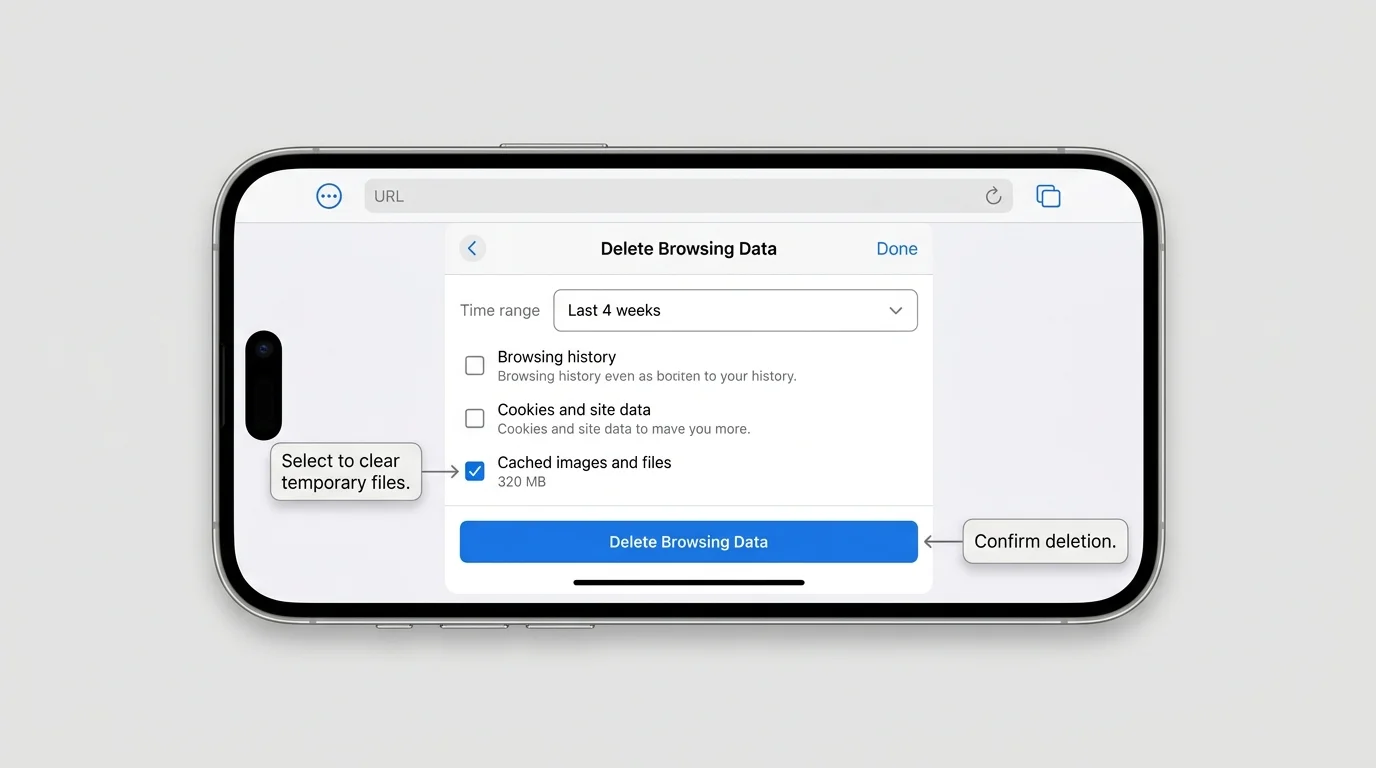
- Open the Chrome app on your iPhone or iPad.
- Tap More (the three-dot menu at the bottom or top of the screen), then choose Delete Browsing Data. You can also find it under Settings > Privacy and Security > Delete Browsing Data.
- Set the Time Range you need.
- Select Cached Images and Files, if it is listed as a separate category.
- Leave cookies, browsing history, and saved passwords unselected unless you deliberately want to remove them as well.
- Confirm the selection and tap Delete Browsing Data at the bottom of the screen.
- Return to the website and load it again.
Chrome's iPhone and iPad interface differs from desktop Chrome. Read the confirmation screen carefully so you know which data is about to be removed. If the available options are arranged differently in your iOS version, follow the categories shown on your screen rather than following desktop labels literally.
Should you clear cache and cookies together?
Not necessarily. Clearing both can help with certain stubborn web application errors, but deleting cookies has a much wider impact than removing cached files alone.
Clearing cookies and site data signs you out of most websites, removes saved site preferences, and makes sites ask you to sign in or accept cookie prompts again. If one specific website is stuck in an authentication loop or using corrupted session tokens, clearing that site's stored data may be necessary (for step-by-step instructions across desktop and mobile, see our guide on how to delete cookies in Chrome). But if you simply want Chrome to fetch fresh layout files, stylesheets, and images, start with cached images and files only.
Before selecting cookies, verify that you remember the sign-in details for your accounts and have access to any required multi-factor authentication methods. Keep saved passwords unselected if you only mean to clear cache.
What to do if clearing the cache does not fix the problem
Cache clearing is useful for stale-content and broken layout issues, but it does not fix every website problem. Work through these checks in order:
- Perform a hard reload. On desktop, press
Ctrl + F5(Windows) orCommand + Shift + R(Mac) to bypass the local cache and force a complete re-download of the active page. - Test the page in an Incognito window. An Incognito window opens a clean session without existing cache or active extensions. If the page works normally in Incognito, an extension or a specific cookie may be interfering.
- Try another website. If only one specific website fails, the problem may be on the website's server or hosting network rather than your local Chrome browser.
- Update Chrome. Check More > Help > About Google Chrome on desktop or visit your mobile app store to confirm you are running the latest version.
- Review extensions. Temporarily disable newly installed or ad-blocking extensions to see if an extension script is blocking page elements.
- Check your network connection. Try reloading on a different Wi-Fi network or cellular data to rule out DNS or router filtering issues.
If you frequently access a web tool or dashboard for work and want direct access without navigating browser tab menus, check our tutorial on how to pin a website to the taskbar in Windows 11.
Frequently asked questions
Does clearing the Chrome cache delete bookmarks?
No. Clearing only cached images and files will not delete your bookmarks. Bookmarks are stored separately in your Chrome profile data. However, if you plan to perform extensive browser troubleshooting, it is always smart practice to create a standalone backup; see our guide on how to export bookmarks in Chrome.
Will clearing the cache log me out of websites?
No, clearing only cached images and files generally will not log you out. Cookies and session tokens store your sign-in state. If you also check "Cookies and other site data", then websites will require you to log back in.
Is it safe to clear the Chrome cache?
Yes. Clearing cached website files is a standard, safe troubleshooting step. Chrome automatically re-downloads necessary files the next time you visit those websites. The only noticeable difference is that pages may take a few moments longer to load the first time.
How often should I clear the Chrome cache?
There is no need to clear the cache on a routine schedule. The cache exists to make your everyday web browsing faster and save network bandwidth. Only clear it when a site is displaying outdated information, images fail to appear, or formatting appears corrupted.
Does clearing the cache delete my Google search history?
No. Selecting only cached images and files does not delete your Chrome browsing history or your Google Account search activity. Those are separate data categories managed through history and Google Account activity controls.
Why does a website load more slowly after I clear the cache?
Because Chrome no longer has the images, styles, and scripts stored locally on your device, it must download every asset from scratch over your internet connection. Once downloaded, subsequent page loads will be fast again.
Final checklist
- Open Chrome's Delete browsing data menu (or press
Ctrl + Shift + Deleteon desktop). - Select an appropriate time range (such as All time for persistent issues).
- Check Cached images and files.
- Ensure cookies, browsing history, and passwords remain unchecked unless you deliberately intend to remove them.
- Tap or click Delete data, then reload your affected website.
Clearing the cache is a focused, low-risk fix for outdated or broken pages. By selecting only cached images and files, you refresh your browser's stored content without losing your active logins, browsing history, or saved passwords.
Verified Primary Sources & Citations
NextTechExplained verifies facts against official documentation, engineering whitepapers, and regulatory filings.
- Google Account Help: Clear cache & cookiesView Official Source
- Google Chrome Help: Delete browsing data in ChromeView Official Source
- Google Chrome Help: Delete, allow, and manage cookies in ChromeView Official Source
- Google Chrome Help: Check or delete your Chrome browsing history on iPhone and iPadView Official Source
- Google Account Help: Clear cache and cookies on AndroidView Official Source
Published by NextTechExplained
Editorial Team • Institutional Publication Byline
Articles published under this byline are prepared through rigorous research and verified against official engineering specifications, standards documentation, and primary sources. Learn more about our process on our About page and Editorial Policy.
Related Explanations & Guides

How to Delete Cookies in Chrome on Desktop and Mobile
Learn how to delete all cookies in Chrome or remove data for one website on Windows, Mac, Android, and iPhone without clearing more browsing data than you intend.

How to Add Photos to Google Photos from a Phone or Computer
Learn how to add photos to Google Photos manually, enable phone backup, upload files from a computer, and check that your pictures have finished uploading.

How to Delete All Photos from Google Photos Safely
Learn how to bulk-delete photos and videos from Google Photos on a computer or phone, understand what happens to synced copies, and avoid irreversible mistakes.