
How to Change the Download Location in Chrome
Learn how to change where Google Chrome saves downloaded files on Windows, Mac, Linux, and Chromebook, or configure Chrome to ask for a save folder every time.
Editorial Team
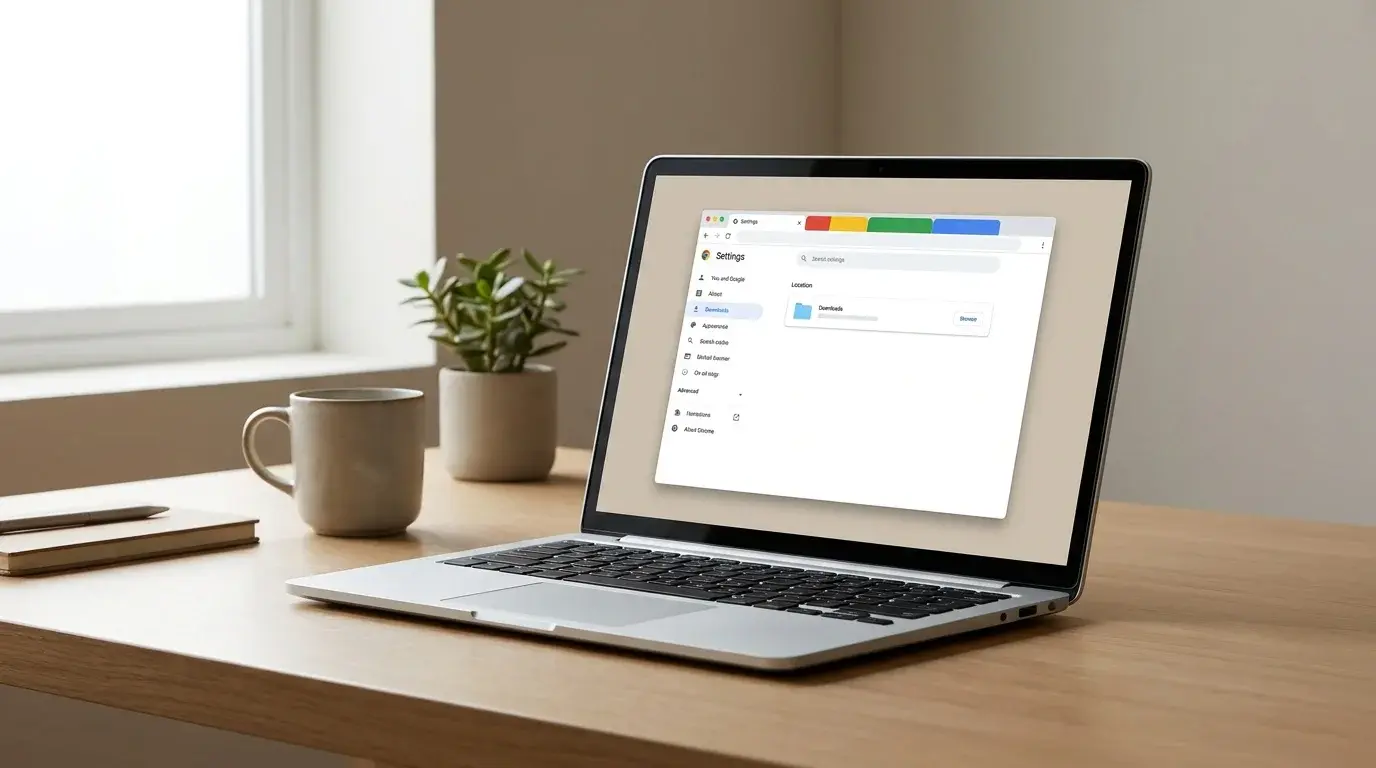
Laptop displaying Google Chrome download settings for choosing where downloaded files are saved
Table of Contents (18 sections)
- Quick summary of Chrome download location controls
- 1. Change Chrome's default download folder on Windows, Mac, and Linux
- 2. Make Chrome ask where to save each file before downloading
- 3. Understanding platform default save locations
- 4. Change the download folder on a Chromebook (ChromeOS)
- 5. How to verify where a completed download was saved
- 6. Troubleshooting common download location problems
- The Change button is greyed out or missing
- Chrome continues saving files to the old folder
- Destination folder is write-protected or unavailable
- PDFs open directly in the browser instead of downloading
- Mobile considerations: Android and iOS
- Frequently asked questions
- Can I set different default folders for different file types?
- Does changing the download location move previously downloaded files?
- Can I save Chrome downloads directly to an external drive or USB stick?
- Does Chrome Sync share my download location across all my computers?
- What is the difference between clearing the cache and changing the download folder?
By default, Google Chrome automatically saves all downloaded files into your operating system's standard user Downloads directory. Whether you are running low on storage space on your primary boot drive, organizing work documents onto a separate internal SSD, or saving exported browser files (such as when you export bookmarks from Chrome), changing your default download destination takes just a few clicks.
This tutorial walks through changing the default download folder in Chrome across Windows 11, Windows 10, macOS, Linux, and ChromeOS (Chromebook), configuring Chrome to prompt you for an explicit directory on every file, and diagnosing common permission or missing-folder problems.
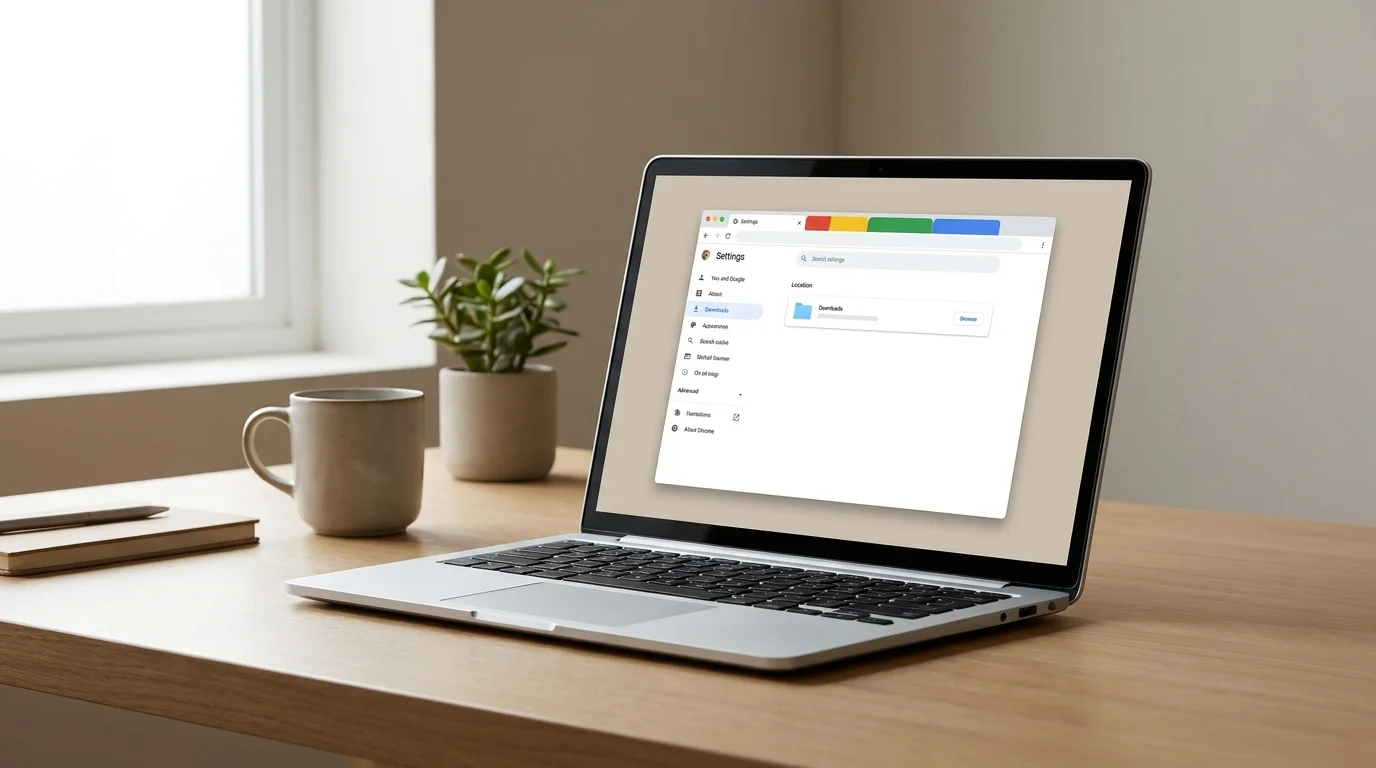
Quick summary of Chrome download location controls
| Setting | Function | How to access |
|---|---|---|
| Location > Change | Sets the default directory for all future downloads | chrome://settings/downloads |
| Ask where to save each file | Prompts for a destination folder before saving each item | Toggle on in chrome://settings/downloads |
| Show in folder | Opens the operating system file manager at the file's saved path | Ctrl + J (Windows) or Cmd + Option + L (Mac) |
| PDF documents | Controls whether PDFs open in Chrome's viewer or download | chrome://settings/content/pdfDocuments |
1. Change Chrome's default download folder on Windows, Mac, and Linux
On desktop versions of Google Chrome, you can alter your download directory directly within the browser settings interface:
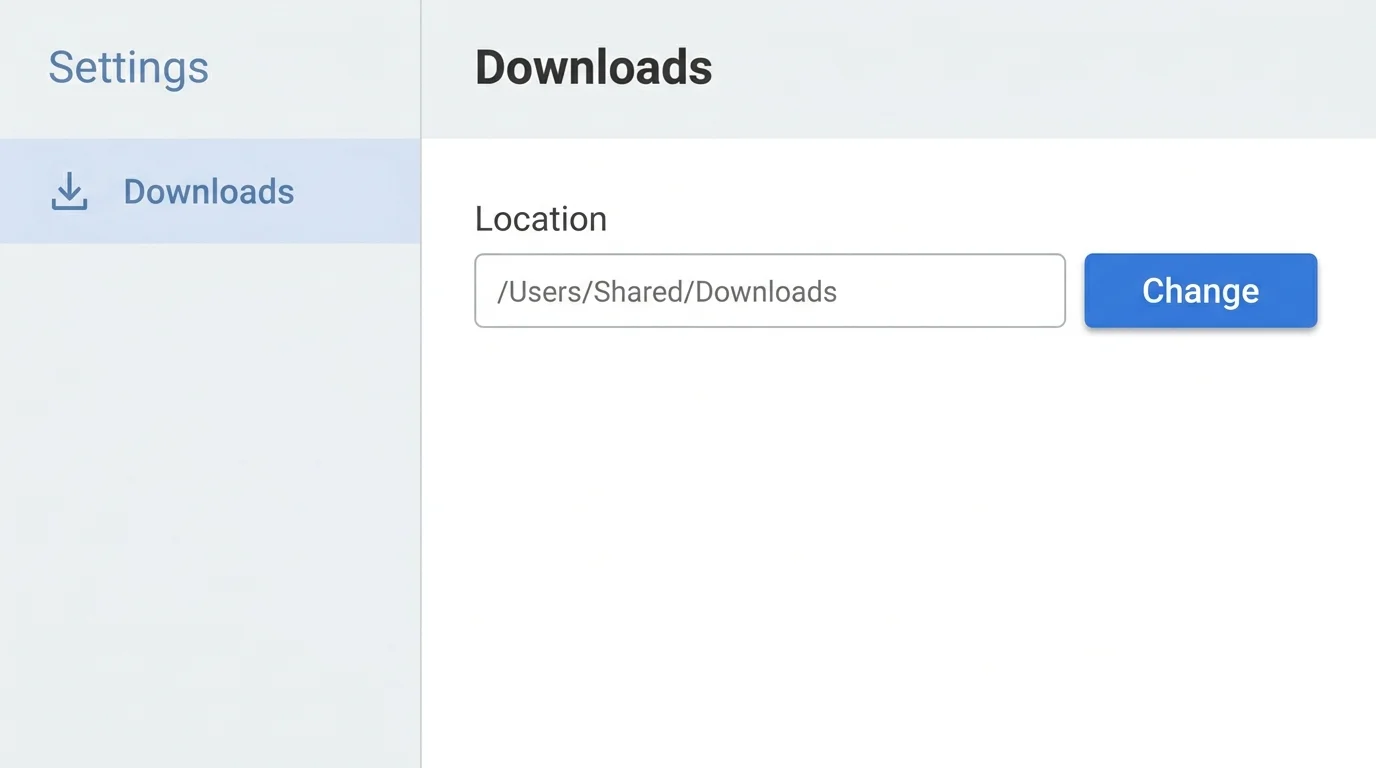
- Launch Google Chrome.
- Click the three-dot menu icon in the upper-right corner and select Settings (or type
chrome://settings/downloadsdirectly into the Omnibox address bar and press Enter). - In the left-hand navigation sidebar, click Downloads.
- Locate the Location field and click the Change button.
- In the native operating system folder picker that appears, navigate to and select your preferred destination folder (for instance, a secondary partition, an internal data drive, or a dedicated project directory).
- Click Select Folder (Windows) or Open (macOS) to confirm your selection.
Chrome immediately updates the path displayed next to Location. All subsequent downloads will automatically route to this newly selected folder.
Important Note on Existing Files: Changing your download destination affects future file downloads only. Chrome does not automatically migrate, cut, or copy previously downloaded files from your old folder to the new one. To reorganize existing downloads, use Windows File Explorer, macOS Finder, or your Linux desktop file manager.
2. Make Chrome ask where to save each file before downloading
If you download different types of content (such as installation files, client PDFs, image assets, or archives) and prefer organizing them on the fly, you can instruct Chrome to display a system save dialog for every individual download:
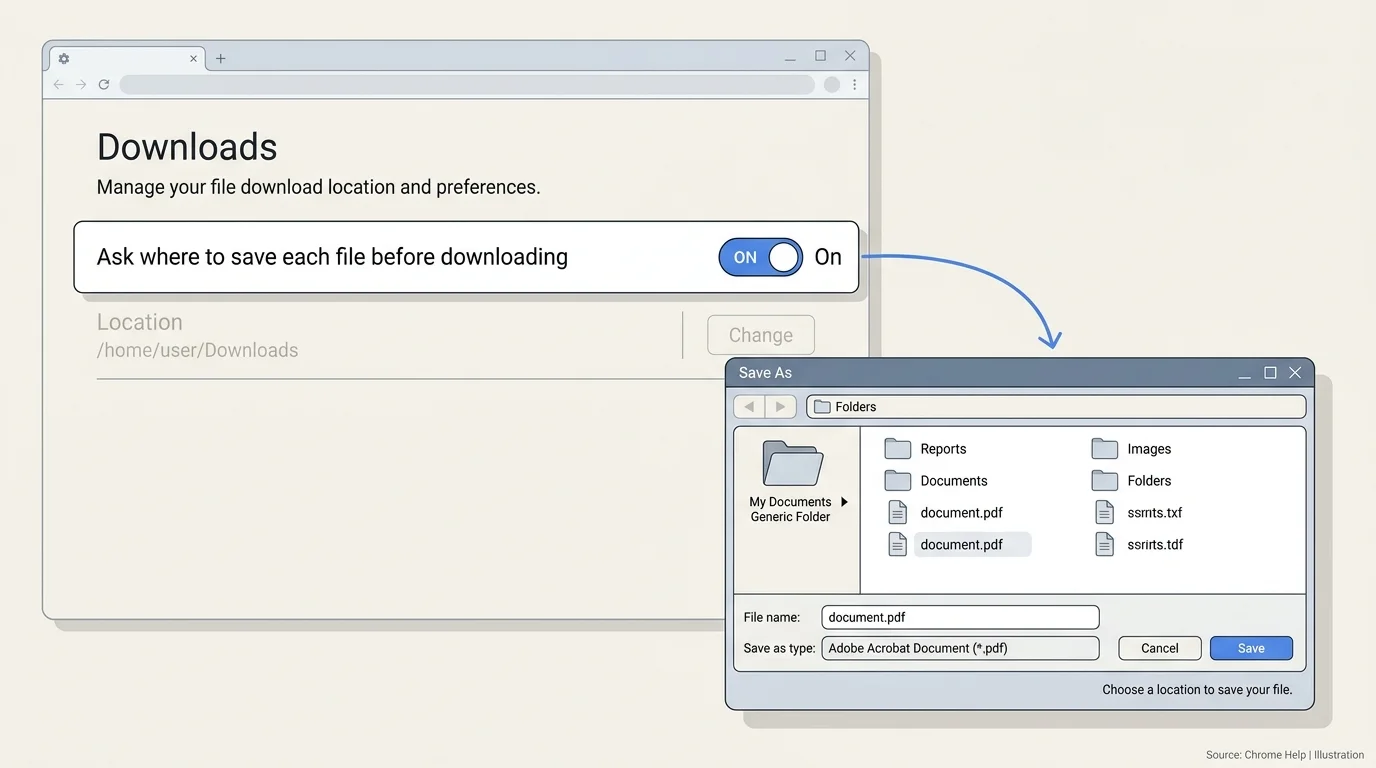
- Open Chrome and navigate to
chrome://settings/downloads. - Toggle on the switch labeled Ask where to save each file before downloading.
- When you initiate a file transfer on any website, Chrome will pause and prompt you with a standard system file picker.
- Browse to your chosen destination folder, adjust the filename if desired, and click Save.
Enabling this option provides granular control without requiring you to switch default folders constantly. Note that enabling this prompt does not weaken Chrome's automated security defenses; Chrome Safe Browsing checks and warning dialogues still execute as normal. If you encounter blocked or interrupted files, consult our detailed troubleshooting guide on how to fix Chrome downloads not working on Windows and Mac.
3. Understanding platform default save locations
If you have never modified Chrome's download settings, the browser inherits standard operating system paths:
| Platform | Factory default directory path |
|---|---|
| Windows 11 / 10 | C:\Users\<Username>\Downloads |
| macOS (Sonoma, Sequoia, Ventura) | /Users/<Username>/Downloads |
| Linux (Ubuntu, Debian, Fedora) | /home/<Username>/Downloads |
| ChromeOS (Chromebook) | Dedicated Downloads folder in the native Files app |
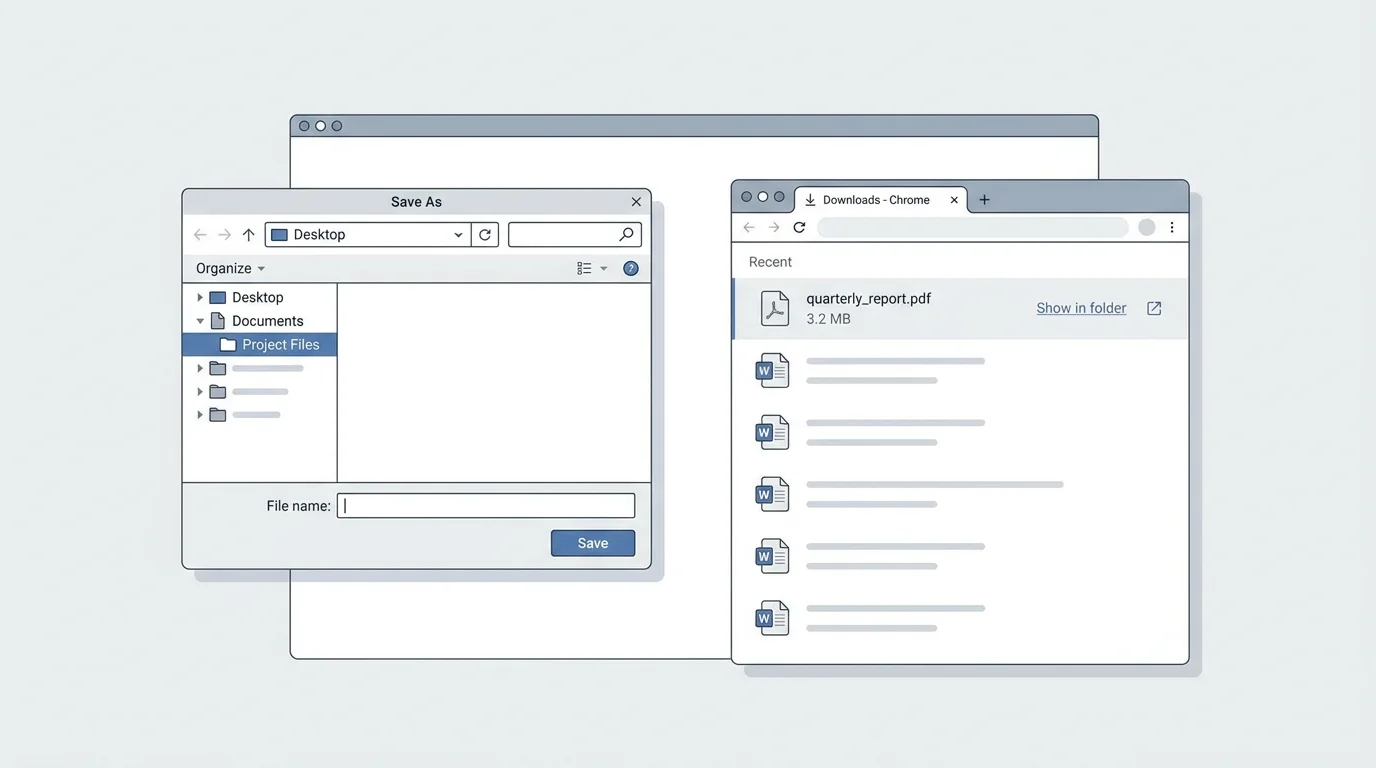
These directories represent user-specific folders protected by operating system user account permissions. If you use a computer managed by an enterprise domain, corporate Active Directory, or Google Workspace organizational unit, administrators may enforce a standardized download folder via group policy.
4. Change the download folder on a Chromebook (ChromeOS)
Chromebooks feature integrated ChromeOS architecture where local storage operates within a sandboxed environment managed by the Files app:
- Open Chrome on your Chromebook.
- Click the three-dot menu icon in the upper-right corner and select Settings.
- Scroll down the left sidebar and select Downloads.
- Beside the current path, click Change.
- The ChromeOS Files app will open. You can select an internal subfolder, a connected USB flash drive, or an SD card.
- Click Open to lock in the new folder.
Chromebook Storage Warning: Local Chromebook hardware storage is often modest. If your device runs critically low on free space, ChromeOS may automatically delete local downloaded files from the internal Downloads folder without warning to prioritize system stability. To protect critical files, save them directly to external storage or Google Drive, or periodically back them up.
5. How to verify where a completed download was saved
If you recently altered your download destination and cannot locate a completed file:
- Press Ctrl + J on Windows/Linux or Command + Option + L on macOS to open the Chrome Downloads history tab (
chrome://downloads). - Locate the file in the chronological transfer log.
- Click the Show in folder link located beneath the filename.
- Your operating system file manager (File Explorer on Windows, Finder on Mac, or Files on Chromebook) will open with the exact file highlighted.
Distinguishing List Removal from Deletion: In the Chrome Downloads manager, clicking the X icon next to an entry removes the record from Chrome's browser history log. It does not delete the actual binary from your physical storage drive. Conversely, if you delete a file from your hard drive, Chrome's download list may still show the old entry until refreshed.
6. Troubleshooting common download location problems
The Change button is greyed out or missing
If the Change button is disabled, or if a message states "This setting is managed by your administrator," your machine is subject to enterprise device management (such as Microsoft Intune, Active Directory Group Policy, or Google Workspace Chrome Enterprise Core). Administrators often lock download destinations to enforce Data Loss Prevention (DLP) baselines. You must contact your organization's IT department to request policy adjustments.
Chrome continues saving files to the old folder
If Chrome appears to ignore your newly assigned directory:
- Confirm that you completed the folder selection dialog by clicking Select Folder rather than pressing the Escape key.
- Check whether Ask where to save each file before downloading is switched on. If enabled, Chrome presents the last folder you manually browsed to rather than the global default.
- If Chrome preferences remain persistently corrupted or fail to persist after browser restarts, follow our walkthrough on how to reset Chrome settings to default.
Destination folder is write-protected or unavailable
If you set your download destination to an external USB hard drive, network-attached storage (NAS) share, or encrypted partition:
- If the external drive is disconnected or unmounted when a download initiates, Chrome will fail with an
Insufficient permissionsorSystem busyerror. - Never attempt to resolve permission errors by running Chrome as an Administrator or root user, and avoid granting wide permissions to root system directories (
C:\or/). Instead, select a standard user directory that your operating system account natively owns. For further assistance with permission issues, refer to our guide on how to fix Chrome downloads not working on Windows and Mac.
PDFs open directly in the browser instead of downloading
Chrome includes a native PDF viewer. If clicking a PDF link displays the document inside a new Chrome tab rather than saving it to your download folder:
- Navigate to
chrome://settings/content/pdfDocuments. - Select Download PDFs instead of Open PDFs in Chrome.
- Future PDF links will download straight to your designated folder.
Mobile considerations: Android and iOS
The desktop-style folder picker is designed specifically for desktop operating systems. On Android devices, Chrome saves files into the operating system Download folder, accessible via the Files by Google app or Chrome's mobile menu under Downloads. Some Android versions permit changing the storage destination between internal storage and an installed SD card via Chrome mobile settings (Settings > Downloads > Download location). On Apple iPhone and iPad, downloads are handled according to iOS sandboxing rules and saved to the iOS Files app (On My iPhone or iCloud Drive).
Frequently asked questions
Can I set different default folders for different file types?
Chrome's built-in settings provide one unified default download directory. You cannot designate one folder exclusively for images and another for executable programs automatically within stock Chrome settings. To direct different file types to specific locations, toggle on Ask where to save each file before downloading, allowing you to choose the target folder manually upon each download.
Does changing the download location move previously downloaded files?
No. Updating the download path only directs future file transfers to the new directory. Any files downloaded previously remain in their original folders until you move or delete them using your operating system's file manager.
Can I save Chrome downloads directly to an external drive or USB stick?
Yes. In chrome://settings/downloads, click Change and select any mounted external USB flash drive or portable hard drive. Ensure the external volume remains plugged in while downloading; if the drive is disconnected, Chrome will generate an error indicating that the destination path is inaccessible.
Does Chrome Sync share my download location across all my computers?
No. Download paths are local, hardware-specific operating system settings. Chrome Sync synchronizes your bookmarks, passwords, and extensions, but it does not sync local download directory paths because directory structures differ across machines and operating systems. If you need to transfer saved bookmarks between computers, see our guides on how to export bookmarks from Chrome and how to import bookmarks into Chrome.
What is the difference between clearing the cache and changing the download folder?
Changing the download location dictates where persistent files you choose to save from the web are stored on your disk. In contrast, the browser cache stores temporary image and script assets automatically to speed up web page rendering. Clearing your cache frees up temporary space without altering your personal downloaded files. For more information, see our guide on how to clear cache in Chrome.
Verified Primary Sources & Citations
NextTechExplained verifies facts against official documentation, engineering whitepapers, and regulatory filings.
- Google Chrome Help: Download a file (Computer)View Official Source
- Google Chrome Help: Download a file (Android phone and tablet)View Official Source
- Chromebook Help: Open, save, or delete files on your ChromebookView Official Source
- Google Workspace Learning Center: Set up Chrome browserView Official Source
Published by NextTechExplained
Editorial Team • Institutional Publication Byline
Articles published under this byline are prepared through rigorous research and verified against official engineering specifications, standards documentation, and primary sources. Learn more about our process on our About page and Editorial Policy.
Related Explanations & Guides
How to Block Pop-Ups in Chrome on Desktop and Mobile
Stop unwanted pop-ups and redirects in Google Chrome on Windows, Mac, Android, and iPhone. Learn how to configure site exceptions and stop persistent ads.
How to Delete Browsing History in Chrome on Desktop and Mobile
Delete all Chrome browsing history or remove selected websites on Windows, Mac, Android, and iPhone. Learn what history deletion removes and what it does not.
How to Fix Chrome Downloads Not Working on Windows and Mac
Fix Chrome downloads that fail, get stuck at 100%, or trigger security blocks with step-by-step troubleshooting for network, storage, permissions, and Safe Browsing.