
How to Update Google Chrome on Desktop and Mobile
Learn how to update Google Chrome on Windows, Mac, Android, and iPhone or iPad, check your browser version, and troubleshoot updates that will not install.
Editorial Team
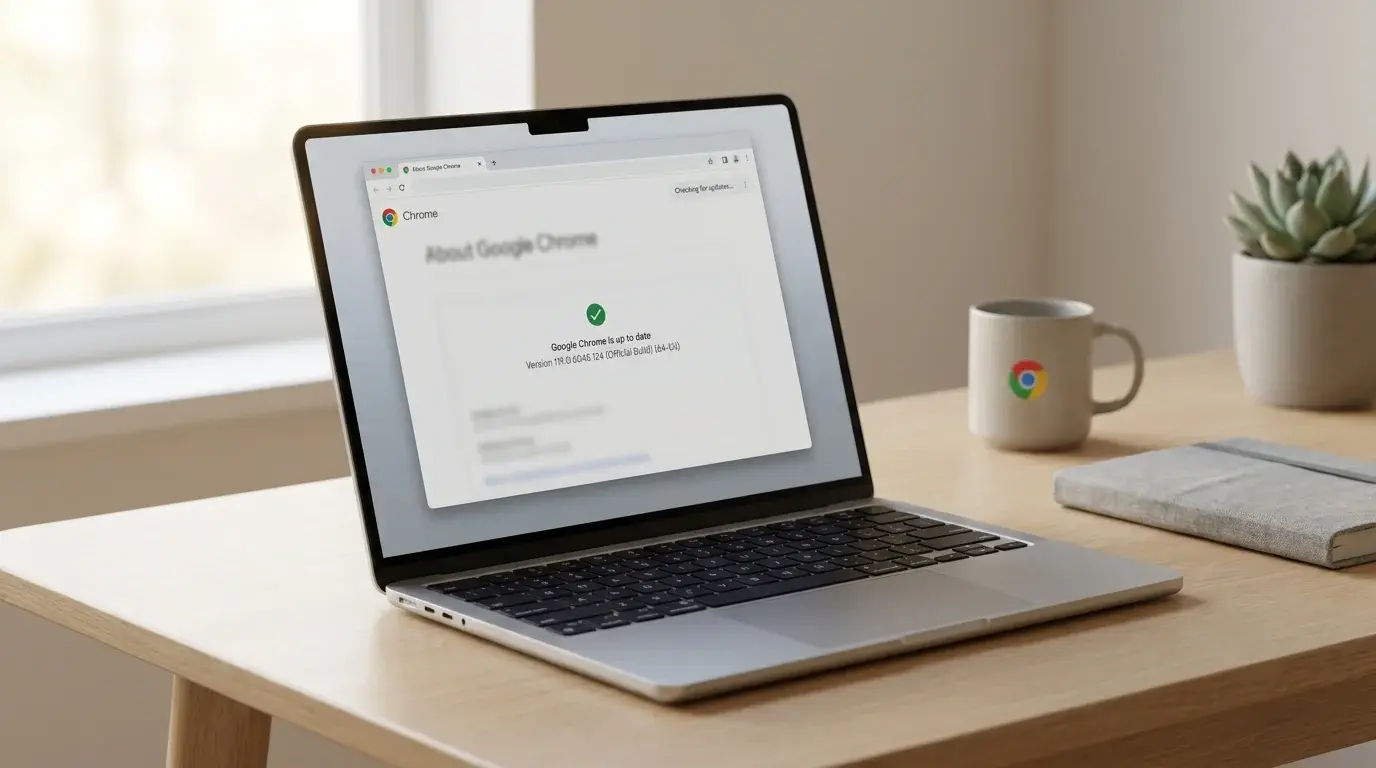
Google Chrome open on a laptop with the browser update screen visible
Table of Contents (19 sections)
- How to update Chrome on Windows or Mac
- How to update Chrome on Android
- How to update Chrome on iPhone or iPad
- How to check which Chrome version you have
- What to do if Chrome will not update
- 1. Close and reopen Chrome
- 2. Check your internet connection and security software
- 3. Check available device storage
- 4. Troubleshoot corrupted cache and cookies
- 5. Check whether the device is managed by an organization
- 6. Review operating system compatibility
- 7. Reinstall Chrome safely
- Does Chrome update automatically?
- Frequently asked questions
- Why is the Chrome update button missing?
- Do I lose my open tabs when Chrome relaunches?
- Will updating Chrome delete my bookmarks or saved passwords?
- Can I update Chrome without the Google Play Store or App Store?
- Summary
Google Chrome usually downloads updates in the background, but you may need to restart the browser or update it through your device's app store. Keeping Chrome current helps you receive available security fixes, stability patches, and browser improvements.
This guide shows how to update Chrome on Windows and Mac, check for updates on Android and iPhone or iPad, confirm which version you have, and troubleshoot common update problems. The exact controls can vary by operating system, Chrome version, and whether your device is managed by a school or employer.
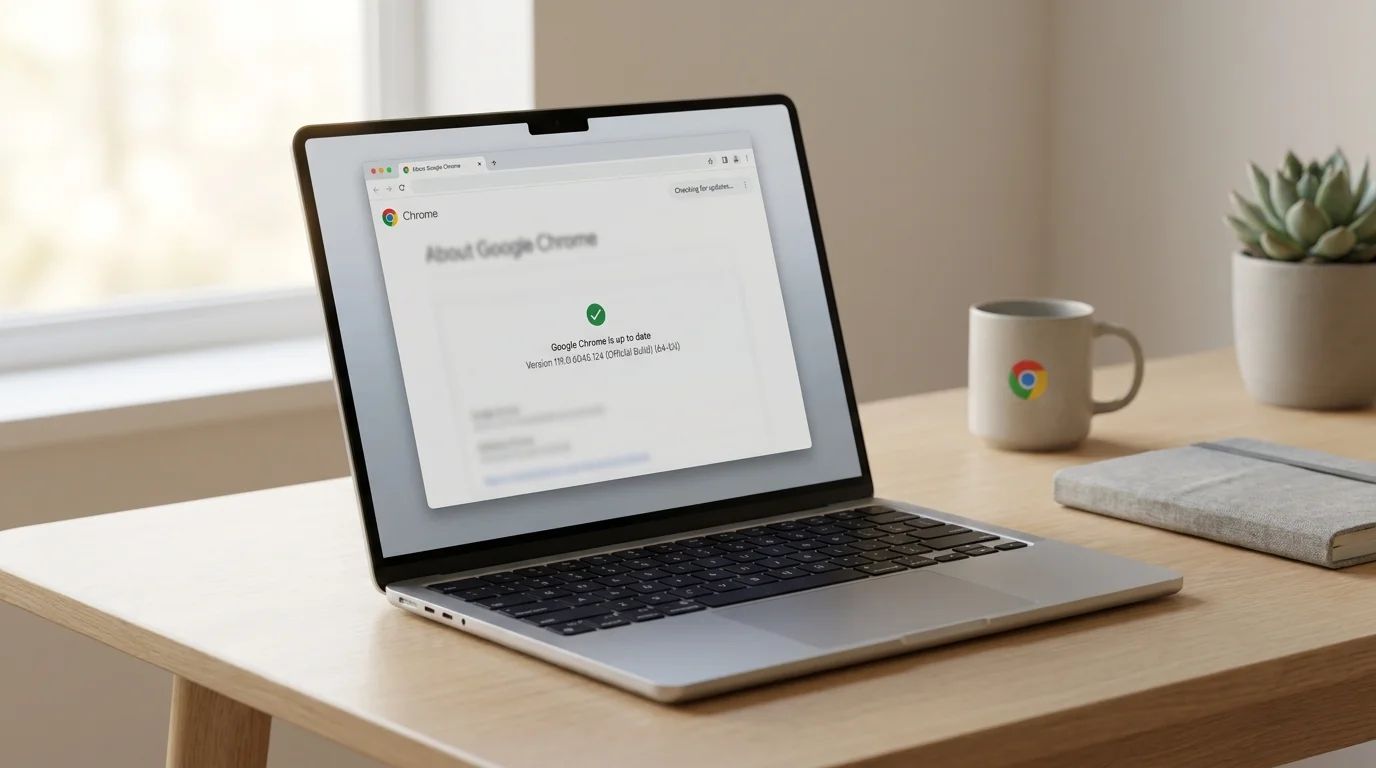
How to update Chrome on Windows or Mac
On most desktop computers, Chrome checks for updates automatically in the background. The About Chrome page also initiates an immediate check for available updates and displays your installed version number.
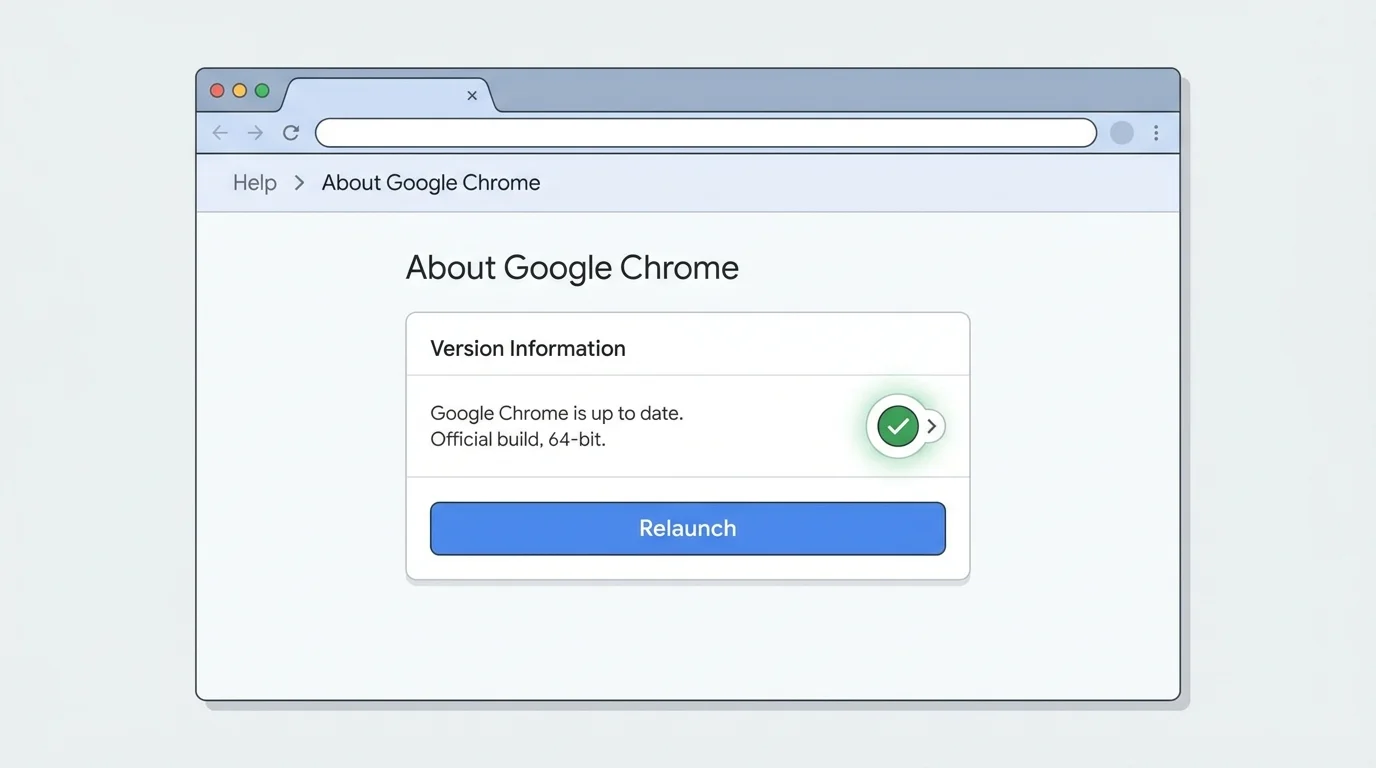
- Open Google Chrome on your computer.
- Select the three-dot menu in the top-right corner.
- Choose Help, then About Google Chrome (or navigate directly to
chrome://settings/help). - Let Chrome check for updates. Keep the tab open while the download completes.
- If an update is ready and Chrome displays a Relaunch button, click it to apply the update.
- After Chrome reopens, return to About Chrome to confirm that "Google Chrome is up to date."
Chrome normally restores your open regular tabs and windows automatically after restarting. However, Incognito windows do not reopen, so save any active work or links from private windows before relaunching.
If there is no Relaunch button and Chrome reports that it is up to date, no new version is currently waiting for your installation. Chrome updates roll out gradually across geographical regions and channels, so version numbers may not be identical on every computer simultaneously.
On Chromebooks, browser updates are tied directly to ChromeOS. To check for updates on a Chromebook, go to Settings > About ChromeOS > Check for updates. On Linux installations, Chrome updates are typically handled by your system's package manager (apt, dnf, or pacman).
How to update Chrome on Android
On Android, Chrome updates are distributed through the Google Play Store. Automatic app updates depend on your Play Store settings, device battery level, and network connection.
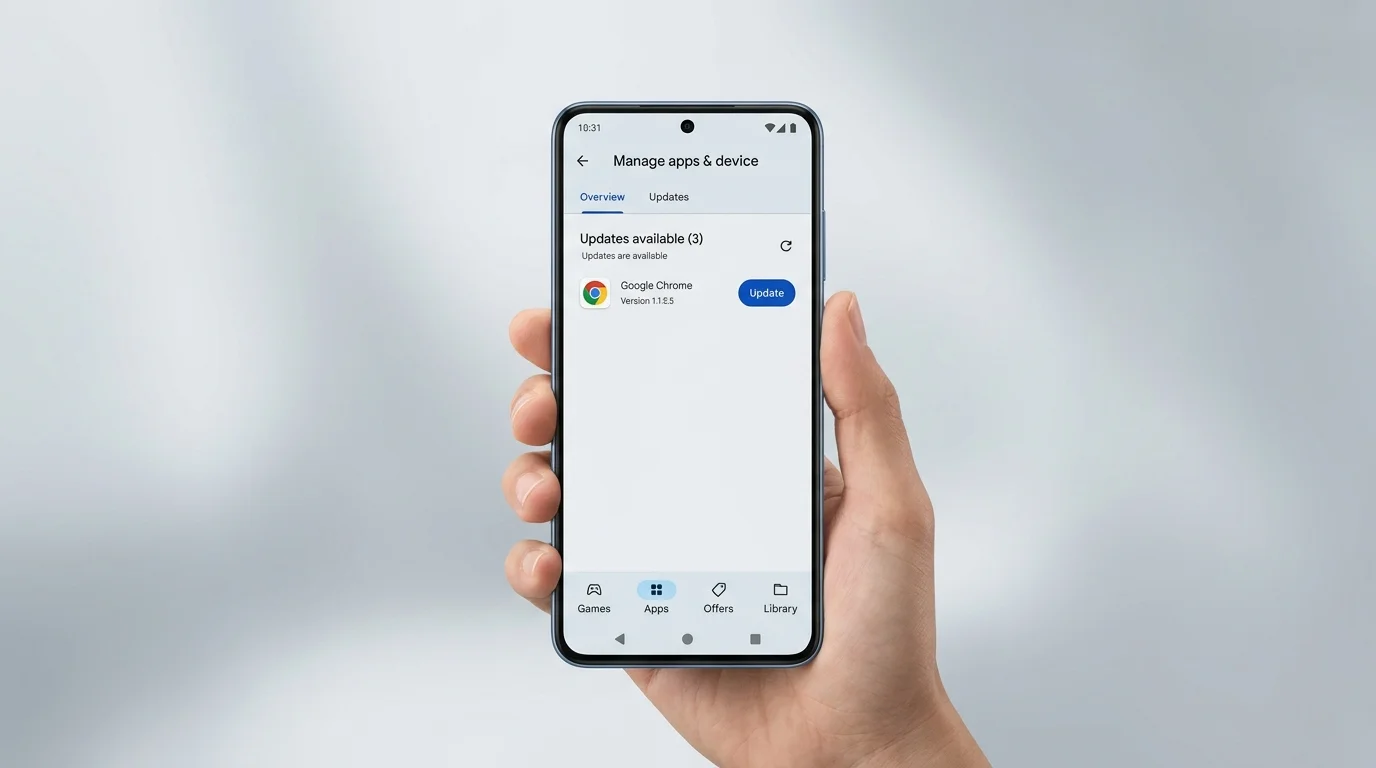
- Open the Google Play Store on your phone or tablet.
- Tap your profile picture or account icon in the top-right corner.
- Select Manage apps & device.
- Look under Updates available and tap See details.
- Find Google Chrome in the list and tap Update.
- Wait for the download and installation to complete, then open Chrome.
If Chrome is not listed under available updates, your device already has the latest release compatible with your version of Android. You can also open Chrome, tap the three-dot menu, and navigate to Settings > About Chrome to verify your build.
Avoid downloading Chrome APK installer packages from unfamiliar mirror websites. Always use the official Google Play Store listing to ensure legitimate, signed updates.
How to update Chrome on iPhone or iPad
Chrome for iOS is updated through Apple's App Store rather than an internal browser menu.
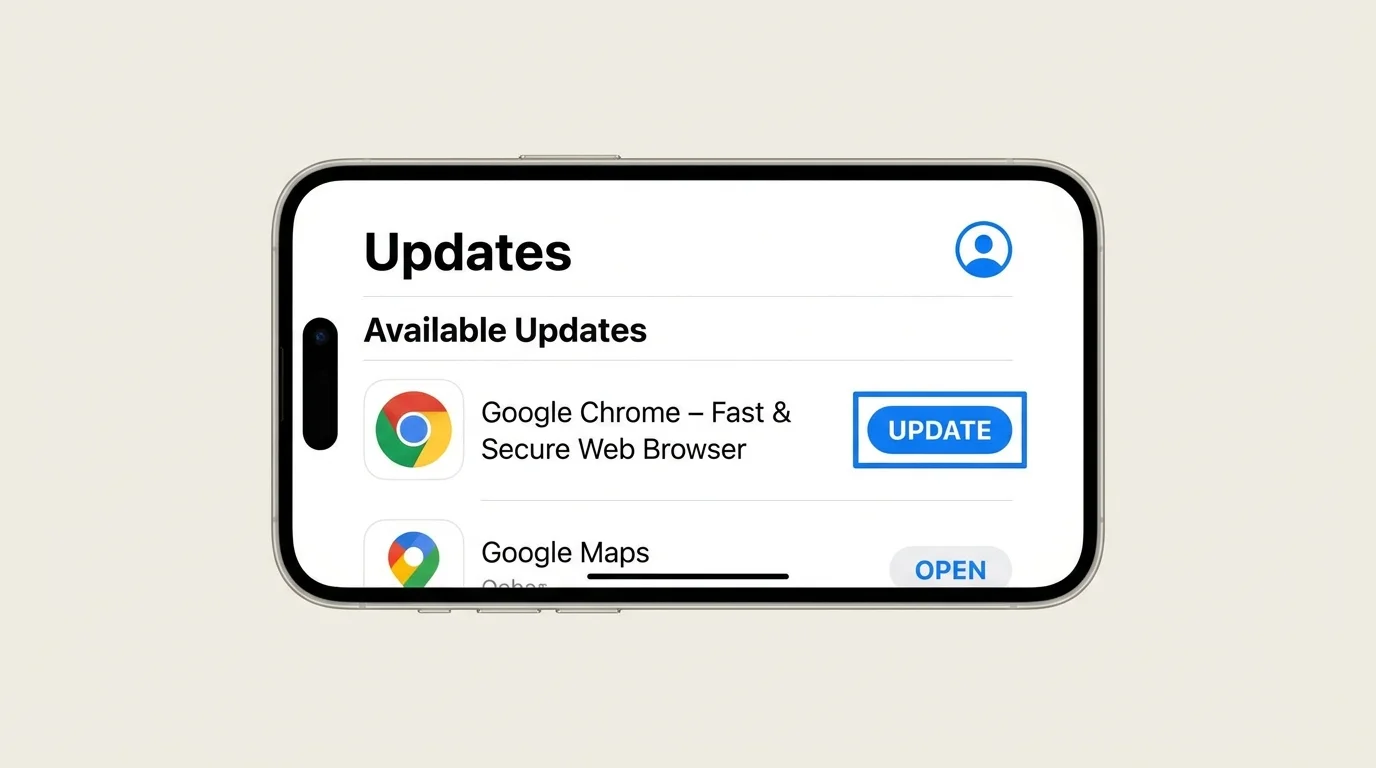
- Open the App Store on your iPhone or iPad.
- Tap your profile icon near the top of the screen.
- Scroll down to the available updates section (pull down to refresh the list if needed).
- Find Google Chrome and tap Update next to it.
- Wait for the update to install, then tap Open.
If Chrome does not appear in the pending updates list, search for "Google Chrome" in the App Store search tab. If the listing shows an Open button instead of Update, your browser is running the newest release available for your iOS version.
How to check which Chrome version you have
- Windows, Mac, and Linux: Open Chrome, click the three-dot menu, and select Help > About Google Chrome (or visit
chrome://settings/help). The full version number is shown below the Chrome header. - Android: Open Chrome, tap the three-dot menu, select Settings, and scroll down to About Chrome.
- iPhone or iPad: Open Chrome, tap the three-dot menu, select Settings > About Chrome, or inspect Chrome under iOS Settings > General > iPhone Storage.
What to do if Chrome will not update
If Chrome encounters an error or fails to complete an update, work through these troubleshooting checks:
1. Close and reopen Chrome
A downloaded desktop update cannot finish installing until the browser processes are restarted. Save your work, click Relaunch on the About page, or manually quit and reopen Chrome.
2. Check your internet connection and security software
Ensure your connection is stable and not blocked by aggressive third-party firewall or antivirus software that might restrict Google's update servers (update.googleapis.com).
3. Check available device storage
Chrome requires free disk space to unpack and apply installation files. If your hard drive or mobile storage is full, free up space before retrying the update.
4. Troubleshoot corrupted cache and cookies
If Chrome updates successfully but certain websites still behave erratically, the issue is often related to obsolete local website data rather than the browser binary itself. See our guides on how to clear cache in Chrome and how to delete cookies in Chrome.
5. Check whether the device is managed by an organization
If you see a message stating "Managed by your organization," your school or employer's IT department may control update scheduling and deployment policies. Contact your system administrator if updates are delayed or disabled.
6. Review operating system compatibility
Older operating system versions eventually reach end-of-support from Google. If your computer or mobile device cannot be upgraded to a supported operating system, Chrome will stop receiving new major feature releases.
7. Reinstall Chrome safely
If the update mechanism is damaged, you may need to reinstall the browser. Before uninstalling, ensure your bookmarks and passwords are saved or synced to your Google Account (follow our guide on how to export bookmarks in Chrome for a standalone offline backup). Download the fresh installer strictly from Google's official Chrome download page.
Does Chrome update automatically?
Yes. Desktop Chrome regularly checks for updates in the background and applies them when the browser restarts. On Android and iOS, updates install automatically through your app store settings when connected to Wi-Fi and power.
However, if you keep your browser open for weeks without closing it, a pending update icon (colored green, orange, or red depending on how long it has been waiting) may appear next to the three-dot menu, prompting you to restart.
Frequently asked questions
Why is the Chrome update button missing?
Chrome is either already running the latest version, or an update has not yet been pushed to your device. On desktop, opening chrome://settings/help forces an immediate check against Google's servers.
Do I lose my open tabs when Chrome relaunches?
Chrome automatically restores your normal open tabs and windows upon relaunching. Only private Incognito tabs are discarded.
Will updating Chrome delete my bookmarks or saved passwords?
No. A standard browser update preserves your user profiles, bookmarks, history, extensions, and passwords.
Can I update Chrome without the Google Play Store or App Store?
On desktop platforms, you can download a fresh installer directly from Google. On mobile devices, always rely on the official Play Store or App Store to prevent security risks from unverified third-party APKs.
Summary
To update Google Chrome on a computer, go to Help > About Google Chrome and click Relaunch if prompted. On Android and iOS, update Chrome through the Google Play Store or Apple App Store. Regular updates protect your privacy and ensure broad compatibility across the modern web.
Verified Primary Sources & Citations
NextTechExplained verifies facts against official documentation, engineering whitepapers, and regulatory filings.
- Google Chrome Help: Update Google Chrome - ComputerView Official Source
- Google Chrome Help: Update Google Chrome - AndroidView Official Source
- Google Chrome Help: Update Google Chrome - iPhone and iPadView Official Source
- Google: How to Update Chrome to the Latest VersionView Official Source
- Google Chrome Help: Download and install Google ChromeView Official Source
Published by NextTechExplained
Editorial Team • Institutional Publication Byline
Articles published under this byline are prepared through rigorous research and verified against official engineering specifications, standards documentation, and primary sources. Learn more about our process on our About page and Editorial Policy.
Related Explanations & Guides
How to Turn Off Notifications in Chrome on Desktop and Mobile
Stop unwanted Chrome notifications by blocking all sites or one website on Windows, Mac, Android, and iPhone. Learn the difference between notifications and pop-ups.
How to Clear Cache in Chrome
Learn how to clear cached images and files in Google Chrome on Windows, Mac, Android, and iPhone, without deleting more browsing data than you need.
How to Delete Cookies in Chrome on Desktop and Mobile
Learn how to delete all cookies in Chrome or remove data for one website on Windows, Mac, Android, and iPhone without clearing more browsing data than you intend.