
How to Fix Your Connection Is Not Private in Chrome
Fix Chrome's Your connection is not private warning safely. Check the website, device date and time, public Wi-Fi sign-in, browser updates, and certificate issues.
Editorial Team
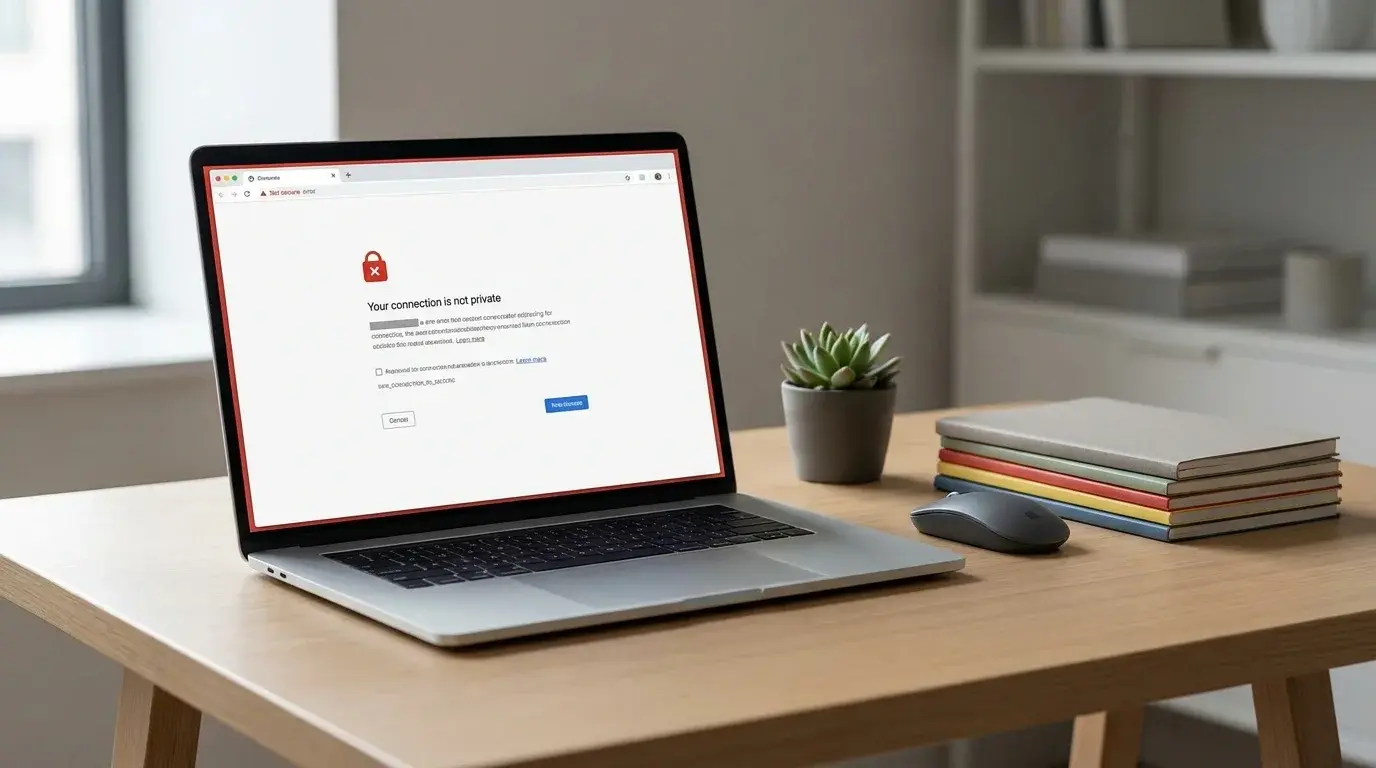
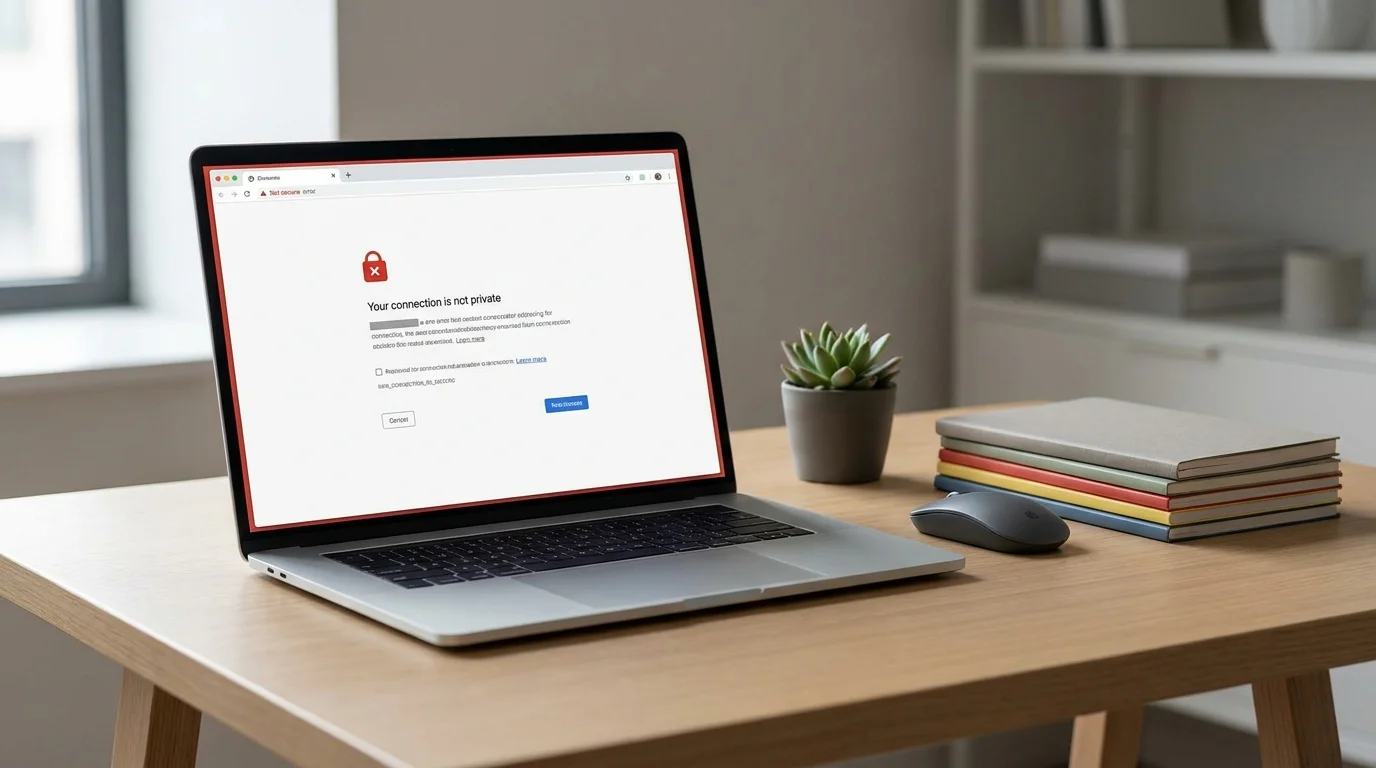
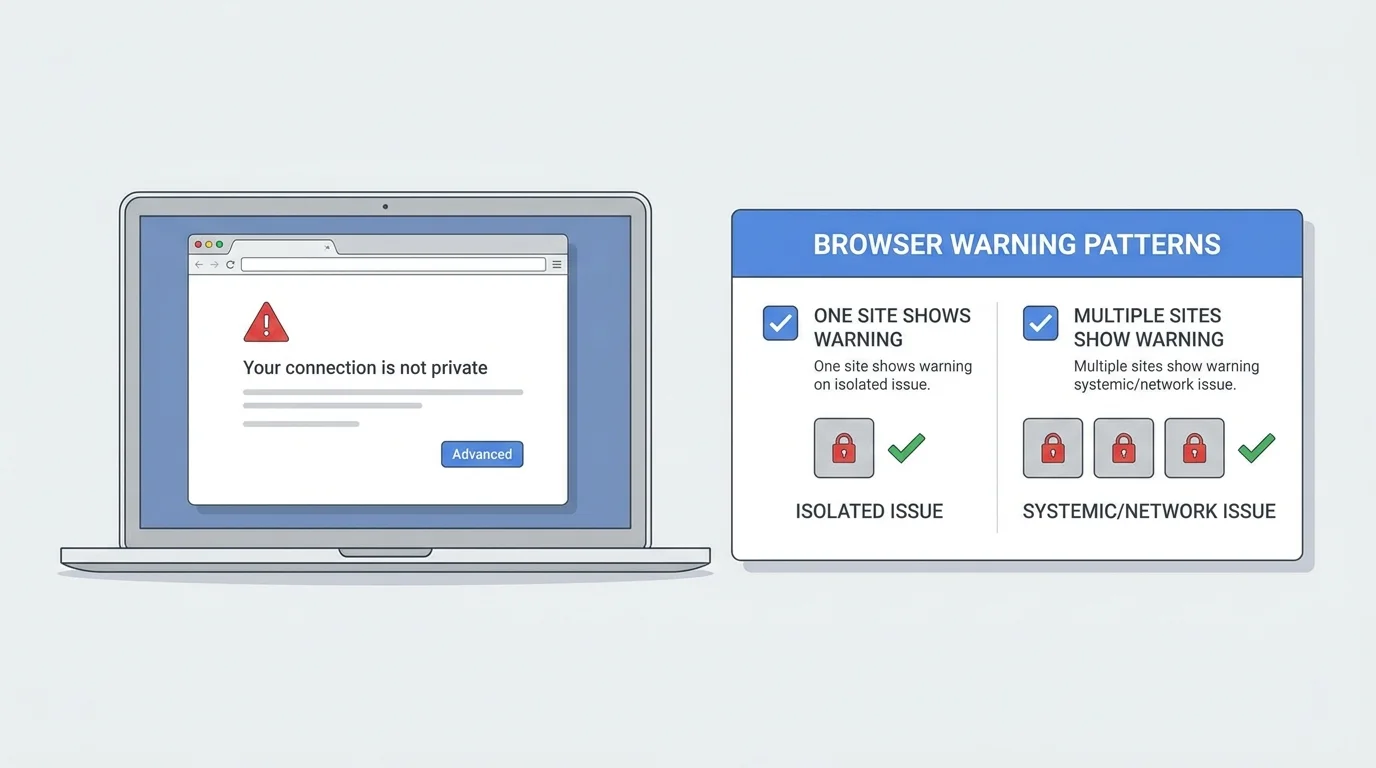
A laptop displaying Chrome's Your connection is not private warning during a safe browser troubleshooting check
Table of Contents (18 sections)
- Quick diagnostic matrix
- 1. Check the website address and the scope of the problem
- 2. Check your computer's date, time, and time zone
- On Windows 11 or Windows 10
- On macOS
- 3. Check whether public Wi-Fi needs a sign-in
- 4. Update Chrome and your operating system
- 5. Test the page in an Incognito window
- 6. Check the network and any managed security configuration
- 7. If the warning appears on just one website
- 8. What not to do
- Frequently asked questions
- Why does Chrome say my connection is not private?
- Is it safe to click Advanced and continue?
- Why does the warning appear on every website?
- Can a wrong date and time cause the error?
- What if only one website shows the warning?
- Sources
Chrome's Your connection is not private warning means the browser could not establish a connection it considers safe for that website. The cause might be a problem with the website's certificate, your device's date and time, the network you are using, or a security configuration on the device. The warning alone does not tell you which one is responsible.
Do not enter passwords, payment details, or other sensitive information on a page showing this warning. Do not bypass the warning just to make the page load. If the site is a bank, shopping checkout, work login, email account, or another page handling private information, close it until the cause is understood.
Quick diagnostic matrix
| Finding or symptom | Most likely underlying condition | Recommended initial action |
|---|---|---|
| Error appears across every HTTPS website | Incorrect device clock, stale time zone, or unauthenticated Wi-Fi portal | Sync system clock in Windows or macOS settings; complete captive portal sign-in. |
| Error appears only on a single specific website | Expired SSL certificate, domain mismatch, or server misconfiguration | Verify URL spelling; do not bypass on banking or login sites; alert site webmaster. |
| Specific error: NET::ERR_CERT_DATE_INVALID | Computer system clock is behind or ahead of actual UTC time | Enable automatic time synchronization and click Sync Now in OS settings. |
| Specific error: NET::ERR_CERT_AUTHORITY_INVALID | Self-signed certificate, missing root CA, or intercepting antivirus/VPN | Check VPN/antivirus HTTPS filtering or consult your organization IT administrator. |
| Page loads normally in Incognito mode | Rogue browser extension intercepting SSL/TLS handshakes | Follow our guide to remove extensions from Chrome. |
| Network connection drops or resets repeatedly | Socket termination, router overflow, or local firewall block | Follow our walkthrough on how to fix ERR_CONNECTION_RESET in Chrome. |
| Chrome interface is sluggish or unresponsive | Memory pressure or corrupted browser profile | See how to fix Chrome running slow. |
1. Check the website address and the scope of the problem
Start by checking whether the warning appears on one website or on many unrelated websites.
- Read the address bar carefully and check the spelling of the domain.
- If you followed a link in an email, message, advert, or search result, do not assume the destination is genuine. Navigate to the service using a bookmark you trust or by typing its known address yourself.
- Open a few other well-known websites that you normally use. Do not enter sensitive information on any site that displays a security warning.
- If only one site shows the warning while other sites work, the site may have a certificate or server configuration problem.
- If many HTTPS websites show it at once, check your device clock and network before changing browser settings.
Chrome may show a related certificate code, such as NET::ERR_CERT_DATE_INVALID or NET::ERR_CERT_AUTHORITY_INVALID. Record the exact code if you need to contact the website owner or IT administrator. Different codes can point to different certificate problems, so do not treat them as interchangeable.
2. Check your computer's date, time, and time zone
A device clock that is substantially wrong can make a website certificate appear not yet valid or expired. This is a useful early check because it is simple and does not require weakening browser security.
On Windows 11 or Windows 10
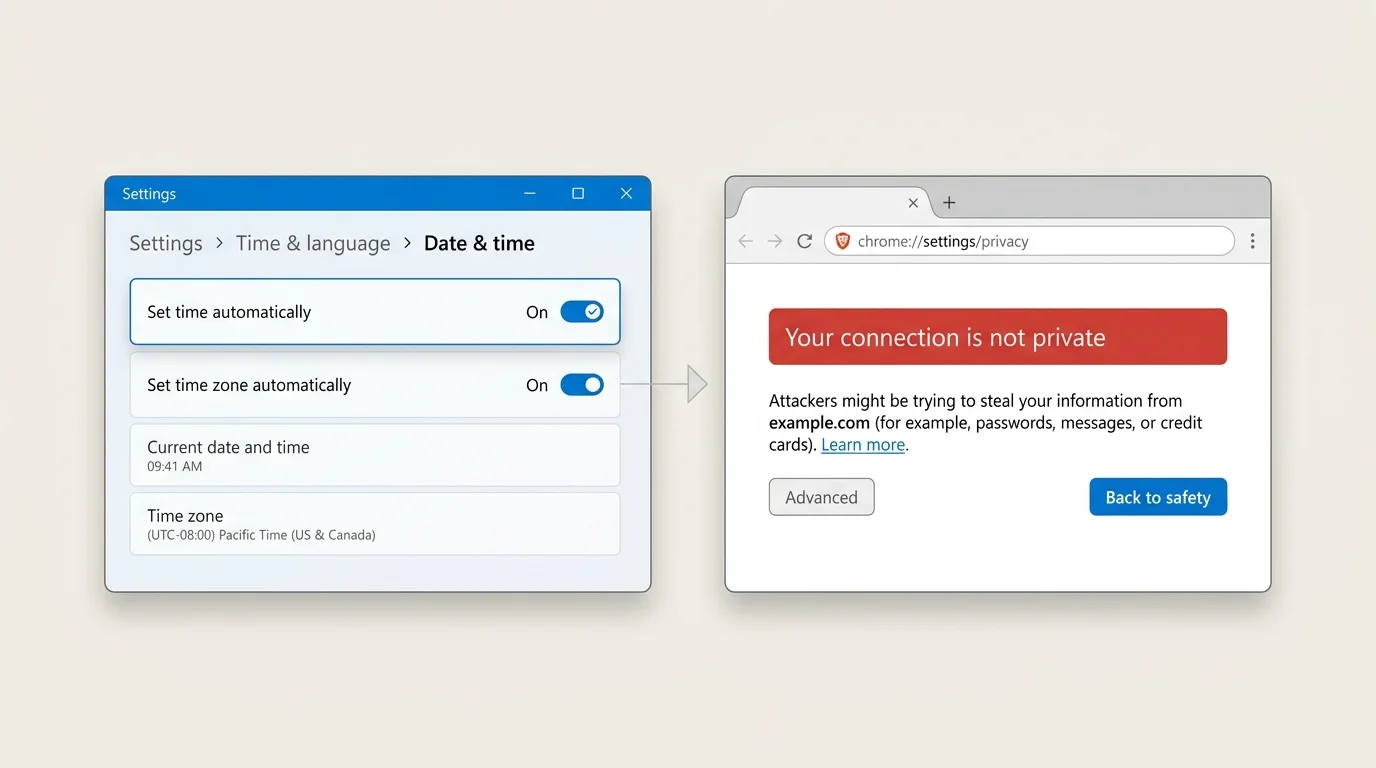
- Open Start > Settings.
- Select Time & language > Date & time.
- Turn on Set time automatically if the option is available and appropriate for your device.
- Check the time zone as well as the displayed date and time.
- If Windows provides a Sync now option, use it, then reopen Chrome and test the site again.
On macOS
- Open the Apple menu and select System Settings.
- Open General > Date & Time.
- Review the options for setting the date and time automatically and setting the time zone automatically.
- Correct the clock using the available system controls, then retry Chrome.
On a work-managed computer, some date and time options may be controlled by your organization. Ask your administrator rather than trying to override a managed configuration.
3. Check whether public Wi-Fi needs a sign-in
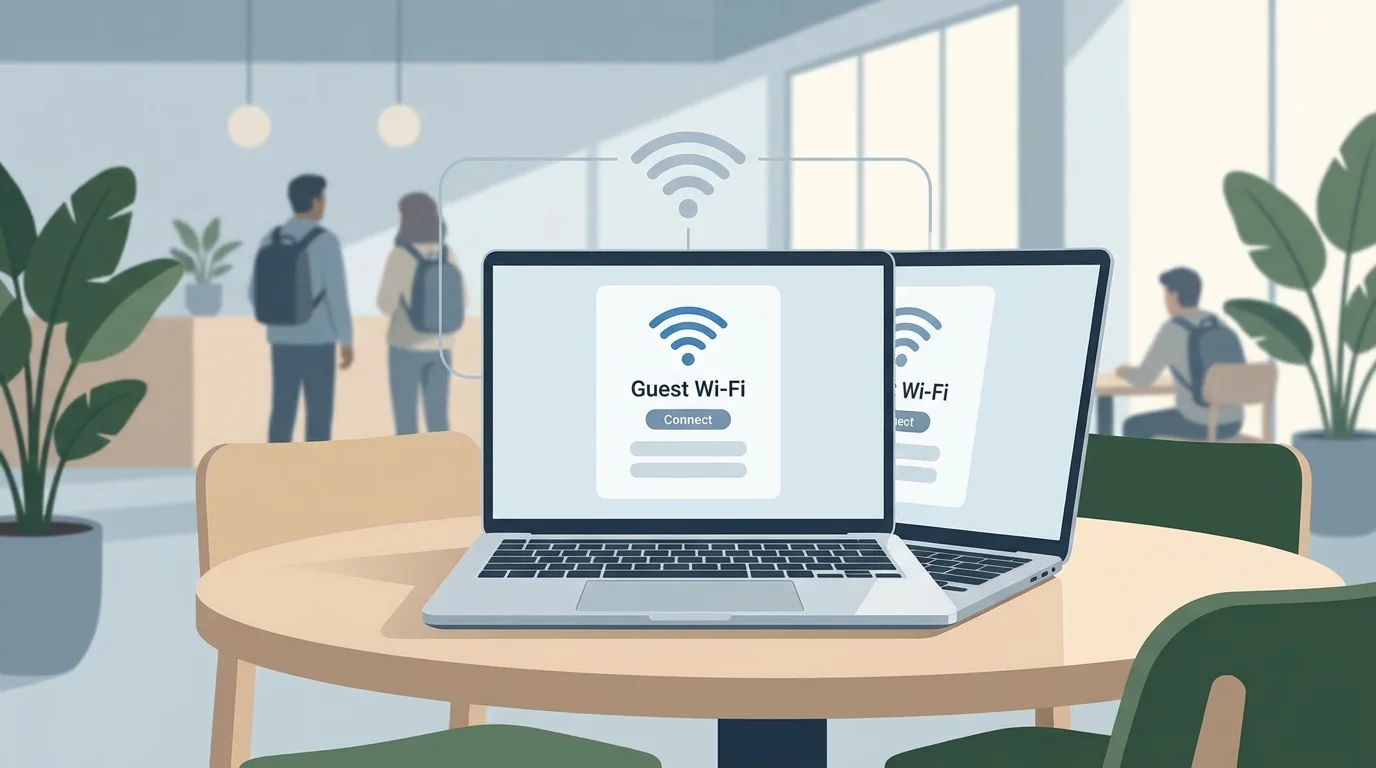
Guest networks in hotels, airports, cafes, schools, and other public places sometimes require you to accept terms or sign in before normal internet access is available. Until that portal step is completed, secure websites may show connection or certificate-related warnings.
If you deliberately joined a trusted guest network:
- Open a new tab and try visiting a basic page that does not require a sign-in, using the network provider's normal captive-portal process.
- If the network's legitimate sign-in page appears, confirm that it belongs to the venue or network operator before entering any information.
- Complete only the expected Wi-Fi access step, then return to Chrome and test the original website again.
- If the portal is unfamiliar or asks for account passwords, payment information, or other details you did not expect, stop and ask the venue's staff for the official connection instructions.
Do not treat a Wi-Fi sign-in portal as permission to ignore Chrome's privacy warning on a bank, email, payment, or other sensitive website. Once the portal step is complete, the target website should load securely. If public Wi-Fi fails to establish a stable TCP handshake even after authentication, consult our troubleshooting guide on how to fix ERR_CONNECTION_RESET in Chrome.
4. Update Chrome and your operating system
An out-of-date browser or operating system can contribute to compatibility problems, although an update is not a guaranteed fix for a certificate warning.
On desktop Chrome, follow our guide on how to update Google Chrome on desktop and mobile or use the following steps:
- Open Chrome.
- Select the three-dot menu.
- Open Help > About Google Chrome.
- Let Chrome check for updates and install any that are offered.
- Relaunch Chrome if the browser asks you to do so.
Also check for available system updates through the normal Windows or macOS update controls. Use official update features, not pop-ups or third-party download sites claiming that your browser or certificate is broken.
If this is a managed work or school device, updates and security certificates may be managed by IT. Contact your administrator if an update or setting is unavailable.
5. Test the page in an Incognito window
An Incognito test can help determine whether the problem is related to your usual Chrome profile or an extension, but it does not prove the certificate is safe.
- Open Chrome's menu and choose New Incognito window, or use the relevant keyboard shortcut for your operating system (Ctrl + Shift + N on Windows, Cmd + Shift + N on macOS).
- Type the website's address carefully.
- Check whether the same warning appears.
If the warning appears in both regular and Incognito windows, do not keep repeating this test. The issue may involve the site, device clock, network, or certificate configuration. If the site loads normally in an Incognito window, an installed extension may be intercepting TLS certificates or altering network headers. Learn how to remove extensions from Chrome to disable or remove conflicting extensions.
Incognito mode is not a way to make an invalid certificate trustworthy. Never enter sensitive information while Chrome warns that the connection is not private.
6. Check the network and any managed security configuration
If the warning appears on many sites, compare the connection in a careful, controlled way:
- Restart your router only if the connection itself appears unreliable and you control the router.
- Check whether other devices on the same network show the same warning.
- If practical, test a different trusted network. Do not use an unknown public network as a workaround for a security warning.
- If you use a VPN, proxy, workplace network, or security product that inspects HTTPS traffic, contact the provider or administrator to check its configuration.
Some organizations intentionally install certificate authorities to inspect managed traffic. Other certificate warnings can be caused by misconfiguration or an unsafe network. Do not install a certificate from an unverified source, delete certificates at random, or disable security software as a routine fix. If unwanted proxy configurations or altered connection flags linger, you can also see how to reset Chrome settings to default to return your profile settings to their clean baseline. A managed-device warning should be reviewed by the administrator responsible for that device.
7. If the warning appears on just one website
When other secure sites work normally but one site consistently displays Your connection is not private, the website owner may need to correct the certificate or server configuration.
You can:
- Confirm the domain is spelled correctly.
- Check whether the site has an official status page or support channel reached through a trusted route.
- Contact the site owner and share the exact Chrome error code, without sending passwords or other private information.
- Try again later if the site reports a certificate or service issue.
Do not click through the warning just because the site belongs to a familiar brand. A certificate warning can indicate that the browser cannot verify the site's identity or protect the connection as expected.
8. What not to do
Avoid these common but risky shortcuts:
- Do not bypass the warning on a sensitive site. This can expose information you submit to an unsafe or impersonated site.
- Do not disable Safe Browsing or your security software just to force a page to open.
- Do not install a certificate from a random website, chat message, or unverified download.
- Do not delete system certificates or edit advanced security settings at random. These changes can cause other connections to fail or reduce protection.
- Do not assume cache clearing will fix a certificate problem. While clearing cached files and cookies resolves session conflicts (as detailed in how to clear cache in Chrome and how to delete cookies in Chrome), browsing data and certificate validation are different issues.
If the warning persists on many websites after checking the date and time, testing a trusted network, and updating the browser and operating system, seek help from your device administrator or the relevant support provider. Preserve the exact error code because it helps narrow down the cause.
Frequently asked questions
Why does Chrome say my connection is not private?
Chrome could not establish a connection it considers secure. The cause can be a website certificate, a wrong device clock, a network sign-in portal, or a device or organization security configuration. The exact error code and whether one or many sites are affected help narrow it down.
Is it safe to click Advanced and continue?
Do not bypass the warning on banking, email, shopping, payment, work-login, or other sensitive pages. If Chrome shows a full-page privacy warning, the safer choice is to stop and diagnose the issue or contact the site owner. A familiar website name alone does not prove the current connection is safe.
Why does the warning appear on every website?
If many unrelated secure websites show the warning, check the device date, time zone, network sign-in requirements, browser and operating-system updates, and any managed VPN, proxy, or certificate configuration. On a work or school device, ask IT before changing security settings.
Can a wrong date and time cause the error?
Yes. An incorrect clock can make a certificate appear expired or not yet valid. Enable automatic time and verify the time zone where appropriate, then retry the website.
What if only one website shows the warning?
The website may have a certificate or server configuration issue, or the address may be incorrect. Confirm the domain and contact the site owner through a trusted route. Do not submit private information while the warning remains.
Sources
- Google Chrome Help: Get help with common error messages in Chrome (opens in new tab)
- Google Chrome Help: Check if a site's connection is secure (opens in new tab)
- Microsoft Support: Set time, date, and time zone settings in Windows (opens in new tab)
- Apple Support: Set the date and time automatically on Mac (opens in new tab)
- Google Chrome Help: Update Google Chrome (opens in new tab)
Verified Primary Sources & Citations
NextTechExplained verifies facts against official documentation, engineering whitepapers, and regulatory filings.
- Google Chrome Help: Get help with common error messages in ChromeView Official Source
- Google Chrome Help: Check if a site's connection is secureView Official Source
- Microsoft Support: Set time, date, and time zone settings in WindowsView Official Source
- Apple Support: Set the date and time automatically on MacView Official Source
- Google Chrome Help: Update Google ChromeView Official Source
Published by NextTechExplained
Editorial Team • Institutional Publication Byline
Articles published under this byline are prepared through rigorous research and verified against official engineering specifications, standards documentation, and primary sources. Learn more about our process on our About page and Editorial Policy.
Related Explanations & Guides
How to Remove Extensions from Chrome on Windows, Mac, and Linux
Remove unwanted Chrome extensions, disable one temporarily, and troubleshoot extensions that return or change browser settings on Windows, macOS, and Linux.

How to Block Pop-Ups in Chrome on Desktop and Mobile
Stop unwanted pop-ups and redirects in Google Chrome on Windows, Mac, Android, and iPhone. Learn how to configure site exceptions and stop persistent ads.
How to Change the Download Location in Chrome
Learn how to change where Google Chrome saves downloaded files on Windows, Mac, Linux, and Chromebook, or configure Chrome to ask for a save folder every time.