
How to Fix Google Chrome Running Slow on Windows and Mac
Speed up a slow Chrome browser by checking tabs, extensions, memory usage, updates, and Performance settings on Windows and Mac without deleting important data unnecessarily.
Editorial Team
Laptop displaying a Chrome browser window as part of a browser performance troubleshooting guide
Table of Contents (16 sections)
- Quick reference: diagnosing Chrome performance issues
- 1. Determine whether one website or all of Chrome is slow
- 2. Reduce tab load and close background applications
- 3. Identify resource-heavy tabs using Chrome Task Manager
- 4. Audit and disable unneeded extensions
- 5. Configure Chrome Performance settings and Memory Saver
- How Memory Saver works
- 6. Keep Google Chrome updated
- 7. Clear cached web files when appropriate
- 8. Reset Chrome settings to default as a later option
- Frequently asked questions
- Will clearing browsing history make Chrome faster?
- Does turning off hardware acceleration make Chrome faster?
- Why is Chrome using so much RAM compared to other apps?
- What should I do before reinstalling Chrome?
- Summary checklist
When Google Chrome takes too long to open new tabs, stutters when scrolling media-rich pages, or gradually slows down after several hours of use, the root cause is typically resource contention. High tab volume, unoptimized browser extensions, runaway background tasks, or memory leaks can quickly exhaust your computer's RAM and CPU cycles.
You do not need to delete your browsing history or reinstall Chrome as your initial reaction. Following a methodical diagnostic approach allows you to identify the specific processes consuming resources and restore snappy performance without sacrificing saved bookmarks or account credentials.
This guide details how to speed up Chrome on Windows and macOS, configure built-in Memory Saver tools, identify heavy background tasks, and avoid common troubleshooting missteps.
Quick reference: diagnosing Chrome performance issues
| Symptom | Likely cause | Best first step |
|---|---|---|
| Only one specific website loads slowly | Server delay or heavy scripts on that site | Test the URL in Microsoft Edge or Safari to verify if the site itself is slow. |
| Chrome slows down when multiple tabs are open | High RAM utilization | Enable Memory Saver in Performance settings and close unnecessary tabs. |
| Chrome feels sluggish immediately upon launch | Extension conflict or background script loop | Use Chrome Task Manager (Shift + Esc) to isolate high-CPU processes. |
| Typing or scrolling lags across all applications | System-wide memory exhaustion | Inspect Windows Task Manager or macOS Activity Monitor to free system RAM. |
| Chrome fails to open or closes abruptly | Process lock or rendering crash | Follow our guide on how to fix Chrome not opening or crashing on Windows and Mac. |
| Webpage fails with ERR_CONNECTION_RESET | Interrupted network connection or proxy error | Follow our guide on how to fix ERR_CONNECTION_RESET in Chrome. |
1. Determine whether one website or all of Chrome is slow
Before modifying browser-wide preferences, isolate the scope of the slowdown:
- Open two or three well-optimized web pages (such as a search engine or lightweight text portal).
- If only one website is slow: The issue is almost certainly with that website's hosting server, third-party advertising scripts, or CDN. Changing Chrome settings will not resolve third-party web server bottlenecks (if the page fails to load entirely with an interrupted connection, see our guide on how to fix ERR_CONNECTION_RESET in Chrome).
- If all websites load sluggishly in Chrome: Test the same URLs in another installed browser (such as Microsoft Edge or Safari). If other browsers load quickly, the issue is isolated to Chrome's profile, extensions, or cache.
- If all browsers and apps are slow: The computer's physical RAM, CPU, or internet connection is saturated. Focus on operating-system resource management rather than browser-specific tweaks.
2. Reduce tab load and close background applications
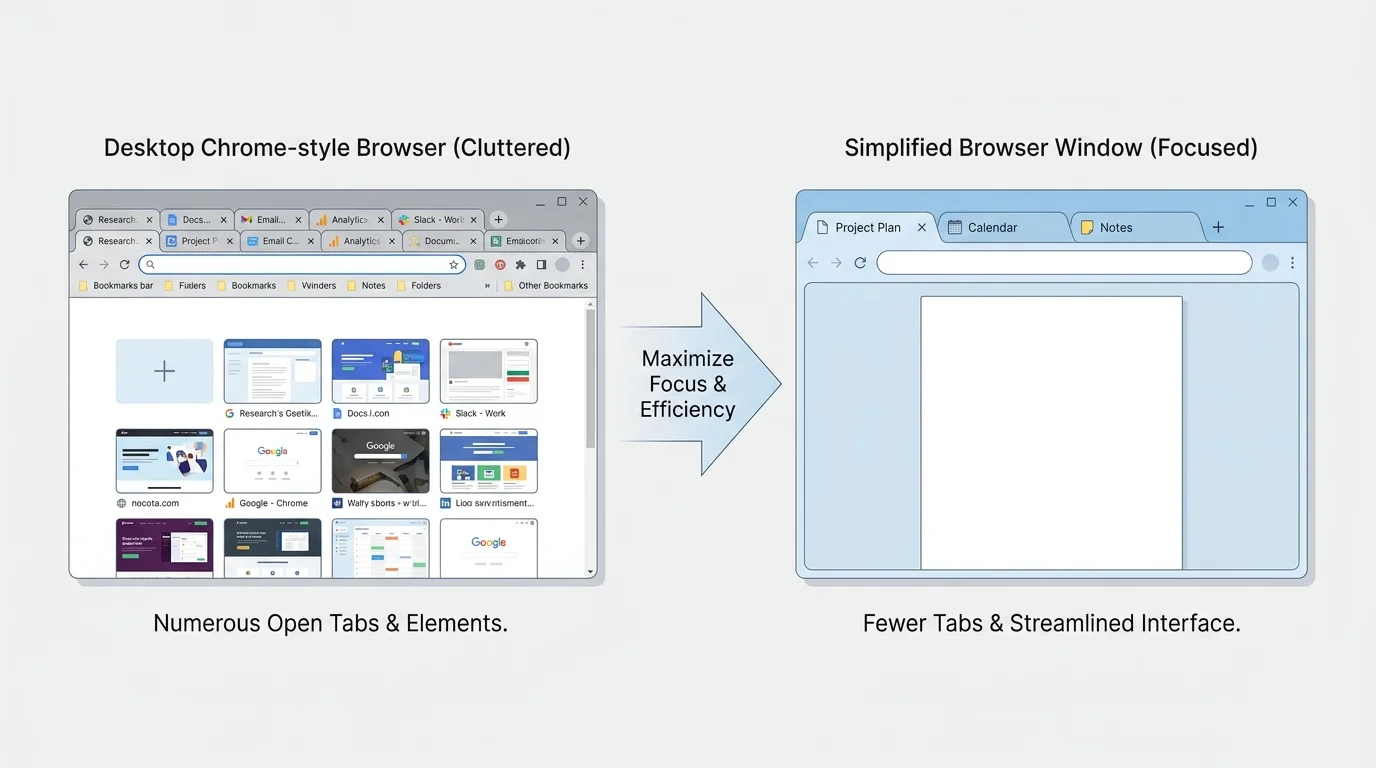
Every open tab in Chrome runs as an independent operating system process to provide process isolation and crash resistance. While this architecture enhances stability, it requires substantial memory:
- Save any in-progress work in open forms or web apps.
- Close unused tabs, especially web pages running continuous video streams, animated web canvas graphics, or real-time web applications.
- On Windows, press Ctrl + W to quickly close the active tab; on macOS, press Command + W.
- Close demanding background desktop programs (such as video editors, game launchers, or virtual machines) competing for system RAM.
Avoid installing third-party "memory cleaning" or registry optimization tools. These utilities often aggressively kill necessary worker threads, causing subsequent page crashes.
3. Identify resource-heavy tabs using Chrome Task Manager
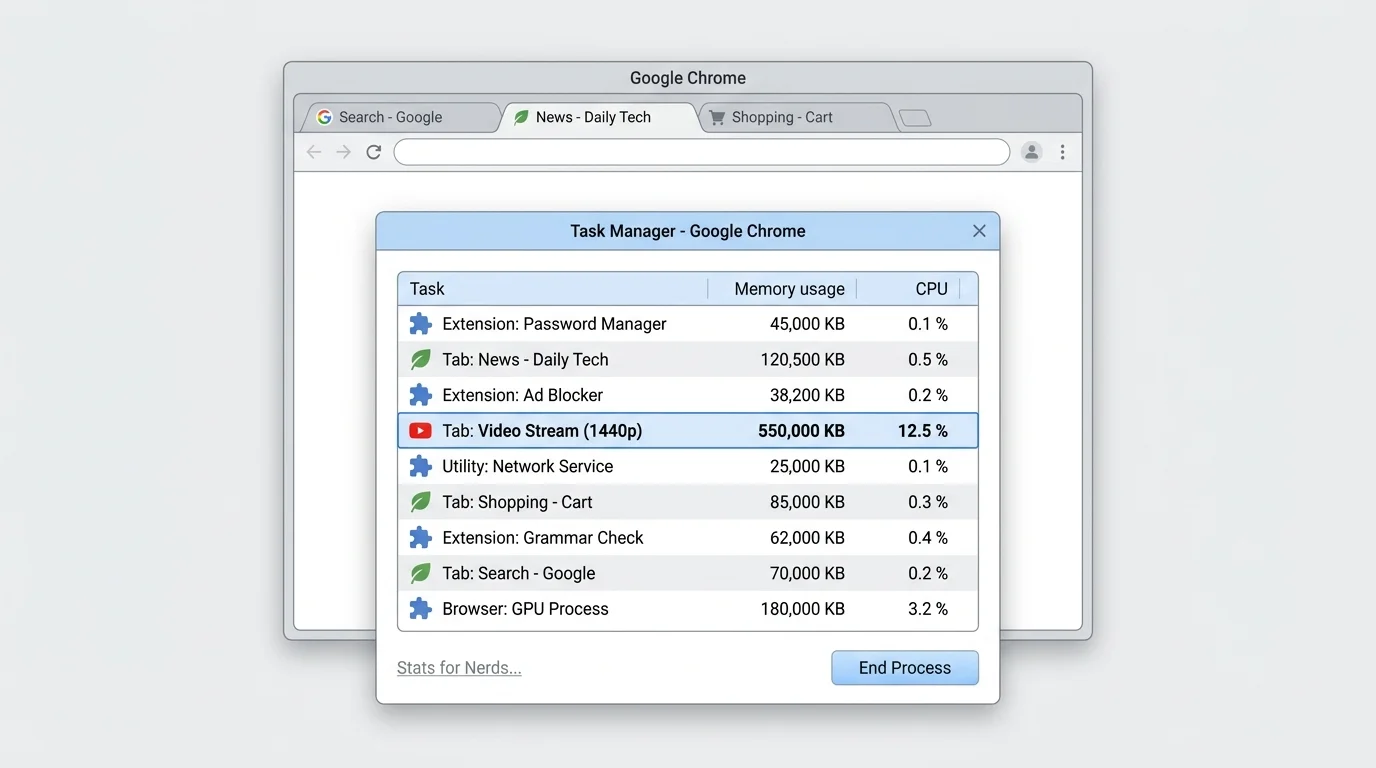
Chrome includes its own built-in Task Manager designed specifically to measure memory and CPU consumption across individual tabs, extensions, and subframes:
- Open Chrome.
- On Windows or Linux, press Shift + Esc to open Chrome Task Manager. On macOS, click the three-dot menu and navigate to More tools > Task Manager.
- Click the Memory footprint column header to sort tasks from highest to lowest memory consumption.
- Review the top entries. If a specific tab or background page is consuming an excessive amount of RAM (often exceeding 1 GB), evaluate whether that tab is necessary.
- To safely stop a runaway tab, select its entry and click End process.
Note: Ending a task in Chrome Task Manager immediately closes that tab and displays an "Aw, Snap!" crash message. Any unsaved form input in that tab will be lost.
4. Audit and disable unneeded extensions
Browser extensions run background scripts that can inspect network requests, inject CSS/JavaScript into every loaded webpage, and monitor user input. Accumulating dozens of extensions significantly increases memory overhead:
- Navigate to
chrome://extensionsin Chrome's omnibox. - Toggle off extensions you do not use daily.
- Restart Chrome and test whether page loading speed improves.
- If speed noticeably increases, re-enable your extensions one at a time to identify the specific tool causing the slowdown.
- Permanently remove obsolete or untrusted add-ons using our step-by-step tutorial on how to remove extensions from Chrome.
On managed corporate or school computers, certain extensions may be enforced by administrative policy. If an extension cannot be disabled, contact your organization's IT department.
5. Configure Chrome Performance settings and Memory Saver
Desktop versions of Chrome feature a dedicated Performance dashboard designed to manage memory efficiency automatically:
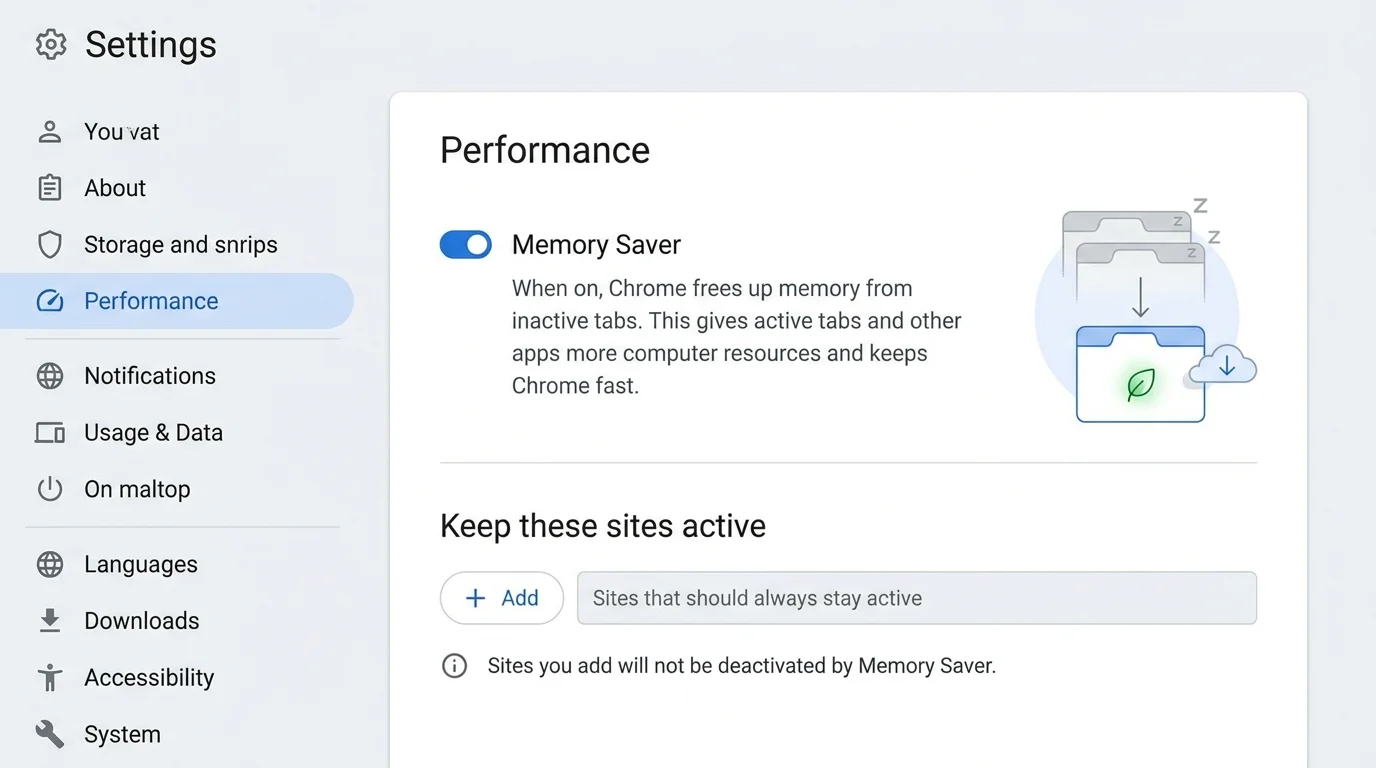
- Click the three-dot menu in the upper-right corner and select Settings.
- In the left navigation panel, click Performance (or enter
chrome://settings/performance). - Under the Memory section, toggle on Memory Saver.
- Choose your preferred memory-saving profile (Moderate, Balanced, or Maximum, depending on your Chrome version).
- If you work with web apps that must maintain continuous live connections (such as online dashboards or communication tools), click Add next to Always keep these sites active and enter their domains.
How Memory Saver works
When Memory Saver is enabled, Chrome automatically frees up memory from inactive background tabs. Deactivated tabs remain visible in your tab strip. When you click back onto a deactivated tab, Chrome reloads its content automatically.
Note: Google's documentation indicates that the desktop Performance settings interface is not available in the same form on mobile editions of Chrome for Android and iOS. On mobile devices, manage tab count manually and ensure the operating system has adequate free internal storage.
6. Keep Google Chrome updated
Google frequently releases V8 JavaScript engine optimizations, Blink rendering pipeline enhancements, and critical security patches with every stable release:
- Click the three-dot menu and select Help > About Google Chrome (or navigate to
chrome://settings/help). - Chrome will check for available updates and download them in the background.
- Click Relaunch when the update completes.
For a complete breakdown of update procedures across desktop and mobile, see our guide on how to update Google Chrome on desktop and mobile.
7. Clear cached web files when appropriate
Clearing cached files can help resolve performance issues when a site's stored stylesheets or JavaScript files become corrupted. However, cache clearing should be applied judiciously:
- Cached files exist specifically to accelerate subsequent page visits by loading images and scripts locally rather than downloading them repeatedly.
- Clearing your cache will cause web pages to load slightly slower on the first visit after clearing as the browser rebuilds its local cache.
- To clear cached files safely without deleting cookies or logging out of your accounts, follow our guide on how to clear cache in Chrome.
- To clear site-specific tracking cookies if a particular domain is malfunctioning, see how to delete cookies in Chrome.
8. Reset Chrome settings to default as a later option
If Chrome remains consistently sluggish despite closing tabs, disabling extensions, and updating, a corrupted profile configuration or hijacked search engine may be responsible:
- Open Chrome Settings and navigate to Reset settings (
chrome://settings/reset). - Click Restore settings to their original defaults.
- Confirm by clicking Reset settings.
This action resets your homepage, startup tabs, and search engine, disables all extensions, and clears temporary site cookies. Your bookmarks, saved passwords, and browsing history are completely preserved. Read our comprehensive guide on how to reset Chrome settings to default for complete details.
Frequently asked questions
Will clearing browsing history make Chrome faster?
No. Your browsing history is simply a chronological text log of URLs stored in a lightweight SQLite database. Deleting browsing history will not noticeably improve page rendering speed or reduce RAM usage.
Does turning off hardware acceleration make Chrome faster?
Generally, no. Hardware acceleration speeds up page rendering by utilizing your graphics card. You should only disable hardware acceleration as a diagnostic test if you experience screen flickering, white screens, or graphics driver crashes.
Why is Chrome using so much RAM compared to other apps?
Chrome uses a multi-process architecture to isolate individual tabs, extensions, and web frames from one another. While this consumes more physical RAM, it ensures that a crash on one tab does not bring down your entire browser window and provides essential sandboxing security.
What should I do before reinstalling Chrome?
Reinstalling should be treated as a last resort. If you plan to reinstall Chrome, ensure your bookmarks are safely exported using our walkthrough on how to export bookmarks in Chrome, and verify that your passwords are synchronized to your Google Account.
Summary checklist
- Test whether the slowdown is confined to a single website or affects all web traffic.
- Close unused background tabs to immediately free system memory.
- Use Chrome Task Manager (
Shift + Esc) to detect and terminate runaway processes. - Enable Memory Saver under Settings > Performance to automatically suspend idle tabs.
- Disable unnecessary extensions and keep Google Chrome updated to the latest stable release.
- Avoid third-party system cleaners or aggressive registry optimization utilities.
Verified Primary Sources & Citations
NextTechExplained verifies facts against official documentation, engineering whitepapers, and regulatory filings.
- Google Chrome Help: Speed up Google ChromeView Official Source
- Google Chrome Help: Personalize Chrome performanceView Official Source
- Google Chrome Help: Fix connection and loading errors in ChromeView Official Source
- Google Chrome Help: Fix Chrome if it crashes or won't openView Official Source
- Google Chrome Help: Reset Chrome settings to defaultView Official Source
- Google Chrome Help: Update Google ChromeView Official Source
Published by NextTechExplained
Editorial Team • Institutional Publication Byline
Articles published under this byline are prepared through rigorous research and verified against official engineering specifications, standards documentation, and primary sources. Learn more about our process on our About page and Editorial Policy.
Related Explanations & Guides
How to Fix Chrome Not Opening or Crashing on Windows and Mac
Fix Chrome when it will not open, freezes, or keeps crashing. Try safe restart, process, extension, update, and hardware acceleration checks first.
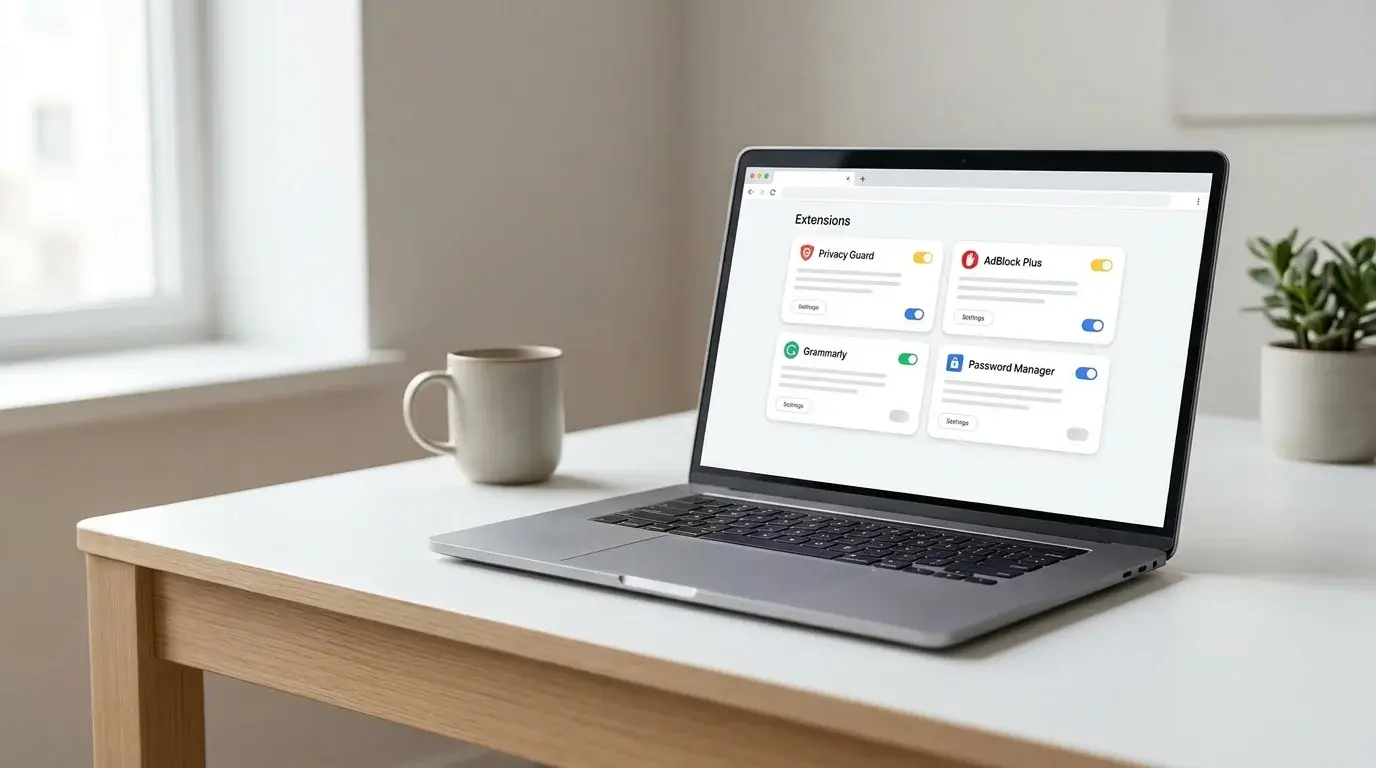
How to Remove Extensions from Chrome on Windows, Mac, and Linux
Remove unwanted Chrome extensions, disable one temporarily, and troubleshoot extensions that return or change browser settings on Windows, macOS, and Linux.
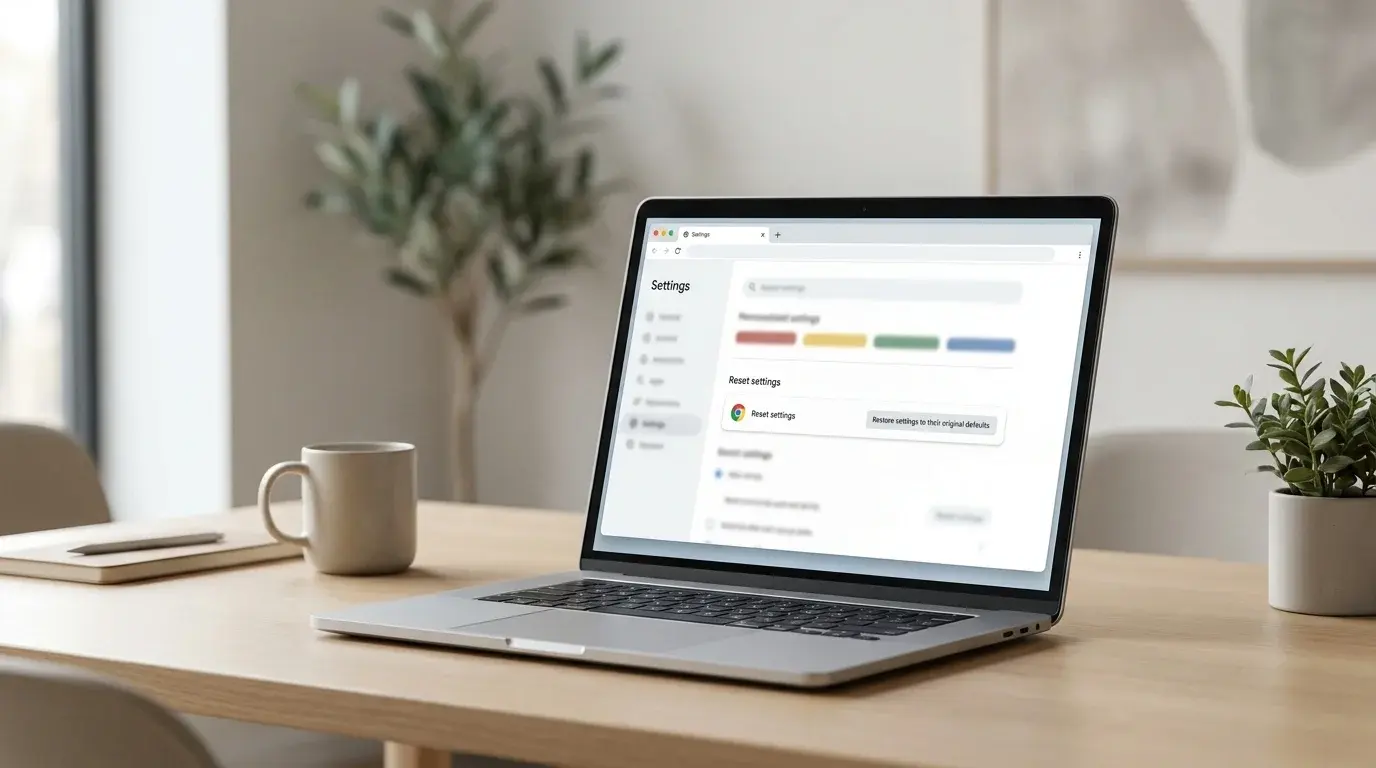
How to Reset Chrome Settings to Default
Restore Chrome's original desktop settings to troubleshoot unwanted changes, search redirects, startup pages, or extension problems without deleting saved bookmarks and passwords.