
How to Fix Chrome Not Opening or Crashing on Windows and Mac
Fix Chrome when it will not open, freezes, or keeps crashing. Try safe restart, process, extension, update, and hardware acceleration checks first.
Editorial Team
Laptop showing a Chrome browser window and troubleshooting settings on a clean desk
Table of Contents (21 sections)
- Quick troubleshooting sequence
- 1. Check whether Chrome is already running in the background
- On Windows 11 and Windows 10
- On macOS
- 2. Restart your computer and clear available memory
- 3. Test whether an extension is causing browser crashes
- 4. Verify whether the problem is site-specific or browser-wide
- 5. Disable hardware acceleration as a diagnostic test
- 6. Update Chrome and your operating system
- Update Chrome directly
- Update your operating system
- 7. Inspect third-party antivirus and security suites
- 8. Reset Chrome settings to default
- 9. Reinstall Chrome as a last resort
- Clean reinstallation steps
- Frequently asked questions
- Why does Chrome close immediately after opening?
- Will reinstalling Chrome delete my bookmarks?
- Can a corrupted cache cause Chrome to crash?
- Should I delete the Chrome User Data folder directly?
- Summary checklist
When Google Chrome fails to open, freezes immediately upon launch, or repeatedly crashes while browsing, the underlying cause is rarely permanent damage. More often, the issue stems from a hidden background process holding file locks, insufficient available system memory, an incompatible browser extension, outdated graphics drivers, or a pending browser update.
You do not need to immediately uninstall Chrome or erase your user data. Following a structured diagnostic sequence allows you to restore browser stability while safeguarding your saved bookmarks, passwords, and browsing history.
This guide walks you through the safe troubleshooting sequence for Google Chrome on Windows and macOS, beginning with non-destructive process checks and progressing to advanced configuration fixes.
Quick troubleshooting sequence
| Step | Action | Best for |
|---|---|---|
| 1. End background processes | Terminate hidden chrome.exe tasks in Task Manager or Force Quit. |
Chrome clicks do nothing or produce no visible window. |
| 2. Reboot and free RAM | Restart your computer and close resource-heavy background apps. | Chrome freezes on startup or crashes under multi-tab workloads. |
| 3. Audit extensions | Temporarily disable add-ons in chrome://extensions. |
Chrome launches but crashes shortly after loading pages. |
| 4. Test another browser | Open the destination URL in Edge, Safari, or Firefox. | Distinguishing website outages from browser failures. |
| 5. Toggle hardware acceleration | Disable graphics acceleration in Chrome System settings. | Display glitches, white screens, or GPU driver crashes. |
| 6. Check updates | Update Chrome via About menu or install operating-system patches. | Compatibility issues following recent OS updates. |
| 7. Reset settings | Restore default configuration via chrome://settings/reset. |
Hijacked search engines, redirect loops, or corrupted profiles. |
| 8. Reinstall Chrome | Perform a clean reinstallation using official Google binaries. | Damaged application binaries when all other fixes fail. |
1. Check whether Chrome is already running in the background
One of the most frequent reasons Chrome appears unresponsive to clicks is that an orphaned background process is already running. If a previous session terminated abnormally, the background process can hold an exclusive lock on your user profile files, preventing new browser windows from rendering.
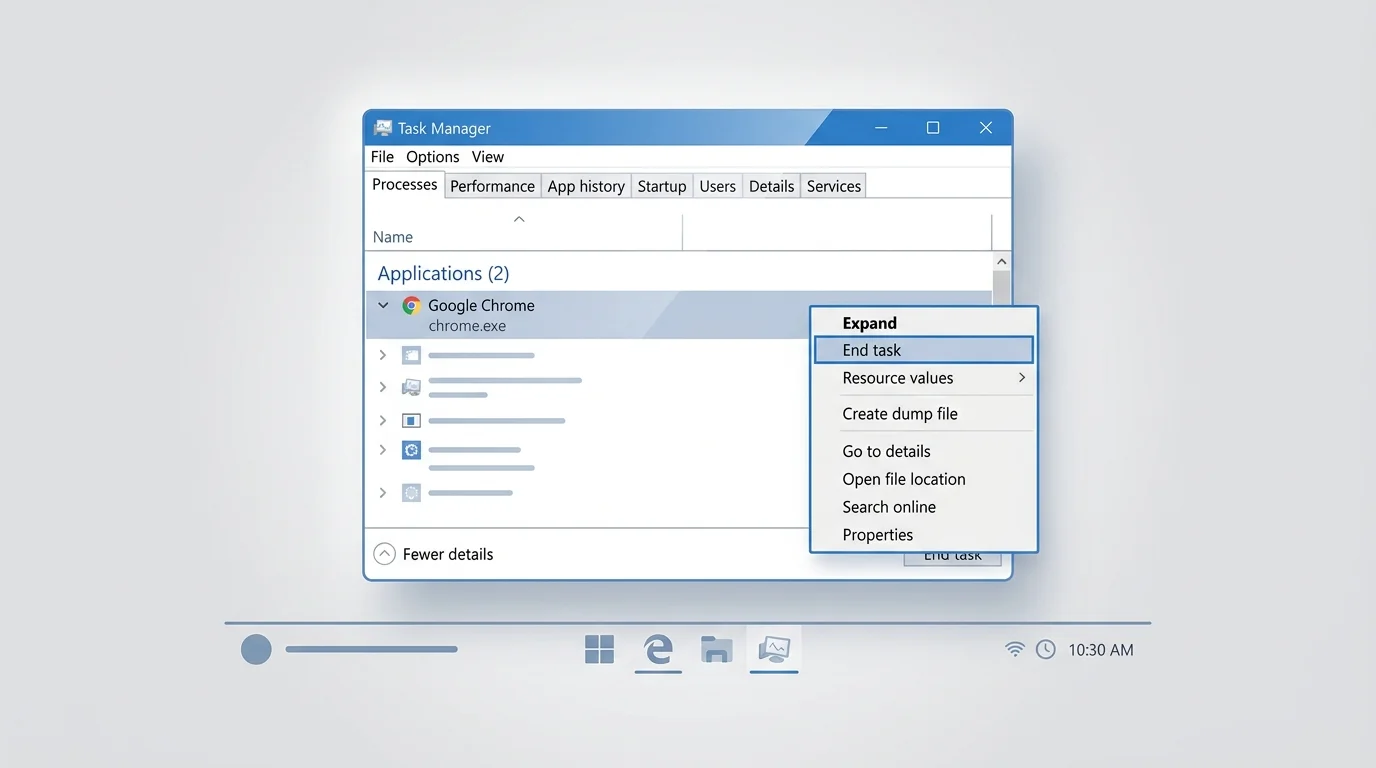
On Windows 11 and Windows 10
- Press Ctrl + Shift + Esc to open Windows Task Manager. If the compact window appears, click More details.
- Under the Processes tab, look for Google Chrome or chrome.exe.
- If multiple Chrome processes are active and you have no unsaved work, select the parent Google Chrome entry.
- Click End task in the upper-right corner (or press Delete).
- Wait 5 seconds, then launch Chrome from your Start menu or taskbar.
Note: Forcefully ending a browser process will close any open web sessions and discard unsaved form entries. Only terminate Chrome processes when the browser window fails to render.
On macOS
- Press Option + Command + Esc to launch the macOS Force Quit Applications dialog.
- If Google Chrome appears in the list (often marked as "Not Responding"), select it.
- Click Force Quit and confirm.
- Re-open Google Chrome from Launchpad, the Dock, or your Applications folder.
2. Restart your computer and clear available memory
Modern web applications and multi-tab workflows demand substantial RAM. If your system runs low on free physical memory, the operating system's memory manager may abruptly terminate Chrome processes to prevent system-wide instability.
- Close other demanding software (such as video editors, games, or virtual machines).
- Perform a standard operating system restart via the Windows Start menu or Apple menu.
- Once your desktop reloads, launch Chrome before opening third-party background applications.
- If Chrome launches successfully, open only one or two tabs initially to confirm stable operation.
Avoid using third-party "RAM cleaner" or registry optimizer utilities. These tools often terminate essential Windows services or corrupt Chrome's cache directory. (If your browser opens reliably but stutters or lags under heavy tab loads, see our companion guide on how to fix Chrome running slow on Windows and Mac).
3. Test whether an extension is causing browser crashes
Corrupted or incompatible browser extensions are a leading cause of sudden crashes. If Chrome opens but closes unexpectedly after a few seconds or when navigating to specific websites, test your extensions:
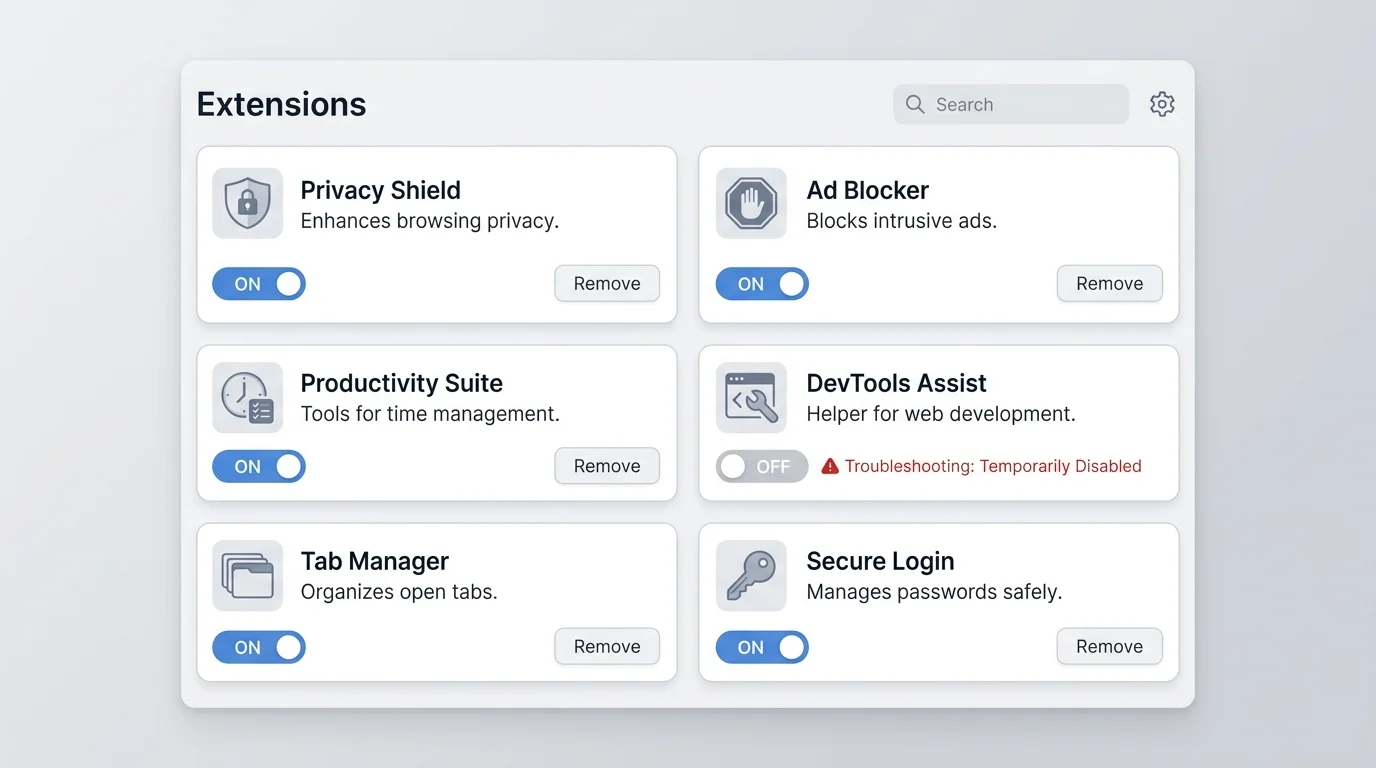
- Open Chrome and type
chrome://extensionsinto the omnibox, then press Enter. - Toggle off all active extensions by clicking the blue switch on each card (the switch turns gray).
- Close Chrome completely and reopen it.
- If the browser remains stable, re-enable your extensions one at a time to identify the conflicting add-on.
- Once identified, follow our guide on how to remove extensions from Chrome to permanently uninstall the troublesome tool.
Note: If Chrome crashes immediately upon launch and will not remain open long enough to access chrome://extensions, skip this step and proceed to Step 4 and Step 5 below.
4. Verify whether the problem is site-specific or browser-wide
Before making deeper system alterations, isolate whether the failure is unique to Google Chrome or affects your entire internet connection:
- Open a secondary browser already present on your machine, such as Microsoft Edge on Windows or Apple Safari on macOS.
- Navigate to the same URL that triggered the crash in Chrome.
- If the webpage fails across all browsers: The issue involves a server outage, local network disruption, DNS failure, or router firewall. Clearing Chrome data will not resolve the problem.
- If the webpage loads properly in other browsers: The failure is isolated to Chrome's local cache, profile settings, or graphics configuration. Clear local script data using our tutorials on how to clear cache in Chrome and how to delete cookies in Chrome.
5. Disable hardware acceleration as a diagnostic test
Hardware acceleration offloads intensive graphics and video rendering tasks from your CPU to your dedicated or integrated graphics card (GPU). If your graphics driver is outdated or has a compatibility flaw with Chrome's Chromium rendering engine, opening hardware-accelerated pages can trigger instant browser crashes or blank white windows.
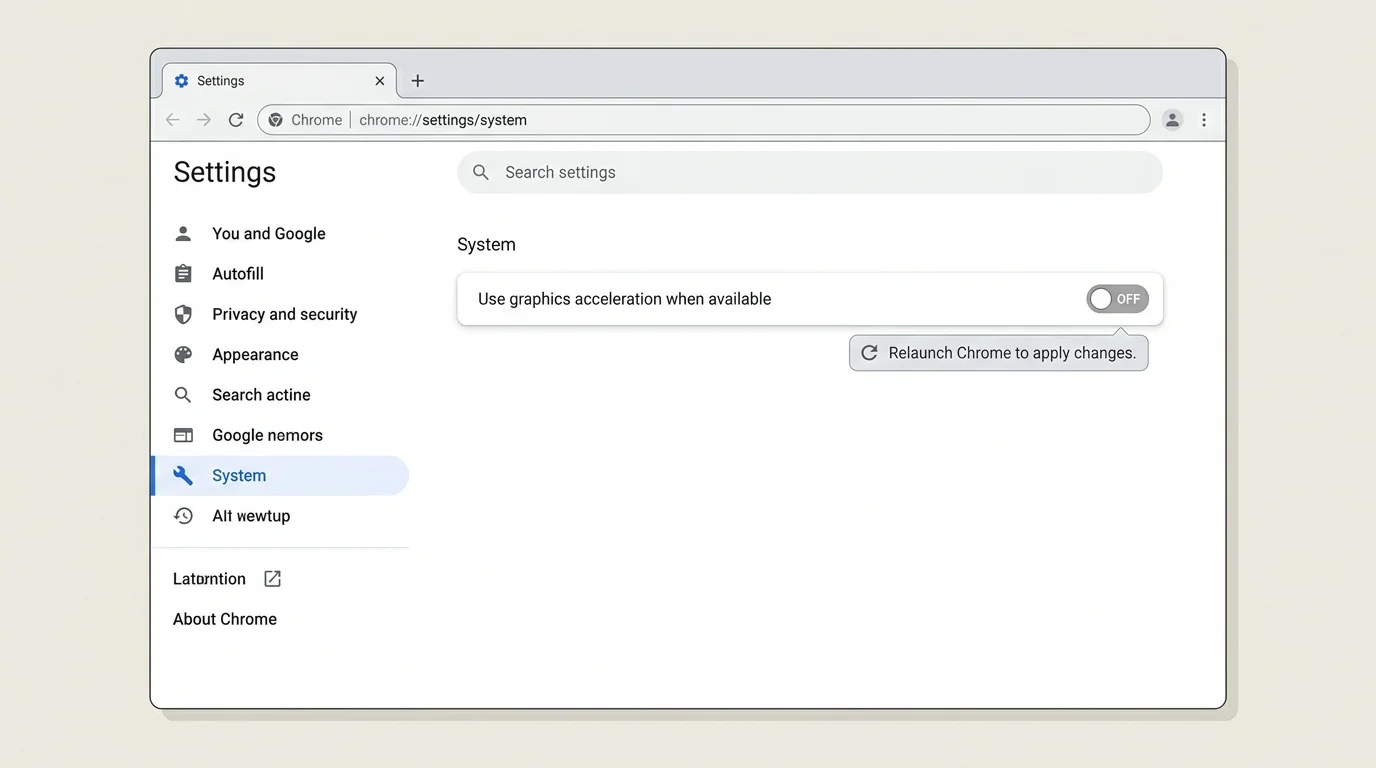
If you can access Chrome Settings:
- Click the three-dot menu in the upper-right corner and select Settings.
- In the left navigation menu, click System (or search for "hardware acceleration").
- Toggle off Use graphics acceleration when available.
- Click the Relaunch button that appears.
If disabling graphics acceleration resolves your crashes, update your graphics card drivers (via Windows Update, Nvidia GeForce Experience, AMD Adrenalin, or macOS Software Update) before re-enabling the feature.
6. Update Chrome and your operating system
Software updates frequently patch critical memory-leak bugs, JavaScript engine exceptions, and OS-level API incompatibilities:
Update Chrome directly
- Click the three-dot menu and navigate to Help > About Google Chrome (or navigate to
chrome://settings/help). - Chrome will automatically poll Google update servers and download the latest stable release.
- When the download completes, click Relaunch. (For full mobile and desktop instructions, see our walkthrough on how to update Google Chrome on desktop and mobile).
Update your operating system
If Chrome will not launch at all, system-level libraries may be corrupted. Run Windows Update (Settings > Windows Update) or macOS Software Update (System Settings > General > Software Update) and install any pending cumulative updates.
Note: On workplace or school laptops, update policies are frequently managed by organizational administrators. Contact your IT department if updates are restricted.
7. Inspect third-party antivirus and security suites
Overly aggressive security suites or third-party web filtering applications can flag Chrome executable files or intercept secure sockets, causing launch failures:
- Check your antivirus or firewall quarantine logs to confirm that
chrome.exehas not been falsely flagged as malicious. - Do not disable your antivirus or firewall permanently as a shortcut. Instead, verify that Google Chrome is listed as an authorized application in your security software's firewall rules.
- If you notice unexpected redirects, new tabs opening unprompted, or deceptive virus warnings, follow our dedicated instructions on how to block pop-ups in Chrome.
8. Reset Chrome settings to default
If Chrome opens but remains sluggish, exhibits redirect loops, or crashes on specific actions, restoring the default browser profile configuration eliminates corrupted state without touching your personal credentials:
- In Chrome's address bar, type
chrome://settings/resetand press Enter. - Click Restore settings to their original defaults.
- Confirm the action by clicking Reset settings.
This action resets search engines, startup tabs, and content permissions, disables all extensions, and clears temporary site cookies. For complete details on what data is preserved, read our guide on how to reset Chrome settings to default.
9. Reinstall Chrome as a last resort
If Chrome remains completely unopenable after ending background tasks, rebooting, and checking security software, the core application binaries on your drive may be damaged.
Before uninstalling:
- If Chrome opens intermittently, export a local backup of your bookmarks by following our guide on how to export bookmarks in Chrome.
- Confirm your passwords are saved in your Google Account or note your credentials (for authentication safeguards, see how passkeys work and setup recovery).
Clean reinstallation steps
- Uninstall Chrome:
- Windows: Go to Settings > Apps > Installed apps, locate Google Chrome, click the three dots, and select Uninstall. Avoid checking the option to delete browsing data unless you deliberately intend to wipe local history and cookies.
- macOS: Open Finder > Applications, drag Google Chrome to the Trash, and empty the Trash.
- Download fresh installer: Using Microsoft Edge or Apple Safari, navigate exclusively to the official Google website (
https://www.google.com/chrome/). Never download Chrome installers from third-party software hubs or pop-up links. - Install and launch: Run the official installer and complete setup.
Frequently asked questions
Why does Chrome close immediately after opening?
An immediate crash on startup usually indicates a locked background process, a corrupted browser profile, or a severe extension conflict. End all chrome.exe processes via Task Manager or Force Quit, reboot your machine, and launch Chrome again.
Will reinstalling Chrome delete my bookmarks?
If you sign in with a Google Account and have Chrome Sync enabled, your bookmarks, history, and passwords will automatically restore once you sign back in after reinstalling. If you use a local profile without sync, your bookmarks remain stored on disk unless you explicitly select the checkbox to delete user data during uninstallation.
Can a corrupted cache cause Chrome to crash?
Yes. Corrupted cached web scripts or service workers can cause Chrome's renderer process to crash repeatedly when attempting to load specific web pages. Clearing cached files via chrome://settings/clearBrowserData often resolves page-specific crashes.
Should I delete the Chrome User Data folder directly?
Manual deletion of profile folders in AppData or Application Support is not recommended as routine troubleshooting. It permanently deletes local bookmarks, extension configurations, and saved tab states without recovery options. Always attempt built-in settings resets first.
Summary checklist
- Check Task Manager or Force Quit to terminate hung background Chrome processes.
- Reboot your PC or Mac to clear memory bottlenecks before attempting complex fixes.
- Disable extensions in
chrome://extensionsto isolate crashing add-ons. - Test hardware acceleration toggles if you encounter blank screens or graphical glitches.
- Reset Chrome settings to defaults before considering a complete browser reinstallation.
- Always download Google Chrome directly from official Google distribution channels.
Verified Primary Sources & Citations
NextTechExplained verifies facts against official documentation, engineering whitepapers, and regulatory filings.
- Google Chrome Help: Fix Chrome if it crashes or won't openView Official Source
- Google Chrome Help: Fix connection and loading errors in ChromeView Official Source
- Google Chrome Help: Speed up Google ChromeView Official Source
- Google Chrome Help: Reset Chrome settings to defaultView Official Source
- Google Chrome Help: Remove unwanted ads, pop-ups, and malwareView Official Source
Published by NextTechExplained
Editorial Team • Institutional Publication Byline
Articles published under this byline are prepared through rigorous research and verified against official engineering specifications, standards documentation, and primary sources. Learn more about our process on our About page and Editorial Policy.
Related Explanations & Guides
How to Fix Google Chrome Running Slow on Windows and Mac
Speed up a slow Chrome browser by checking tabs, extensions, memory usage, updates, and Performance settings on Windows and Mac without deleting important data unnecessarily.
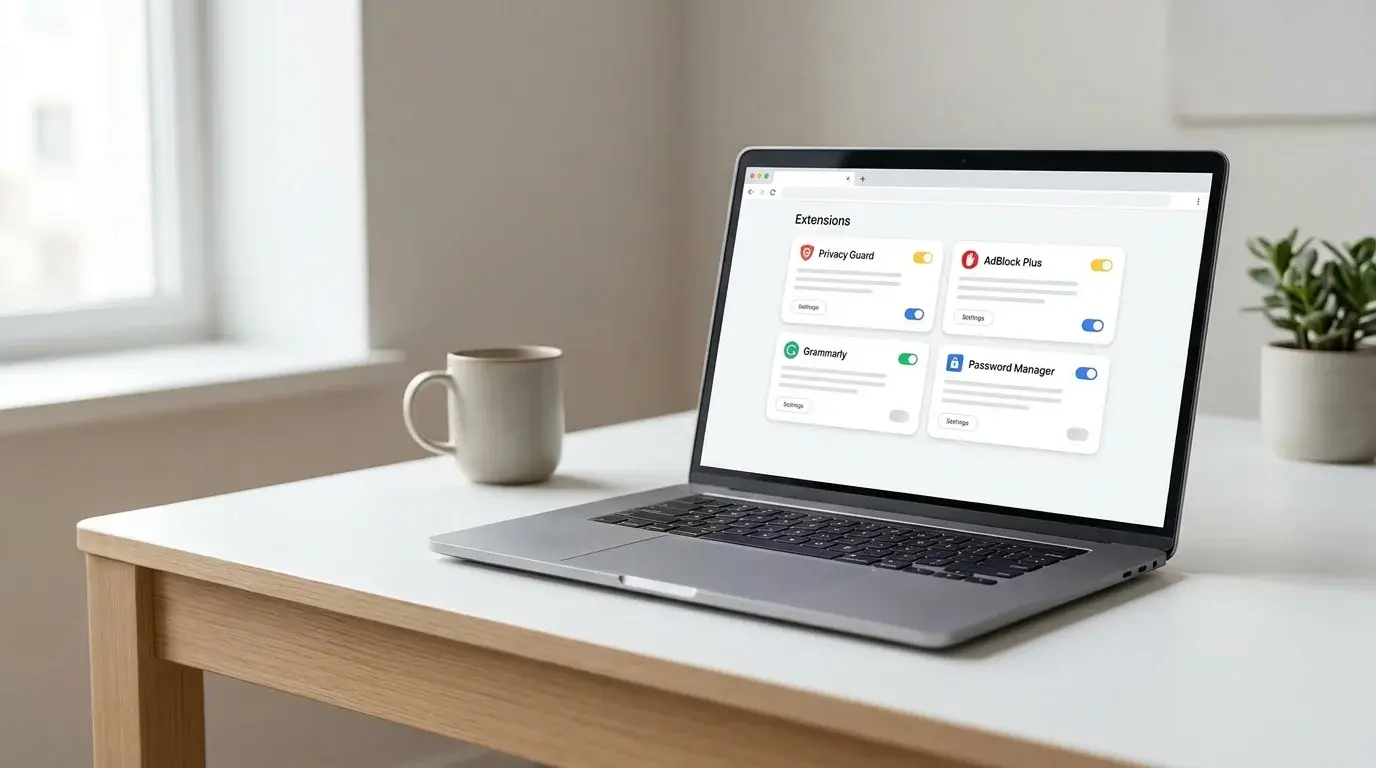
How to Remove Extensions from Chrome on Windows, Mac, and Linux
Remove unwanted Chrome extensions, disable one temporarily, and troubleshoot extensions that return or change browser settings on Windows, macOS, and Linux.
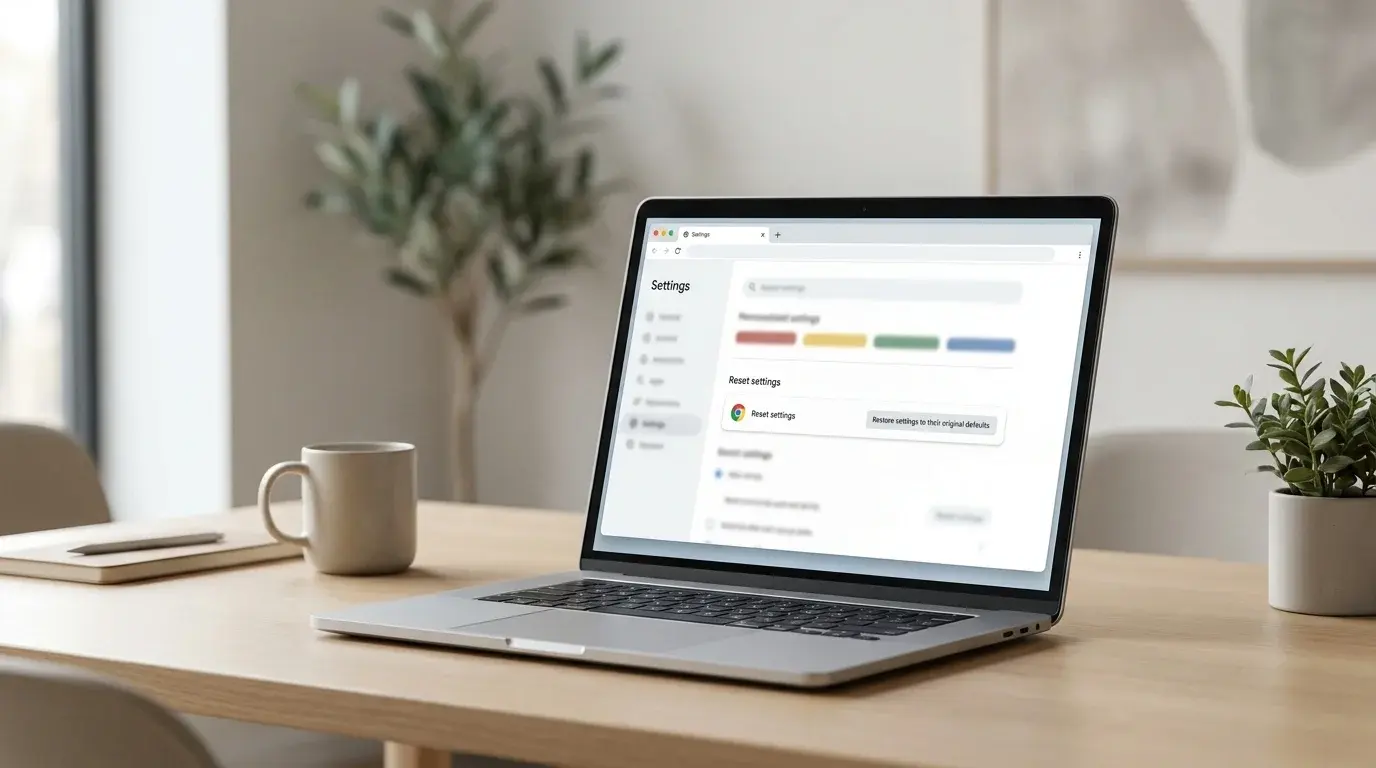
How to Reset Chrome Settings to Default
Restore Chrome's original desktop settings to troubleshoot unwanted changes, search redirects, startup pages, or extension problems without deleting saved bookmarks and passwords.