
How to Delete Cookies in Chrome on Desktop and Mobile
Learn how to delete all cookies in Chrome or remove data for one website on Windows, Mac, Android, and iPhone without clearing more browsing data than you intend.
Editorial Team

Laptop displaying a browser privacy screen for managing and deleting website cookies
Table of Contents (16 sections)
- Before you delete cookies
- How to delete all cookies in Chrome on Windows or Mac
- What should you select?
- Delete cookies for one website on desktop
- How to delete cookies in Chrome on Android
- How to delete cookies in Chrome on iPhone or iPad
- What happens after you delete cookies?
- Cookies vs. cache: which should you clear?
- Is it safe to delete cookies?
- Frequently asked questions
- Will deleting cookies log me out of Chrome?
- Can I delete cookies for only one website?
- Does deleting cookies also clear the cache?
- Will deleting cookies remove bookmarks or saved passwords?
- Why does a website still not work after I delete its cookies?
- Summary
Cookies are small pieces of data that websites save in your browser. They help a site remember that you signed in, keep items in a shopping cart, or retain personal preferences between visits. Deleting cookies can help when one website keeps showing an old session or behaves unexpectedly, but it can also sign you out or reset your site preferences.
This guide shows how to delete cookies in Google Chrome on a computer, Android phone, or iPhone. It also explains how to clear data for just one website so you do not have to remove cookies everywhere.

Before you delete cookies
Decide whether you need to remove cookies for every website or only one site:
- Delete all cookies: Useful when you want to clear stored sessions across websites or perform general privacy maintenance. You will need to sign in again to your accounts and reapply preferences.
- Delete data for one website: A more targeted option when a particular site is stuck in a sign-in loop or is not keeping your preferences.
- Clear cached images and files: This is different from deleting cookies. Cached files help pages load faster by saving copies of images and stylesheets locally; cookies and site data hold session and preference information.
Chrome separates these data categories in its browsing-data controls. Review the selected items before confirming, especially if you want to keep browsing history, cached files, or other data. According to official Google Chrome guidance, deleting cookies can sign you out of sites and reset site preferences, but it will not delete your bookmarks or saved passwords.
How to delete all cookies in Chrome on Windows or Mac
The desktop steps are broadly similar on Windows, macOS, and Linux, although labels or menu placement may differ slightly between Chrome versions.
- Open Google Chrome.
- Open the More menu (three dots) near the top-right corner.
- Select Delete browsing data (or press the keyboard shortcut
Ctrl + Shift + Deleteon Windows/Linux, orCommand + Shift + Deleteon macOS). - Choose a Time range, such as Last hour, Last 24 hours, or All time.
- Select Cookies and other site data.
- Untick other categories (such as Browsing history or Cached images and files) unless you specifically intend to remove those as well.
- Select Delete data and wait for Chrome to finish.
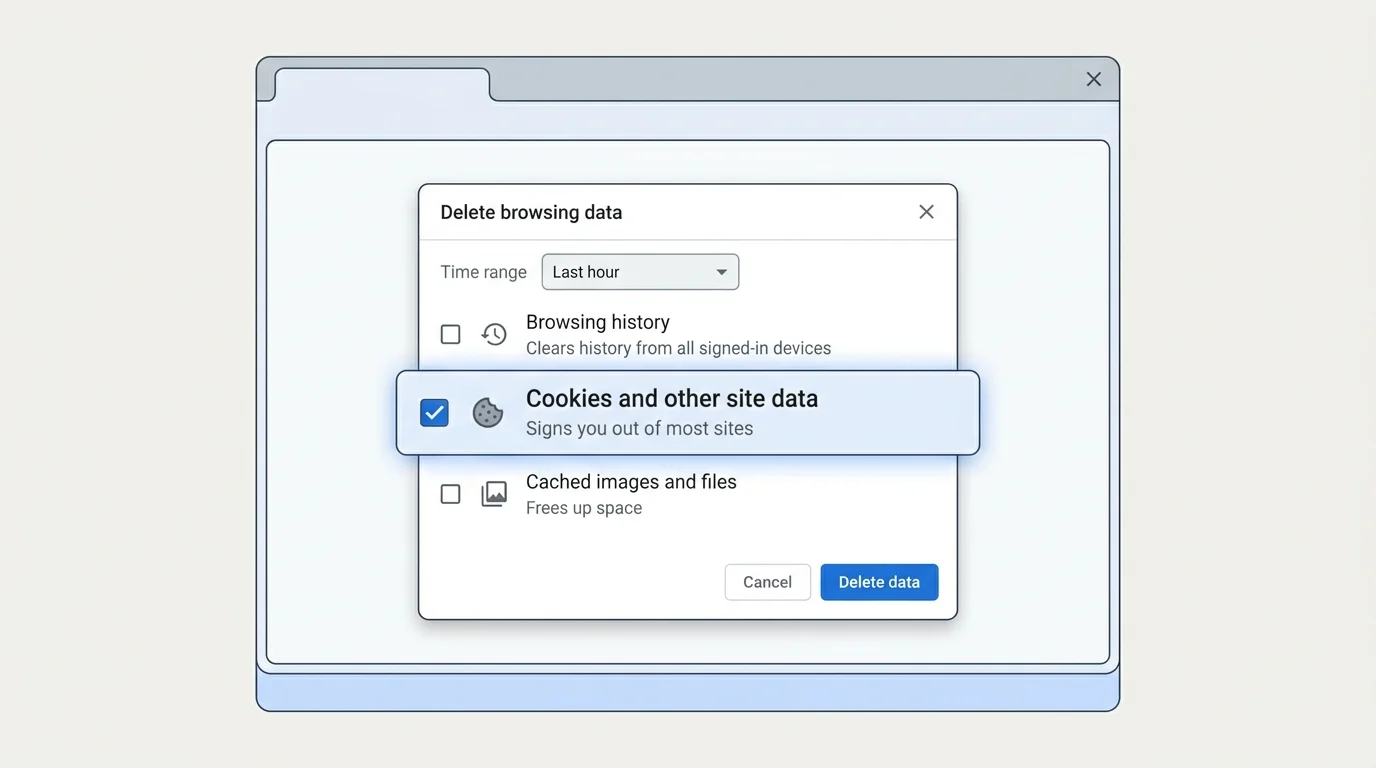
What should you select?
If your goal is to remove cookies, select Cookies and other site data and avoid selecting browsing history or cached files unless you also want to remove those categories.
If you choose All time, Chrome removes matching stored data from the entire selected profile. If you only want to troubleshoot a recent session, a shorter time range may be enough, although it can also remove cookies for other sites visited within that period.
Delete cookies for one website on desktop
To avoid clearing cookies for every site, remove the data associated only with the website that is having a problem:
- Open Chrome and select More > Settings.
- Open Privacy and security.
- Select Third-party cookies (or the cookie/site-data section shown in your version of Chrome).
- Open See all site data and permissions (or navigate to
chrome://settings/content/all). - Search for the website's domain name in the search bar.
- Select the delete (trash can) icon beside the matching site entry and confirm.
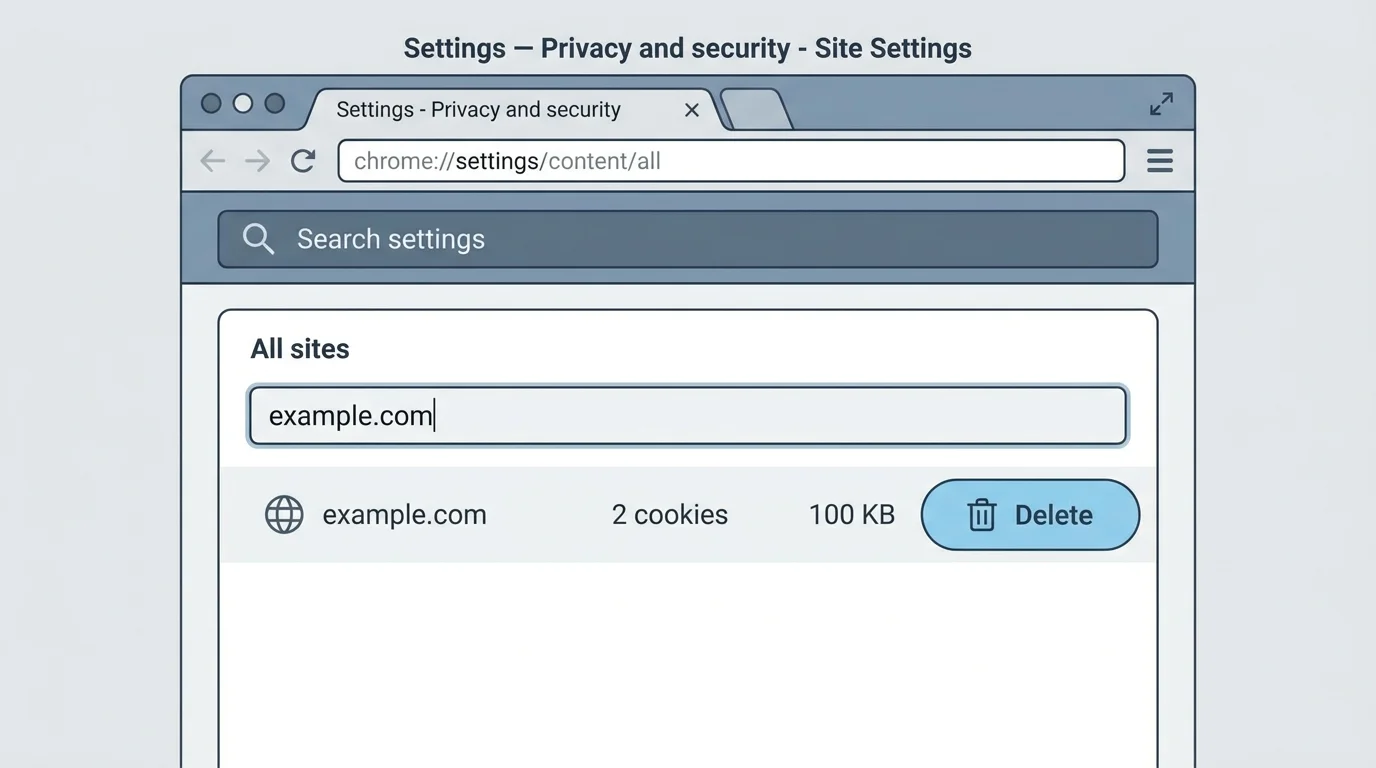
Alternatively, while viewing the problematic website, click the View site information icon (the tune/sliders icon next to the address bar), select Cookies and site data > Manage on-device site data, and delete data specifically for that page.
This removes stored site data associated with that specific domain. The site's exact login state or preferences will reset when you visit it again, but your active sessions on all other websites remain intact.
How to delete cookies in Chrome on Android
Chrome's Android interface can vary by release. Use the browsing-data controls shown in your app:
- Open Chrome on your Android phone or tablet.
- Tap the three-dot More menu beside the address bar.
- Select Delete browsing data (if you do not see it directly, open Settings > Privacy and security > Delete browsing data).
- Choose the desired Time range.
- Select Cookies and site data.
- Deselect other categories (like browsing history or saved passwords) you want to keep.
- Tap Delete data and confirm if Chrome prompts you.
If your goal is to remove data for one website only on Android, visit that website, tap the page info icon (sliders icon) next to the address bar, select Cookies and site data, and tap the trash can icon to delete stored data for that single site.
How to delete cookies in Chrome on iPhone or iPad
On iOS, use Chrome's own in-app settings rather than assuming that mobile Chrome menus match the desktop version:
- Open the Chrome app on your iPhone or iPad.
- Tap the three-dot More menu and select Settings.
- Open Privacy and Security.
- Tap Delete Browsing Data.
- Select Cookies, Site Data.
- Untick the other data categories if you want to keep them.
- Tap Delete Browsing Data at the bottom of the screen and confirm the action if prompted.
- Tap Done to return to your webpage.
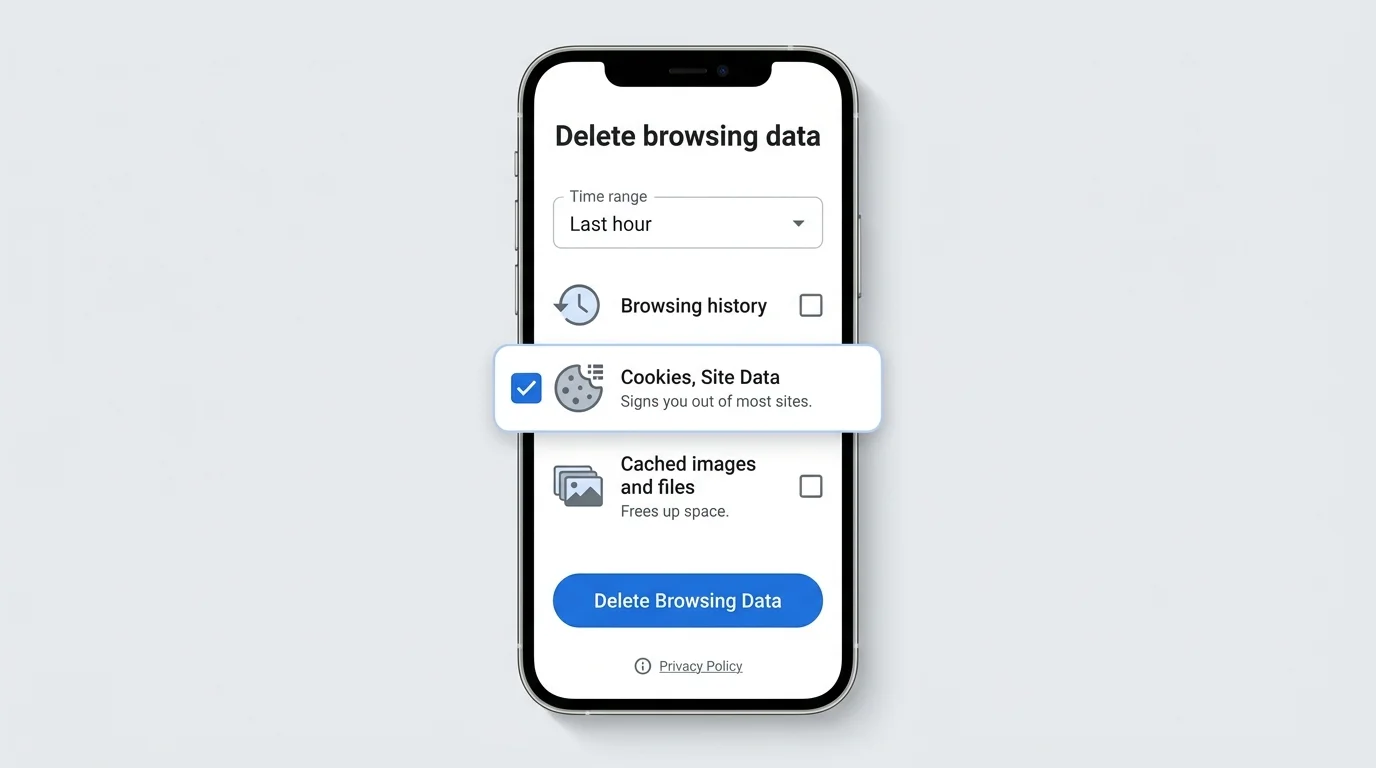
Google's official iOS documentation uses the label Cookies, Site Data. Note that mobile Chrome does not provide all of the granular per-site storage tools found on desktop Chrome.
What happens after you delete cookies?
Deleting cookies does not remove your bookmarks or saved passwords, but it affects how websites recognize your browser. You may notice:
- You are signed out of most websites and will need to log back in.
- Shopping carts, language preferences, site themes, and cookie consent banners reset.
- A website treats your visit like a first-time user.
Clearing cookies is distinct from clearing the browser cache. Cached images and files are stored locally to speed up page rendering. If the problem is an outdated page layout, broken styles, or missing images rather than a session error, clearing the cache is the better step; see our dedicated tutorial on how to clear cache in Chrome.
Chrome's browsing-data controls also isolate credentials and bookmarks. If you want to back up your saved links before performing browser maintenance, check our step-by-step guide on how to export bookmarks in Chrome; and for credential protection, read our explainer on how passkeys work and setup recovery.
Cookies vs. cache: which should you clear?
| Problem | First thing to consider |
|---|---|
| A site keeps signing you out or remembers the wrong account | Remove cookies or site data for that specific website |
| A website's layout looks outdated or stylesheets seem broken | Clear cached images and files |
| You want to remove records of visited pages | Select browsing history, not just cookies |
| You want to preserve most sites but reset one broken site | Delete data for that website only using site permissions |
These are troubleshooting starting points. Websites store information differently, so removing cookies may not solve issues originating on the web server or caused by network firewalls.
Is it safe to delete cookies?
Deleting cookies through Chrome's built-in controls is completely safe and a routine troubleshooting step. However, expect websites to ask you to sign in again. If you do not remember your account passwords or have two-factor authentication recovery methods handy, confirm your credentials before deleting cookies.
For privacy protection, you can also review Chrome's cookie settings to manage third-party cookies. Blocking third-party cookies prevents cross-site tracking, but it is different from deleting first-party cookies already stored on your device.
If a computer or tablet is managed by an employer or school, some privacy settings and cookie policies may be controlled by your system administrator.
Frequently asked questions
Will deleting cookies log me out of Chrome?
Deleting website cookies signs you out of individual websites. However, Google notes that deleting cookies while signed in to Chrome does not sign you out of your Google Account in the browser itself. Your Chrome sync profile and website sessions are managed separately.
Can I delete cookies for only one website?
Yes. On desktop Chrome, open Settings, go to Privacy and security > Third-party cookies > See all site data and permissions (or chrome://settings/content/all), search for the domain, and delete its data. On mobile, tap the page settings icon next to the URL while on that website.
Does deleting cookies also clear the cache?
No. Chrome provides separate checkboxes for "Cookies and other site data" and "Cached images and files". As long as you leave the cache checkbox unticked, Chrome retains your cached images and stylesheets.
Will deleting cookies remove bookmarks or saved passwords?
No. Cookies are stored separately from your bookmarks and saved credentials. Deleting cookies will not delete bookmarks or passwords saved in Google Password Manager.
Why does a website still not work after I delete its cookies?
The problem may be caused by corrupted cached files, a conflicting browser extension, a network firewall, or an outage on the website's server. Check our guides on clearing cache or testing in Incognito mode to narrow down the cause.
Summary
To delete cookies in Chrome, open the Delete browsing data menu (Ctrl + Shift + Delete on desktop), choose a time range, select Cookies and other site data (or Cookies, Site Data on mobile), and confirm. If only one website is misbehaving, delete that site's stored data individually to avoid signing out of all your other accounts.
Verified Primary Sources & Citations
NextTechExplained verifies facts against official documentation, engineering whitepapers, and regulatory filings.
- Google Chrome Help: Delete, allow, and manage cookies in Chrome - ComputerView Official Source
- Google Chrome Help: Delete, allow, and manage cookies in Chrome - AndroidView Official Source
- Google Chrome Help: Delete, allow, and manage cookies in Chrome - iPhone and iPadView Official Source
- Google Chrome Help: Delete browsing data in ChromeView Official Source
- Google Account Help: Clear cache and cookiesView Official Source
Published by NextTechExplained
Editorial Team • Institutional Publication Byline
Articles published under this byline are prepared through rigorous research and verified against official engineering specifications, standards documentation, and primary sources. Learn more about our process on our About page and Editorial Policy.
Related Explanations & Guides

How to Clear Cache in Chrome
Learn how to clear cached images and files in Google Chrome on Windows, Mac, Android, and iPhone, without deleting more browsing data than you need.

How to Add Photos to Google Photos from a Phone or Computer
Learn how to add photos to Google Photos manually, enable phone backup, upload files from a computer, and check that your pictures have finished uploading.

How to Delete All Photos from Google Photos Safely
Learn how to bulk-delete photos and videos from Google Photos on a computer or phone, understand what happens to synced copies, and avoid irreversible mistakes.