
How to Delete Browsing History in Chrome on Desktop and Mobile
Delete all Chrome browsing history or remove selected websites on Windows, Mac, Android, and iPhone. Learn what history deletion removes and what it does not.
Editorial Team

Laptop showing a browser history management screen in a clean desktop workspace
Table of Contents (11 sections)
- Before you delete your Chrome history
- How to delete all browsing history in Chrome on a computer
- What if I only want to clear history, not cookies or cache?
- How to delete one website from Chrome history on a computer
- How to delete browsing history in Chrome on Android
- How to delete browsing history in Chrome on iPhone or iPad
- What does deleting Chrome history actually remove?
- Does deleting Chrome history delete Google Search history?
- Does Chrome save history in Incognito mode?
- Troubleshooting: Chrome history will not delete
- Summary
Chrome saves a list of pages you visit so you can reopen websites, find a page you viewed earlier, and get useful address-bar suggestions. If you share a computer or want to remove older entries, you can delete your browsing history without necessarily deleting cookies, cached files, saved passwords, or other browser data.
The steps differ slightly between desktop Chrome and the Android or iPhone app. This guide explains how to remove your full history, delete individual sites, and understand how Chrome Sync and Google Account activity affect what remains.

Before you delete your Chrome history
Choose the type of deletion that matches your goal:
| What you want to do | Best approach |
|---|---|
| Remove every saved Chrome history entry for a period | Use Delete browsing data and choose a time range |
| Remove only one or a few visited sites | Open History and remove the selected entries individually |
| Remove history without clearing cookies or cache | Select only Browsing history in the deletion dialog |
| Remove Google Search activity saved to your Google Account | Review and delete your Google Account activity separately |
| Stop Chrome from recording future pages in local history | Use Incognito mode for that browsing session |
Chrome history is not the same as Google Search history. Deleting entries from Chrome's History page does not automatically erase all search queries or location data stored separately in your Google Account. If Chrome Sync is enabled for history, deleting history will also remove those entries across other devices signed in to the same account.
How to delete all browsing history in Chrome on a computer
These steps apply to Chrome on Windows, macOS, and Linux, although menu labels can vary slightly by version.
- Open Google Chrome.
- Select the three-dot More menu in the top-right corner.
- Choose Delete browsing data (or press the keyboard shortcut
Ctrl + Shift + Deleteon Windows/Linux, orCommand + Shift + Deleteon macOS). - Choose a Time range. Select All time to remove all history currently stored in Chrome for that profile, or choose a shorter period (such as "Last 24 hours").
- Select Browsing history.
- Uncheck any other categories you do not want to delete, such as cookies or cached images and files.
- Select Delete data to confirm.
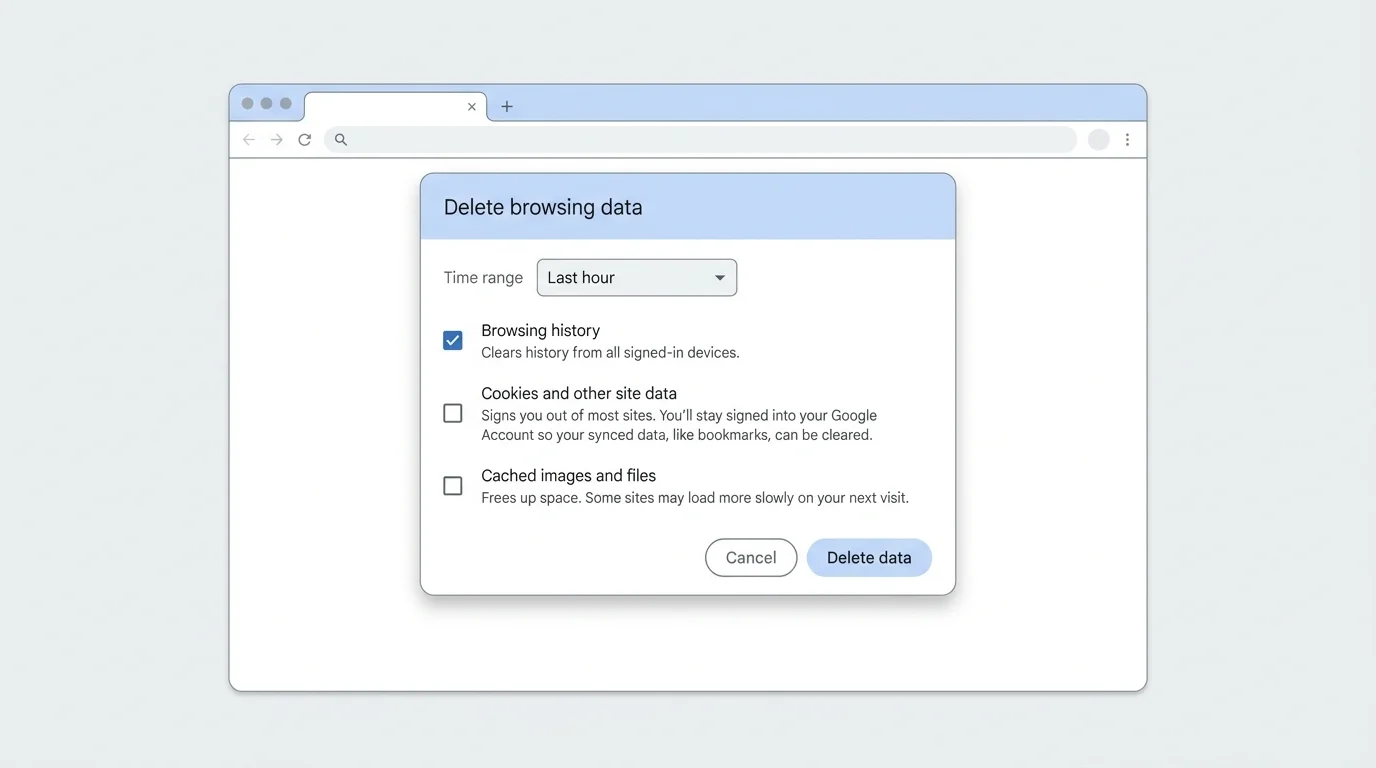
Chrome removes the selected history entries from the History page (chrome://history). Related items such as shortcuts to those pages and address-bar autocomplete predictions may also disappear.
What if I only want to clear history, not cookies or cache?
In the Delete browsing data dialog, review every selected checkbox before confirming. Keep Browsing history selected and uncheck Cookies and other site data and Cached images and files.
This distinction is important because deleting cookies signs you out of active websites (see our guide on how to delete cookies in Chrome), while clearing cached files may cause websites to load slightly slower on the first visit while rebuilding the cache (see how to clear cache in Chrome). Leaving those boxes unchecked ensures only your visited URLs are removed.
How to delete one website from Chrome history on a computer
You do not have to delete everything to remove a specific visit:
- Open Chrome and press
Ctrl + Hon Windows/Linux, orCommand + Yon macOS (or click More > History > History). - Use the search bar at the top of the History page to find the specific website or page.
- Select the checkbox beside each entry you want to delete.
- Click the Delete button in the upper-right corner.
- Confirm the removal when prompted.
This removes the selected URL entries from Chrome history without affecting your cookies, cached files, or passwords.
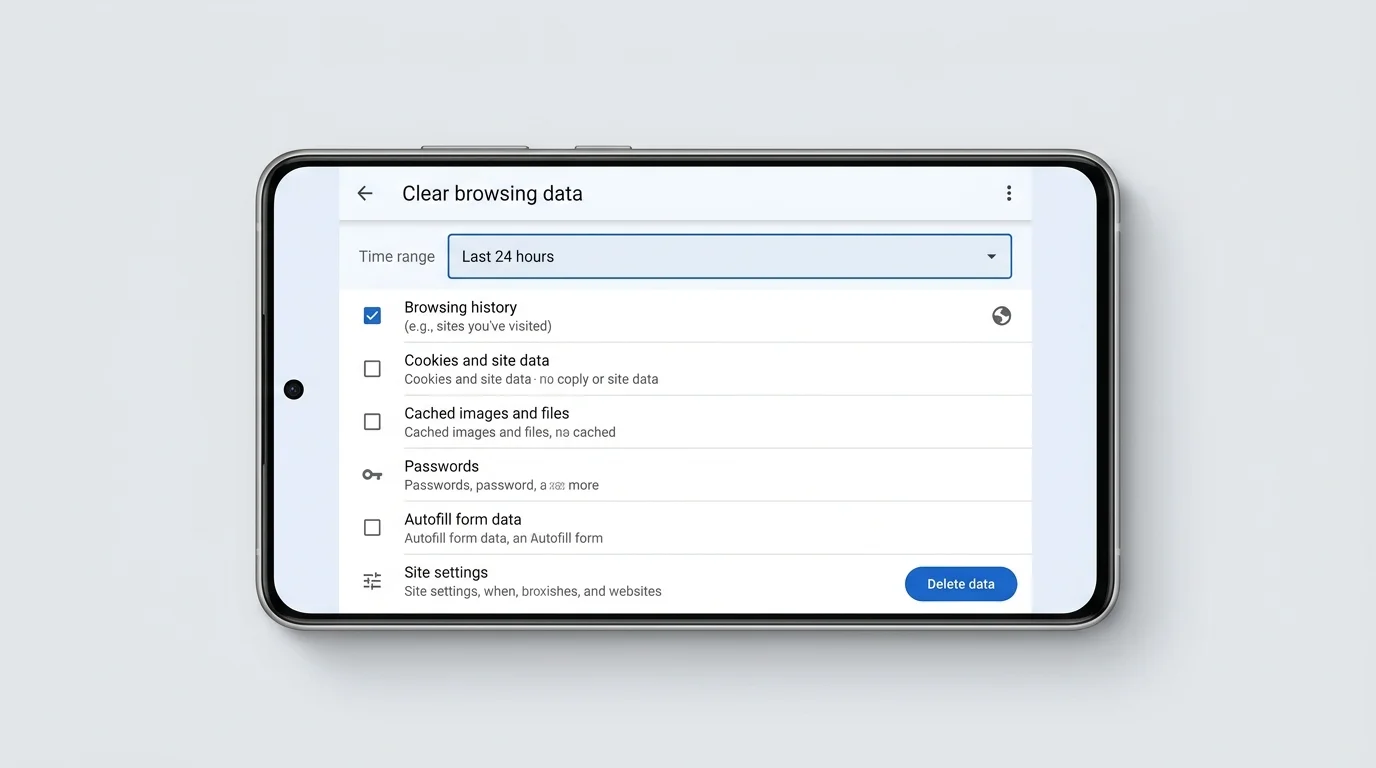
How to delete browsing history in Chrome on Android
- Open the Chrome app on your Android phone or tablet.
- Tap the three-dot More menu beside the address bar.
- Tap Delete browsing data (or navigate to Settings > Privacy and security > Delete browsing data).
- Choose the Time range. Select All time to delete all available history.
- Make sure Browsing history is checked.
- Uncheck cookies and cached images if you wish to preserve active logins.
- Tap Delete data.
To delete individual entries on Android, open More > History, locate the entry, and tap the X (or trash icon) beside it.
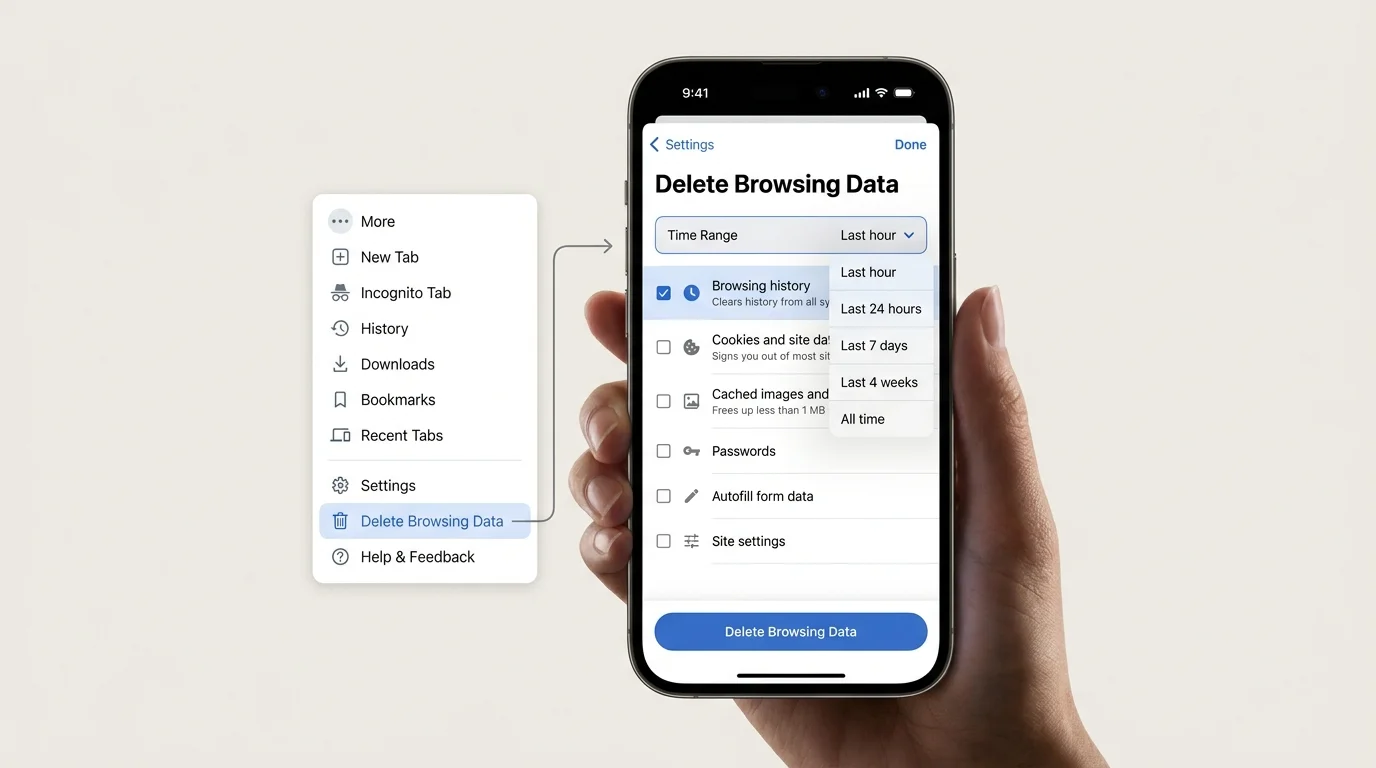
How to delete browsing history in Chrome on iPhone or iPad
- Open the Chrome app on your iPhone or iPad.
- Tap the three-dot More menu, then select Delete Browsing Data.
- Choose the desired Time Range.
- Check Browsing History and ensure cookies and cache are deselected if you want to keep them.
- Tap Delete Browsing Data at the bottom of the screen and confirm.
To remove single items on iOS, open More > History, tap Edit in the bottom corner, select the specific entries, and tap Delete.
What does deleting Chrome history actually remove?
Browsing history records the web addresses you have visited. Deleting it removes:
- Visited URLs from the History screen (
chrome://history). - Automatic suggestions in the address bar based on past visits.
- Frequently visited site tiles on the New Tab page.
History deletion does not remove:
- Cookies and site data: Handled separately; removing them signs you out of websites.
- Cached files: Web resources kept locally to accelerate loading times.
- Website notification permissions: Permissions granted to sites to send desktop or mobile alerts remain active (if you want to stop unwanted alerts, see our guide on how to turn off notifications in Chrome).
- Saved passwords and passkeys: Stored securely in Google Password Manager (for setup and recovery information, see our guide on how passkeys work and setup recovery).
- Bookmarks: Saved bookmarks are permanently preserved until you delete them manually (or back them up using our guide on how to export bookmarks in Chrome).
- Downloaded files: Deleting an entry from Chrome's download history removes only the list record; the actual downloaded file remains in your device's Downloads folder.
Does deleting Chrome history delete Google Search history?
No. Chrome browsing history records pages opened inside the browser application. Search queries, YouTube watch history, and other activities linked to your Google Account are stored in cloud services and managed through Google's My Activity (opens in new tab) dashboard. To remove account search history, visit your Google Account privacy controls.
Does Chrome save history in Incognito mode?
Chrome does not save visited websites, cookies, site data, or form inputs to your local profile history when browsing in Incognito mode. Once you close all Incognito tabs, that temporary session history is discarded.
However, Incognito mode does not make your browsing invisible to network administrators, employers, schools, or internet service providers. Any files downloaded or bookmarks created while in Incognito are still saved to your device.
Troubleshooting: Chrome history will not delete
- Verify time range: If you selected "Last hour", visits from yesterday will remain visible. Choose All time for a complete wipe.
- Review synced accounts: If you use Chrome Sync across multiple devices, history deleted on one device may take a moment to sync across all connected phones and computers.
- Check organization policies: On workplace or school Chromebooks and laptops, administrators can disable browsing-data deletion policies.
- Separate Google Account activity: Seeing search terms appear in Google Search does not mean Chrome's history deletion failed; account search activity must be cleared in Google Account settings.
Summary
To delete browsing history in Chrome, open the Delete browsing data menu (Ctrl + Shift + Delete on desktop), select your time range, check Browsing history, and click Delete data. For individual pages, use the History manager (Ctrl + H) to delete specific URLs without affecting active website cookies or saved passwords.
Verified Primary Sources & Citations
NextTechExplained verifies facts against official documentation, engineering whitepapers, and regulatory filings.
- Google Chrome Help: Check or delete your Chrome browsing history - ComputerView Official Source
- Google Chrome Help: Check or delete your Chrome browsing history - AndroidView Official Source
- Google Chrome Help: Check or delete your Chrome browsing history - iPhone and iPadView Official Source
- Google Chrome Help: Delete browsing data in ChromeView Official Source
- Google Account Help: Delete your activityView Official Source
Published by NextTechExplained
Editorial Team • Institutional Publication Byline
Articles published under this byline are prepared through rigorous research and verified against official engineering specifications, standards documentation, and primary sources. Learn more about our process on our About page and Editorial Policy.
Related Explanations & Guides

How to Block Pop-Ups in Chrome on Desktop and Mobile
Stop unwanted pop-ups and redirects in Google Chrome on Windows, Mac, Android, and iPhone. Learn how to configure site exceptions and stop persistent ads.

How to Turn Off Notifications in Chrome on Desktop and Mobile
Stop unwanted Chrome notifications by blocking all sites or one website on Windows, Mac, Android, and iPhone. Learn the difference between notifications and pop-ups.
How to Delete Cookies in Chrome on Desktop and Mobile
Learn how to delete all cookies in Chrome or remove data for one website on Windows, Mac, Android, and iPhone without clearing more browsing data than you intend.