
How to Remove Extensions from Chrome on Windows, Mac, and Linux
Remove unwanted Chrome extensions, disable one temporarily, and troubleshoot extensions that return or change browser settings on Windows, macOS, and Linux.
Editorial Team
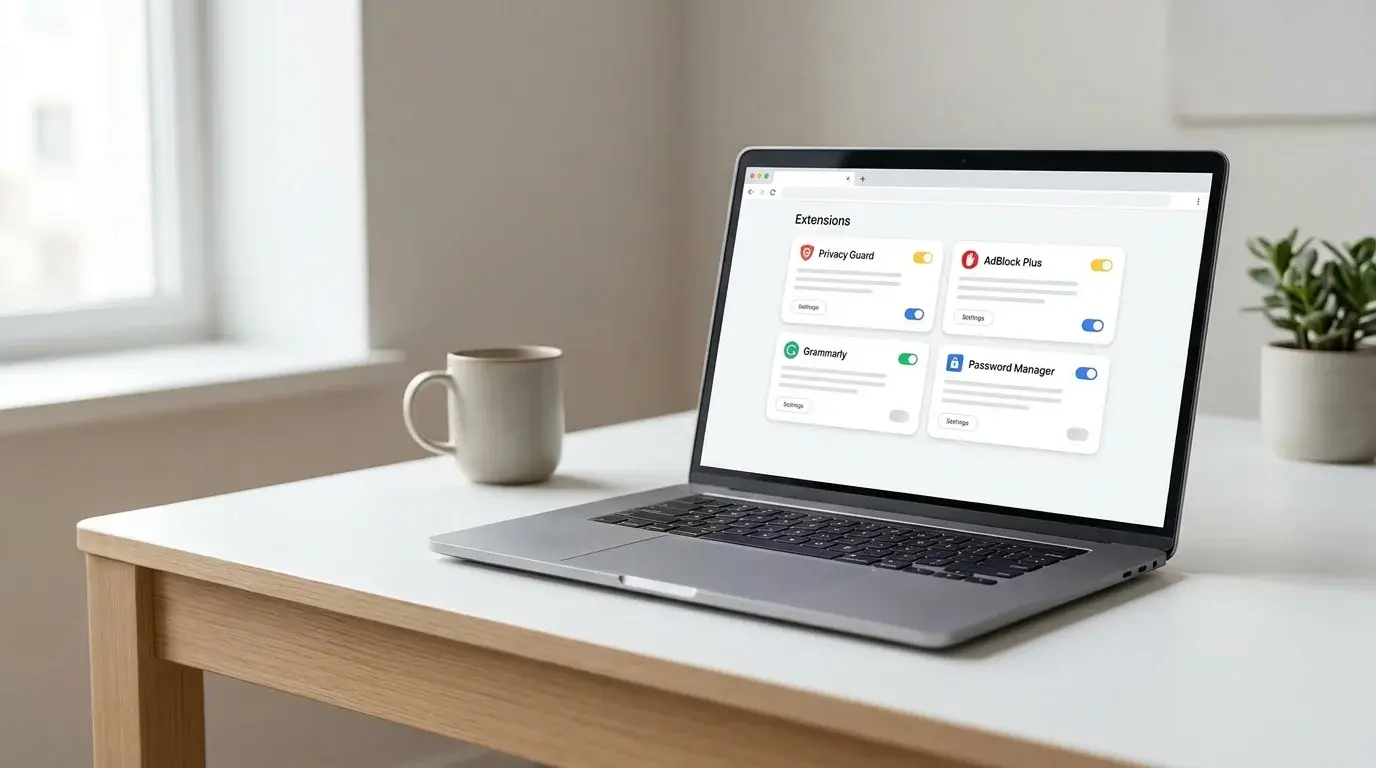
Desktop browser window showing a Chrome-style extensions management screen on a laptop
Table of Contents (14 sections)
- Quick reference: removing vs. disabling vs. unpinning
- Remove a Chrome extension from the toolbar
- Remove an extension using the Chrome extension manager
- Temporarily disable an extension without uninstalling
- How to handle unfamiliar or unwanted extensions
- What to do if the Remove button is missing or grayed out
- What to do if a removed extension keeps coming back
- Can you manage Chrome extensions on Android or iPhone?
- Frequently asked questions
- Does removing an extension delete my bookmarks or browsing history?
- What happens to settings changed by an extension?
- Is disabling an extension as safe as removing it?
- Why do some extensions request permission to "read and change all your data on all websites"?
- Summary checklist
Google Chrome extensions add helpful capabilities to your browsing workflow, such as password management, ad filtering, language translation, and grammar checking. Over time, however, accumulated add-ons can consume background memory, slow down page loading times, conflict with web applications, or request overly broad site-access permissions.
Uninstalling an extension in Chrome takes only a few clicks, whether you remove it directly from the browser toolbar or through Chrome's dedicated extension manager. Official documentation from Google Chrome Help (opens in new tab) details these controls across desktop platforms.
This guide explains how to remove extensions in Chrome on Windows, macOS, and Linux, how to disable an add-on temporarily for troubleshooting, and what steps to take if an unwanted extension cannot be removed or reappears after uninstallation.
Quick reference: removing vs. disabling vs. unpinning
Before modifying your browser, understand how Chrome distinguishes extension actions:
| Action | What it does | When to use it |
|---|---|---|
| Remove from Chrome | Completely uninstalls the extension and deletes its local configuration from the active profile. | When you no longer need the tool or suspect it causes security or stability problems. |
| Disable (Toggle Off) | Turns off the extension without deleting it; stops background scripts and permission access. | When troubleshooting website rendering errors or testing whether an extension causes slow performance. |
| Unpin from Toolbar | Hides the extension icon from the top bar while leaving the extension fully installed and running. | When you want to declutter your browser toolbar without disabling the extension. |
Remove a Chrome extension from the toolbar
If an extension is pinned to your browser toolbar or visible in the Extensions drop-down menu, you can remove it in two clicks:
- Open Google Chrome on your computer.
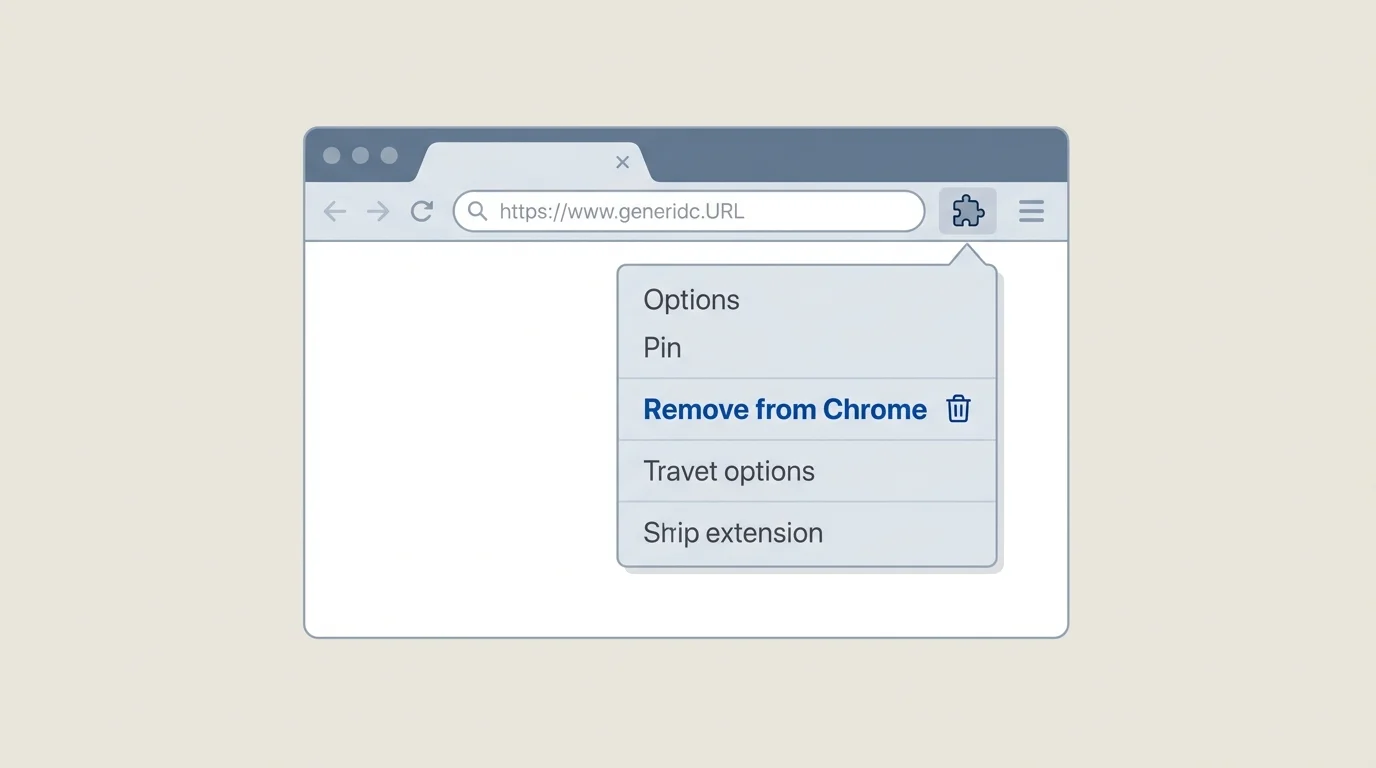
- Locate the extension icon to the right of the address bar. If the icon is hidden, click the Extensions menu icon (represented by a puzzle piece).
- Right-click the extension icon (or click the three-dot More actions button next to its name in the puzzle-piece menu).
- Click Remove from Chrome....
- When the confirmation prompt appears, click Remove.
Chrome will immediately uninstall the extension and revoke its permissions for that browser profile.
Remove an extension using the Chrome extension manager
If an extension does not display a toolbar icon, or if you want to review all installed add-ons in one central location, use the extension management interface:
- Open Chrome on your Windows, Mac, or Linux computer.
- In the address bar, type
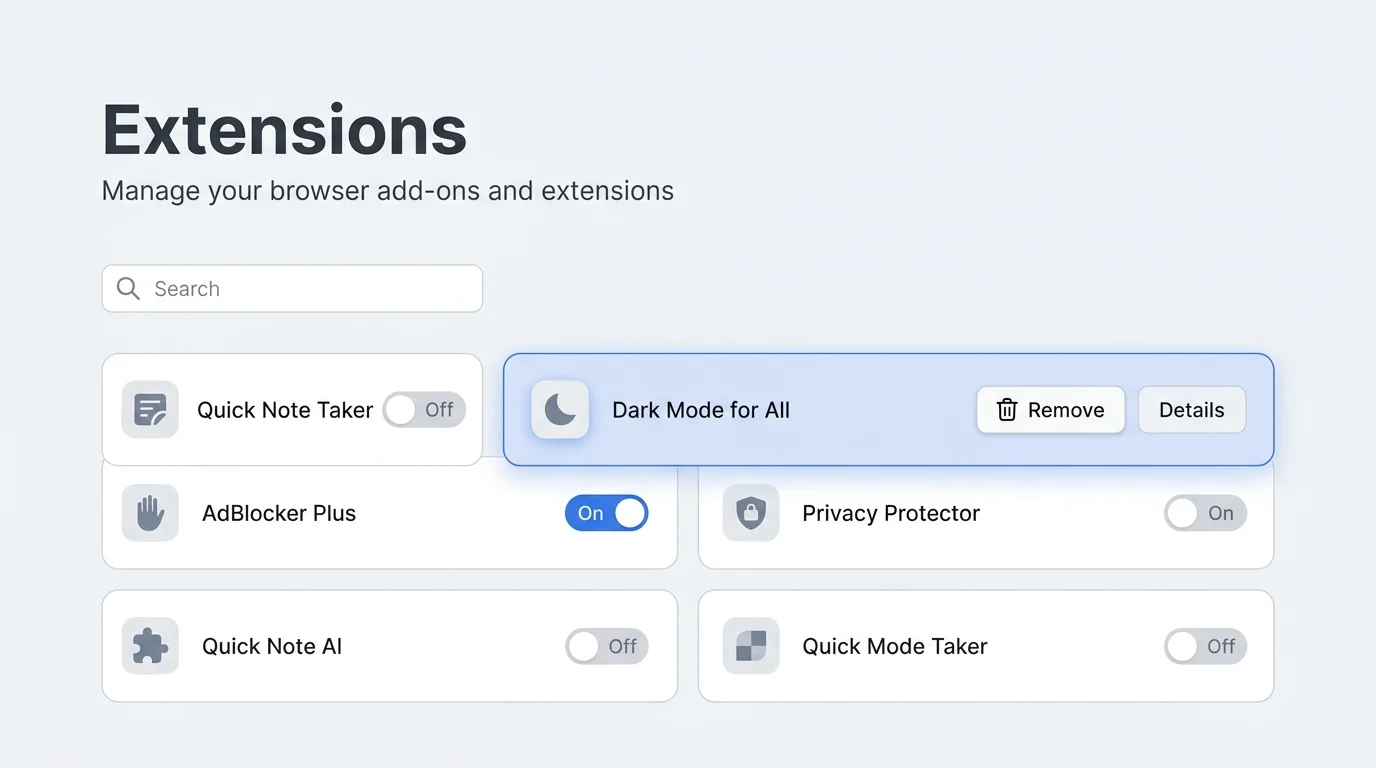
chrome://extensionsand press Enter. (Alternatively, click the three-dot menu in the upper-right corner and select Extensions > Manage extensions). - Scroll through your installed extensions to locate the one you want to uninstall.
- Click the Remove button on the extension's card.
- In the confirmation dialog, click Remove.
If you suspect an extension was installed without your knowledge or engaged in abusive behavior, check the box labeled Report abuse before clicking Remove. This alerts the Google Chrome Web Store review team to investigate the package.
Temporarily disable an extension without uninstalling
If a webpage fails to display properly, forms do not submit, or video players freeze, an installed extension may be interfering with the site's JavaScript. You can temporarily turn off the extension to identify the culprit without deleting your saved preferences:
- Navigate to
chrome://extensions. - Locate the extension you want to test.
- Toggle the blue switch in the bottom-right corner of its card to Off (the switch turns gray).
- Reload the affected webpage to check if functionality is restored.
If disabling the extension resolves the issue, you can either leave it disabled until an update is released, configure its site-access settings under Details to run only on specific websites, or remove it entirely.
How to handle unfamiliar or unwanted extensions
If you discover an extension you do not recall installing, follow a systematic approach rather than panicking or downloading questionable third-party cleanup software:
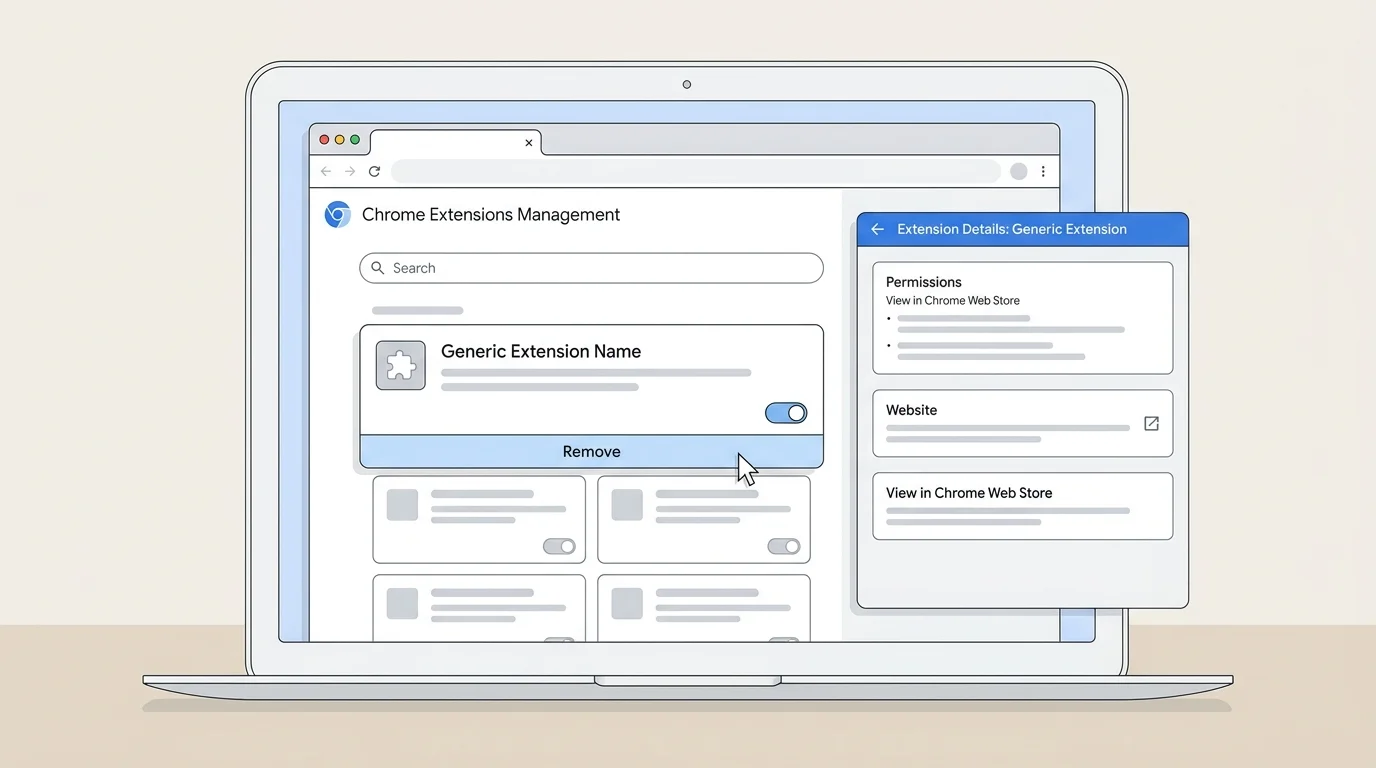
- Inspect extension details: Click Details on the extension card in
chrome://extensions. Review the listed developer, store URL, and requested permissions (such as reading browsing history or modifying site data). - Remove immediately: If the extension serves no legitimate purpose, click Remove.
- Verify browser settings: Deceptive extensions often alter your default search provider, homepage, or new tab page. Open Chrome Settings (
chrome://settings) to ensure your search engine is set to your preferred provider. - Inspect pop-up and redirect rules: If unwanted windows continue to open after removing the add-on, follow our guide on how to block pop-ups in Chrome.
- Check notification permissions: Some deceptive extensions trick users into enabling background web alerts. Revoke suspicious permissions using our tutorial on how to turn off notifications in Chrome.
Avoid downloading third-party "extension remover" tools advertised on web pages. These utilities frequently bundle additional adware or unwanted software.
What to do if the Remove button is missing or grayed out
If you see an extension in chrome://extensions but cannot click the Remove button, or if a building icon appears alongside the label "Installed by your administrator", your browser is subject to enterprise policies.
- Open a new tab and navigate to
chrome://management. - If the page displays Your browser is managed by your organization, an IT policy installed the extension.
- On work or school computers, administrators enforce security extensions (such as endpoint protection tools, single sign-on connectors, or policy monitoring agents). You cannot uninstall these add-ons without administrative access.
- If you see this message on a personally owned computer, an external application or work-linked Google account may have registered enterprise policies. Inspect
chrome://policyto identify the managing source, or disconnect work profiles from your personal browser.
What to do if a removed extension keeps coming back
If an extension reappears automatically after being uninstalled, an external process is reinstalling it:
- Check for bundled desktop applications: Some free utility programs, PDF converters, and media players bundle companion browser extensions. Open your operating system's application manager (Windows Settings > Installed apps, or macOS Finder > Applications) and uninstall software installed around the time the problem started.
- Audit Chrome synchronization: If you use Chrome Sync across multiple devices, an extension installed on a secondary computer may automatically resync to your primary browser. Remove the extension from all active devices, or temporarily disable extension sync under
chrome://settings/syncSetup. - Clear cached scripts and cookies: Clear temporary script fragments that may re-prompt installation using our walkthroughs on how to clear cache in Chrome and how to delete cookies in Chrome.
- Reset Chrome settings: If unwanted extensions or hijacked homepages persist, navigate to
chrome://settings/resetand select Restore settings to their original defaults (for full step-by-step instructions and what stays saved, see our dedicated guide on how to reset Chrome settings to default). This disables all extensions, resets search engines, and clears temporary site data without touching your bookmarks or passwords. - Keep your browser updated: Regular browser updates enforce the latest security guidelines, including the deprecation of obsolete Manifest V2 extensions in favor of modern, strictly audited Manifest V3 standards. Follow our guide on how to update Google Chrome on desktop and mobile to ensure you are protected.
Can you manage Chrome extensions on Android or iPhone?
Standard versions of Google Chrome for Android and iOS do not support desktop browser extensions. The mobile Chrome architecture is restricted to protect mobile battery life, system performance, and application security.
While Google's mobile Chrome documentation mentions Chrome Web Store workflows, those features allow you to browse extensions on your phone and send them to your desktop computer via account sync; they do not install or execute extensions on the mobile device itself. If you need to manage extensions, perform the configuration on your desktop or laptop.
Frequently asked questions
Does removing an extension delete my bookmarks or browsing history?
No. Uninstalling a Chrome extension removes only the extension itself and its internal settings. Your saved bookmarks, passwords, and history remain untouched. (If you want to clear visited records, see our guide on how to delete browsing history in Chrome).
What happens to settings changed by an extension?
In modern versions of Chrome, removing an extension that altered your search engine or homepage automatically prompts Chrome to restore your previous configuration. However, you should always check chrome://settings/search and chrome://settings/onStartup to verify your preferred choices are active.
Is disabling an extension as safe as removing it?
Disabling an extension stops it from executing background scripts and accessing active web sessions. However, keeping obsolete, unused extensions installed on your machine increases clutter and future update risks. Completely removing tools you no longer need is best practice.
Why do some extensions request permission to "read and change all your data on all websites"?
Certain categories of extensions (such as ad blockers, dark-mode themes, and password managers) must inspect page contents across every domain to alter layouts or fill credentials. While legitimate tools require these permissions to function, always review the publisher's reputation in the Chrome Web Store before trusting an add-on with broad access.
Summary checklist
- Remove unwanted extensions directly from the toolbar or via
chrome://extensions. - Disable extensions temporarily when troubleshooting broken web layouts.
- Unpinning an extension only hides its icon; it does not uninstall or deactivate it.
- Check
chrome://managementif an extension cannot be removed due to administrator policies. - Audit installed desktop programs if an extension repeatedly reinstalls itself.
- Keep Google Chrome updated to benefit from modern extension security sandboxing.
Verified Primary Sources & Citations
NextTechExplained verifies facts against official documentation, engineering whitepapers, and regulatory filings.
- Google Chrome Help: Install and manage extensionsView Official Source
- Google Chrome Web Store Help: Manage extensions that change your settingsView Official Source
- Google Chrome Help: Check if your Chrome browser is managedView Official Source
- Google Chrome Help: Remove unwanted ads, pop-ups and malwareView Official Source
- Google Chrome Web Store Help: Fix problems with apps, extensions, and themesView Official Source
Published by NextTechExplained
Editorial Team • Institutional Publication Byline
Articles published under this byline are prepared through rigorous research and verified against official engineering specifications, standards documentation, and primary sources. Learn more about our process on our About page and Editorial Policy.
Related Explanations & Guides
How to Reset Chrome Settings to Default
Restore Chrome's original desktop settings to troubleshoot unwanted changes, search redirects, startup pages, or extension problems without deleting saved bookmarks and passwords.
How to Fix Chrome Not Opening or Crashing on Windows and Mac
Fix Chrome when it will not open, freezes, or keeps crashing. Try safe restart, process, extension, update, and hardware acceleration checks first.
How to Fix Google Chrome Running Slow on Windows and Mac
Speed up a slow Chrome browser by checking tabs, extensions, memory usage, updates, and Performance settings on Windows and Mac without deleting important data unnecessarily.