
How to Turn Off Notifications in Chrome on Desktop and Mobile
Stop unwanted Chrome notifications by blocking all sites or one website on Windows, Mac, Android, and iPhone. Learn the difference between notifications and pop-ups.
Editorial Team

Laptop showing a Chrome-style website notification settings screen
Table of Contents (19 sections)
- Choose the right fix
- Turn off notifications in Chrome on Windows or Mac
- Block notifications from all websites
- Turn off notifications from one website
- Stop Chrome notifications through Windows settings
- Stop Chrome notifications through macOS settings
- Turn off notifications in Chrome on Android
- Block notifications from all sites
- Block one website on Android
- Turn off Chrome app notifications in Android settings
- Turn off Chrome notifications on iPhone or iPad
- Chrome notifications vs. pop-ups: what is the difference?
- What to do if fake virus alerts or scam notifications appear
- Frequently asked questions
- Can I turn off Chrome notifications without blocking pop-ups?
- Will turning off notifications log me out or delete history?
- Why do notifications keep coming back?
- Can I re-enable notifications later?
- Summary
Chrome notifications can be useful for chat messages, calendar reminders, and breaking updates from websites you trust. However, they can quickly become intrusive when an unfamiliar website sends persistent advertisements or misleads you into granting notification permissions.
You do not need to reset your browser to stop unwanted alerts. You can block notification prompts globally across every website, revoke permissions for a single domain, or use your operating system's notification controls when Chrome alerts continue to appear.
This guide explains how to disable notifications in Chrome on Windows, macOS, Android, and iOS, along with how to distinguish genuine web alerts from deceptive system-style warnings.
Choose the right fix
| What you want to do | Best place to change it |
|---|---|
| Stop all websites from asking for notification permissions | Chrome notification settings on desktop or Android |
| Stop alerts from one specific website | That site's individual permission in Chrome |
| Stop all Chrome app alerts on an iPhone or iPad | iOS Settings > Notifications > Chrome |
| Stop Chrome banners at the operating-system level | Windows Settings or macOS System Settings |
| Stop opening new browser windows or redirect tabs | See our guide on how to block pop-ups in Chrome |
Turn off notifications in Chrome on Windows or Mac
Desktop Chrome allows you to configure default permission behavior and manage individual website exceptions.
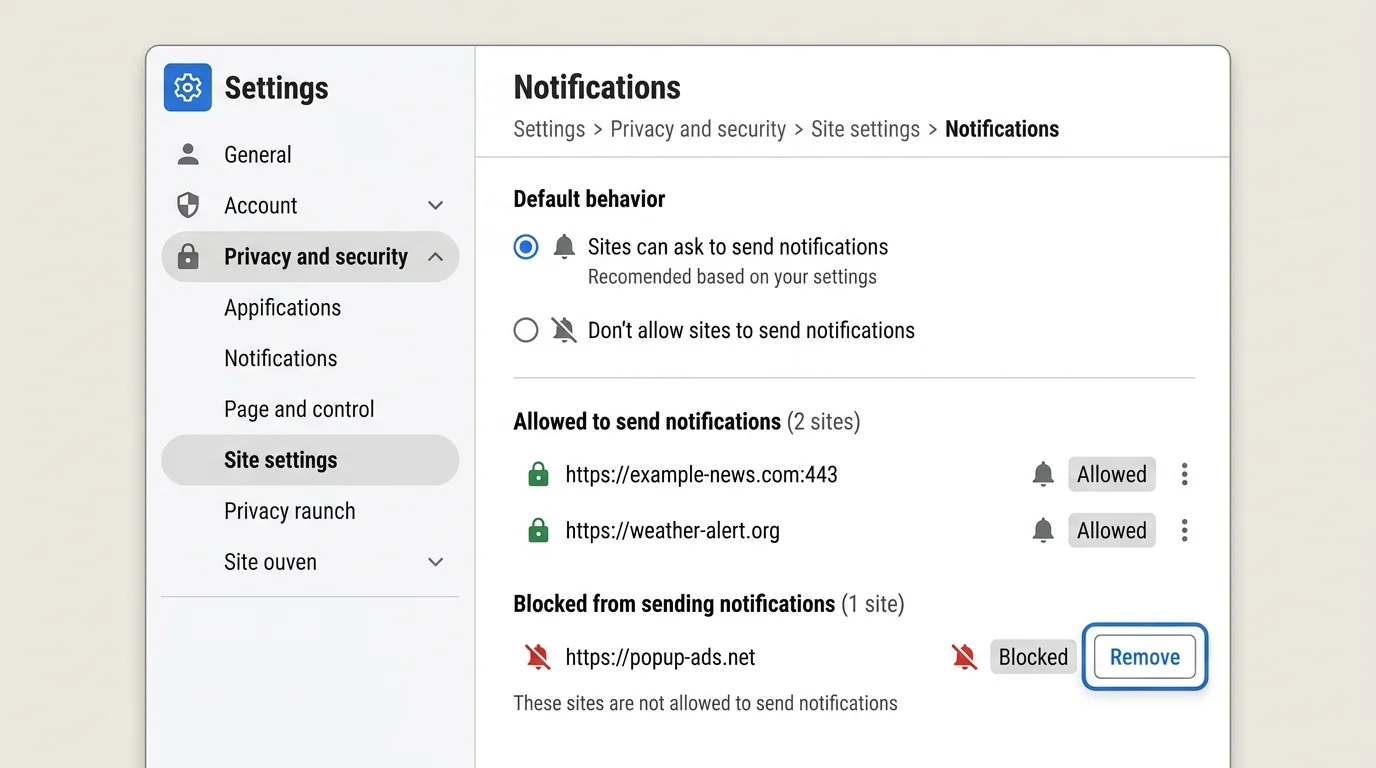
Block notifications from all websites
- Open Google Chrome on your computer.
- Click the three-dot menu in the upper-right corner and select Settings (or navigate to
chrome://settings/content/notifications). - Select Privacy and security in the left sidebar, then click Site settings.
- Under the Permissions heading, select Notifications.
- Under Default behavior, choose Don't allow sites to send notifications (or select Use quieter messaging if you prefer blocked notification prompts without loud dialogs).
This setting prevents websites from displaying notification request prompts. Existing sites that you previously allowed will continue to send alerts until you revoke their individual permissions.
Turn off notifications from one website
If only one website is sending spammy or unwanted alerts, you can revoke its permissions individually:
- In Chrome, navigate to Settings > Privacy and security > Site settings > Notifications.
- Scroll to the Allowed to send notifications section.
- Find the problematic website, click the three dots beside its name, and select Block (or Remove).
Alternatively, while viewing the website, click the View site information icon (the tune/sliders icon next to the address bar), find Notifications, and toggle the switch to Off.
Stop Chrome notifications through Windows settings
If Chrome notifications still appear in your Windows Action Center or desktop corner:
- Open Start > Settings (or press
Windows + I). - Go to System > Notifications.
- Scroll down to the Get notifications from apps and other senders list.
- Toggle Google Chrome to Off.
This operating-system setting suppresses all Chrome alerts system-wide, including calendar or messaging notifications.
Stop Chrome notifications through macOS settings
On a Mac, you can manage Chrome alerts through macOS System Settings:
- Open the Apple menu and select System Settings.
- Select Notifications from the sidebar.
- Click Google Chrome in the Applications list.
- Toggle off Allow notifications.
Turn off notifications in Chrome on Android
Android Chrome provides global website permission toggles, per-site management, and system-level app notification controls.
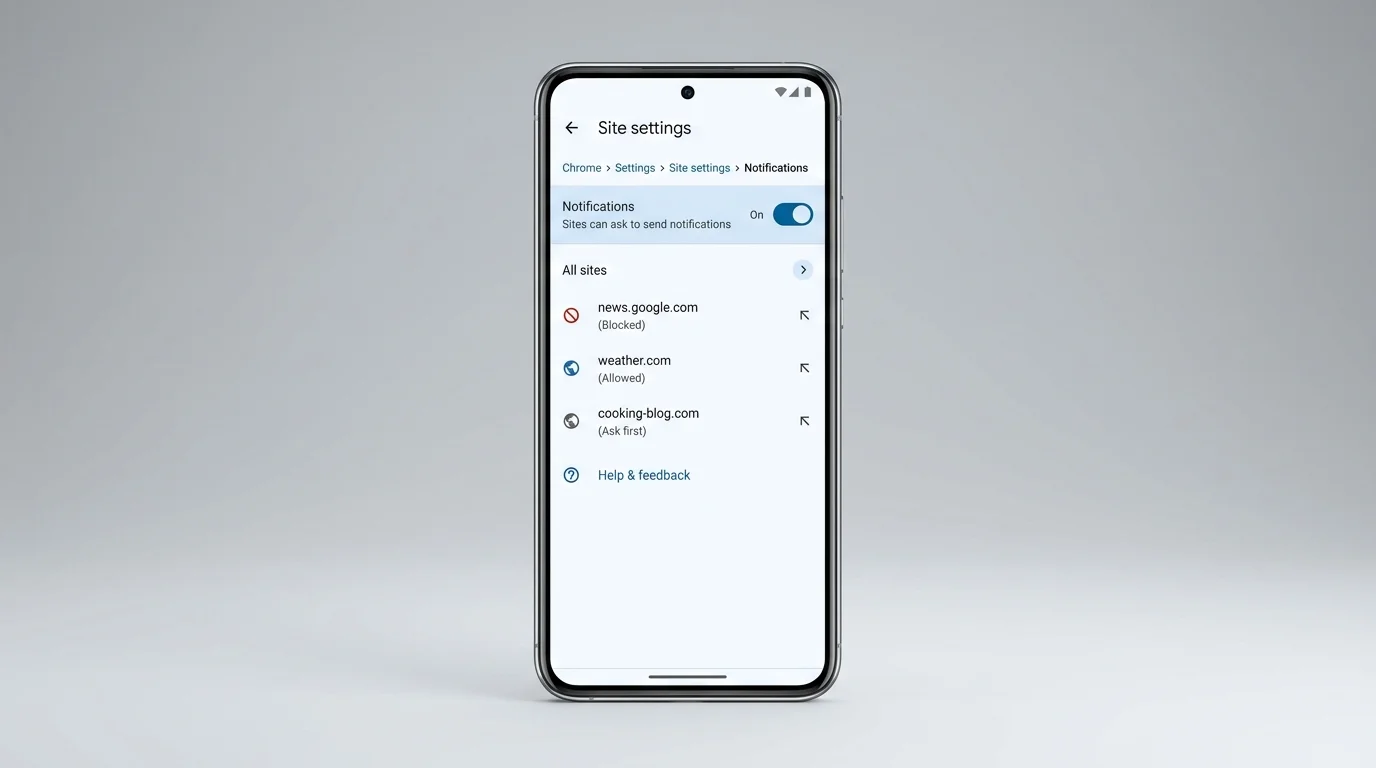
Block notifications from all sites
- Open Chrome on your Android phone or tablet.
- Tap the three-dot menu beside the address bar and tap Settings.
- Scroll down and tap Site settings > Notifications.
- Turn the Notifications toggle off.
Block one website on Android
- Open Chrome and navigate to the website you want to mute.
- Tap the tune/sliders icon to the left of the address bar.
- Tap Permissions.
- Tap Notifications and select Block (or toggle it off).
Chrome also features automated safety protections that block notifications from sites it detects as abusive or deceptive.
Turn off Chrome app notifications in Android settings
To disable all alerts from Chrome at the operating-system level, open your device's Settings > Apps > Chrome > Notifications and toggle off all Chrome notifications. (For a broader security audit of all mobile permissions, see our guide on how to audit and lock down smartphone app permissions).
Turn off Chrome notifications on iPhone or iPad
On iOS and iPadOS, Chrome notifications are governed through Apple's centralized notification framework:
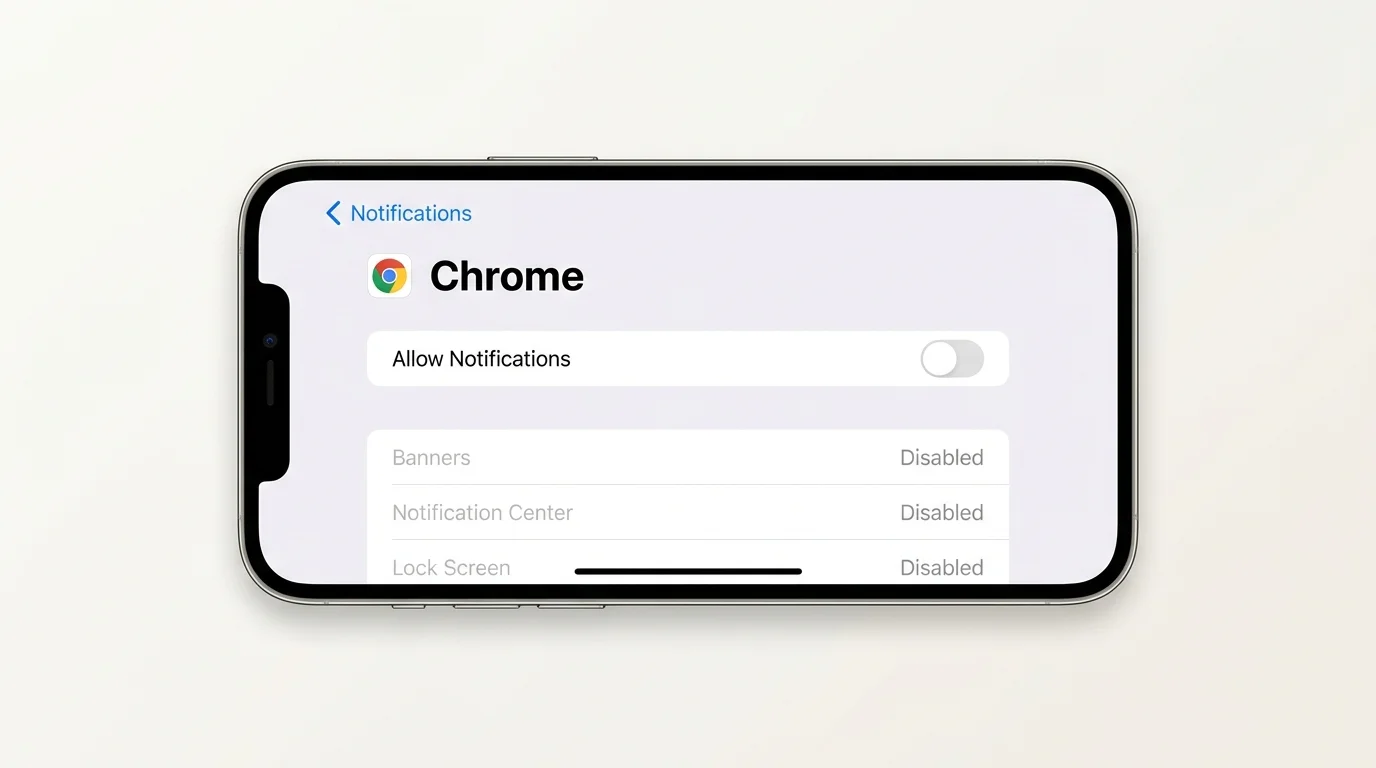
- Open the iOS Settings app.
- Tap Notifications.
- Select Chrome from the installed apps list.
- Toggle off Allow Notifications.
Disabling this setting stops all alerts, sounds, and badges from the Chrome app on your Apple device.
Chrome notifications vs. pop-ups: what is the difference?
Users often confuse web notifications with pop-up windows:
- Web Notifications: Push alerts delivered through your operating system's notification center via the Web Push API. They appear even when Chrome is minimized or in the background.
- Pop-ups and Redirects: Browser windows or new tabs that open automatically when interacting with a webpage. These are controlled separately under
chrome://settings/content/popups. - In-page Ads: Banner advertisements embedded directly into a webpage's HTML. They are not controlled by notification or pop-up settings.
If a site opens unwanted tabs or redirects, inspect Chrome's Pop-ups and redirects setting rather than notification permissions (see our detailed tutorial on how to block pop-ups in Chrome).
What to do if fake virus alerts or scam notifications appear
Many scam websites use Chrome notifications to display fake warnings resembling system alerts (such as "System Infected with 5 Viruses!" or "Renew Antivirus License").
- Do not click the notification: Clicking the notification often directs you to dangerous download links or phishing pages.
- Identify the sending domain: Look at the small gray text at the top or bottom of the alert box to see which website domain is generating the alert.
- Revoke permission: Open
chrome://settings/content/notificationsand block that specific domain immediately. - Clear site cookies: If the site continues to display misleading overlays, remove its stored data using our guide on how to delete cookies in Chrome.
Frequently asked questions
Can I turn off Chrome notifications without blocking pop-ups?
Yes. Chrome treats notifications and pop-ups as separate permission categories in Site Settings. You can disable notifications while keeping pop-ups allowed, or vice versa.
Will turning off notifications log me out or delete history?
No. Revoking notification permissions has zero impact on your stored cookies, active account logins, cached stylesheets, or browsing history. (To clear visited pages, see our guide on how to delete browsing history in Chrome; and to fix stale page elements, see how to clear cache in Chrome).
Why do notifications keep coming back?
If alerts continue, verify whether the notification originates from another browser (such as Microsoft Edge), a secondary Chrome profile, or an installed desktop program mimicking Chrome.
Can I re-enable notifications later?
Yes. Return to chrome://settings/content/notifications on desktop or the respective site permissions on mobile and set the permission back to Allow.
Summary
To stop unwanted Chrome notifications, navigate to Settings > Privacy and security > Site settings > Notifications on desktop or Android, and block unwanted websites or disable new permission requests globally. On iPhone, manage alerts via iOS Settings > Notifications > Chrome. Keeping notification permissions restricted prevents deceptive alerts and ensures a cleaner, distraction-free browsing experience.
Verified Primary Sources & Citations
NextTechExplained verifies facts against official documentation, engineering whitepapers, and regulatory filings.
- Google Chrome Help: Use notifications to get alerts - ComputerView Official Source
- Google Chrome Help: Use notifications to get alerts - AndroidView Official Source
- Google Chrome Help: Use notifications to get alerts - iPhone and iPadView Official Source
- Microsoft Support: Notifications and Do Not Disturb in WindowsView Official Source
- Apple Support: Change notification settings on iPhoneView Official Source
- Apple Support: Turn off notifications for an app or website on MacView Official Source
Published by NextTechExplained
Editorial Team • Institutional Publication Byline
Articles published under this byline are prepared through rigorous research and verified against official engineering specifications, standards documentation, and primary sources. Learn more about our process on our About page and Editorial Policy.
Related Explanations & Guides
How to Block Pop-Ups in Chrome on Desktop and Mobile
Stop unwanted pop-ups and redirects in Google Chrome on Windows, Mac, Android, and iPhone. Learn how to configure site exceptions and stop persistent ads.
How to Delete Cookies in Chrome on Desktop and Mobile
Learn how to delete all cookies in Chrome or remove data for one website on Windows, Mac, Android, and iPhone without clearing more browsing data than you intend.
How to Delete Browsing History in Chrome on Desktop and Mobile
Delete all Chrome browsing history or remove selected websites on Windows, Mac, Android, and iPhone. Learn what history deletion removes and what it does not.