
How to Organize Google Photos: Albums, Archive, and Search
Organize Google Photos with albums, search, and Archive. Learn a simple system for finding pictures, grouping memories, and hiding clutter without deleting photos.
Editorial Team

A laptop and smartphone showing an organized photo library with album groups and a clean photo grid
Table of Contents (23 sections)
- The best way to organize Google Photos
- 1. Create albums for the photos you want to group
- Create an album on a computer
- Create an album on Android or iPhone
- Choose a simple album naming system
- 2. Use Search instead of making an album for everything
- Search on a computer
- Search on Android or iPhone
- 3. Archive clutter without deleting it
- 4. Use document collections for receipts and paperwork
- 5. A 10-minute routine for keeping your library organized
- Common Google Photos organization problems
- An album is missing a photo
- Search cannot find a photo
- Archived photos still appear in Search
- The Documents collection is not available
- Frequently asked questions
- What is the easiest way to organize Google Photos?
- Do albums take up extra Google Photos storage?
- What is the difference between Archive and Delete?
- Can Google Photos organize receipts automatically?
- Should I put every photo into an album?
- Official sources
A Google Photos library can get hard to navigate when screenshots, receipts, trips, family pictures, and everyday camera photos all appear together. You do not need to move every photo into a complicated folder system. Start with three tools: albums for intentional groups, Search for finding items, and Archive for hiding clutter from the main Photos view.
This guide explains how to organize Google Photos on a computer, Android phone, or iPhone without confusing organization with deletion. Menu names and available features can vary by device, account, region, and app version, so use the matching Google Help links when your screen looks different.

The best way to organize Google Photos
Use the tool that matches the job instead of trying to place every picture in an album.
| What you want to do | Best starting point | Why it helps |
|---|---|---|
| Group photos from a trip, event, or project | Albums | Create a named collection you can return to or share. |
| Find a picture by its subject or location | Search | Search for people, places, objects, or other useful terms. |
| Remove receipts and screenshots from the main timeline without deleting them | Archive | Hides selected items from the main Photos view while keeping them accessible elsewhere. |
| Find recently uploaded items | Search for Recently Added |
Helps locate items by when they were added, rather than relying only on the photo date. |
| Find backed-up documents such as receipts | Documents collection, when available | Google Photos may sort some backed-up documents into useful categories. |
1. Create albums for the photos you want to group
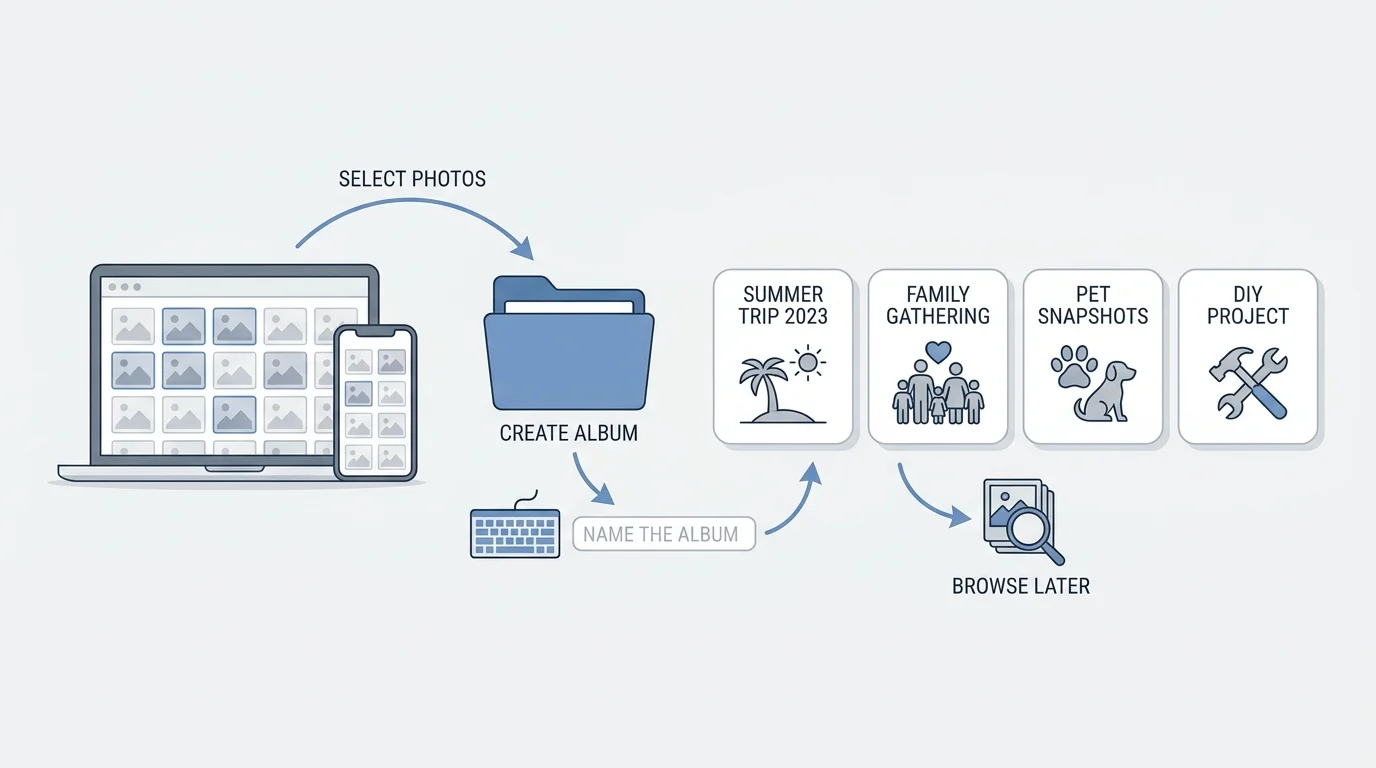
Albums are useful for trips, birthdays, family events, pets, work projects, renovation progress, or pictures you may want to share together. Keep the names specific enough that you will recognize them later, such as Tokyo trip - April 2026 instead of Travel for every holiday.
An album is a way to group items in Google Photos. Adding a photo to an album does not mean you should delete the original from your library to keep the album working. Avoid treating albums as separate computer folders or as independent backups.
Create an album on a computer
- Open Google Photos (opens in new tab) and sign in to the right Google Account.
- In the Photos view, select the photos you want to group (if you have many items to review, see our guide on how to select multiple photos in Google Photos).
- Choose Add to or the plus-shaped add control, then choose Album and New album. The exact control may vary with the current interface.
- Enter a descriptive album title.
- Review the selected photos and save the album.
You can also open the Albums area and choose to create a new album, then add photos to it. See Google's computer album instructions (opens in new tab) for the current interface.
Create an album on Android or iPhone
- Open the Google Photos app and confirm you are using the intended account.
- Touch and hold a photo to select it, then select any other photos you want in the group.
- Tap Add to album. Depending on the app version, you may first see an add or plus control.
- Choose New album if you are creating a new group.
- Add a short, recognizable title and save it.
Google's steps for Android (opens in new tab) and iPhone or iPad (opens in new tab) cover the available controls. Some album features, including Live Albums, may not be available to every account or in every region. (You can also showcase your curated albums on compatible smart displays, or turn selected pictures into moving creations; see our guide on how to make a slideshow in Google Photos).
Choose a simple album naming system
Avoid creating dozens of overlapping albums before you know what you need. One practical structure is:
- Events and trips: One album for each significant trip, holiday, or gathering.
- People and pets: Albums for selected occasions or collections you revisit often.
- Projects: A before-and-after set, home project, hobby, or work collection.
- Keep handy: Non-sensitive images you often need to find, such as a reference picture or a set of product photos.
These are naming ideas, not special Google Photos folders. Use only the groups that make your library easier to browse.
2. Use Search instead of making an album for everything
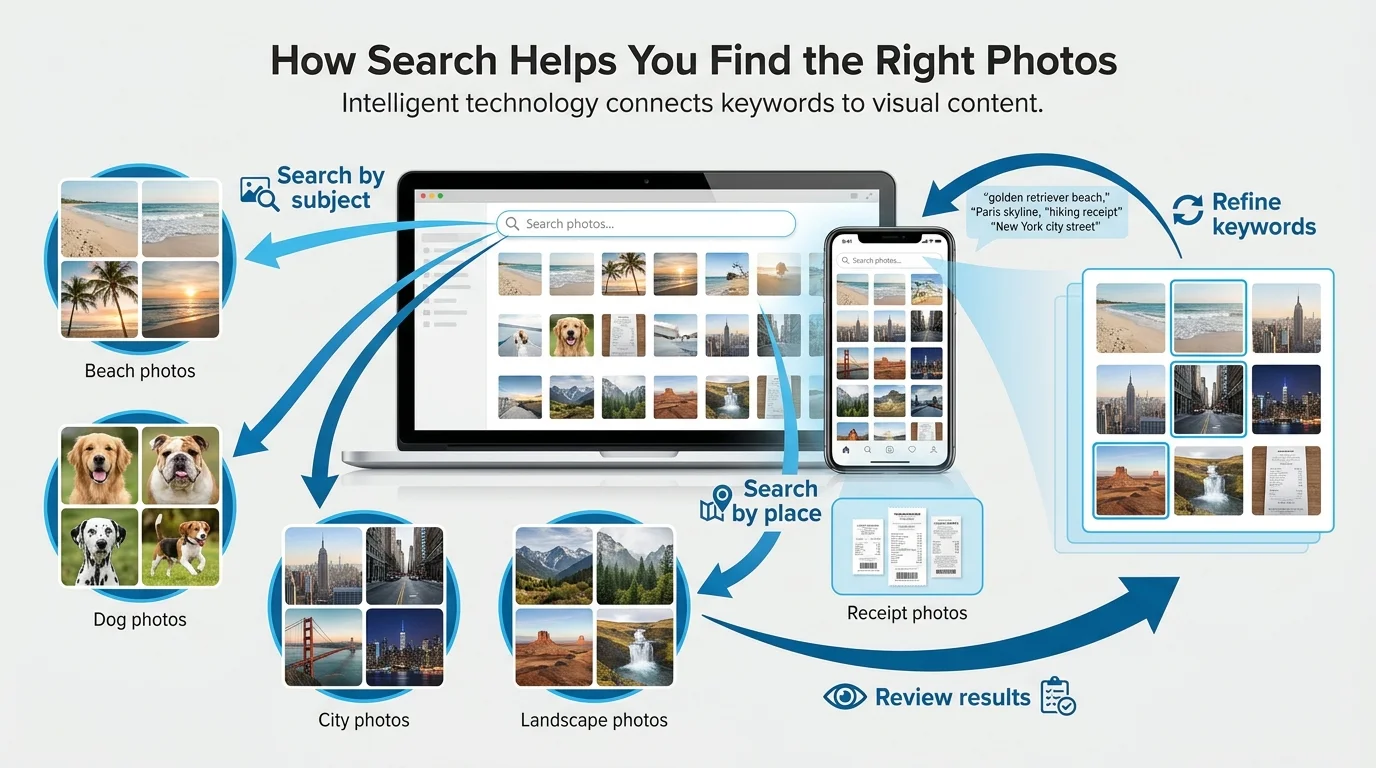
Google Photos can search for people, pets, places, objects, and some text or content in images. Search is often faster than maintaining an album for every topic. For example, try terms such as beach, dog, receipt, or a place name. Results depend on what is available and recognized in your library.
Search on a computer
- Open Google Photos Search (opens in new tab).
- Enter a person label, place, object, or descriptive keyword.
- Review the results and refine the words if they are too broad.
- If you need a precise text match in filenames, captions, camera models, or text in photos, Google's help says you can try putting the term in quotation marks.
Search on Android or iPhone
- Open Google Photos and tap Search or the current equivalent.
- Enter a word or phrase describing what you want to find, or choose one of the displayed categories.
- Open the relevant result and check whether it contains the intended photo.
- If the result is missing, try another term, check the relevant device folder, or search again later. Some items take time to become searchable.
Read Google's current Search guide (opens in new tab) for details about Search, People & pets, and the optional Ask Photos experience. Ask Photos requires opting in where eligible, and feature availability varies by region, account, and device. Because AI-generated search summaries can be inaccurate, check the actual images before acting on the results.
3. Archive clutter without deleting it
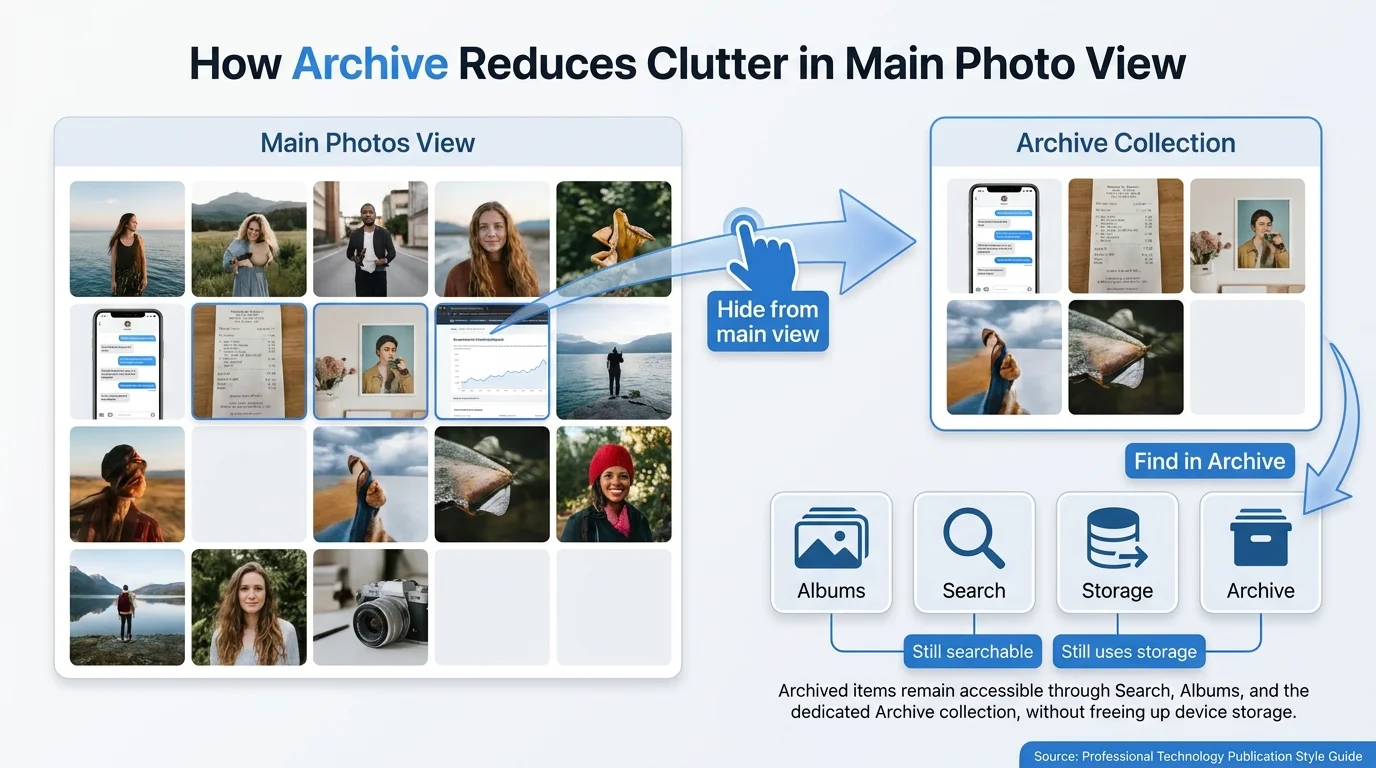
Archive is useful for pictures you want to keep but do not need to see in the main Photos timeline every time you open the app. Common examples include receipts you want to retain, screenshots you rarely revisit, or reference images that clutter the main view.
To archive an item:
- Open Google Photos on your phone or at photos.google.com (opens in new tab).
- Select the photo or photos.
- Open More and choose Archive. The position and label of this option can differ by platform.
- Open Archive later to find or unarchive the items.
Archived photos can still appear in albums they belong to, Search results, and device folders. They are not used to create highlight videos or animations, but they still count toward your Google Account storage quota. Archive is not a storage-cleanup tool and is not the same as deleting a photo.
For the current steps, see Google's Archive guide for computers (opens in new tab) or Android (opens in new tab).
4. Use document collections for receipts and paperwork
If your Google Photos account offers a Documents collection, check it when you need to find backed-up images of receipts, identification documents, or event information. Google Photos can automatically sort some backed-up document photos into categories. It may take time for the collection to appear or items to be sorted, and the feature depends on backup and availability.
On a computer, go to Google Photos (opens in new tab) and look for Documents in the navigation. On a phone, open Collections and look for Documents. If it is missing, do not assume your photos have disappeared; check the account, backup status, and the current Google Help page.
Google also offers an automatic archive option for some document categories. When enabled, documents older than 30 days can be hidden from the main Photos view and remain in the document albums. This is based on the date the photo was created, not when it was shared. Review the controls before enabling automatic archive so important documents do not surprise you by disappearing from the main timeline.
See Google's document organization guide (opens in new tab) for current availability and settings.
5. A 10-minute routine for keeping your library organized
You do not have to organize an entire photo library in one sitting. Try this small routine once a week or after a large event:
- Find first. Use Search or Recently Added to locate the batch you want to review.
- Create only useful albums. Group photos from an event, trip, or project when you expect to revisit them.
- Archive what clutters the timeline. Keep items you may need but do not want in the main view.
- Check important files. Review receipt and document photos before archiving or changing any setting.
- Pause before deleting. Archive hides items; deletion is a different action and can affect synced copies. Do not use Delete as a shortcut for organization.
If you are trying to free up storage, check your Google Account storage-management options separately. Archiving does not reduce storage use. If you want to change backup behavior or remove cloud copies while keeping files on your phone, see our guides on how to stop Google Photos backup and how to delete photos from Google Photos without deleting them from your phone. To save a complete local backup first, see how to download photos from Google Photos. If you have images in cloud folders that need importing, see how to move photos from Google Drive to Google Photos.
Common Google Photos organization problems
An album is missing a photo
Check that you added the correct item to the album and that you are signed in to the intended account. Search for the photo directly, then open the album and review its contents. An album is a collection, so removing a photo from one album is not the same as deleting it from your entire library.
Search cannot find a photo
Try a different keyword, search for a place or object, or check Recently Added. Google notes that some photos may take time to become searchable. For items from other apps, check Collections and On this device on your phone; device folders are not all visible from the website unless backed up.
Archived photos still appear in Search
That is expected. Archive hides items from the main Photos view but does not remove them from Search results, albums they belong to, or device folders. Open Archive if you want to unarchive an item.
The Documents collection is not available
Check whether backup is enabled for the relevant photos and allow time for Google Photos to sort them. The feature may not be available in every account or device configuration. You can still create a regular album to group document photos you have selected.
Frequently asked questions
What is the easiest way to organize Google Photos?
Start with a small number of albums for trips, events, and projects. Use Search to find subjects and places, and Archive to hide clutter from the main timeline without deleting it.
Do albums take up extra Google Photos storage?
An album groups photos from your library; it is not a separate backup copy that you must maintain manually. The photos themselves still count according to Google Account storage rules. Archive does not reduce their storage use either.
What is the difference between Archive and Delete?
Archive hides a photo from the main Photos view while keeping it accessible in places such as Search, existing albums, and device folders. Delete moves an item into the deletion workflow and can affect synced copies, so do not use it just to tidy your timeline.
Can Google Photos organize receipts automatically?
Google Photos can sort some backed-up document photos into categories in the Documents collection. Availability and timing vary. If the collection is missing, check the current Google Help guidance and your backup status.
Should I put every photo into an album?
No. Use albums for groups you expect to revisit or share. Search is better for many broad topics, and Archive is useful for reducing clutter in the main timeline while retaining items.
Official sources
- Create and edit albums on a computer (opens in new tab)
- Create and edit albums on Android (opens in new tab)
- Create and edit albums on iPhone or iPad (opens in new tab)
- Search by people, things, and places (opens in new tab)
- Archive photos (opens in new tab)
- Organize documents in Google Photos (opens in new tab)
Verified Primary Sources & Citations
NextTechExplained verifies facts against official documentation, engineering whitepapers, and regulatory filings.
- Google Photos Help: Create and edit photo albums on a computerView Official Source
- Google Photos Help: Create and edit photo albums on AndroidView Official Source
- Google Photos Help: Create and edit photo albums on iPhone and iPadView Official Source
- Google Photos Help: Search by people, things, and placesView Official Source
- Google Photos Help: Move photos to Archive on a computerView Official Source
- Google Photos Help: Move photos to Archive on AndroidView Official Source
- Google Photos Help: Sort your documents into useful albumsView Official Source
Published by NextTechExplained
Editorial Team • Institutional Publication Byline
Articles published under this byline are prepared through rigorous research and verified against official engineering specifications, standards documentation, and primary sources. Learn more about our process on our About page and Editorial Policy.
Related Explanations & Guides

How to Delete All Photos from Google Photos Safely
Learn how to bulk-delete photos and videos from Google Photos on a computer or phone, understand what happens to synced copies, and avoid irreversible mistakes.

How to Free Up Google Photos Storage Without Losing Important Photos
Free up Google Photos storage by reviewing large files, cleaning up unwanted photos, and converting eligible existing backups to Storage saver.

How to Select All Photos in Google Photos (Computer, Android, and iPhone)
Learn how to select multiple Google Photos at once on a computer, Android, or iPhone using Shift-click or touch-and-hold, plus safe bulk-action tips.