
How to Move Photos from Google Drive to Google Photos
Add photos from Google Drive to Google Photos, understand account limitations, check supported formats and storage, and avoid deleting originals by mistake.
Editorial Team
A laptop showing a cloud-drive folder and a separate photo-library interface, illustrating how to copy photos from Google Drive to Google Photos
Table of Contents (24 sections)
- The quickest way to add Google Drive photos to Google Photos
- Before you import a large collection
- Check the image type and dimensions
- Check the Google Account
- Check available storage
- Do not delete the Drive original just because the import started
- If you use a work or school Google Account
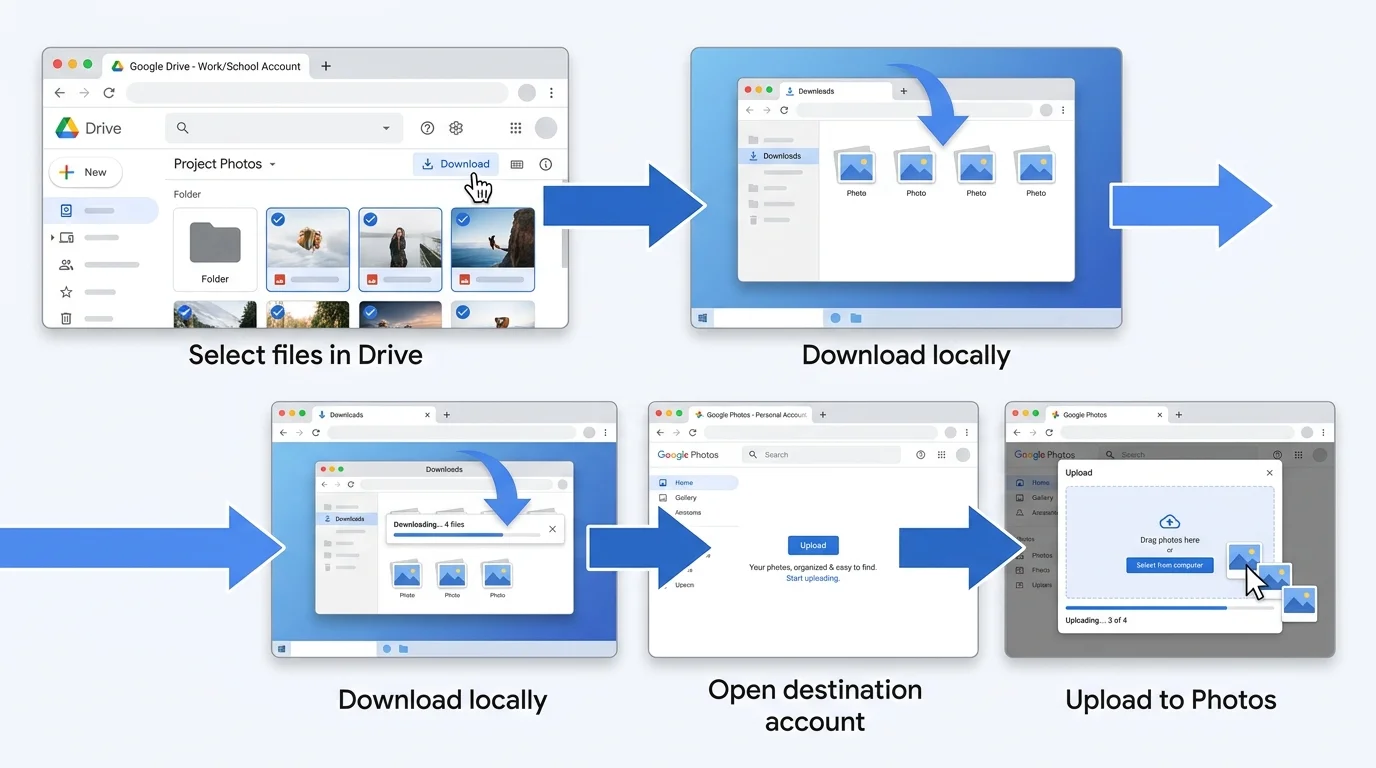
- Step 1: Download the files from Drive
- Step 2: Upload them to Google Photos
- Is Google Drive still backing up photos to Google Photos automatically?
- What happens to the original photo in Google Drive?
- Troubleshooting: Google Drive photos are not appearing in Google Photos
- The Google Drive import option is missing
- Some files will not upload
- The new copy is not visible yet
- Storage usage increased
- My old Drive for desktop backup stopped
- Frequently asked questions
- Does moving photos from Google Drive to Google Photos delete them from Drive?
- Can I transfer photos from a work or school Google Account directly?
- Which photo formats can I add from Google Drive?
- Will the import use my Google Account storage?
- Does Drive for desktop still automatically back up folders to Google Photos?
- A safe checklist before you finish
If your pictures are stored in Google Drive and you want them in Google Photos, you can add them from a computer. For a personal Google Account, open Google Photos (opens in new tab), choose the option to add photos from Google Drive, select the items, and upload them. If you use a work or school account, Google says you need to download the files from Drive and upload them to Photos instead. (If you have photos stored on your computer or phone rather than Drive, see our guide on how to add photos to Google Photos from a phone or computer).
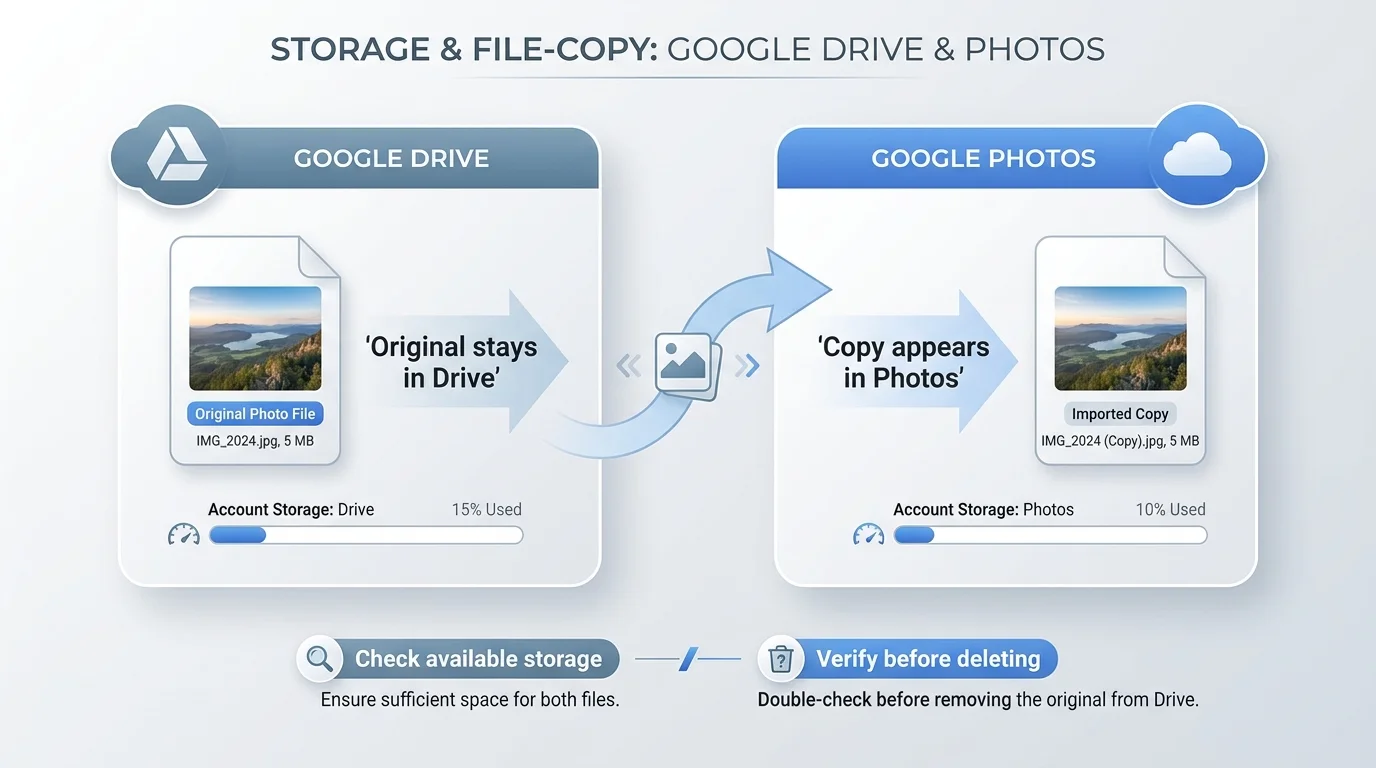
One important detail: this process copies photos into Google Photos; it does not automatically move them out of Google Drive. The Drive originals remain in Drive unless you delete them separately. Check that the Photos copies have finished uploading before changing or removing any source files.
The quickest way to add Google Drive photos to Google Photos
For an eligible personal account, the direct import option is usually the simplest way to add supported items without downloading each file to your computer first.
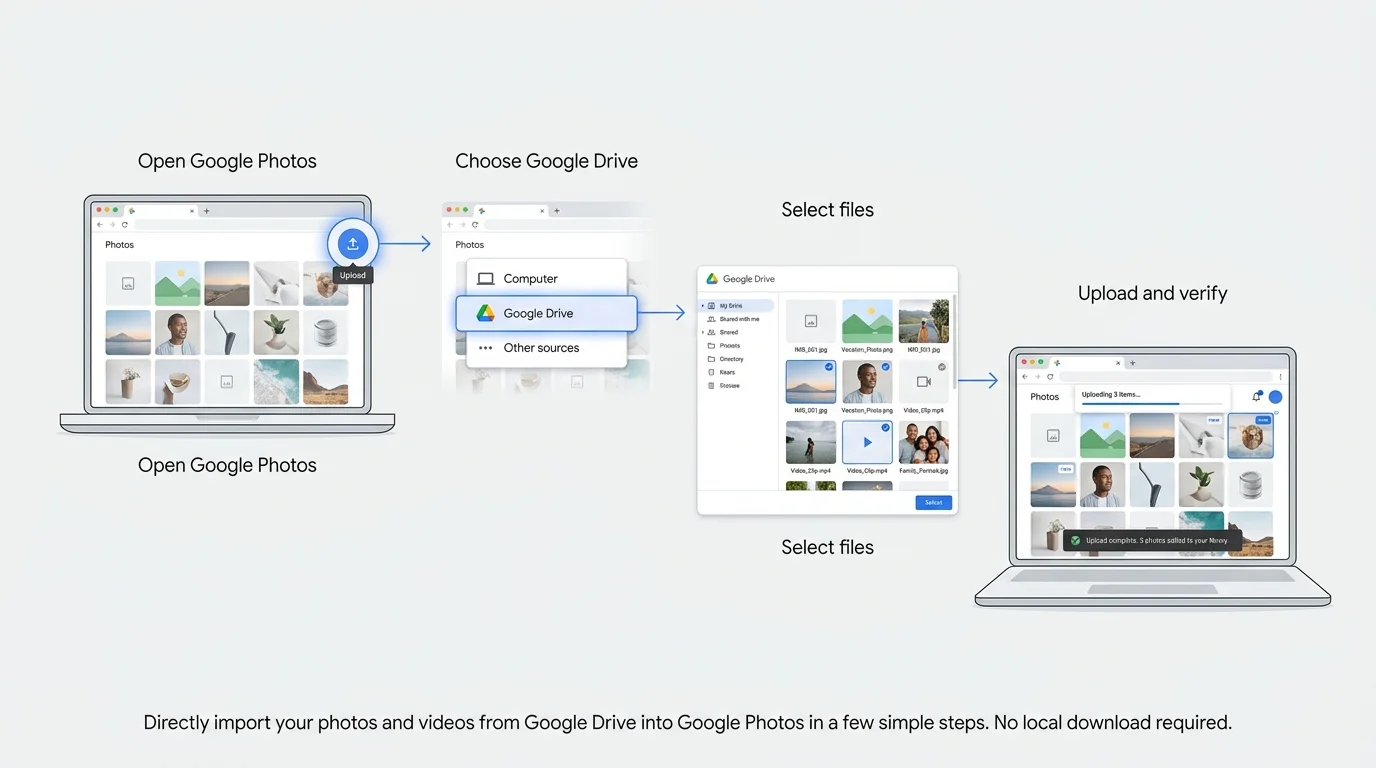
- On a computer, open Google Photos (opens in new tab) and sign in to the Google Account where you want the photos to appear.
- Look for the Add or import control near the top of the page, then choose Google Drive. The exact label or placement can vary with the current interface.
- Browse Drive and select the photos or videos you want to add.
- Choose Upload and let the import finish.
- Return to your Photos library and check that a few of the imported items open correctly.
Google's current instructions are in its guide to adding photos and videos from Google Drive to Google Photos (opens in new tab). If you cannot find the Google Drive option, check the account type and use the manual download-and-upload method below if required.
Before you import a large collection
A quick check can prevent failed uploads or unexpected storage use.
Check the image type and dimensions
Google lists supported photo formats including JPG, HEIC, PNG, WebP, GIF, and most RAW files. Its guidance also specifies a 256-pixel requirement for photos. If an item is rejected, check the file type and dimensions rather than assuming every file in Drive is eligible. Do not apply the photo-format list to every video format; video support has its own requirements.
Check the Google Account
Make sure Google Photos is signed in to the account that should own the new copy. A browser may have multiple Google Accounts open, and importing while signed in to the wrong one can put photos in an unexpected library.
Check available storage
Items copied from Drive to Google Photos use your Google Account storage. The new Photos copy counts toward storage, while the original remains in Drive, so a large import can use more storage than you expect. Check your account's storage before selecting a large folder or archive.
Do not delete the Drive original just because the import started
Wait for the upload to finish and verify the results in Google Photos. Opening a few files is a useful first check, but for a large batch, also compare the selected set with the items that arrived. Keep the source in Drive until you are comfortable that the Photos copy is complete.
If you use a work or school Google Account
Google's Drive-to-Photos help says that work or school accounts need to download the items from Google Drive and then upload them to Google Photos. The direct Google Drive import option may not be available for these accounts.
Step 1: Download the files from Drive
- Open Google Drive (opens in new tab) on a computer. (If you prefer managing Drive files directly from Windows, see our guide on how to add Google Drive to File Explorer).
- Select the photos or videos you want to transfer.
- Use Drive's download option. If Drive packages multiple files into an archive, extract that archive into a clearly named folder after the download completes.
- Open a few files locally to confirm they downloaded correctly.
Step 2: Upload them to Google Photos
- Open Google Photos (opens in new tab) and confirm the destination account.
- Use the upload control to select the downloaded files from your computer.
- Wait for the upload to finish. Large batches may take time depending on file size, connection speed, and account conditions.
- Check that the images appear in the correct Photos library before deciding what to do with the Drive originals. Once your photos are in Google Photos, see our guide on how to organize Google Photos to create albums and sort your collection.
For business or school data, also follow your organization's account and data-handling policies. Do not move work files into a personal Google Account unless your organization permits it.
Is Google Drive still backing up photos to Google Photos automatically?
Not through Drive for desktop. Google's support guidance says that Drive for desktop ended support for Google Photos backup on August 10, 2026. Previously backed-up items remain in Google Photos, but you should not rely on Drive for desktop to keep sending new folders to Photos through the old backup setting.
If you have a folder of existing images in Drive and want them in Photos now, use the direct Drive import option where available, or download and upload the files if you use a work or school account or the import option is unavailable. Google explains the change in its Drive for desktop settings guidance (opens in new tab) and its Google Photos backup help (opens in new tab).
This change does not mean your Drive files were automatically deleted, nor does it remove items that had already been backed up to Google Photos. The two services still have separate libraries and controls.
What happens to the original photo in Google Drive?
Adding a Drive item to Google Photos creates a separate copy in Photos. Google states that changes made in Drive apply to Drive, while changes made in Photos apply to Photos. The two copies do not behave like a single shared file that automatically mirrors every rename, edit, or deletion across both services.
That separation has two practical consequences:
- If you delete the Drive original, do not assume that this deletes the Photos copy. Check each service's library and its current rules before removing anything.
- If you edit or delete the Photos copy, do not assume the Drive original changes. Drive and Photos have separate controls.
If the purpose of the transfer is to consolidate a collection, verify the Photos copy first. Then decide whether you still need the source copy in Drive. Keep important originals or a separate backup until you have confirmed the result you want. If you are reviewing storage or want to export an offline copy of your library before making changes, see our guide on how to download photos from Google Photos. If you also need to manage phone backup behavior, see how to stop Google Photos backup.
Troubleshooting: Google Drive photos are not appearing in Google Photos
The Google Drive import option is missing
Confirm that you are signed in to the intended personal Google Account. Google says work or school accounts need the download-and-upload route. Interface wording can also change, so check the current official Drive-to-Photos help page.
Some files will not upload
Check whether the photo format is supported and meets Google's stated dimension requirement. Retry a single eligible file to separate a file-specific issue from a larger selection problem. Videos can have different requirements from still photos.
The new copy is not visible yet
Give the upload time to finish, confirm the destination account, and refresh the Photos library. For a large import, verify a sample and then check the rest of the selection instead of assuming every file succeeded because the process started.
Storage usage increased
That can be expected: the new copy in Google Photos counts toward Google Account storage. The original file may still occupy Drive storage too. Review storage usage before importing a large archive.
My old Drive for desktop backup stopped
Google's stated cutoff for Google Photos backup in Drive for desktop was August 10, 2026. Use the current import workflow rather than assuming the old desktop setting still uploads new files to Photos.
Frequently asked questions
Does moving photos from Google Drive to Google Photos delete them from Drive?
No. Google's documented process adds a copy to Photos. The original remains in Drive unless you delete it separately.
Can I transfer photos from a work or school Google Account directly?
Google's guidance says to download the items from Drive and upload them to Google Photos for work or school accounts. Follow your organization's policies before transferring work-related material.
Which photo formats can I add from Google Drive?
Google lists JPG, HEIC, PNG, WebP, GIF, and most RAW files, with a stated 256-pixel requirement for photos. Check the current official documentation if a particular file is rejected.
Will the import use my Google Account storage?
Yes. Google says the copy added to Photos counts toward your Google Account storage. The original Drive file remains separate until you choose to remove it.
Does Drive for desktop still automatically back up folders to Google Photos?
Google's support guidance says Drive for desktop ended support for Google Photos backup on August 10, 2026. Use the current Google Photos import or upload method for new items.
A safe checklist before you finish
- Confirm you are signed in to the intended destination Google Account.
- Check that the item types are supported and that you have enough storage.
- Use direct Drive import for an eligible personal account, or download and upload if you have a work or school account.
- Wait for upload to finish and verify the new copies in Google Photos.
- Remember that importing copies the files; it does not automatically remove the originals from Drive.
- Keep important originals until you are sure the transfer is complete.
The safest approach is to treat Google Drive and Google Photos as separate libraries: import the items you need, verify the result, and only then decide whether the original files still belong in Drive.
Verified Primary Sources & Citations
NextTechExplained verifies facts against official documentation, engineering whitepapers, and regulatory filings.
- Google Photos Help: Add photos and videos from Google Drive to Google PhotosView Official Source
- Google Drive Help: Add photos and videos from Google Drive to Google PhotosView Official Source
- Google Photos Help: Back up photos and videosView Official Source
- Google Drive Help: Customize Drive for desktop settingsView Official Source
Published by NextTechExplained
Editorial Team • Institutional Publication Byline
Articles published under this byline are prepared through rigorous research and verified against official engineering specifications, standards documentation, and primary sources. Learn more about our process on our About page and Editorial Policy.
Related Explanations & Guides
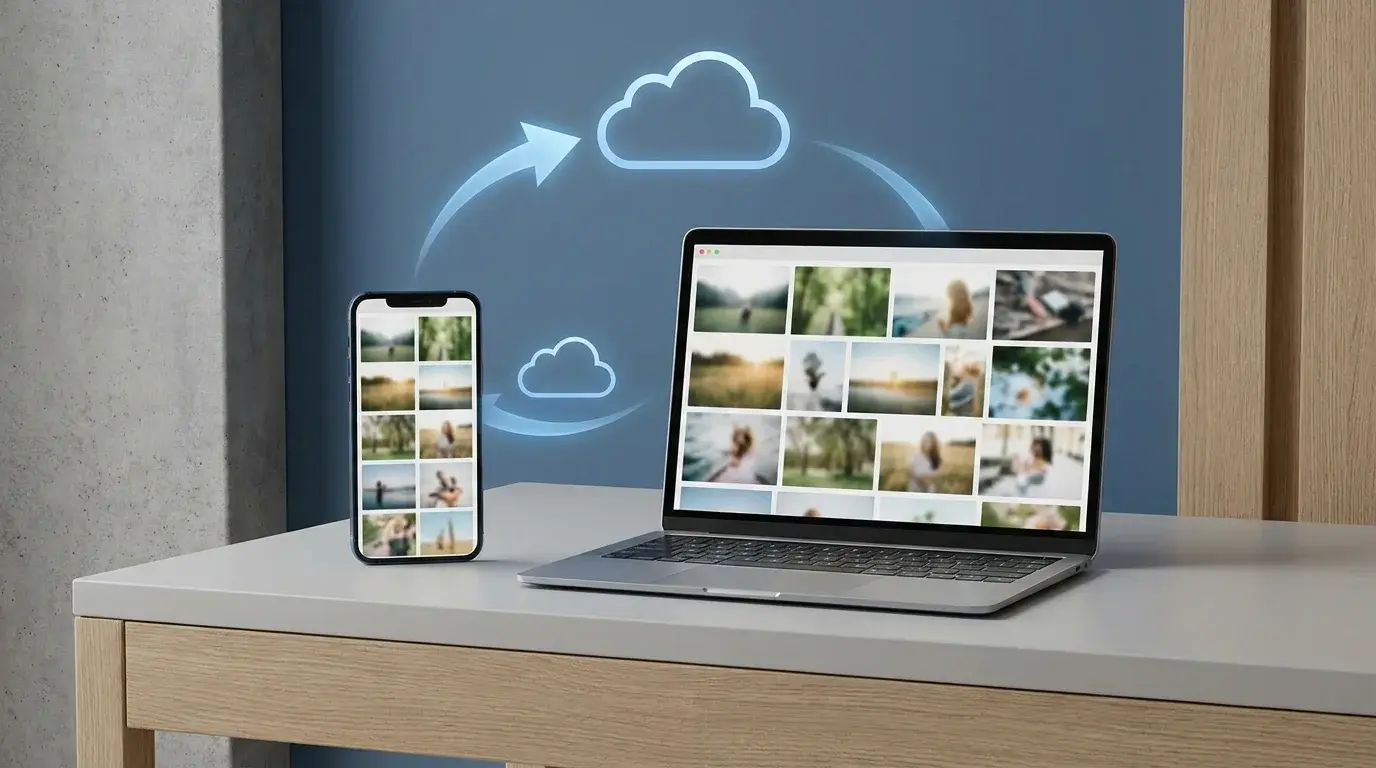
How to Add Photos to Google Photos from a Phone or Computer
Learn how to add photos to Google Photos manually, enable phone backup, upload files from a computer, and check that your pictures have finished uploading.
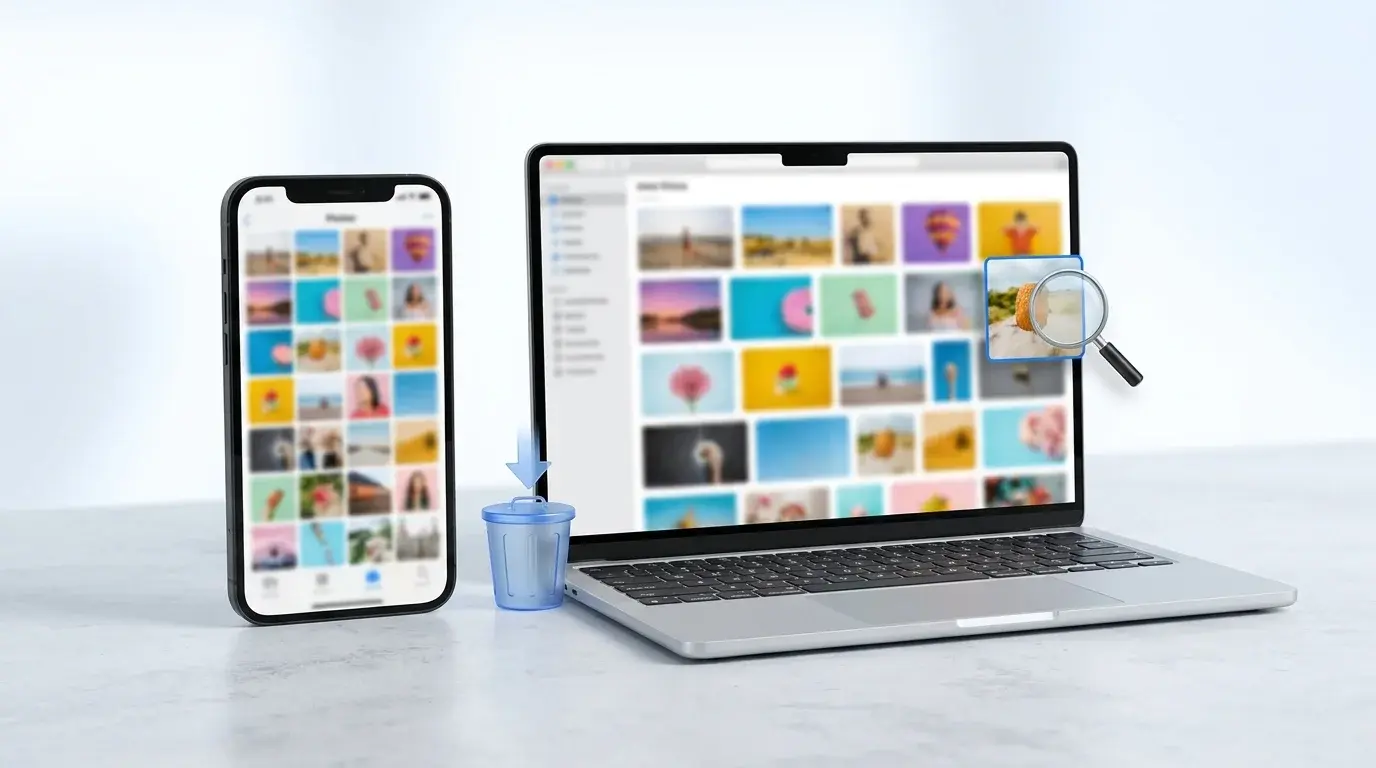
How to Delete All Photos from Google Photos Safely
Learn how to bulk-delete photos and videos from Google Photos on a computer or phone, understand what happens to synced copies, and avoid irreversible mistakes.
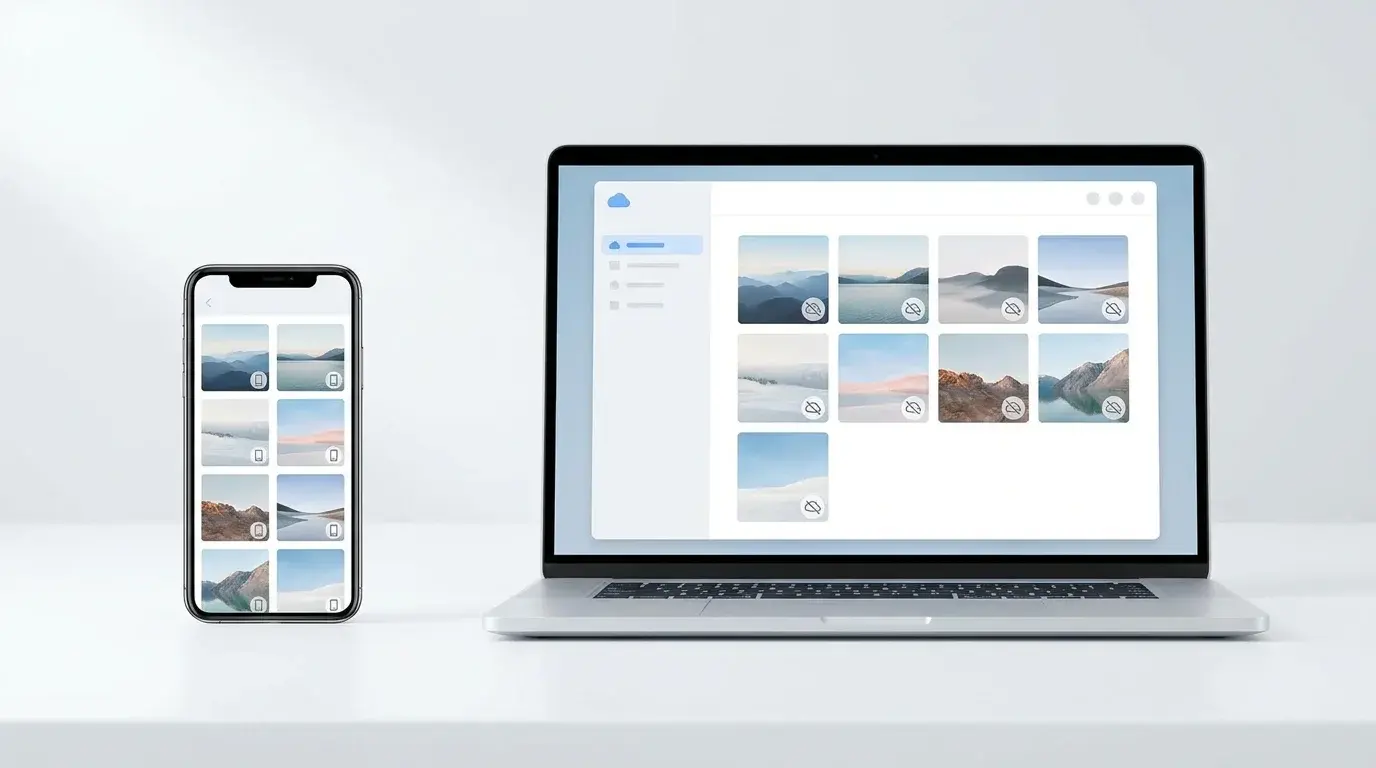
How to Delete Photos from Google Photos Without Deleting Them from Your Phone
Remove backed-up photos from Google Photos while keeping local copies on your Android or iPhone. Follow the safe web-deletion steps and learn when to use Undo backup.