
How to Delete Photos from Google Photos Without Deleting Them from Your Phone
Remove backed-up photos from Google Photos while keeping local copies on your Android or iPhone. Follow the safe web-deletion steps and learn when to use Undo backup.
Editorial Team
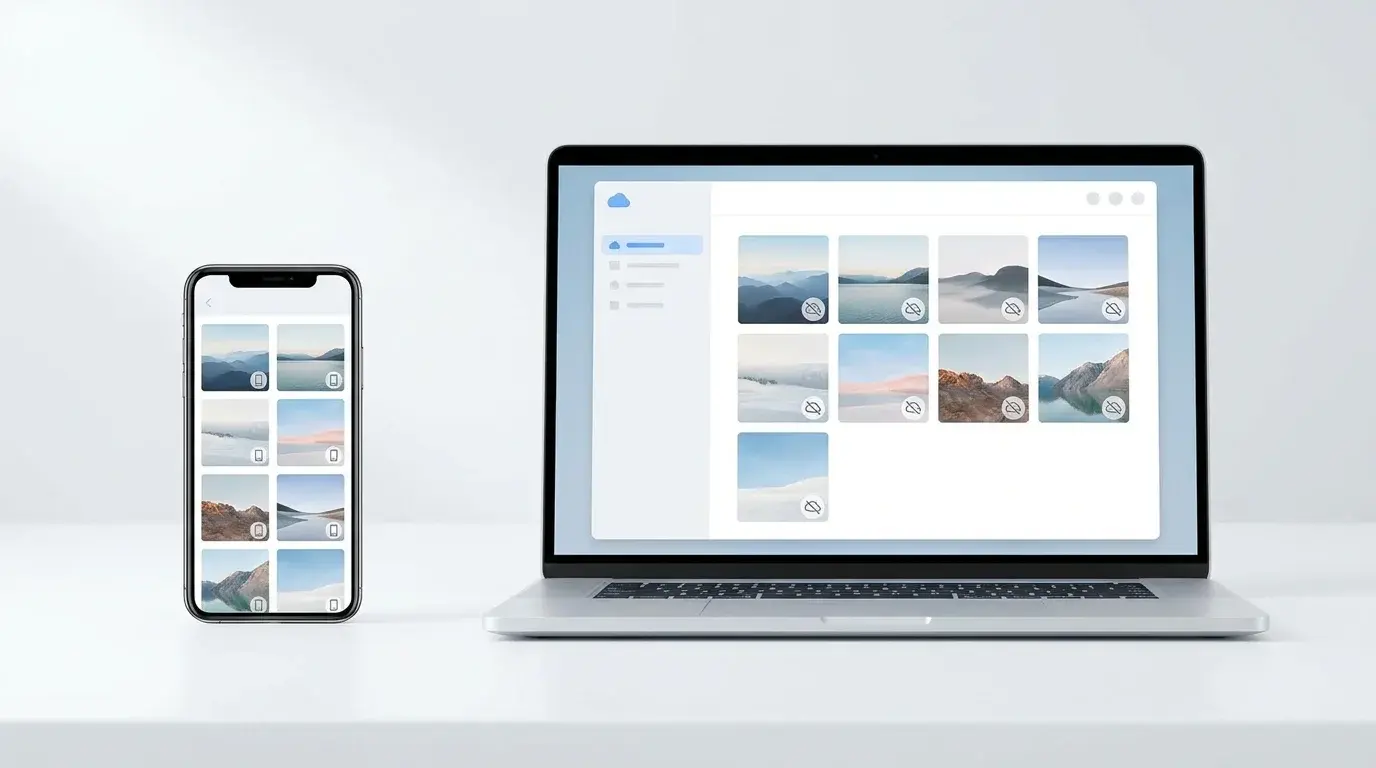
A smartphone with a local photo gallery beside a laptop showing a generic cloud photo library, illustrating the difference between device photos and cloud backups
Table of Contents (18 sections)
- Before you delete anything
- Method 1: Remove selected photos from Google Photos but keep them on your phone
- Step 1: Turn off Google Photos backup on the devices that must keep the photos
- Step 2: Delete the selected items from the website, not from the app
- Step 3: Confirm the local copies remain
- Method 2: Remove the photos currently on one device from Google Photos
- Important: Undo backup is device-specific, not a command to clear your entire cloud library
- What if you use more than one phone or have Partner Sharing enabled?
- Do not confuse these Google Photos actions
- Why are the photos still visible after I delete them online?
- Frequently asked questions
- Can I delete photos from Google Photos without deleting them from my phone?
- Does turning off Google Photos backup delete photos already uploaded?
- Will deleting a photo in the Google Photos app delete it from my iPhone or Android phone?
- Can I remove all photos from Google Photos but keep them on my phone?
- Can I turn backup on again after deleting photos from Google Photos?
- Should I use Archive instead?
- Official Google guidance
If you want to remove photos from your Google Photos account but keep the copies saved on your phone, do not delete them from the Google Photos app while backup is enabled. Google says deleting an item in the app can also delete it from your device and other devices where backup is on.
For a few photos or videos, turn off backup on every device where you want the local copies to remain, delete the selected items from Google Photos on the web (opens in new tab), then leave backup off if you do not want those items uploaded again. If you want to remove all photos currently on one device from Google Photos, the app may offer Undo backup. The two methods are different, so choose the one that matches your goal.
Before you delete anything
Take a moment to confirm that the pictures you want to keep really are stored on your phone. A thumbnail in Google Photos does not always prove that a full local copy exists.
- Open your phone's built-in gallery app. On iPhone, use Apple Photos; on Android, use the phone's gallery app or an appropriate local folder view.
- Find a few of the photos you intend to keep. Open them and, where practical, check that they are available without relying on the Google Photos cloud view.
- For irreplaceable photos, consider making a separate copy on a computer or external drive before doing a large deletion.
- Confirm you are signed in to the Google Account whose online library you intend to change.
- If the photos must remain on more than one device, turn off Google Photos backup on each of those devices before deleting the online copies.
The safest approach is to test the process with one unimportant photo first, confirm that its local copy remains, and only then repeat the steps for a larger selection.
Method 1: Remove selected photos from Google Photos but keep them on your phone
Use this method when you want to remove specific backed-up pictures or videos from your Google Photos cloud library while keeping the local copies on Android or iPhone.
Step 1: Turn off Google Photos backup on the devices that must keep the photos
On Android or iPhone:
- Open the Google Photos app.
- Tap your profile picture or initial.
- Open Photos settings or Google Photos settings, then select Backup.
- Turn Backup off.
- Repeat on every other device where the photos should remain. Check all devices that use the same Google Account, not just the phone in your hand.
The setting labels can vary slightly by app version. Turning backup off stops new backups from that device; it does not by itself remove pictures that were already uploaded to your Google Account. For a complete guide to backup toggles and Android device folders, see our guide on how to stop Google Photos backup on Android and iPhone.
Step 2: Delete the selected items from the website, not from the app
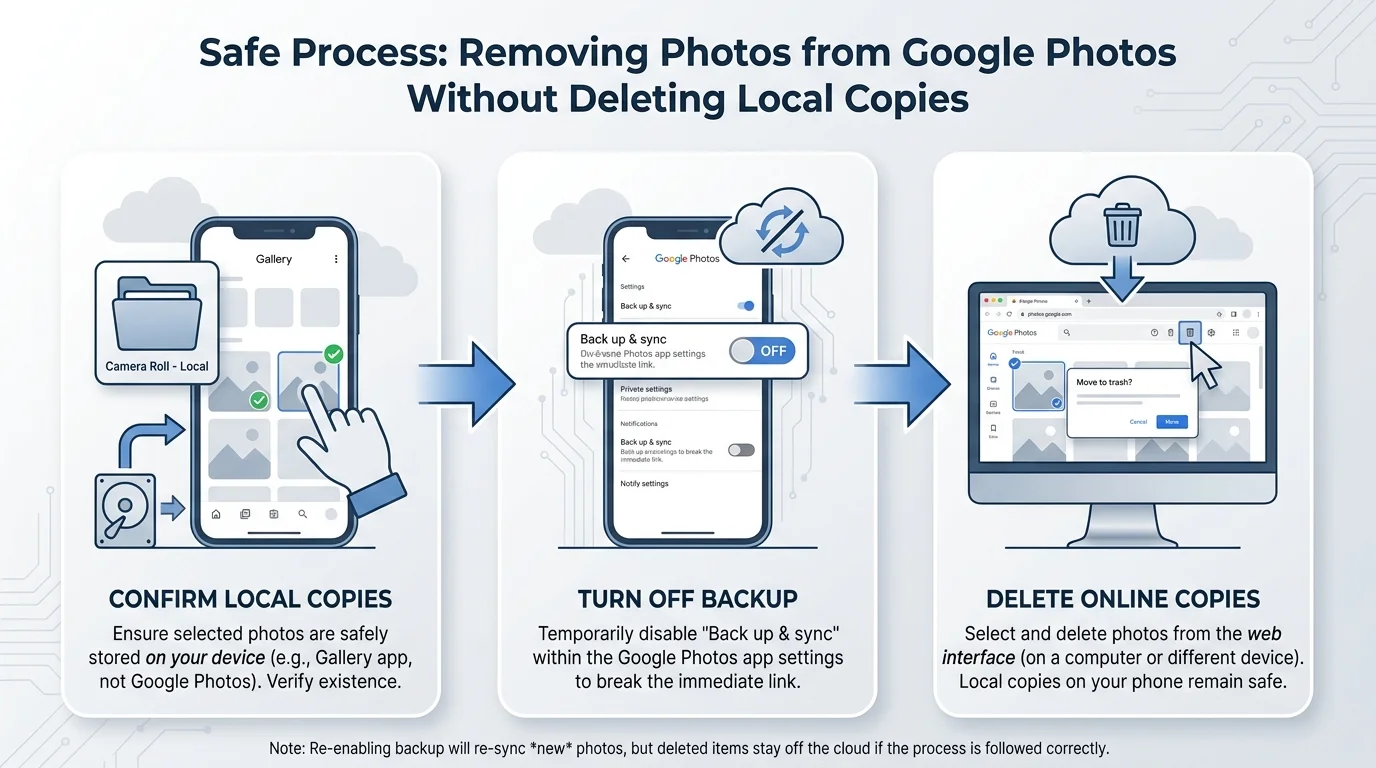
- Open a browser on a computer or phone and go to photos.google.com (opens in new tab).
- Sign in to the same Google Account.
- Select only the backed-up photos and videos you want to remove (if selecting many items on a computer, use Shift-click range selection as explained in our guide on how to select all photos in Google Photos).
- Move the selected items to Trash using the website controls.
- Double-check the selection before confirming. Do not empty Trash unless you are certain you will not need to restore those items.
Do not perform this deletion from the Google Photos app while backup is enabled. Google specifically recommends turning backup off first when you want to remove the Google Photos copy without also deleting the device copy.
Step 3: Confirm the local copies remain
After deleting the online copies:
- Keep your phone connected to Wi-Fi and wait a few minutes.
- Close and reopen Google Photos.
- Check the phone's built-in gallery app to confirm the local copies are still there.
- In Google Photos, open a remaining item and inspect its details or backup status if the app provides that information. A photo may still appear in the Photos view because a local copy exists on the device; that alone does not prove it is still backed up.
Google recommends leaving backup off if you want to prevent those photos from being uploaded again. If you turn it on later, deleted items may be backed up again, and in some situations the device copy may be affected when backup is re-enabled. Read the current Google guidance before changing the setting back.
Method 2: Remove the photos currently on one device from Google Photos
If your goal is to remove the photos and videos currently found on one phone from Google Photos in bulk, check whether the app offers Undo backup. Google documents this feature for Android and iPhone or iPad, although the exact availability and wording may vary by app version.
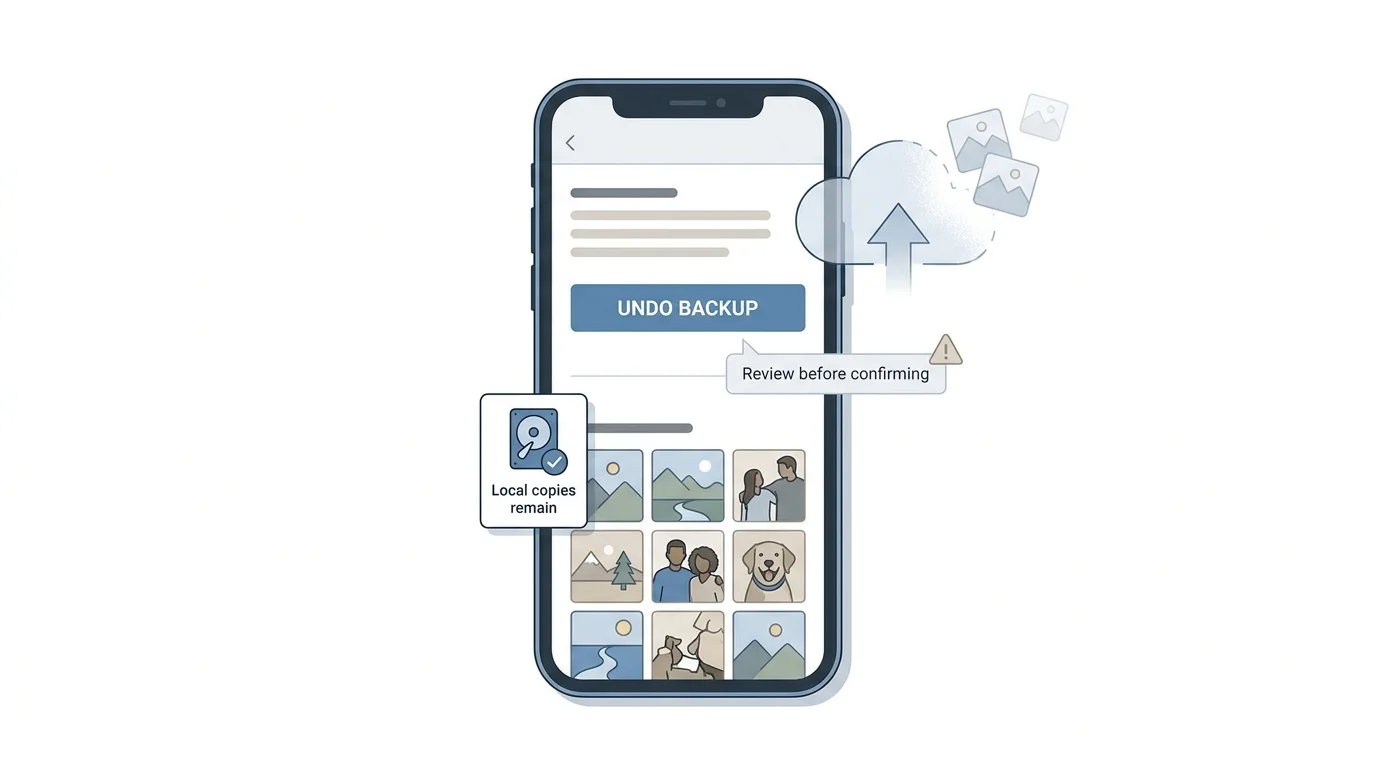
Before proceeding, read Google's confirmation carefully. Undo backup can remove more than the pictures visible in the main timeline. Google says the action also removes those items from albums, shared albums, search results, and Memories; items in Locked Folder are included, and Android device-folder content may be included as well. It is not a reversible substitute for making another backup.
- Open Google Photos on the device whose cloud backup you want to undo.
- Tap your profile picture or initial.
- Open Photos settings or Google Photos settings, then Backup.
- Scroll to Undo backup or the equivalent option, if shown.
- Read the confirmation and included-content warning. Make sure you understand which device's photos will be removed from Google Photos.
- If you are certain, confirm Delete Google Photos backup.
Google says backup is turned off automatically on that device after the action. Confirm that the original files remain in the device's gallery app. If you do not see Undo backup, use the selected-photo method above or follow Google's current help page for your device rather than trying unverified workarounds.
Important: Undo backup is device-specific, not a command to clear your entire cloud library
Undo backup applies to photos and videos currently found on the device you choose. Do not assume it removes every photo ever uploaded from another phone, tablet, computer, or previous device. Review your Google Photos library on the web and account/device backup settings before relying on it for a wider cleanup.
What if you use more than one phone or have Partner Sharing enabled?
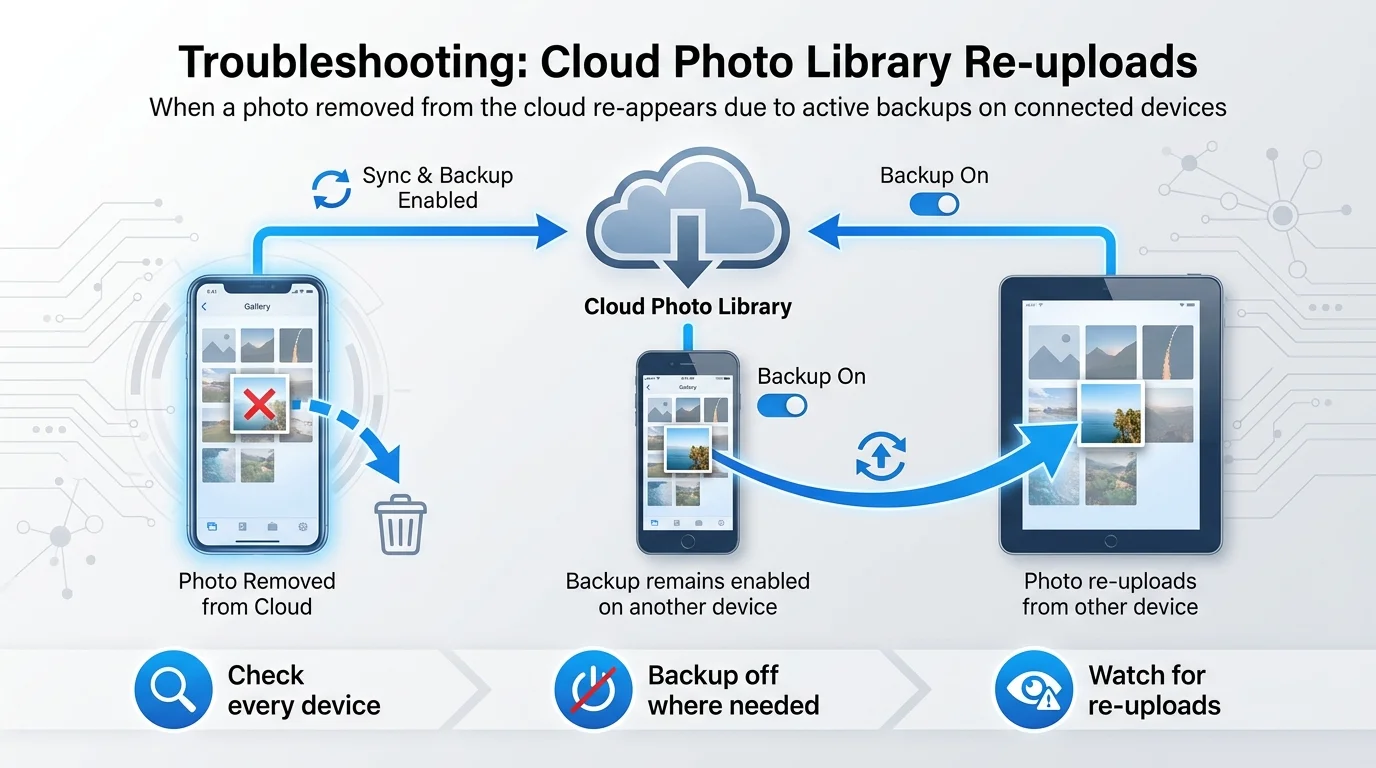
Be careful if the same Google Account is signed in on multiple devices. Google says photos can be uploaded again if backup remains enabled on another device, or if you turn backup back on later. With Partner Sharing, a partner's auto-save setting can also affect whether items are uploaded again or removed from the partner's library.
Before a large cleanup:
- Turn backup off on every device where you want the local photo copies to stay.
- Check whether another device is still uploading the same folders or camera roll.
- If Partner Sharing is enabled, review the relevant auto-save settings and Google's explanation before deleting shared items.
- Do not re-enable backup until you have checked which photos will be uploaded again.
If a photo reappears in Google Photos after deletion, check whether backup was re-enabled or another device uploaded it again. Avoid repeatedly deleting the same items until you identify the source.
Do not confuse these Google Photos actions
| Action | What it does | Is it right for this goal? |
|---|---|---|
| Delete from the Google Photos app while backup is on | Can delete the cloud item and the corresponding device copy, including synced copies on other devices | No. Avoid this. |
| Turn off backup, then delete selected items on photos.google.com | Removes selected online copies while preserving local copies when the steps are followed correctly | Yes, for selected items |
| Undo backup | Removes the photos currently found on the chosen device from Google Photos and turns backup off on that device | Yes, for a device-level cleanup, after reviewing the warning |
| Archive | Hides items from the main Photos view but keeps them in Google Photos, search, and relevant albums | No, if you want to remove the cloud copy |
| Free up space or Delete from device | Removes local files from the phone to reclaim device storage | No, these actions are for the opposite goal |
If you manage other cloud files tied to the same Google Account, see our guide on how to add Google Drive to File Explorer in Windows 11.
Why are the photos still visible after I delete them online?
A photo that remains visible in Google Photos after web deletion may be a local-only copy on your phone. Google says you can check an item's details to inspect its backup status. Compare it with the copy in your phone's built-in gallery app rather than relying on the timeline thumbnail alone.
If the photo is still visible at photos.google.com while signed in to the correct account, check Trash, confirm the correct Google Account, and see whether another device has re-uploaded it. A local photo remaining on the phone is the intended result of this process, not necessarily a failed deletion.
Frequently asked questions
Can I delete photos from Google Photos without deleting them from my phone?
Yes. For selected photos, turn backup off on every device where the local copies should remain, remove the selected items from photos.google.com, and leave backup off while you verify the result. Google also documents Undo backup for removing photos currently found on a specific device from Google Photos.
Does turning off Google Photos backup delete photos already uploaded?
No. Turning backup off stops future backups from that device, but items already stored in your Google Account stay there until you remove them separately (see our guide on how to stop Google Photos backup).
Will deleting a photo in the Google Photos app delete it from my iPhone or Android phone?
It can. Google warns that deleting from the app may also delete the device copy and synced copies on devices where backup is on. Use the web method in this guide when your goal is to remove only the cloud copy.
Can I remove all photos from Google Photos but keep them on my phone?
The Undo backup option can remove the photos and videos currently found on the selected device from Google Photos while leaving them on that device. Read the confirmation carefully: albums, shared albums, search results, Memories, and some device folders or Locked Folder items may be affected. It does not necessarily remove every item uploaded from other devices. If your goal is to completely empty your cloud library across all devices instead, see our comprehensive guide on how to delete all photos from Google Photos safely.
Can I turn backup on again after deleting photos from Google Photos?
You can, but Google warns that deleted photos may be uploaded again and that, in some situations, a device copy may be affected when backup is re-enabled. If keeping the photos only on the phone is important, leave backup off on devices that contain those copies.
Should I use Archive instead?
Use Archive if you merely want to hide a photo from the main Google Photos view while keeping it in your online library. Archive does not delete the cloud copy or free up Google Account storage.
Official Google guidance
Verified Primary Sources & Citations
NextTechExplained verifies facts against official documentation, engineering whitepapers, and regulatory filings.
- Google Photos Help: Delete photos and videosView Official Source
- Google Photos Help: Back up photos and videos on AndroidView Official Source
- Google Photos Help: Delete photos and videos on iPhone and iPadView Official Source
- Google Photos Help: Back up photos and videos on iPhone and iPadView Official Source
Published by NextTechExplained
Editorial Team • Institutional Publication Byline
Articles published under this byline are prepared through rigorous research and verified against official engineering specifications, standards documentation, and primary sources. Learn more about our process on our About page and Editorial Policy.
Related Explanations & Guides

How to Add Photos to Google Photos from a Phone or Computer
Learn how to add photos to Google Photos manually, enable phone backup, upload files from a computer, and check that your pictures have finished uploading.
How to Stop Google Photos Backup on Android and iPhone
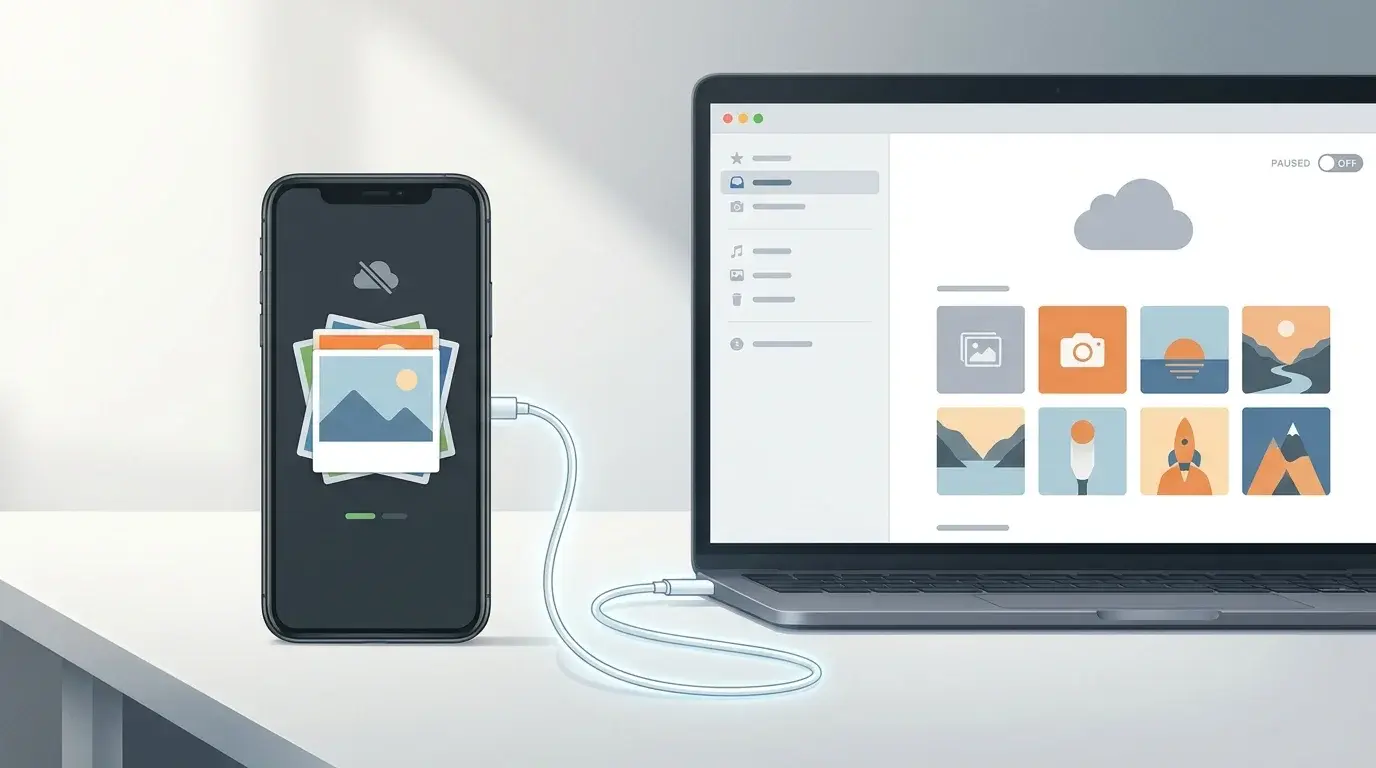
Turn off Google Photos backup on Android or iPhone, stop selected Android folders from uploading, and understand what happens to photos already backed up.
How to Move Photos from Google Drive to Google Photos
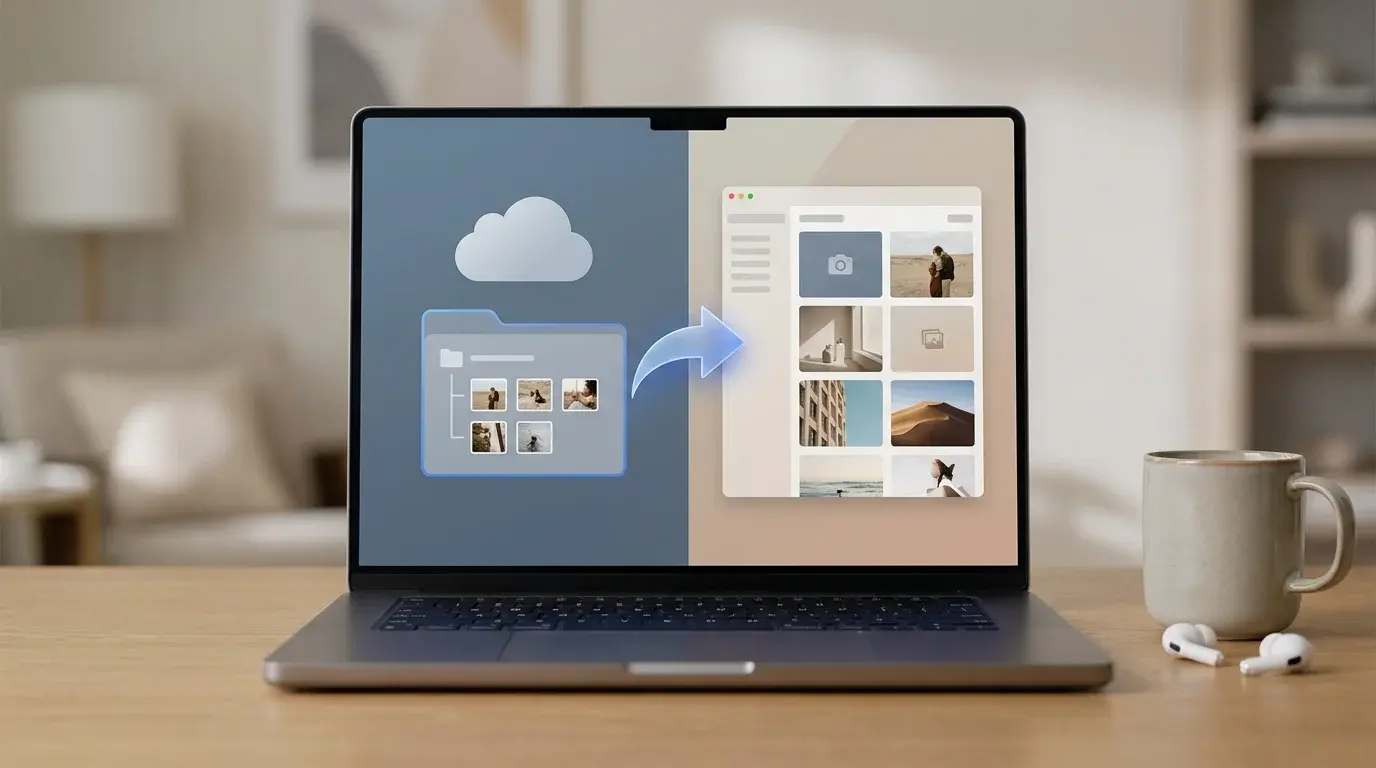
Add photos from Google Drive to Google Photos, understand account limitations, check supported formats and storage, and avoid deleting originals by mistake.