
How to Make a Slideshow in Google Photos on Phone, Computer, and Photo Frames
Learn how to create an animation from Google Photos, find saved creations, and display selected albums as a slideshow on compatible photo frames and smart displays.
Editorial Team
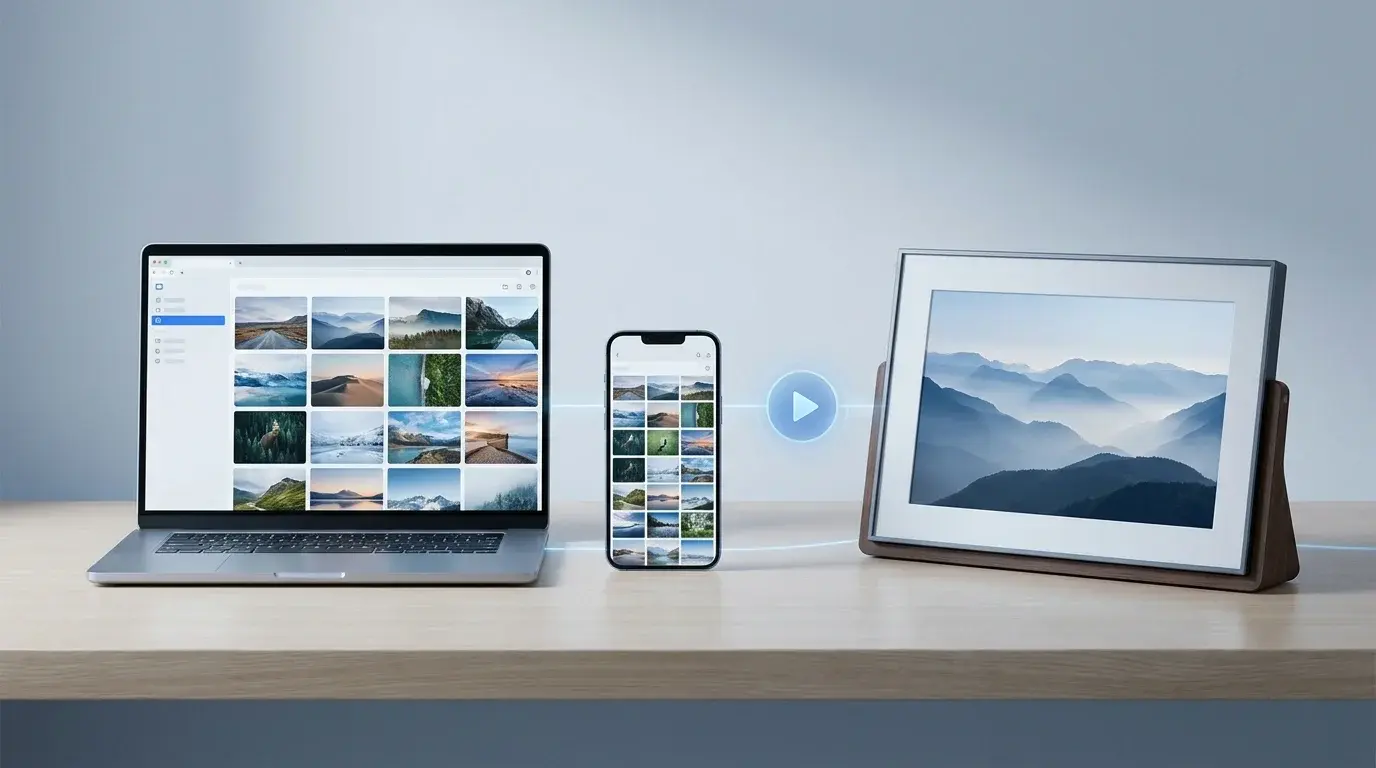
A laptop and smartphone showing a photo collection with a play symbol, illustrating slideshow and photo animation options
Table of Contents (21 sections)
- Which Google Photos slideshow do you need?
- 1. Make a slideshow-style Animation on a computer
- 2. Create an Animation on Android
- If you cannot find Animation on Android
- 3. Create an Animation on iPhone or iPad
- 4. Display an album as a slideshow on a compatible photo frame or smart display
- 5. How to find an Animation you already created
- 6. Common Google Photos slideshow problems
- I can see Animation, but I wanted a hands-free slideshow
- The Animation option is missing
- My photo frame does not show the album
- Can I control the speed of an Animation?
- Does creating a slideshow delete or move my original photos?
- Frequently asked questions
- Can I make a slideshow in Google Photos on a computer?
- How do I make a slideshow in Google Photos on Android?
- Can I make a slideshow in Google Photos on iPhone?
- Can Google Photos display an album on a smart display?
- Can I add music or change the speed of a Google Photos slideshow?
- Why can't I find the Slideshow option?
- Sources
You can make a slideshow-style creation in Google Photos by selecting photos and choosing Create > Animation. The steps differ slightly by device. Google also lets you choose albums for the ambient slideshow on certain compatible photo frames and smart displays. These are two different features: an Animation is a short moving creation made from selected media, while a compatible display can show photos from an album as a slideshow.
Which Google Photos slideshow do you need?
| What you want to do | Use this option | Important difference |
|---|---|---|
| Turn selected pictures into a moving creation | Create > Animation | Makes a saved animation from selected photos and videos. |
| Display an album on a compatible smart display or photo frame | Photo-frame settings | Available only on supported devices and in supported regions. |
| Browse a set of photos manually | Open the album and move between photos | This is not the same as creating an Animation. |
Google's current help pages document Animation as the way to create a slideshow from selected media. The controls available for viewing an album as an automatic full-screen slideshow can vary by device and interface, so do not assume every app version has the same playback option.
1. Make a slideshow-style Animation on a computer
On the Google Photos website, you can select photos and videos and turn them into an Animation.
- Open Google Photos (opens in new tab) in a browser and sign in to the account containing the pictures.
- Hover over the first photo and select the check mark that appears.
- Select up to 49 additional photos for the creation. Google describes Animation as a slideshow-style creation made from selected photos and videos (if you have many photos to browse, see our guide on how to select photos in Google Photos).
- Select Create or Create new at the top of the page, depending on the current interface.
- Choose Animation and follow the prompts to create it.
- After it is created, look for it in your Google Photos library. You can also search for Animations to find saved animations.
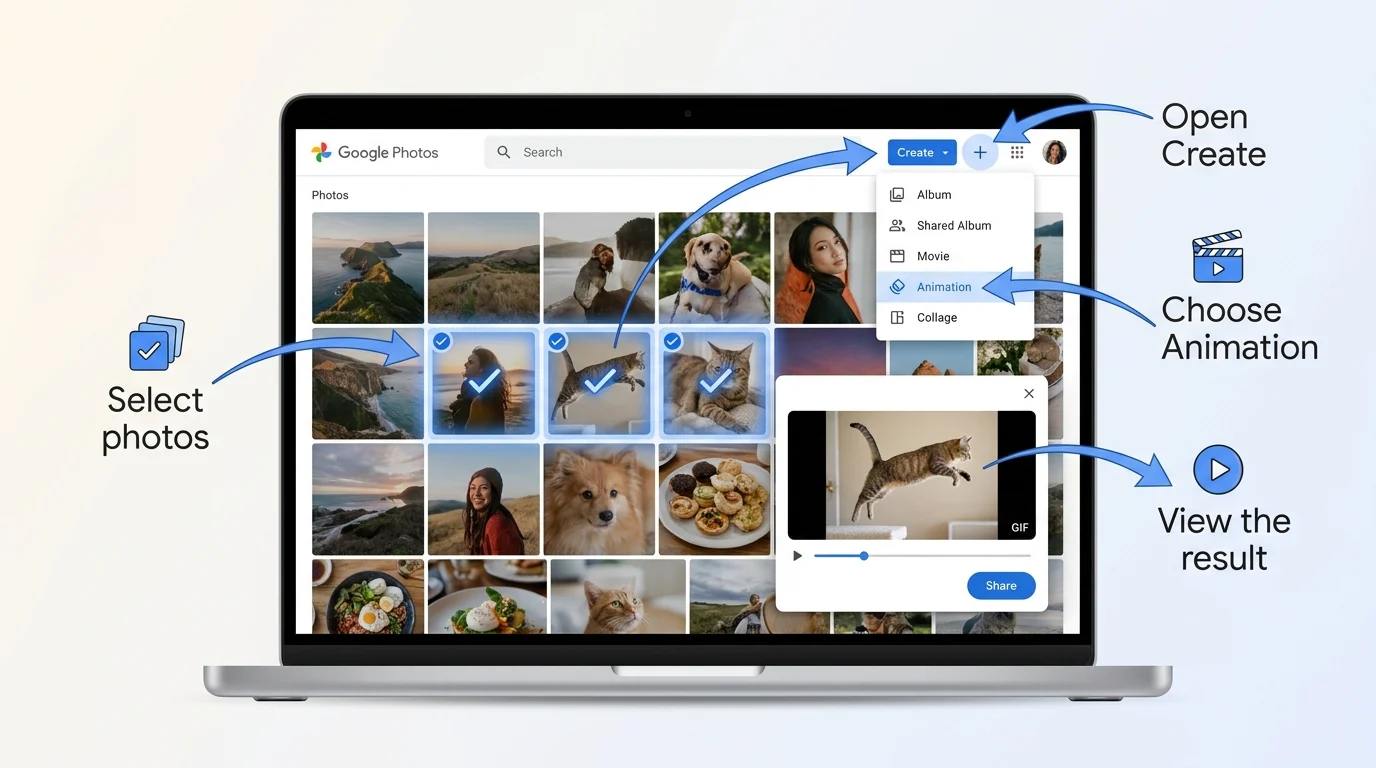
Google describes an Animation as a quick-moving GIF made from selected photos and videos. You cannot speed up or slow down the animation using the built-in creation tool. If you need a presentation with exact slide timing, narration, custom transitions, or detailed control over music, you may need a separate video or presentation editor.
Official instructions: Make creations with Google Photos on a computer (opens in new tab).
2. Create an Animation on Android
The Google Photos Android app places creative tools in the Create area. The labels can shift slightly as the app is updated.
- Open the Google Photos app.
- Select Create or the creation-tools area near the bottom of the app.
- Choose Animation. If the option is not immediately visible, browse the available creation tools.
- Select the photos you want to include.
- Tap Create and wait for Google Photos to finish generating the animation.
- Return to your library or search for Animations to find the result.
If you cannot find Animation on Android
Update Google Photos through the official app store, reopen the app, and check the Create tools again. Make sure you are using the intended Google Account and selecting photos that are available in the library. Menu placement and feature availability can vary; do not rely on a screenshot from an older app version as an exact map of the current interface.
Google's instructions: Make creations with Google Photos on Android (opens in new tab).
3. Create an Animation on iPhone or iPad
Google Photos also supports Animation creation on iOS and iPadOS, although the current app layout may differ from Android.
- Open Google Photos on your iPhone or iPad.
- Tap Create at the bottom of the app.
- Browse the creation tools and select Animation.
- Choose the photos you want to include.
- Tap Create at the top and allow the animation to finish processing.
- Look in your library or search for Animations to find the saved creation.
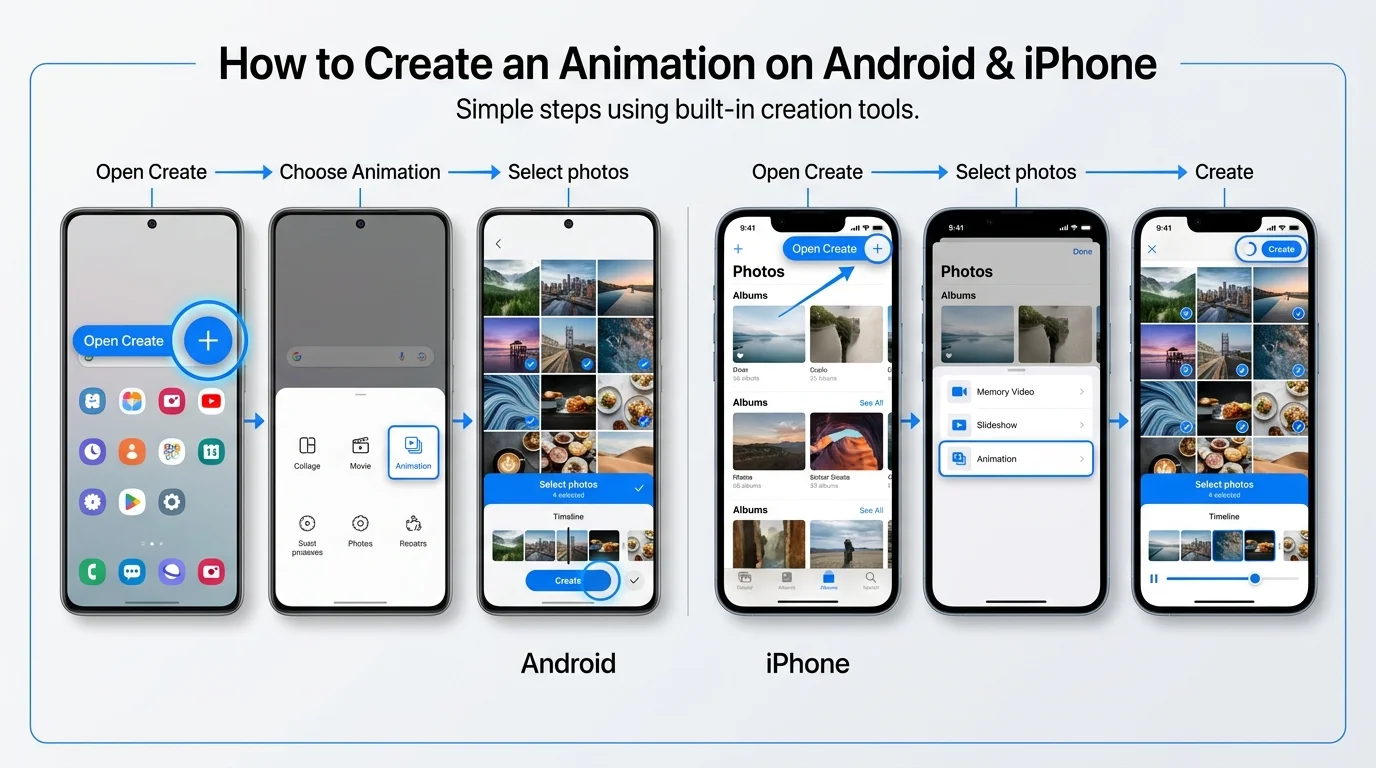
If Animation is missing, check that Google Photos is up to date and that the intended photos appear in the account's library. If the feature still is not available, use Google's current help page for the supported steps rather than relying on menus from another device.
Official instructions: Make creations with Google Photos on iPhone and iPad (opens in new tab).
4. Display an album as a slideshow on a compatible photo frame or smart display
A different option is to display an album from Google Photos on an eligible ambient display or digital photo frame. Google lists supported options that can include certain smart displays, tablets, TVs, photo frames, and devices such as Google TV, Android TV, Chromecast, Pixel Tablet, Nest Hub, and Nest Hub Max. Support varies by device and region.
The general setup is:
- Complete the setup process for the compatible display and connect it to your Google Account as prompted.
- Open Google Photos on the Android device or other supported control device.
- Open your profile menu, then Google Photos settings.
- Find Apps & devices and then Photo frames, if those options are available.
- Select the configured device and choose Add beside the albums you want it to display. (If you want to set up and name custom collections first, see our guide on how to organize Google Photos).
- Check the display to confirm that the selected album appears.
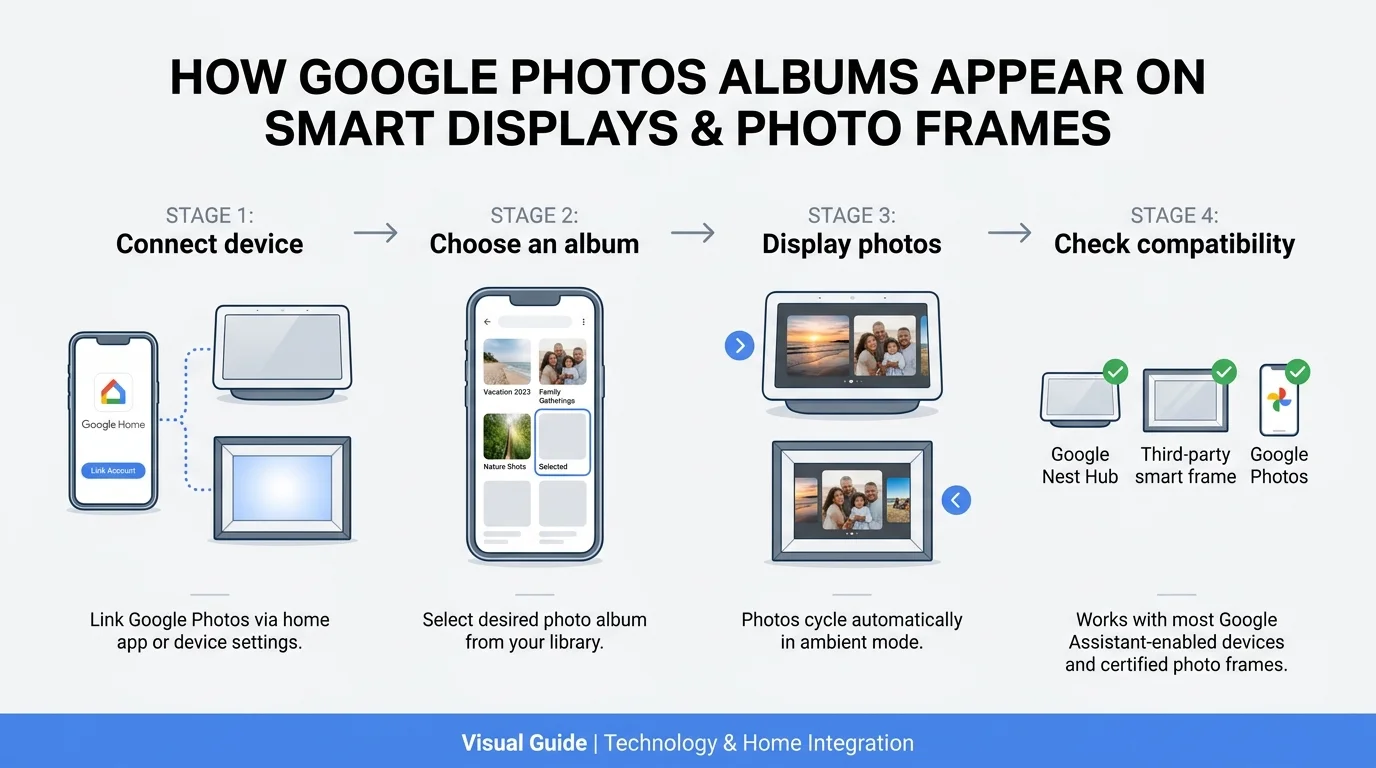
Not every device supports this feature, and some photos may be filtered based on their source or how they were captured. A compatible device may also take time to reflect changes after a photo is deleted, archived, or moved to Locked Folder. Check the current instructions for your exact device before troubleshooting.
Official guidance: Choose albums to display on your photo frames (opens in new tab).
5. How to find an Animation you already created
If you created an Animation but cannot locate it:
- Open Google Photos using the same account you used to make the creation.
- Use Search and enter Animations.
- Look through the matching creations and open the one you need.
- If the result is missing, confirm that the creation finished and that you are checking the correct account.
Google also provides a search path for finding Highlight videos. The exact display of saved creations may vary as Google updates the app.
6. Common Google Photos slideshow problems
I can see Animation, but I wanted a hands-free slideshow
Animation creates a short moving file from selected photos and videos. It is not a configurable presentation with adjustable slide duration. If you want a continuous album display, check whether your device supports Google Photos photo-frame integration. Otherwise, consider a separate slideshow or presentation app that offers the playback controls you need.
The Animation option is missing
Check the device-specific Google help page, update the app, and confirm that the selected photos are in the intended library. If the option still does not appear, availability or menu placement may differ for your account or version.
My photo frame does not show the album
Confirm that the frame or display supports Google Photos, that it is connected to the correct Google Account, and that you selected the intended album under Photo frames. The feature is not available on every device or in every country or region.
Can I control the speed of an Animation?
Google's built-in Animation tool does not provide speed controls. If exact timing matters, you can download photos from Google Photos to edit them in a dedicated video editor or slideshow application.
Does creating a slideshow delete or move my original photos?
Creating an Animation does not serve as a replacement for the photos in your library. Keep your original photo library and backup settings in mind; do not delete originals simply because you created an Animation. (If you need to upload new photos or manage storage, see our guides on how to add photos to Google Photos and how to free up Google Photos storage).
Frequently asked questions
Can I make a slideshow in Google Photos on a computer?
Yes. Google documents selecting up to 50 photos or videos on the website, then choosing Create and Animation. This creates an Animation rather than a configurable slide presentation.
How do I make a slideshow in Google Photos on Android?
Open Google Photos, go to Create, choose Animation, select your photos, and tap Create. Menu labels can vary by app version.
Can I make a slideshow in Google Photos on iPhone?
Google's current iPhone and iPad help page documents the Create > Animation flow. The resulting Animation is a short moving creation made from the photos you select.
Can Google Photos display an album on a smart display?
Yes, on compatible devices and in supported regions. Set Google Photos as the slideshow source during device setup or through the device's settings, then choose the albums you want to display.
Can I add music or change the speed of a Google Photos slideshow?
The built-in Animation tool does not include a speed control. Do not assume it offers the timing, music, or transitions of a full video editor. Use a separate tool if those controls are important.
Why can't I find the Slideshow option?
Google's current documented creation flow uses Animation. Automatic slideshow playback controls for viewing an album may vary by device or interface. Update the app, check the relevant official help page, and verify whether your device supports the specific playback feature you want.
Sources
- Google Photos Help: Make creations with Google Photos on a computer (opens in new tab)
- Google Photos Help: Make creations with Google Photos on Android (opens in new tab)
- Google Photos Help: Make creations with Google Photos on iPhone and iPad (opens in new tab)
- Google Photos Help: Choose albums to display on your photo frames (opens in new tab)
Verified Primary Sources & Citations
NextTechExplained verifies facts against official documentation, engineering whitepapers, and regulatory filings.
- Google Photos Help: Make creations with Google Photos on a computerView Official Source
- Google Photos Help: Make creations with Google Photos on AndroidView Official Source
- Google Photos Help: Make creations with Google Photos on iPhone and iPadView Official Source
- Google Photos Help: Choose albums to display on your photo framesView Official Source
Published by NextTechExplained
Editorial Team • Institutional Publication Byline
Articles published under this byline are prepared through rigorous research and verified against official engineering specifications, standards documentation, and primary sources. Learn more about our process on our About page and Editorial Policy.
Related Explanations & Guides
How to Add Photos to Google Photos from a Phone or Computer
Learn how to add photos to Google Photos manually, enable phone backup, upload files from a computer, and check that your pictures have finished uploading.
How to Delete All Photos from Google Photos Safely
Learn how to bulk-delete photos and videos from Google Photos on a computer or phone, understand what happens to synced copies, and avoid irreversible mistakes.
How to Download Photos from Google Photos (Phone, PC, and All Photos)
Download individual photos from Google Photos to Android, iPhone, or a computer, save selected groups, or export your entire library with Google Takeout.