
How to Stop Google Photos Backup on Android and iPhone
Turn off Google Photos backup on Android or iPhone, stop selected Android folders from uploading, and understand what happens to photos already backed up.
Editorial Team
A smartphone beside a laptop displaying a generic photo library and cloud backup symbol, illustrating Google Photos backup settings
Table of Contents (14 sections)
- How to stop Google Photos backup on Android
- How to stop Google Photos backup on iPhone or iPad
- What happens when you turn off Google Photos backup?
- Stop only certain folders from backing up on Android
- How to check that Google Photos backup is off
- Why is Google Photos still uploading photos?
- Should you uninstall Google Photos to stop backup?
- Frequently asked questions
- Does turning off Google Photos backup delete my photos?
- Does Google Photos keep uploading from my other phone?
- Can I stop screenshots from backing up but keep camera backup on?
- Will turning off backup free my Google Account storage?
- Can I delete photos from Google Photos but keep them on my phone?
- Official sources
To stop Google Photos from automatically uploading new pictures, turn off Backup in the Google Photos app on each device you want to disconnect from automatic uploads. You do not need to delete the app or remove your Google Account. Turning Backup off stops new automatic uploads from that device, but it does not remove photos that were already backed up to your Google Account.
The exact menu labels can vary slightly by app version. Follow the Android or iPhone steps below, then check the backup status to confirm the change.
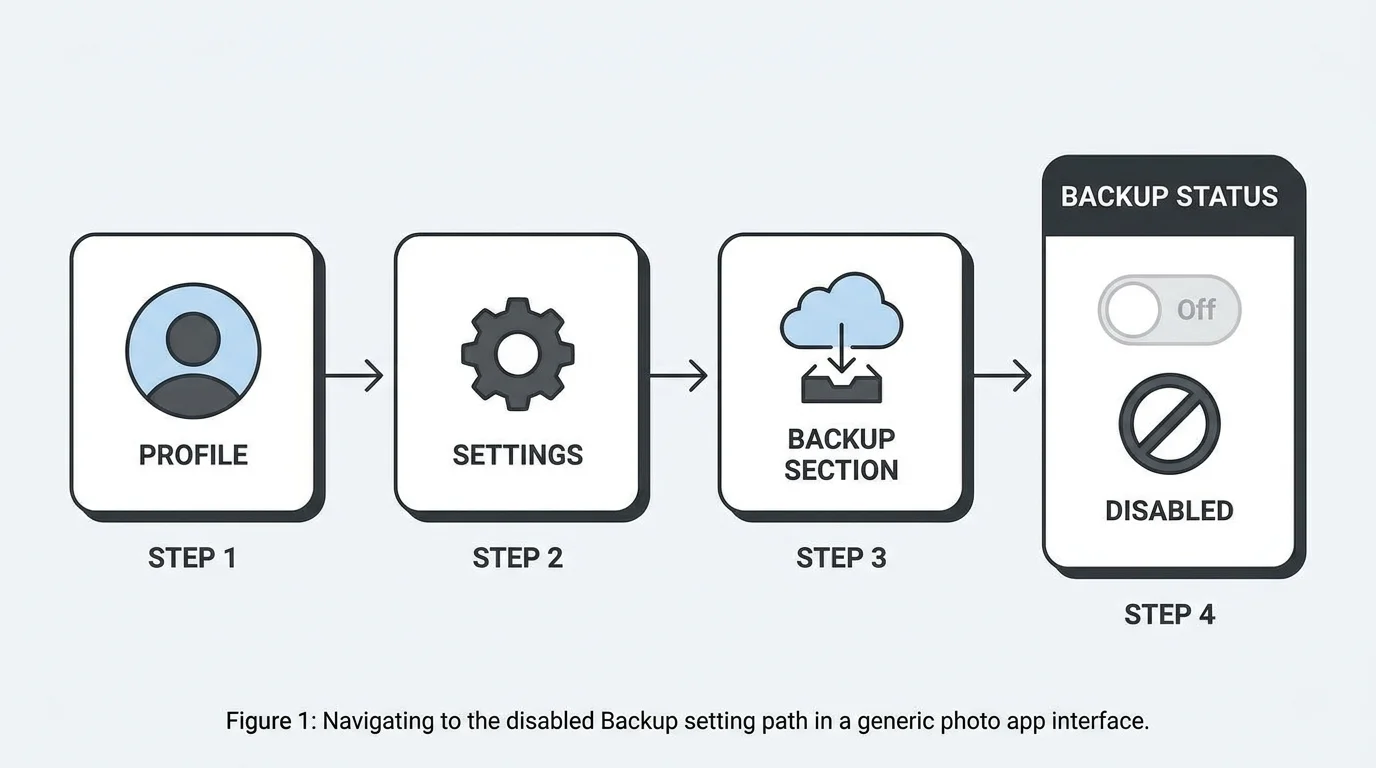
How to stop Google Photos backup on Android
- Open the Google Photos app on your Android phone or tablet.
- Tap your profile picture or initial in the top-right corner.
- Open Photos settings.
- Tap Backup.
- Turn Backup off.
Google documents this path in its Android backup instructions (opens in new tab). With Backup off, Google Photos should stop automatically uploading new photos and videos from that device. If you use the same Google Account on another phone or tablet, check that device separately too. If you later want to upload individual photos manually without turning automatic backup back on for everything, see our guide on how to add photos to Google Photos.
How to stop Google Photos backup on iPhone or iPad
- Open Google Photos on your iPhone or iPad.
- Tap your profile picture or initial in the top-right corner.
- Tap Google Photos settings if that option appears.
- Open Backup.
- Turn Backup off.
These are the steps in Google's iPhone and iPad backup instructions (opens in new tab). If the menus look different, confirm that the app is up to date and look for Backup in Google Photos settings. You can also consult Google's current help page for the app version you are using.
Turning Backup off is the key step for stopping uploads. Changing photo-library access in iOS Settings is a separate permission change and is not a substitute for checking the Backup setting itself (see our guide on how to audit app permissions on iOS and Android if you also want to review third-party photo access).
What happens when you turn off Google Photos backup?
Turning off Backup is different from deleting your photos.
| Action | What it means |
|---|---|
| Turn Backup off | Stops automatic uploads from that device while Backup remains off. |
| Previously backed-up photos | Remain in your Google Account unless you delete them separately. |
| Photos on another device | That device may continue backing up if its own Backup setting is on. |
| Google Account storage | Turning Backup off does not remove items already stored in your account or immediately free that storage. |
| Delete a photo in Google Photos | This can also delete the device copy and affect other devices with Backup enabled. Do not use Delete just to stop future uploads. |
Google explains that deletion from Google Photos can also remove items from devices where the app is installed and Backup is on. Read its official deletion guidance (opens in new tab) before deleting anything. If your real goal is to remove cloud copies while keeping originals on your phone, follow our step-by-step guide on how to delete photos from Google Photos without deleting them from your phone.
Google Account storage is shared across Google Photos, Google Drive, and Gmail. If you also manage desktop files linked to the same Google Account, see our guide on how to add Google Drive to File Explorer in Windows 11.
Stop only certain folders from backing up on Android
You may want camera photos to keep uploading while screenshots, downloads, or images from other apps stay off your Google Account. On Android, Google Photos lets you control backup for individual device folders.
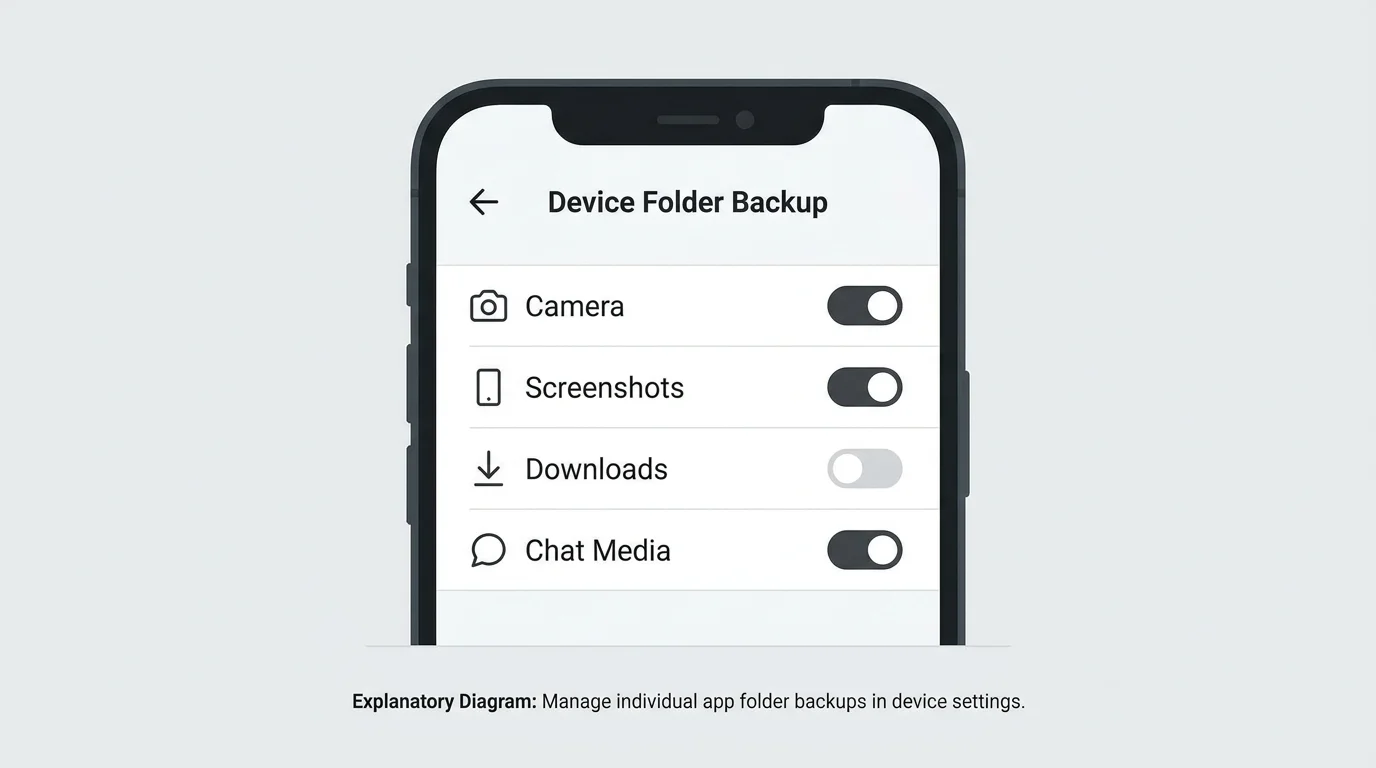
- Open Google Photos and tap your profile picture or initial.
- Select Photos settings, then Backup.
- Under Settings, tap Back up device folders.
- Turn off the folders you do not want to upload.
- Review Back up all device folders if that option is available. When enabled, new device folders can be backed up automatically.
The folder controls are documented in Google's guide to items from other apps and devices (opens in new tab). These controls are for Android. Do not assume the same per-folder options appear in the iPhone app.
Turning off backup for a folder affects future uploads from that folder; it does not automatically remove files from that folder that were uploaded previously. Review your Google Photos library separately if you also want to manage existing cloud copies.
How to check that Google Photos backup is off
After changing the setting, return to the Google Photos app and tap your profile picture or initial. Check the backup status shown near the top. Google identifies Backup is off as the status when backup is disabled. If the status does not match what you selected, open Photos settings > Backup again and inspect the toggle.
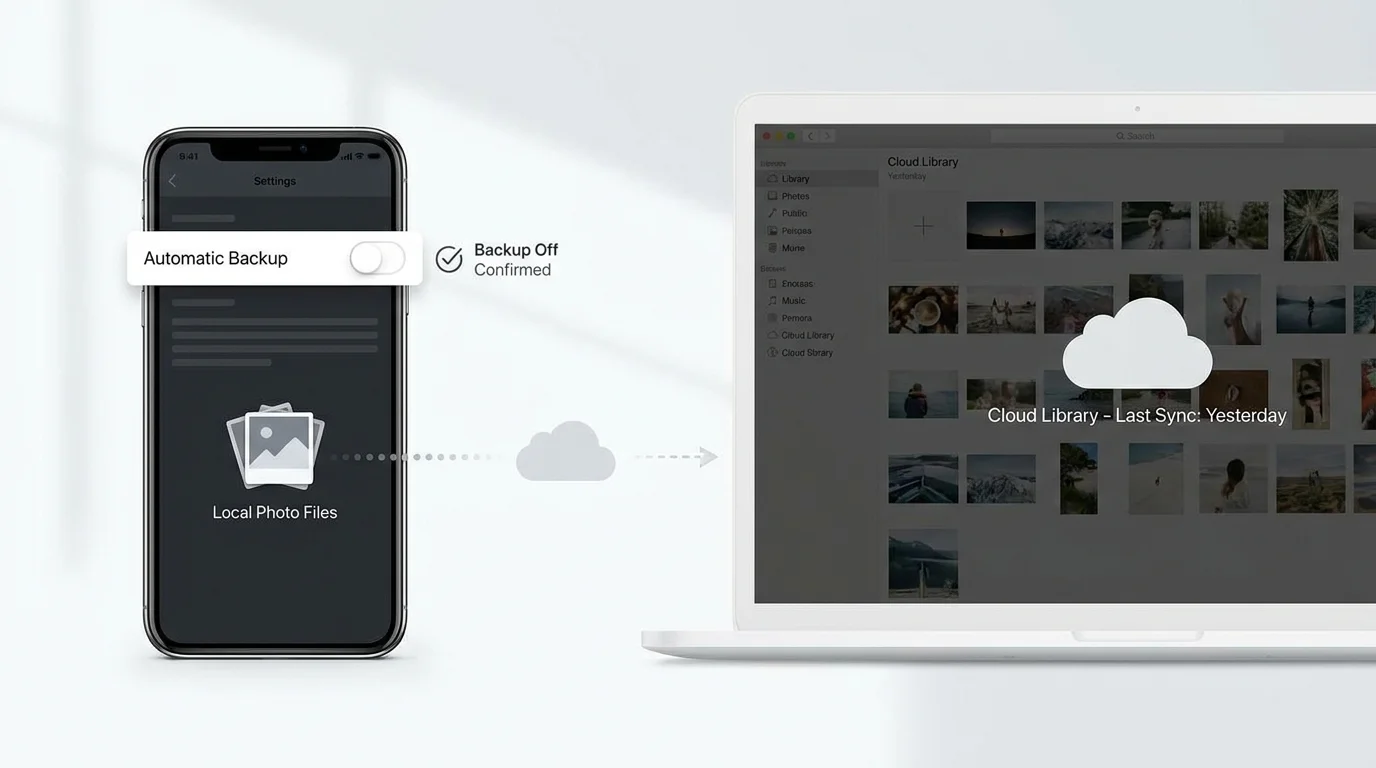
Google's backup status guide (opens in new tab) explains how to check whether backup is off, in progress, or complete. Menu positions and status displays can change as the app is updated.
Why is Google Photos still uploading photos?
If new items continue appearing in Google Photos after you turned Backup off, check these possibilities before deleting anything:
- Another device is still backing up. Open Google Photos on each phone or tablet that uses the same Google Account and review its Backup toggle. Turning it off on one device does not switch it off everywhere.
- You changed the wrong account. If more than one Google Account is available on your device, confirm which account is shown in Google Photos and where the photos are being backed up.
- Backup was turned on again. Reopen Photos settings > Backup and check the current setting instead of relying on memory of an earlier change.
- Only one folder should stop uploading. On Android, use Back up device folders rather than turning off all backup if you want other folders to continue uploading.
- The app interface differs. Update Google Photos from the official app store and consult Google's current instructions if the menu names do not match these steps.
Google Photos also supports manually backing up selected items, so a manual upload is different from automatic background backup. If an individual item appears in your library, check its details and backup status before assuming the automatic Backup switch failed.
Should you uninstall Google Photos to stop backup?
Usually, start by turning off Backup in the app. Uninstalling the app is not necessary just to change this setting, and it will not turn off backup on other devices using the same Google Account. Keep the backup setting and the copies already stored in your account separate when deciding what to do next.
Frequently asked questions
Does turning off Google Photos backup delete my photos?
No. Turning off Backup stops new automatic uploads from that device; it does not delete photos already backed up to your Google Account. Avoid selecting photos and tapping Delete unless you intend to remove them.
Does Google Photos keep uploading from my other phone?
It can. Each device has its own Backup setting. If another phone or tablet uses the same Google Account and Backup remains on there, that device may keep uploading its photos.
Can I stop screenshots from backing up but keep camera backup on?
On Android, open Google Photos > profile picture > Photos settings > Backup > Back up device folders, then turn off the folder you do not want uploaded. Available folders and labels depend on the device. The same folder-level interface should not be assumed on iPhone.
Will turning off backup free my Google Account storage?
Not by itself. It stops future automatic uploads from the device, but items already stored in Google Photos remain in your account. Storage changes only when existing content is removed or compressed; see our complete guide on how to free up Google Photos storage for step-by-step methods.
Can I delete photos from Google Photos but keep them on my phone?
That requires a separate, careful workflow. Google warns that deleting in the app can also delete device copies and affect other backed-up devices. For a safe method using web deletion or Undo backup, see our guide on how to delete photos from Google Photos without deleting from your phone.
Official sources
- Google Photos Help: Back up photos and videos on Android (opens in new tab)
- Google Photos Help: Back up photos and videos on iPhone and iPad (opens in new tab)
- Google Photos Help: Find items from other apps and devices (opens in new tab)
- Google Photos Help: Delete photos and videos (opens in new tab)
- Google Photos Help: Check your backup (opens in new tab)
Verified Primary Sources & Citations
NextTechExplained verifies facts against official documentation, engineering whitepapers, and regulatory filings.
- Google Photos Help: Back up photos and videos on AndroidView Official Source
- Google Photos Help: Back up photos and videos on iPhone and iPadView Official Source
- Google Photos Help: Find items from other apps and devicesView Official Source
- Google Photos Help: Delete photos and videosView Official Source
- Google Photos Help: Check your backupView Official Source
Published by NextTechExplained
Editorial Team • Institutional Publication Byline
Articles published under this byline are prepared through rigorous research and verified against official engineering specifications, standards documentation, and primary sources. Learn more about our process on our About page and Editorial Policy.
Related Explanations & Guides
How to Delete Photos from Google Photos Without Deleting Them from Your Phone
Remove backed-up photos from Google Photos while keeping local copies on your Android or iPhone. Follow the safe web-deletion steps and learn when to use Undo backup.
How to Add Photos to Google Photos from a Phone or Computer
Learn how to add photos to Google Photos manually, enable phone backup, upload files from a computer, and check that your pictures have finished uploading.
How to Delete All Photos from Google Photos Safely
Learn how to bulk-delete photos and videos from Google Photos on a computer or phone, understand what happens to synced copies, and avoid irreversible mistakes.