
How to Free Up Google Photos Storage Without Losing Important Photos
Free up Google Photos storage by reviewing large files, cleaning up unwanted photos, and converting eligible existing backups to Storage saver.
Editorial Team

A laptop and smartphone showing a photo library beside a cloud-storage indicator, representing Google Photos storage cleanup
Table of Contents (19 sections)
- First, choose which storage you need to free up
- 1. Check Google Photos storage usage
- On a computer
- On Android
- 2. Review large videos, screenshots, and blurry photos
- 3. Convert eligible existing backups to Storage saver
- How to convert existing photos and videos
- 4. Delete unneeded items carefully
- 5. Check whether Google Drive or Gmail is using the storage
- 6. Why your available storage may not change immediately
- Google Photos storage cleanup: quick decision table
- Frequently asked questions
- Does deleting photos from Google Photos free up storage?
- Is Google Photos storage the same as phone storage?
- Can Storage saver reduce the size of photos I already uploaded?
- Why is the Google Photos storage manager not available?
- How long does it take for storage to update after deletion?
- Should I delete photos or buy more Google One storage?
- Final checklist
If Google Photos says your storage is nearly full, start by checking what is using your Google Account storage before deleting anything. Google's storage manager can identify items such as large photos and videos, blurry photos, and screenshots. You may also be able to reduce the size of eligible photos and videos already backed up in Original quality by converting them to Storage saver.
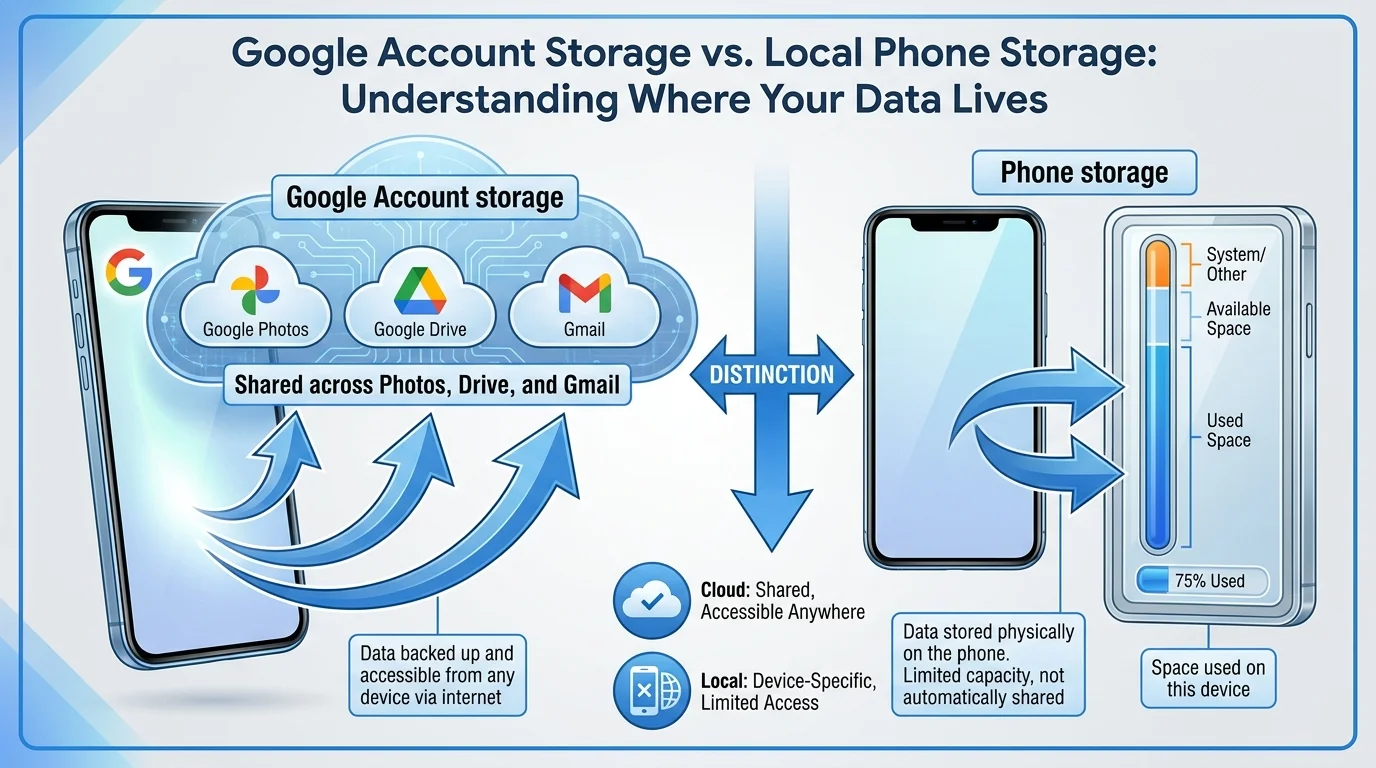
The important distinction is that Google Account storage is shared by Google Photos, Google Drive, and Gmail. It is not the same as the free space on your phone. Deleting items from your Google Photos library can also affect synced copies, so review the selected files before confirming any cleanup.

First, choose which storage you need to free up
There are two different problems people often describe as "Google Photos storage full." The right fix depends on which one you have.
| Your problem | What to do | What it changes |
|---|---|---|
| Your Google Account is almost full and new photos will not back up | Use Manage storage or the Google One storage manager | Frees cloud storage when you remove items that count toward your quota or reduce eligible existing backups |
| Your phone is running out of local space | Use the device's storage settings, or Google Photos' Free up space feature where available | Removes backed-up local copies from the phone; it does not reduce the size of your Google Account library |
| Gmail and Drive are also using your quota | Review Google Account storage by service | You may need to remove unneeded Drive files or Gmail attachments instead of photos |
Google Account storage is shared across Gmail, Drive, and Photos. The amount available depends on your account, plan, and any additional storage allocation. See Google's explanation of how account storage works (opens in new tab). If your goal is simply to hide receipts or screenshots from your timeline without freeing storage, see our guide on how to organize Google Photos.
1. Check Google Photos storage usage
On a computer
- Open Google Photos (opens in new tab) and sign in to the correct Google Account.
- Open the Storage section or the account's storage management page (opens in new tab).
- Review the storage summary and cleanup suggestions.
- Note which categories appear and how much space each item may use before selecting anything.
On Android
- Open the Google Photos app and confirm that the right account is selected.
- Tap your profile picture or initial.
- Open Photos settings, then Backup, then Manage storage. Wording and menu placement can vary by version.
- Review the storage summary and the recommended cleanup categories.
If your account is managed by a work, school, family, or other group, the displayed estimate or available controls can differ. Some supervised and school accounts do not have the same storage-management tool. You can also check Google One storage management (opens in new tab) in a browser.
2. Review large videos, screenshots, and blurry photos
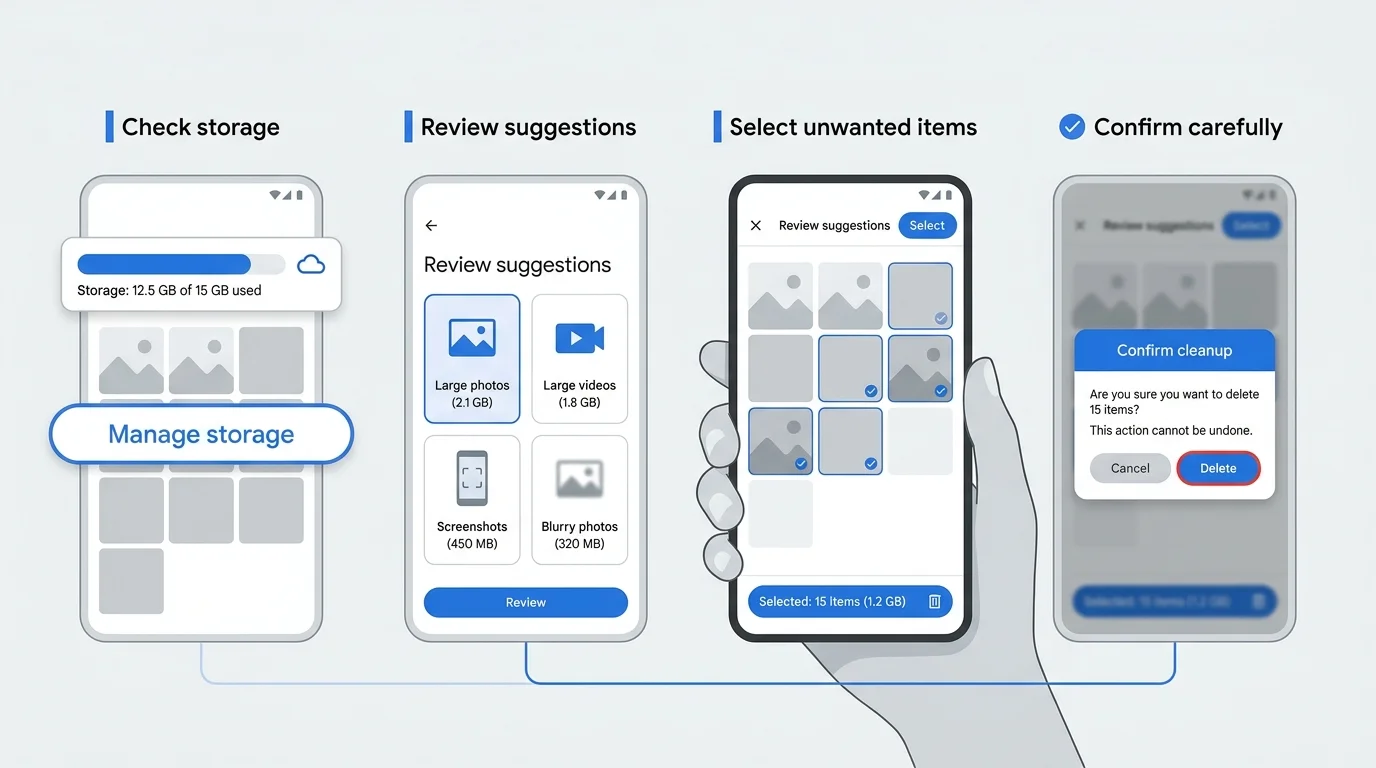
Google Photos' storage manager can surface categories of items you may want to remove, such as large photos and videos. Depending on your account and interface, other suggestions can include blurry photos or screenshots.
Use these suggestions as a review list, not a command to delete everything:
- Open a suggested category, such as large videos.
- Check the actual photo or video, not only its thumbnail or estimated size.
- Keep anything important, including original-quality memories, work records, documents, and clips that are hard to replace.
- Select only the items you are comfortable removing.
- Choose Move to trash and review any confirmation prompt.
Large videos are often useful cleanup candidates because one file can use substantially more space than a typical photo. However, do not assume the biggest item is unimportant. If you want to preserve a file, download it or make another verified copy (see our guide on how to download photos from Google Photos) before deleting it from Google Photos.
The storage manager can estimate the space recovered for some items, but not every deletion produces the same result. Certain photos do not count toward the storage quota in the first place, so deleting them may not increase the available storage.
3. Convert eligible existing backups to Storage saver
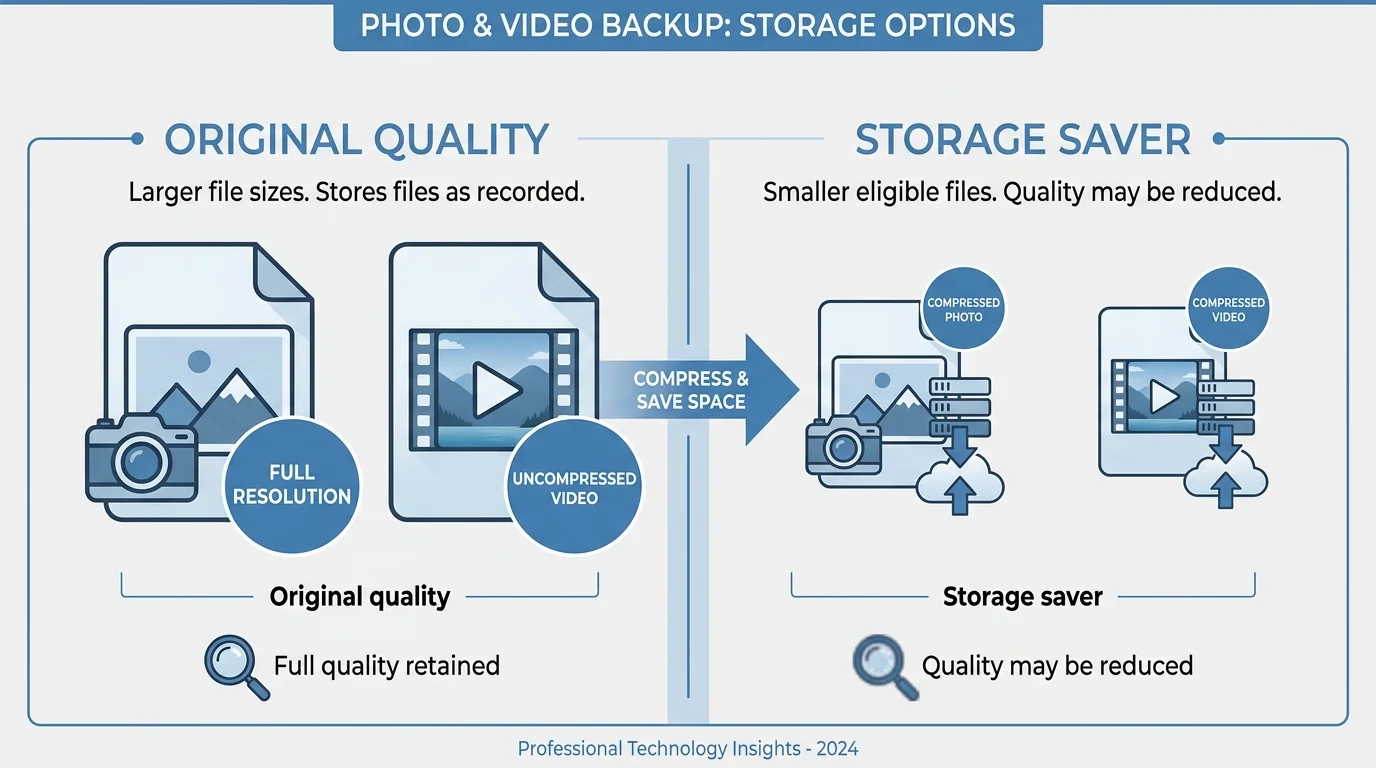
If your library contains photos and videos backed up in Original quality, Google Photos may offer a way to convert eligible existing items to Storage saver. This is different from merely changing the quality setting for future uploads.
Storage saver compresses eligible photos and videos. It can reduce file size, but it may also reduce image or video quality. For example, photos larger than 16 megapixels may be resized to 16 megapixels, and videos above 1080p may be resized to 1080p. Some files cannot be compressed and remain at their original size.
How to convert existing photos and videos
- On a computer, open Google Photos (opens in new tab) and sign in.
- Open Settings, then Manage storage.
- Look for Recover storage.
- If the option is available and you understand the quality trade-off, choose Convert existing photos & videos to Storage saver.
- Read Google's confirmation carefully before proceeding.
The option may not appear for accounts with unlimited storage or in situations where conversion is unavailable. Google says storage recovery can be performed only once a day, and this conversion does not change the quality of future uploads. Check Google's current backup-quality instructions (opens in new tab) for eligibility and limitations.
If retaining original image quality is important, download and verify a separate copy of important photos and videos before applying a conversion. Do not use Storage saver without considering its quality implications.
4. Delete unneeded items carefully
If you have confirmed that particular backed-up photos or videos are expendable, deleting them is another way to manage Google Account storage. Before you start, remember that deleting an item from Google Photos can also remove it from devices where Google Photos is installed and backup is enabled.
For a safe cleanup:
- Review the item in Google Photos and confirm you do not need it.
- If you want to keep a separate copy, download it or export the relevant library data first.
- Check whether the item is also stored locally on your phone or tablet and whether you need that copy.
- Select the unwanted item in the storage manager or Photos library.
- Choose Move to trash only after reviewing the selection.
Do not empty Trash simply to get through the process faster. Permanently deleted content cannot be recovered through Google Takeout. Follow Google's current deletion guidance (opens in new tab), especially if you want local phone copies to remain available (see our guide on how to delete photos from Google Photos without deleting them from your phone). If your goal is to empty the entire cloud library, see how to delete all photos from Google Photos safely.
If you only want to remove local copies from an Android phone while keeping the cloud library, that is a different task. Google's Free up space on this device feature removes eligible files from the phone after backup. It frees device storage, not Google Account storage. Confirm that the files are backed up before using it. See Google's Free up space instructions (opens in new tab). If you only want to stop new photos or specific device folders from uploading automatically to prevent future quota issues, see our guide on how to stop Google Photos backup.
5. Check whether Google Drive or Gmail is using the storage
If Photos is not the main contributor to your quota, deleting more pictures may not solve the problem. Open the Google One storage manager and compare the usage for Photos, Drive, and Gmail.
You may be able to free more space by reviewing:
- Large files in Google Drive that you no longer need.
- Gmail messages with large attachments that are safe to remove.
- Old videos or duplicate exports already saved somewhere else.
- Unneeded files across services that share the same Google Account quota.
Before deleting data from Drive or Gmail, make sure you are not removing work files, shared project materials, or records you need. Storage rules differ by service, and deleting a Drive or Gmail item can have different recovery consequences from deleting a photo in Google Photos.
6. Why your available storage may not change immediately
After a large cleanup, the storage indicator may not update immediately. Google says it can take up to 48-72 hours for the storage amount to update accurately after deleting a large number of files.
Also, some photos do not count toward your quota. For example, eligible photos and videos backed up in High quality, now called Storage saver, or Express quality before June 1, 2021 do not count toward Google Account storage. Deleting those older items may not increase the available space.
If you are still over quota, check the storage manager again after the usage has updated and review the Drive and Gmail portions of the same account. When the account is out of storage, Google says new photo and video backups can stop, and Gmail or Drive actions can also be affected.
Google Photos storage cleanup: quick decision table
| Situation | Best next step | Important caution |
|---|---|---|
| Account storage is nearly full | Open Manage storage and review cleanup categories | Confirm that each selected item is safe to remove |
| Large videos use substantial space | Review large videos and delete only unwanted files | Download important originals first |
| Existing backed-up files use Original quality | Consider converting eligible items to Storage saver | This may reduce quality and cannot convert every file |
| Phone storage is low, but cloud storage is fine | Consider Free up space on this device | This removes local copies, not cloud usage |
| Gmail or Drive uses most of the quota | Use Google One storage management to review each service | Check shared and important files before deletion |
| Storage totals have not changed after cleanup | Allow time for usage to refresh and check again | Large deletions may take 48-72 hours to reflect accurately |
Frequently asked questions
Does deleting photos from Google Photos free up storage?
It can, if the items you delete count toward Google Account storage. Some older backups or eligible shared items do not use your quota, so deleting those items may not increase available storage. Check the storage manager's estimate when available.
Is Google Photos storage the same as phone storage?
No. Google Account storage is cloud space shared by Google Photos, Drive, and Gmail. Phone storage is the local space used on your device. Use Manage storage for cloud quota and Free up space on this device for eligible local copies.
Can Storage saver reduce the size of photos I already uploaded?
Google provides a computer-based conversion option for eligible existing backups in Original quality. It can reduce file size while also reducing quality. Some items are ineligible, and the option may not appear for every account.
Why is the Google Photos storage manager not available?
Availability can depend on the account type, supervision status, backup activity, and whether Google can estimate your usage. For work, school, family, or other group accounts, check the Google One storage management page in a browser or consult the account administrator.
How long does it take for storage to update after deletion?
Google says the accurate usage total can take up to 48-72 hours to update after deleting a large number of files. If the number has not changed immediately, wait and check again before repeating a large deletion.
Should I delete photos or buy more Google One storage?
Start by reviewing the actual usage and removing files you know you no longer need. If the remaining library is valuable and you need to keep it in its current quality, additional storage may be more suitable than deleting important photos. Compare your current usage and plan options before deciding.
Final checklist
- Confirm whether the problem is Google Account storage or phone storage.
- Review the storage manager and suggested cleanup categories.
- Keep or download important photos and videos before deleting anything.
- Consider Storage saver conversion only after understanding the quality trade-off.
- Check whether Drive or Gmail is using the shared account quota.
- Allow time for storage totals to update after a large cleanup.
The safest way to free up Google Photos storage is to review what counts toward your quota, remove only files you no longer need, and preserve a verified copy of anything important. Avoid deleting large groups of photos simply because a storage warning appears.
Verified Primary Sources & Citations
NextTechExplained verifies facts against official documentation, engineering whitepapers, and regulatory filings.
- Google Photos Help: Manage your storage on a computerView Official Source
- Google Photos Help: Manage your storage on AndroidView Official Source
- Google Photos Help: About your Google Photos activity and storageView Official Source
- Google Photos Help: Choose the backup quality of your photos and videosView Official Source
- Google Photos Help: Free up space on your deviceView Official Source
- Google Photos Help: Delete photos and videosView Official Source
- Google Drive Help: How your Google storage worksView Official Source
Published by NextTechExplained
Editorial Team • Institutional Publication Byline
Articles published under this byline are prepared through rigorous research and verified against official engineering specifications, standards documentation, and primary sources. Learn more about our process on our About page and Editorial Policy.
Related Explanations & Guides

How to Delete All Photos from Google Photos Safely
Learn how to bulk-delete photos and videos from Google Photos on a computer or phone, understand what happens to synced copies, and avoid irreversible mistakes.

How to Organize Google Photos: Albums, Archive, and Search
Organize Google Photos with albums, search, and Archive. Learn a simple system for finding pictures, grouping memories, and hiding clutter without deleting photos.

How to Select All Photos in Google Photos (Computer, Android, and iPhone)
Learn how to select multiple Google Photos at once on a computer, Android, or iPhone using Shift-click or touch-and-hold, plus safe bulk-action tips.