
How to Delete All Photos from Google Photos Safely
Learn how to bulk-delete photos and videos from Google Photos on a computer or phone, understand what happens to synced copies, and avoid irreversible mistakes.
Editorial Team

A laptop and smartphone displaying photo libraries beside a clearly separated trash symbol, representing careful bulk photo deletion
Table of Contents (21 sections)
- Before deleting your entire Google Photos library
- How to delete all photos from Google Photos on a computer
- Step 1: Open the correct photo library
- Step 2: Select a range of photos
- Step 3: Review the selected items, then move them to Trash
- How to delete multiple photos on Android
- How to delete multiple photos on iPhone or iPad
- What happens after you delete the photos?
- Photos go to Trash first
- Your other Google services are not automatically cleared
- Synced devices and albums may be affected
- Will deleting all photos free Google Account storage?
- Common mistakes to avoid
- Frequently asked questions
- Is there a button to delete every Google Photos picture at once?
- Will deleting all Google Photos pictures remove them from my phone?
- How long do deleted photos stay in Trash?
- Can I recover the photos after emptying Trash?
- Does deleting Google Photos also delete Google Drive files?
- Should I archive photos instead of deleting them?
- Official sources
If you want to clear your Google Photos library, the most practical approach is to use Google Photos on a computer, select photos in manageable ranges, and move them to Trash. There is no universally documented one-click Select all control for every Google Photos view, so a large library may take more than one selection pass.
Before you begin, understand the consequences: deleting photos from Google Photos can also remove them from devices where Google Photos backup is turned on. If you want to keep copies on your phone, see our guide on how to delete photos from Google Photos without deleting them from your phone before deleting anything in bulk. The exact behavior can vary by platform and device configuration.

Before deleting your entire Google Photos library
A bulk deletion may be difficult or impossible to reverse after the items are permanently deleted. Take these precautions first:
- Confirm the Google Account. Open Google Photos (opens in new tab) and check the profile icon so you do not clear the wrong account.
- Decide whether you need the pictures later. If you want an offline copy, download important files or create a Google Takeout export before deleting anything (see our complete guide on how to download photos from Google Photos).
- Check local copies. If you intend to keep photos on your Android phone, iPhone, or iPad, use the specific device-preservation method linked above instead of deleting from the Google Photos app with backup enabled.
- Understand the storage result. Photos and videos use Google Account storage under the applicable storage rules. Deleting items may free up space, but the amount depends on the content and how it counts toward your quota (see our guide on how to free up Google Photos storage for safer methods like Storage saver or large-file reviews). Check Google's storage guidance (opens in new tab).
- Do not empty Trash as part of a rushed cleanup. Keep the recovery window until you have checked that you selected the correct items and saved anything you need.
If your actual goal is only to hide pictures from the main timeline, use Archive instead (see our guide on how to organize Google Photos). Archiving does not delete the items or free up Google Account storage.
How to delete all photos from Google Photos on a computer
A computer is usually easier for a large cleanup because the wider screen makes it easier to review a range before you send items to Trash. Menu labels can change as Google updates the interface.
Step 1: Open the correct photo library
- Open photos.google.com (opens in new tab) in your browser.
- Sign in to the Google Account whose library you want to clear.
- Open the main Photos view. If you only want to remove a particular group, consider using Search or an album first rather than selecting the whole timeline.
Step 2: Select a range of photos
Google documents range selection on the computer version of Google Photos:
- Hover over the first photo in the range you want to select.
- Click Select.
- Hold Shift on your keyboard.
- Click the last photo in that range.
Google describes this method for selecting multiple photos from the Photos view, Search results, or an album. See the official computer selection instructions (opens in new tab).
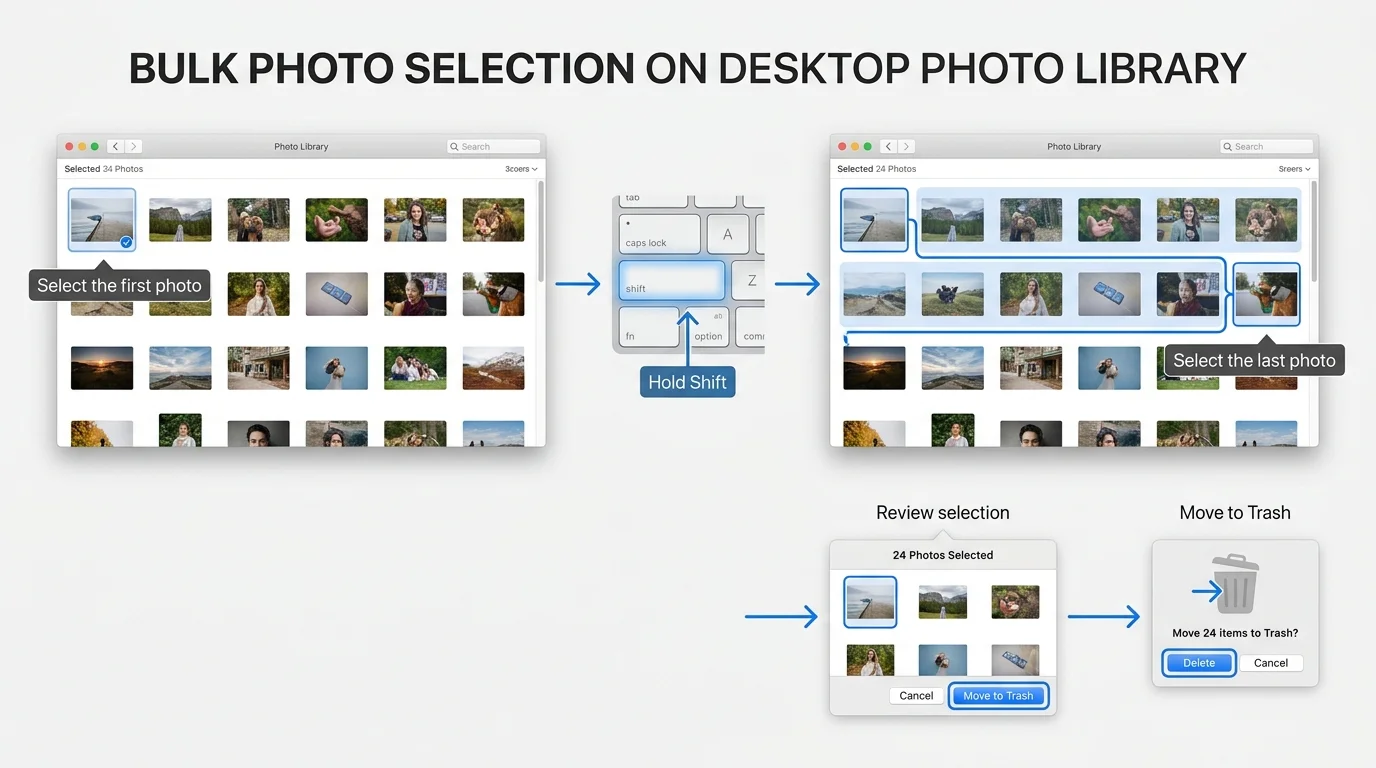
For a large library, work in manageable ranges instead of assuming one gesture has selected everything. For a detailed walkthrough of range selection and mobile multi-select gestures, see our guide on how to select all photos in Google Photos. If needed, select a date range or another clearly defined group, review the selection, delete that batch, then continue. The Photos view may contain many years of images, and selecting a huge range can take time or become difficult to verify. Google does not document a universal keyboard shortcut that reliably selects every photo in every view, so do not rely on Ctrl+A or Command+A as a guaranteed method.
Step 3: Review the selected items, then move them to Trash
Before confirming deletion, inspect the highlighted thumbnails. Make sure the selection does not include photos you intend to keep, such as family pictures, documents, or items needed for work.
When you are sure:
- Click the Trash or Move to trash control shown in the current interface.
- Read the confirmation prompt before proceeding.
- If you are deleting the library in batches, repeat the selection and review process for each remaining group.
- Open Trash afterward and verify that the intended items are there.
Do not assume this step removes the original files from Google Drive or Gmail. Google says deleting items in Google Photos does not automatically remove the corresponding content from services such as Drive or Gmail.
How to delete multiple photos on Android
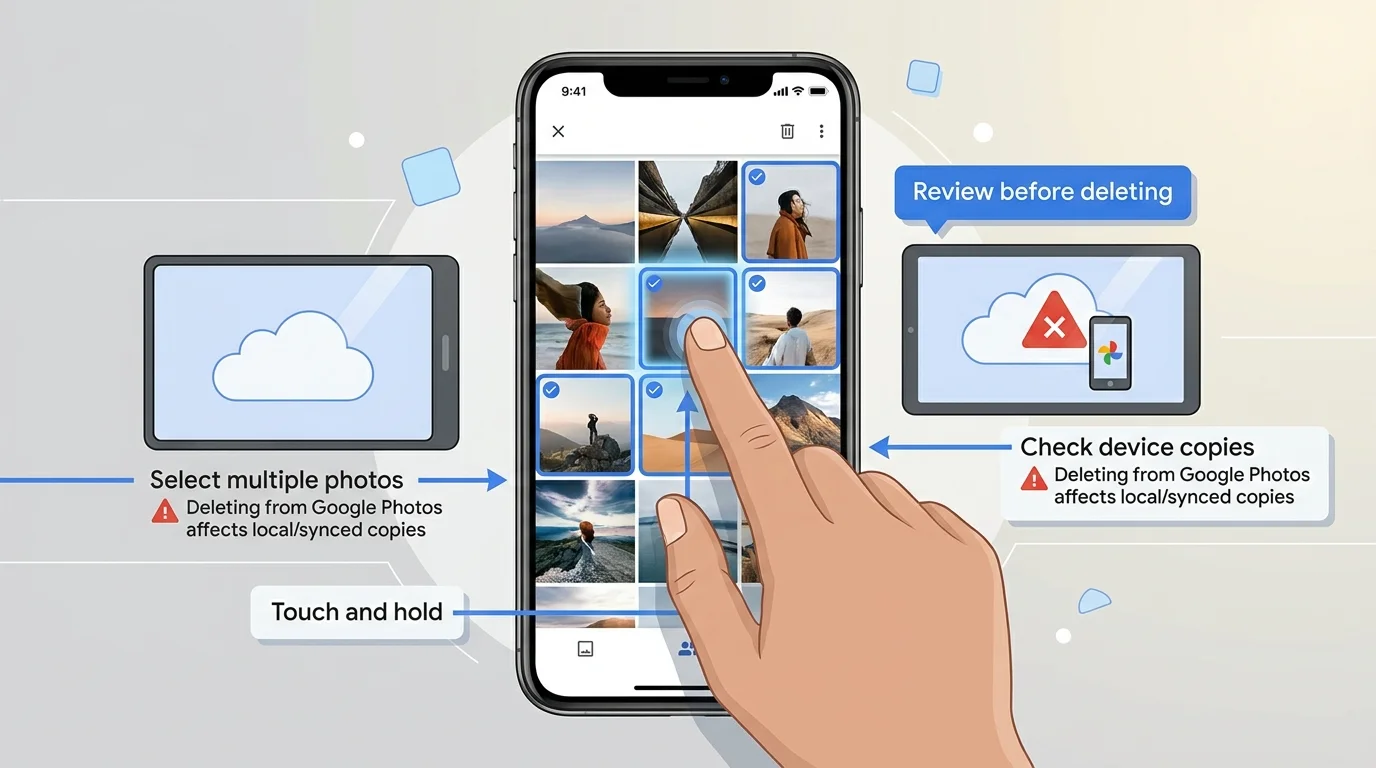
You can select multiple photos in the Google Photos app, but deleting from the app can also delete corresponding device copies. If you want to empty the cloud library while preserving local phone files, see our guide on how to delete photos from Google Photos without deleting them from your phone. You may also want to review how to stop Google Photos backup to prevent future automatic uploads.
For a deletion you intend to apply to both the Google Photos library and applicable synced device copies:
- Open Google Photos and verify the Google Account.
- Touch and hold one photo or video to start selecting items.
- Tap additional items, or use the selection gesture available in your current app version, to select the intended group.
- Review the selected thumbnails carefully.
- Tap Trash and read any confirmation before continuing.
- Repeat for other groups until you have removed the intended content.
Google's Android deletion instructions (opens in new tab) explain multi-selection and the impact on device copies. On some devices, deletion behavior for local files can differ; do not assume a cloud deletion is isolated from the phone.
How to delete multiple photos on iPhone or iPad
The same caution applies on Apple devices: Google warns that deleting from the Google Photos app can remove corresponding local copies as well as synced copies where backup is enabled.
- Open Google Photos and check that the correct Google Account is active.
- Touch and hold a photo or video to begin selecting items.
- Select the other photos you intend to remove.
- Review the selection before using the Trash control.
- Confirm only after you understand that the action may affect local copies.
For a large library, consider using the website on a computer to select ranges more easily. Google's iPhone and iPad deletion guide (opens in new tab) explains the current retention policy and device-copy behavior.
What happens after you delete the photos?
Photos go to Trash first
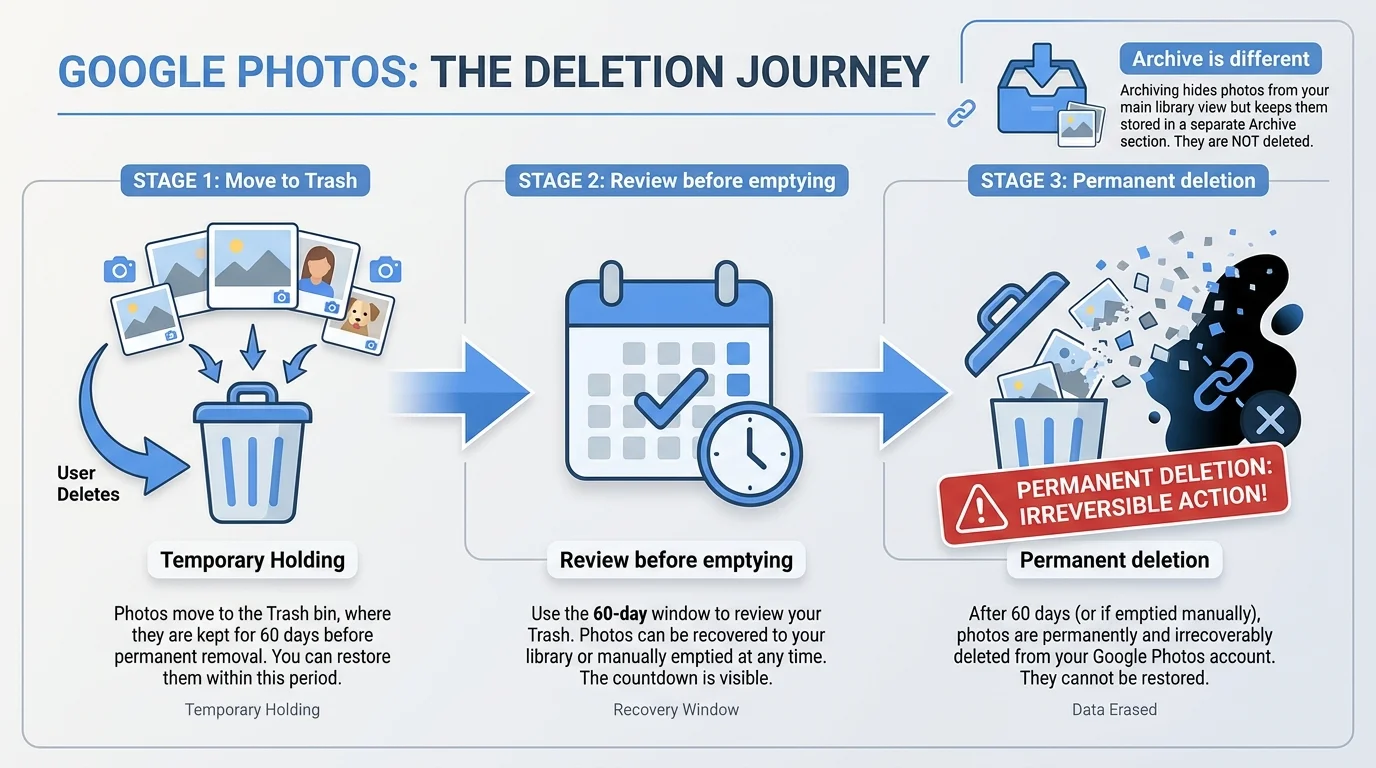
Google says deleted backed-up photos and videos remain in Trash for 30 days before they are permanently deleted. The exact Trash behavior may depend on the item and current account state; read the prompt shown in your account.
You can inspect Trash to restore items while they remain recoverable. If you empty Trash or permanently delete its contents, those items cannot be restored through Google Photos. Google also warns that permanently deleted items cannot be recovered by creating a Google Takeout export afterward.
Your other Google services are not automatically cleared
Deleting a photo from Google Photos does not automatically erase matching files in Google Drive, Gmail, Blogger, or YouTube. If you have duplicate copies in those services, review them separately. Do not remove originals elsewhere unless you specifically intend to do so.
Synced devices and albums may be affected
Photos deleted from Google Photos can be removed from Google Photos albums, shared albums, and conversations where they were added. They can also be removed from devices that have Google Photos installed with backup enabled, and Google notes that local storage can be affected in certain cases. If another copy is important, verify that it exists independently before starting the cleanup.
Will deleting all photos free Google Account storage?
It may free space for items that count toward your Google Account storage, but do not assume the recovered amount will match the total file size you see on screen. Google Photos storage depends on applicable upload and storage rules. Review the storage information displayed by your account and Google's official storage help (opens in new tab).
Common mistakes to avoid
- Deleting from the phone app when you meant to clear only the cloud library. That can delete local and synced copies too.
- Assuming a universal Select all button exists. Use Google's documented range-selection method on desktop and review each group.
- Emptying Trash immediately. Permanently deleted items cannot be restored.
- Forgetting another copy or service. Photos in Drive and files attached to Gmail are not automatically removed when you delete items from Google Photos.
- Assuming Archive frees up space. Archive hides items from the main Photos view; it is not deletion.
- Deleting before exporting a library you may need. Create and verify an export before removing content you might want later.
Frequently asked questions
Is there a button to delete every Google Photos picture at once?
Google's documented desktop help explains selecting multiple photos with Shift-click, but it does not document a universal Select all control for every view. For a large library, use carefully reviewed ranges and repeat as needed.
Will deleting all Google Photos pictures remove them from my phone?
It can. Google warns that deleting from the Google Photos app can delete the same items from the device and synced copies on devices where backup is on. If you need to keep phone copies, stop and follow Google's instructions for removing backed-up items without deleting the device copies.
How long do deleted photos stay in Trash?
Google currently states that backed-up photos and videos remain in Trash for 30 days before permanent deletion. Check the confirmation and Trash screen in your account because the handling may depend on the particular item or state.
Can I recover the photos after emptying Trash?
No. Google says permanently deleted photos and videos cannot be restored, and Google Takeout cannot recover content that was permanently deleted.
Does deleting Google Photos also delete Google Drive files?
No, not automatically. Google explicitly lists Drive and Gmail among the services that are not automatically cleared when you delete items from Google Photos. Review duplicates in other services separately.
Should I archive photos instead of deleting them?
If you only want to remove pictures from the main timeline, Archive is safer than deletion. Archived items remain in Google Photos and still count toward storage, but they can be found in Archive, Search, and albums they belong to.
Official sources
- Google Photos Help: Delete photos and videos on a computer (opens in new tab)
- Google Photos Help: Delete photos and videos on Android (opens in new tab)
- Google Photos Help: Delete photos and videos on iPhone and iPad (opens in new tab)
- Google Photos Help: Select multiple photos on a computer (opens in new tab)
- Google Photos Help: About Google Photos activity and storage (opens in new tab)
- Google Account Help: Download your data with Google Takeout (opens in new tab)
Verified Primary Sources & Citations
NextTechExplained verifies facts against official documentation, engineering whitepapers, and regulatory filings.
- Google Photos Help: Delete photos and videos on a computerView Official Source
- Google Photos Help: Delete photos and videos on AndroidView Official Source
- Google Photos Help: Delete photos and videos on iPhone and iPadView Official Source
- Google Photos Help: Select multiple photos on a computerView Official Source
- Google Photos Help: About Google Photos activity and storageView Official Source
- Google Account Help: Download your data with Google TakeoutView Official Source
Published by NextTechExplained
Editorial Team • Institutional Publication Byline
Articles published under this byline are prepared through rigorous research and verified against official engineering specifications, standards documentation, and primary sources. Learn more about our process on our About page and Editorial Policy.
Related Explanations & Guides

How to Free Up Google Photos Storage Without Losing Important Photos
Free up Google Photos storage by reviewing large files, cleaning up unwanted photos, and converting eligible existing backups to Storage saver.

How to Organize Google Photos: Albums, Archive, and Search
Organize Google Photos with albums, search, and Archive. Learn a simple system for finding pictures, grouping memories, and hiding clutter without deleting photos.

How to Select All Photos in Google Photos (Computer, Android, and iPhone)
Learn how to select multiple Google Photos at once on a computer, Android, or iPhone using Shift-click or touch-and-hold, plus safe bulk-action tips.