
How to Select All Photos in Google Photos (Computer, Android, and iPhone)
Learn how to select multiple Google Photos at once on a computer, Android, or iPhone using Shift-click or touch-and-hold, plus safe bulk-action tips.
Editorial Team

A laptop and smartphone showing a generic photo library with multiple thumbnails selected, illustrating bulk photo selection
Table of Contents (16 sections)
- How to select many Google Photos at once on a computer
- Does Shift-click select every photo in your account?
- Can you use Ctrl+A or Command+A?
- How to select multiple photos in Google Photos on Android
- How to select multiple photos on an iPhone or iPad
- How to select photos by search or album
- What can you do after selecting multiple photos?
- Why can't I select all photos at once?
- Troubleshooting selection problems
- Frequently asked questions
- Is there a Select All button in Google Photos?
- How do I select thousands of photos faster?
- Can I select photos from a specific date or search?
- Does selecting photos delete them?
- Why is drag-to-select not working on my phone?
- Official sources
If you need to select hundreds of photos in Google Photos, tapping each one individually can take a long time. On a computer, the quickest built-in method for a continuous range is to select the first photo, hold Shift, and select the last photo. On Android and iPhone, touch and hold a photo, then use the multi-select gesture or tap additional items individually.
Google's help documentation explains how to select multiple items in the Photos view, Search results, and albums. It does not document a universal Select all button that instantly selects every item in the entire account. The method you use depends on whether you are selecting a range on a computer or choosing photos in the mobile app.

How to select many Google Photos at once on a computer
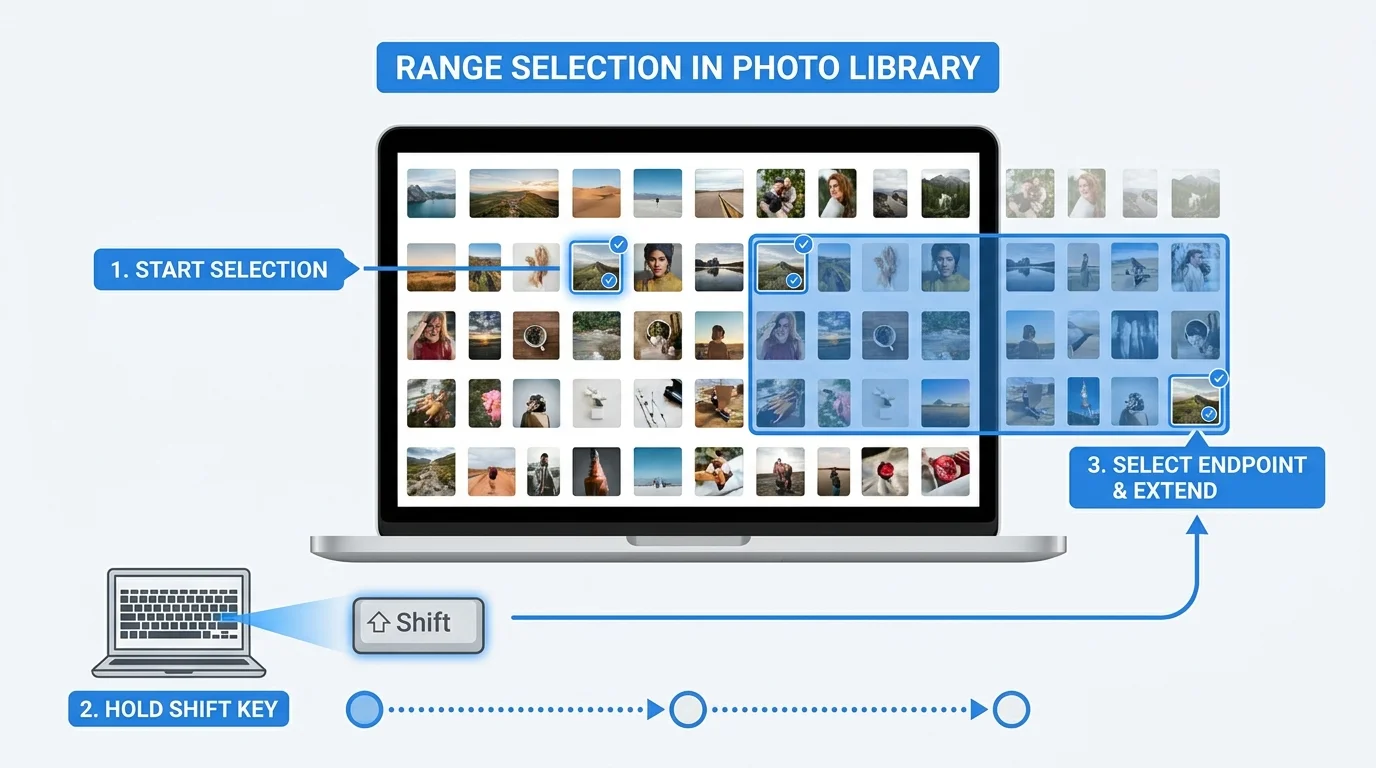
For large groups, use the Google Photos website in a desktop browser. Google's documented range-selection method works from the Photos view, Search results, or an album.
- Open Google Photos (opens in new tab) and sign in to the Google Account that contains the photos.
- Open Photos, a relevant search, or the album you want to work in.
- Hover over the first photo in the range you want to select.
- Click the Select checkmark that appears on the thumbnail.
- Scroll to the last photo in the range. If the library is large, allow thumbnails to load as you move through it.
- Press and hold Shift, then click the last photo.
- Check the selection indicators and the number of selected items before choosing an action. (For instance, you can select up to 50 photos to turn them into an animation or slideshow creation; see our guide on how to make a slideshow in Google Photos).
Does Shift-click select every photo in your account?
It selects a range between the first and last items you choose in the view you are working in. If you start inside an album or search, you are selecting items from that album or result set, not automatically every photo in your account.
To select a broad range from your main library, start at one end of the Photos view and select the other end with Shift-click. Review the selection count and visible range. Do not assume the entire account is selected merely because many thumbnails are highlighted.
Can you use Ctrl+A or Command+A?
Do not rely on Ctrl+A on Windows or Command+A on a Mac as a universal Google Photos select-all command. Google's current help instructions describe selecting the first item and using Shift-click on the last item for a range. The browser, current focus, or interface may handle keyboard shortcuts differently, so verify the selection shown on screen before taking action.
How to select multiple photos in Google Photos on Android
The Android app supports selecting multiple photos from the Photos view, Search, or an album.
- Open the Google Photos app and confirm you are signed in to the intended account.
- Open the Photos view, search results, or album containing the photos.
- Touch and hold the first photo until it becomes selected.
- For a continuous group, drag your finger down through the photos you want to include, where the gesture is supported by your app version.
- To add separate photos, tap each photo individually.
- Review the selected thumbnails before tapping Share, Add to album, Archive, or another available action.

If dragging does not select a range on your phone, update Google Photos through the official app store and try again. You can select individual items by tapping them after selecting the first photo. Interface labels and gestures may vary across versions and devices.
How to select multiple photos on an iPhone or iPad
On iPhone and iPad, the selection process is similar:
- Open Google Photos and go to Photos, Search, or the album you need.
- Touch and hold the first photo to start a selection.
- Drag through a continuous group if the gesture is available in your current app version.
- Tap individual photos to select items that are not next to one another.
- Check the selection before you share, organize, archive, or delete anything.
Google's iOS help describes touch-and-hold to begin selecting, dragging to select a continuous group, and tapping individual items for non-contiguous selections. If the gesture behaves differently on your device, update the app and use individual taps as the fallback.
How to select photos by search or album
You do not have to select photos from the main library. You can narrow the list first, then select multiple items from the results.
- Search: Search for a subject, place, date, or other available term, then select items from the returned results. Your selection applies to the current results, not all other photos in your account.
- Album: Open the album and select the photos you want to work with. This is helpful when the task concerns only one collection.
- Continuous time range: In the main Photos view, use desktop Shift-click between the first and last photos you need. Confirm that the selected range matches the intended dates before continuing.
- Separate items: On mobile, select the first item and tap the other thumbnails individually. On desktop, select individual thumbnails when you do not want the items between them included.
Use search or an album (see our complete guide on how to organize Google Photos) to reduce the number of items you need to review. Avoid taking an irreversible action simply because the selection looks large.
What can you do after selecting multiple photos?
The actions available depend on whether you are using the website or mobile app, the view you are in, and the account or sharing context. Common options can include adding selected items to an album, sharing them, archiving them, downloading on supported interfaces (see our guide on how to download photos from Google Photos), or moving them to Trash.
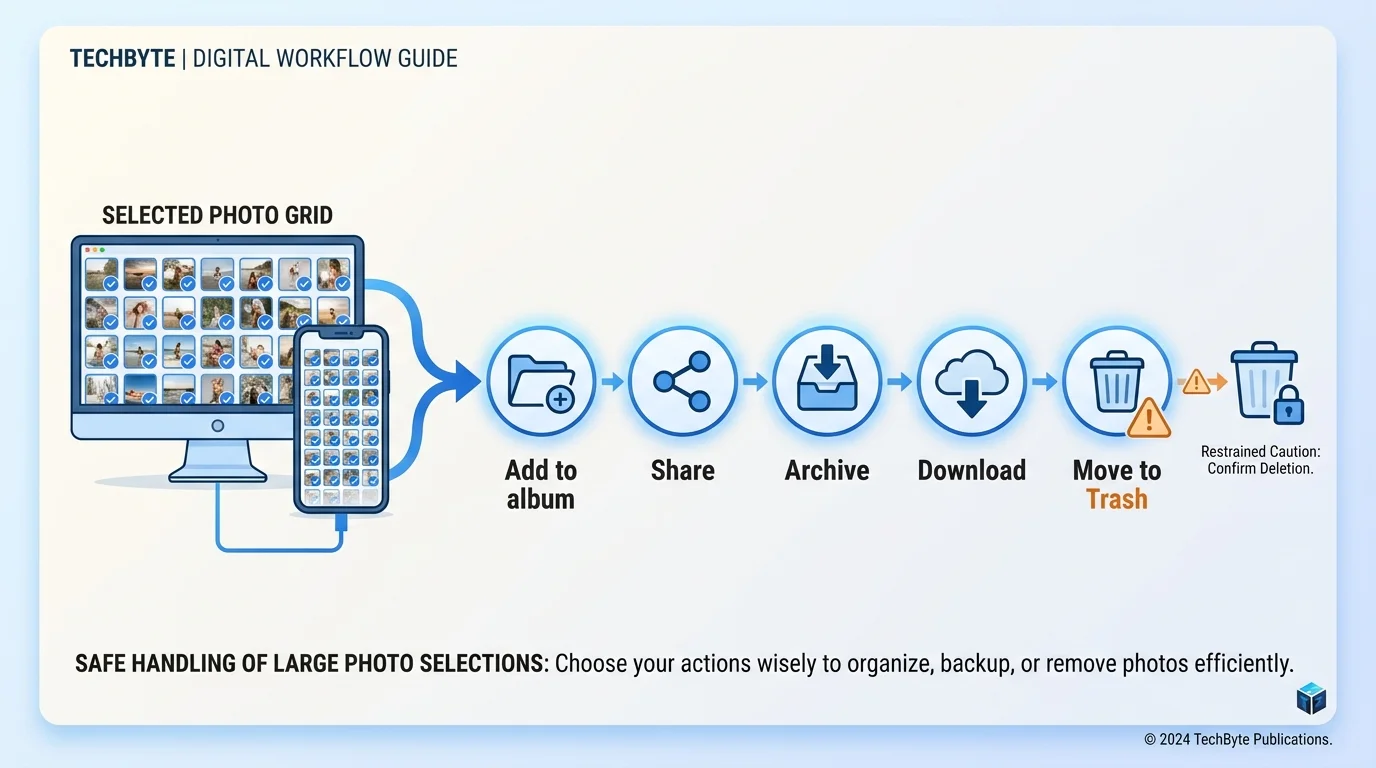
Before choosing an action, stop and confirm:
- The correct Google Account is open.
- You are working in the intended Photos view, search, or album.
- The selection count and dates make sense for the task.
- The action is what you intend: Archive hides items from the main Photos view without deleting them; Trash is a deletion action.
- If you are deleting, you understand the effect on synced copies and other devices.
Google warns that deleting items in Google Photos can also remove them from devices with backup enabled and from certain local copies, depending on device and file conditions. If you want to delete photos online without removing them from your phone, see our guide on how to delete photos from Google Photos without deleting them from your phone. If you are preparing to clear your entire library, see how to delete all photos from Google Photos safely.
Why can't I select all photos at once?
Google's documented workflow focuses on multi-selecting items or selecting a range rather than providing a guaranteed one-click command for every photo in an account. A large library may also take time to scroll through and load. Use a desktop browser and Shift-click for a broad continuous range, or narrow the task with Search or an album.
If you need a full copy of your photo library for backup or transfer, consider whether a library export tool is more suitable than selecting photos in the interface. Always verify that the export contains the dates and files you need before deleting anything from Google Photos.
Troubleshooting selection problems
The Select checkmark does not appear on a computer. Move the pointer over the thumbnail and look for the selection control. Try the main Photos view or open the specific album/search result first. Refresh the page if the control is missing, then sign in again only if needed.
Shift-click selects the wrong range. Start by clearing the current selection, choose the intended first photo, then hold Shift while selecting the intended last photo. Make sure you have not switched albums or search views during the process.
Dragging does not select multiple photos on a phone. Update Google Photos from the official app store. Touch and hold one photo, then tap additional photos one by one if range selection still is not available.
Some photos are missing from the selection. You may be in a search or album view rather than the complete Photos view, or not all items in a long range may have loaded. Check the view, selection count, and endpoints before continuing.
You want to select a whole library for deletion. Do not proceed until you have checked which copies will be affected. Google Photos deletion can affect synced devices; if your goal is to prevent future uploads, see our guide on how to stop Google Photos backup on Android and iPhone.
Frequently asked questions
Is there a Select All button in Google Photos?
Google's current help documentation describes range selection on a computer and multi-selection on mobile, not a universal one-click Select All command for the entire account. On desktop, use the first-item and Shift-click-last-item method for a continuous range.
How do I select thousands of photos faster?
Use Google Photos on a computer. Select the first photo in the range, hold Shift, and select the last photo. Check the selected range and count before you apply an action. In a mobile app, use touch-and-hold and the supported multi-select gesture, or tap individual items.
Can I select photos from a specific date or search?
Yes. Open the relevant Search results or album, then select items within that view. The selection does not automatically include photos outside the current filtered results or album.
Does selecting photos delete them?
No. Selection alone does not delete anything. Deletion occurs only after you choose a deletion action and confirm it. Because deletion may affect synced copies, verify the selected items and read Google's current deletion guidance before confirming.
Why is drag-to-select not working on my phone?
The available gesture can vary with app version and device. Update Google Photos through the official app store and try touch-and-hold again. If range selection still does not work, select the individual photos by tapping them.
Official sources
- Google Photos Help: Get started with Google Photos on a computer (opens in new tab)
- Google Photos Help: Get started with Google Photos on Android (opens in new tab)
- Google Photos Help: Get started with Google Photos on iPhone and iPad (opens in new tab)
- Google Photos Help: Delete photos and videos (opens in new tab)
Verified Primary Sources & Citations
NextTechExplained verifies facts against official documentation, engineering whitepapers, and regulatory filings.
- Google Photos Help: Get started with Google Photos on a computerView Official Source
- Google Photos Help: Get started with Google Photos on AndroidView Official Source
- Google Photos Help: Get started with Google Photos on iPhone and iPadView Official Source
- Google Photos Help: Delete photos and videosView Official Source
Published by NextTechExplained
Editorial Team • Institutional Publication Byline
Articles published under this byline are prepared through rigorous research and verified against official engineering specifications, standards documentation, and primary sources. Learn more about our process on our About page and Editorial Policy.
Related Explanations & Guides

How to Delete All Photos from Google Photos Safely
Learn how to bulk-delete photos and videos from Google Photos on a computer or phone, understand what happens to synced copies, and avoid irreversible mistakes.

How to Free Up Google Photos Storage Without Losing Important Photos
Free up Google Photos storage by reviewing large files, cleaning up unwanted photos, and converting eligible existing backups to Storage saver.

How to Organize Google Photos: Albums, Archive, and Search
Organize Google Photos with albums, search, and Archive. Learn a simple system for finding pictures, grouping memories, and hiding clutter without deleting photos.