
How to Download Photos from Google Photos (Phone, PC, and All Photos)
Download individual photos from Google Photos to Android, iPhone, or a computer, save selected groups, or export your entire library with Google Takeout.
Editorial Team
A laptop and smartphone showing a generic photo library beside a download symbol, illustrating how to save Google Photos to a device
Table of Contents (23 sections)
- Which method should you use?
- How to download photos from Google Photos to a computer
- How to download several selected photos
- How to download an album
- How to download photos from Google Photos on Android
- How to download photos from Google Photos on iPhone or iPad
- How to download all photos from Google Photos
- Step 1: Open Google Takeout
- Step 2: Choose the export settings
- Step 3: Download and check the archive
- Does downloading remove photos from Google Photos?
- Troubleshooting: Google Photos won't download
- The Download option is missing
- The download starts but you cannot find the file
- A downloaded video won't play
- Google Takeout export is too large or won't open
- Frequently asked questions
- How do I download all my Google Photos at once?
- Why can't I download a photo from Google Photos on my phone?
- Can I download Google Photos to my computer without deleting them online?
- Will Google Takeout preserve my original photo information?
- Can I use Google Takeout to move photos to another Google Account?
- Final checklist
You can download a photo or video from Google Photos to make a local copy on your computer or phone. For one item, open it and choose Download from the More menu. If you want a large collection or your entire library, use the Google Photos website or Google Takeout instead of downloading hundreds of items one at a time.
The best method depends on what you need: a single photo for sharing, a few selected pictures, an album, or a complete offline copy of your library. Downloading creates a copy; it does not delete the original from your Google Account.
Which method should you use?
| What you want to download | Recommended method |
|---|---|
| One photo or video on a computer | Open it at Google Photos (opens in new tab) and choose More, then Download. |
| One photo or video on Android | Use the Google Photos app and select More, then Download if the item is not already on the device. |
| One photo or video on iPhone or iPad | Use the Google Photos app and choose Download if the item is not already in the camera roll. |
| Several selected photos | Use the Google Photos website on a computer and download the selected items if the Download action is available. |
| An album | Open the album on a computer and check its More menu for a download option. If it is unavailable or fails, use Takeout to export the required Google Photos data. |
| Your entire photo library | Use Google Takeout (opens in new tab) and select Google Photos for export. |
How to download photos from Google Photos to a computer
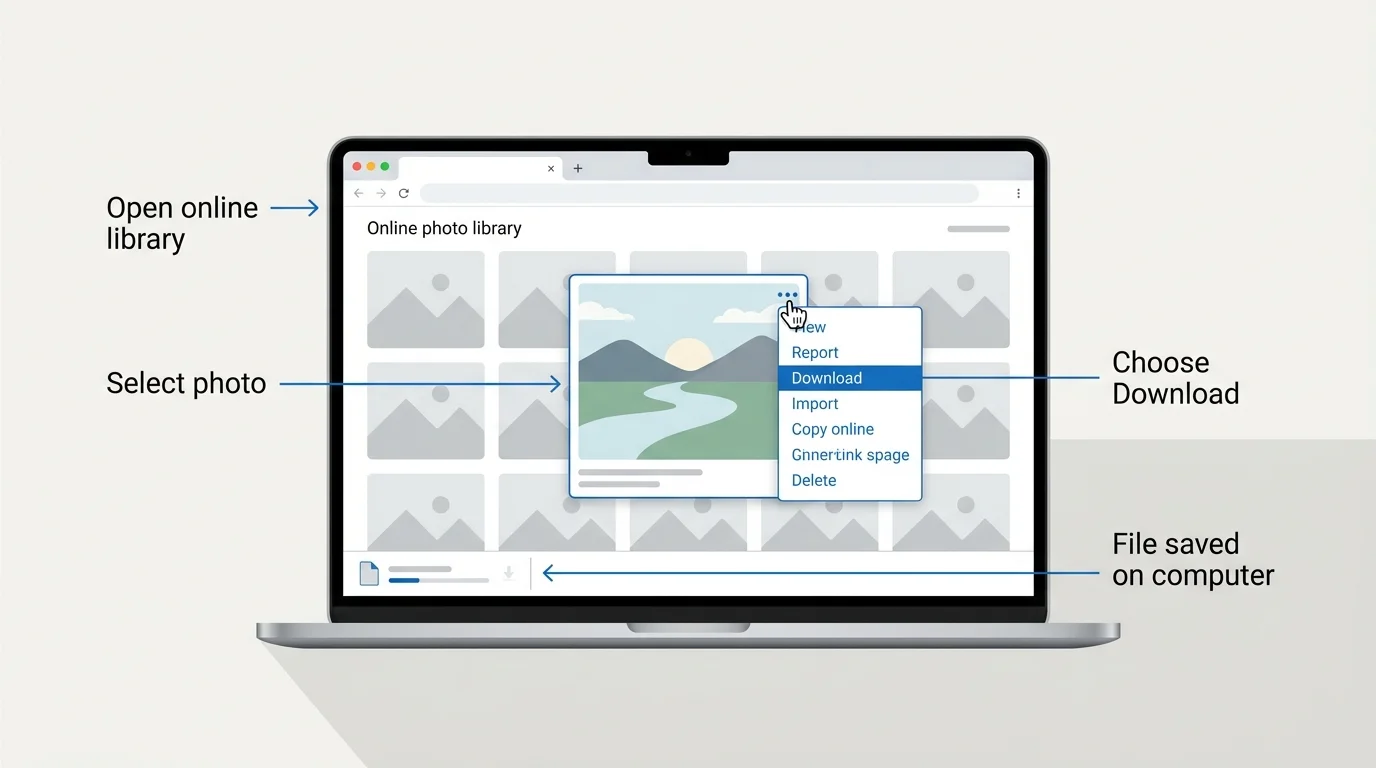
This is the simplest option if you need a local copy of one or a few items on Windows, macOS, or another desktop operating system.
- Open photos.google.com (opens in new tab) in a browser.
- Sign in to the Google Account that contains the photo or video.
- Open the item you want to save.
- Click More (the three-dot menu).
- Choose Download.
- When the download finishes, open your browser's Downloads list or the folder configured for downloads and confirm that the file is there.
How to download several selected photos
For a small group, use Google Photos on a computer:
- Open the Photos view, an album, or a search containing the items you want.
- Select the first photo using the checkmark on its thumbnail.
- To select a continuous range, hold Shift and select the last photo. You can also select individual thumbnails as needed.
- Review the selected items carefully.
- Open the More menu and choose Download if that action is available for your selection.
- If the browser downloads a ZIP archive, extract it into a folder and verify the contents.
The available actions can vary by view and by the number or type of items selected. If Download is missing, the selection does not behave as expected, or a large download repeatedly fails, do not keep retrying an enormous batch. Try a smaller group or use Google Takeout for a complete export. Google's documented computer selection guide (opens in new tab) explains the Shift-click range method. For step-by-step instructions on selecting items across desktop and mobile, see our guide on how to select all photos in Google Photos.
How to download an album
On a computer, open the album itself (see our guide on how to organize Google Photos to create and manage albums) and inspect its More menu for an option such as Download all. This option may not appear for every album or interface state. If it is unavailable, you can select a smaller number of items from the album and use Download if offered, or use Google Takeout to export the relevant Google Photos data.
Do not assume that an album download contains every item in your Google Account. It is limited to the album's contents, while a Takeout export can include the broader Photos data you select.
How to download photos from Google Photos on Android
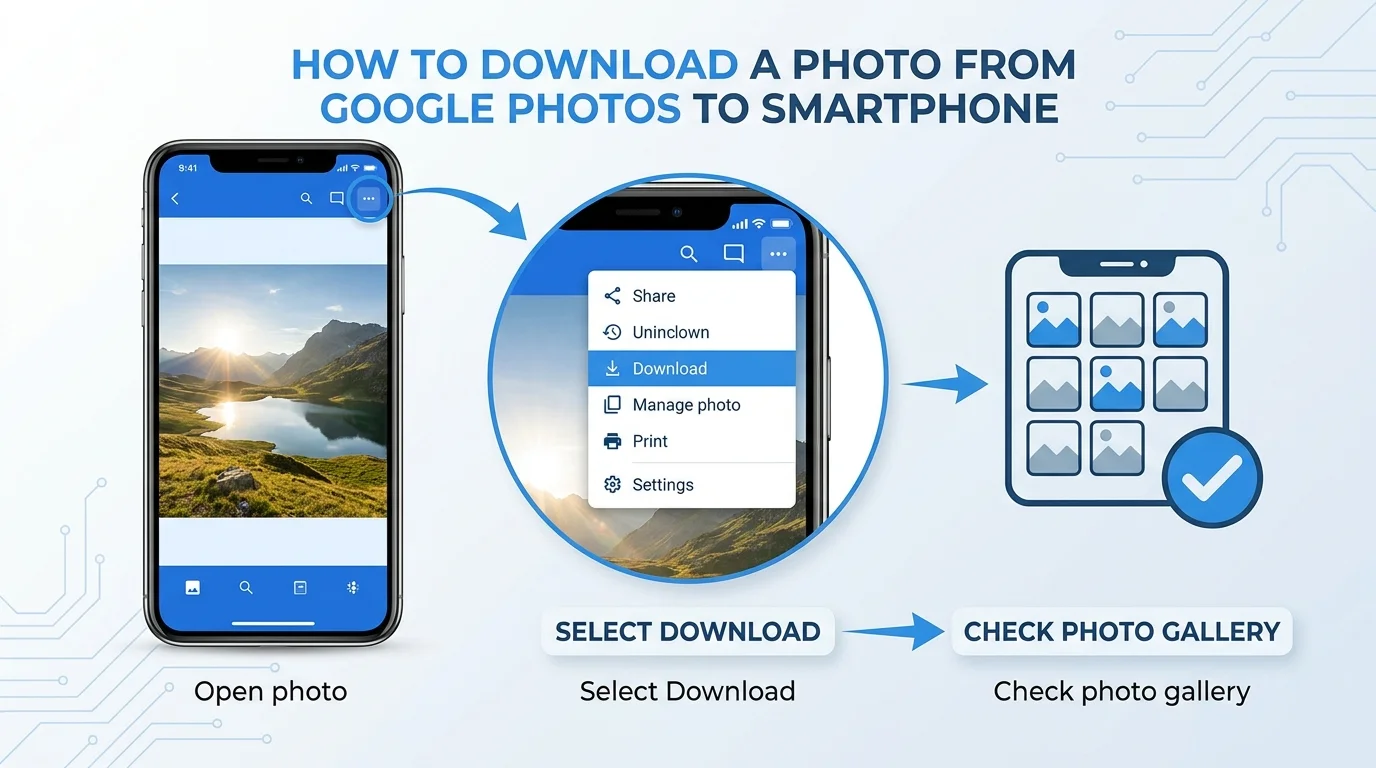
If a photo exists in your Google Photos account but is not stored locally on your Android phone or tablet, you can download it from the app.
- Open the Google Photos app.
- Check your profile picture or initial to confirm the correct Google Account is selected.
- Open the photo or video.
- Tap More (the three-dot menu).
- Tap Download.
- Open your phone's gallery or photo app and check that the local copy is available.
Can't find Download? Google says this option will not appear when the photo or video is already on the device. Check your phone's local gallery before assuming the item is missing. If the item is not available locally, confirm that you are signed in to the correct account and have a working connection.
Google's instructions are available in its Android download guide (opens in new tab).
How to download photos from Google Photos on iPhone or iPad
On iPhone and iPad, Google Photos can save a cloud-backed item to your camera roll when a local copy is not already present.
- Open Google Photos.
- Confirm that you are using the Google Account that contains the photo.
- Select the photo or video.
- Tap More (the three-dot menu).
- Tap Download and follow any prompts that appear.
- Open Apple Photos and check for the saved item.
If the item already exists in your camera roll, Google says you cannot download it from Google Photos again using this action. Check Apple Photos before troubleshooting the download control. Menu labels and prompts can vary with app and operating-system versions.
See Google's iPhone and iPad download guide (opens in new tab) for the current instructions.
How to download all photos from Google Photos
If you want an offline copy of your entire library, Google Takeout is the appropriate starting point. It creates an export of your selected Google data; it does not delete the photos from Google's servers.
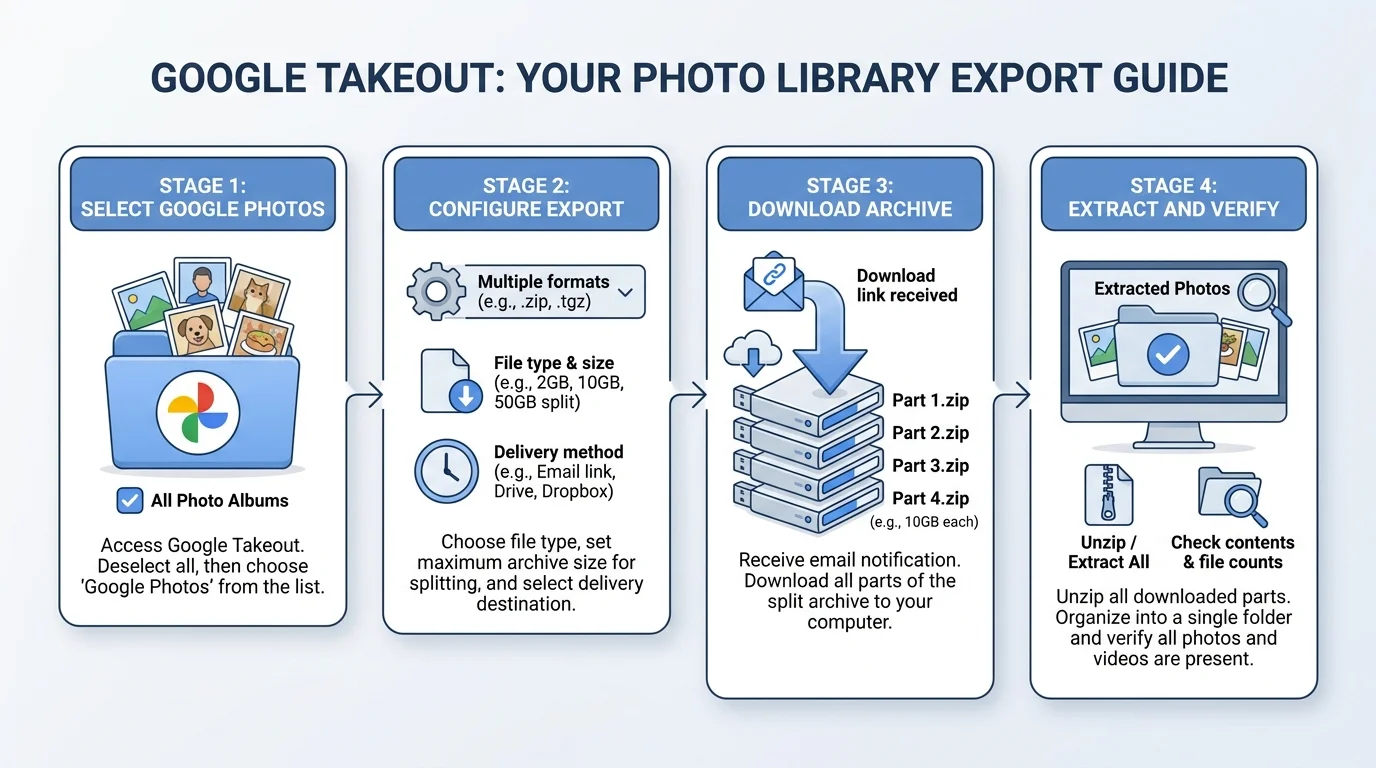
Step 1: Open Google Takeout
- Visit takeout.google.com (opens in new tab) and sign in to the Google Account whose library you want to export.
- Review the Google products selected for export.
- Choose the option to deselect all products if you only want Google Photos.
- Select Google Photos. If the interface offers All photo albums included, review it if you want to limit the export to particular albums.
- Continue to the next step.
Step 2: Choose the export settings
- Choose how you want to receive the export, such as an emailed download link.
- Choose a one-time export unless you have a specific reason to schedule recurring exports.
- Select the archive file type and maximum archive size offered by Google.
- Create the export.
Google prepares the archive after you submit the request. A large library can take time to prepare. Do not assume the export is ready immediately; follow the status shown in Takeout and the notification Google sends when it is available.
Step 3: Download and check the archive
- Open the notification from Google when the export is ready, or return to the export page if it shows the completed archive.
- Download every archive part if Google splits the export into multiple files.
- Extract the files to a computer with enough free storage.
- Open a few photos and videos from different folders to verify that the archive is usable.
- Keep the downloaded archive in a safe location and consider a second backup for important memories.
Google may include additional JSON files for information associated with exported items. Keep these files while checking or migrating your archive instead of deleting them automatically. Your operating system may display a new file timestamp after downloading, while photo metadata may still be available in the file details. Review Google's Takeout export guidance (opens in new tab) for details and limitations.
Does downloading remove photos from Google Photos?
No. Downloading an individual item or exporting Google Photos with Takeout makes a copy; it does not remove the source from your Google Account. If your goal is to remove photos from the cloud while keeping copies on your phone, see our guide on how to delete photos from Google Photos without deleting them from your phone, or learn how to stop Google Photos backup to prevent future automatic uploads.
Read Google's deletion guidance (opens in new tab) before deleting anything, because changes in Google Photos can affect synced device copies.
Troubleshooting: Google Photos won't download
The Download option is missing
On Android, Google says Download will not appear when the item is already on the device. On iPhone or iPad, the option is unavailable when the photo or video already exists in the camera roll. Check the local gallery first. If you are on a computer, verify that you have opened an individual item and are signed in to the correct Google Account.
The download starts but you cannot find the file
Check the browser's Downloads list and its configured destination folder. On a phone, open the local gallery or the system's file/photo app as appropriate. Confirm that the transfer has finished before repeating the download.
A downloaded video won't play
Google recommends trying another browser, a player that supports the video's codec, or a compatible system extension. A video that downloads successfully can still need a player that supports its format. See Google's computer download guidance (opens in new tab).
Google Takeout export is too large or won't open
Try exporting only Google Photos instead of several Google products at once. If the archive is split into multiple parts, download every part before extracting the collection. If an export fails, Google advises trying a new export or a smaller archive size. Extract to a location with sufficient free disk space and test several files before moving or deleting anything.
Frequently asked questions
How do I download all my Google Photos at once?
Use Google Takeout (opens in new tab), select Google Photos, configure the export, create it, and download all archive parts when ready. This is more suitable for a full-library export than saving photos individually.
Why can't I download a photo from Google Photos on my phone?
The photo may already be stored on the phone. Google says the Download option does not appear when an item is already present on Android, and on iPhone or iPad an item already in the camera roll cannot be downloaded again through that action. Check the local gallery and selected Google Account.
Can I download Google Photos to my computer without deleting them online?
Yes. Downloading creates a separate local copy and does not delete the original from your Google Account.
Will Google Takeout preserve my original photo information?
Google says photo metadata remains available through file details, although the operating system may assign a new file timestamp based on when the file was downloaded. Takeout may also include JSON sidecar files with additional information. Keep those files when organizing or transferring an export.
Can I use Google Takeout to move photos to another Google Account?
Yes, you can download the export and then upload the photos to the destination account. Takeout itself creates a downloadable copy; it does not automatically transfer the library into another Google Account.
Final checklist
Before you finish, confirm that you downloaded from the correct Google Account, checked the local destination, downloaded every part of a Takeout archive, and opened a few files successfully. Keep a second copy of irreplaceable photos before making major account or library changes.
For the most reliable instructions for your device, use Google's current download guide (opens in new tab) and Google Takeout help (opens in new tab).
Verified Primary Sources & Citations
NextTechExplained verifies facts against official documentation, engineering whitepapers, and regulatory filings.
- Google Photos Help: Download photos or videos to your device on a computerView Official Source
- Google Photos Help: Download photos or videos to an Android deviceView Official Source
- Google Photos Help: Download photos or videos to an iPhone or iPadView Official Source
- Google Account Help: Download your Google data with Google TakeoutView Official Source
- Google Photos Help: Select multiple photos on a computerView Official Source
- Google Photos Help: Delete photos and videosView Official Source
Published by NextTechExplained
Editorial Team • Institutional Publication Byline
Articles published under this byline are prepared through rigorous research and verified against official engineering specifications, standards documentation, and primary sources. Learn more about our process on our About page and Editorial Policy.
Related Explanations & Guides
How to Add Photos to Google Photos from a Phone or Computer
Learn how to add photos to Google Photos manually, enable phone backup, upload files from a computer, and check that your pictures have finished uploading.
How to Delete All Photos from Google Photos Safely
Learn how to bulk-delete photos and videos from Google Photos on a computer or phone, understand what happens to synced copies, and avoid irreversible mistakes.
How to Free Up Google Photos Storage Without Losing Important Photos
Free up Google Photos storage by reviewing large files, cleaning up unwanted photos, and converting eligible existing backups to Storage saver.