
How to Export Bookmarks in Chrome
Export Chrome bookmarks to an HTML file, save a backup, and import your links into another browser or Chrome profile with this step-by-step guide.
Editorial Team
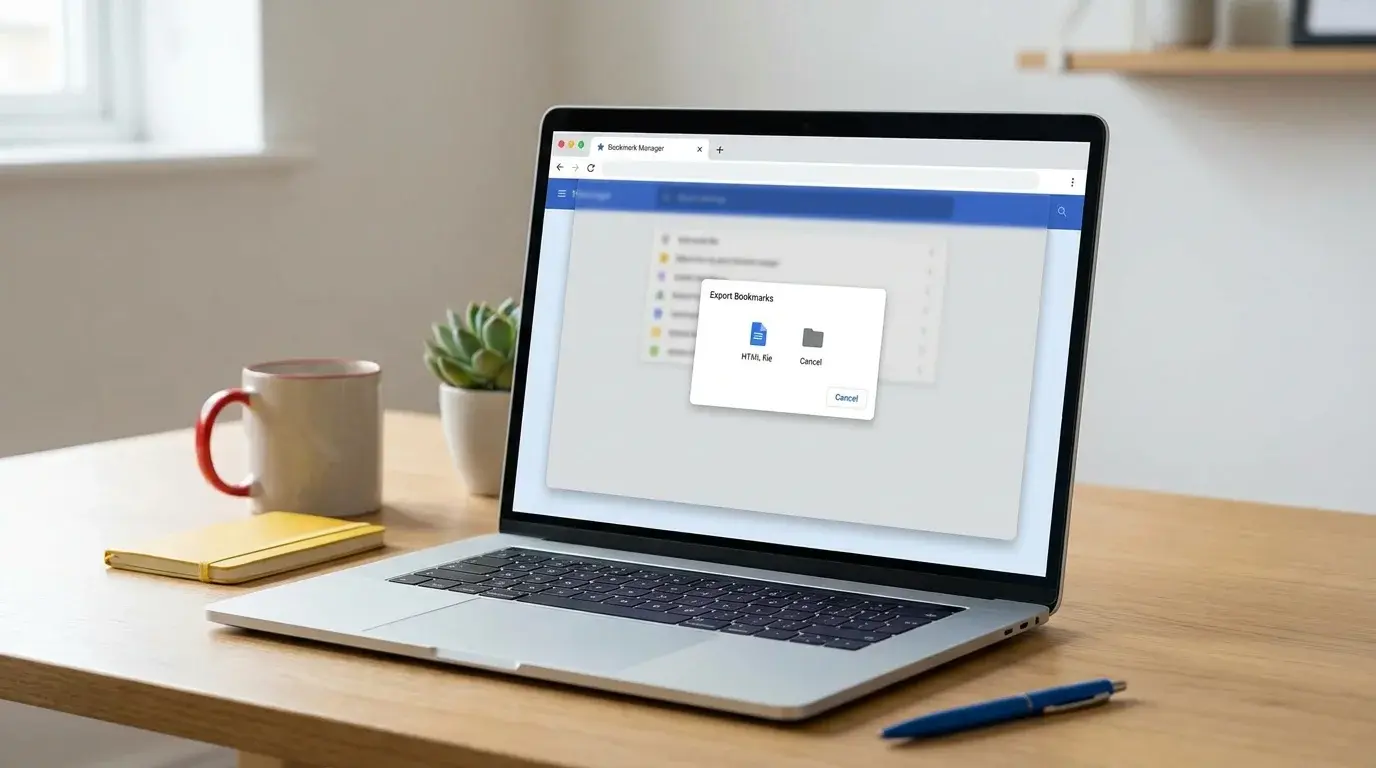
Google Chrome bookmark manager open on a computer with an export option highlighted
Table of Contents (25 sections)
- How to export bookmarks in Chrome on a computer
- Step 1: Open Bookmark Manager
- Step 2: Open the Export bookmarks command
- Step 3: Save the HTML file
- Step 4: Check that the export was saved
- What does the Chrome bookmarks HTML file contain?
- How to import the exported bookmarks later
- Import bookmarks back into Chrome
- Import bookmarks into a different browser
- Chrome export is different from bookmark sync
- Troubleshooting: Chrome will not export bookmarks
- I cannot find Export bookmarks
- The exported file is not where I expected
- The imported bookmarks do not appear on the bookmarks bar
- Some bookmarks seem to be missing
- The export option is unavailable on a work computer
- Tips for keeping a useful bookmark backup
- Frequently asked questions
- Does Chrome export bookmarks as HTML?
- Can I export Chrome bookmarks without signing in?
- Can I export bookmarks directly from the Chrome mobile app?
- Does exporting bookmarks save my passwords?
- Can I use the same HTML file on another computer?
- Will the backup update when I change bookmarks?
- Final thoughts
Exporting your Chrome bookmarks creates an HTML file you can keep as a backup or use to move your saved links to another browser. It is useful before switching browsers, moving to a new computer, or making a separate copy of important websites.
The export is straightforward on desktop Chrome: open Bookmark Manager, select its More menu, and choose Export bookmarks. Chrome then asks where to save the HTML file.
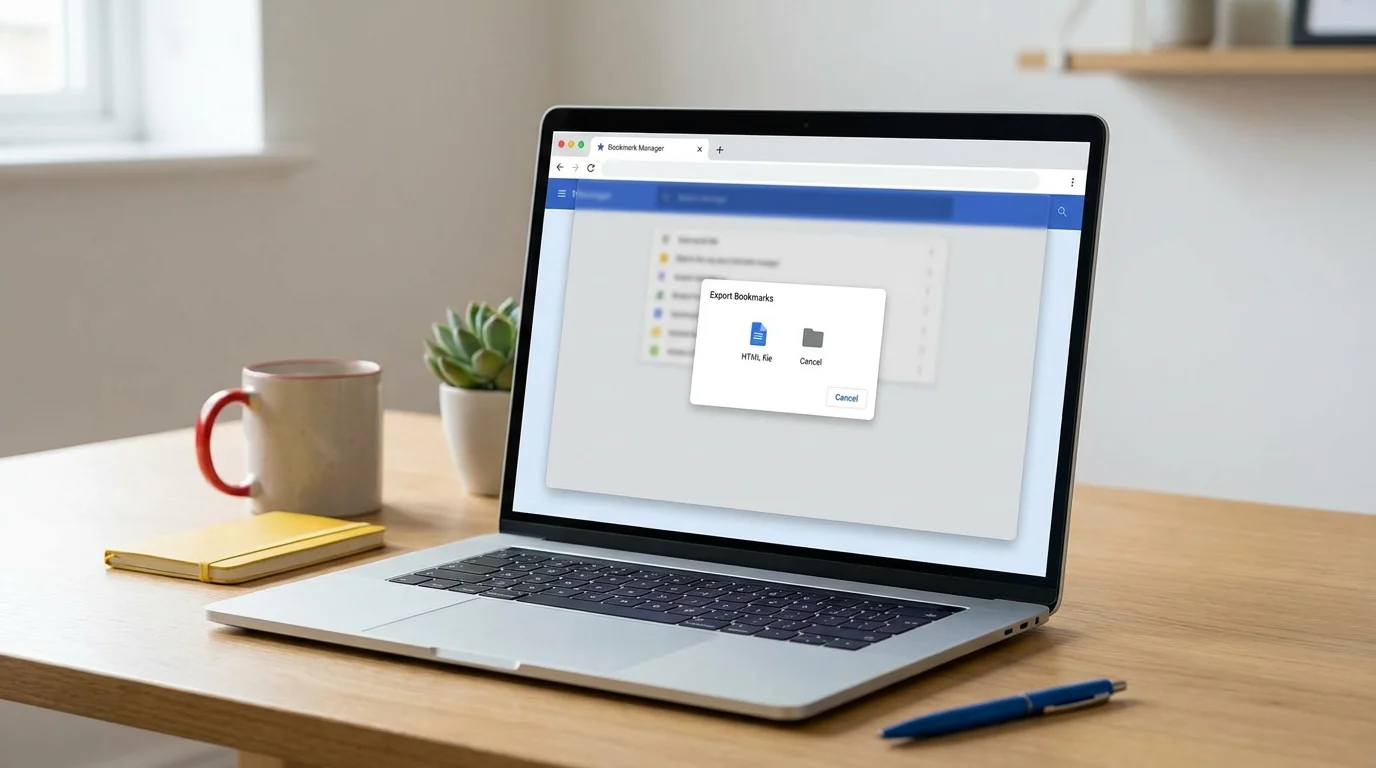
This guide explains the current desktop steps, how to check the file, how to import it later, and what to do if the export option is missing. Menu wording can vary slightly by Chrome version or device, so use the Bookmark Manager as the starting point.
How to export bookmarks in Chrome on a computer
Use these steps on a desktop or laptop running Chrome. The export process is not the same in the Chrome mobile apps.
Step 1: Open Bookmark Manager
- Open Google Chrome.
- Select the three-dot More menu in the top-right corner.
- Select Bookmarks and lists, then Bookmark Manager.
You can also open Bookmark Manager quickly using keyboard shortcuts: press Ctrl + Shift + O on Windows and Linux, or Command + Option + B on macOS. Alternatively, enter chrome://bookmarks in Chrome's address bar and press Enter.
Step 2: Open the Export bookmarks command
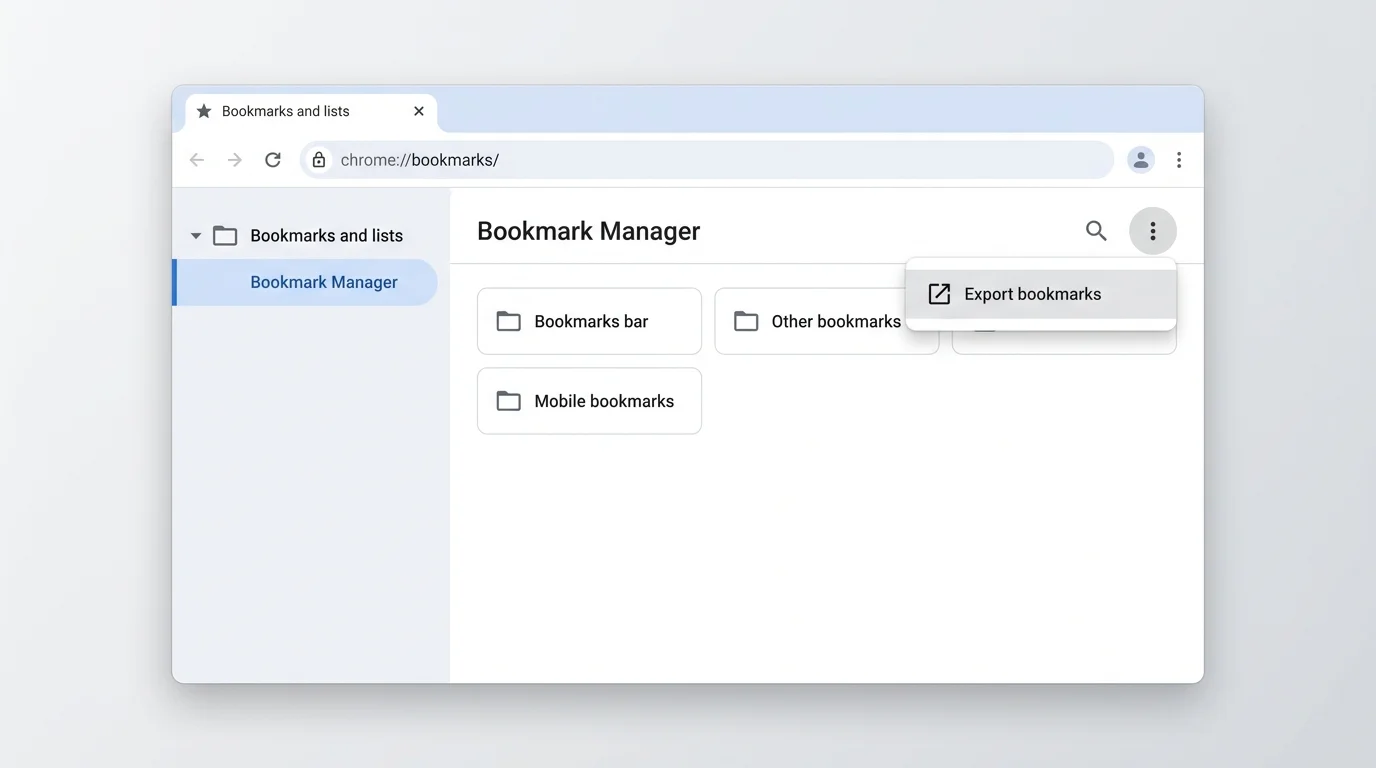
In Bookmark Manager, select the three-dot More menu near the top-right of the page (in the blue bar next to search, or in the page header). Choose Export bookmarks.
Make sure you are in the Chrome profile that contains the bookmarks you want to save. If you use multiple Chrome profiles, each profile has its own separate set of bookmarks.
Step 3: Save the HTML file
Chrome opens your operating system's save dialog. Choose a folder that you can find later, such as Documents, an external backup drive, or a synced cloud folder, and keep the suggested .html file extension.
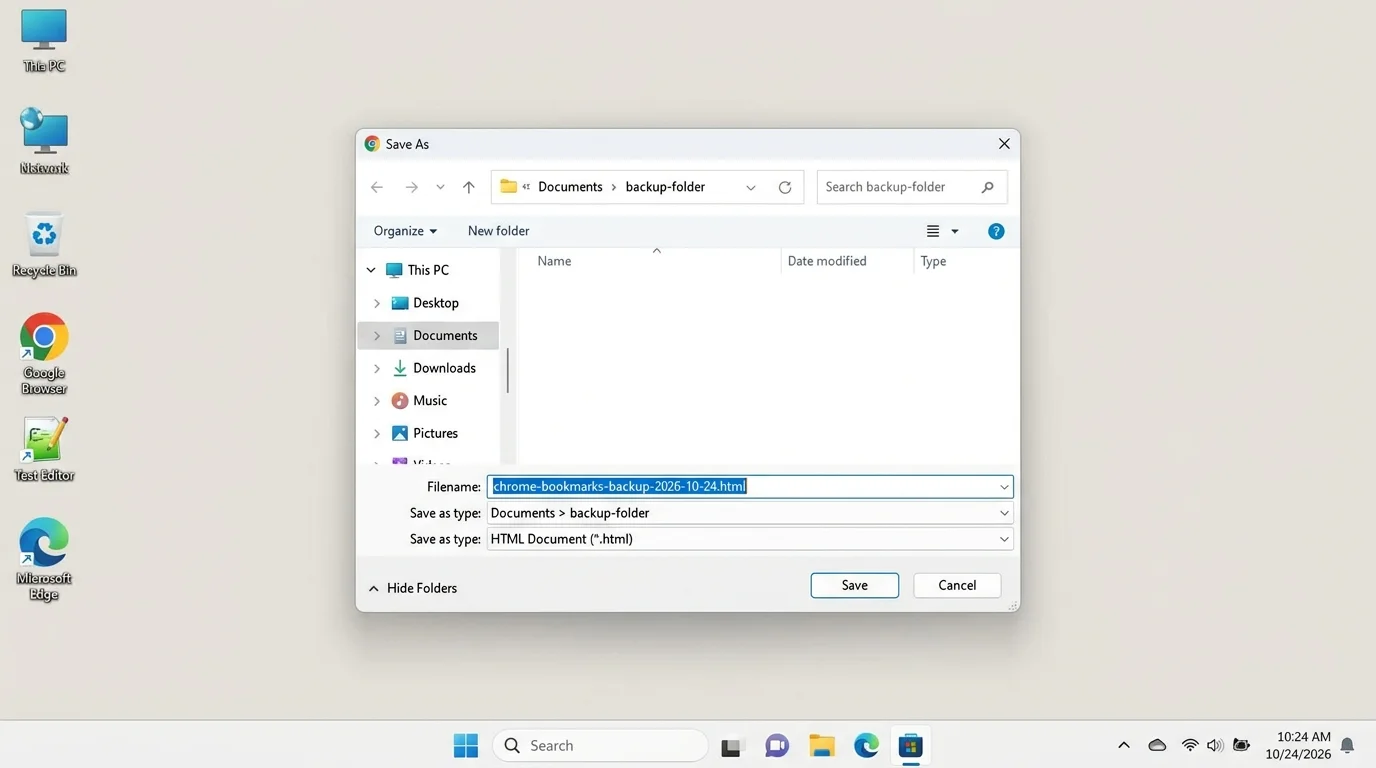
Use a clear filename, for example:
chrome-bookmarks-backup-2026-10-24.html
The date helps distinguish this export from older backups. Select Save to create the file. If Chrome does not show the save dialog, check whether it opened behind another window or whether your operating system is waiting for a file location.
Step 4: Check that the export was saved
Open the folder you selected and confirm that the HTML file is present. Check its filename and file size. If you exported a large bookmark collection, the file should generally contain a collection of bookmark links rather than being an empty file.
You can keep the file in a local backup folder, upload it to cloud storage (see our guide on how to add Google Drive to File Explorer for automated desktop syncing), or copy it to a trusted external drive. Avoid putting a personal browsing archive on a shared computer or public file-sharing location.
What does the Chrome bookmarks HTML file contain?
Chrome exports bookmarks as a standard Netscape Bookmark HTML file that other browsers (like Microsoft Edge, Mozilla Firefox, Brave, and Apple Safari) can use for importing saved links. It is intended strictly for bookmarks, not for making a complete copy of your Chrome profile.
Do not assume the export includes everything stored in Chrome. It is not a backup of your browsing history, extensions, open tabs, browser settings, or saved passwords. Other Chrome data has separate export, sync, or migration options (for credential management and device protection, see our guide on how passkeys work and setup recovery; if you are resolving stale page displays, see how to clear cache in Chrome; and if you want direct one-click desktop access to specific web apps, check how to pin a website to the taskbar in Windows 11).
The HTML file also represents a snapshot of the bookmarks at the time you exported them. If you add, edit, or delete bookmarks later, export another copy to update your backup.
How to import the exported bookmarks later
You can import the HTML file into Chrome or use the import feature offered by another compatible browser. Labels may differ between browsers, but the process typically starts in the browser's bookmarks manager or import settings. For a complete walkthrough of browser migration, profile placement, and troubleshooting missing folders, see our detailed guide on how to import bookmarks in Chrome.
Import bookmarks back into Chrome
- Open Chrome on the computer where you want the bookmarks.
- Select More, then Bookmarks and lists, then Import bookmarks and settings. In some versions or Chromebook workflows, the option may appear inside Bookmark Manager.
- Choose the option to select a file, if prompted (or choose "Bookmarks HTML File" from the dropdown).
- Browse to the HTML file you saved and open it.
- Complete the import and open Bookmark Manager to review the imported links.
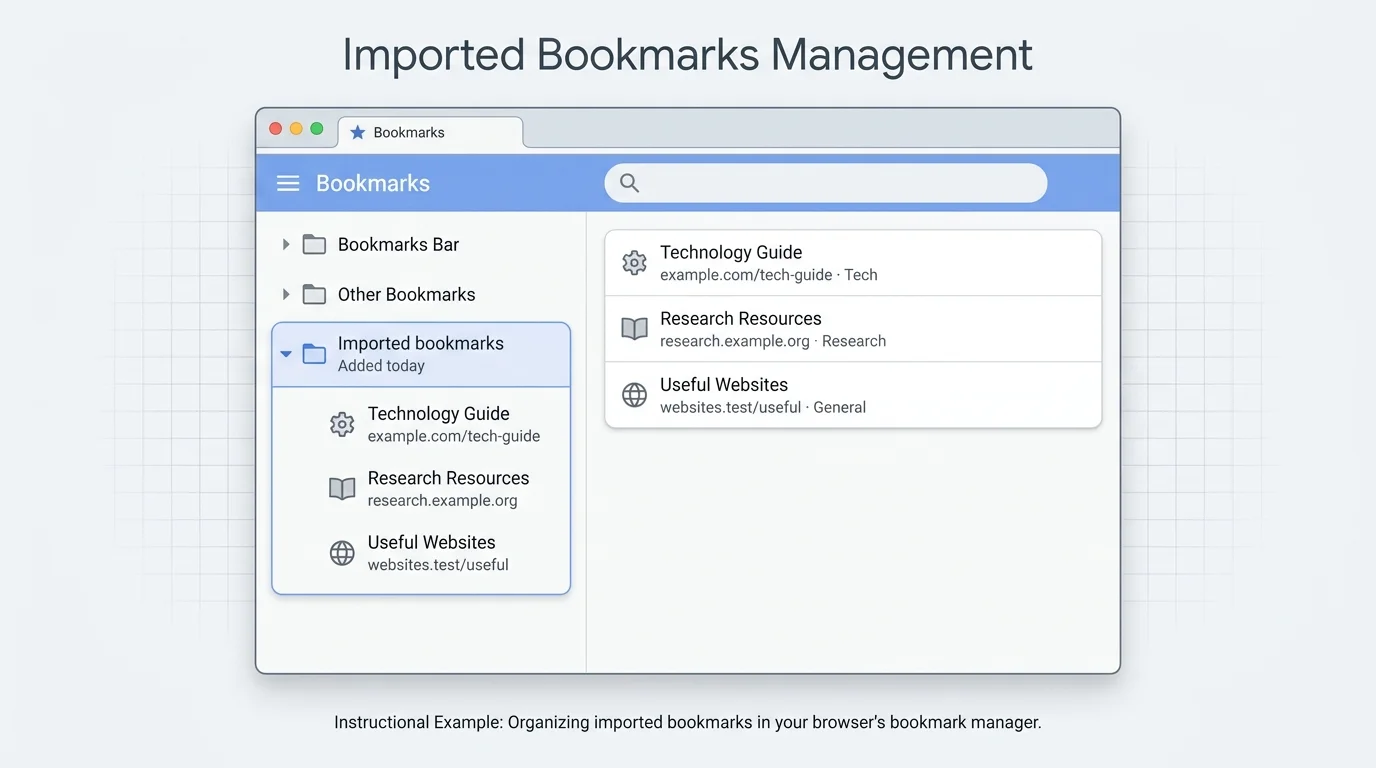
If the destination profile already contains bookmarks, Chrome may place imported links in a separate folder, such as Other bookmarks or Imported, rather than mixing every link into the existing bar. Check Bookmark Manager and expand the folders if you do not see the imported links immediately.
Import bookmarks into a different browser
First, locate the destination browser's import tool. Select the option for an HTML bookmarks file if it is offered, then choose the file you exported from Chrome. Browser names and menu labels differ, so use the destination browser's own help instructions if its import screen is different.
Keep the original HTML file until you have checked that the imported bookmarks are available and working. Importing bookmarks can create duplicates if the same links are already present.
Chrome export is different from bookmark sync
Exporting bookmarks and syncing bookmarks solve different problems.
- Exporting creates a separate HTML file that you can store and move yourself.
- Syncing keeps supported Chrome data available on other devices where you use the same Google Account and have the relevant sync settings enabled.
Sync is convenient for regular access across devices, while an exported HTML file is useful as a separate copy or for moving links to another browser. They can complement each other. Do not rely on sync alone if you specifically need an offline file backup, and do not assume an old HTML export updates automatically.
Troubleshooting: Chrome will not export bookmarks
I cannot find Export bookmarks
Open the full Bookmark Manager instead of looking only at the bookmarks bar. The export command is inside Bookmark Manager's More menu. If you are using Chrome on a phone or tablet, switch to desktop Chrome for the workflow in this guide.
The exported file is not where I expected
Repeat the export and carefully check the folder shown in the save dialog. Search your computer for the filename or for files ending in .html if you are unsure where you saved it. The browser may suggest a default download or documents location, but the selected save location is what matters.
The imported bookmarks do not appear on the bookmarks bar
Open Bookmark Manager and inspect the folders, including Other bookmarks or an imported folder. The bookmarks may have been imported successfully without appearing directly on the bar. Also confirm that you imported into the intended Chrome profile.
Some bookmarks seem to be missing
Check whether you exported from the correct Chrome profile. If you use more than one profile, open each profile and review its Bookmark Manager. Also verify that the saved HTML file is the recent export, not an older backup. If the number of links looks unexpectedly small, export again from the profile containing the full collection and inspect the new file.
The export option is unavailable on a work computer
A school or workplace may manage Chrome settings and restrict some browser functions. If the relevant option is blocked, contact your IT administrator instead of attempting to bypass device or organization policies.
Tips for keeping a useful bookmark backup
- Export a fresh copy before making a major browser or computer change.
- Add the date to the filename so older and newer backups are easy to tell apart.
- Store the file somewhere separate from the computer you are migrating away from if you need it for recovery.
- Keep the HTML export until you have confirmed that the destination browser contains your important links.
- Treat the file as personal browsing data because bookmark names and URLs can reveal information about your interests or accounts.
- Remember that deleting a bookmark in Chrome does not automatically update a previously saved HTML file.
Frequently asked questions
Does Chrome export bookmarks as HTML?
Yes. Chrome exports bookmarks as an HTML file formatted according to the standard Netscape bookmark structure. You can use that file to import your saved links into another compatible browser or another Chrome setup.
Can I export Chrome bookmarks without signing in?
Yes. You can export bookmarks available in the local Chrome profile without needing to sign into a Google Account or rely on bookmark sync. Signing in and syncing are separate from creating an HTML export of the bookmarks visible in that profile.
Can I export bookmarks directly from the Chrome mobile app?
No. The Chrome app on Android and iOS does not have a direct HTML bookmark export command. To export bookmarks saved on mobile, turn on sync in Chrome settings using your Google Account, then export the HTML file from desktop Chrome. Alternatively, download your Chrome data archive from Google Takeout.
Does exporting bookmarks save my passwords?
No. A bookmarks HTML export is not a password backup. Use Chrome's dedicated password manager export settings or a specialized credential manager if you need to handle saved passwords.
Can I use the same HTML file on another computer?
Yes. Copy the exported file to a location you can access on the other computer (such as a USB drive or cloud drive), then use the destination browser's bookmark import tool. Keep the file until you have verified the imported links.
Will the backup update when I change bookmarks?
No. An HTML export is a snapshot. Export again when you want a more recent copy.
Final thoughts
To export Chrome bookmarks, open Bookmark Manager, select More, and choose Export bookmarks. Save the HTML file somewhere you can find, verify that it exists, and keep it until you have confirmed that your links were imported where you need them.
For the official steps, see Google's Chrome bookmark export and import instructions (opens in new tab) and its guide to creating and managing bookmarks (opens in new tab).
Verified Primary Sources & Citations
NextTechExplained verifies facts against official documentation, engineering whitepapers, and regulatory filings.
- Google Chrome Help: Import Chrome bookmarks and settingsView Official Source
- Google Chrome Help: Create, find, and edit bookmarks in ChromeView Official Source
- Google Chrome Help: Get your bookmarks, passwords, and more on all your devicesView Official Source
- Google Chrome Help: Export your data from ChromeView Official Source
Published by NextTechExplained
Editorial Team • Institutional Publication Byline
Articles published under this byline are prepared through rigorous research and verified against official engineering specifications, standards documentation, and primary sources. Learn more about our process on our About page and Editorial Policy.
Related Explanations & Guides
How to Import Bookmarks in Chrome
Import bookmarks into Google Chrome from another browser or an HTML backup file, find imported links, and troubleshoot missing or misplaced bookmarks.
How to Clear Cache in Chrome
Learn how to clear cached images and files in Google Chrome on Windows, Mac, Android, and iPhone, without deleting more browsing data than you need.
How to Delete Cookies in Chrome on Desktop and Mobile
Learn how to delete all cookies in Chrome or remove data for one website on Windows, Mac, Android, and iPhone without clearing more browsing data than you intend.