
How Passkeys Work: Setup, Recovery, and What to Do If You Lose Your Phone
A complete guide to WebAuthn mechanics, synced vs hardware passkeys, Apple and Google recovery paths, and protecting accounts when a device is lost.
Editorial Team
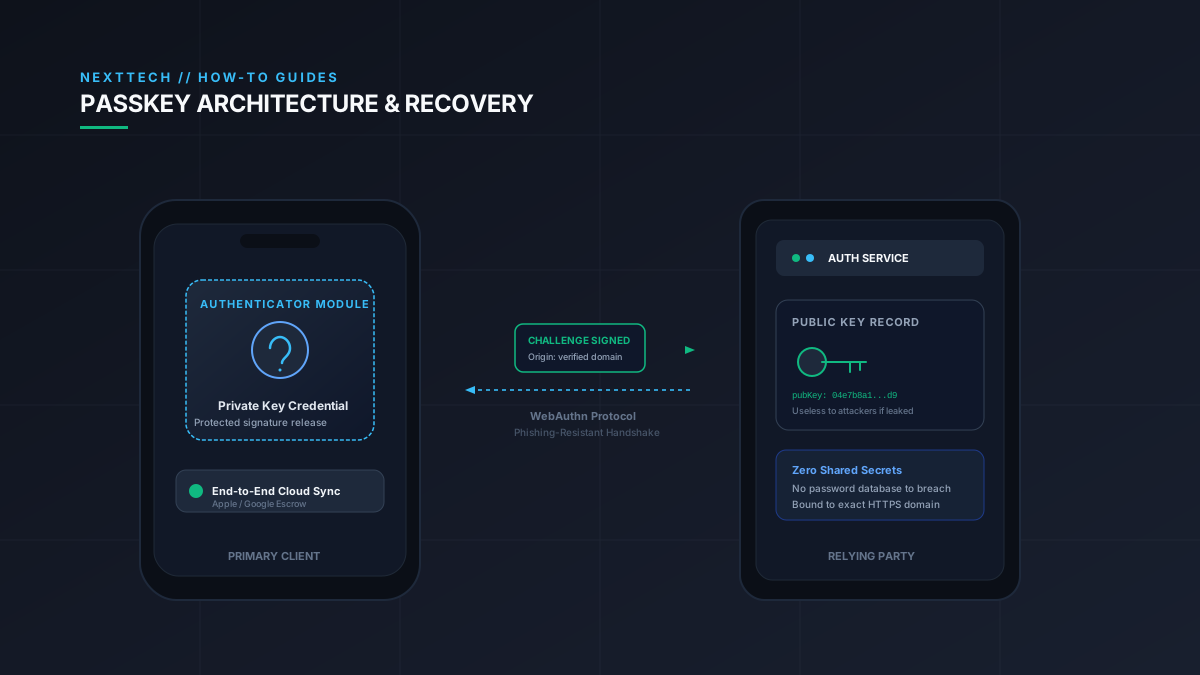
Cryptographic diagram showing how passkeys pair a private key credential with a public key registered on a server
Table of Contents (31 sections)
- How WebAuthn Works: Public-Key Cryptography Without Misleading Analogies
- Synced Passkeys vs. Device-Bound Credentials
- 1. Synchronized Passkeys (Multi-Device Credentials)
- 2. Device-Bound Credentials (Hardware Security Keys)
- Biometrics, PINs, and Authenticator Silicon
- Comparing Authentication Methods: Passwords, SMS, TOTP, and Passkeys
- Step-by-Step Walkthrough: How to Set Up a Passkey on a Website or App
- How Apple iCloud Keychain Synchronizes and Recovers Passkeys
- Synchronization Requirements
- Account Recovery Contacts and iCloud Keychain
- iCloud Keychain Escrow Recovery
- Optional Recovery Key (28 Characters)
- How Google Password Manager Synchronizes and Protects Passkeys
- Synchronization Across Platforms
- PIN Recovery and Vault Reset in Chrome
- Google 2-Step Verification Backup Codes vs. Vault Decryption
- Account Recovery vs. Credential Vault Recovery
- Google Account Sign-In Passkeys vs. Third-Party Passkeys
- Third-Party Password Managers: 1Password and Bitwarden
- Recovery Options in Third-Party Managers
- Cross-Platform Transfer: Specifications vs. Shipping Realities
- The FIDO Credential Exchange Specifications (CxF and CxP)
- Practical Shipping Support
- Cross-Device Authentication vs. Credential Transfer
- What to Do If You Lose Your Phone: 5 Structured Decision Paths
- Path 1: Another Trusted Device Has Access to Your Credential Manager
- Path 2: The Lost Phone Was Your Only Device, but the Provider Can Be Recovered
- Path 3: All Associated Devices Are Unavailable and Provider Recovery Is Required
- Path 4: The Credential Provider Cannot Be Recovered, Requiring Website Recovery
- Path 5: The Phone Was Stolen: Device Protection vs. Credential Revocation
- Pre-Setup Checklist: Protecting Your Accounts Before Creating Passkeys
Whenever a major service prompts you to set up a passkey, the offer sounds convenient: log in with Face ID, Touch ID, or a fingerprint scan, and never memorize another password. Yet for most people, hesitation sets in immediately. What happens if your phone falls into a lake? Does Apple or Google hold all your accounts hostage? What if someone steals your device while it is unlocked?
Passkeys replace traditional passwords with public-key cryptography standardized under the W3C WebAuthentication (WebAuthn) Recommendation (opens in new tab) and FIDO2 specifications. When implemented and configured properly, they protect accounts from automated credential stuffing and phishing attacks. However, adopting them safely requires understanding how credential synchronization works, where your keys live, and how account recovery differs between your cloud identity provider and individual websites.
This guide explains the mechanics of WebAuthn, walks through setup across popular services, details how Apple and Google synchronize and protect credentials, examines third-party managers, and provides structured decision paths for recovering your accounts if your phone is lost or stolen.
How WebAuthn Works: Public-Key Cryptography Without Misleading Analogies
Traditional password systems depend on a shared secret. You choose a sequence of characters, send it to a website, and trust the company to store it safely in a database. If that database suffers a breach, or an employee misconfigures storage, your password leaks.
Passkeys replace this model with asymmetric digital signatures. Instead of sharing a secret with the server, WebAuthn establishes a distinct key pair for each account:
- Relying Party Scoping: During registration, your authenticator (your operating system, credential manager, or security key) generates a cryptographic key pair scoped to the website's relying-party identifier (RP ID), which corresponds to the service domain. The website registers and stores only the public key associated with your account.
- Challenge Creation: When you sign in, the service generates a random, single-use cryptographic challenge and sends it to your browser or application.
- Client and Authenticator Scope Enforcement: The WebAuthn client (your browser or operating system) and the authenticator enforce credential scoping. The authenticator will not present or use a credential registered for
google.comif the WebAuthn client is interacting with a different origin likeaccounts-google-verify.com. - Signing the Challenge: Your device asks for your authorization, such as a biometric scan or device PIN. Once authorized, the authenticator uses the private-key credential to compute a digital signature over the authentication data (including the challenge, the website origin, and authenticator data) without exposing the private key to the website.
- Origin and Signature Verification: The relying party validates that the origin in the client authentication data matches its expected domain, and then verifies the signature against the registered public key. If the mathematical signature matches, the service authenticates the session.
- No Secret Transmission: The website never receives your private key during normal WebAuthn authentication. The public key stored on the server is not a secret; an attacker who obtains a server's public key database cannot use it to forge authentication signatures.
Crucially, not every passkey is permanently trapped on a single piece of hardware. Many consumer passkeys are synchronized across multiple devices using encrypted cloud synchronization. In contrast, credentials created on dedicated physical tokens remain intentionally bound to that single hardware key.
Synced Passkeys vs. Device-Bound Credentials
Authentication systems treat credentials differently depending on whether they can move between devices:
1. Synchronized Passkeys (Multi-Device Credentials)
Consumer platforms like Apple iCloud Keychain, Google Password Manager, 1Password, and Bitwarden default to synchronized passkeys. When you create a passkey on a smartphone, the credential manager encrypts the private-key material and synchronizes it across authorized devices signed into the same vault.
The primary benefit is practical resilience: if you lose a single phone, your passkeys are not lost permanently because an encrypted copy exists in your cloud keychain or on your other personal devices.
2. Device-Bound Credentials (Hardware Security Keys)
Device-bound passkeys are generated directly on dedicated hardware authenticators, such as a YubiKey or a platform's non-exportable hardware security module. The private-key material cannot be copied, exported, or synchronized to cloud storage.
This approach prevents credentials from being extracted or synchronized across networks, making it common in enterprise, financial, and regulated environments. However, it requires physical redundancy. If you configure a device-bound security key on an account, you must register at least two distinct physical keys with the service to ensure you have a backup in a secure physical location.
Biometrics, PINs, and Authenticator Silicon
A frequent question is whether your fingerprint or facial scan is transmitted to the website when logging in. Passkey authentication does not send the user's biometric template to the website, while the exact biometric processing and isolation mechanisms depend on the device platform.
Biometrics serve solely as a local user verification check on your client device:
- Platform implementations isolate biometric data locally: on Apple devices, Face ID and Touch ID data is encrypted and protected within the Secure Enclave (Apple Platform Security (opens in new tab)), while Android devices process and match biometric data within dedicated, isolated execution environments, such as a hardware-backed Trusted Execution Environment or secure sub-system conforming to Android biometric security standards (opens in new tab). For details on how on-device processors handle local processing without transmitting raw inputs to cloud servers, review our on-device AI and security checklist.
- The operating system verifies your face or fingerprint locally to confirm user presence.
- Once verified, the authenticator uses the private-key credential to produce a digital signature without exposing the private key to the operating system or website.
- If biometric recognition fails (such as when wearing gloves or operating in low light), the operating system prompts for your device lock screen passcode or PIN. The passcode performs the same function: authorizing the authenticator locally to sign the cryptographic challenge.
The website receives only the verified mathematical signature. It never receives your face template, your fingerprint image, or your device lock passcode.
Comparing Authentication Methods: Passwords, SMS, TOTP, and Passkeys
Different login methods provide varying levels of resistance to phishing and server breaches. The table below outlines how they compare.
| Authentication Method | Phishing Resistance | Server Database Breach Impact | Authentication Secret Model | Primary Risk Factors |
|---|---|---|---|---|
| Password | Low (captured by deceptive web forms) | High (stored password hashes can leak) | Client transmits shared secret across network | Credential stuffing, password reuse, and weak choices |
| SMS Verification | Low (intercepted via phishing forms or SIM swaps) | Moderate (phone numbers and provider logs exposed) | Carrier network delivers one-time code to phone | SIM swapping, cellular interception, delayed carrier delivery |
| Authenticator App (TOTP) | Low to Moderate (phishable via real-time reverse proxies) | High if server seeds leak (shared symmetric secret stored on server) | Local client computes code from symmetric server seed | Phishing kits relaying codes; compromised server seeds |
| Passkey (WebAuthn) | High (WebAuthn client and server enforce cryptographic origin binding) | Low (server stores only non-secret public key) | Authenticator signs challenge with private-key credential | Host malware, session cookie theft, weak recovery fallbacks |
Understanding the differences between these methods clarifies why passkeys improve account security:
- Phishing Resistance: Passkeys prevent credential phishing through cryptographic origin binding defined in the W3C WebAuthn Level 3 Recommendation (opens in new tab). When authentication begins, the WebAuthn client (such as your browser or operating system) determines the caller's actual origin and supplies it to the authenticator alongside the requested relying-party identifier (RP ID). The authenticator enforces RP ID scoping and refuses to look up or sign challenges with credentials that do not match the permitted scope. The client then packages the authenticated origin and challenge into
clientDataJSON. Finally, the relying-party server cryptographically verifies the signature and validates that the origin recorded inclientDataJSONmatches its authentic service domain. If an attacker lures you to a phishing domain likeaccounts-google-verify.com, the authenticator will not release a credential registered forgoogle.com, and the relying-party server would reject any signature bearing an unexpected origin. In contrast, users can easily be tricked into entering passwords, SMS codes, or TOTP codes into an adversary-in-the-middle phishing site. According to CISA (opens in new tab), cryptographic domain binding provides the most robust defense against credential harvesting. - Server Breach Protection: Traditional passwords and TOTP codes both require the server to store a secret (the password hash or the TOTP symmetric seed). If a company's server database is compromised and seeds are extracted, attackers can generate valid TOTP codes. With passkeys, the server stores only the public key, which cannot sign challenges.
- Realistic Limitations: Passkeys do not eliminate every security risk. If malware infects your computer, it can steal active browser session cookies after authentication. Furthermore, if an account permits weak fallback mechanisms (such as unauthenticated SMS password resets), an attacker can target the fallback channel rather than the passkey itself. Always distinguish device-level authentication (unlocking your phone with a fingerprint) from a website's complete sign-in and session-authorization process.
Step-by-Step Walkthrough: How to Set Up a Passkey on a Website or App
Setting up a passkey takes less than a minute once a service adds support. While exact menu labels vary depending on the website and operating system (such as iPhone passkey setup documented by Apple Support (opens in new tab)), the registration flow follows a consistent six-step sequence:
- Sign in and open account security: Log into the website or application using your existing password and two-factor method. Navigate to the account settings, security, or sign-in options menu.
- Find the passkey registration option: Look for a button labeled "Create a passkey," "Passkeys," or "Passwordless sign-in." Major services like Google, Apple, Amazon, and PayPal feature dedicated passkey prompts in their security dashboards.
- Confirm your identity with the service: The website will typically prompt you to re-enter your current password or approve a prompt on your phone to confirm that you are the authentic account owner.
- Choose where to store the credential: When the browser or operating system prompt appears, select your preferred credential manager (such as Apple iCloud Keychain, Google Password Manager, a third-party password manager, or a physical security key).
- Complete the on-device confirmation: Authorize the passkey creation with Face ID, Touch ID, your fingerprint, or your device lock screen PIN. Verify that the newly registered passkey appears in your credential manager item list.
- Verify backup methods before removing passwords: Check that you have an active secondary verification method (such as emergency backup codes, an authenticator app, or a second registered passkey on a laptop) before considering turning off password sign-in. Never remove your existing login methods until you have confirmed that your passkey functions properly.
How Apple iCloud Keychain Synchronizes and Recovers Passkeys
Apple coordinates passkey synchronization across iPhones, iPads, and Macs through iCloud Keychain. According to Apple Support documentation on passkey security (opens in new tab), iCloud Keychain protects credentials using end-to-end encryption with keys that are not known to Apple.
Synchronization Requirements
To sync passkeys across Apple hardware, your Apple Account must have two-factor authentication enabled. Devices establish a circle of trust, allowing synchronized credentials to propagate across your Mac, iPhone, and iPad (iPhone User Guide (opens in new tab)).
Account Recovery Contacts and iCloud Keychain
Apple provides multiple distinct recovery routes depending on your configuration:
- Account Recovery Contact (Apple Support (opens in new tab)): You can designate a trusted friend or family member who uses an Apple device. If you forget your password or get locked out, your contact can generate a six-digit verification code from their device settings to help you regain access to your Apple Account and your data (iPhone User Guide (opens in new tab)).
- Role in Keychain Recovery: According to Apple documentation on passkey security (opens in new tab), an account recovery contact helps ensure that you always have an authorized path to recover your account and your end-to-end encrypted iCloud Keychain data even if you lose all of your devices. The recovery contact provides the verification code that satisfies Apple identity verification without giving the contact access to your credentials or account contents.
iCloud Keychain Escrow Recovery
If you do not have an account recovery contact and have lost access to your trusted Apple hardware, Apple provides an escrow recovery service:
- Account Credentials: You must authenticate with your Apple Account username and password.
- Trusted Phone Number: You must respond to a verification code sent by SMS or phone call to your registered trusted phone number.
- Previous Device Passcode: You must enter the device passcode or password of an iPhone, iPad, or Mac that previously belonged to your trusted circle.
Apple enforces strict rate-limiting on keychain recovery: iOS, iPadOS, and macOS permit up to 10 authentication attempts. After several failed attempts, the record locks, requiring a call to Apple Support to request additional attempts. If an incorrect passcode is entered 10 times, Apple destroys the escrow record permanently.
Optional Recovery Key (28 Characters)
Apple offers an optional 28-character recovery key (Apple Support (opens in new tab)):
- Turning this feature on disables Apple standard account recovery process while the recovery key is enabled.
- If you retain access to your devices or account, you can turn off the recovery key at any time in your Apple Account settings.
- However, if you lose your enabled recovery key and cannot access your trusted devices or password, Apple Support cannot assist you, resulting in permanent account lockout.
How Google Password Manager Synchronizes and Protects Passkeys
Google synchronizes passkeys through Google Password Manager across Android devices and the Chrome browser, as detailed in Google Chrome Help (opens in new tab) and Google Account Help (opens in new tab).
Synchronization Across Platforms
Google applies different encryption and access models depending on the device where credentials are used:
- On Android Devices: Passkeys stored in Google Password Manager are protected by the Android screen lock (PIN, pattern, or password).
- On Computers, iPhones, and iPads (Chrome): When you create a passkey in Chrome on a computer or iOS device for the first time, Google sets up a Google Password Manager PIN (Google Chrome Help (opens in new tab)). This PIN encrypts your passkey vault so that nobody, including Google, can access it. When adding a new computer or iOS device, entering this PIN restores access to your synced passkeys.
PIN Recovery and Vault Reset in Chrome
If you forget your Google Password Manager PIN, you can reset it from a non-Android device on which you previously used Google Password Manager with that account (chrome://password-manager/settings).
If you cannot recover your PIN on any device, Chrome allows you to "Reset passkeys." This action deletes all existing passkeys stored in your vault so you can set a new PIN. It does not delete your Google Account, but you will need to re-register passkeys with each website.
Google 2-Step Verification Backup Codes vs. Vault Decryption
Google accounts offer 2-Step Verification backup codes (opens in new tab), consisting of ten single-use, eight-digit codes.
It is important to understand what these codes do and do not do:
- What backup codes do: They satisfy the second step of authentication when signing into your Google Account if your primary phone is unavailable to receive push prompts or SMS codes.
- What backup codes do not do: They do not decrypt or restore passkeys stored inside Google Password Manager. If you lose all trusted Android devices and do not know their previous screen lock PINs or passwords, Google's 8-digit backup codes will let you log into your Google Account, but they cannot decrypt the synchronized passkey vault.
Account Recovery vs. Credential Vault Recovery
This highlights a critical distinction in modern identity architecture:
- Account Recovery: Regaining access to your identity provider (such as resetting an Apple Account or Google Account password).
- Credential Vault Recovery: Decrypting the stored passkeys inside that provider's password manager.
Regaining access to your cloud account does not automatically decrypt your passkeys if the required hardware passcode or escrow key has been lost.
Google Account Sign-In Passkeys vs. Third-Party Passkeys
Removing a passkey from your Google Account settings (myaccount.google.com/signinoptions/passkeys) only removes the credential used to sign into Google services. It does not delete or revoke the credentials stored in Google Password Manager used to log into third-party websites (like Amazon, PayPal, or GitHub). Third-party passkeys must be deleted from Chrome's password manager or revoked within each specific website's security settings.
Third-Party Password Managers: 1Password and Bitwarden
Third-party password managers offer cross-platform synchronization, allowing passkeys to function across Windows, macOS, Linux, iOS, and Android without depending on a single platform vendor.
However, providers do not use identical encryption, account-recovery, or backup arrangements:
- 1Password: Encrypts vault data using AES-256 encryption. Primary access requires both a master account password and a unique 128-bit Secret Key generated locally during account creation and documented in a printable Emergency Kit PDF. Passkeys are stored inside the encrypted vault and integrate with browser extensions and mobile operating systems via platform credential provider APIs.
- Bitwarden: Uses zero-knowledge architecture with AES-CBC 256-bit encryption derived from the master password using PBKDF2 or Argon2id. Passkeys can be generated, saved, and synchronized across desktop browsers, desktop applications, and mobile devices.
Recovery Options in Third-Party Managers
In a standard individual vault with zero-knowledge encryption, forgotten master passwords cannot be reset by customer support. However, recovery depends on the provider, account tier, and previously configured options:
- 1Password Recovery Codes: For eligible individual and family accounts, users can generate a recovery code on 1Password.com or through the 1Password apps (1Password Support (opens in new tab)). 1Password documents that a recovery code is reusable and remains valid for future use even after it is used to recover an account, subject to its recovery protections and account conditions. For example, recovery attempts are temporarily aborted or delayed if you recently signed in or repeatedly enter verification codes incorrectly, and upgrading to a team or business plan (or having a family organizer initiate recovery) deactivates the code. If you lose your account password and Secret Key, you can initiate recovery on 1Password.com using the code, verify your identity via a confirmation code sent to your registered account email, receive a new Secret Key, and choose a new account password.
- 1Password Administrator Recovery: For family, team, and business accounts on 1Password (1Password Support (opens in new tab)), a designated family organizer or team administrator can start an account recovery process for a member who cannot unlock their vault, issuing a new Secret Key and allowing them to set a new account password.
- Bitwarden Enterprise Account Recovery: In Bitwarden, administrative Account Recovery (opens in new tab) is an organization-level feature available strictly for Enterprise organizations with the administration policy enabled and members enrolled. It gives designated owners, administrators, or permitted custom role members the ability to reset an enrolled member's master password or authentication methods without exposing the prior master password. It is not available to personal Bitwarden Families or standard Teams plans.
- Bitwarden Emergency Access: Distinct from organization-level administrative account recovery, Bitwarden provides Emergency Access (opens in new tab) as a Premium feature for eligible individual premium users and paid organizations (Families, Teams, and Enterprise). Eligible account owners can designate trusted Bitwarden contacts who can request read-only access or complete account takeover after an owner-defined waiting period if the vault owner is incapacitated or locked out. Free individual accounts cannot configure emergency contacts for their own vaults without upgrading, although any free account user can be designated as a contact by a paying user.
If none of these options were configured in advance and master credentials are lost, the provider cannot decrypt or restore stored passkeys.
Cross-Platform Transfer: Specifications vs. Shipping Realities
A common concern when adopting passkeys is platform lock-in: if you store passkeys in Apple iCloud Keychain, can you export them to Google Password Manager or Bitwarden?
The FIDO Credential Exchange Specifications (CxF and CxP)
The FIDO Alliance developed the Credential Exchange Specifications (opens in new tab) to standardize credential migration between managers:
- Credential Exchange Format (CxF 1.0): A standardized, secure data format for exporting and importing credentials, including passkeys and passwords. In FIDO Alliance documentation, CxF 1.0 currently holds Proposed Standard status.
- Credential Exchange Protocol (CxP): A secure, encrypted protocol allowing client applications on the same operating system to transfer credentials directly between providers. CxP currently holds Working Draft status.
Practical Shipping Support
While industry standards are progressing, actual implementation across consumer operating systems is subject to important limitations:
- Mobile Credential Exchange: Modern mobile platforms are beginning to deploy Credential Exchange protocols. For example, 1Password documentation (opens in new tab) notes that 1Password for iOS requires iOS/iPadOS 26 or later and exports through the Credential Exchange standard directly to other supported apps. Similarly, 1Password for Android supports Credential Exchange on Android 14 or later.
- Bitwarden Exports and Long-Term Backups: Bitwarden supports exporting and importing passkeys using its password-protected JSON format for Bitwarden-to-Bitwarden transfers (Bitwarden Help (opens in new tab)). Standard CSV exports do not preserve passkey private keys. Importantly, Bitwarden documents (opens in new tab) a specific constraint for older credentials: passkeys created before Bitwarden version 2024.3.1 should not be used as long-term backups, because an older signature-counter implementation can cause the counter to fall out of sync with the authenticating server on export and import, leading to rejected logins. Passkeys generated in current versions of Bitwarden maintain consistent counters.
- Export Security: When exporting data, unencrypted formats (such as plaintext CSV or unencrypted JSON) expose secrets in cleartext on your disk and should be deleted immediately after use. Users should choose password-protected encrypted JSON exports (
.json) when creating offline backups. - Desktop Export Limitations: On desktop operating systems, direct file-based passkey exports across unrelated password managers remain largely unsupported. Standard CSV and text exports across browser extensions cannot export passkey private keys.
Cross-Device Authentication vs. Credential Transfer
It is important to distinguish cross-device sign-in from credential transfer:
When you use an iPhone to log into a Windows PC by scanning a QR code, you are using the WebAuthn hybrid transport protocol (Cloud-Assisted Bluetooth Low Energy, or CaBLE). The two devices establish an encrypted connection over Bluetooth to verify physical proximity. Your phone signs the authentication challenge and transmits the proof back to the PC.
The passkey's private key remains on your phone; it is not copied, imported, or transferred to the Windows PC.
What to Do If You Lose Your Phone: 5 Structured Decision Paths
If your smartphone is lost, damaged, or stolen, follow the decision path matching your exact situation.
Path 1: Another Trusted Device Has Access to Your Credential Manager
If you already own an iPad, Mac, secondary tablet, or desktop computer logged into your password manager:
- Immediate Access: Your synced passkeys are already present on your secondary device. You can log into your accounts immediately.
- Secure the Missing Device: Use the secondary device to open your cloud provider security dashboard (such as
icloud.com/findorgoogle.com/android/find). Place the lost phone in Lost Mode or mark it secure. - Revoke Active Sessions: Sign out of the missing phone's active sessions in your Apple or Google account settings.
Path 2: The Lost Phone Was Your Only Device, but the Provider Can Be Recovered
If you do not own a secondary computer or tablet, but you can obtain a replacement device:
- Restore Cellular Connectivity: Contact your mobile carrier to transfer your phone number to a replacement physical SIM or eSIM on a new phone.
- Sign In to Your Cloud Account:
- For Apple: Enter your Apple Account password and verify via SMS sent to your restored phone number. To decrypt your iCloud Keychain passkeys, enter the screen passcode of your previous device or follow your account recovery contact instructions.
- For Google: Enter your Google Account password, complete 2-Step Verification, and enter the lock-screen PIN or password of your prior Android device (or your Google Password Manager PIN on non-Android devices) to decrypt your passkey vault.
- Passkey Synchronization: Once the screen-lock or PIN verification succeeds, your synced passkey collection downloads to the new hardware.
Path 3: All Associated Devices Are Unavailable and Provider Recovery Is Required
If you lost all trusted hardware and cannot remember your previous device screen passcode:
- For Apple Accounts:
- If you configured an Account Recovery Contact, have them generate a six-digit recovery code from their Apple device to help verify your identity and restore account and data access.
- If you configured an optional 28-Character Recovery Key, provide the key alongside your trusted phone number. Note: If you enabled a recovery key and lost it, Apple Support cannot assist you, and the account cannot be recovered.
- For Google Accounts:
- Use Google Account Recovery at
g.co/recover. - If you stored your ten 8-digit backup codes, use one to satisfy the 2-Step Verification prompt. Note that while this restores account access, decrypting stored password-manager passkeys still requires the previous device screen-lock credentials or Google Password Manager PIN.
- Use Google Account Recovery at
- For Third-Party Managers:
- Provide your master password and your 1Password Emergency Kit Secret Key, use an established 1Password recovery code with your verified email address, request family organizer or team administrator recovery on an eligible 1Password account, initiate administrative recovery in an enterprise environment (such as Bitwarden Enterprise with account recovery configured), or invoke Bitwarden emergency access through a designated trusted contact on an eligible Premium or paid organization account.
Path 4: The Credential Provider Cannot Be Recovered, Requiring Website Recovery
If your cloud keychain or password vault cannot be decrypted, you must recover access to individual websites one by one:
- Navigate to the Login Page: Open the website sign-in screen and select "Try another way," "Use password," or "Forgot credentials."
- Evaluate Available Fallbacks:
- Email Magic Links: Many services send a password reset link to your verified email address.
- SMS Verification: Some services allow falling back to SMS verification on your recovered phone number.
- Account Backup Codes: If you saved single-use recovery codes when setting up the account, enter one to bypass the passkey prompt.
- Customer Identity Verification: High-security platforms (such as financial institutions or cryptocurrency exchanges) may require submitting government photo identification and waiting for manual review.
- Recovery Limitations: Be aware that available recovery alternatives vary significantly by service. If an account has passkeys set as the exclusive authentication factor with no backup methods configured, recovery cannot always be guaranteed.
Path 5: The Phone Was Stolen: Device Protection vs. Credential Revocation
If your phone was stolen by an unknown party, treat physical device protection, cellular service suspension, master session revocation, and website credential revocation as distinct, non-interchangeable operations:
- Operation 1: Securing or Remotely Erasing the Handset:
- Immediately visit
icloud.com/findto enable Lost Mode (which locks the screen with your passcode and suspends Apple Pay) orgoogle.com/android/findto select Secure Device. - If recovery is impossible, initiate Erase Device (remote wipe). This wipes local encrypted storage on that physical phone.
- Crucial distinction: Remotely erasing a phone does not revoke registered credentials on website servers, nor does it destroy synchronized copies stored in your cloud vault.
- Immediately visit
- Operation 2: Suspending Carrier Service and Blacklisting the Handset:
- In accordance with consumer guidance from CTIA (opens in new tab), contact your mobile carrier immediately to suspend your cellular service and SIM card. This stops thieves from inserting the SIM into another phone to intercept SMS two-factor codes or password reset links.
- At the same time, report the handset IMEI stolen so the carrier adds it to the stolen-device database, preventing the physical device from connecting to cellular networks.
- Operation 3: Removing Account Sessions from Master Providers:
- From a browser, visit your Apple Account settings at
appleid.apple.comor your Google Account atgoogle.com/devices. - Sign out of the stolen phone and remove it from your list of trusted devices. This invalidates active login tokens on that hardware.
- From a browser, visit your Apple Account settings at
- Operation 4: Managing and Revoking Passkeys on Individual Websites:
- Sign in to your critical email, banking, and high-value accounts from another computer.
- When a passkey is synchronized across devices (such as via iCloud Keychain or Google Password Manager), do not assume the credential is exclusive to the lost phone.
- Consult the affected service's credential-management settings before revoking or replacing a passkey. If you delete a synchronized passkey, you may disable access on your surviving devices, or the website may require you to register a replacement passkey before deleting the existing one.
Pre-Setup Checklist: Protecting Your Accounts Before Creating Passkeys
Before converting important accounts to passkeys, spend ten minutes establishing these security foundations:
- Verify Cloud Account Recovery Contacts: Configure an Account Recovery Contact on your Apple Account, or verify recovery email addresses and trusted phone numbers in your Google Account.
- Understand Recovery Key Trade-offs: If you choose to generate an Apple 28-character recovery key, store printed copies in secure physical locations; remember that enabling it disables standard Apple Support recovery while active.
- Store Website Backup Codes Securely: Whenever an individual website provides single-use recovery codes during passkey registration, save or print them immediately.
- Register a Secondary Authenticator: For high-value accounts, register a second passkey (such as on a laptop or secondary tablet) or retain an authenticator app as a verified fallback method.
- Maintain Strong Screen Lock Credentials: Because your device passcode or PIN acts as the authorization key for biometric release and the decryption secret for cloud escrow recovery, avoid simple or easily guessable passcodes. Review our guide on how to audit and manage smartphone permissions to ensure system security settings remain properly configured.
Verified Primary Sources & Citations
NextTechExplained verifies facts against official documentation, engineering whitepapers, and regulatory filings.
- W3C: Web Authentication (WebAuthn) Level 3 RecommendationView Official Source
- FIDO Alliance: How Passkeys WorkView Official Source
- FIDO Alliance: Credential Exchange Specifications (CxF and CxP)View Official Source
- Apple Support: About the security of passkeysView Official Source
- Apple Support: Make your passwords and passkeys available across devices with iPhone and iCloud KeychainView Official Source
- Apple Support: Use passkeys to sign in to websites and apps on iPhoneView Official Source
- Apple Platform Security: Uses for Optic ID, Face ID, and Touch IDView Official Source
- Apple Support: Set up a recovery contact for your Apple AccountView Official Source
- Apple Support: Set up a recovery key for your Apple AccountView Official Source
- Google Chrome Help: Manage passkeys in ChromeView Official Source
- Google Chrome Help: Manage your Google Password Manager PINView Official Source
- Google Account Help: Sign in with a passkey instead of a passwordView Official Source
- Google Account Help: Sign in with backup codesView Official Source
- Android Open Source Project: Biometric Authentication SecurityView Official Source
- 1Password Support: Generate and use recovery codesView Official Source
- 1Password Support: Recover accounts for family or team membersView Official Source
- 1Password Support: How to export your data from the 1Password appsView Official Source
- Bitwarden Help: About Account RecoveryView Official Source
- Bitwarden Help: Emergency AccessView Official Source
- Bitwarden Help: Export Vault DataView Official Source
- CISA: Implementing Phishing-Resistant Multi-Factor AuthenticationView Official Source
- CTIA: Preventing Mobile Device TheftView Official Source
Published by NextTechExplained
Editorial Team • Institutional Publication Byline
Articles published under this byline are prepared through rigorous research and verified against official engineering specifications, standards documentation, and primary sources. Learn more about our process on our About page and Editorial Policy.
Related Explanations & Guides
How to Audit and Lock Down App Permissions on iOS and Android
A step-by-step security walkthrough to stop apps from tracking your location in the background, eavesdropping on your local network, or scanning your entire photo library.

What to Check Before Enabling On-Device AI Features on Your Phone
From automated call transcripts to generative writing tools, modern smartphones are packing artificial intelligence into everyday apps. Here is how to verify what stays private.

How to Assess Smart-Home Device Compatibility Before You Buy
A practical guide to cutting through the confusion of Matter, Thread, Zigbee, and platform ecosystems so your smart plugs, bulbs, and sensors work together reliably.