
How to Add Google Drive to File Explorer in Windows 11
Add Google Drive to Windows File Explorer with Google Drive for desktop. Learn how to install it, choose streaming or mirroring, and fix common problems.
Editorial Team
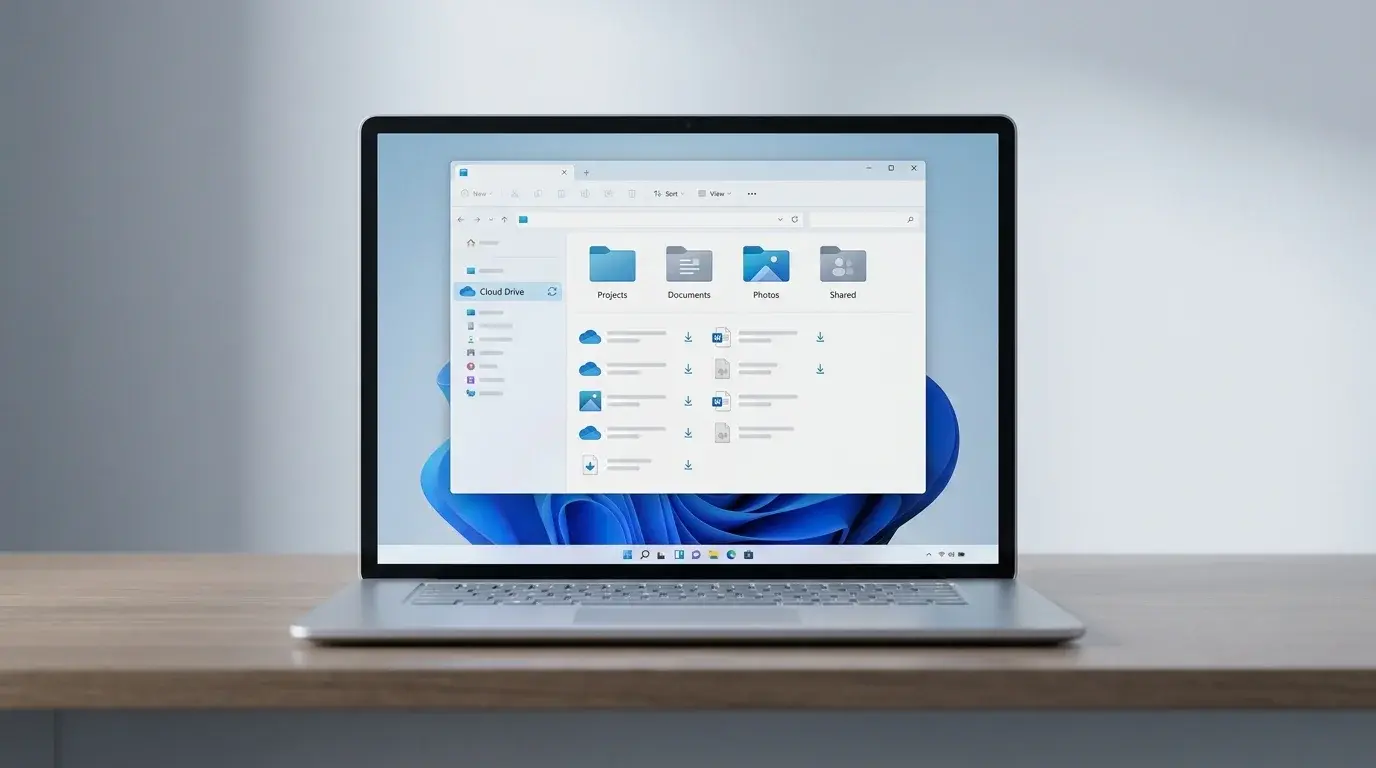
Windows laptop with File Explorer open beside a Google Drive cloud storage illustration
Table of Contents (23 sections)
- Before you start
- Step 1: Download and install Google Drive for desktop
- Step 2: Sign in and wait for Drive to start
- Step 3: Open Google Drive in File Explorer
- Why does Google Drive look different from an ordinary local folder?
- Step 4: Choose streaming or mirroring
- How to make Google Drive files available offline
- Google Drive is missing from File Explorer: what to check
- 1. Check whether Drive for desktop is running
- 2. Confirm that you are signed in to the right account
- 3. Restart Drive for desktop
- 4. Check whether the streaming drive letter is already in use
- 5. Check the connection and sync status
- 6. Check free disk space and app permissions
- 7. Update or reinstall only if simpler checks fail
- Does adding Google Drive to File Explorer download all your files?
- Is Google Drive in File Explorer the same as a shortcut to the website?
- Frequently asked questions
- Can I add Google Drive to File Explorer without installing software?
- Does Google Drive for desktop work with a work or school account?
- Can I choose a different drive letter for Google Drive?
- Will Google Drive sync changes from File Explorer?
- Sources and further reading
You can add Google Drive to Windows File Explorer by installing Google Drive for desktop and signing in to your Google Account. After setup, Google Drive appears as a location in File Explorer, where you can browse your Drive files alongside local folders without relying on a browser tab for every task.
The important choice is how files are stored on your PC. Streaming keeps most files in the cloud and uses local storage when needed, while mirroring keeps a full local copy of your My Drive files. Choose the option that fits your available disk space and offline needs.
Before you start
You need a compatible Windows computer, an internet connection for installation and sign-in, and a Google Account with access to the Drive files you want to use. Google Drive for desktop may be managed or restricted by a workplace or school administrator, so a managed account can have different setup options.
Download the app from Google's official page: Google Drive for desktop (opens in new tab). Avoid third-party download sites and installers that claim to be Google Drive.
Step 1: Download and install Google Drive for desktop
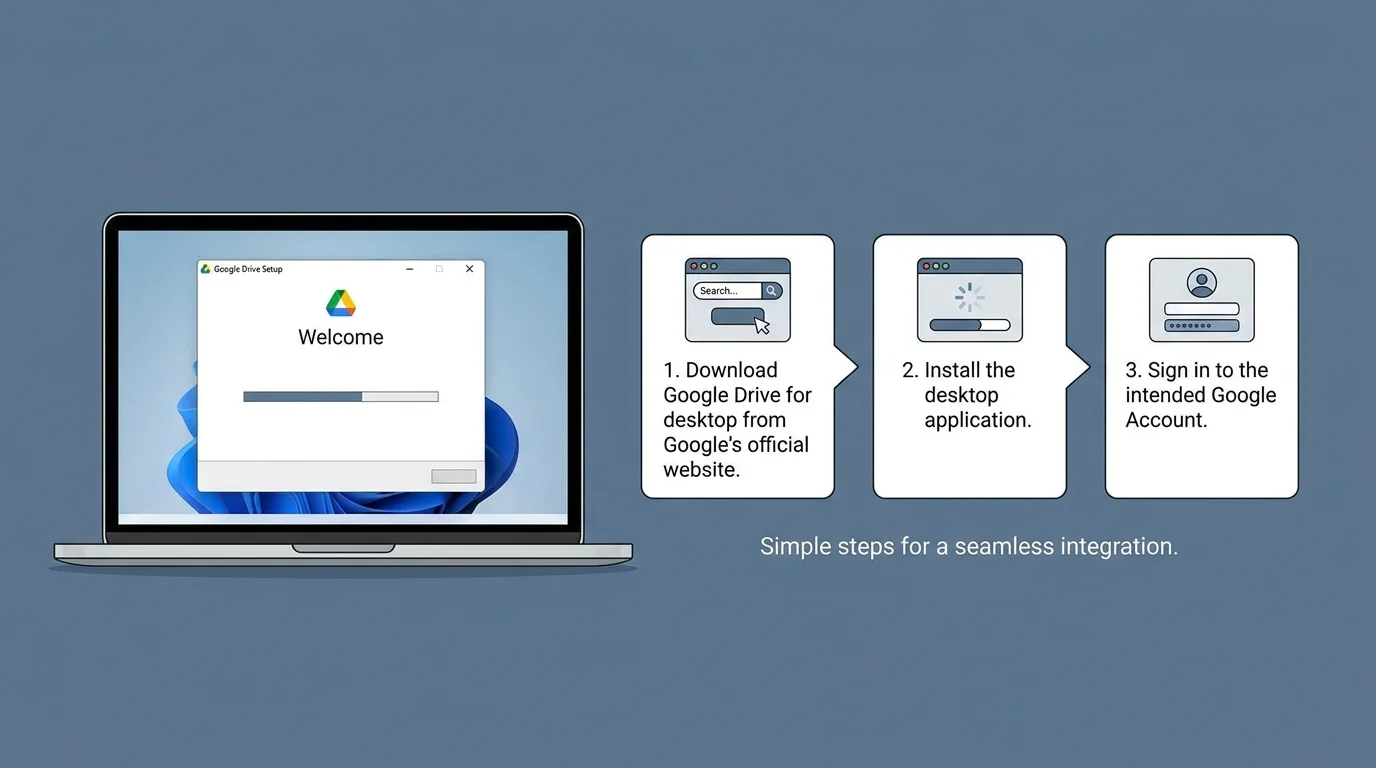
- Open the official Google Drive for desktop download page (opens in new tab).
- Choose the Windows download option.
- Open the downloaded
GoogleDriveSetup.exeinstaller. - Follow the installer prompts. Approve Windows permission prompts only when they match the installation you started.
- When setup opens Google Drive for desktop, select the option to get started and sign in to your Google Account.
If you are setting it up on a work or school computer, your organization might need to install or approve the app. If the installer is blocked, contact the administrator rather than downloading an unofficial copy.
Step 2: Sign in and wait for Drive to start
After installation, finish the browser sign-in flow and return to Google Drive for desktop. The Drive icon should appear in the Windows notification area, sometimes hidden under the small arrow next to the system tray icons.
Open the Drive menu and check the displayed account and sync status. If you use more than one Google Account, make sure you are signed in to the account containing the files you are trying to reach.
By default, Google Drive for desktop starts with Windows so your files remain synchronized in the background. If you ever need to inspect or customize startup programs, see our guide on how to stop apps from opening on startup in Windows 11.
Step 3: Open Google Drive in File Explorer
- Open File Explorer with
Windows + E. - Look in the navigation pane for Google Drive. Depending on the app configuration, you may also see a Google Drive location or drive letter under This PC.
- Open Google Drive, then browse My Drive and any shared locations available to your account.
- Double-click a file to open it with its associated application. Google Docs, Sheets, and Slides files may open in your browser, while other files can open in a desktop app.
You do not need to manually create a normal Windows folder and copy your entire cloud drive into it just to browse Drive. With streaming enabled, Google Drive for desktop provides a virtual drive location that integrates with File Explorer.
If you only want quick access to the Google Drive web interface rather than synchronizing files into File Explorer, you can also learn how to pin a website to the taskbar in Windows 11.
Why does Google Drive look different from an ordinary local folder?
When Drive files are streamed, they are primarily stored in the cloud and presented through a virtual drive on your computer. This uses less local disk space than downloading a full copy of My Drive. The drive location and letter can depend on your configuration and which letters are already in use.
When My Drive is mirrored, Drive files are stored both in the cloud and in a local folder you choose. This takes more disk space but makes the mirrored files available offline.
Step 4: Choose streaming or mirroring
Google Drive for desktop lets you choose how My Drive files are stored. To change the setting:
- Open the Google Drive for desktop menu in the Windows notification area.
- Select Settings, then Preferences.
- Open Folders from Drive.
- Under My Drive syncing options, select Stream files or Mirror files, depending on your goal.
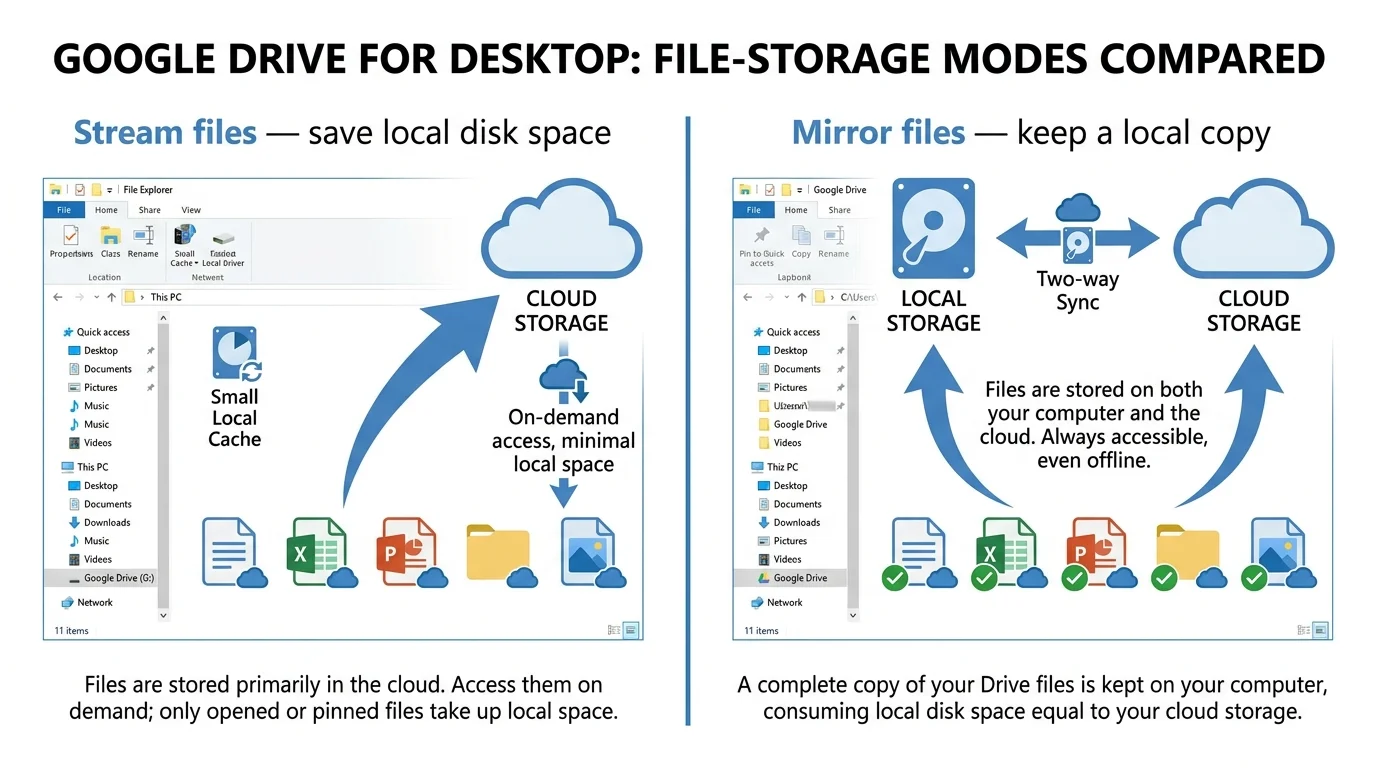
| Option | How it works | Best for |
|---|---|---|
| Stream files | Files stay primarily in the cloud. Local disk space is used for cache and files you work with or make available offline. Google Drive must be running to access the streamed location. | Saving local storage while browsing a large Drive library. |
| Mirror files | My Drive files are stored on your computer and in the cloud. | Keeping a full local copy of My Drive and accessing those mirrored files offline. |
Streaming is a useful default if local disk space is limited and your internet connection is reliable. Mirroring can be a better fit when you need a full local copy, but it uses space on your PC. Shared drives and some other content types are stream-only; not every item in Drive can be mirrored.
Important before switching: Let Drive finish syncing before you move or delete a previously mirrored folder. When changing from mirroring to streaming, Google instructs users to confirm syncing is complete and quit Drive for desktop before removing the old mirrored folder. Do not delete the local copy simply because you changed a setting; first confirm your files are safely synced to Drive.
How to make Google Drive files available offline
With streaming enabled, files are not necessarily all stored locally. To keep a specific file or folder available when you are offline:
- Open Google Drive in File Explorer.
- Select the file or folder you need.
- Right-click it and look for the Offline access option.
- Choose Available offline, if the option is available for that item, and wait for the local copy to finish preparing.
A status indicator can help you tell when an item is available offline. Google Docs, Sheets, and Slides have their own offline considerations, so follow Google's instructions for those file types rather than assuming the same behavior as a regular file.
Google Drive is missing from File Explorer: what to check
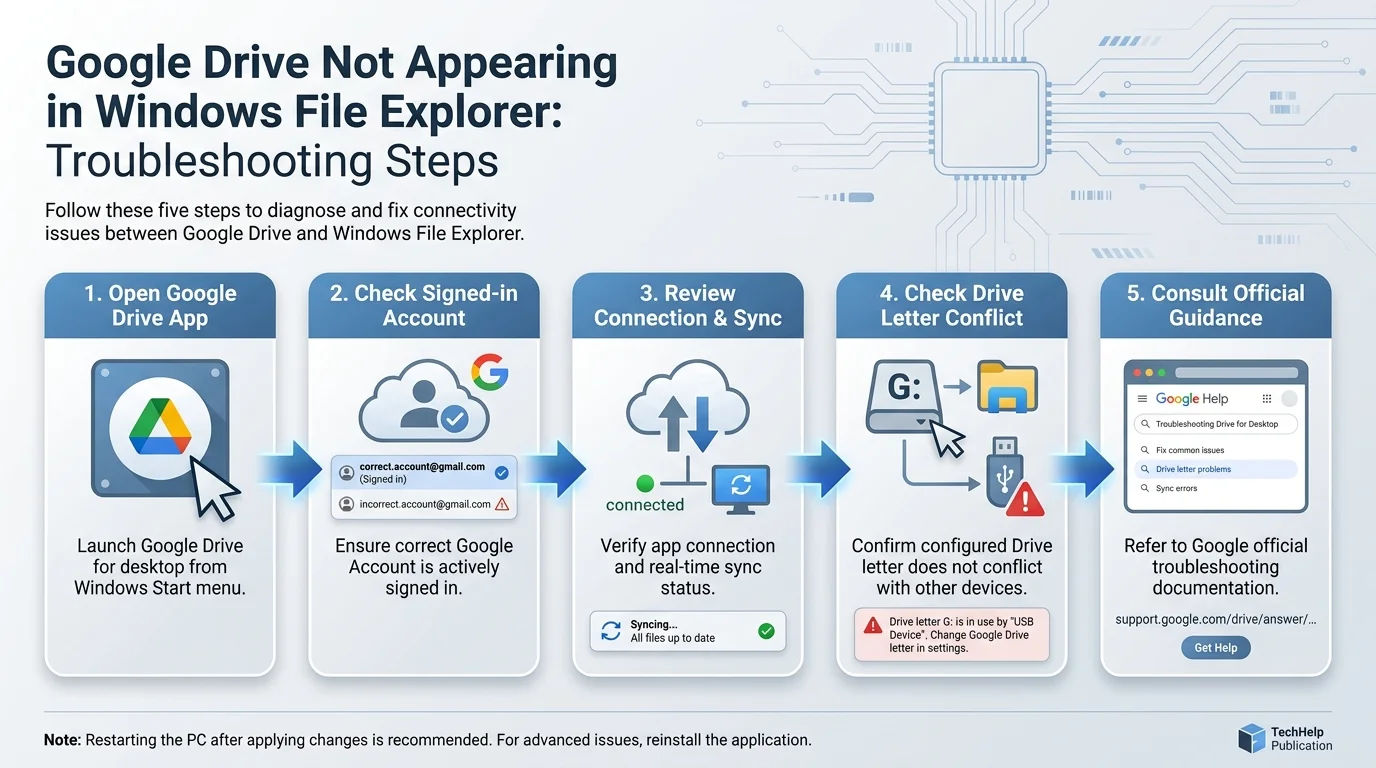
1. Check whether Drive for desktop is running
Look in the notification area and open the hidden-icons menu. If you cannot find Google Drive, open it from the Windows Start menu. Wait for it to start, then reopen File Explorer. If your PC boots slowly with multiple background services running, see our troubleshooting guide on how to fix slow startup in Windows.
2. Confirm that you are signed in to the right account
Open the Drive menu and check the account shown. If it is the wrong account, switch to the account that has access to the files. A work or school administrator may restrict which accounts can be used.
3. Restart Drive for desktop
Save open work first. Use the app's menu to quit Google Drive for desktop, then start it again from the Start menu. Reopen File Explorer and check for the Drive location. If needed, restart Windows after saving your work.
4. Check whether the streaming drive letter is already in use
Google Drive for desktop may choose another available drive letter if the selected letter is already used by another device or network location. If you configured a specific letter and the app cannot use it, disconnect or reconfigure the conflicting device only if you understand what it is. Do not remove an unfamiliar network mapping just to force Google Drive to use a particular letter.
5. Check the connection and sync status
Streaming depends on Google Drive for desktop running and an internet connection for cloud files that are not stored offline. Open the Drive menu and review its sync status. If the app reports an error, follow the relevant step in Google's Drive for desktop troubleshooting guide (opens in new tab).
6. Check free disk space and app permissions
Mirroring downloads files to your computer, so it requires enough local storage. Streaming also uses local cache space. If the computer is low on disk space, free space carefully and confirm the app has access it needs. On a managed PC, ask the administrator before changing security or application policies.
7. Update or reinstall only if simpler checks fail
Use Google's official download page for the current installer. Before reinstalling or disconnecting an account, read Google's guidance about streamed and mirrored files; disconnecting an account can remove locally cached offline content for streamed files. Do not delete mirrored folders until you have confirmed all intended files are synced.
Does adding Google Drive to File Explorer download all your files?
No. If you use streaming, files are primarily stored in the cloud and take up local space as needed for cache and offline access. If you use mirroring, My Drive files are kept both on your computer and online, using more local storage.
Is Google Drive in File Explorer the same as a shortcut to the website?
No. A browser shortcut opens the Google Drive website. Google Drive for desktop integrates with File Explorer and lets Windows applications interact with files through the supported Drive location. Some Google Docs, Sheets, and Slides files still open in a browser, and online access or permissions can affect how files behave. If you use Microsoft's cloud storage instead, you can similarly add OneDrive to File Explorer in Windows 11 or connect Microsoft 365 libraries with our guide on how to add SharePoint to File Explorer. If you store pictures in Drive and want them in your photo library, see our guide on how to move photos from Google Drive to Google Photos.
Frequently asked questions
Can I add Google Drive to File Explorer without installing software?
For the full File Explorer integration described here, install Google Drive for desktop. You can access Drive in a web browser without the app, but a browser bookmark is not the same as a File Explorer location.
Does Google Drive for desktop work with a work or school account?
It can, but an organization may limit the app or require an administrator to install or approve it. Check your organization's guidance if the installation or sign-in is blocked.
Can I choose a different drive letter for Google Drive?
Google Drive for desktop can use a virtual drive location, and available options may depend on the app configuration. A requested drive letter might not be available if another device or network location already uses it. Check the app's current preferences and Google troubleshooting guidance.
Will Google Drive sync changes from File Explorer?
Changes to supported files made through Drive for desktop can sync to Google Drive. Check the app's status before assuming a file is uploaded, particularly when the connection is unreliable or an error appears.
Sources and further reading
- Google Drive for desktop: Download and use the app (opens in new tab)
- Google Drive Help: Use Google Drive for desktop (opens in new tab)
- Google Drive Help: Stream and mirror files (opens in new tab)
- Google Drive Help: Fix problems with Drive for desktop (opens in new tab)
- Google Drive Help: Use files offline (opens in new tab)
Verified Primary Sources & Citations
NextTechExplained verifies facts against official documentation, engineering whitepapers, and regulatory filings.
- Google Drive for desktop: Download and use the appView Official Source
- Google Drive Help: Use Google Drive for desktopView Official Source
- Google Drive Help: Stream and mirror filesView Official Source
- Google Drive Help: Fix problems with Drive for desktopView Official Source
- Google Drive Help: Use files offlineView Official Source
Published by NextTechExplained
Editorial Team • Institutional Publication Byline
Articles published under this byline are prepared through rigorous research and verified against official engineering specifications, standards documentation, and primary sources. Learn more about our process on our About page and Editorial Policy.
Related Explanations & Guides
How to Add OneDrive to File Explorer in Windows 11
Set up OneDrive in Windows 11 File Explorer, sign in to your Microsoft account, manage Files On-Demand, and fix a missing OneDrive folder.
How to Add SharePoint to File Explorer in Windows 11
Access a SharePoint document library from Windows 11 File Explorer using Add shortcut to OneDrive or Sync, with setup and troubleshooting steps.
How to Move Photos from Google Drive to Google Photos
Add photos from Google Drive to Google Photos, understand account limitations, check supported formats and storage, and avoid deleting originals by mistake.