
How to Add Photos to Google Photos from a Phone or Computer
Learn how to add photos to Google Photos manually, enable phone backup, upload files from a computer, and check that your pictures have finished uploading.
Editorial Team
A laptop and smartphone showing photo libraries and upload symbols, representing adding photos to Google Photos
Table of Contents (24 sections)
- Choose the right way to add your photos
- 1. Upload photos from a computer
- Back up a computer folder automatically
- 2. Add photos from an Android phone
- Turn on automatic backup
- Back up just one photo or a few selected photos
- Include photos from other Android folders
- 3. Add photos from an iPhone or iPad
- 4. Check that your photos actually uploaded
- 5. Supported files, account storage, and upload limits
- 6. Why are my photos not appearing in Google Photos?
- I'm signed in, but the photos aren't online
- Photos from WhatsApp, Downloads, or Screenshots are missing
- Backup is stuck or paused
- The files are on Google Drive
- I want to add a whole computer folder, not select individual files
- Frequently asked questions
- How do I add photos to Google Photos without turning on backup for everything?
- Why can I see a photo in the app but not at photos.google.com?
- Can I upload photos from a computer automatically?
- Do I need to add the same photo twice if it is already backed up?
- Does adding photos use Google Account storage?
- Is importing photos from Google Drive the same as turning on phone backup?
- Official sources
To add photos to Google Photos, choose the method that matches where the pictures are stored. On a computer, upload selected files through photos.google.com (opens in new tab). On Android or iPhone, turn on Backup to upload photos automatically, or use Back up now for selected items. If photos are missing from an Android folder such as Downloads or WhatsApp, check whether that device folder is included in backup.
The key difference is that uploading selected files and turning on automatic backup are not the same thing. A manual upload is useful for a few photos, while backup keeps adding eligible new photos from your chosen device or folders. Google Account storage is shared across Google Photos, Drive, and Gmail, so check available storage before starting a large upload.
Choose the right way to add your photos
| Where your photos are now | Best method | What to check |
|---|---|---|
| Windows PC or Mac | Upload files through photos.google.com, or select a folder for backup in a supported browser | Correct Google Account and available storage |
| Android phone or tablet | Turn on Backup, or use Back up now on selected photos | Backup account and device-folder settings |
| iPhone or iPad | Turn on Backup, or use Back up now on selected photos | Photos permission and backup status |
| Another Android app folder | Enable that specific device folder in Google Photos settings | Folder backup is separate from camera backup |
| Google Drive | Use the dedicated Drive-to-Photos import process (see how to move photos from Google Drive to Google Photos) | This creates a separate copy and uses Google Account storage |
1. Upload photos from a computer
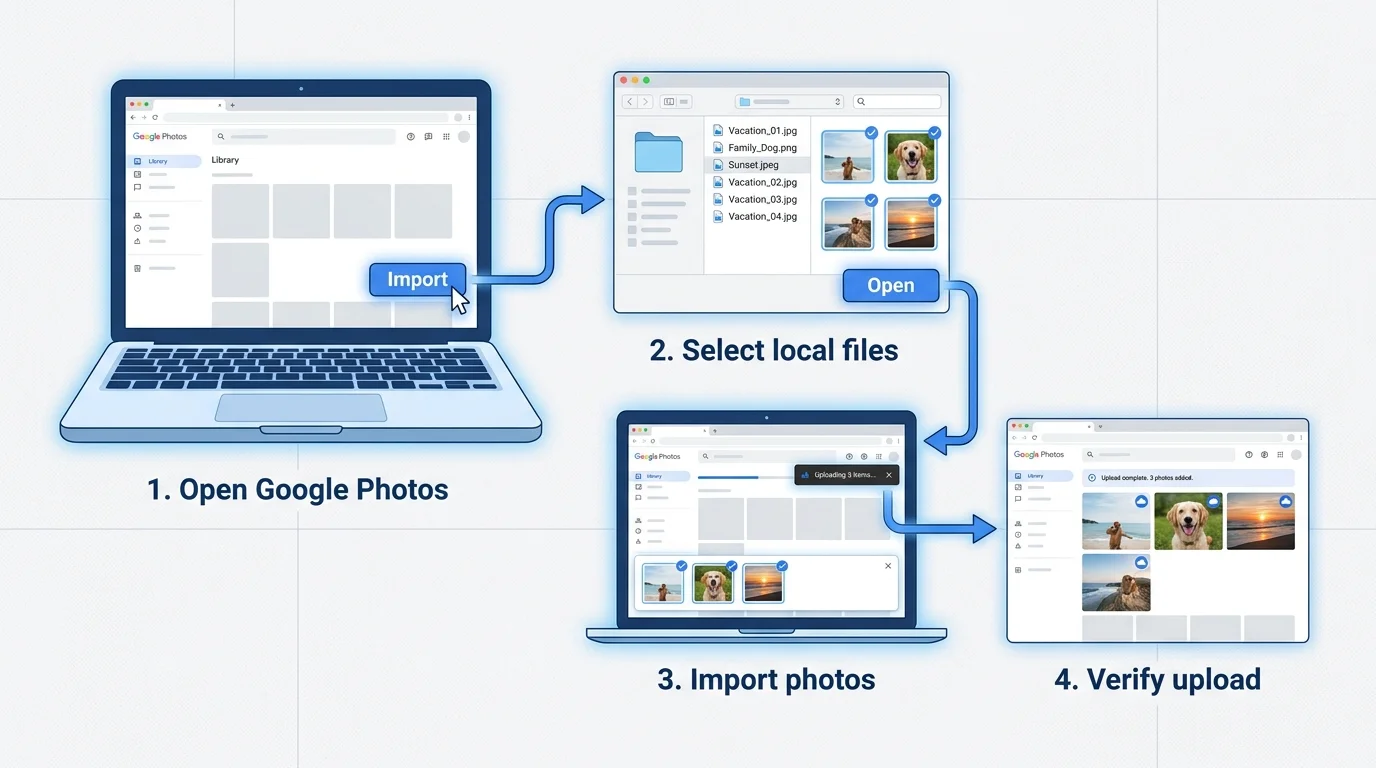
This is usually the simplest option when you already have JPG, PNG, or other supported image files in a folder on your computer and only want to upload selected items.
- Open Google Photos (opens in new tab) in a browser and sign in to the Google Account where you want the photos stored.
- At the top right, select Create and add photos. Depending on the current interface, this may appear as a plus or Create button.
- Under Add photos, choose Import photos.
- Browse to the folder containing your images and select the files you want to add.
- Select Open and let the upload finish.
- Return to the Photos library and check that the newly added items appear.
You can also drag photo files from your computer to Google Photos. If you drag them into a particular album, they can be uploaded to that album (see our guide on how to organize Google Photos). Google changes interface labels from time to time, so if the button is arranged differently, follow the current controls at Google Photos (opens in new tab) and consult Google's computer backup instructions (opens in new tab).
Back up a computer folder automatically
If you regularly add new images to a folder on your computer, you may prefer folder backup instead of manually selecting files each time.
- Open Google Photos in a supported Chromium-based browser such as Chrome or Edge.
- Select Create and add photos, then Back up folders.
- Choose the folder you want Google Photos to monitor.
- Grant the requested permission to access that folder.
- Keep the Google Photos tab open or the Photos web app running so the browser-based backup can continue.
Folder backup is not the same as importing one batch of files. Google Photos attempts to back up eligible content in the selected folder, including new content that has not already been backed up. Apple's Photos Library is not supported by the browser folder-backup workflow; use the Google Photos app on an iPhone or iPad for that device's library instead. See Google's computer backup instructions (opens in new tab) for current requirements.
2. Add photos from an Android phone
Turn on automatic backup
Use this method if you want eligible photos from your phone's camera and selected folders to upload over time.
- Open the Google Photos app.
- Sign in to the Google Account that should receive the backup.
- Tap your profile picture or initial.
- Open Photos settings, then Backup.
- Turn Backup on.
- Review the backup account and settings before leaving the page.
- Keep the phone connected to a reliable network and allow time for uploads to finish.
Google Photos normally queues eligible items for upload. The time required depends on the number and size of files, the connection, battery restrictions, and other device conditions. Turning Backup on does not mean every item has uploaded immediately, so check the status before assuming the process is complete.
Back up just one photo or a few selected photos
If you do not want to back up the entire camera roll, open an individual photo or video in Google Photos and tap Back up now if the option is available. To back up several selected items, touch and hold the items you want, then select Back up. Controls can vary by version, so follow the options displayed in your app.
Include photos from other Android folders
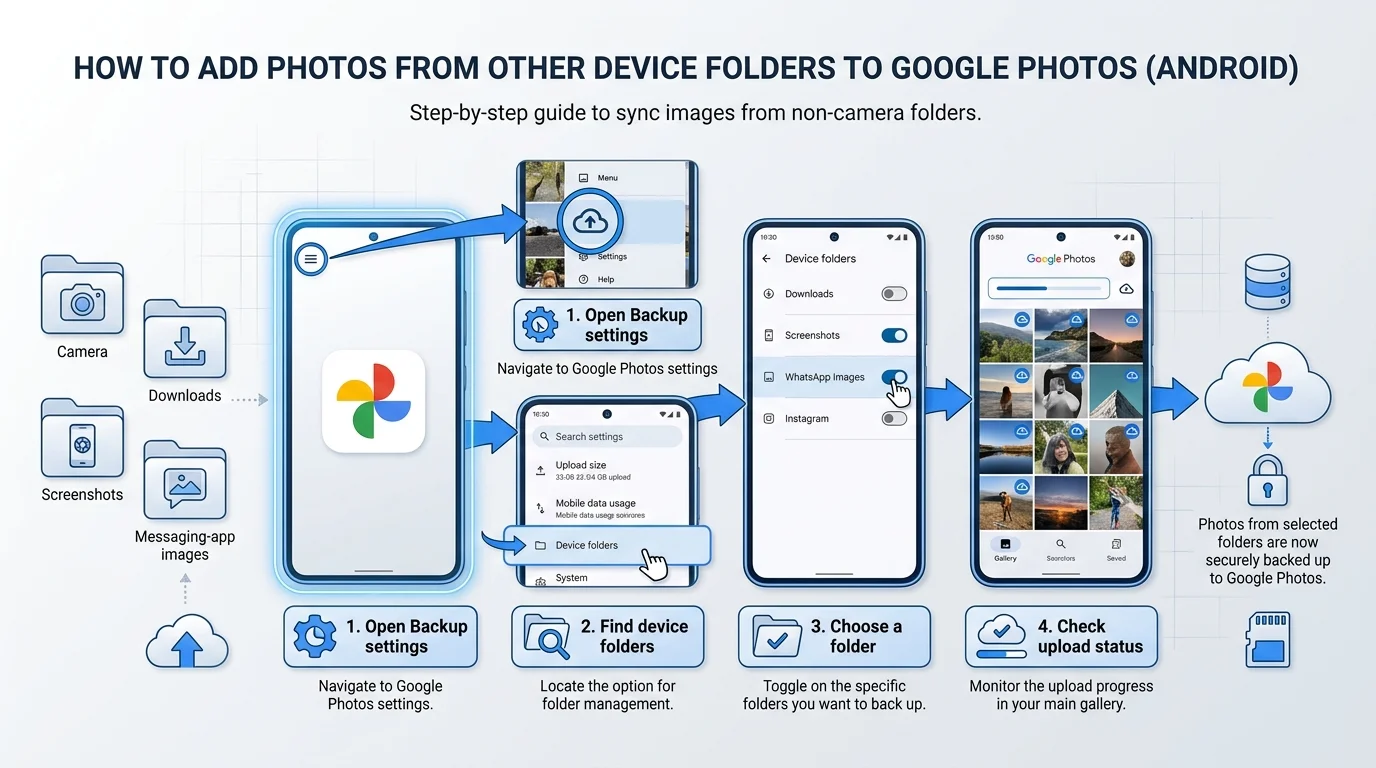
Screenshots, downloaded pictures, and images saved by messaging apps may live outside the main camera folder. If those items are not appearing in your Google Account, check their device folders:
- Open Google Photos and tap your profile picture or initial.
- Go to Photos settings, then Backup.
- Choose Back up device folders.
- Find the folder you need, such as Screenshots or Downloads, if it is listed.
- Turn on backup for that folder if you want its eligible photos and videos uploaded.
The available folders depend on the apps and files on your phone. Turning on camera backup does not necessarily mean every folder created by another app is included. Google explains this distinction in its guide to items from other apps and devices (opens in new tab). If you want to stop certain folders or the entire camera roll from uploading automatically in the future, see our guide on how to stop Google Photos backup.
3. Add photos from an iPhone or iPad
For ongoing backup on an Apple device:
- Open the Google Photos app and sign in to the intended Google Account.
- Tap your profile picture or initial.
- Open Google Photos settings, then Backup.
- Turn Backup on.
- If iOS asks for photo-library access, open the iPhone or iPad's Settings and grant Google Photos the required Photos permission.
- Keep the app open while it is uploading, particularly when the queue is large. Connecting the device to power can also help the process continue.
To upload a particular photo or video manually, open it in Google Photos and select Back up now if shown. To back up multiple items manually, touch and hold the photos or videos you want and choose Back up.
Google notes that backup can take time. The status at the top of the app should eventually report Backup complete when the eligible queue has finished. If you switch accounts, make sure you're checking the account you intended to use. See Google's iPhone and iPad backup instructions (opens in new tab).
4. Check that your photos actually uploaded
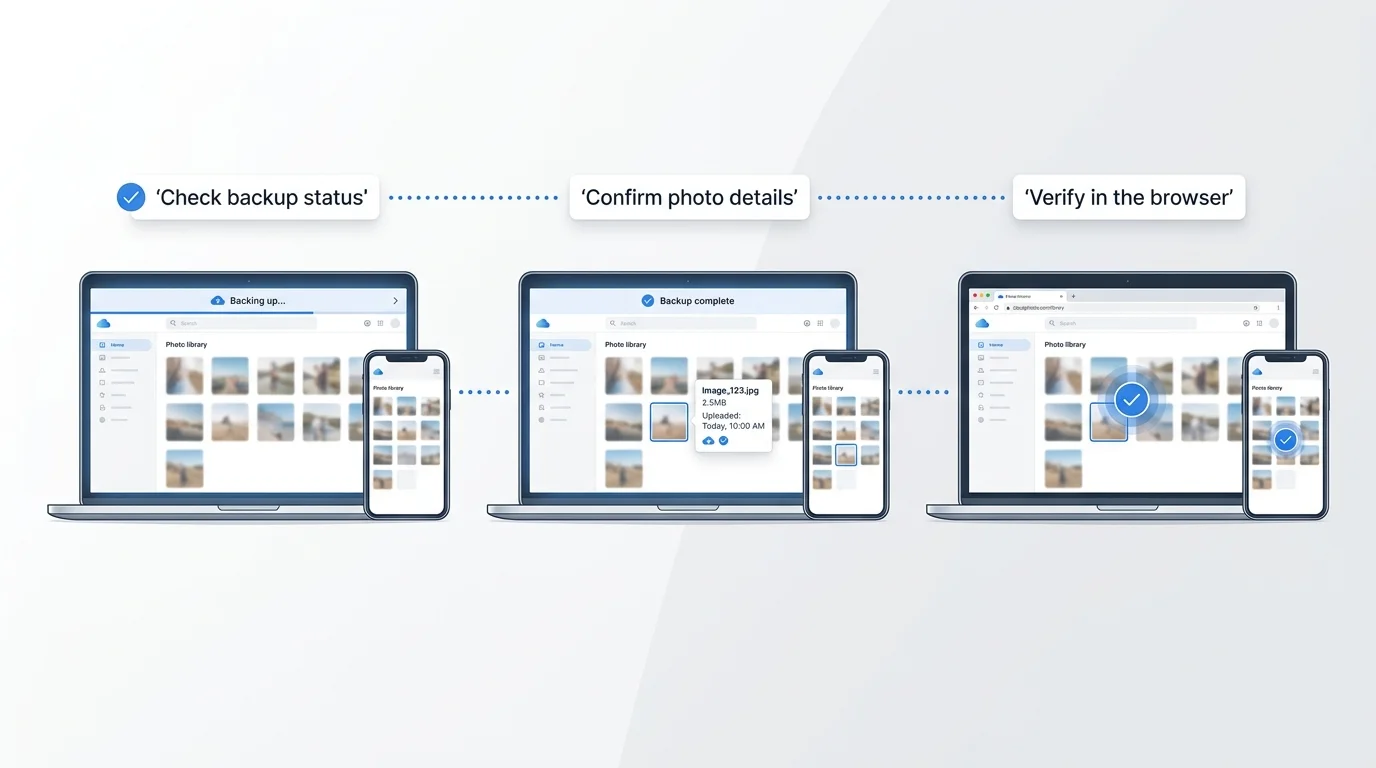
Seeing a photo inside the Google Photos app is not always proof that the photo is backed up to your Google Account. The app can also display pictures stored locally on the device.
Use these checks:
- Confirm that the correct Google Account is selected.
- Open your profile menu and check the overall backup status.
- Wait until the app reports Backup complete, or until the number of items remaining to upload reaches zero where that status is shown.
- Open a specific photo, view its information or details, and check its backup status.
- If you're unsure, open photos.google.com (opens in new tab) in a browser, sign into the same account, and look for the uploaded photo there.
Google's Check your backup guide (opens in new tab) explains how to check the overall status and an individual item's status. Don't delete local files from your phone until you have verified that anything important is safely backed up or copied elsewhere (see our guides on how to download photos from Google Photos and how to delete photos from Google Photos without deleting them from your phone).
5. Supported files, account storage, and upload limits
Google lists requirements for the photos and videos that can be backed up. Its current guidance includes photos up to 200 MB or 200 megapixels, videos up to 10 GB, and items larger than 256 by 256 pixels. Supported formats include common photo formats such as JPG, HEIC/HEIF, PNG, WebP, GIF, AVIF, and most RAW files. Video format support is a separate list, and not every file type will work.
Before uploading a large library:
- Check the free space available in the Google Account you're using.
- Confirm that the file format is supported.
- Check whether you are uploading to a personal or work/school account with different administrative policies.
- Prefer Wi-Fi for large uploads if you want to avoid using mobile data.
- Keep a separate copy of important originals if you need an independent backup.
Google Account storage is shared by Google Photos, Google Drive, and Gmail. Adding more photos can use that shared storage depending on the content and applicable storage rules. If your account is full, new uploads may pause or fail until you resolve the storage problem; see our complete guide on how to free up Google Photos storage for practical solutions. Review Google's backup requirements (opens in new tab) and its storage-management guidance (opens in new tab).
6. Why are my photos not appearing in Google Photos?
I'm signed in, but the photos aren't online
Check the backup status and confirm the correct Google Account. Pictures visible locally in the app are not necessarily backed up. Open the details for a photo or visit photos.google.com in a browser to verify.
Photos from WhatsApp, Downloads, or Screenshots are missing
On Android, open Photos settings > Backup > Back up device folders and enable the relevant folder if it is available. This setting is separate from the general Backup switch for selected device folders.
Backup is stuck or paused
Check your internet connection, available Google Account storage, battery restrictions, and the backup status message. For iPhone and iPad, Google advises keeping the app open during backup; for computer folder backup, the Photos tab or web app may need to remain running. Large uploads can take time.
The files are on Google Drive
Drive files are not automatically the same thing as items in your Google Photos library. Use Google's Drive-to-Photos import workflow (opens in new tab) if it is available for your account (see our step-by-step guide on how to move photos from Google Drive to Google Photos), or download eligible files and upload them through the supported method. Items copied from Drive to Photos create a separate copy and can use additional Google Account storage.
I want to add a whole computer folder, not select individual files
Use the browser's Back up folders option if it is available, and make sure you're using a supported Chromium-based browser. It is designed for folder backup rather than a one-time upload. Follow the current official instructions if the option is missing or the browser is reported as unsupported.
Frequently asked questions
How do I add photos to Google Photos without turning on backup for everything?
Manually back up selected photos in the mobile app using Back up now or Back up, or select files through Google Photos on a computer. The exact options depend on your device and the interface version.
Why can I see a photo in the app but not at photos.google.com?
The photo may exist only on the phone, backup may be paused or off, the wrong Google Account may be selected, or the photo may be in a device folder that is not included in backup.
Can I upload photos from a computer automatically?
Yes. Google Photos provides a Back up folders option on the web for supported Chromium-based browsers. The tab or Photos web app needs to remain open for the backup process to continue.
Do I need to add the same photo twice if it is already backed up?
Usually not. Check the item's backup status and the account first. Google Photos can recognize content that has already been backed up, although edited or previously deleted items can behave differently under Google's current folder-backup rules.
Does adding photos use Google Account storage?
It can. Google Photos shares account storage with Google Drive and Gmail, and storage usage depends on the file and the rules that apply to it. Check the current storage page before uploading a large collection.
Is importing photos from Google Drive the same as turning on phone backup?
No. Phone backup uploads eligible content from your device and selected folders. The Drive import workflow copies eligible files from Drive to Photos, and the copy can count separately toward your Google Account storage.
Official sources
- Google Photos: Back up photos and videos on a computer (opens in new tab)
- Google Photos: Back up photos and videos on Android (opens in new tab)
- Google Photos: Back up photos and videos on iPhone and iPad (opens in new tab)
- Google Photos: Check your backup (opens in new tab)
- Google Photos: Find items from other apps and devices (opens in new tab)
- Google Photos: Import photos to your library (opens in new tab)
- Google Photos: Add photos and videos from Google Drive to Google Photos (opens in new tab)
Verified Primary Sources & Citations
NextTechExplained verifies facts against official documentation, engineering whitepapers, and regulatory filings.
- Google Photos Help: Back up photos and videos on a computerView Official Source
- Google Photos Help: Back up photos and videos on AndroidView Official Source
- Google Photos Help: Back up photos and videos on iPhone and iPadView Official Source
- Google Photos Help: Check your backupView Official Source
- Google Photos Help: Find items from other apps and devicesView Official Source
- Google Photos Help: Import photos to your libraryView Official Source
- Google Photos Help: Add photos and videos from Google Drive to Google PhotosView Official Source
Published by NextTechExplained
Editorial Team • Institutional Publication Byline
Articles published under this byline are prepared through rigorous research and verified against official engineering specifications, standards documentation, and primary sources. Learn more about our process on our About page and Editorial Policy.
Related Explanations & Guides
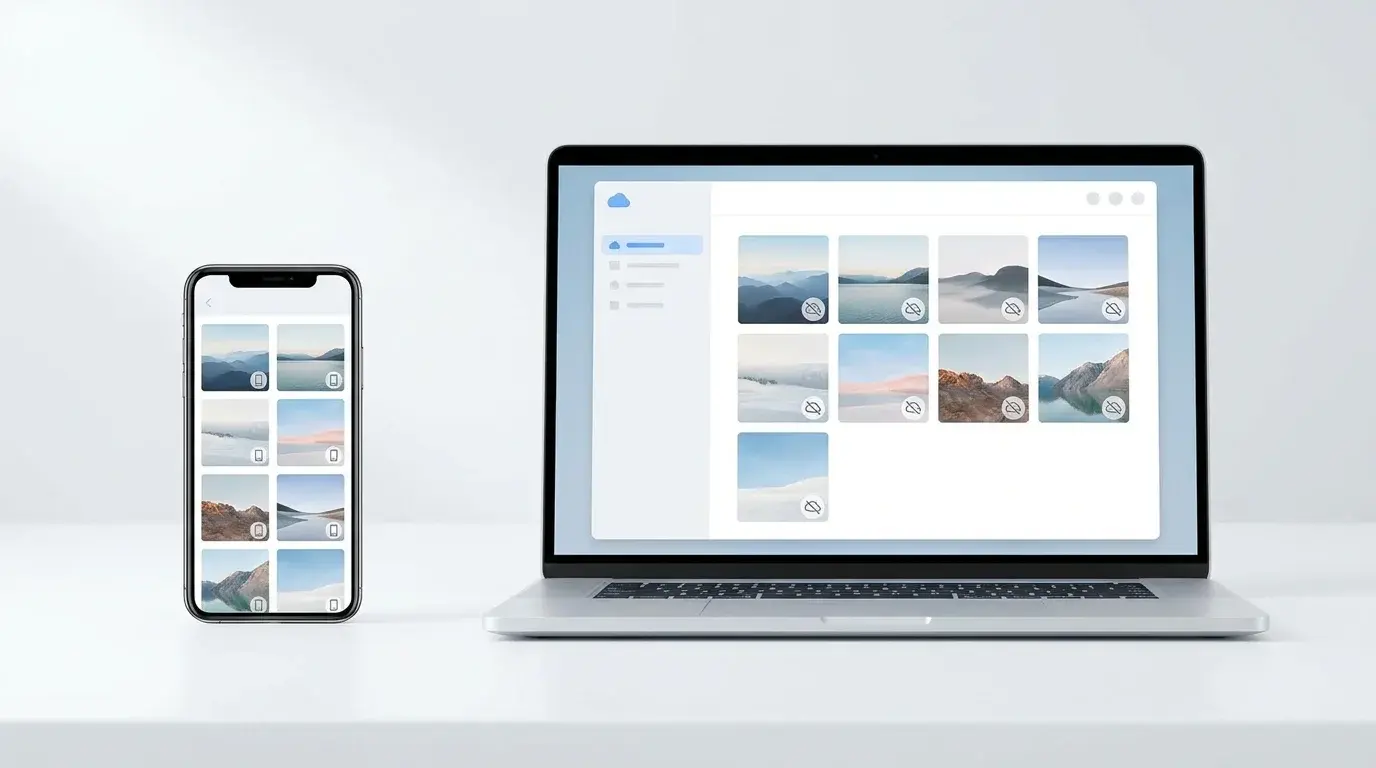
How to Delete Photos from Google Photos Without Deleting Them from Your Phone
Remove backed-up photos from Google Photos while keeping local copies on your Android or iPhone. Follow the safe web-deletion steps and learn when to use Undo backup.
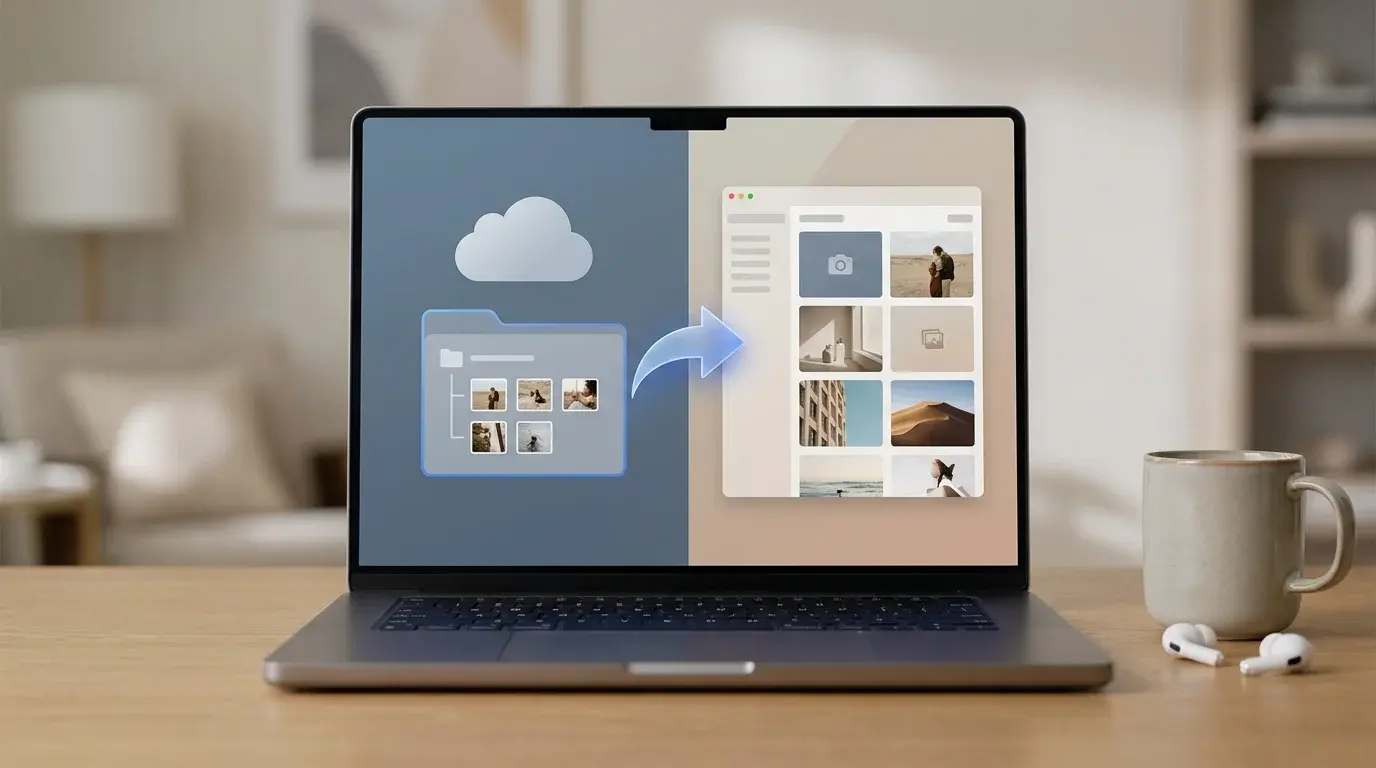
How to Move Photos from Google Drive to Google Photos
Add photos from Google Drive to Google Photos, understand account limitations, check supported formats and storage, and avoid deleting originals by mistake.
How to Delete All Photos from Google Photos Safely
Learn how to bulk-delete photos and videos from Google Photos on a computer or phone, understand what happens to synced copies, and avoid irreversible mistakes.