
How to Format a USB Drive to FAT32 in Windows 11
Format a USB flash drive as FAT32 in Windows 11, understand why FAT32 may be missing for larger drives, and choose the right file system safely.
Editorial Team
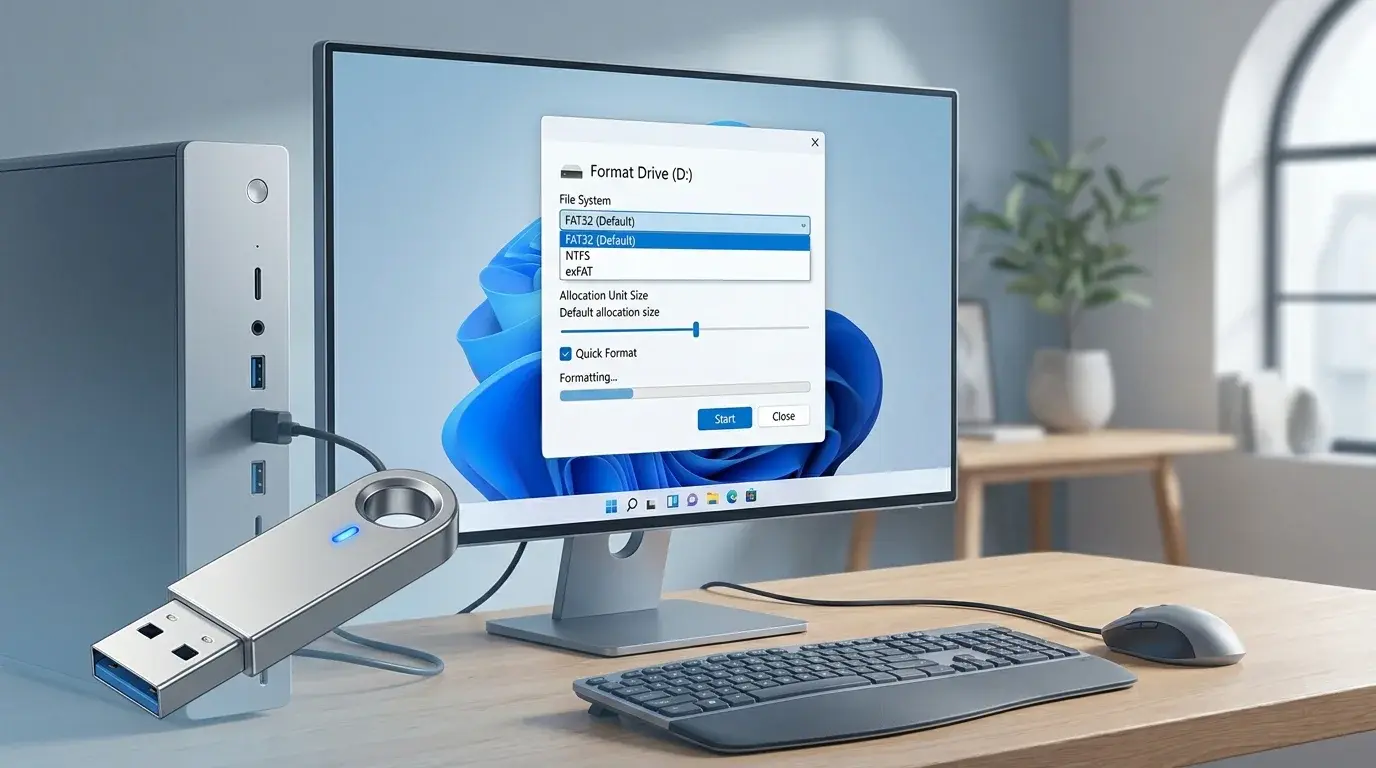
USB flash drive beside a Windows 11-inspired format dialog with FAT32 selected
Table of Contents (21 sections)
- Before you format the USB drive
- Method 1: Format the USB drive in File Explorer
- Method 2: Format a larger USB drive with Command Prompt
- Why is FAT32 missing from the Format dialog?
- Option A: Use exFAT if the target device supports it
- Option B: Use the device manufacturer's official tool when required
- How to check the USB drive's current file system
- Troubleshooting common problems
- The USB drive does not appear in File Explorer
- Windows says the drive is write-protected
- The USB drive reports the wrong capacity or formatting fails
- A file will not copy to the formatted drive
- FAT32 or exFAT: which should you choose?
- Frequently asked questions
- Will formatting a USB drive to FAT32 delete files?
- Why can I format a small USB to FAT32 but not a larger one?
- Can FAT32 store a file larger than 4 GB?
- Should I use quick format?
- Final checks
- Related guides
- Sources
Formatting a USB flash drive as FAT32 can help it work with devices that expect that file system, including some TVs, game consoles, older computers, and certain boot or recovery workflows. In Windows 11, the process is simple when the FAT32 option is available. The main catch is that Windows' standard formatting interface often does not offer FAT32 for larger USB drives.
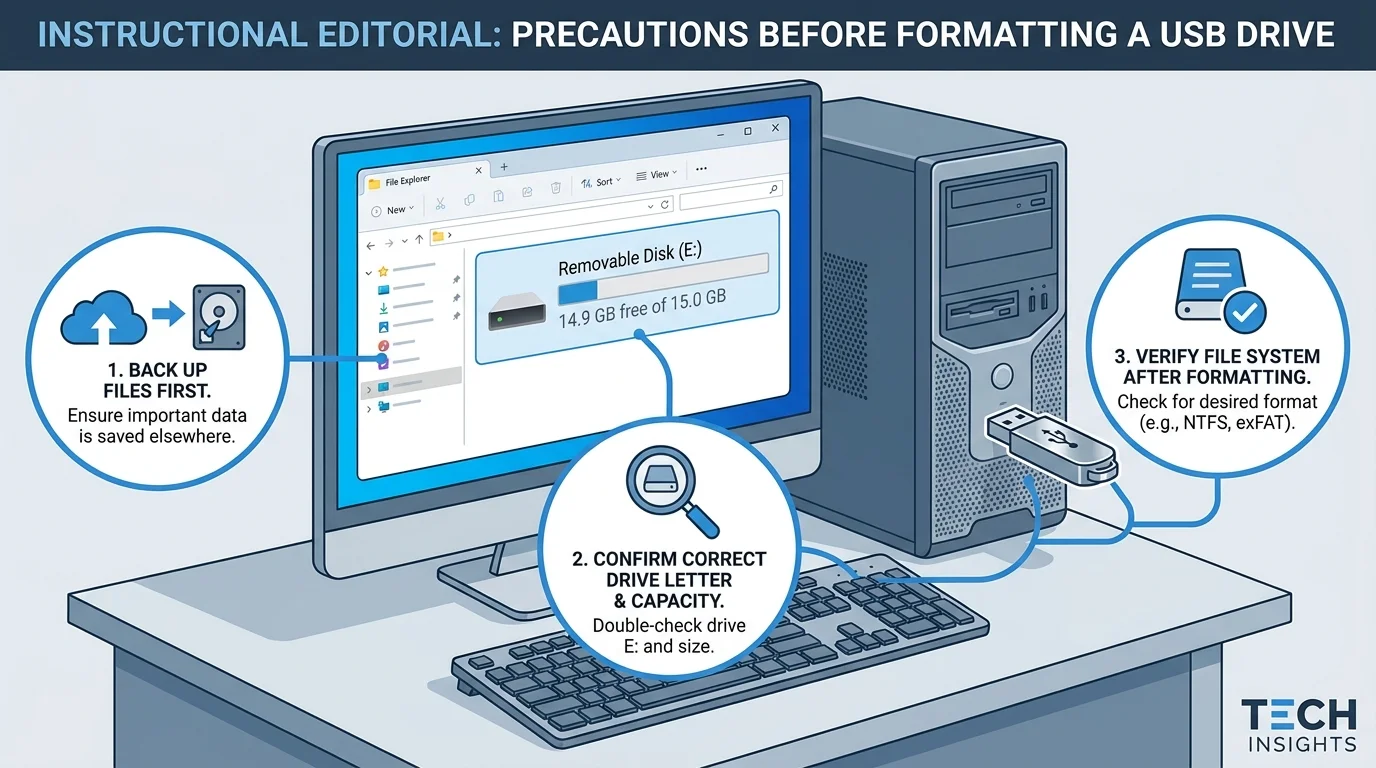
Important: Formatting erases the existing files on the selected drive. Copy anything you need to keep to another location first, and double-check the drive letter and capacity before you start. Microsoft's Disk Management guidance also warns that formatting destroys data on the selected volume.
Before you format the USB drive
First, confirm why you need FAT32. A device may explicitly require it, or you may be following instructions for a bootable or recovery USB. For example, updating motherboard firmware through utilities like Q-Flash (described in our Gigabyte AORUS Secure Boot guide) typically requires a flash drive formatted with the FAT32 file system. If your device supports exFAT, that may be a better choice for a modern large-capacity drive because FAT32 cannot store a single file of 4 GiB or larger. Check the device maker's requirements rather than choosing a file system at random.
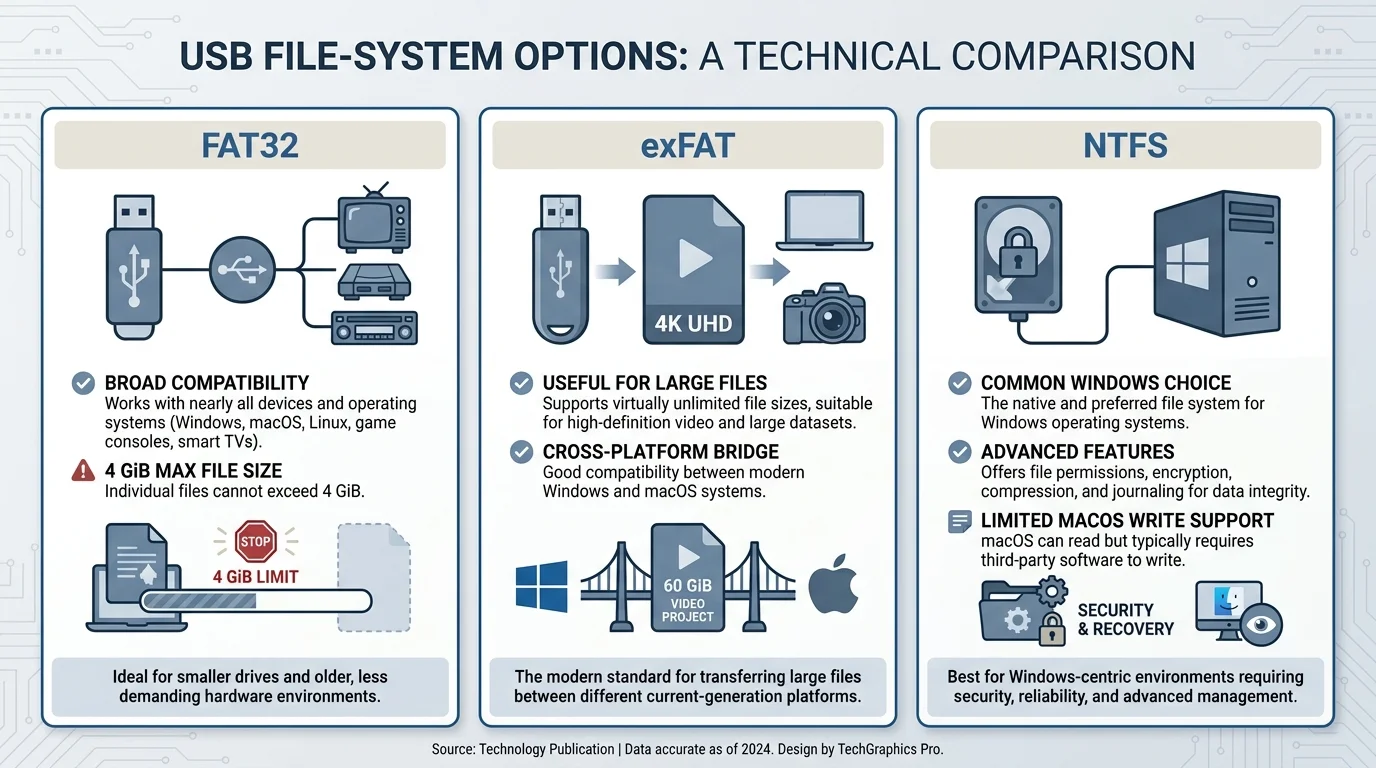
FAT32, exFAT, and NTFS are different file systems:
- FAT32: Broad compatibility with many devices, but a maximum individual file size of 4 GiB.
- exFAT: Often a practical choice for exchanging large files between modern devices, provided those devices support it.
- NTFS: Commonly used for Windows storage and supports larger individual files, but some non-Windows devices may not support writing to it.
Microsoft's file-system comparison lists the FAT32 maximum file size as 4 GiB. Compatibility depends on the device, so check its manual when the USB is intended for a TV, console, camera, car stereo, or another non-PC device. If you want to understand how connector shapes and data transfer speeds differ across generations, check our guide on what USB stands for and USB versions explained. If you frequently transfer large files over external connections, make sure your cables support high speeds; see our guide on how to choose a USB-C cable for wattage and data speeds.
Method 1: Format the USB drive in File Explorer
Use this method when Windows offers FAT32 in the Format dialog. It is the easiest option for many smaller USB flash drives.
- Connect the USB flash drive to your PC.
- Open File Explorer and select This PC.
- Under Devices and drives, identify the USB drive. Check both its displayed capacity and drive letter so you do not select another disk.
- Right-click the USB drive and choose Format. In some layouts, you may need to select Show more options first.
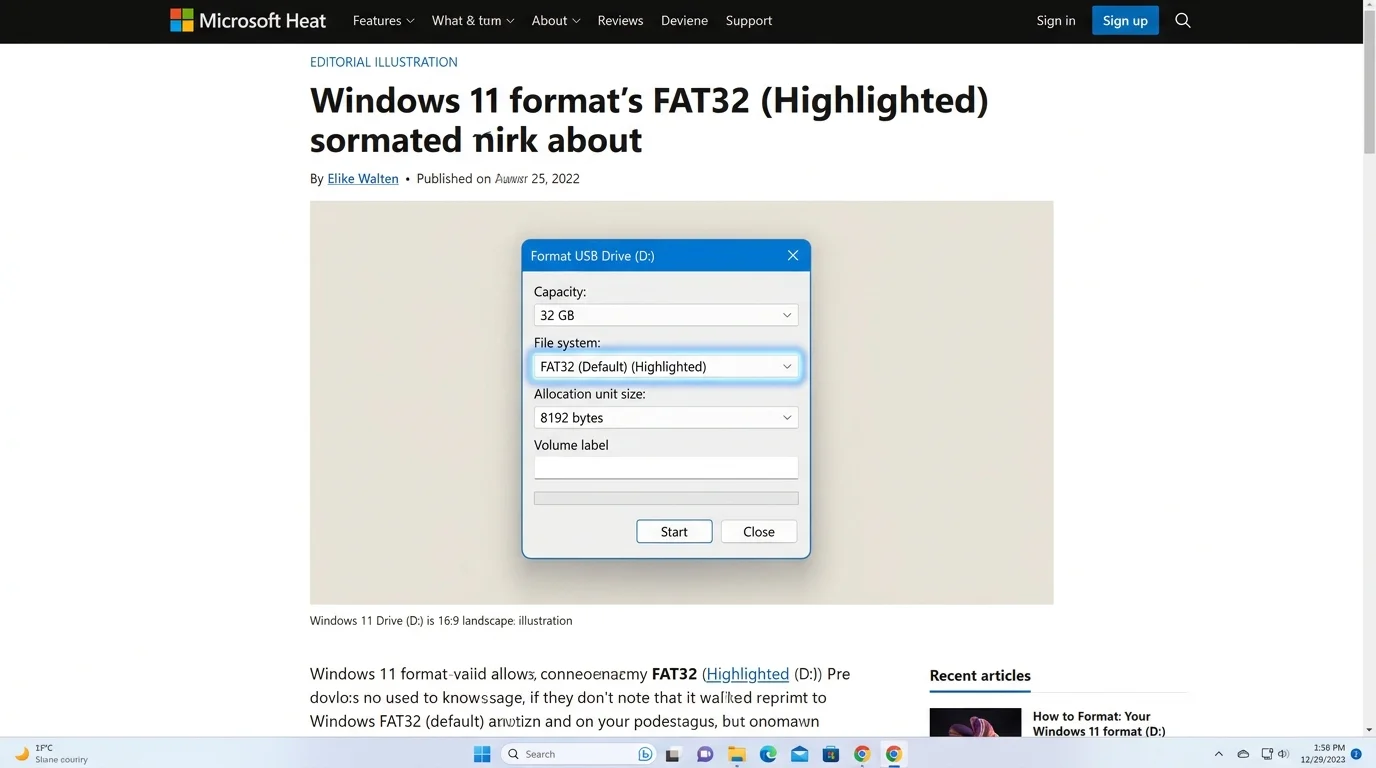
- Open the File system menu. Choose FAT32 if it is listed.
- Leave Allocation unit size at its default unless the device instructions specify otherwise.
- Enter an optional volume label.
- Select Quick Format for a normal reformat of a drive you believe is healthy. Understand that quick format recreates file-system structures; it is not a full sector-by-sector overwrite or a complete secure-erasure method.
- Recheck that the selected drive is the USB flash drive you intend to erase, then select Start and confirm the warning.
- Wait for Windows to report that formatting is complete, then reopen the drive and confirm it is accessible.
If FAT32 is not listed, do not choose another format blindly. Continue to the next section to understand why the option may be missing and what to do instead.
Method 2: Format a larger USB drive with Command Prompt
The standard File Explorer Format dialog may not offer FAT32 for a drive larger than 32 GB. Microsoft has raised the FAT32 formatting limit for the Windows command-line format command from 32 GB to 2 TB in updated Windows 11 builds. Availability depends on the Windows version and updates installed; the graphical dialog may still have the older limit.
Do not run this command until you have confirmed the correct USB drive letter. Formatting erases the selected volume.
Back up anything you want to keep from the USB drive.
Open File Explorer, select This PC, and check the USB drive letter and capacity.
Open Terminal or Command Prompt. Use an elevated window if Windows requests administrator permission.
Replace
X:in the example below with the USB drive's actual letter. Keep the colon.format X: /FS:FAT32 /Q /V:USBFAT32Read the command-line confirmation carefully. If the displayed volume or drive is not the USB you intend to erase, cancel. Proceed only after verifying the target.
Wait for formatting to finish, then check the drive in File Explorer and verify its file system in Properties.
/FS:FAT32 selects FAT32, /Q requests a quick format, and /V:USBFAT32 assigns a short volume label. Quick format is not secure erasure and does not perform a full sector-by-sector scan. If Windows reports that the command or size is unsupported, do not try random destructive DiskPart commands; check that Windows is fully updated and consult Microsoft's current formatting guidance.
Why is FAT32 missing from the Format dialog?
The built-in graphical Format dialog has historically limited FAT32 formatting to volumes of 32 GB or less. That is a limit of the formatting interface, not the maximum file size supported by FAT32 and not proof that the USB drive is faulty. The updated Windows command-line formatter can support larger FAT32 volumes, while behavior can differ by Windows build and tool.
Option A: Use exFAT if the target device supports it
If your goal is to move large files between compatible modern devices, exFAT may be the simpler choice. Select exFAT in the Format dialog if the target device supports it. FAT32 cannot store a single file of 4 GiB or larger, even on a larger-capacity volume.
Option B: Use the device manufacturer's official tool when required
If a device specifically requires FAT32 and the built-in formatter on your PC cannot create it, check the manufacturer's official instructions or use its official media-creation tool if available. For recovery media or bootable USBs, the tool may create the required partitions and file systems automatically. Note that formatting alone does not make a drive bootable; follow our guide on how to boot from USB on a Windows PC for instructions on creating official media and opening the one-time boot menu. Microsoft, for example, documents Surface recovery workflows that require FAT32 and warns that creating recovery media erases the USB drive.
If a third-party formatter is necessary, obtain it only from its official publisher, verify the selected drive carefully, and avoid bundled download sites or utilities that promise unrelated "driver fixes." Any formatting utility can erase the selected volume. Never use a DiskPart clean command unless you deliberately intend to remove the selected disk's partition information and have positively identified the correct disk.
How to check the USB drive's current file system
You can see the file system without formatting the drive:
- Open File Explorer and select This PC.
- Right-click the USB drive and select Properties.
- On the General tab, look beside File system.
If it already says FAT32, you do not need to reformat the drive just to make it FAT32. Formatting again would erase its contents unnecessarily.
Troubleshooting common problems
The USB drive does not appear in File Explorer
Try a different USB port and, if possible, another computer. Open Disk Management by right-clicking Start and selecting Disk Management. Check whether Windows detects the drive there. If it appears as unallocated or without a drive letter, investigate the volume status before formatting anything. Do not delete partitions unless you are certain they belong to the USB drive and you intend to erase them.
Windows says the drive is write-protected
Check for a physical lock switch if the device has one. Also consider whether the drive is failing or managed by a policy. Do not run random commands that promise to remove write protection before identifying the device and protecting any accessible data.
The USB drive reports the wrong capacity or formatting fails
Reconnect the drive and test another port or computer. If Windows reports a capacity that is unexpected, the device repeatedly disconnects, or formatting fails with errors, back up any accessible files and consult the drive manufacturer's support. A failing or counterfeit drive may not be fixed by changing the file system.
A file will not copy to the formatted drive
If the file is 4 GiB or larger, FAT32's per-file size limit may be the reason. Choose a file system the target device supports that permits larger files, such as exFAT, or split the file only if that is suitable for how you intend to use it. Reformatting to FAT32 again will not remove the limit.
FAT32 or exFAT: which should you choose?
Choose FAT32 when the device's instructions require it or compatibility with a particular older device makes it necessary. Choose exFAT when the target devices support it and you need to store individual files larger than 4 GiB. Choose NTFS when the USB is primarily for Windows use and its compatibility requirements fit your needs.
There is no one file system that is best for every USB drive. The target device's specifications should decide.
Frequently asked questions
Will formatting a USB drive to FAT32 delete files?
Yes. Formatting removes access to the existing file-system contents and should be treated as destructive. Back up any files you want to keep before proceeding.
Why can I format a small USB to FAT32 but not a larger one?
The standard Windows Format interface commonly omits FAT32 for volumes above 32 GB. This is a limitation of the formatting tool; FAT32's individual-file limit is a separate issue.
Can FAT32 store a file larger than 4 GB?
No. FAT32's maximum individual file size is 4 GiB. Use a supported alternative such as exFAT when the device needs to store larger files.
Should I use quick format?
For a healthy USB drive that you simply need to reformat, quick format is usually the faster option. It does not fully overwrite the entire volume, so do not treat it as secure data erasure. If you suspect drive problems, use the manufacturer's diagnostics and back up accessible files rather than relying on repeated formatting.
Final checks
Before using the USB drive, open it in File Explorer, confirm the file system in Properties, and copy a small test file if appropriate. Safely eject the drive before unplugging it. If the drive is intended for a particular device, follow that device's official compatibility and formatting instructions.
Related guides
- How to Boot from USB on a Windows PC
- Gigabyte AORUS Secure Boot Guide
- How to Choose a USB-C Cable: Wattage, Data Speeds, and Thunderbolt
- How to Enable Secure Boot in Windows 11
- How to Fix Slow Startup in Windows 11
Sources
- Microsoft: File System Functionality Comparison (opens in new tab)
- Microsoft Support: Disk Management in Windows (opens in new tab)
- Microsoft Learn: format command (opens in new tab)
- Microsoft Support: April 30, 2026 Windows 11 preview update (FAT32 command-line formatting limit) (opens in new tab)
- Microsoft Support: Boot Surface from a USB device (opens in new tab)
Verified Primary Sources & Citations
NextTechExplained verifies facts against official documentation, engineering whitepapers, and regulatory filings.
- Microsoft: File System Functionality ComparisonView Official Source
- Microsoft Support: Disk Management in WindowsView Official Source
- Microsoft Learn: format commandView Official Source
- Microsoft Support: April 30, 2026 Windows 11 preview update (FAT32 command-line formatting limit)View Official Source
- Microsoft Support: Boot Surface from a USB deviceView Official Source
Published by NextTechExplained
Editorial Team • Institutional Publication Byline
Articles published under this byline are prepared through rigorous research and verified against official engineering specifications, standards documentation, and primary sources. Learn more about our process on our About page and Editorial Policy.
Related Explanations & Guides
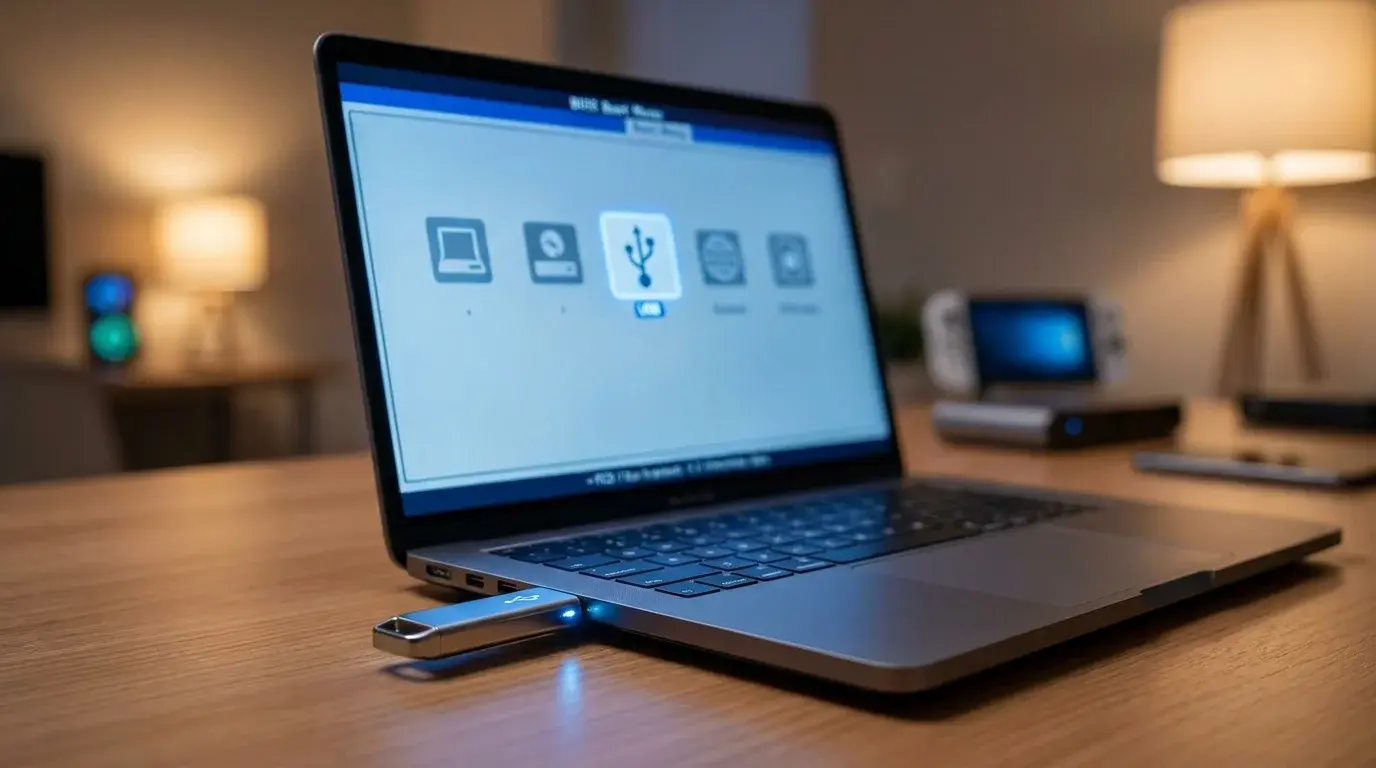
How to Boot from USB on a Windows PC
Learn how to boot a Windows PC from a USB drive using the one-time boot menu, create official Windows installation media, and troubleshoot when the USB is not listed.
How to Change Keyboard Language in Windows 11
Switch keyboard languages in Windows 11, add a new layout, use the Windows + Space shortcut, and fix missing language options.
How to Turn On Your Keyboard Light in Windows 11
Learn how to turn on a laptop keyboard backlight, find the correct Fn shortcut, adjust brightness, and troubleshoot lighting that will not turn on.