
How to Fix Slow Startup in Windows 11
Is your Windows PC taking too long to start? Use these safe steps to check startup apps, free storage, install updates, and narrow down the cause of a slow Windows 11 startup.
Editorial Team
A Windows laptop starting up at a clean desk, illustrating troubleshooting for a slow startup
Table of Contents (17 sections)
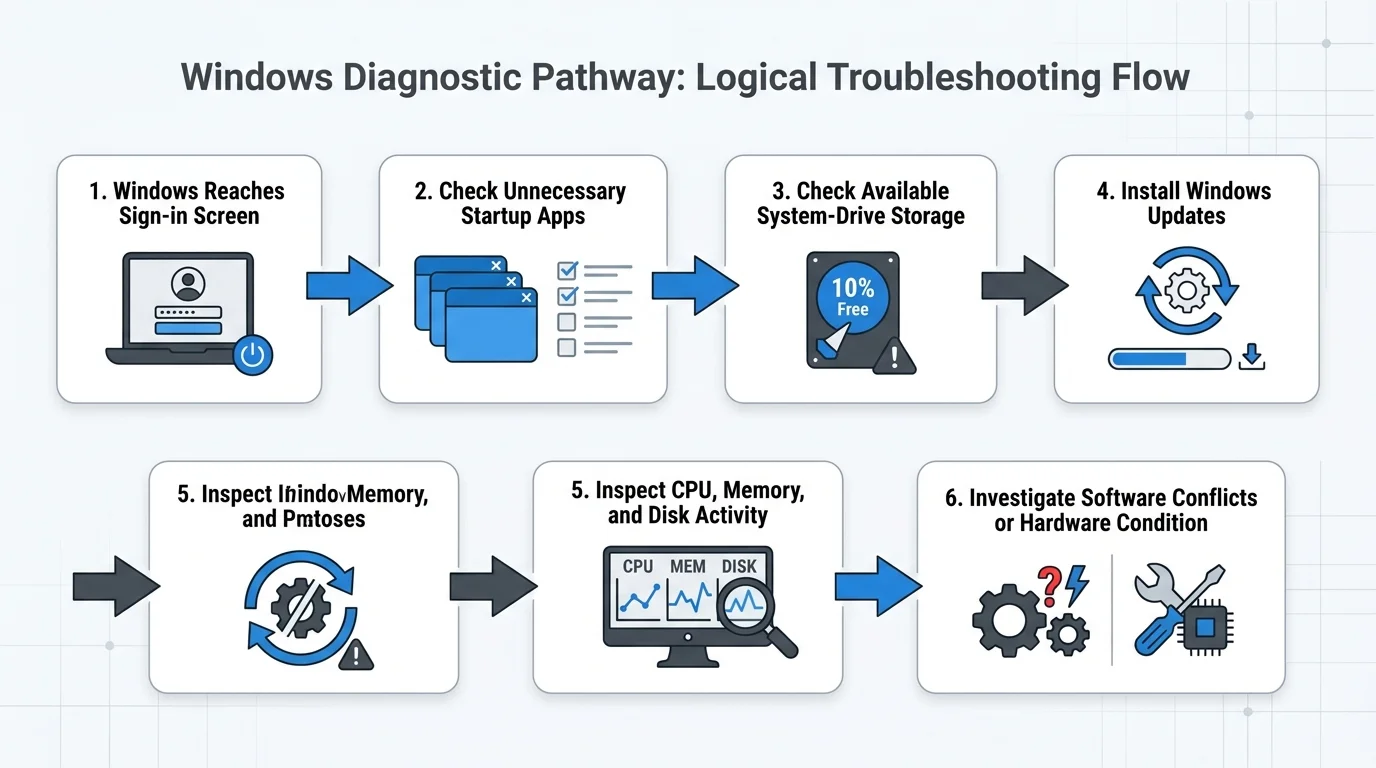
- First, identify what is actually slow
- 1. Disable startup apps you do not need
- 2. Check whether the system drive is nearly full
- 3. Install available Windows updates
- 4. Check resource use after you sign in
- 5. Scan for malware if the slowdown started suddenly
- 6. Check drivers and device-specific utilities
- 7. Test for a background software conflict with a clean boot
- 8. Consider the age and condition of the hardware
- What not to do when Windows starts slowly
- Frequently asked questions
- Why is Windows 11 so slow to start all of a sudden?
- Which startup apps should I disable?
- Does freeing up storage make Windows boot faster?
- Should I disable Fast Startup?
- What if Windows never reaches the sign-in screen?
- Official sources
If your Windows PC takes a long time to reach the sign-in screen or feels slow for several minutes after you sign in, you do not necessarily need to reset Windows. Too many startup apps, limited storage, pending updates, background activity, and older hardware can all contribute to slow startup. Work through the checks below in order, starting with the changes that are easiest to reverse.
This guide focuses on Windows 11. Some steps also apply to Windows 10, but standard Windows 10 support ended on October 14, 2025; see Microsoft's current Windows 10 support information (opens in new tab).
First, identify what is actually slow
Before changing settings, notice when the delay happens:
- Before the sign-in screen: Windows may be taking too long to boot, initialize devices, or complete updates.
- After you sign in: Startup apps and background processes may be loading at the same time.
- Only when opening apps or files: The issue may be general performance or storage responsiveness rather than boot time itself.
- Windows never reaches the sign-in screen: That is a boot or startup failure, not just a slow startup. Avoid repeatedly forcing the PC off during an update; use the appropriate Windows recovery guidance if it cannot boot.
Save your work, connect a laptop to power, and use Start > Power > Restart once. Restart gives Windows a fresh boot cycle. If the next startup is still unusually slow, continue below.
1. Disable startup apps you do not need
This is one of the first things to check when Windows reaches the desktop but takes a long time to become responsive. Chat clients, game launchers, cloud tools, and other apps may start automatically and compete for CPU, memory, and disk activity.
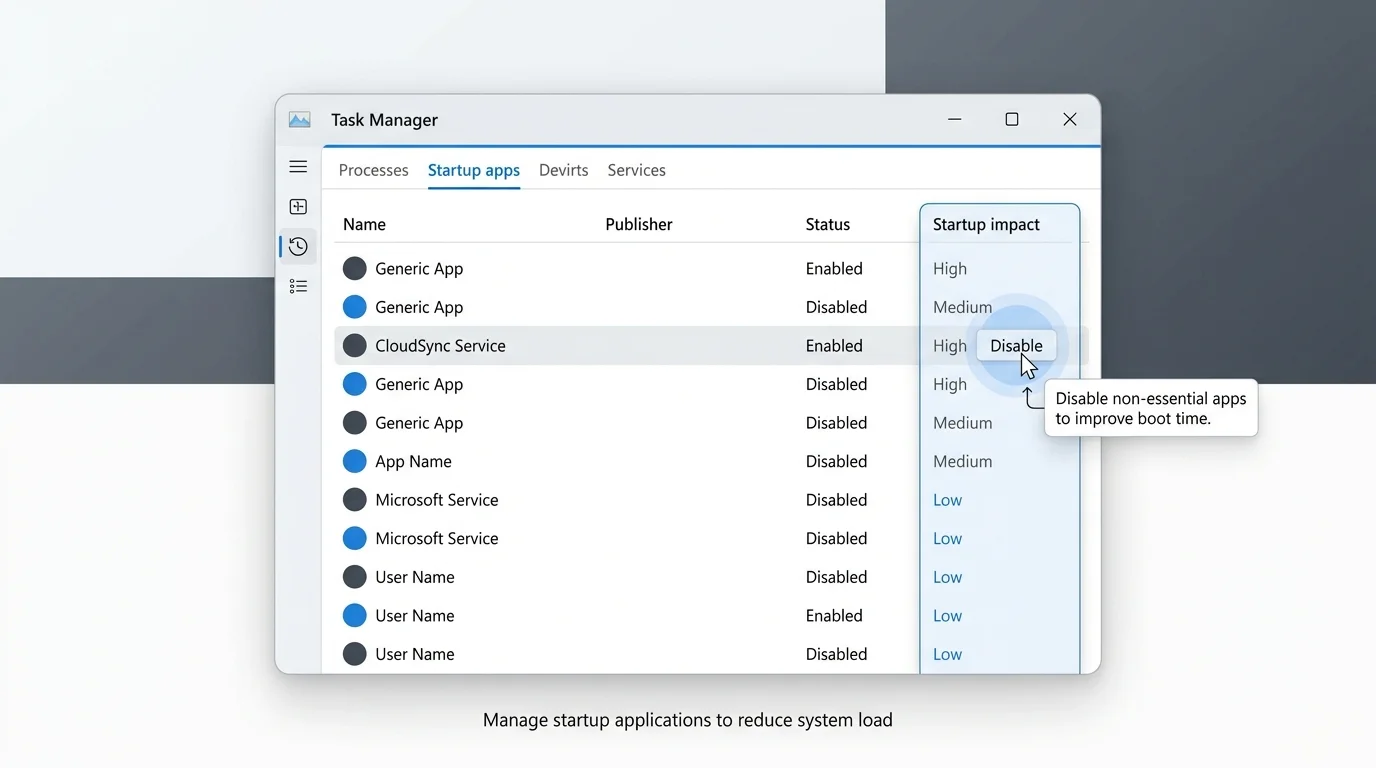
- Press Ctrl + Shift + Esc to open Task Manager.
- Select Startup apps in the sidebar. If your Task Manager layout is different, look for the Startup apps tab.
- Review the Startup impact column. Apps marked High are worth reviewing first, but impact alone does not prove an app is the cause.
- Select an app you recognize and do not need immediately after sign-in, then choose Disable.
- Restart and compare the result. Change only a few items at a time so you can identify what helped.
You can also open Settings > Apps > Startup and turn off apps there. This prevents an app from launching automatically; it does not uninstall the app.
Do not disable everything indiscriminately. Keep security software and components you know are needed. If you do not recognize an item, search for its publisher or check the PC manufacturer's documentation before changing it. Disabling an app may also turn off a feature you rely on, such as automatic cloud syncing or a peripheral utility.
For Microsoft's exact steps, see Configure Startup applications in Windows (opens in new tab).
2. Check whether the system drive is nearly full
Windows needs free storage for temporary files, updates, and normal system activity. A nearly full system drive can contribute to performance problems, so check the available space before deleting anything.
- Open File Explorer and select This PC.
- Check the available space on the Windows drive, usually C:.
- If space is low, open Settings > System > Storage.
- Review Temporary files, Cleanup recommendations, and other categories. Select only items you are comfortable removing.
- Be careful with Downloads, personal documents, and previous Windows installation files. Confirm what will be deleted before cleaning them up.
You can turn on Storage Sense if you want Windows to help manage certain temporary files automatically. Check its settings first so it does not remove items you intend to keep. See Microsoft's guide to freeing up drive space in Windows (opens in new tab).
3. Install available Windows updates
Updates can include bug fixes, reliability improvements, and device compatibility fixes. They are not a guaranteed solution for every slow-startup problem, but keeping Windows current is a sensible troubleshooting step.
- Open Settings > Windows Update.
- Select Check for updates.
- Install applicable updates and follow any restart instructions.
- Once Windows is back at the desktop, check whether startup has improved.
If the issue began immediately after a particular update or driver change, note the date and the update history before trying more advanced repairs. Do not interrupt Windows while a full-screen update process says not to turn off the PC.
4. Check resource use after you sign in
A PC can finish booting normally but remain sluggish because one or more processes are busy. Task Manager can help you see whether CPU, memory, or disk usage stays high.
- Press Ctrl + Shift + Esc to open Task Manager.
- On the Processes tab, sort by CPU, Memory, or Disk.
- Look for an app that remains unusually busy after sign-in.
- If you recognize a nonessential app, close it normally and check whether responsiveness improves. Investigate apps that repeatedly consume resources instead of ending unfamiliar system tasks.
- Open the Performance tab for a broader view of CPU, memory, and disk activity.
A high reading during the first moments after startup is not automatically a fault. Windows may be finishing legitimate background work. Look for activity that stays elevated and coincides with the delay you notice.
5. Scan for malware if the slowdown started suddenly
If the PC became slow unexpectedly, you also notice unfamiliar apps, or you see other suspicious behavior, run a scan with the built-in Windows Security app.
- Open Settings > Privacy & security > Windows Security.
- Choose Virus & threat protection.
- Select Quick scan and follow any recommended actions.
A scan may not identify every possible cause, and a slowdown by itself does not prove that the PC is infected. Use the scan as a sensible check when the symptoms or other signs justify it.
6. Check drivers and device-specific utilities
If the delay began after connecting new hardware, installing a driver, or updating a utility, investigate that change rather than downloading a generic driver-updater tool.
- Check Settings > Windows Update for applicable updates.
- If a relevant optional driver update is offered, read its description before installing it.
- For a specific laptop or desktop, get drivers and troubleshooting instructions from the PC manufacturer's official support site.
- Avoid third-party driver bundles and tools that promise to fix every performance problem automatically.
Do not remove storage, chipset, security, or other unfamiliar drivers simply to test whether startup becomes faster. If the system became unstable after a driver change, use device-specific instructions or qualified support to roll back that change safely.
7. Test for a background software conflict with a clean boot
Try this only if the simpler checks did not help and Windows still starts normally. A clean boot starts Windows with essential drivers and startup programs so you can isolate interference from some third-party services or apps. It is more advanced than disabling a few startup apps.
Microsoft warns that changing advanced startup settings can cause problems if the steps are followed incorrectly, and managed work or school devices may be subject to network policies. Read Microsoft's clean boot instructions (opens in new tab) fully before proceeding. Record the changes you make and follow its steps to restore normal startup afterwards. If you are not comfortable changing System Configuration, skip this step and seek device-specific help.
If a clean boot improves startup, re-enable items methodically to identify the likely conflict. Do not leave essential security protections disabled as a permanent fix.
8. Consider the age and condition of the hardware
Software changes cannot overcome every hardware limitation. An older PC, a traditional hard disk, limited memory, or a storage device developing faults can all affect boot and sign-in time. If startup remains slow even with nonessential startup apps disabled and adequate free space, note the PC model, storage type, and whether the delay has gradually worsened.
Back up important files before investigating a drive that is behaving unusually. If you hear new clicking sounds from a mechanical drive, see repeated disk errors, or experience freezes alongside the slowdown, prioritize a backup and professional or manufacturer-supported diagnostics rather than repeatedly running optimization tools.
What not to do when Windows starts slowly
- Do not use random registry edits or scripts that claim to speed up every Windows PC.
- Do not disable all services or unfamiliar startup items without a documented reason.
- Do not delete system folders or manually remove driver files.
- Do not assume that turning off Windows security features will make startup acceptably faster.
- Do not reset or reinstall Windows before backing up important files and trying simpler, reversible checks.
Frequently asked questions
Why is Windows 11 so slow to start all of a sudden?
A newly installed app, a startup app change, pending updates, low storage, background activity, or a driver issue may be involved. Compare the timing of the slowdown with recent changes, check Startup apps and Task Manager, and use Windows Update before making advanced changes.
Which startup apps should I disable?
Start with apps you recognize and do not need immediately after signing in, especially those with High startup impact. Keep security and necessary device utilities enabled. If you are unsure what an item does, identify it before disabling it.
Does freeing up storage make Windows boot faster?
It can help when the system drive is nearly full, but it is not a guaranteed fix. Check the available space first and use Windows' Storage settings to review removable items safely.
Should I disable Fast Startup?
Not as a routine speed fix. Fast Startup is intended to speed up startup after shutdown, and turning it off is not generally recommended as a first troubleshooting step. If you have a specific shutdown, boot, or hardware-initialization problem, follow guidance that matches that symptom.
What if Windows never reaches the sign-in screen?
That is a boot failure rather than a slow desktop startup. Avoid forcing shutdowns repeatedly, especially while Windows is updating. Use Microsoft's recovery guidance for a PC that cannot start, or contact the manufacturer if recovery options are unclear.
Official sources
- Microsoft Support: Tips to improve PC performance in Windows (opens in new tab)
- Microsoft Support: Configure Startup applications in Windows (opens in new tab)
- Microsoft Support: Free up drive space in Windows (opens in new tab)
- Microsoft Support: How to perform a clean boot in Windows (opens in new tab)
- Microsoft Support: Windows 10 support has ended (opens in new tab)
Verified Primary Sources & Citations
NextTechExplained verifies facts against official documentation, engineering whitepapers, and regulatory filings.
- Microsoft Support: Tips to improve PC performance in WindowsView Official Source
- Microsoft Support: Configure Startup applications in WindowsView Official Source
- Microsoft Support: Free up drive space in WindowsView Official Source
- Microsoft Support: How to perform a clean boot in WindowsView Official Source
- Microsoft Support: Windows 10 support has endedView Official Source
Published by NextTechExplained
Editorial Team • Institutional Publication Byline
Articles published under this byline are prepared through rigorous research and verified against official engineering specifications, standards documentation, and primary sources. Learn more about our process on our About page and Editorial Policy.
Related Explanations & Guides
How to Stop Apps from Opening on Startup in Windows
Stop unwanted apps from opening automatically when you sign in to Windows 11. Use Startup settings, Task Manager, and the Startup folders safely.
Secure Boot Violation: What It Means and How to Fix It Safely
Seeing a Secure Boot Violation at startup? Learn what the error means, common causes, safe checks, and when to use official PC recovery guidance.
Touchpad Cursor Disappears in Windows 11: How to Fix It
If your touchpad cursor disappears in Windows 11, check Hide pointer while typing, locate a hidden pointer with Ctrl, improve pointer visibility, and troubleshoot touchpad settings or drivers.