
How to Enable Secure Boot in Windows 11: Step-by-Step Guide
Check whether Secure Boot is supported, enable it safely in UEFI firmware, and troubleshoot common Windows 11 Secure Boot issues without risking your boot setup.
Editorial Team
An unbranded modern PC and motherboard on a dark desk illustrating Windows Secure Boot configuration
Table of Contents (16 sections)
- Before you enable Secure Boot
- Step 1: Check Secure Boot status in Windows
- Step 2: Open UEFI firmware settings
- Step 3: Enable Secure Boot in firmware
- Step 4: Confirm Secure Boot is active
- What if Windows is installed in Legacy mode?
- Common problems and safe next steps
- Secure Boot and Windows 11: what to know
- Frequently asked questions
- Is Secure Boot required for Windows 11?
- How do I know if Secure Boot is enabled?
- Can I enable Secure Boot without entering BIOS?
- Will enabling Secure Boot delete my files?
- Should I clear Secure Boot keys if the option is greyed out?
- What if Secure Boot is enabled but a game still reports it as disabled?
- Sources and further reading
Secure Boot helps protect a Windows PC by checking that trusted, digitally signed software is allowed to run during startup. If it is turned off, you may be able to enable it in your PC's UEFI firmware. The safe method is to check how Windows currently boots first, then change only the settings your device actually needs.
Do not switch a working Windows installation from Legacy/CSM boot mode to UEFI just to turn on Secure Boot. That change can make Windows unbootable if the installation and system drive are not prepared for UEFI. Microsoft recommends checking the current firmware mode and following your PC manufacturer's instructions before changing these settings. See Microsoft's Windows 11 and Secure Boot guide (opens in new tab).
Before you enable Secure Boot
Secure Boot is part of the Unified Extensible Firmware Interface (UEFI), the firmware system used to initialize a PC before Windows starts. It checks signatures on boot software so that untrusted or revoked components can be blocked. It is useful protection, but changing firmware settings without understanding the current boot configuration can prevent Windows from starting.
Before you change anything:
- Save your work and make sure you can access your important files.
- If BitLocker or Windows device encryption is enabled, locate and safely store your recovery key. Firmware or boot-configuration changes can sometimes cause a recovery prompt. Microsoft explains how to find your BitLocker recovery key (opens in new tab).
- If the PC dual-boots Linux, uses custom Secure Boot keys, or is managed by an employer or school, follow the administrator, distribution, or computer manufacturer's instructions first.
- Do not clear Secure Boot keys or load default keys as a general-purpose first step. Those actions can change which boot software your PC trusts, and the correct procedure depends on the device and operating system.
Step 1: Check Secure Boot status in Windows
You can check the current mode without entering firmware setup.
- Press
Windows + Rto open Run. - Type
msinfo32and press Enter. - In System Information, find BIOS Mode and Secure Boot State.
The values help determine the next step:
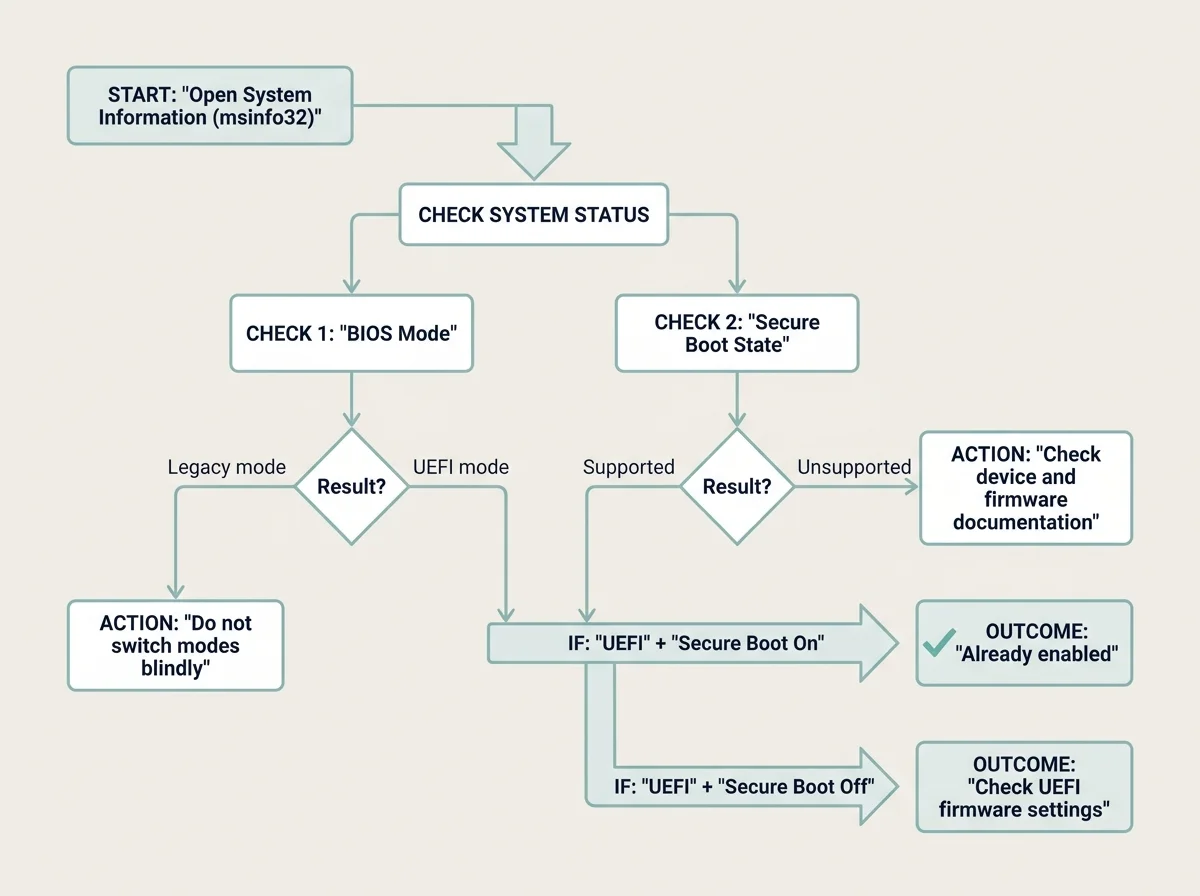
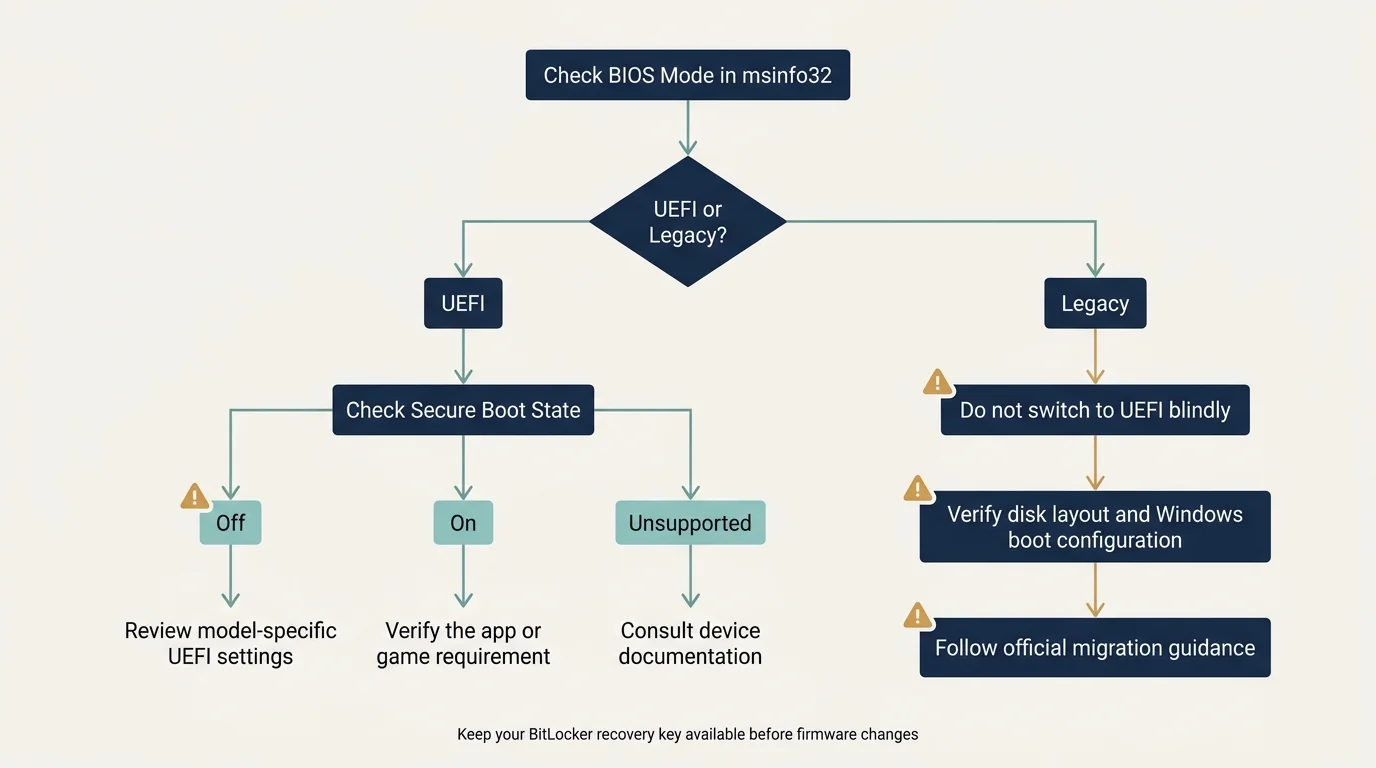
- BIOS Mode: UEFI, Secure Boot State: Off: Your Windows session started in UEFI mode, but Secure Boot is not currently active. Check your firmware's Secure Boot settings.
- BIOS Mode: UEFI, Secure Boot State: On: Secure Boot is already active. You do not need to enable it again.
- BIOS Mode: Legacy: Windows started in Legacy BIOS/CSM mode. Stop here rather than simply switching the firmware to UEFI. First verify your system disk and installation can boot in UEFI mode, and follow a model-specific migration procedure if needed.
- Secure Boot State: Unsupported: This can reflect the current boot mode or a device/firmware configuration that does not expose Secure Boot as active. Check BIOS Mode and your manufacturer's documentation before concluding that the hardware lacks support.
The following diagram summarizes these first checks. It is an overview, not a replacement for your computer's firmware manual.
Step 2: Open UEFI firmware settings
If System Information shows BIOS Mode: UEFI and Secure Boot State: Off, use Windows to enter the firmware settings:
- Open Settings.
- Select System, then Recovery.
- Under Advanced startup, select Restart now. Save your work first because the PC will restart.
- On the recovery screen, choose Troubleshoot.
- Select Advanced options, then UEFI Firmware Settings.
- Select Restart if prompted.
The exact wording and availability of these options can vary by PC and Windows configuration. Microsoft's official Secure Boot instructions (opens in new tab) describe this route. If UEFI Firmware Settings is missing, consult the manufacturer for the correct way to enter firmware setup rather than trying random keys or changing unrelated settings.
Step 3: Enable Secure Boot in firmware
Firmware menus differ among manufacturers and even between models from the same brand. The setting may appear under Boot, Security, Authentication, or another menu. Use your manufacturer's documentation for the exact menu names.
- In firmware setup, look for Secure Boot and read its current value.
- If the device is already configured for UEFI and the Secure Boot setting is simply disabled, change it to Enabled.
- If the firmware reports that Secure Boot cannot be enabled, or the option is unavailable, do not make several changes at once. Record the exact message and check your PC manufacturer's instructions.
- Save and exit using the firmware's on-screen option.
- Let Windows start normally.
Some firmware interfaces also show settings such as OS Type, CSM, Secure Boot Mode, Platform Key, or Key Management. Their meanings and dependencies vary. For example, if you are configuring a GIGABYTE or AORUS motherboard where Secure Boot requires disabling CSM and managing Platform Keys, consult our Gigabyte Secure Boot guide. Do not disable CSM, switch the boot mode, clear keys, or enroll factory keys blindly. Follow the correct procedure for your exact model and current Windows installation.
Step 4: Confirm Secure Boot is active
After Windows starts, verify the result rather than relying only on a firmware menu:
- Press
Windows + R. - Enter
msinfo32and press Enter. - Confirm that BIOS Mode says UEFI and Secure Boot State says On.
If it still says Off, the firmware change may not have been saved, another prerequisite may be missing, or the firmware may require a device-specific configuration. Reopen the manufacturer's instructions and check one setting at a time.
If Secure Boot is already On but a game or another application says it is off, check that application's current requirements and restart it after confirming the Windows status. Do not assume every application error is caused by Secure Boot itself; some checks also involve TPM 2.0, a supported boot mode, or the application's anti-cheat software. For competitive multiplayer titles requiring hardware-backed security, see our guide on resolving VALORANT Vanguard Secure Boot and TPM 2.0 errors.
What if Windows is installed in Legacy mode?
If msinfo32 shows BIOS Mode: Legacy, do not switch directly to UEFI in firmware. A Windows installation that boots through Legacy BIOS/CSM may rely on an MBR-partitioned system disk. A UEFI Windows installation normally needs the system disk arranged for UEFI boot, commonly using GPT.
Microsoft provides the MBR2GPT tool (opens in new tab) for converting eligible Windows system disks from MBR to GPT. It has specific requirements, and conversion should not be treated as a casual toggle. Back up important data, confirm that the PC supports UEFI, review Microsoft's requirements, and consider professional assistance if you are unsure. BitLocker-encrypted systems require additional care under Microsoft's documented process.
Do not reformat the disk or change boot mode simply because a guide says Secure Boot needs UEFI. First identify the existing setup and follow the applicable migration instructions.
Common problems and safe next steps
| What you see | What it may indicate | Safer next step |
|---|---|---|
| Secure Boot State is Off, BIOS Mode is UEFI | Secure Boot may be disabled in firmware or a prerequisite may be unmet | Check the model-specific firmware guide and enable only the applicable setting |
| BIOS Mode is Legacy | Windows currently started using Legacy/CSM boot mode | Do not switch to UEFI blindly; verify disk layout and follow a qualified migration process |
| Secure Boot State is Unsupported | Current boot mode or device firmware may not expose Secure Boot as active | Check both System Information fields and your manufacturer's documentation |
| Secure Boot setting is greyed out | Firmware policy, mode, or key configuration may control availability | Record the exact options and consult the manufacturer; do not clear keys as a guess |
| Firmware says the system is in User Mode or Setup Mode | Key enrollment and platform state may affect the setting | Read the exact message and use the dedicated User Mode and Platform Key guide |
| A "Secure Boot Violation" error blocks startup after enabling | An external boot drive, untrusted bootloader, or revoked signature failed verification | Disconnect USB media and see our Secure Boot Violation troubleshooting guide |
| A Secure Boot certificate warning appears | Certificate servicing is a different issue from simply turning Secure Boot on | Read the status text and follow the 2026 certificate-update guide |
| Windows asks for a BitLocker recovery key after a firmware change | The boot or firmware measurements may have changed | Use your saved recovery key and follow Microsoft's recovery instructions |
Secure Boot and Windows 11: what to know
Secure Boot is part of the UEFI security model. Windows 11's hardware requirements distinguish Secure Boot capability from the feature's current on/off state, so seeing it turned off does not by itself mean your PC cannot run Windows 11. Enabling it can improve startup protection, but the correct steps depend on the current firmware and boot configuration. Microsoft's overview of Secure Boot (opens in new tab) explains how the protection works.
Keep this topic separate from certificate renewal. If your Secure Boot state is On, but Windows Security reports that updated Secure Boot certificates are pending or blocked, use our Secure Boot certificate update status guide. That is a different task from enabling Secure Boot itself.
Frequently asked questions
Is Secure Boot required for Windows 11?
Windows 11's hardware compatibility requirements include Secure Boot capability, which means the PC can support the feature through UEFI firmware. Whether Secure Boot is currently enabled is a separate status. Check your device's requirements and current firmware configuration rather than assuming that an Off value alone tells the entire story.
How do I know if Secure Boot is enabled?
Press Windows + R, run msinfo32, and check Secure Boot State. On means it is active in the current Windows session; Off means it is not active. Also check BIOS Mode to understand whether Windows started in UEFI or Legacy mode.
Can I enable Secure Boot without entering BIOS?
You can use Windows Advanced Startup to reach UEFI Firmware Settings, but the actual Secure Boot toggle is usually inside the PC's firmware interface. Menu names and available settings vary by manufacturer.
Will enabling Secure Boot delete my files?
Simply changing the Secure Boot toggle on a compatible, correctly configured UEFI installation is not intended to erase files. However, changing boot mode, disk configuration, or firmware keys incorrectly can prevent Windows from starting or trigger recovery. Back up important data and keep your BitLocker recovery key available before changing firmware settings.
Should I clear Secure Boot keys if the option is greyed out?
No, not as a general troubleshooting step. Clearing or replacing keys changes the trust configuration and can break booting or custom operating-system setups. Follow the exact manufacturer's instructions for your device and the error you see.
What if Secure Boot is enabled but a game still reports it as disabled?
Confirm Secure Boot State: On in msinfo32, restart the game and its related anti-cheat software if its vendor recommends doing so, and check the vendor's current requirements. Some games also require TPM 2.0 or additional system conditions, so do not change firmware settings based only on one generic error message.
Sources and further reading
Verified Primary Sources & Citations
NextTechExplained verifies facts against official documentation, engineering whitepapers, and regulatory filings.
- Microsoft Support: Windows 11 and Secure BootView Official Source
- Microsoft Learn: Secure BootView Official Source
- Microsoft Learn: MBR2GPTView Official Source
- Microsoft Support: Find your BitLocker recovery keyView Official Source
Published by NextTechExplained
Editorial Team • Institutional Publication Byline
Articles published under this byline are prepared through rigorous research and verified against official engineering specifications, standards documentation, and primary sources. Learn more about our process on our About page and Editorial Policy.
Related Explanations & Guides
Windows Secure Boot Certificate Update 2026: How to Check Your PC's Status
Check your Windows Secure Boot certificate status, understand green, yellow, and red warnings, and learn the safe next step for your PC.
Gigabyte Secure Boot: How to Enable It and Fix Common Errors
Learn how to check Secure Boot on Gigabyte and AORUS PCs, understand UEFI and key settings, and troubleshoot common BIOS messages safely.
Secure Boot Can Be Enabled When System Is in User Mode: What It Means
Seeing the Secure Boot user mode or Platform Key message in BIOS? Learn what it means and how to check your Windows PC safely.