
How to Change Keyboard Language in Windows 11
Switch keyboard languages in Windows 11, add a new layout, use the Windows + Space shortcut, and fix missing language options.
Editorial Team
Windows 11 laptop showing keyboard language switching and international keyboard layouts
Table of Contents (20 sections)
- Change the keyboard language with a shortcut
- Change the keyboard layout from the taskbar
- Add a keyboard language or layout
- What if the keyboard layout is not listed?
- Keyboard language vs. Windows display language
- Remove a keyboard layout you no longer use
- Fix a missing language indicator in the taskbar
- Fix keyboard language switching problems
- Windows + Spacebar does not work
- The wrong characters appear when typing
- Your password is not accepted at sign-in
- The language indicator still does not appear
- Frequently asked questions
- What is the shortcut to change keyboard language in Windows 11?
- Can I change the keyboard language without changing Windows language?
- Why do I have several English keyboard layouts?
- Do I need to install a full language pack to change keyboard layout?
- Conclusion
- Related guides
- Sources
Changing your keyboard language in Windows 11 lets you type using a different language or keyboard layout without changing the language of the entire Windows interface. For example, you can keep Windows menus in English while switching between an English and another keyboard layout as you type.
The quickest method is usually Windows key + Spacebar. This shortcut cycles through the keyboard layouts already installed on your PC. If the language or layout you need is not listed, add it through Settings first.
Change the keyboard language with a shortcut
- Open an app where you can type, such as Notepad.
- Press and hold the Windows key, then press Spacebar.
- A list of installed input languages or keyboard layouts should appear.
- Keep holding the Windows key and press Spacebar again to move through the list.
- Release the keys when the layout you want is selected.
The language indicator in the taskbar may change to reflect your selection. Test the layout by typing a few characters in a text field.
If nothing changes when you press Windows + Spacebar, Windows may have only one keyboard layout installed. Add another layout using the steps below, then try the shortcut again.
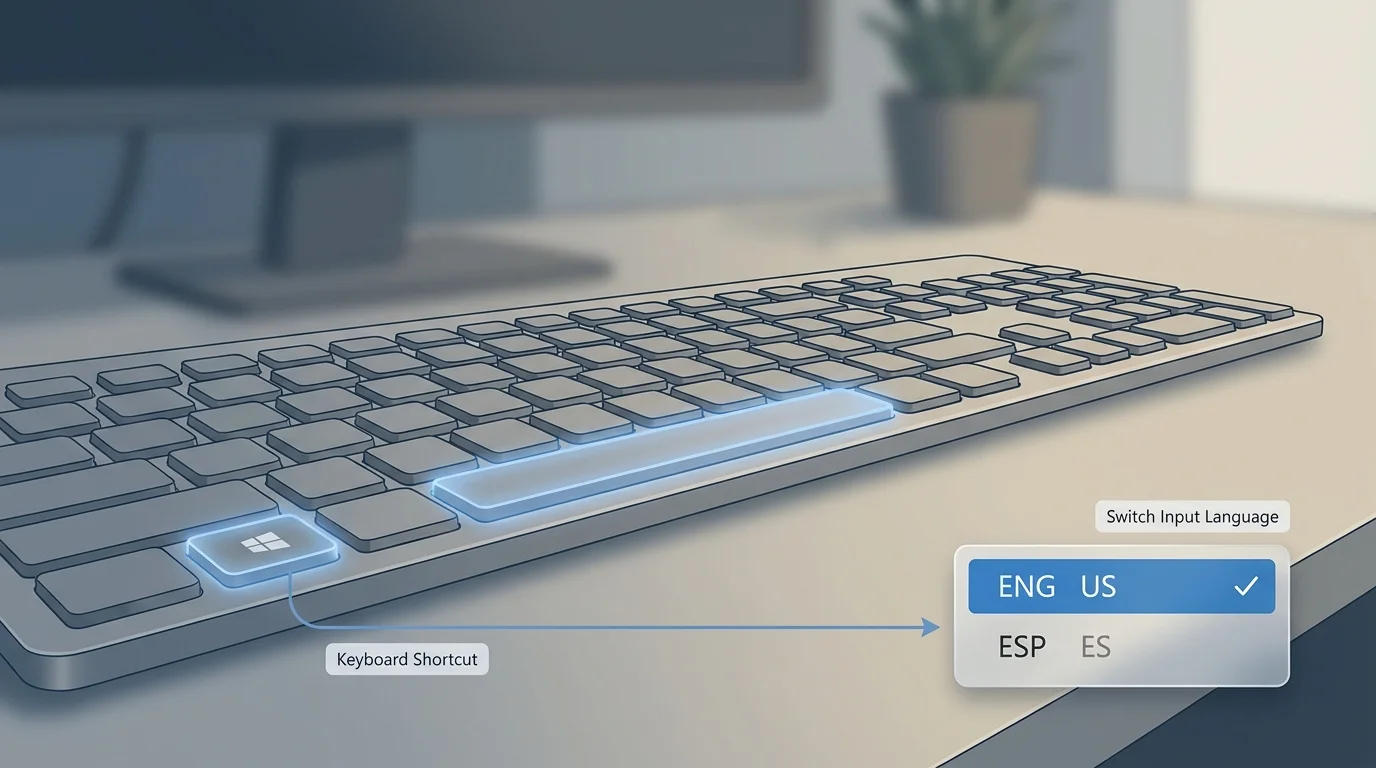
Change the keyboard layout from the taskbar
You can also choose an installed layout with the taskbar input indicator:
- Find the language indicator in the notification area near the clock. It may display a short label such as
ENG. - Select the indicator to see the installed input layouts.
- Choose the language or layout you want to use.
- Return to your app and test typing.
The exact label depends on the installed language and layout. Selecting another keyboard layout changes how key presses are interpreted; it does not, by itself, change the Windows display language.
Add a keyboard language or layout
If the layout you need is not available, add it in Settings:
- Open Start > Settings.
- Select Time & language > Language & region.
- Under Preferred languages, find the language associated with the keyboard layout you want.
- Select the three-dot menu beside that language and choose Language options. Depending on the Settings layout, the options may appear through a slightly different control.
- Under Keyboards, select Add a keyboard.
- Choose the layout you need from the list.
- Return to the app where you want to type and switch layouts using Windows + Spacebar or the taskbar input indicator.
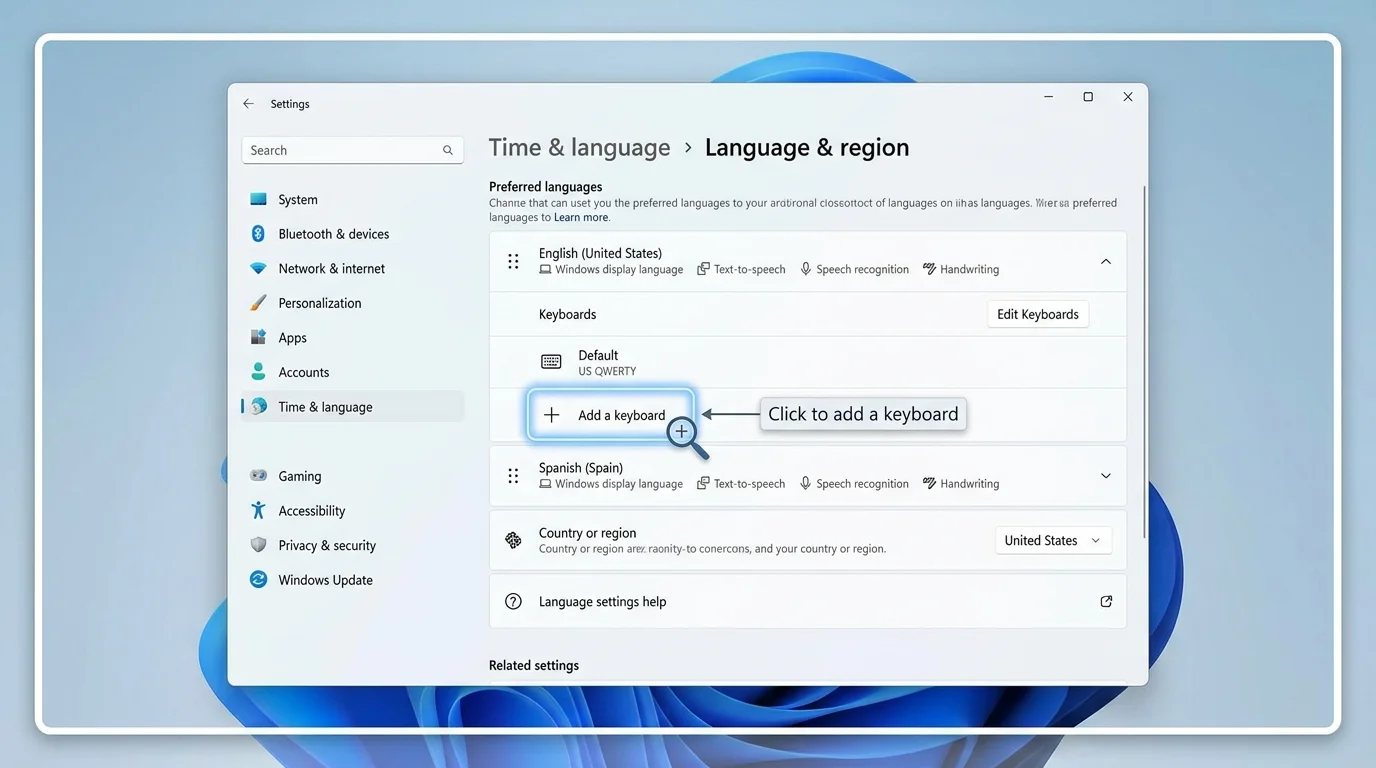
What if the keyboard layout is not listed?
Windows groups layouts with installed languages, and the layout you want may be listed under a different language than expected. In Language & region, check the options for the language that matches the layout you want. If that language is not installed, you may need to add it first.
A full display-language pack is not always required just to add a keyboard layout. Availability depends on the language and layout you select.
Keyboard language vs. Windows display language
These settings do different jobs:
- Keyboard layout or input language: Determines which characters are produced when you press keys.
- Windows display language: Determines the language used for Windows menus, Settings, File Explorer, and other parts of the interface.
- App language: An individual app may have its own language preference.
If you only want to type with a different layout, change or add a keyboard layout. You usually do not need to change the Windows display language.
Changing the Windows display language may require signing out and back in, and Windows can also change the selected keyboard layout as part of the process. Before entering a password at the sign-in screen, check the current input indicator to make sure the expected layout is selected.
Remove a keyboard layout you no longer use
If the language switcher has too many entries, you can remove a layout you no longer need:
- Open Settings > Time & language > Language & region.
- Find the relevant language under Preferred languages.
- Open its language options.
- Under Keyboards, select the layout you want to remove and choose Remove.
Windows may disable the Remove option if that is the only keyboard layout associated with the language. Add another suitable layout first if necessary. Check the other installed languages too, because a layout can appear under a language different from the one you expected.
Fix a missing language indicator in the taskbar
If you have multiple layouts installed but cannot see the input indicator, try these checks:
- Open Settings > Time & language > Typing.
- Select Advanced keyboard settings.
- Look for the option to use the desktop language bar when it is available. If the legacy desktop language bar is enabled, the modern taskbar input indicator may not appear.
- Review the setting and select the input indicator style you prefer.
Some Windows settings can vary by edition, version, and configuration. If you use the legacy language bar and want the taskbar indicator instead, disable the option that uses the desktop language bar, then check the taskbar again.
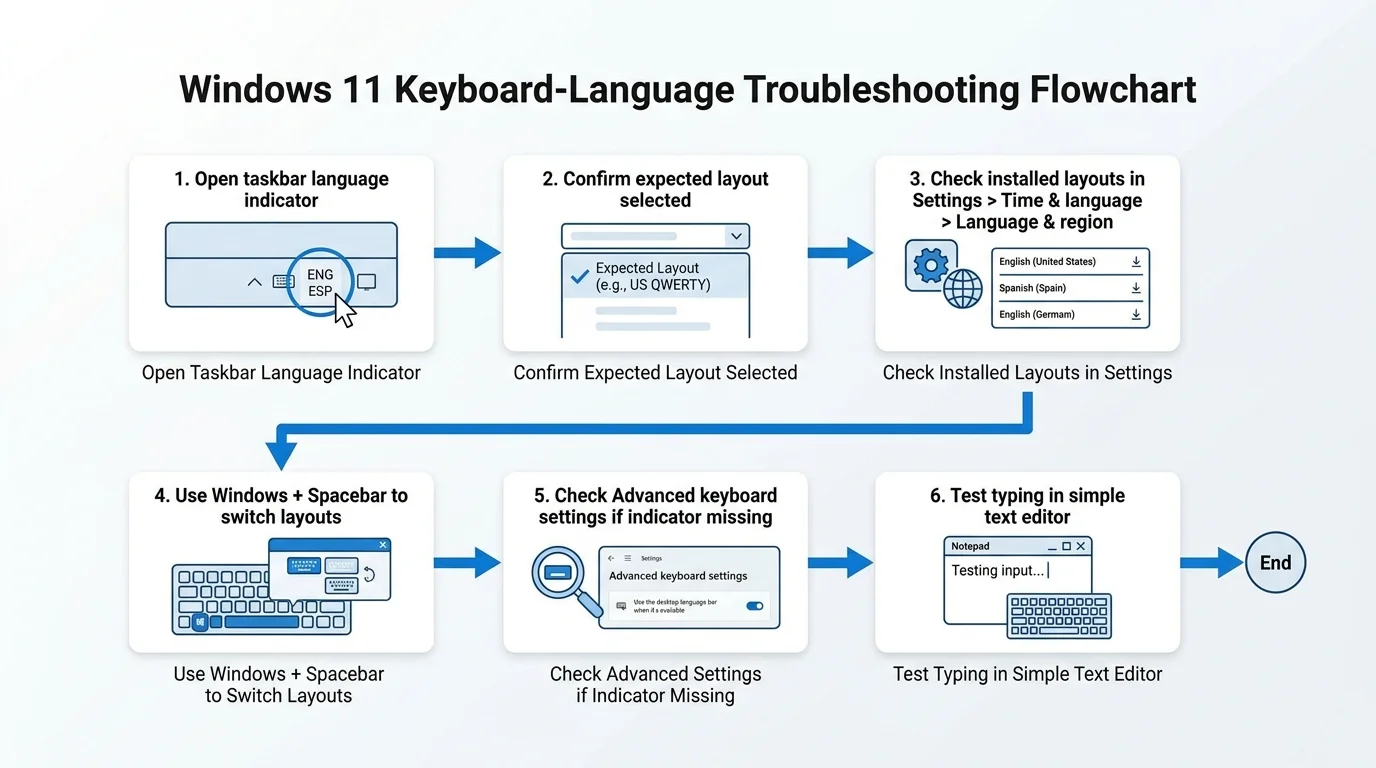
Fix keyboard language switching problems
Windows + Spacebar does not work
First, confirm that at least two keyboard layouts are installed. The shortcut cycles through installed layouts; it does not download or add a language. You can also select the input indicator on the taskbar to confirm whether multiple layouts are available.
The wrong characters appear when typing
Check the selected layout before assuming the keyboard is broken. Different layouts can assign different characters to the same physical key. Switch to the expected layout and test again in a simple text editor.
Your password is not accepted at sign-in
The selected layout may have changed, so some characters could be entered differently than expected. Use the input-language indicator on the sign-in screen to select the correct layout. If the password field offers a reveal option, you can use it carefully to verify what is being entered.
The language indicator still does not appear
Review Advanced keyboard settings and check whether the legacy desktop language bar is enabled. If the taskbar indicator remains missing after checking the settings, save your work and restart Windows, then check again. On a work or school PC, some language options may also be controlled by your administrator.
Frequently asked questions
What is the shortcut to change keyboard language in Windows 11?
Press Windows key + Spacebar to cycle through installed keyboard layouts. If only one layout is installed, the shortcut may not show a list of alternatives.
Can I change the keyboard language without changing Windows language?
Yes. Add or select a keyboard layout in Settings > Time & language > Language & region. This changes how typing works, not the language of Windows menus.
Why do I have several English keyboard layouts?
More than one layout may have been installed with different language preferences or during setup. Review the Keyboards section under each preferred language and remove layouts you do not use.
Do I need to install a full language pack to change keyboard layout?
Not always. Windows may offer the layout you need under an already installed language. If the layout is not available, check the language that matches it and install that language if needed.
Conclusion
For a quick switch, press Windows + Spacebar or select the language indicator on the taskbar. To add a new option, open Settings > Time & language > Language & region and add the required keyboard under language options. Remember that the keyboard layout controls typing behavior, while the Windows display language controls the interface language. If you are configuring input methods on mobile devices, see our dedicated guide on how to change the keyboard on Android.
Related guides
- How to Change the Keyboard on Android
- How to Fix Sticky Keyboard Keys on a Laptop or PC
- How to Unlock a Keyboard in Windows 11
- How to Fix a Keyboard That Is Not Typing in Windows 11
- Why Is My Keyboard Not Working? How to Fix It in Windows 11
- How to Turn On Your Keyboard Light in Windows 11
Sources
Verified Primary Sources & Citations
NextTechExplained verifies facts against official documentation, engineering whitepapers, and regulatory filings.
- Manage the input and display language settings in Windows - Microsoft SupportView Official Source
- Keyboard shortcuts in Windows - Microsoft SupportView Official Source
Published by NextTechExplained
Editorial Team • Institutional Publication Byline
Articles published under this byline are prepared through rigorous research and verified against official engineering specifications, standards documentation, and primary sources. Learn more about our process on our About page and Editorial Policy.
Related Explanations & Guides
How to Turn On Your Keyboard Light in Windows 11
Learn how to turn on a laptop keyboard backlight, find the correct Fn shortcut, adjust brightness, and troubleshoot lighting that will not turn on.
How to Unlock a Keyboard in Windows 11
Keyboard not responding in Windows 11? Check Filter Keys, laptop function shortcuts, USB or Bluetooth connections, and safe ways to restore typing.
How to Fix Sticky Keyboard Keys on a Laptop or PC
Fix sticky keyboard keys safely with step-by-step cleaning, connection checks, and spill advice for laptops and external keyboards.