
How to Choose the Right USB-C Cable: Charging, Data Speeds, and Thunderbolt Explained
Two identical USB-C cables can deliver completely different charging wattages, data rates, and display capabilities. Here is how to pick the right cable for phones, laptops, SSDs, and docks without overpaying.
Editorial Team
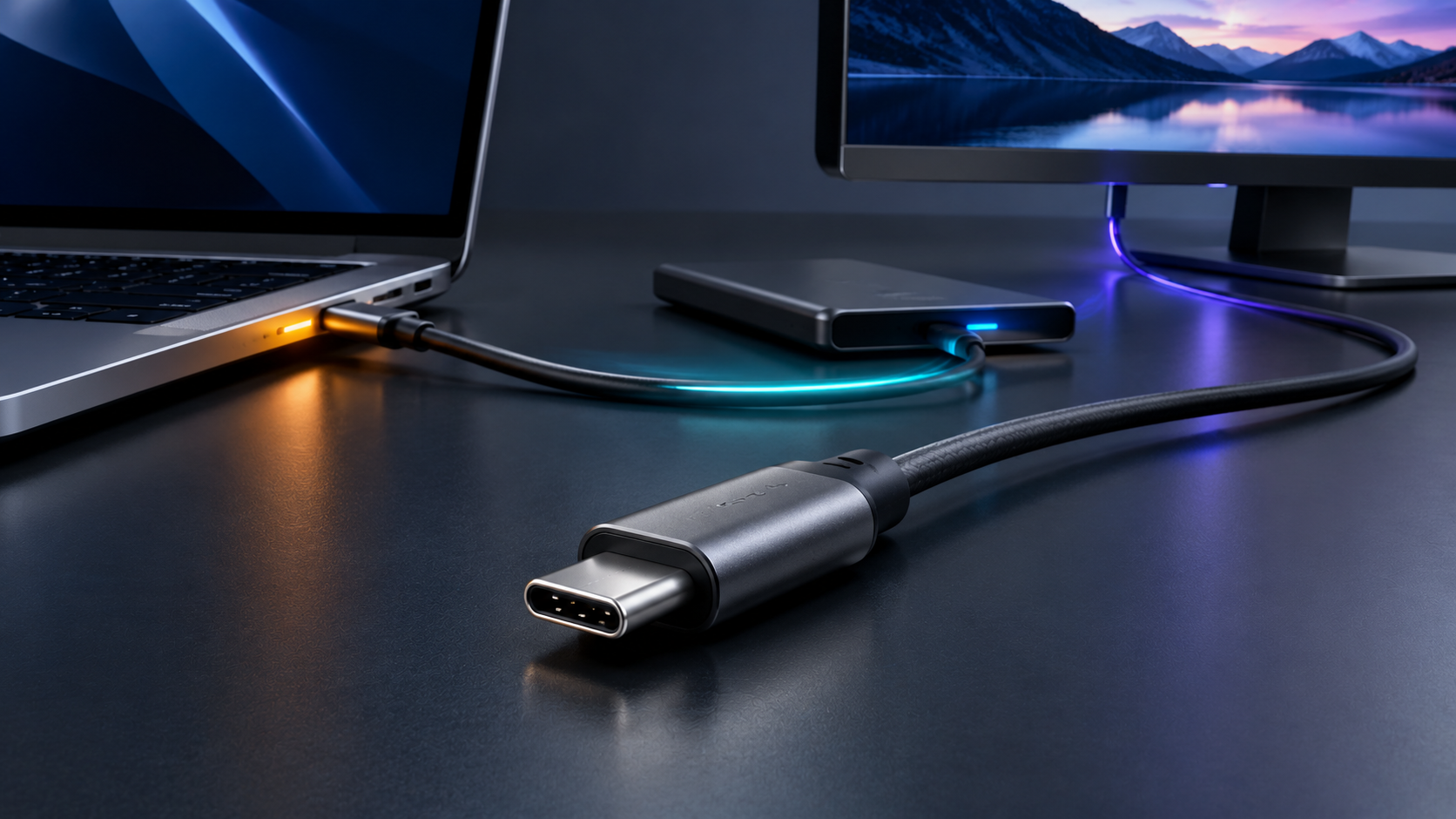
Editorial diagram detailing the three independent dimensions of USB-C: power wattage tiers, data bandwidth rates, and video display protocols
Table of Contents (20 sections)
- 1. Connector Shape Versus Protocol Standards
- 2. Charging Power: Watts, Amps, and Protocols
- How Power Negotiation Works
- Standardized 60W and 240W Cable Tiers
- When an Electronic Marker (E-Marker) Is Required
- 3. Data Transfer: Why Laptop Charge Cables Move Files Slowly
- Standardized Data Speed Tiers
- The Real-World Smartphone Example
- 4. External Displays and Thunderbolt: Video Over USB-C
- Comparing Data Standards and Thunderbolt
- 5. Buyer's Decision Guide: Match Your Cable to Your Gear
- The 5-Step Purchasing Decision Tree
- Common Purchasing Mistakes to Avoid
- Pre-Purchase Checklist
- 6. Reading Cable Markings and Verifying Certification
- Official USB-IF Logos
- Thunderbolt Markings
- How to Use the USB-IF Database
- 7. Summary and Recommendations
- References and Primary Sources
Two USB-C cables that look identical from the outside can perform completely different tasks. One cable safely charges a laptop at 140 watts but moves photos at sluggish USB 2.0 speeds. Another transfers video files in seconds but charges slowly.
USB-C describes only the physical shape of the oval connector plug and port. It does not dictate charging wattage, data transfer speed, or monitor video support.
To choose the right cable without overpaying for features you will not use, evaluate three separate specifications: charging wattage, data transfer rate, and video capability.
1. Connector Shape Versus Protocol Standards
The oval 24-pin USB-C connector is a physical interface, not a performance specification. A USB-C port or cable may run legacy USB 2.0, USB 3.2, USB4, or Thunderbolt 5.
Plugging a cable into a port guarantees only physical fit. It does not guarantee:
- Laptop-level charging wattage.
- Fast data transfer speeds.
- DisplayPort or HDMI monitor output.
- Thunderbolt or USB4 communication.
Charging power, data transfer rates, and display support operate under distinct protocols rather than a single unified speed score. For example, a docking station can supply 100 watts of charging power to your laptop while handling data and driving an external monitor.
However, these functions are not completely physically isolated across all connections. DisplayPort Alternate Mode can reallocate physical high-speed lanes away from USB data, and USB4 or Thunderbolt multiplex video and data packets across a shared high-speed link. Performance in each area depends on how the host computer, cable, dock, and display negotiate capabilities across that specific setup.
2. Charging Power: Watts, Amps, and Protocols
Charging power is measured in watts, which represent the rate of electrical energy transfer. In direct-current circuits, wattage equals voltage multiplied by amperage (Watts = Volts x Amps). A standard phone charger operating at 5 volts and 3 amps provides 15 watts, whereas a laptop charger operating at 20 volts and 5 amps provides 100 watts.
How Power Negotiation Works
Modern fast charging depends on active digital communication between the charger, the receiving device, and the cable.
Under the industry baseline standard, USB Power Delivery (USB PD) (opens in new tab), the charger advertises its available Power Data Objects (voltage and current combinations) over the cable Configuration Channel (CC). The receiving device evaluates those options against its battery level and thermal limits, and then requests the optimal profile. The device pulls electrical power; chargers do not push power into an unwilling device. Connecting a 240-watt cable and a 140-watt charger to a phone that accepts only 25 watts will not harm the phone.
However, not every fast-charging device uses baseline USB PD. Many smartphones rely on specialized protocols, such as Qualcomm Quick Charge, Samsung Super Fast Charging (USB PD PPS), or proprietary high-current systems like OnePlus SuperVOOC. Achieving peak charging speed requires matching the specific protocol, wattage, and current rating supported by both the charger and the device. While standard USB PD or PPS devices negotiate charging with compliant cables (requiring an E-Marker when current exceeds 3 amps or power exceeds 60 watts), proprietary high-wattage systems often require manufacturer-specific cables with dedicated pinouts or custom authentication. A generic 5A, 100W, or 240W USB-C cable does not guarantee that a phone will charge at its proprietary peak speed.
Standardized 60W and 240W Cable Tiers
The USB Implementers Forum (USB-IF) simplified certified cable power ratings into two primary consumer tiers:
- 60-Watt Cables (3 Amps at up to 20 Volts): The standard baseline for USB-C cables, covering phones, tablets, e-readers, wireless headphones, and lightweight laptops such as the MacBook Air.
- 240-Watt Cables (5 Amps at up to 48 Volts): Introduced under the USB Power Delivery 3.1 Extended Power Range (EPR) specification for high-power laptops, mobile workstations, and high-wattage power supplies. While legacy 100-watt (20V/5A) cables remain functional in retail channels, new USB-IF power certifications center on the 60W and 240W tiers.
When an Electronic Marker (E-Marker) Is Required
An Electronic Marker (E-Marker) is a small integrated circuit embedded inside the cable connector head. It communicates the cable electrical limits, data capabilities, and identity over the Configuration Channel.
According to the USB-IF Cable and Connector specification (opens in new tab), an E-Marker is required by the specification under specific technical conditions:
- Any cable designed to carry more than 3 amps (including 5-amp cables rated for 100 watts or 240 watts) must contain an E-Marker. Without an E-Marker, participating chargers restrict current to 3 amps (60 watts maximum) to prevent wire overheating.
- Every cable supporting USB 3.2, USB4, or Thunderbolt high-speed signaling requires an E-Marker so the host can identify supported data rates and alternate modes.
- Any active cable with signal-boosting silicon requires an E-Marker.
Standard USB 2.0 charging cables rated for 3 amps (up to 60 watts) do not require an E-Marker chip. Devices and chargers safely assume an unmarked USB-C cable can carry up to 3 amps.
A printed wattage label on retail packaging reflects a manufacturer specification, not proof of independent compliance testing. Official verification requires checking the manufacturer Test ID in the public USB-IF database.
3. Data Transfer: Why Laptop Charge Cables Move Files Slowly
The most common consumer frustration with USB-C is discovering that the cable bundled with a laptop or phone takes ten minutes to back up video files to an external drive.
This slowdown occurs because standard charging cables physically omit high-speed data wiring.
High-speed data transmission requires shielded differential conductor pairs with strict impedance control. To keep charging cables flexible, thin, and inexpensive, manufacturers wire them with only the pins needed for power delivery, ground, configuration, and legacy USB 2.0 data. The high-speed signal paths required for USB 3.2, USB4, and video transmission are not present in the cable.
Standardized Data Speed Tiers
When a cable does include high-speed data wiring, its throughput is governed by specific USB or Thunderbolt standards. The real-world transfer speeds and copy times below are illustrative estimates that vary depending on host hardware, storage media, file sizes, and operating system workloads:
- USB 2.0 (480 Mbps): Illustrative practical throughput around 40 MB/s, suitable for charging, wireless audio, keyboards, and mice. At this rate, an estimated 50-gigabyte file transfer takes approximately 21 minutes.
- USB 3.2 Gen 1 (5 Gbps): Illustrative practical throughput around 450 MB/s, well suited for external mechanical hard drives and standard SATA SSDs.
- USB 3.2 Gen 2 (10 Gbps): Illustrative practical throughput around 1,050 MB/s, suitable for portable NVMe SSDs (such as the Samsung T7 or SanDisk Extreme) and pro-tier smartphones. At this rate, an estimated 50-gigabyte file transfer finishes in approximately 50 seconds.
- USB 3.2 Gen 2x2 (20 Gbps): Uses two concurrent 10 Gbps lanes to achieve theoretical signaling up to 20 Gbps, with illustrative throughput around 2,000 MB/s. Host support varies by model and controller; many computers and laptops lack dual-lane 20 Gbps support and operate the connection at standard 10 Gbps. Check the specific host computer and storage-device technical specifications rather than assuming 20 Gbps operation.
- USB4 Version 1.0 (20 Gbps or 40 Gbps): Achieves illustrative throughput up to 3,200 MB/s in 40 Gbps configurations for fast file syncing and high-bandwidth displays. While DisplayPort tunneling and USB data tunneling are standard, PCIe tunneling is an optional feature in USB4 that host and accessory manufacturers can choose whether to implement.
- USB4 Version 2.0 (80 Gbps to 120 Gbps): Uses Pulse Amplitude Modulation (PAM3) over certified cables to double symmetric bandwidth to 80 Gbps, with an asymmetric 120 Gbps mode for display-heavy setups.
Advertised signaling bandwidth does not equal real-world file copy speed. Protocol encoding overhead (such as 128b/132b encoding on USB 3.2 Gen 2), operating system write caching, file system indexing, storage controller thermal throttling, and workload variations all reduce practical throughput.
The Real-World Smartphone Example
The distinction between device port capabilities and included cables is illustrated by Apple's iPhone documentation, as established in Apple Support guidance on iPhone USB-C connectivity (opens in new tab):
Apple documents that the iPhone 15 Pro, iPhone 16 Pro, iPhone 17 Pro, and iPhone 18 Pro model families support USB 3.2 Gen 2 data transfer speeds up to 10 Gbps when connected using an optional USB 3-compliant cable. However, Apple explicitly notes that the USB-C cable included in the box supports charging and USB 2 speeds (up to 480 Mbps). If a user transfers files using only the bundled cable, throughput remains capped at 480 Mbps regardless of the phone's maximum capability. Meanwhile, Apple's technical specifications for base models, including the iPhone 15 (opens in new tab) and iPhone 16 (opens in new tab), document support for USB 2 speeds up to 480 Mbps.
These specifications reflect Apple's documented hardware tiers. The Pro-model connectivity specification does not apply to every iPhone model or other USB-C smartphones, as different devices implement varying port configurations across their respective product lines.
4. External Displays and Thunderbolt: Video Over USB-C
Display connections over USB-C can operate in two primary ways depending on the devices and connection: DisplayPort Alternate Mode (DP Alt Mode) or DisplayPort protocol tunneling over USB4 or Thunderbolt.
Under VESA DisplayPort Alternate Mode standards (opens in new tab) (including updated Alt Mode specifications (opens in new tab)), the connection reallocates physical high-speed differential lanes inside the cable to transmit native DisplayPort video signals. Basic USB 2.0-only cables commonly lack the physical high-speed wiring required for DisplayPort Alt Mode, so users must verify video support separately for both the specific cable and connected hardware. When physical lanes are repurposed, dedicating all four high-speed lanes to video may drop concurrent USB data to USB 2.0 speeds. In contrast, docks that split lanes (two for video and two for data) balance display resolution against USB 3 transfer rates.
Under USB4 and Thunderbolt, video travels via protocol tunneling. Instead of dedicating physical wires exclusively to video, the host controller multiplexes DisplayPort video packets and USB data dynamically over a shared high-speed link. Thunderbolt 4 mandates PCIe tunneling alongside video and data, whereas in standard USB4 implementations (as detailed in Microsoft's USB4 design requirements (opens in new tab)), PCIe tunneling is an optional feature that manufacturers may choose not to implement.
If you connect a USB-C cable between a computer and a monitor and receive no picture, the issue usually stems from one of three causes:
- The cable is a charge-only or USB 2.0 cable that lacks high-speed differential wiring.
- The computer's USB-C port is a data-only port that lacks DisplayPort Alternate Mode or tunneling support.
- The monitor's USB-C port is designed solely for firmware updates or downstream USB accessories rather than video input.
Driving an external 4K display at 60 Hz does not inherently require a cable with a 10 Gbps USB data rating. Display output depends on whether the host GPU and display engine support the required DisplayPort revision (such as DP 1.2, or DP 1.4 with Display Stream Compression), whether the cable carries the necessary high-speed lanes or tunneling bandwidth, and whether intermediate adapters or docks support the resolution. A cable rated for DisplayPort Alt Mode, USB4, or Thunderbolt provides the necessary high-speed wiring.
Comparing Data Standards and Thunderbolt
When choosing cables for displays, docking stations, and external storage, compare the actual communication standards rather than the USB-C plug shape:
| Standard | Maximum Bandwidth | Display Support (Requires Host and Monitor Support) | PCIe Tunneling | Power Rating Notes |
|---|---|---|---|---|
| USB 2.0 (Type-C) | 480 Mbps | Typically unsupported (basic USB 2.0-only cables lack high-speed lanes; verify video support separately) | None | 60W or 240W (verify cable rating) |
| USB 3.2 Gen 1 / Gen 2 | 5 Gbps or 10 Gbps | Optional (requires DP Alt Mode on host, cable, and monitor) | None | 60W or 240W (verify cable rating) |
| USB 3.2 Gen 2x2 | 20 Gbps | Optional (requires DP Alt Mode on host, cable, and monitor) | None | 60W or 240W (verify cable rating) |
| USB4 (Version 1.0) | 20 Gbps or 40 Gbps | Supported via DisplayPort tunneling (actual output depends on host, cable, dock or adapter, and monitor) | Optional (host implementation varies) | Host-dependent; verify cable rating |
| Thunderbolt 4 | 40 Gbps certified | Supported (host systems mandate dual 4K 60Hz or single 8K) | 32 Gbps (system mandate) | Check cable wattage (60W, 100W, or 240W) |
| Thunderbolt 5 | Up to 80 Gbps bidirectional (Bandwidth Boost up to 120 Gbps in one direction with 40 Gbps return) | Supported (high-bandwidth multi-display host-dependent) | 64 Gbps (system mandate) | Check cable wattage (up to 240W) |
A USB data-rate label (such as USB 10Gbps or USB 40Gbps) does not, by itself, guarantee external display output. Video transmission requires confirming that the host computer, cable, and destination monitor all support DisplayPort Alternate Mode or DisplayPort protocol tunneling.
Intel enforces comprehensive certification standards for Thunderbolt 4 technology (opens in new tab), but it is essential to distinguish cable capabilities from computer and accessory requirements, as well as from USB4 specifications:
- A certified Thunderbolt 4 cable provides the certified 40 Gbps physical transmission link across lengths up to 2 meters for tunneled DisplayPort, USB data, and PCIe traffic. Actual data throughput, display output, and peripheral performance depend on compatible host and accessory support.
- Capabilities such as driving at least two 4K displays at 60 Hz (or one 8K display), routing PCIe storage data up to 32 Gbps, and enforcing Intel VT-d-based Direct Memory Access (DMA) protection are mandatory requirements for Thunderbolt 4 host computers and docks, not features guaranteed by the cable alone.
- While USB4 makes PCIe tunneling optional and allows minimum display capabilities to vary by device, Thunderbolt 4 mandates 32 Gbps PCIe tunneling and dual 4K display support across all certified host computers and docks.
- A cable alone cannot guarantee DMA protection, dual-display output, or a particular storage transfer rate if the connected host computer or peripheral lacks compatible hardware support.
Thunderbolt certification also does not mean every Thunderbolt cable supports 240 watts of charging. While Thunderbolt 4 requires certified computers to support charging on at least one port, individual Thunderbolt cables have specific power ratings, typically 60W, 100W, or 240W. You must verify the advertised wattage on the individual cable separately from its Thunderbolt data certification.
As detailed in Intel's Thunderbolt technology overview (opens in new tab) and Thunderbolt 5 architectural specifications (opens in new tab), Thunderbolt 5 delivers up to 80 Gbps of bidirectional bandwidth. For display-heavy setups, its Bandwidth Boost feature dynamically reconfigures lanes to allocate up to 120 Gbps in one direction while providing 40 Gbps in the opposite direction. However, 120 Gbps is an asymmetric mode rather than an ordinary symmetric data-rate label for an individual cable, and the specific display resolutions, refresh rates, and monitor configurations a workstation can drive depend on the host graphics processor, display engine pipelines, and monitor controllers. As with Thunderbolt 4, individual Thunderbolt 5 cables have specific power ratings up to 240 watts that must be verified separately on the product packaging.
When planning a desktop workspace, your laptop's processor dictates what the port can deliver. Modern Intel Core Ultra processors and Apple Silicon chips integrate native Thunderbolt and USB4 controllers directly into the silicon (as detailed in our guide to comparing laptop processors). Pairing those systems with a certified Thunderbolt 4 or Thunderbolt 5 cable ensures reliable compatibility with multi-monitor docking stations.
5. Buyer's Decision Guide: Match Your Cable to Your Gear
To avoid spending forty dollars on a cable when a ten-dollar option meets your needs, match your purchase directly to your specific hardware requirements:
| Your Hardware Use Case | What to Check on the Cable | Recommended Cable Specification |
|---|---|---|
| Bedside phone, tablet, or headphone charging | Power wattage only (60W is ample; data speed is irrelevant) | USB 2.0 Type-C Cable (60W, 3A) |
| Fast-charging modern phones (45W to 100W+) | Protocol support (USB PD PPS or proprietary standard), wattage, and current rating | Cable matched to phone and charger requirements (with an E-Marker if exceeding 3A or 60W); manufacturer-specific cable for proprietary fast charging |
| Charging standard laptops (MacBook Air, Dell XPS, ThinkPad) | Laptop power requirement; match or exceed charger wattage | USB 2.0 Type-C Charging Cable (60W, 100W, or 240W) |
| High-performance gaming laptop or mobile workstation | High-wattage Extended Power Range (EPR) support | USB 2.0 or USB4 Type-C Cable (240W, 5A) |
| External portable NVMe SSD (Samsung T7, SanDisk Extreme) | Data signaling speed matching the drive (10 Gbps) | USB 3.2 Gen 2 Cable (10 Gbps, 60W to 100W) |
| Connecting an external 4K 60Hz monitor | DisplayPort Alt Mode support and verified display compatibility | USB-C Cable with DP Alt Mode, USB4, or Thunderbolt |
| Multiport desktop dock with dual displays and charging | Total data bandwidth, display support, and cable wattage rating | Certified Thunderbolt 4 or USB4 Cable (40 Gbps; verify wattage) |
| Creative workstation, eGPU, or high-refresh display setup | Maximum PCIe throughput and video bandwidth | Certified Thunderbolt 5 Cable (up to 80 Gbps bidirectional, Bandwidth Boost up to 120 Gbps; verify wattage) |
The 5-Step Purchasing Decision Tree
Before buying a cable, work through these five practical questions:
- Identify your devices: Determine whether you are connecting a charger, a laptop, an external drive, or an external monitor.
- Check your charging wattage, current rating, and protocol: If your laptop charger provides 65W, 96W, or 140W, a standard 60W cable limits charging speed; choose a cable rated for 100W or 240W. For phones, standard 60W cables handle everyday USB PD charging. For higher-wattage phone charging (45W to 100W+), verify the protocol, wattage, and current rating (selecting an appropriately rated E-Marked cable where current exceeds 3 amps or power exceeds 60 watts), and check whether the phone requires a manufacturer-specific cable, as a generic 5A, 100W, or 240W cable does not guarantee proprietary peak rates.
- Determine required data speeds: If you only charge a device overnight, an inexpensive USB 2.0 cable is lighter, thinner, and more flexible. If you regularly transfer files to an external SSD, choose a cable rated for at least 10 Gbps.
- Check for display or docking requirements: If you are connecting a monitor or a docking station, avoid cables labeled purely for charging. Look for explicit DisplayPort Alternate Mode, USB4, or Thunderbolt markings.
- Identify the slowest link in your setup: If your external drive supports only 10 Gbps, buying an 80 Gbps Thunderbolt 5 cable will not increase file transfer speeds. Match the capabilities of your connected hardware.
Common Purchasing Mistakes to Avoid
- Assuming thick or braided cables transfer data quickly. Many durable braided nylon cables are wired strictly for USB 2.0 charging. The exterior braiding protects the copper power conductors; it does not add high-speed data pairs.
- Buying high-wattage cables to speed up lower-wattage devices. Using a 240-watt cable will not charge a phone or tablet faster than a 60-watt cable. The device regulates how much power it draws.
- Overlooking cable length and signal attenuation. High-speed data signals attenuate as cable length increases. Intel documents that Thunderbolt 4 cables maintain 40 Gbps performance at lengths up to 2 meters, whereas standard high-bandwidth USB-C connections can experience signal degradation over distance. Rather than assuming a cable maintains its advertised bandwidth across every length, verify that the manufacturer's certified data rate and compliance marking explicitly apply to the specific cable length you buy.
- Overlooking dock and hub power consumption. Multiport travel hubs and docking stations consume power to operate their internal controllers, Ethernet chips, and video converters. Hubs and docks may reserve some input power for their own operation, meaning the laptop may receive less wattage than the external charger supplies. Verify the manufacturer's stated host charging output to ensure the connection delivers sufficient power to maintain your laptop's full charging speed.
Pre-Purchase Checklist
Before ordering a cable, verify these items on the product specification sheet:
- Explicit wattage rating is printed (60W, 100W, or 240W).
- Explicit data transfer rate is listed (480 Mbps, 5 Gbps, 10 Gbps, 40 Gbps, or 80 Gbps).
- Display support is confirmed if connecting a monitor (DP Alt Mode, USB4, or Thunderbolt).
- Advertised data rate and video capability are certified at the cable's specific length.
- Manufacturer documentation or product packaging lists verifiable USB-IF certification or Intel Thunderbolt licensing.
6. Reading Cable Markings and Verifying Certification
The most reliable way to identify cable capabilities is to inspect physical connector markings and retail packaging.
Official USB-IF Logos
The USB-IF uses unified logos that replace ambiguous marketing terms with clear performance metrics:
- Power Ratings: Packaging displays an explicit wattage indicator, such as 60W or 240W.
- Data Speed Indicators: Logos show certified signaling rates, such as USB 5Gbps, USB 10Gbps, USB 20Gbps, or USB 40Gbps.
- Combined Marks: Connector shells and boxes combine performance and power, such as 40Gbps 240W or 20Gbps 60W.
Thunderbolt Markings
Certified Thunderbolt cables feature an engraved or printed lightning bolt on the connector head:
- A lightning bolt with no number indicates Thunderbolt 3.
- A lightning bolt with the number 4 indicates Thunderbolt 4 (certified 40 Gbps bandwidth; verify individual cable wattage separately).
- A lightning bolt with the number 5 indicates Thunderbolt 5 (up to 80 Gbps bidirectional bandwidth, with Bandwidth Boost providing up to 120 Gbps in one direction with 40 Gbps return; verify cable wattage separately).
How to Use the USB-IF Database
If you want to verify compliance claims from a third-party brand, you can query the official USB-IF Certified Products directory (opens in new tab):
- Locate the Test ID (TID) or XID on the product packaging, retail specification sheet, or manufacturer website.
- Enter the TID or company name into the search tool. Note that the public directory defaults to products certified within the past two years, so verifying older compliant products may require adjusting the submission date filter.
- Check that the certified wattage and data ratings correspond to the product's advertised claims.
If a cable cannot be found in the directory, its status could not be verified in that specific query. An absent result does not establish the product's safety or certification status, because public database listings depend on active entries and the applied submission date filter. Contact the manufacturer to request their official Test ID or compliance documentation for verification before connecting high-draw hardware.
7. Summary and Recommendations
Selecting the right USB-C cable requires avoiding two extremes: buying an inadequate charging cable that bottlenecks an external solid-state drive, or spending forty dollars on a Thunderbolt cable when all you need is a phone charger.
For basic phone charging, bedside power banks, and accessories, choose an inexpensive, flexible 60W USB 2.0 cable.
For laptops and mobile workstations, choose a USB-C charging cable whose certified wattage rating meets or exceeds your computer's actual charging requirement (such as a 60W, 100W, or 240W cable equipped with an E-Marker chip for cables exceeding 60W).
For external portable solid-state drives, choose a certified 10 Gbps USB 3.2 Gen 2 cable, verifying that its 10 Gbps data rating is certified at the purchased length.
For multi-monitor docking stations, high-refresh displays, and external PCIe hardware, invest in a certified Thunderbolt 4 or Thunderbolt 5 cable, taking care to verify its specific wattage rating separately.
Checking the wattage rating, data speed, and video capability before purchasing ensures your cable matches your hardware setup without wasting money.
References and Primary Sources
- USB Implementers Forum (USB-IF): Cable and Connector Specification Revision 2.4 (opens in new tab)
- USB-IF: USB Power Delivery Specification Revision 3.2 (opens in new tab)
- USB-IF: USB Type-C Cable and Connector Language and Packaging Guidelines (opens in new tab)
- USB-IF: USB4 Specification Version 2.0 (opens in new tab)
- USB-IF: Certified Products Directory (opens in new tab)
- Intel Corporation: Thunderbolt Technology Overview (opens in new tab)
- Intel Corporation: Thunderbolt 4 Technology Overview and Comparison (opens in new tab)
- Intel Corporation: Thunderbolt 5 Architectural Capabilities (opens in new tab)
- Apple Support: Charge and Connect with the USB-C Connector on iPhone (opens in new tab)
- Apple Support: iPhone 15 Technical Specifications (opens in new tab)
- Apple Support: iPhone 16 Technical Specifications (opens in new tab)
- Apple Support: Use USB-C Cables with Mac (opens in new tab)
- VESA: VESA Brings DisplayPort to New USB Type-C Connector (opens in new tab)
- VESA: DisplayPort Alternate Mode on USB Type-C Standard (opens in new tab)
- Microsoft: USB4 Design Details and General Requirements (opens in new tab)
Verified Primary Sources & Citations
NextTechExplained verifies facts against official documentation, engineering whitepapers, and regulatory filings.
- USB Implementers Forum (USB-IF): Cable and Connector Specification Revision 2.4View Official Source
- USB-IF: USB Power Delivery Specification Revision 3.2View Official Source
- USB-IF: USB Type-C Cable and Connector Language and Packaging GuidelinesView Official Source
- USB-IF: USB4 Specification Version 2.0View Official Source
- USB-IF: Certified Products DirectoryView Official Source
- Intel Corporation: Thunderbolt Technology OverviewView Official Source
- Intel Corporation: Thunderbolt 4 Technology Overview and ComparisonView Official Source
- Intel Corporation: Thunderbolt 5 Architectural CapabilitiesView Official Source
- Apple Support: Charge and Connect with the USB-C Connector on iPhoneView Official Source
- Apple Support: iPhone 15 Technical SpecificationsView Official Source
- Apple Support: iPhone 16 Technical SpecificationsView Official Source
- Apple Support: Use USB-C Cables with MacView Official Source
- VESA: VESA Brings DisplayPort to New USB Type-C ConnectorView Official Source
- VESA: DisplayPort Alternate Mode on USB Type-C StandardView Official Source
- Microsoft: USB4 Design Details and General RequirementsView Official Source
Published by NextTechExplained
Editorial Team • Institutional Publication Byline
Articles published under this byline are prepared through rigorous research and verified against official engineering specifications, standards documentation, and primary sources. Learn more about our process on our About page and Editorial Policy.
Related Explanations & Guides
How to Compare Laptop Processors in 2026: NPU, Architecture, and Real Battery Life
Choosing a laptop used to be a simple duel between Intel and AMD. Today, with ARM architecture, Apple Silicon, and dedicated neural processors (NPUs), here is what actually matters for daily performance and battery endurance.

Daylight Saving Time 2026: Check Your Phone, Computer, and Smart-Home Settings
Before US clocks fall back on November 1, check automatic time settings on your phone, computer, calendar, and smart-home devices. Learn how to fix clocks that do not update.

Wi-Fi 7 vs. Wi-Fi 6E: Do You Actually Need to Upgrade Your Router Yet?
With retail shelves now stocked with Wi-Fi 7 routers boasting speeds over 40 Gbps and multi-link magic, here is an objective analysis of whether home users actually need to spend $300 to $800 today.