
What Does USB Stand For? USB Types and Versions Explained
USB stands for Universal Serial Bus. Learn what USB means, how USB-A and USB-C differ, what USB versions mean, and how to choose the right cable or port.
Editorial Team
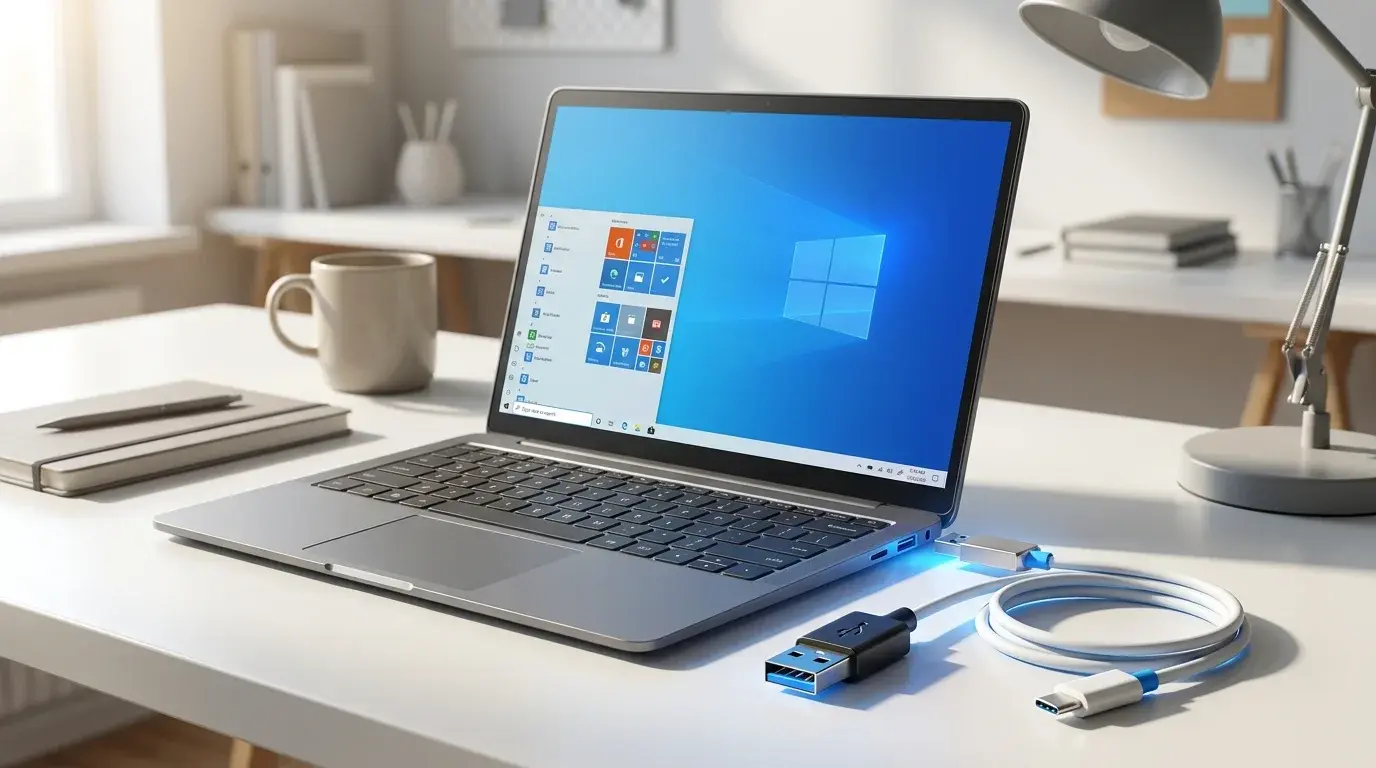
USB connectors and a cable beside a modern laptop, illustrating the meaning and types of USB
Table of Contents (18 sections)
- What does USB mean?
- What is the difference between USB-A and USB-C?
- USB-A
- USB-C
- Other USB connectors you may see
- What are the different USB versions and speeds?
- Does USB-C always mean faster data transfer?
- Does USB only transfer data, or can it charge devices too?
- Is USB backwards compatible?
- How to identify which USB port your computer has
- Related USB guides
- Frequently asked questions
- What does USB stand for?
- Is USB-C the same as USB?
- Which USB version is the fastest?
- Can the same USB-C cable charge a device and transfer files?
- Does a blue USB port always mean USB 3.0?
- Sources and further reading
USB stands for Universal Serial Bus. It is a standard way for computers, phones, tablets, accessories, storage devices, and other electronics to connect and exchange data. USB can also deliver electrical power, which is why the same type of connection may be used to transfer files, connect a keyboard, or charge a phone.
The confusing part is that USB connector shape, USB version, data speed, and charging capability are not the same thing. A USB-C port tells you what the connector looks like, but it does not automatically tell you how fast the connection is or how much power it supports.
What does USB mean?
USB is short for Universal Serial Bus. The USB standard was created to make it easier to connect peripherals to computers through a common interface instead of relying on a different connection standard for every device.
Today, USB is used for devices such as:
- Keyboards, mice, webcams, and printers.
- USB flash drives and external storage.
- Phones, tablets, and other portable devices.
- Audio interfaces, cameras, game controllers, and other accessories.
- Charging compatible devices and powering some connected equipment.
USB describes a family of specifications rather than one single connector or one fixed speed. The USB Implementers Forum (USB-IF) maintains the official USB specifications and certification programs. USB-IF's overview of USB technologies (opens in new tab) explains the broader family of standards.
What is the difference between USB-A and USB-C?
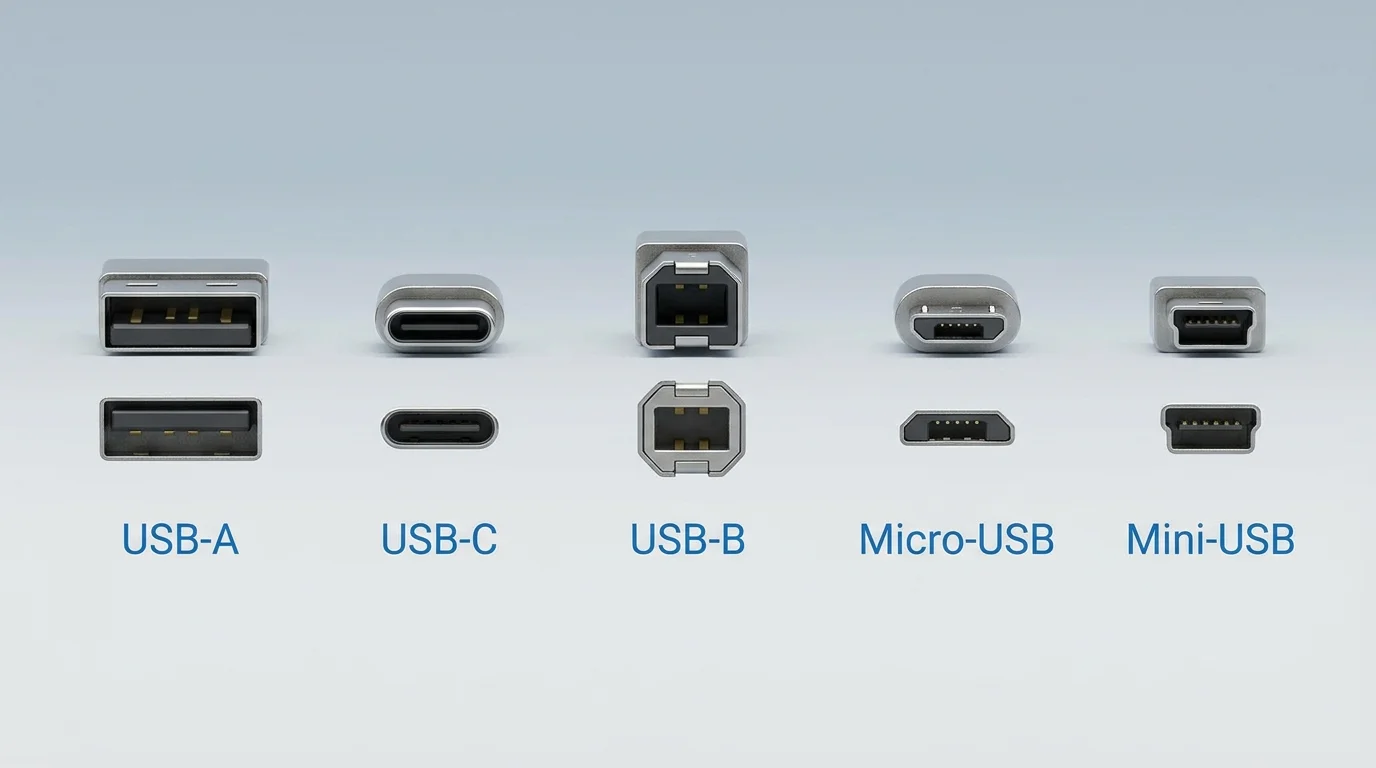
USB-A and USB-C describe connector types, not necessarily the USB version or speed.
USB-A
USB-A is the familiar wide, rectangular connector found on many desktop PCs, older laptops, TVs, hubs, and chargers. It usually plugs in only one way, so you may need to flip it if it does not fit.
USB-A ports can support different capabilities depending on the host device. The connector shape alone does not tell you the exact data rate or available power.
USB-C
USB-C is a smaller, oval-shaped connector that is reversible: the plug can be inserted either way up. It is common on newer laptops, phones, tablets, docks, monitors, and chargers.
USB-C can carry data, power, and, when supported by connected devices and cables, display signals. But not every USB-C port supports every feature. Some are limited to lower data rates or charging, while others support faster USB data, USB Power Delivery, or display output.
Important: USB-C is the connector shape. It is not another name for USB 3, USB4, or fast charging.
Other USB connectors you may see
- USB-B: A squarish connector often associated with printers and some other peripherals.
- Micro-USB: A small connector used by many older phones, accessories, and portable devices.
- Mini-USB: An older connector found on some cameras and other devices.
These shapes are not interchangeable without the correct cable or adapter. Even when an adapter physically fits, the features available still depend on the connected devices and cable.
What are the different USB versions and speeds?
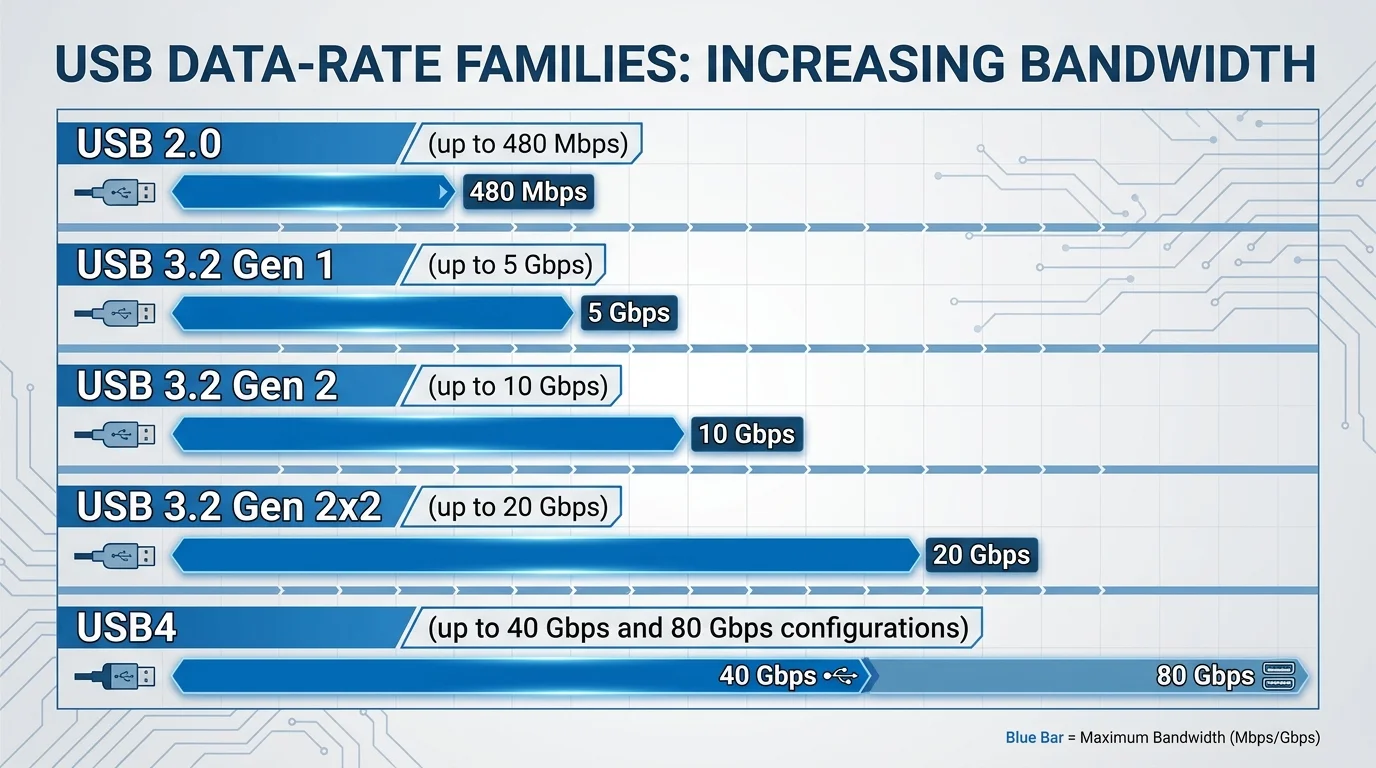
USB versions describe the capabilities supported by a connection. The headline data rate is a theoretical maximum, not a promise that every file transfer will reach that speed. Actual performance also depends on the computer, peripheral, storage medium, cable, and workload.
| USB family or mode | Maximum theoretical data rate | Typical context |
|---|---|---|
| USB 2.0 | 480 Mbps | Keyboards, mice, many basic accessories, and older devices |
| USB 3.2 Gen 1 | 5 Gbps | Common external storage and general-purpose data connections |
| USB 3.2 Gen 2 | 10 Gbps | Faster storage and compatible peripherals |
| USB 3.2 Gen 2x2 | 20 Gbps | Supported USB-C connections and devices |
| USB4 | Up to 40 Gbps for common USB4 implementations | High-bandwidth docks, storage, displays, and other compatible devices |
| USB4 Version 2.0 | Up to 80 Gbps in supported configurations | Higher-bandwidth USB4 systems and certified cables |
These figures are maximum signalling data rates from the relevant USB families, not guaranteed real-world transfer speeds. Product makers may use different labels, and some host devices or peripherals support only part of a standard's capability. See the official USB 3.2 information (opens in new tab) and USB4 overview (opens in new tab) for specification-level details.
USB performance branding has changed over time, so an older label such as "USB 3.0" may appear on existing products even though current specifications group multiple modes under USB 3.2. When buying a cable, hub, drive, or dock, check the data rate stated in the product specifications instead of relying only on the connector shape or an informal label.
Does USB-C always mean faster data transfer?
No. USB-C describes the connector, and the data rate depends on the port, connected device, and cable. Two cables can have the same USB-C plug but support different capabilities.
For example, a USB-C cable included with a charging accessory may be designed mainly for power and basic data. A certified high-speed cable may be needed for a compatible high-bandwidth external SSD or dock. The computer's port must also support the required mode.
To check before buying:
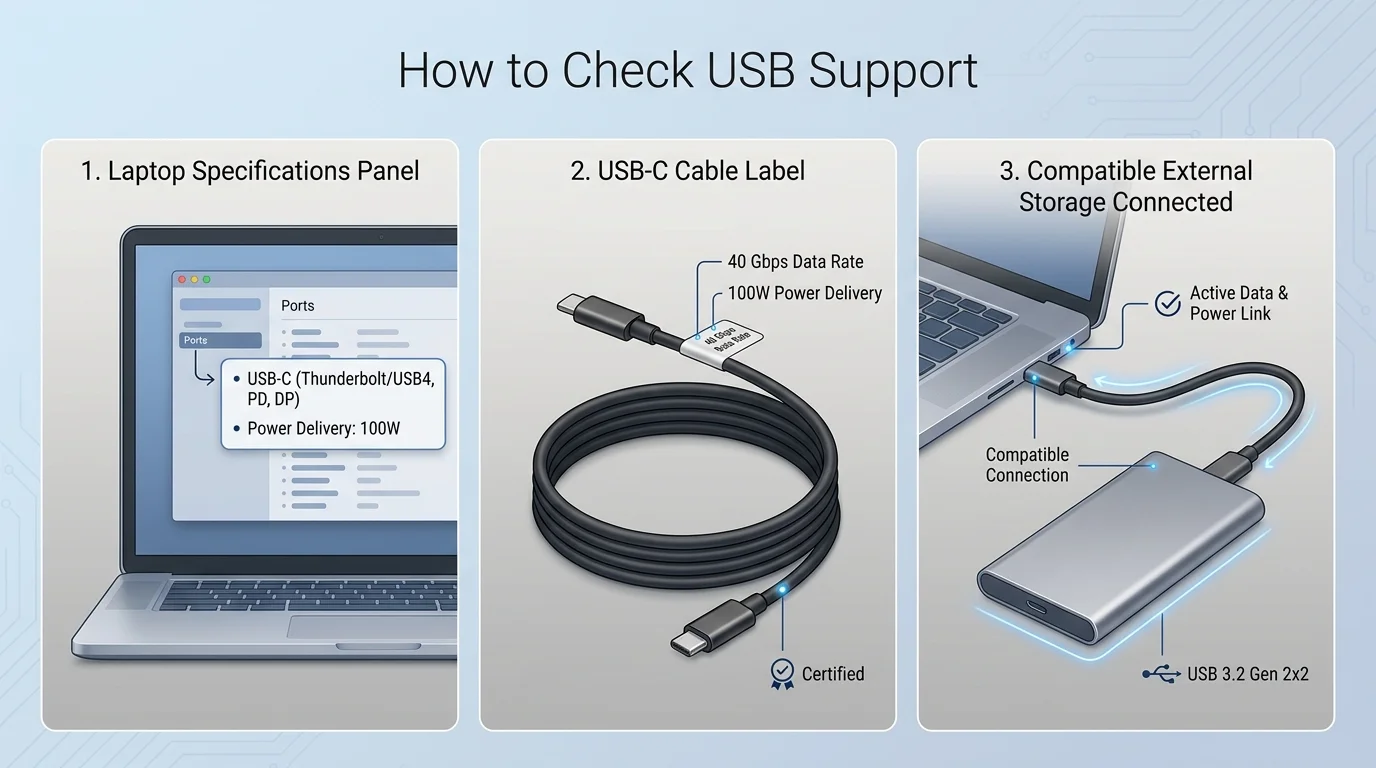
- Find the computer's or phone's official specifications.
- Identify the USB data rate supported by the port.
- Check the cable's labelled data rate and power rating.
- Confirm that the accessory supports the same feature you need.
USB-IF's USB Type-C cable and connector information (opens in new tab) describes the connector system and its capabilities. Physical compatibility alone does not guarantee maximum speed.
Does USB only transfer data, or can it charge devices too?
USB can do both, but the amount of power depends on the device, port, charger, cable, and supported power standard. A port that transfers data may provide power to a small accessory; charging a laptop or another high-power device may require compatible USB Power Delivery support and an appropriately rated cable and charger.
Do not assume every USB-C charger and cable delivers the same wattage. Check the ratings printed on the charger and cable and the requirements documented for your device. Use reputable, compatible accessories, especially for higher-power charging.
USB data rates and charging power are separate capabilities. A cable advertised for high wattage is not automatically the fastest data cable, and a high-speed data cable does not necessarily support every power level. For detailed guidance on choosing cables for power, data rates, and display support, see our comprehensive USB-C cable buying guide.
Is USB backwards compatible?
USB specifications are designed with backward compatibility in mind, and many newer USB ports can work with older USB devices. However, the connection generally operates at the best capability supported by the devices and cable in that configuration. A suitable adapter may be needed when the connectors differ.
Compatibility is not a guarantee that every combination supports all features. A USB-C monitor may need display support from the host, a fast external SSD needs a compatible high-speed path, and charging depends on supported power modes. Check the device documentation when a feature does not work as expected.
How to identify which USB port your computer has
Start with the computer manufacturer's specification page or user manual. The same laptop model can have several ports with different data rates, charging support, or display capabilities.
You can also inspect physical markings near the port or the symbols printed on the device, but symbols and colors are not universal enough to rely on by themselves. Windows Device Manager may show controller and device information, but it might not clearly state every capability of every physical port.
Before connecting a device, consider what you need to do:
- For a keyboard or mouse: almost any compatible USB data port is usually sufficient.
- For file transfers: check the USB data rate supported by the computer, drive, and cable.
- For an external monitor or dock: confirm the specific port supports the required display mode and dock features.
- For charging: check the charger's output, cable rating, and device requirements.
- For older accessories: use the appropriate cable or adapter and check any special compatibility requirements.
Related USB guides
If you are working with a flash drive or checking your computer's ports, these related guides may help:
- How many USB ports does a motherboard have? explains how to count rear I/O ports and front-panel case headers on desktop PCs.
- How to format a USB drive to FAT32 in Windows 11 explains file systems and formatting considerations.
- How to boot from USB on a Windows PC explains bootable media and the one-time boot menu.
- How to choose the right USB-C cable explains wattage tiers, data transfer rates, and display protocols.
These tasks are related but different: changing a file system does not automatically make a USB drive bootable, and connector shape alone does not determine the file system or boot support.
Frequently asked questions
What does USB stand for?
USB stands for Universal Serial Bus, a standard used to connect devices for data communication and, where supported, power delivery.
Is USB-C the same as USB?
No. USB is the standard family; USB-C is a connector type used by products that may support different USB data rates and features.
Which USB version is the fastest?
USB4 Version 2.0 supports data rates up to 80 Gbps in supported configurations. Actual performance depends on the host, device, and cable, so check the specifications for the exact products.
Can the same USB-C cable charge a device and transfer files?
Yes, if the cable and both connected devices support the needed charging and data features. Supported power levels and transfer speeds vary between cables and products.
Does a blue USB port always mean USB 3.0?
No. Port colors are not a universal, reliable guide to exact USB capabilities. Check the computer manufacturer's specifications for the port's supported data rate and features.
Sources and further reading
- USB-IF: USB technologies (opens in new tab)
- USB-IF: USB 3.2 (opens in new tab)
- USB-IF: USB4 (opens in new tab)
- USB-IF: USB Type-C cable and connector specification (opens in new tab)
- Microsoft Learn: Universal Serial Bus (opens in new tab)
USB names, connector types, and speed labels can be confusing because they describe different parts of the technology. The safest rule is to check the specifications for the exact port, device, and cable rather than judging capability from connector shape alone.
Verified Primary Sources & Citations
NextTechExplained verifies facts against official documentation, engineering whitepapers, and regulatory filings.
- USB-IF: USB TechnologiesView Official Source
- USB-IF: USB 3.2View Official Source
- USB-IF: USB4View Official Source
- USB-IF: USB Type-C Cable and Connector SpecificationView Official Source
- Microsoft Learn: Universal Serial BusView Official Source
Published by NextTechExplained
Editorial Team • Institutional Publication Byline
Articles published under this byline are prepared through rigorous research and verified against official engineering specifications, standards documentation, and primary sources. Learn more about our process on our About page and Editorial Policy.
Related Explanations & Guides
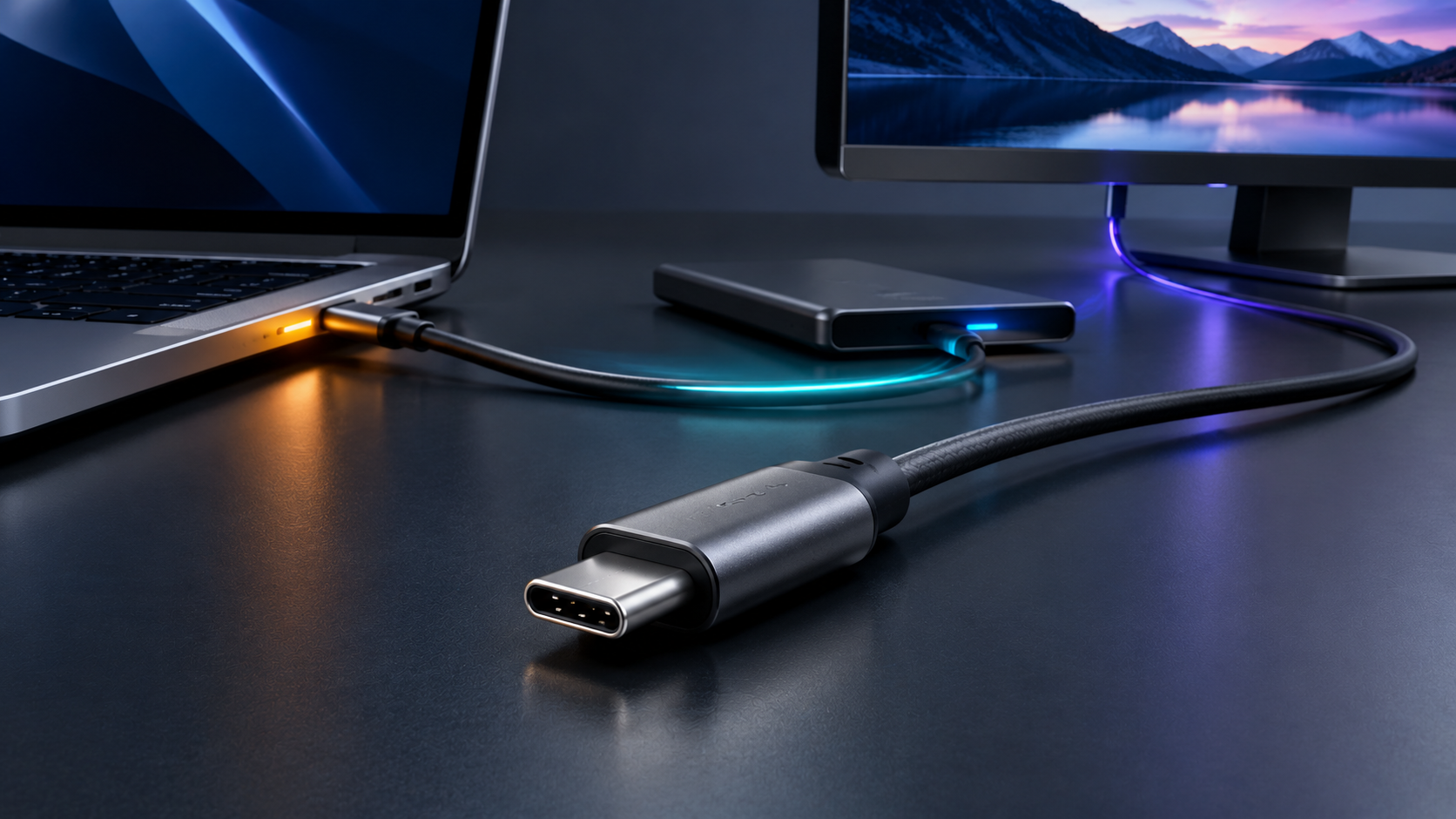
How to Choose the Right USB-C Cable: Charging, Data Speeds, and Thunderbolt Explained
Two identical USB-C cables can deliver completely different charging wattages, data rates, and display capabilities. Here is how to pick the right cable for phones, laptops, SSDs, and docks without overpaying.
Daylight Saving Time 2026: Check Your Phone, Computer, and Smart-Home Settings
Before US clocks fall back on November 1, check automatic time settings on your phone, computer, calendar, and smart-home devices. Learn how to fix clocks that do not update.
How to Compare Laptop Processors in 2026: NPU, Architecture, and Real Battery Life
Choosing a laptop used to be a simple duel between Intel and AMD. Today, with ARM architecture, Apple Silicon, and dedicated neural processors (NPUs), here is what actually matters for daily performance and battery endurance.