
How to Boot from USB on a Windows PC
Learn how to boot a Windows PC from a USB drive using the one-time boot menu, create official Windows installation media, and troubleshoot when the USB is not listed.
Editorial Team
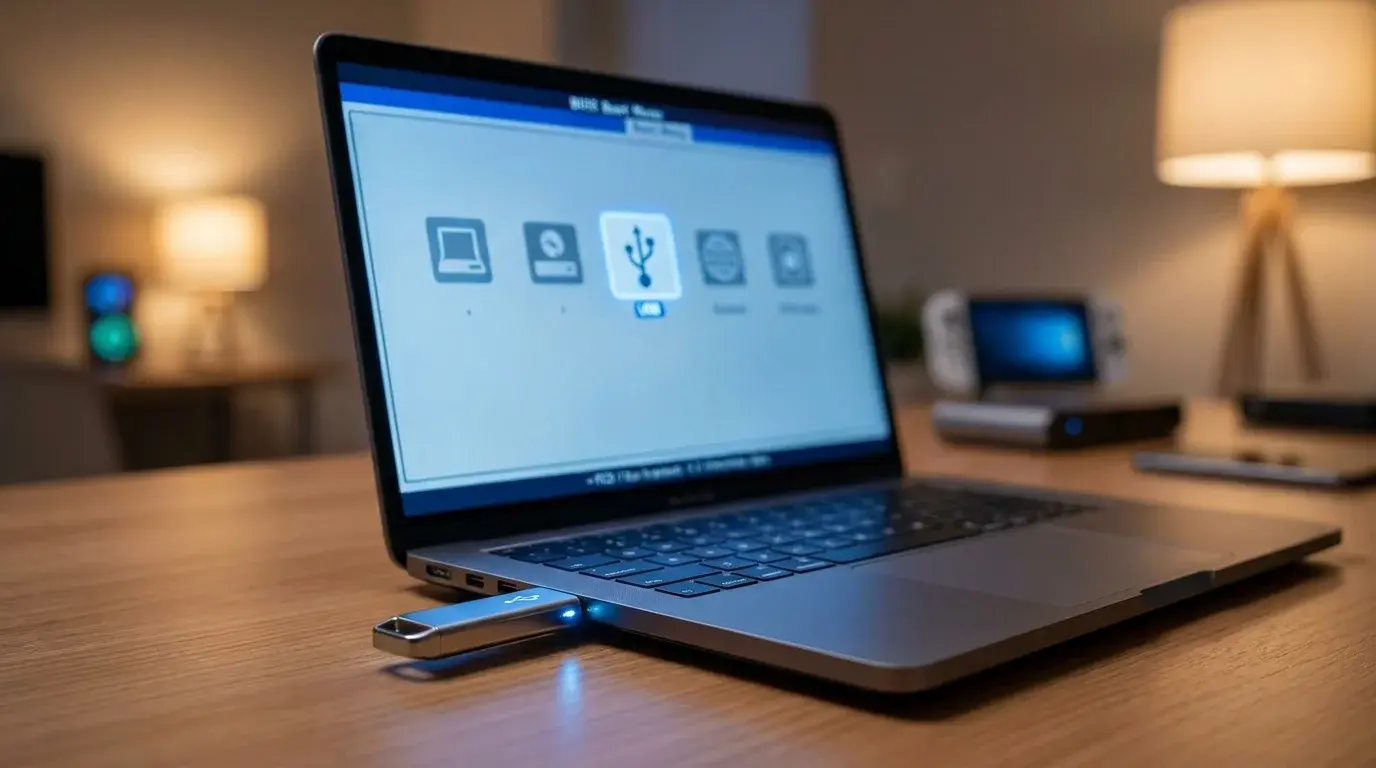
USB flash drive connected to a Windows PC with a startup boot menu on screen
Table of Contents (15 sections)
- Before you start
- Method 1: Use the one-time boot menu
- Method 2: Create a Windows 11 bootable USB first
- Method 3: Change boot order in BIOS or UEFI
- What to do if the USB drive does not appear
- If Windows Setup starts, what should you select?
- Why does the PC boot back into the USB installer?
- Frequently asked questions
- What key do I press to boot from USB?
- Can I boot from a USB drive without installing Windows?
- Why does my computer keep starting Windows normally?
- Do I need to disable Secure Boot to boot from USB?
- Will booting from USB delete my files?
- Official guidance
- Related guides
Booting from a USB drive means starting your computer from bootable media instead of loading the operating system on its internal drive. People commonly do this to install or reinstall Windows, run recovery tools, test a supported operating system, or start a manufacturer-provided diagnostic environment.
The exact key for the one-time boot menu depends on the computer manufacturer and model. Common examples include F12, F11, F10, Esc, or F2, but there is no universal key. For instance, on Gigabyte motherboards, F12 is commonly used to open the boot menu (as covered in our Gigabyte AORUS Secure Boot guide). Check the PC maker's instructions for your exact device.
Important: Booting from a USB drive does not automatically erase your PC. However, choosing a clean Windows installation or formatting partitions can delete files and apps. Back up important data before starting an installation or recovery process, and read each setup screen carefully.
Before you start
You need a USB drive that is actually bootable. A normal USB drive that simply contains an ISO file or copied Windows folders may not start a PC. Use a trusted tool to create the media for the task you need.
For Windows 11 installation media, Microsoft provides an official Media Creation Tool and ISO download. Microsoft's current instructions call for a blank USB flash drive with at least 8 GB of space for the Media Creation Tool process, and anything on the selected USB can be deleted when the media is created. Make a backup first and verify that you have selected the correct removable drive.
If you already created a bootable USB, confirm it is intended for the computer's architecture and boot mode. An installation USB made for one platform or firmware configuration may not work on every PC.
Method 1: Use the one-time boot menu
The one-time boot menu is usually the simplest method because it lets you choose a device for this startup without permanently changing the normal boot order.
- Shut down the PC completely if the manufacturer's instructions recommend starting from a powered-off state.
- Insert the bootable USB drive directly into a USB port on the PC. If one port does not work, try another port recommended by the device maker.
- Turn the PC on and immediately press the manufacturer's boot-menu key repeatedly, if that is how the model opens the menu. Begin as soon as you press the power button; do not wait until Windows starts loading.
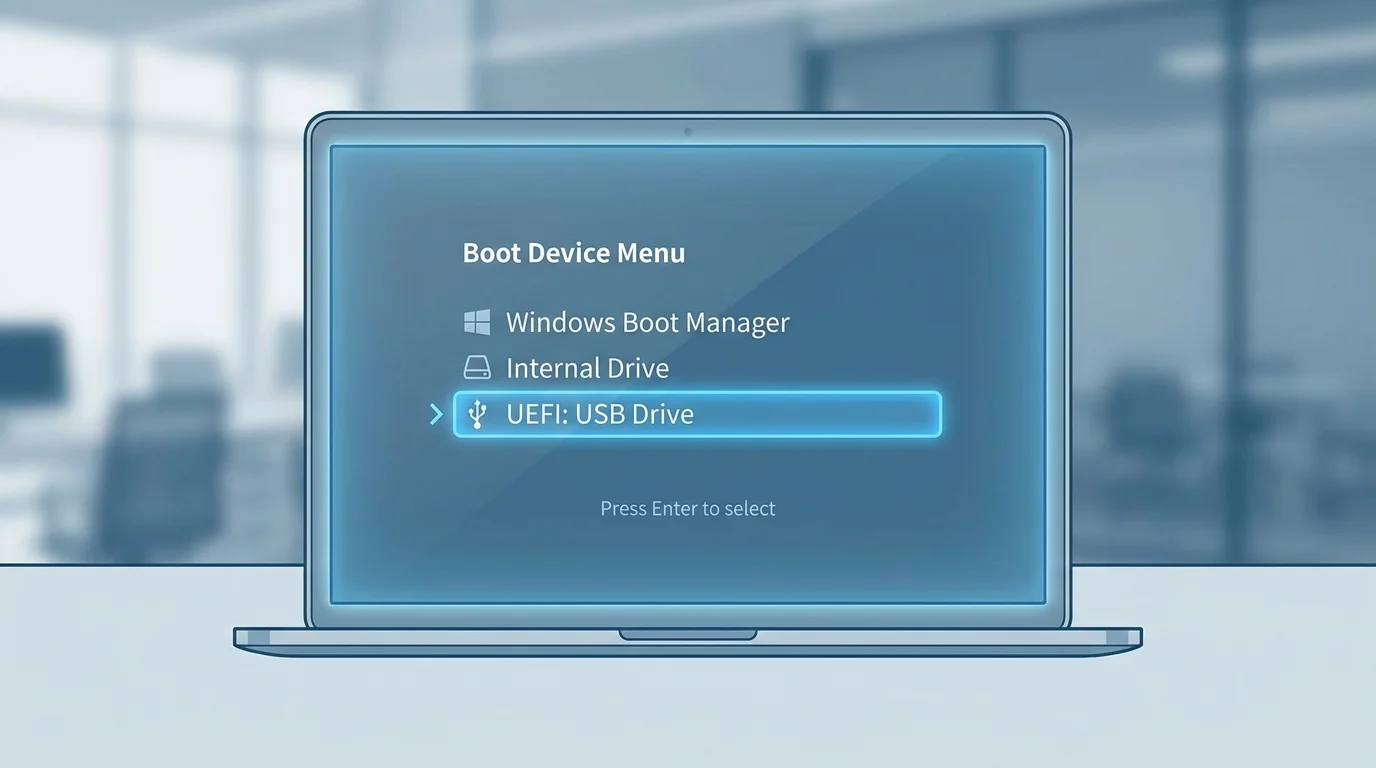
- When the boot menu appears, look for the USB drive. It may be listed by its brand, its model, or an entry such as UEFI: USB Drive.
- Select the entry corresponding to your USB drive and press Enter.
- Follow the screen shown by the bootable media. For Windows installation media, Windows Setup should appear. For recovery media, choose the recovery option that matches your goal.
If both a UEFI and a legacy-style entry appear, do not choose randomly. Most modern Windows 11 PCs use UEFI, but the correct choice depends on how the media was made and how the computer is configured. Follow the PC or media provider's instructions.
If you are formatting an ordinary USB for compatibility rather than creating bootable media, see our guide on how to format a USB drive to FAT32 in Windows 11. Remember that formatting a drive alone does not make it bootable.
Method 2: Create a Windows 11 bootable USB first
Skip this section if you already have working bootable media. If your USB is just an ordinary storage drive, create installation media before trying to boot from it.
- On a working compatible PC, open Microsoft's official Download Windows 11 page (opens in new tab).
- Under Create Windows 11 Installation Media, download and run the Media Creation Tool.
- Accept the license terms, then choose the option to create installation media for another PC.
- Select the appropriate language and edition, then choose the USB flash drive option.
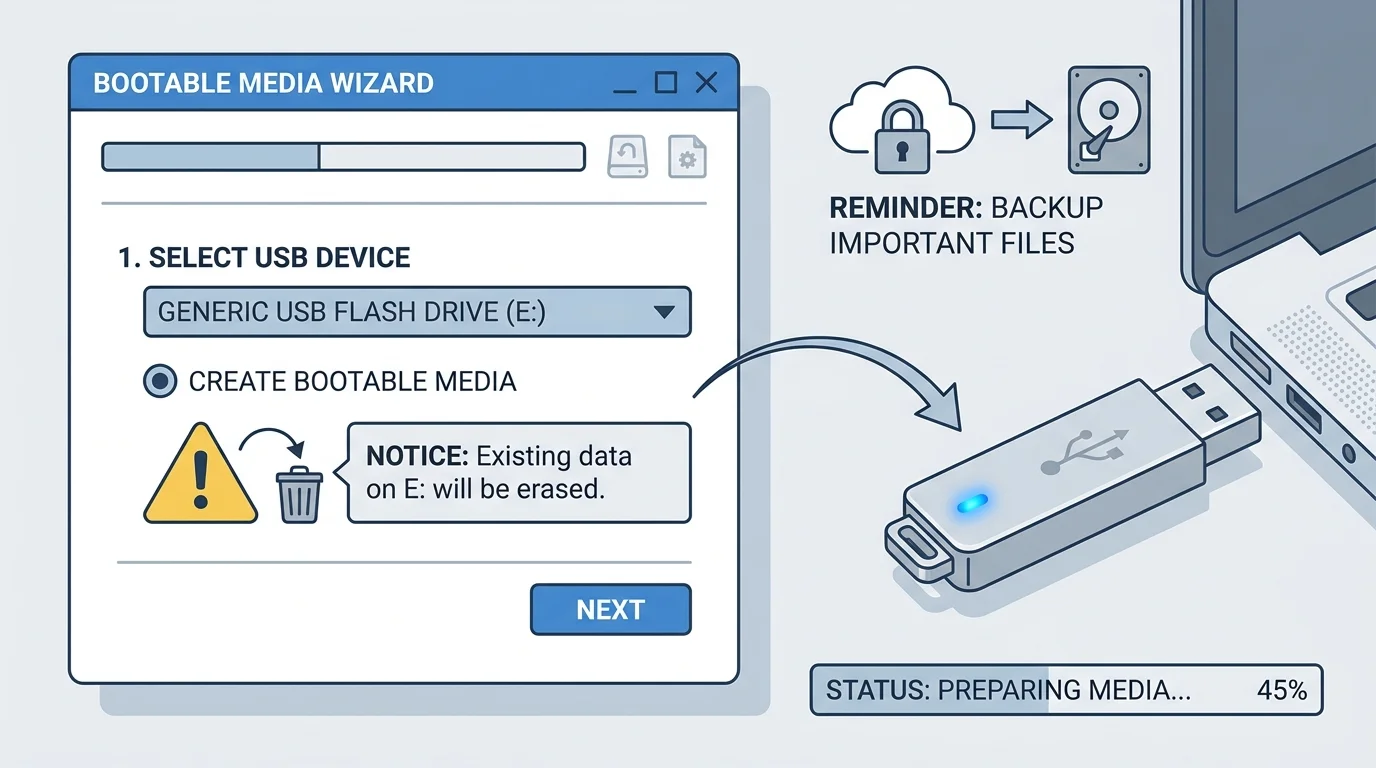
- Insert a blank USB flash drive with at least 8 GB of space. Carefully identify the intended drive. The process deletes its existing contents.
- Follow the tool's instructions and wait for it to finish. Safely eject the USB when the tool says the media is ready.
Microsoft's Media Creation Tool for Windows 11 creates installation media for x64 processors; Microsoft's download page provides separate guidance for Arm-based devices. Check compatibility and use the correct official media for the PC you intend to start or install.
Method 3: Change boot order in BIOS or UEFI
Use the firmware setup only if you cannot use the one-time boot menu or if your device documentation specifically directs you to change the boot order. The names and menu layout vary by manufacturer, so there is no universal BIOS/UEFI path.
- Restart or turn on the PC and press the setup key specified by the manufacturer. It may be different from the one-time boot-menu key.
- Find the Boot, Boot Options, or Boot Priority area.
- If the firmware offers a supported USB boot entry, follow the manufacturer's instructions to prioritize it.
- Save changes only if you understand what is being changed, then exit the firmware setup.
- After using the USB, restore the normal boot order if you changed it and the PC keeps returning to the USB installer instead of starting from its internal drive.
Do not change unrelated firmware settings. In particular, do not automatically disable Secure Boot simply because a USB drive is not listed. First confirm that the USB was created correctly and supports the PC's boot mode. If an untrusted bootloader is triggering an error, read our guide on troubleshooting Secure Boot Violation errors. Change Secure Boot or other security settings only when the official instructions for your specific boot media and device require it, and understand the security implications before doing so.
What to do if the USB drive does not appear
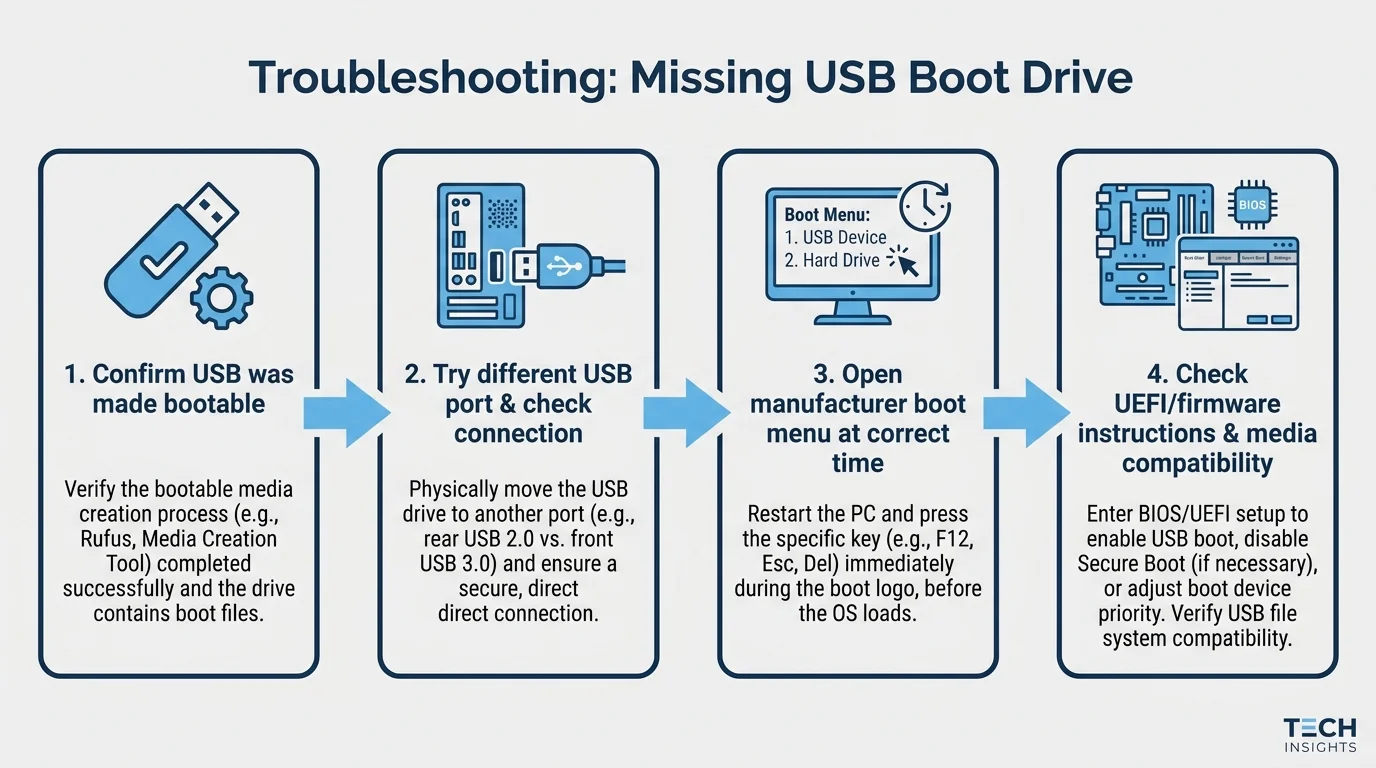
If the USB is missing from the boot menu, work through these checks before changing firmware settings:
- Confirm the USB is bootable. Copying an ISO file to a normal USB drive is not the same as creating bootable media. Recreate it with the official tool or the trusted utility recommended by the media provider.
- Try another USB port. Connect the drive directly to the computer rather than through a hub or dock. Some devices have port-specific startup behavior; check the manufacturer's guide. For a deeper look at different port types and speed generations, see our explainer on what USB stands for and USB versions. On desktop PCs, see how many USB ports a motherboard has to locate direct rear I/O ports rather than unpowered front-panel headers.
- Open the menu at the right time. Start pressing the correct boot-menu key immediately after powering on. A key that works for firmware setup may not open the one-time menu.
- Check the USB on another computer, if available. This can help distinguish a faulty drive from a device-specific boot problem, but do not start installation on the other computer accidentally.
- Check media compatibility. Confirm the media matches the system architecture and the firmware mode the computer supports. Older tools or unsupported media may not start on a modern UEFI system.
- Read the manufacturer guidance before changing firmware settings. Some devices have particular boot policies or USB boot options. Do not turn off Secure Boot or switch UEFI/Legacy settings without a specific reason.
- Recreate the media if necessary. If the files were copied manually or the creation process reported an error, rebuild the USB with the official source. Remember that recreating the media can erase the USB contents.
If Windows Setup starts, what should you select?
The correct option depends on your goal. Starting Windows Setup does not mean you must install Windows immediately.
- To install Windows: Continue only if this is your intention and you have checked the target device, edition, compatibility, license, and backup status. A clean installation can remove personal files, apps, and settings from the device.
- To troubleshoot a Windows PC that will not start: Look for the recovery or repair option available from your installation media rather than choosing a clean installation automatically. The available options can vary depending on the Windows version and media.
- To recover a device: Use recovery media built for that device and follow its manufacturer's procedure. Some recovery processes restore the device to factory state and erase its contents.
If your only goal is to run an installer inside a working Windows session, you may not need to boot from USB at all. Microsoft's installation guidance explains the difference between running setup from within Windows and booting from installation media.
Why does the PC boot back into the USB installer?
If the PC returns to Windows Setup after a restart, it may still be booting from the USB drive because the USB is first in the boot order or the firmware menu was used again. Once the first installation phase completes and the PC restarts, follow the on-screen instructions and remove the USB only when the setup process indicates it is safe to do so. If the PC repeatedly launches the installer, use the boot menu to select the internal Windows Boot Manager or restore the normal boot order according to the manufacturer's instructions.
Avoid interrupting an active installation or removing the drive while files are being copied. If you are not sure which stage has completed, consult the official installation instructions before changing the boot device.
Frequently asked questions
What key do I press to boot from USB?
It varies by computer. F12, F11, F10, Esc, and F2 are common on some models, but they are not universal. Check the manufacturer's instructions for the exact model.
Can I boot from a USB drive without installing Windows?
Yes, if the USB contains compatible bootable media. Some drives launch recovery tools, diagnostics, or other operating systems. Choosing to boot from the USB does not by itself install Windows or erase the internal drive; what happens next depends on the media and options you select.
Why does my computer keep starting Windows normally?
The USB might not be bootable, the boot-menu key may have been pressed too late, the selected entry may be wrong, or the device may not support that media in its current firmware configuration. Recreate the media if needed and check the PC maker's instructions.
Do I need to disable Secure Boot to boot from USB?
Not generally. First use trusted media intended for the PC and check its boot mode. Do not disable Secure Boot as a routine troubleshooting step. Only consider a firmware change when official device or media instructions require it and you understand the implications.
Will booting from USB delete my files?
Booting alone does not normally erase your files. Formatting the USB while creating media will erase the USB, and choosing a clean installation or formatting a disk inside setup can erase files on the PC. Back up important data before proceeding and read the options carefully.
Official guidance
- Download Windows 11 and create installation media (opens in new tab)
- Reinstall Windows with installation media (opens in new tab)
- Install Windows from a USB flash drive (opens in new tab)
If you are troubleshooting a particular PC, use its manufacturer's support page for the exact boot-menu key and firmware instructions. That guidance is more reliable than assuming one key or BIOS menu works on every model.
Related guides
Verified Primary Sources & Citations
NextTechExplained verifies facts against official documentation, engineering whitepapers, and regulatory filings.
- Microsoft: Download Windows 11 and create installation mediaView Official Source
- Microsoft Support: Reinstall Windows with installation mediaView Official Source
- Microsoft Learn: Install Windows from a USB flash driveView Official Source
Published by NextTechExplained
Editorial Team • Institutional Publication Byline
Articles published under this byline are prepared through rigorous research and verified against official engineering specifications, standards documentation, and primary sources. Learn more about our process on our About page and Editorial Policy.
Related Explanations & Guides
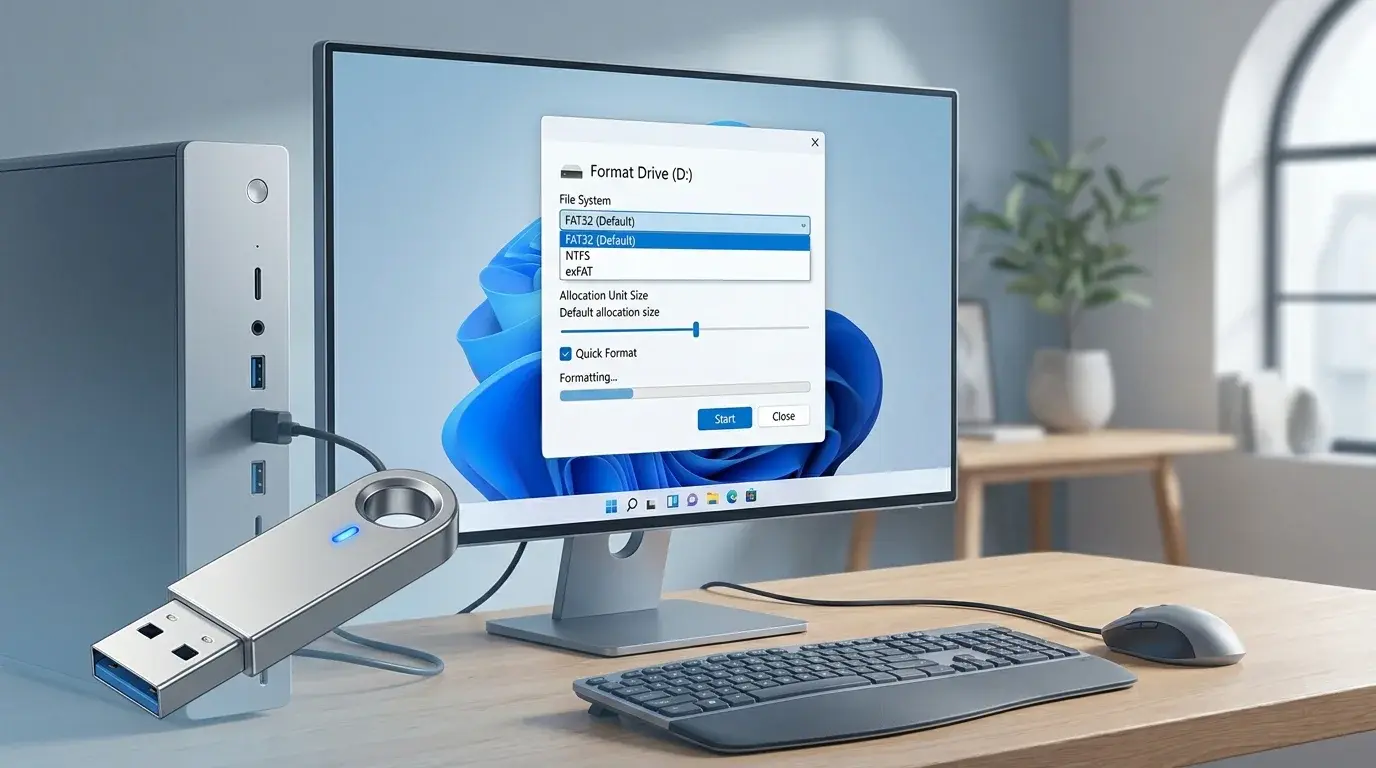
How to Format a USB Drive to FAT32 in Windows 11
Format a USB flash drive as FAT32 in Windows 11, understand why FAT32 may be missing for larger drives, and choose the right file system safely.
Gigabyte Secure Boot: How to Enable It and Fix Common Errors
Learn how to check Secure Boot on Gigabyte and AORUS PCs, understand UEFI and key settings, and troubleshoot common BIOS messages safely.
How to Enable Secure Boot in Windows 11: Step-by-Step Guide
Check whether Secure Boot is supported, enable it safely in UEFI firmware, and troubleshoot common Windows 11 Secure Boot issues without risking your boot setup.