
Gigabyte Secure Boot: How to Enable It and Fix Common Errors
Learn how to check Secure Boot on Gigabyte and AORUS PCs, understand UEFI and key settings, and troubleshoot common BIOS messages safely.
Editorial Team
A modern unbranded desktop PC and motherboard arranged on a dark desk for a Secure Boot troubleshooting guide
Table of Contents (20 sections)
- 1. Check Windows before entering the BIOS
- 2. Identify the exact Gigabyte or AORUS model
- 3. Prepare before changing Secure Boot
- 4. Where Secure Boot may appear on Gigabyte BIOS
- 5. Enable Secure Boot only when the prerequisites are satisfied
- 6. Common Gigabyte Secure Boot problems
- Secure Boot is missing from the BIOS menu
- BIOS says Secure Boot is enabled, but it is Not Active
- "Secure Boot can be enabled when Platform is in User Mode" appears
- Windows will not boot after CSM or Secure Boot changes
- A game says Secure Boot or TPM is disabled
- 7. Updating Gigabyte BIOS: when it may help
- Quick troubleshooting table
- Frequently asked questions
- How do I enable Secure Boot on a Gigabyte motherboard?
- Is Gigabyte Secure Boot the same as AORUS Secure Boot?
- Should I restore factory Secure Boot keys?
- Does Secure Boot require TPM 2.0?
- What if Secure Boot is on in BIOS but Windows reports Off?
- Sources and further reading
If Secure Boot is off, missing, or marked Not Active on a Gigabyte motherboard or AORUS PC, the right fix depends on your board model, BIOS version, Windows boot mode, and Secure Boot key state. Some supported Gigabyte boards expose the setting only after Compatibility Support Module (CSM) is disabled. Others use different menus or firmware behavior, so do not treat one motherboard's instructions as universal.
Before changing firmware settings, check how Windows currently boots and confirm you can access your important files. If your system uses BitLocker or Windows device encryption, make sure you can retrieve its recovery key before changing boot configuration.
This guide explains the checks to make first, where Secure Boot may appear on supported Gigabyte boards, and what to do when the menu or status does not match expectations. The official GIGABYTE guide for supported AM4, 300/400/500-series, and sTRX4/TRX40 motherboards (opens in new tab) is the primary reference for its specific menu sequence. Your model's manual takes precedence if the interface differs.
1. Check Windows before entering the BIOS
Start by finding out whether Secure Boot is already active. This avoids unnecessary firmware changes.
- Press
Windows + Rto open Run. - Type
msinfo32and press Enter. - In System Summary, find BIOS Mode and Secure Boot State.
Interpret the results carefully:
- BIOS Mode: UEFI and Secure Boot State: On means Windows reports Secure Boot as enabled.
- BIOS Mode: UEFI and Secure Boot State: Off means the PC is booting in UEFI mode, but Secure Boot is not active for the current configuration. Follow our step-by-step guide on how to enable Secure Boot in Windows 11.
- BIOS Mode: Legacy means Windows started through a legacy boot path. Do not simply disable CSM or switch firmware modes without first checking the Windows installation's partition layout and the motherboard's instructions.
- Secure Boot State: Unsupported does not automatically prove the motherboard lacks the feature. It may reflect the current boot mode or configuration; check the device documentation.
Microsoft explains that Windows 11 requires UEFI firmware that is Secure Boot capable and TPM 2.0, but being Secure Boot capable is not the same as having Secure Boot enabled. For a technical breakdown of how UEFI checks signatures and how it differs from TPM 2.0, see our guide on what Secure Boot is and how it works in Windows. See also the official Windows 11 system requirements (opens in new tab).
2. Identify the exact Gigabyte or AORUS model
Menu names can vary between Gigabyte motherboard generations, BIOS versions, board revisions, and AORUS laptops. Before following a firmware guide, identify the exact hardware.
- Open System Information with
msinfo32. - Note BaseBoard Manufacturer, BaseBoard Product, System Model, and BIOS Version/Date where available.
- For a desktop motherboard, check the model and hardware revision printed on the board or its packaging. Match that revision to the official support page.
- Open the correct model's manual and BIOS notes on the GIGABYTE support website (opens in new tab).
Do not assume an AORUS laptop has the same options as a Gigabyte desktop motherboard. A setting shown in an AM4 desktop guide might be absent or named differently on another platform.
3. Prepare before changing Secure Boot
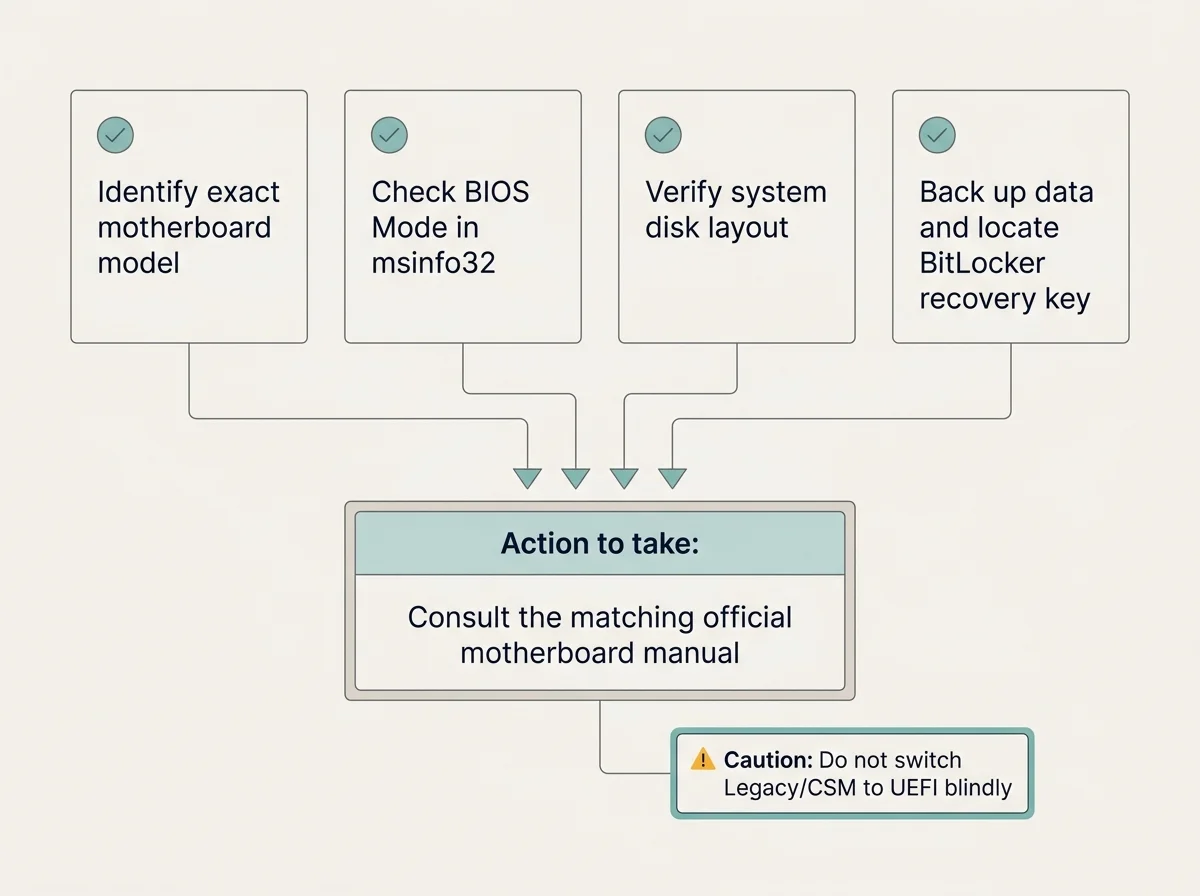
Complete these checks before entering firmware setup:
- Back up important files, especially if Windows currently starts in Legacy mode or the PC dual-boots another operating system.
- If BitLocker or device encryption is enabled, confirm that the recovery key is available from another device or a safe location. Firmware and boot-measurement changes can sometimes trigger recovery. Microsoft's TPM and BitLocker documentation (opens in new tab) explains how startup measurements can affect access to encrypted data.
- Confirm BIOS Mode in
msinfo32. If it says Legacy, stop and investigate before disabling CSM. - For a Windows installation intended to boot in UEFI mode, verify the system disk's partition style. A disk using MBR may need a planned conversion or reinstall before switching to UEFI-only operation. Do not perform a conversion unless you have checked the steps for your actual installation and made a backup.
- Do not clear Secure Boot keys or choose Reset to Setup Mode as a generic troubleshooting step.
4. Where Secure Boot may appear on Gigabyte BIOS
On some supported Gigabyte desktop motherboards, Secure Boot settings appear after entering BIOS Setup and switching to Advanced Mode. A commonly documented path on certain AM4 and related platforms is:
Advanced Mode > Boot > CSM Support
After CSM is disabled on a compatible UEFI installation, the Secure Boot menu may become available under a path such as:
Advanced Mode > Boot > Secure Boot
GIGABYTE documents this sequence for specific motherboard families in its Secure Boot and TPM 2.0 instructions (opens in new tab). This is an example, not a universal menu map. Other board generations may put Secure Boot under Settings, Security, or a different submenu; follow the manual for your exact model and BIOS version.
5. Enable Secure Boot only when the prerequisites are satisfied
If Windows already boots in UEFI mode, the disk layout is appropriate, and the exact motherboard manual supports the change, follow the manufacturer's steps for that model.
A common pattern on some Gigabyte boards is to disable CSM, open Secure Boot, choose the documented mode, and enroll the manufacturer's default Secure Boot keys. However, labels such as Standard, Custom, Restore Factory Keys, Install Factory Defaults, and Enroll Factory Default Keys vary by BIOS. Do not assume that the same sequence applies to every board.
GIGABYTE's own support guide (opens in new tab) gives a model-family-specific sequence and warns that forcing Secure Boot on an incompatible Legacy/MBR setup can prevent Windows from booting. Read the current instructions for your exact motherboard before changing CSM or key settings.
A safe process is:
- Enter UEFI firmware through Windows Advanced startup or the method documented for your model.
- Find the Secure Boot menu using the board's manual.
- Check the displayed Secure Boot status, system mode, and key state.
- Make only the change directed by the exact model's documentation.
- Save and exit using the documented controls.
- Let Windows boot, then reopen
msinfo32and check Secure Boot State.
If the system does not boot afterward, do not continue changing unrelated settings. Consult the motherboard manufacturer's recovery instructions or support service. Do not reset firmware keys to defaults unless the correct manufacturer guidance specifically calls for it.
6. Common Gigabyte Secure Boot problems
Secure Boot is missing from the BIOS menu
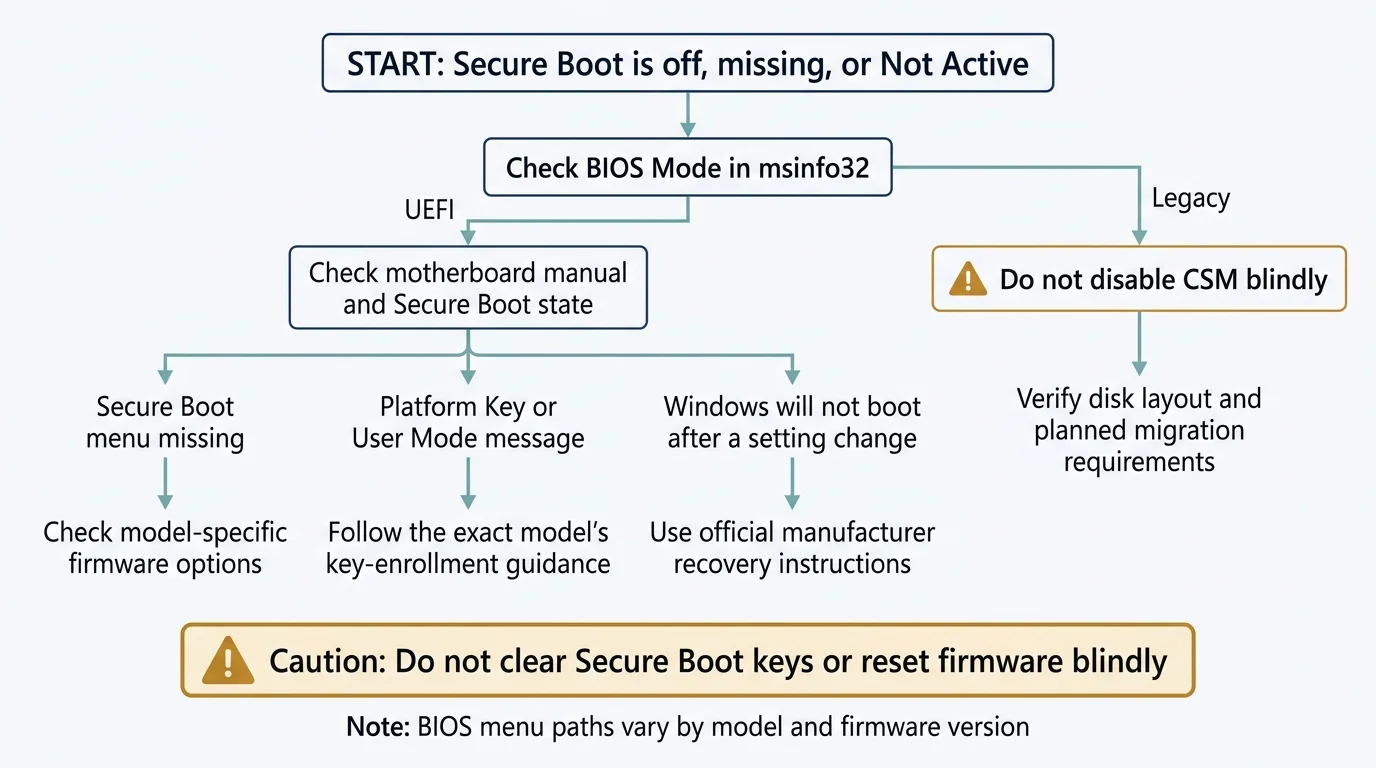
Possible reasons include CSM/Legacy boot configuration, a menu layout that differs by model, unsupported firmware, or a BIOS version with different option names. Check BIOS Mode in msinfo32 and the exact motherboard manual first. Do not disable CSM until you know Windows can boot in UEFI mode.
BIOS says Secure Boot is enabled, but it is Not Active
The firmware may require a Platform Key (PK) to be enrolled, a User/Deployed system mode, or a compatible configuration with CSM disabled. Some Gigabyte firmware manuals describe these conditions, but the exact labels and required sequence differ by product. Review the board-specific manual rather than clearing keys or selecting an unfamiliar key-management option. Our guide to Secure Boot enabled but not active explains how to compare the firmware status with Windows' report.
"Secure Boot can be enabled when Platform is in User Mode" appears
This typically indicates that the platform is in Setup Mode and needs the appropriate platform key enrolled before Secure Boot can become active. On supported boards, the manufacturer's instructions may provide a Restore Factory Keys or equivalent option. Use that option only if the manual for your precise model and firmware version recommends it. See our separate guide to the Secure Boot User Mode message.
Windows will not boot after CSM or Secure Boot changes
A mismatch between the existing Windows boot mode and the firmware configuration may prevent the boot drive from loading. If Windows was previously installed in Legacy mode, disabling CSM may make that installation unbootable until the configuration is recovered. Follow the model-specific recovery instructions; do not randomly toggle multiple firmware settings. If BitLocker recovery appears, use your legitimate recovery key rather than attempting to bypass encryption. If the computer halts at startup with a firmware signature warning, read our walkthrough on troubleshooting a Secure Boot Violation.
A game says Secure Boot or TPM is disabled
Secure Boot and TPM 2.0 are separate features. Check Secure Boot State in msinfo32; check TPM separately using tpm.msc and confirm the specification version if your game or app requires it. If Windows reports Secure Boot as On but the game still complains, restart the game and follow the publisher's official troubleshooting guide before changing firmware again. For specific competitive game requirements like EA Javelin Anti-Cheat, see our Battlefield 6 Secure Boot troubleshooting guide.
7. Updating Gigabyte BIOS: when it may help
A BIOS/UEFI update may address compatibility, security, or menu issues, but it is not a universal fix for Secure Boot. Read the release notes for your exact motherboard model and hardware revision. Download firmware only from the official GIGABYTE support site (opens in new tab), and follow the included update instructions. If Windows Security shows a warning regarding certificate renewal, see our Secure Boot certificate update status guide.
Before updating, back up important data, confirm you have access to your BitLocker recovery key if encryption is enabled, and ensure the computer has reliable power. Never interrupt firmware flashing. If you are unsure whether a BIOS update addresses your Secure Boot issue, contact manufacturer support first.
Quick troubleshooting table
| What you see | What to check first | Safe next step |
|---|---|---|
| Secure Boot menu is missing | BIOS Mode, CSM/Legacy mode, exact board manual | Confirm UEFI readiness before changing CSM |
| Secure Boot says Not Active | Platform Key, System Mode, board-specific requirements | Follow the exact firmware manual |
| User Mode / Platform Key message | Whether the platform is in Setup Mode | Use documented key-enrollment steps for the precise model |
| Windows fails to boot after a change | Previous boot mode and disk partition style | Follow OEM recovery guidance; avoid random setting changes |
| Game reports Secure Boot missing | msinfo32 state and separate TPM status |
Follow the game publisher's official support instructions |
| Secure Boot options differ from a guide | Model, board revision, BIOS version | Use the matching official manual rather than a generic video |
Frequently asked questions
How do I enable Secure Boot on a Gigabyte motherboard?
First confirm in msinfo32 that Windows boots in UEFI mode and check the disk layout. Then follow the exact motherboard manual. On some supported models, Secure Boot appears only after CSM is disabled; other models use different menu paths.
Is Gigabyte Secure Boot the same as AORUS Secure Boot?
They use the same underlying UEFI Secure Boot technology, but firmware interfaces and available options vary by product. An AORUS laptop, a Gigabyte AM4 motherboard, and a newer desktop board may not expose identical settings.
Should I restore factory Secure Boot keys?
Only when the documentation for the exact motherboard and firmware state instructs you to do so. Key changes affect which boot software the firmware trusts and may affect dual-boot configurations. Do not clear or replace keys just to see whether an option becomes active.
Does Secure Boot require TPM 2.0?
They are separate features. Windows 11 lists both UEFI Secure Boot capability and TPM 2.0 among its system requirements. Some games also require both, but enabling one does not automatically enable the other.
What if Secure Boot is on in BIOS but Windows reports Off?
Verify that Windows is booting through UEFI, restart after applying a model-specific firmware change, and check msinfo32 again. If the readings still disagree, consult the motherboard manual or manufacturer support instead of repeating firmware changes blindly.
Sources and further reading
- GIGABYTE: How to Enable Secure Boot and TPM 2.0 on Supported Motherboards (opens in new tab)
- GIGABYTE: Secure Boot security advisory (opens in new tab)
- Microsoft Support: Windows 11 system requirements (opens in new tab)
- Microsoft Learn: Secure Boot (opens in new tab)
- Microsoft Learn: How Windows uses the TPM (opens in new tab)
- Microsoft Learn: Secure Boot troubleshooting guide (opens in new tab)
Verified Primary Sources & Citations
NextTechExplained verifies facts against official documentation, engineering whitepapers, and regulatory filings.
- GIGABYTE: How to Enable Secure Boot and TPM 2.0 on Supported MotherboardsView Official Source
- GIGABYTE: Enable Secure Boot to protect systems from UEFI rootkit CosmicStrandView Official Source
- Microsoft Support: Windows 11 system requirementsView Official Source
- Microsoft Learn: Secure BootView Official Source
- Microsoft Support: Access UEFI firmware settingsView Official Source
Published by NextTechExplained
Editorial Team • Institutional Publication Byline
Articles published under this byline are prepared through rigorous research and verified against official engineering specifications, standards documentation, and primary sources. Learn more about our process on our About page and Editorial Policy.
Related Explanations & Guides

How to Enable Secure Boot in Windows 11: Step-by-Step Guide
Check whether Secure Boot is supported, enable it safely in UEFI firmware, and troubleshoot common Windows 11 Secure Boot issues without risking your boot setup.
Secure Boot Can Be Enabled When System Is in User Mode: What It Means
Seeing the Secure Boot user mode or Platform Key message in BIOS? Learn what it means and how to check your Windows PC safely.
Secure Boot Enabled but Not Active? How to Diagnose It in Windows 11
If Secure Boot is enabled in firmware but Windows or your BIOS says it is not active, check UEFI mode, Secure Boot keys, and firmware settings safely.