
How to Turn On Your Keyboard Light in Windows 11
Learn how to turn on a laptop keyboard backlight, find the correct Fn shortcut, adjust brightness, and troubleshoot lighting that will not turn on.
Editorial Team
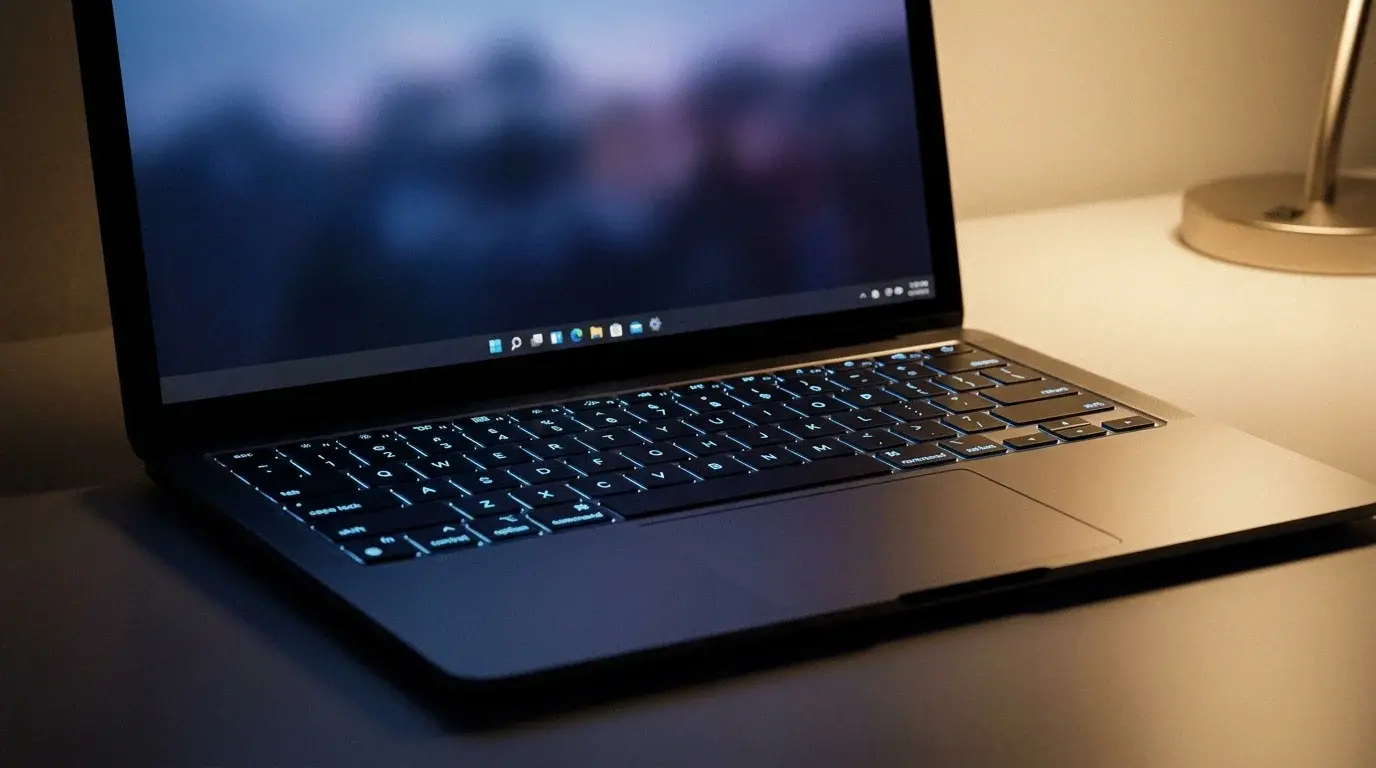
A laptop with its keyboard keys softly illuminated in a dim workspace
Table of Contents (19 sections)
- 1. Check whether your keyboard has a backlight
- 2. Try the keyboard-light shortcut
- Common examples by manufacturer
- 3. Check the manufacturer's keyboard settings
- 4. What about Windows 11 Settings?
- 5. Fix a keyboard light that will not turn on
- Confirm the model includes backlighting
- Try the other Fn-key mode
- Restart and check the manufacturer's utility
- Check firmware settings only if your model documents them
- Install appropriate manufacturer updates
- Frequently asked questions
- Can I turn on the keyboard light from Windows 11 Settings?
- What is the shortcut to turn on the keyboard light?
- Why does my keyboard light turn off after a while?
- Can I add a backlight to a laptop that does not have one?
- The bottom line
- Related guides
- Sources
If you are trying to type in a dark room, a keyboard backlight can make the keys easier to see. On many laptops, you can turn it on with a function-key shortcut. The exact key varies by model, and some laptops do not include a backlit keyboard at all.
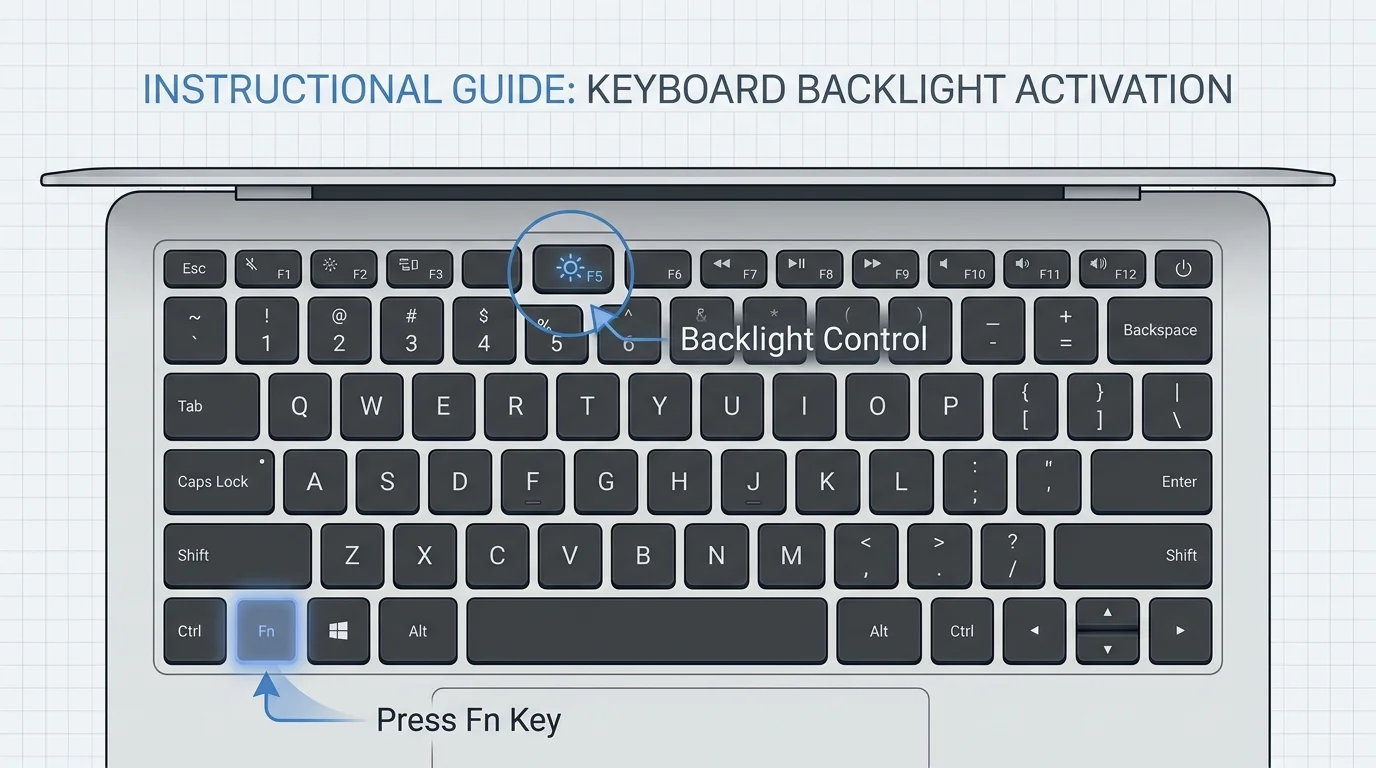
The quickest thing to try: look for a small keyboard-light icon on the top row of keys. Press that key, or hold Fn while pressing it. If your laptop supports multiple brightness levels, press the shortcut again to cycle between them. Check your device manual if the icon or key combination is unclear.
1. Check whether your keyboard has a backlight
Keyboard lighting is a hardware feature. Windows settings or a shortcut cannot add an internal backlight to a laptop that was not built with one.
Look along the function-key row for an icon resembling an illuminated keyboard or rays of light. Depending on the laptop, the icon might appear on a function key, the Spacebar, or another key. Lenovo, for example, documents Fn + Spacebar for many supported models, while HP says that many of its notebooks use F4 or F5. Dell models vary as well.
If you cannot find a backlight icon, look up your exact laptop model's specifications or user guide on the manufacturer's support site. Do not assume every laptop from the same brand uses the same shortcut.
2. Try the keyboard-light shortcut
First, save any work and make sure the laptop is awake. Then try the following process:
- Find the key marked with the keyboard-backlight icon.
- Press it once. On some models, this turns the light on or changes its brightness.
- If nothing happens, hold Fn and press the backlight key.
- Press the supported shortcut again to cycle through the available modes, such as off, dim, and bright.
The exact behavior depends on the model. Some keyboards have only an on/off setting; others cycle through two or more brightness levels. The Fn Lock setting can also change whether a function key works alone or needs the Fn key. If the first combination does not work, try the other supported mode or consult the laptop's manual before trying random key combinations.
Common examples by manufacturer
These are examples documented for certain models, not universal shortcuts for every device:
| Manufacturer | Example shortcut or control | Important note |
|---|---|---|
| Lenovo | Fn + Spacebar on supported models | Some models use the Esc key or have controls in Lenovo Vantage. |
| HP | Often F4 or F5, sometimes with Fn | The backlight icon and model documentation are the best guide. |
| Dell | A backlight-marked function key, sometimes with Fn | The key position and brightness modes vary by model. |
| ASUS | A backlight-marked function key, sometimes with Fn | The exact key varies by laptop series. |
3. Check the manufacturer's keyboard settings
Some laptops offer keyboard-light settings in the manufacturer's utility or firmware settings rather than in the main Windows Settings app.
- Lenovo: On some supported models, Lenovo Vantage includes a keyboard-backlight setting. Lenovo also documents Fn-based shortcuts for compatible keyboards.
- HP: Check the model-specific support page and user guide. Gaming notebooks may use a dedicated utility to manage lighting effects.
- Dell: Some models expose keyboard illumination and timeout options in BIOS. Only change these settings if the option exists for your model and the shortcut has not worked.
- ASUS: Use the function-key icon and the support guidance for your notebook model. Some models use the ASUS keyboard hotkey software or other manufacturer utilities.
Use software from the laptop manufacturer or Microsoft Store when it is specifically recommended for your model. Avoid third-party driver-updater utilities that promise to repair keyboard lighting.
4. What about Windows 11 Settings?
Windows 11 does not provide one universal switch that turns on every built-in laptop keyboard backlight. For many laptops, the backlight is controlled by a hardware shortcut, firmware setting, or manufacturer utility.
There is a related feature called Dynamic Lighting under Settings > Personalization > Dynamic Lighting on supported Windows 11 devices. It can manage compatible RGB-enabled keyboards and other lighting devices. The settings shown depend on whether Windows detects a compatible device. Dynamic Lighting is not a replacement for a laptop's hardware-specific backlight shortcut on every model.
If you are using an external RGB keyboard, check its manual and supported control software as well. Some external keyboards have their own brightness keys or configuration applications.
5. Fix a keyboard light that will not turn on
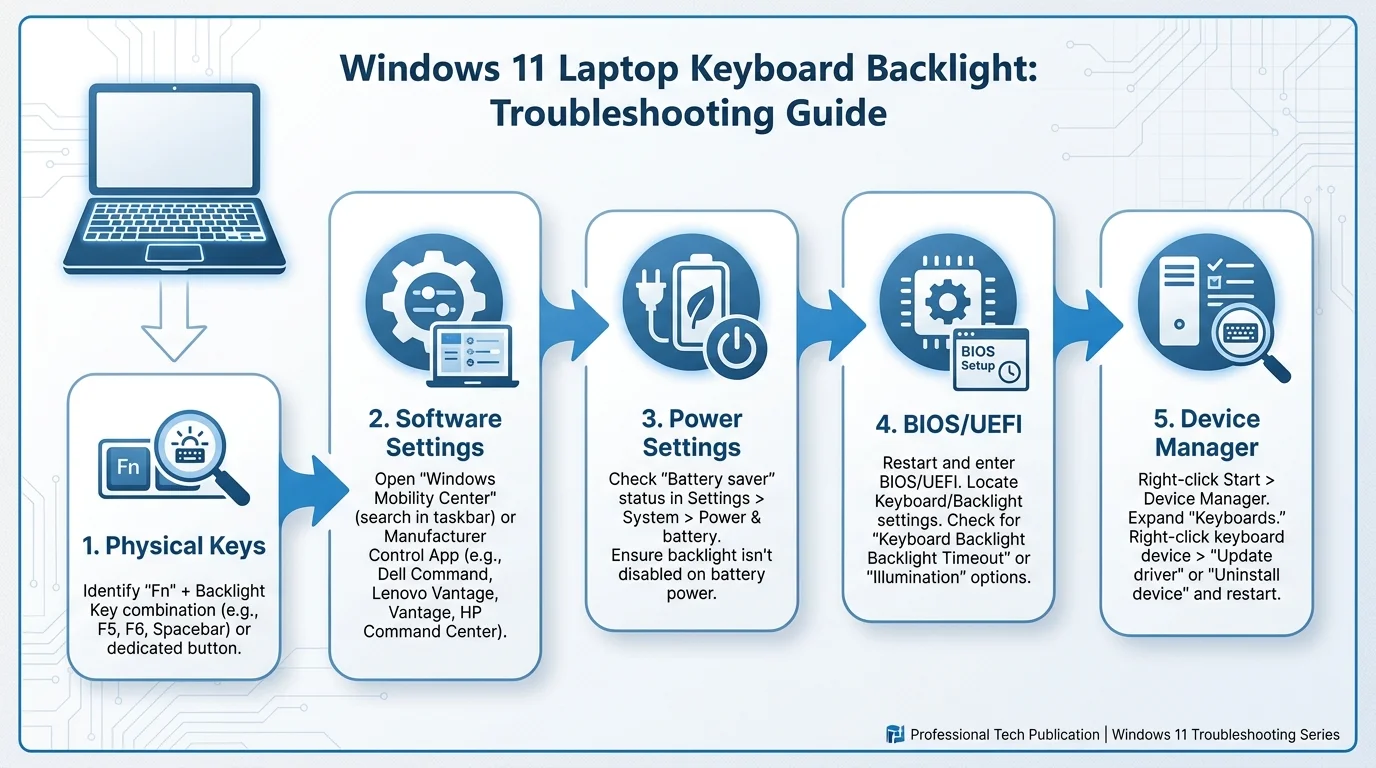
If your laptop should have a backlight but the keys remain dark, work through these checks in order.
Confirm the model includes backlighting
Check the specifications or user guide for your exact model. If the laptop was not shipped with backlit-keyboard hardware, a Windows update or application cannot enable an internal backlight.
Try the other Fn-key mode
If your keyboard has a backlight icon, press it alone and then try it with Fn. Some laptops use Fn Lock to switch the behavior of the function keys. Follow the manufacturer's instructions to change that mode; do not assume the same Fn combination applies to every brand.
Restart and check the manufacturer's utility
Restart Windows, then try the shortcut again. If your model uses a manufacturer utility for hotkeys or lighting, check that the app is installed and open it to look for keyboard illumination settings. Only install software from the manufacturer's official support page or store listing.
Check firmware settings only if your model documents them
Some laptops include a keyboard-illumination option in BIOS or UEFI. Use this step only when the manufacturer documents it for your model. Changing unrelated firmware settings can cause other problems, so leave other options unchanged.
Install appropriate manufacturer updates
If the backlight worked before and stopped after a firmware or system update, check the support page for your exact model for relevant BIOS, firmware, or hotkey utility updates. Follow the manufacturer's installation instructions, keep the laptop connected to power when required, and do not interrupt a firmware update.
Frequently asked questions
Can I turn on the keyboard light from Windows 11 Settings?
Sometimes, for supported RGB devices through Dynamic Lighting or for models with a manufacturer utility. Many built-in laptop backlights are operated with a keyboard shortcut or firmware control, so there is no single switch that works on every laptop.
What is the shortcut to turn on the keyboard light?
It depends on the model. Lenovo documents Fn + Spacebar for many supported laptops, while certain HP models use F4 or F5 and some Dell or ASUS models have a backlight-marked function key. Check the icon and your model-specific manual rather than assuming one shortcut works everywhere.
Why does my keyboard light turn off after a while?
Some laptops have a backlight timeout or power-saving behavior. If your model supports it, check the manufacturer's utility or firmware settings for a timeout option. Not every laptop lets you keep the light on permanently.
Can I add a backlight to a laptop that does not have one?
You cannot enable an internal backlight through software if the laptop was not built with the required hardware. An external backlit USB or wireless keyboard is a practical alternative.
The bottom line
Start by checking whether your exact laptop model supports keyboard backlighting. Find the backlight icon and try the supported key by itself or with Fn. If it still does not work, check your manufacturer's utility and model-specific instructions before considering firmware or driver updates. The correct method is determined by the device, not by a universal Windows 11 switch.
Related guides
- How to Fix a Keyboard That Is Not Typing in Windows 11
- Why Is My Keyboard Not Working? How to Fix It in Windows 11
- Touchpad Not Working on Laptop? How to Fix It
Sources
- HP: Using the backlit keyboard (opens in new tab)
- Dell: Turn the keyboard light on or off and troubleshoot backlighting (opens in new tab)
- Lenovo: Check for a backlit keyboard and turn it on or off (opens in new tab)
- ASUS: Notebook keyboard and function keys (opens in new tab)
- Microsoft Support: Control Dynamic Lighting devices in Windows (opens in new tab)
Verified Primary Sources & Citations
NextTechExplained verifies facts against official documentation, engineering whitepapers, and regulatory filings.
- HP: Using the backlit keyboardView Official Source
- Dell: Turn the keyboard light on or off and troubleshoot backlightingView Official Source
- Lenovo: Check for a backlit keyboard and turn it on or offView Official Source
- ASUS: Notebook keyboard and function keysView Official Source
- Microsoft Support: Control Dynamic Lighting devices in WindowsView Official Source
Published by NextTechExplained
Editorial Team • Institutional Publication Byline
Articles published under this byline are prepared through rigorous research and verified against official engineering specifications, standards documentation, and primary sources. Learn more about our process on our About page and Editorial Policy.
Related Explanations & Guides
How to Change Keyboard Language in Windows 11
Switch keyboard languages in Windows 11, add a new layout, use the Windows + Space shortcut, and fix missing language options.
How to Unlock a Keyboard in Windows 11
Keyboard not responding in Windows 11? Check Filter Keys, laptop function shortcuts, USB or Bluetooth connections, and safe ways to restore typing.
How to Fix Sticky Keyboard Keys on a Laptop or PC
Fix sticky keyboard keys safely with step-by-step cleaning, connection checks, and spill advice for laptops and external keyboards.