
Why Is My Keyboard Not Working? How to Fix It in Windows 11
Fix a keyboard that will not type in Windows 11. Check USB and wireless connections, accessibility settings, keyboard layout, Windows updates, and drivers safely.
Editorial Team
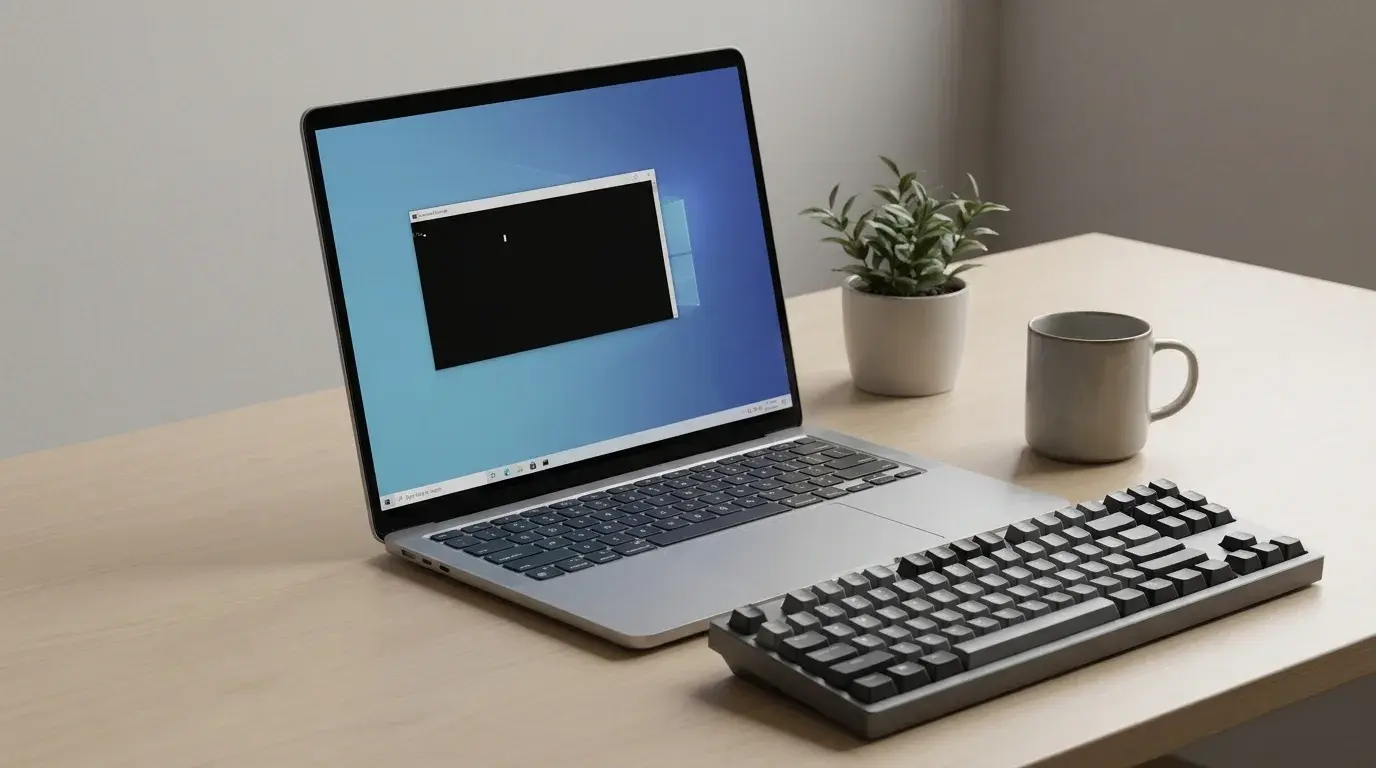
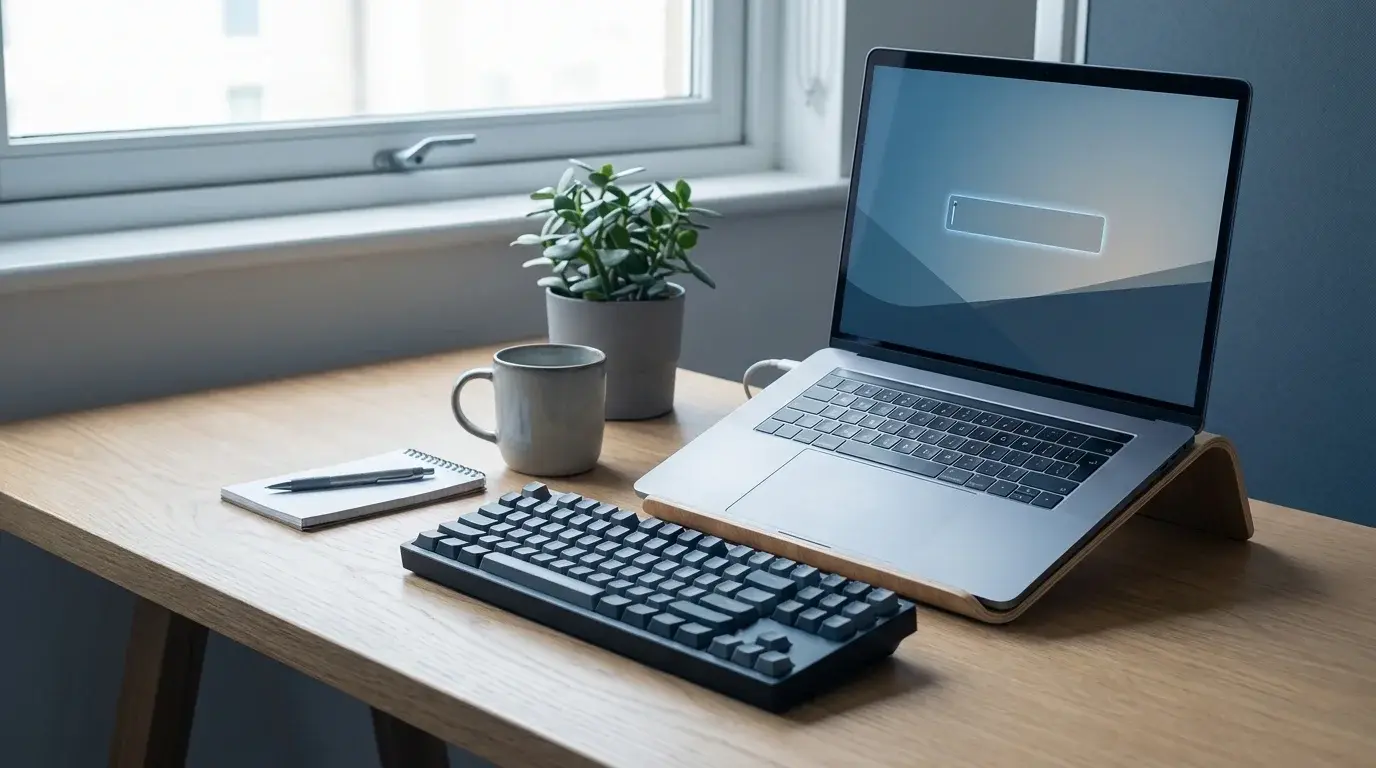
A computer keyboard beside a Windows 11-style laptop, illustrating troubleshooting for a keyboard that is not responding
Table of Contents (20 sections)
- First, identify the keyboard problem
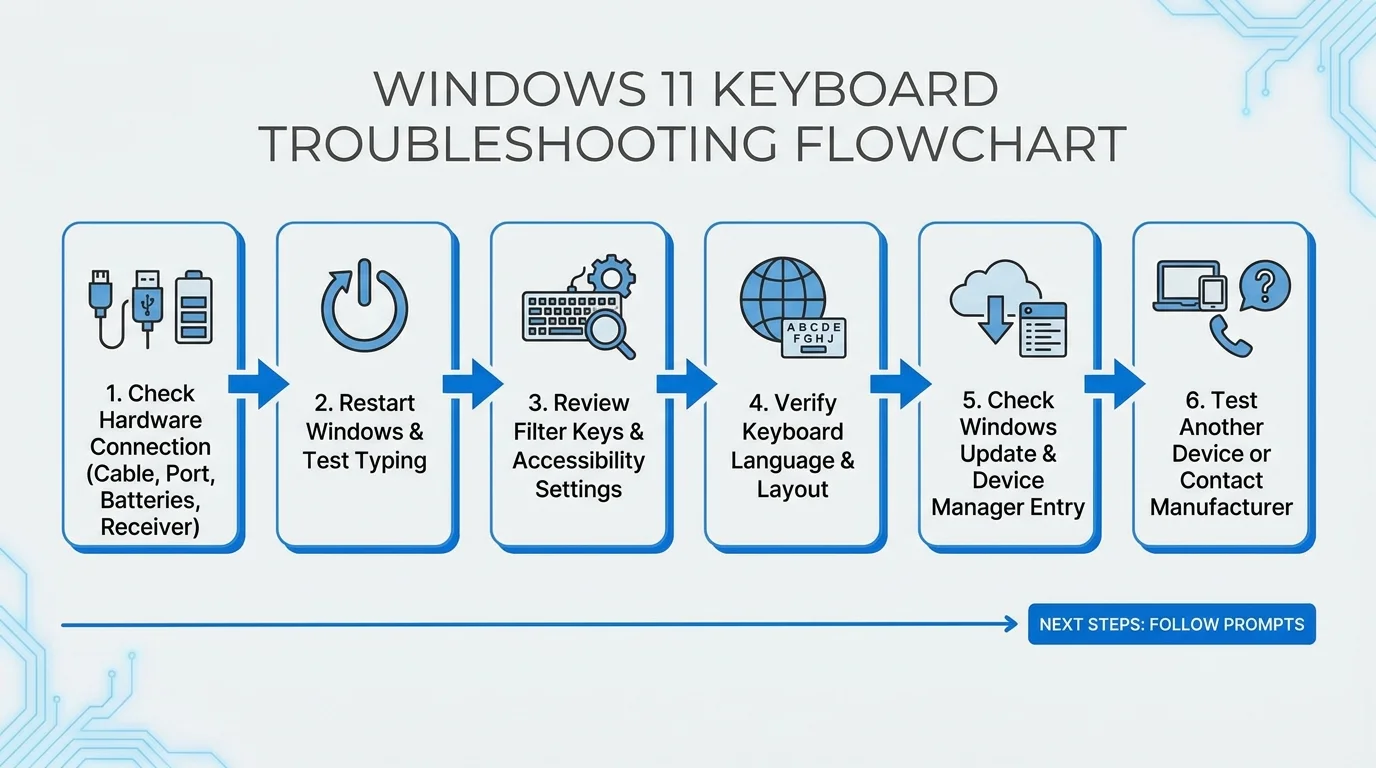
- 1. Check the keyboard connection and power
- For a wired USB keyboard
- For a wireless keyboard
- 2. Restart Windows
- 3. Check Filter Keys and other accessibility settings
- 4. Check whether the keyboard layout changed
- 5. Test the keyboard on another device
- 6. Check Windows Update
- 7. Check the keyboard in Device Manager
- 8. Use the On-Screen Keyboard as a temporary workaround
- 9. When the keyboard may need repair
- Frequently asked questions
- Why is my keyboard not typing in Windows 11?
- How can I tell if my keyboard is broken?
- Can I use Windows without a working keyboard?
- Should I uninstall the keyboard driver?
- Why do only some keys work?
- Related guides
- Official sources
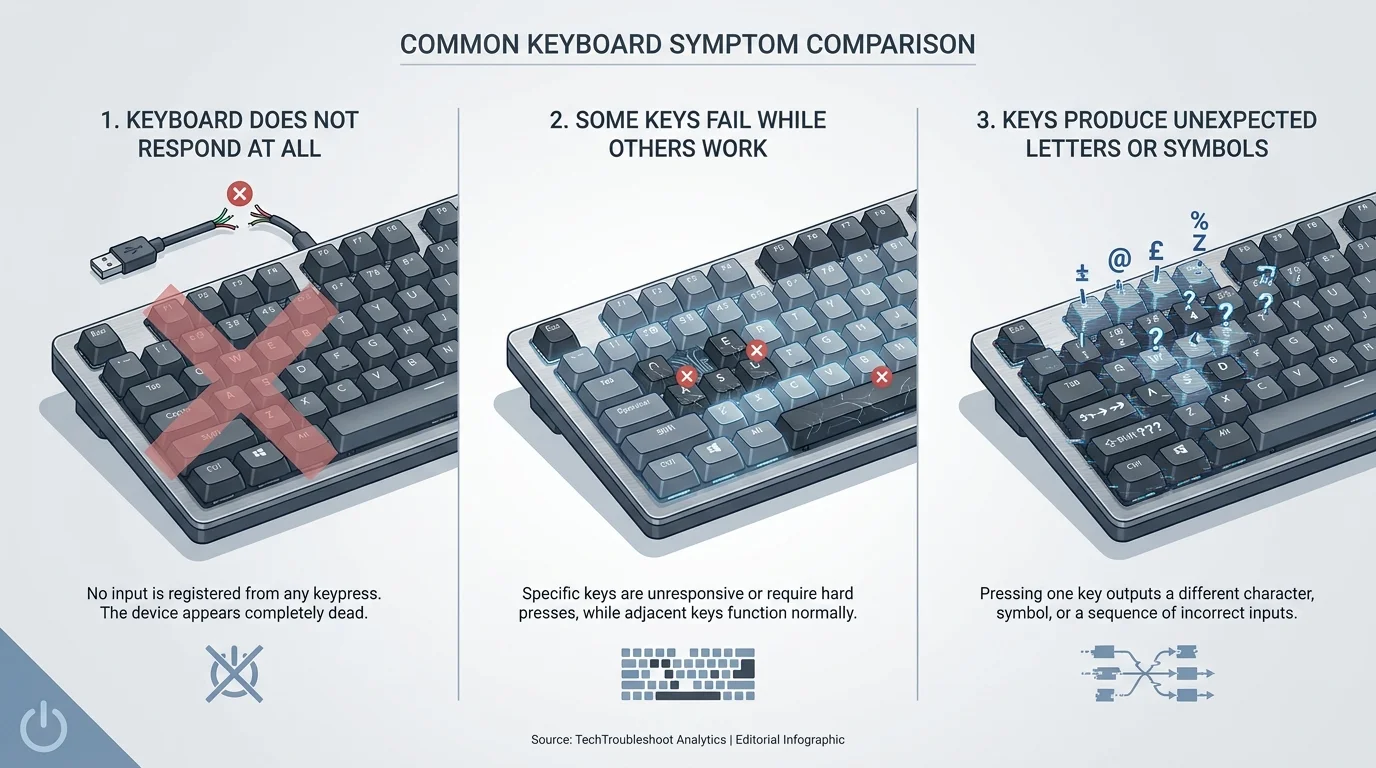
If your keyboard is not working in Windows 11, first work out whether Windows is not receiving any keystrokes, only certain keys are failing, or the keyboard is typing the wrong characters. Those symptoms can have different causes. A loose USB connection, a flat wireless battery, an accessibility setting, a changed keyboard layout, or a driver problem can all make typing seem broken.
Start with the simple checks below before uninstalling drivers or changing advanced settings. The steps cover external USB and wireless keyboards as well as built-in laptop keyboards. Menu names can vary a little by PC maker and Windows version.
First, identify the keyboard problem
- Nothing types at all: check power, the connection, the wireless receiver, and whether Windows recognizes the device.
- Only some keys fail: check for debris, physical damage, or a possible hardware fault.
- Keystrokes are delayed or some presses are ignored: review Filter Keys and check the device connection or battery.
- The wrong letters or symbols appear: confirm the selected keyboard layout and input language.
- An external keyboard works but the laptop keyboard does not: the built-in keyboard, its connection, or its device-specific software may need attention.
If you need to navigate Windows while your keyboard is unavailable, use a mouse or touchpad and turn on the On-Screen Keyboard through Settings > Accessibility > Keyboard. You can then click its keys on the screen.
1. Check the keyboard connection and power
Begin with the checks that do not change Windows settings.
For a wired USB keyboard
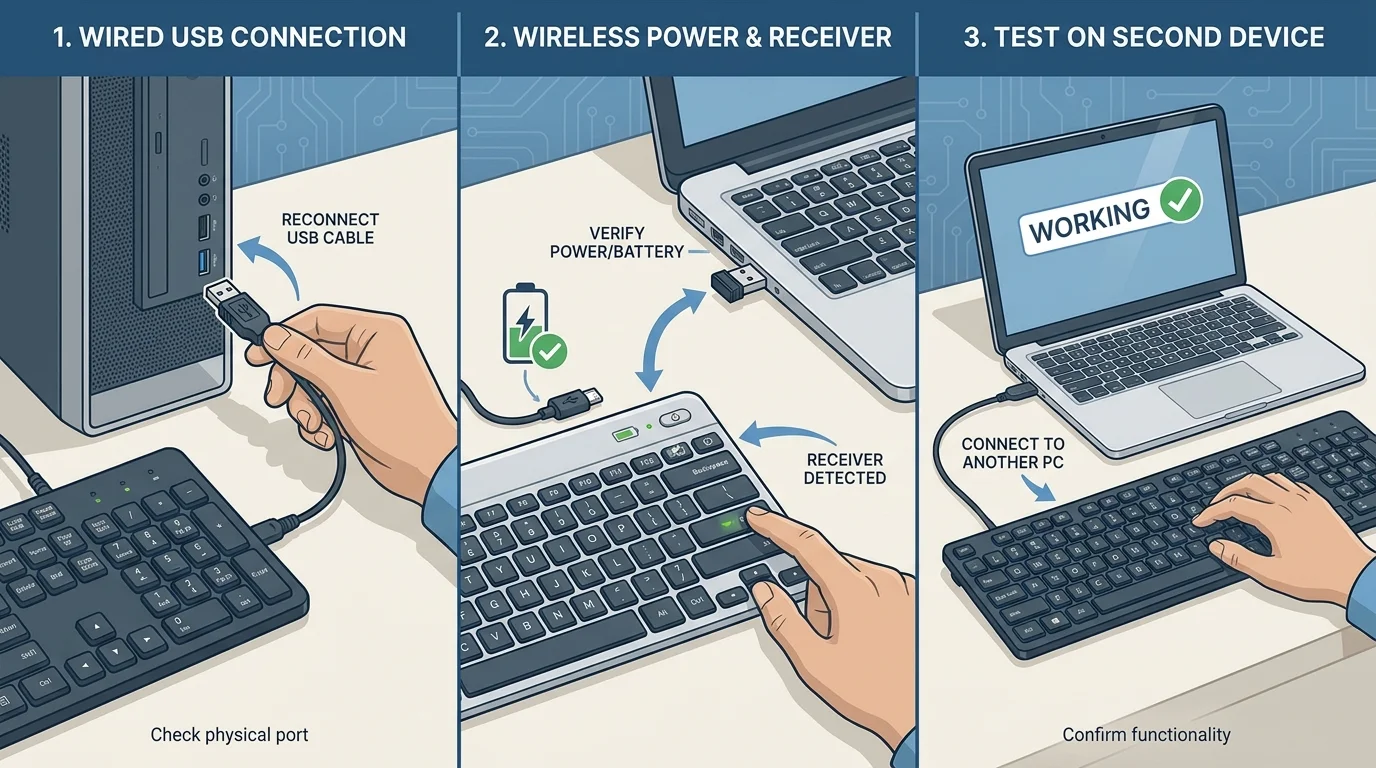
- Unplug the keyboard, wait a few seconds, and reconnect it.
- Try another USB port on the computer.
- If it is connected through a USB hub or dock, connect it directly to the computer if possible.
- Check the cable and connector for obvious damage.
- If the keyboard has indicator lights, check whether any turn on when it is connected or when you press Caps Lock or Num Lock. Not every keyboard has indicator lights, so their absence alone does not prove a fault.
Avoid repeatedly forcing a damaged connector into a port. If the cable or connector is visibly damaged, stop using it and arrange a suitable repair or replacement.
For a wireless keyboard
- Turn the keyboard off and on again if it has a power switch.
- Charge it or replace its batteries as appropriate.
- If it uses a USB wireless receiver, unplug the receiver, wait about 10 seconds, and reconnect it directly to another USB port.
- If the keyboard connects over Bluetooth, confirm Bluetooth is enabled and check whether the keyboard still appears as connected in Windows Bluetooth settings. If needed, follow the keyboard manufacturer's pairing instructions.
- If the keyboard has a documented pairing or reset procedure, follow the instructions for your exact model.
Test typing after each relevant change. If the keyboard works intermittently, note whether moving the receiver, changing the battery, or moving closer to the computer makes a difference.
2. Restart Windows
A restart can clear a temporary device or driver state. Save your open work first, then select Start > Power > Restart. After signing in, test the keyboard in a simple text field such as Notepad or the Windows search box.
If you cannot type your password at the sign-in screen, use the Accessibility button on the sign-in screen to open the On-Screen Keyboard, if it is available. A USB keyboard may also help you sign in and investigate a laptop's built-in keyboard.
3. Check Filter Keys and other accessibility settings
Windows accessibility settings can change how key presses are handled. For example, Filter Keys can ignore brief or repeated keystrokes. If it is enabled unintentionally, typing may feel delayed or some presses may seem to be missed.
- Open Settings with your mouse or touchpad.
- Select Accessibility > Keyboard.
- Review Filter Keys and turn it off if you do not need it.
- Check Sticky Keys if keyboard shortcuts behave differently than expected.
- Test typing again in a text editor.
Do not turn off an accessibility feature that you rely on. Change one option at a time so you can identify whether it affects the problem. You can also open this page directly with Windows + U if some of the keyboard still works, then select Keyboard under Accessibility.
4. Check whether the keyboard layout changed
If keys work but produce unexpected letters, punctuation, or symbols, Windows may have switched to another input language or keyboard layout. This is different from a keyboard that receives no input at all.
- Look at the input-language indicator in the taskbar, such as ENG.
- Select it and choose the layout you intend to use.
- If your keyboard still responds, press Windows + Spacebar to move through the available input languages and layouts.
- Test the affected keys again.
If the correct layout is not listed, open Settings > Time & language > Language & region and review the installed language and keyboard options. Do not remove a language or layout unless you are sure you no longer need it.
5. Test the keyboard on another device
If possible, connect the keyboard to another computer to help separate a keyboard problem from a Windows problem.
- It fails on another compatible device too: the keyboard, its battery, receiver, cable, or hardware may be at fault. Make sure the other device supports the keyboard and that any required driver or pairing step is completed.
- It works on another computer: focus on the original PC's USB/Bluetooth connection, accessibility settings, Windows updates, or drivers.
- An external keyboard works on the laptop, but the built-in keyboard does not: this points toward an issue specific to the built-in keyboard, but it does not by itself identify the exact cause.
If only a few physical keys fail, inspect the keyboard for crumbs or other debris. Turn the device off or disconnect it first, and follow the manufacturer's cleaning instructions. For routine maintenance and dust removal, follow our guide on how to clean a keyboard safely. If individual keys feel mechanically stuck, gummy, or slow to pop back up, see our specific guide on how to fix sticky keyboard keys on a laptop or PC for step-by-step cleaning advice. Do not pour cleaning liquid onto the keyboard, pry off laptop keycaps without model-specific guidance, or continue using a keyboard that has suffered a liquid spill if doing so could cause further damage.
6. Check Windows Update
Windows Update can provide applicable device-driver updates, although an update is not guaranteed to be available for every keyboard.
- Open Settings > Windows Update.
- Select Check for updates.
- Install relevant available updates and any optional driver updates that clearly apply to your device.
- Restart if Windows asks you to, then test typing again.
If the problem began immediately after an update, note which update and when the issue started. That timing is useful evidence, but it does not prove that the update caused the problem.
7. Check the keyboard in Device Manager
Use Device Manager if the basic checks and Windows Update have not helped. Keep a mouse, touchpad, or On-Screen Keyboard available in case you need another way to control Windows.
- Right-click Start and select Device Manager.
- Expand Keyboards if the category appears.
- If a keyboard entry is listed, right-click it and choose Update driver, then follow the available instructions.
- Restart if prompted and test the keyboard.
The displayed name and available options vary by computer and driver. If Windows says the best driver is already installed, that does not guarantee the hardware is healthy; it simply means that this update path did not find a newer driver.
If Windows cannot find a suitable driver and the keyboard still fails, check the official support page for your PC or keyboard model. Use drivers from Windows Update or the manufacturer's official site rather than third-party driver-download utilities.
Avoid uninstalling every entry under Keyboards or removing driver software at random. If you are considering uninstalling a specific device, first confirm how you can control the computer and how to recover the appropriate driver.
8. Use the On-Screen Keyboard as a temporary workaround
The On-Screen Keyboard (OSK) lets you type by selecting keys with a mouse, touchpad, or another pointing device.
- Open Settings.
- Go to Accessibility > Keyboard.
- Turn on On-Screen Keyboard.
- Click the displayed keys to enter text.
If a physical keyboard shortcut still works, Windows + Ctrl + O can also open the On-Screen Keyboard. This workaround can help you sign in or finish a task while you diagnose the physical keyboard, but it does not repair the underlying cause.
9. When the keyboard may need repair
Consider manufacturer support or a hardware repair if:
- The keyboard has visible damage or suffered a liquid spill.
- Several keys remain unresponsive after careful cleaning and connection checks.
- A wireless keyboard fails with a known-good battery and correct pairing on multiple compatible devices.
- A built-in laptop keyboard fails while an external keyboard works, and settings and supported driver updates have not resolved it.
- The device is repeatedly disconnecting or has a damaged cable or connector.
For a laptop, use the official support page for the exact model. Do not open the laptop or attempt internal repairs unless you are qualified and the manufacturer permits the procedure. If the device is under warranty, check warranty terms before opening it.
Frequently asked questions
Why is my keyboard not typing in Windows 11?
Check the USB connection or wireless power first, then restart Windows and review Filter Keys. If the keyboard types the wrong characters rather than nothing at all, check the selected language and keyboard layout.
How can I tell if my keyboard is broken?
Test it on another compatible device if possible. If it also fails there after checking its power, receiver, and pairing, a hardware fault is more likely. A keyboard that works elsewhere may instead have a connection, setting, or driver issue on the original PC.
Can I use Windows without a working keyboard?
Yes, for many basic tasks. Use a mouse or touchpad to enable Settings > Accessibility > Keyboard > On-Screen Keyboard. Some sign-in and recovery scenarios may have different limitations.
Should I uninstall the keyboard driver?
Not as the first step. Try connection checks, Windows Update, and the supported Update driver option first. Uninstalling a device can complicate recovery if you do not have another way to control Windows or obtain the correct driver.
Why do only some keys work?
A setting such as Filter Keys, dirt under a key, physical damage, or a failing keyboard can cause some keystrokes to be missed. Check Accessibility settings, test the keyboard on another device, and follow the manufacturer's cleaning guidance before assuming the hardware has failed.
Related guides
- How to Clean a Keyboard Safely: Laptop and Desktop Guide
- How to Fix Sticky Keyboard Keys on a Laptop or PC
- How to Fix a Keyboard That Is Not Typing in Windows 11
- How to Unlock a Keyboard in Windows 11
- How to Change Keyboard Language in Windows 11
Official sources
Verified Primary Sources & Citations
NextTechExplained verifies facts against official documentation, engineering whitepapers, and regulatory filings.
- Microsoft Support: Mouse and keyboard problems in WindowsView Official Source
- Microsoft Support: Make your mouse, keyboard, and other input devices easier to useView Official Source
- Microsoft Support: Use the On-Screen Keyboard (OSK) to typeView Official Source
Published by NextTechExplained
Editorial Team • Institutional Publication Byline
Articles published under this byline are prepared through rigorous research and verified against official engineering specifications, standards documentation, and primary sources. Learn more about our process on our About page and Editorial Policy.
Related Explanations & Guides

Touchpad Not Working? How to Fix a Laptop Touchpad in Windows 11
Fix a laptop touchpad that will not move, click, or respond in Windows 11. Check touchpad settings, function keys, connected mice, and drivers safely.
How to Fix a Keyboard That Is Not Typing in Windows 11
Keyboard keys not typing in Windows 11? Check the connection, test another app, review Filter Keys, use the On-Screen Keyboard, and troubleshoot drivers safely.
What Is Windows Fast Startup? Should You Disable It?
Learn how Windows Fast Startup works, how it differs from Restart, and when temporarily disabling it can help troubleshoot shutdown or device problems.