
How to Unlock a Keyboard in Windows 11
Keyboard not responding in Windows 11? Check Filter Keys, laptop function shortcuts, USB or Bluetooth connections, and safe ways to restore typing.
Editorial Team
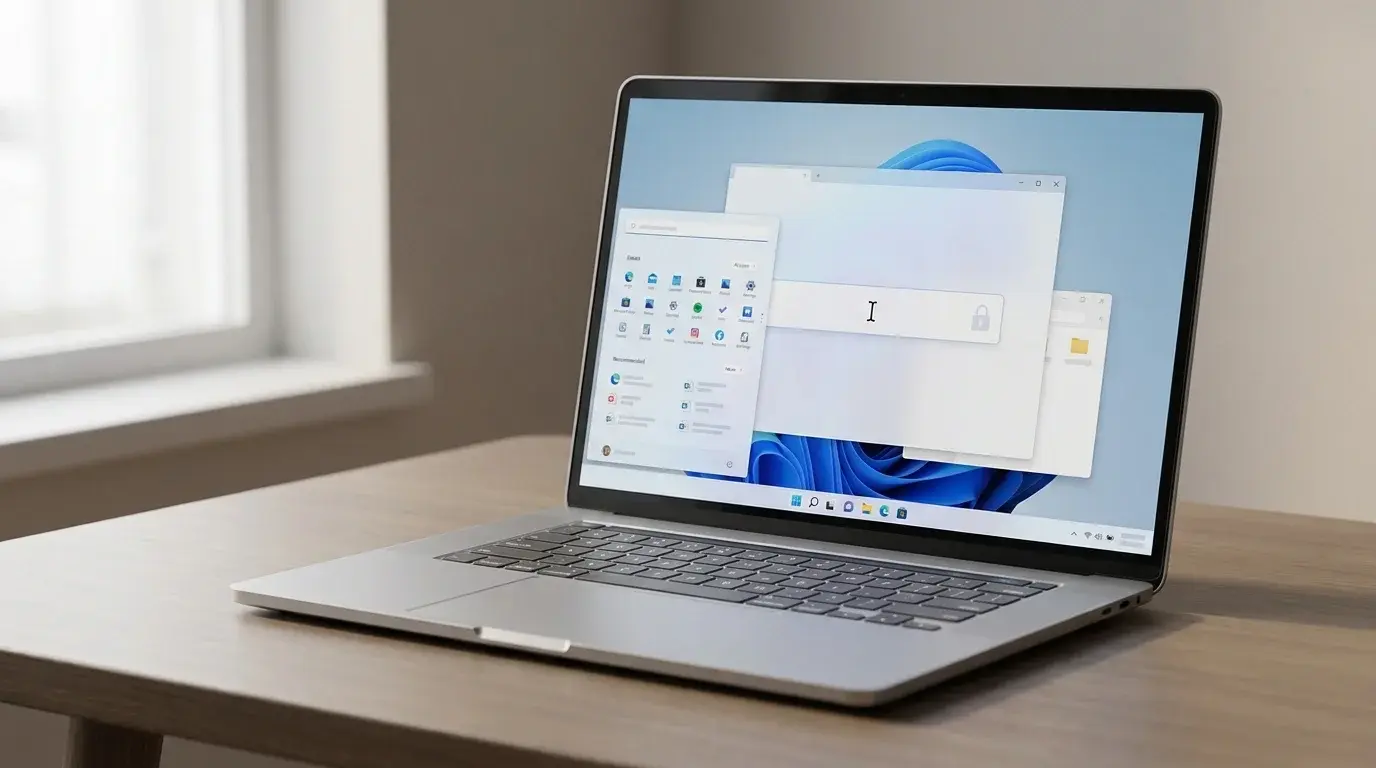
Laptop keyboard beside a Windows 11 desktop during keyboard troubleshooting
Table of Contents (20 sections)
- 1. Check whether the keyboard is actually locked
- 2. Turn off Filter Keys if it is affecting typing
- Use Windows Settings
- 3. Check the laptop's keyboard or function lock
- 4. Reconnect a wired or wireless keyboard
- USB keyboard
- Wireless keyboard
- 5. Use the On-Screen Keyboard as a temporary workaround
- 6. Restart Windows and check for updates
- 7. Check the keyboard in Device Manager
- 8. Test the keyboard on another computer
- When the keyboard still will not unlock
- Frequently asked questions
- Is there one shortcut to unlock a keyboard in Windows 11?
- Can Filter Keys make a keyboard seem locked?
- How can I type if my physical keyboard is not working?
- What if only the laptop's built-in keyboard is not working?
- Conclusion
- Related guides
- Sources
A keyboard that suddenly stops responding can make it seem as though Windows has locked it. In many cases, the cause is simpler: a connection problem, a keyboard accessibility setting, a laptop-specific function key, or a device that needs to reconnect.
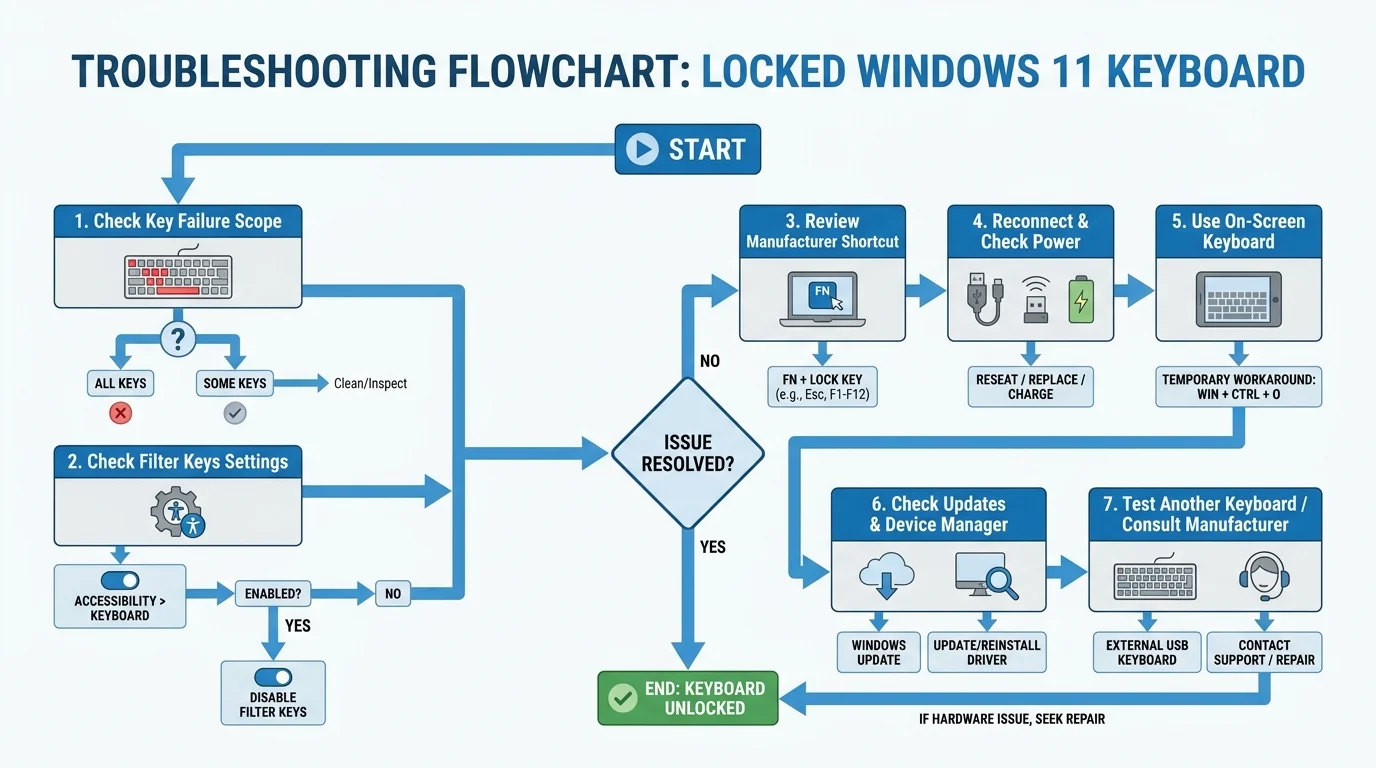
There is no single keyboard-unlock shortcut that works on every Windows 11 PC. The right fix depends on whether all keys are unresponsive, only some keys work, or the keyboard behaves differently than expected. Start with the checks below and move on only if the keyboard still does not respond.
1. Check whether the keyboard is actually locked
First, determine whether the problem affects the whole keyboard or only a few keys.
- Try typing in another app, such as Notepad or the browser address bar.
- If you use an external keyboard, check its power or status light, if it has one.
- Check whether Caps Lock or Num Lock indicators respond. Not every keyboard has indicator lights, so a missing light by itself is not conclusive.
- If only the number pad seems unresponsive, check Num Lock and test the number row above the letters.
- If the keys type the wrong characters, check your active keyboard language or layout instead of treating it as a locked keyboard.
If you can use your mouse or touchpad, continue through Windows settings. If you cannot type at the sign-in screen, use the Accessibility button there to open the On-Screen Keyboard when available.
2. Turn off Filter Keys if it is affecting typing
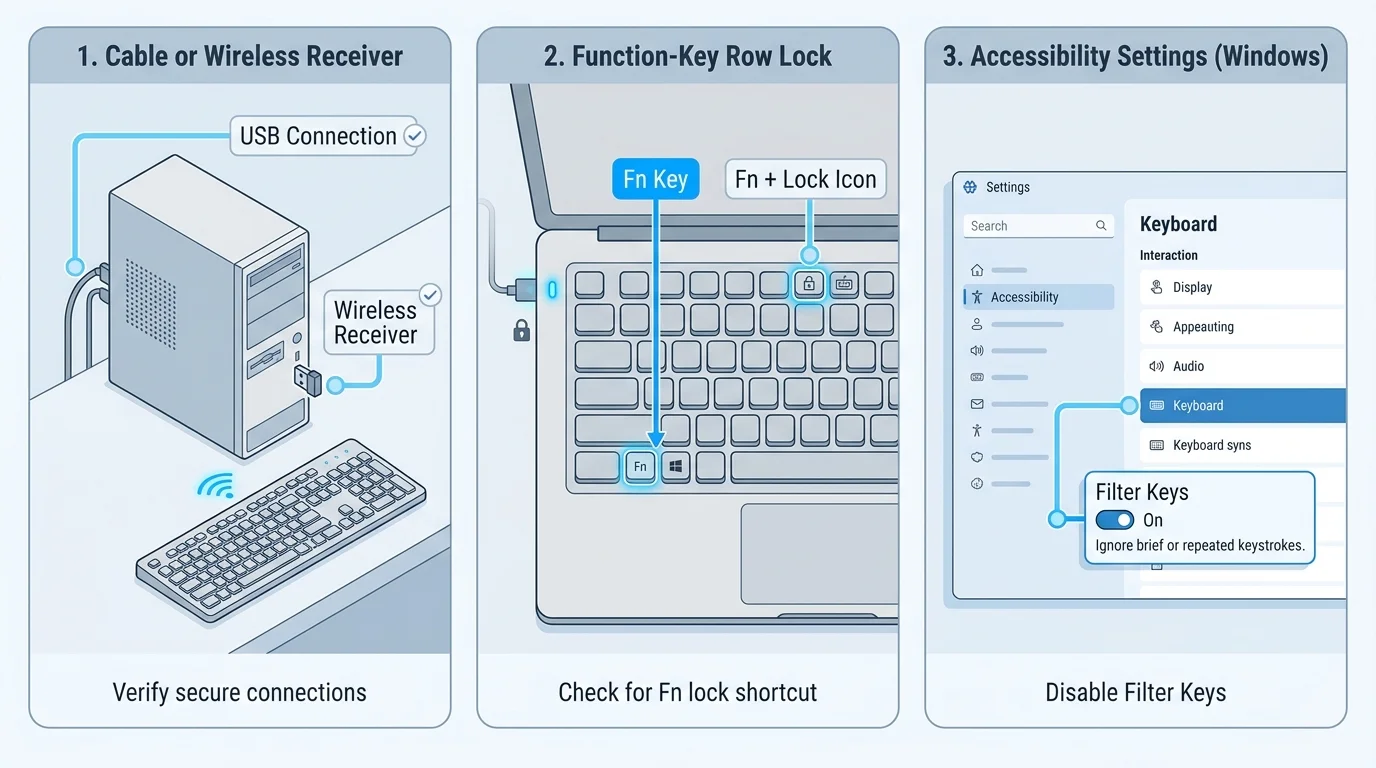
Filter Keys is an accessibility feature that can ignore brief or repeated keystrokes. If it was enabled accidentally, the keyboard may seem unresponsive or may not register a quick press the way you expect.
Use Windows Settings
- Open Start > Settings.
- Select Accessibility > Keyboard.
- Find Filter keys and switch it off if you do not need it.
- Test several keys in Notepad.
Windows has a shortcut that can turn Filter Keys on or off: holding the right Shift key for eight seconds. If you see a prompt or hear a notification after using this shortcut, check the on-screen message and your current setting rather than assuming that the keyboard is physically locked.
If Filter Keys is useful for you, do not disable it just to follow a generic fix. The important step is to confirm whether the setting matches your needs.
3. Check the laptop's keyboard or function lock
Some laptops have device-specific controls that change keyboard behavior. A model may use a key marked with a lock symbol, keyboard symbol, or function-key icon, sometimes in combination with Fn. The exact key varies by manufacturer and model; there is no universal shortcut for unlocking every laptop keyboard.
- Inspect the function-key row and look for an icon that matches the behavior you are seeing.
- Check the user manual or official support page for your exact laptop model.
- Use only the key combination documented for that model.
- Test the keyboard again.
Be careful not to confuse Fn Lock with a keyboard lock. On many models, Fn Lock changes whether the top-row keys perform their media or hardware actions by default; it does not disable ordinary letter keys.
If the keyboard stopped working after a spill, impact, repair, or hardware change, skip repeated shortcut experiments and check the manufacturer guidance.
4. Reconnect a wired or wireless keyboard
For an external keyboard, connection or power problems are common reasons it stops responding.
USB keyboard
- Unplug the keyboard from the computer.
- Wait a few seconds, then connect it directly to another USB port.
- If you use a USB hub or dock, test without it if possible.
- Check the cable and connector for visible damage. Do not force a plug that does not fit.
Wireless keyboard
- Check the battery level or charge the keyboard.
- If it uses a USB receiver, unplug the receiver, wait about 10 seconds, and reconnect it.
- If it uses Bluetooth, check that Bluetooth is enabled and the keyboard is still paired. Follow Microsoft's Bluetooth troubleshooting guidance if the Bluetooth control is missing or the device will not reconnect.
- If the keyboard has a documented power or pairing switch, follow its manual.
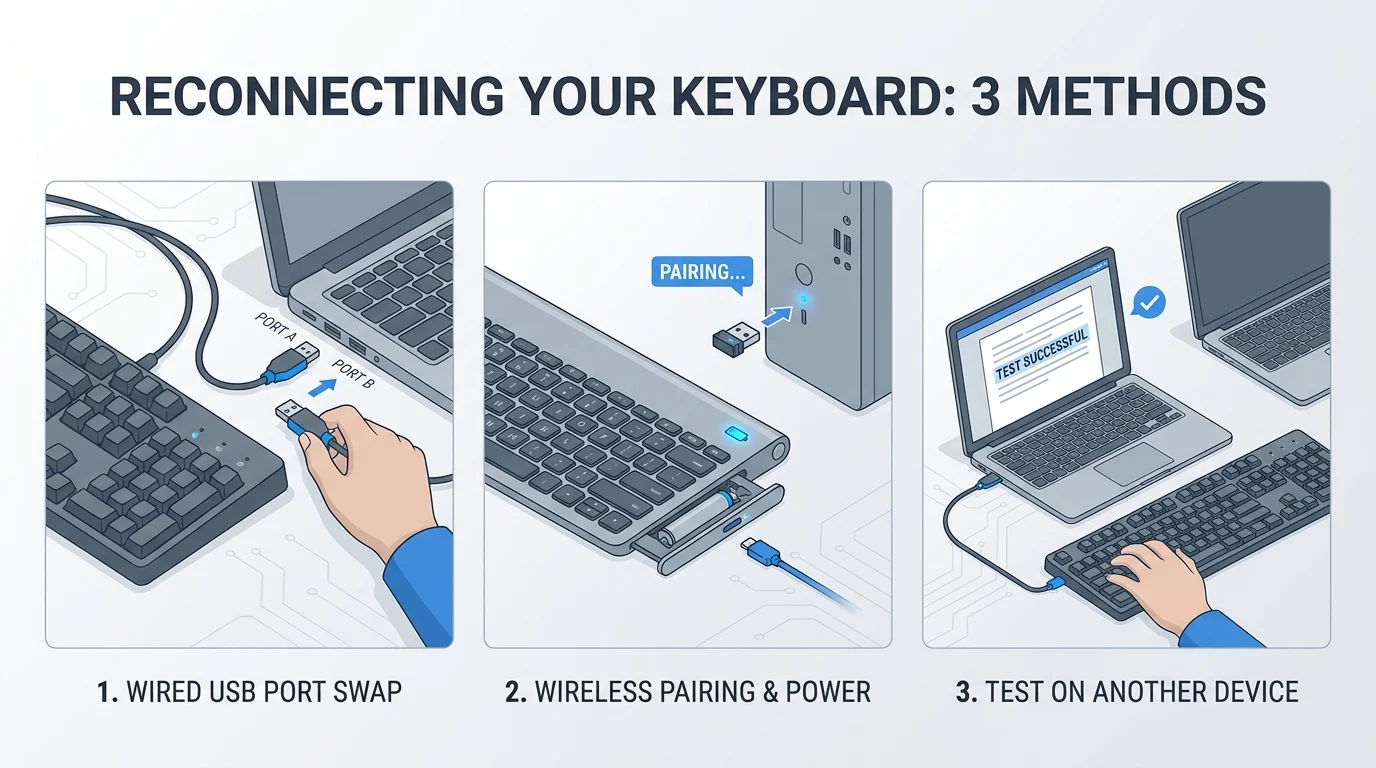
Microsoft recommends checking device connections and power, trying another USB port, and testing a device on another PC when it does not appear to work at all.
5. Use the On-Screen Keyboard as a temporary workaround
If the physical keyboard will not type but the mouse, touchpad, or touchscreen still works, Windows' On-Screen Keyboard can let you enter text and navigate some controls.
With a mouse or touch input:
- Open Start > Settings.
- Go to Accessibility > Keyboard.
- Turn on On-Screen Keyboard.
- Select keys on the screen to type.
If the physical keyboard is working enough to use shortcuts, Windows key + Ctrl + O also opens the On-Screen Keyboard. At the sign-in screen, use the Accessibility button to look for the On-Screen Keyboard option.
The On-Screen Keyboard is a workaround, not a repair for a failed physical keyboard. It can help you save work, sign in, search settings, or download official support instructions while you diagnose the problem.
6. Restart Windows and check for updates
A restart can clear a temporary issue with Windows or a device connection. Save your work first, then select Start > Power > Restart. If you cannot use the keyboard, choose the option with your mouse.
After restarting:
- Open Settings > Windows Update.
- Select Check for updates and install appropriate updates.
- Check Advanced options > Optional updates if relevant driver updates are listed. Review them before installing; do not assume an optional update is required for every keyboard problem.
- Restart if Windows asks you to do so, then test the keyboard.
If the issue began right after a particular update or driver change, note that timing. Avoid removing unrelated drivers or installing driver utilities from unfamiliar websites.
7. Check the keyboard in Device Manager
If the keyboard is still unresponsive, you can check whether Windows detects it. Use the mouse to open Start, search for Device Manager, and open it.
- Expand Keyboards.
- Look for the relevant keyboard device. The name may be generic, particularly for a USB keyboard.
- If a device has a warning symbol, open its properties and review the reported status.
- If you choose to update a driver, use Windows' supported driver-update process or the official support page for the computer or keyboard manufacturer.
Device Manager entries and available options vary by device. Do not uninstall every keyboard entry as a first step, and do not download a driver from an unverified driver site. If you are unsure which entry belongs to the keyboard, record the device name and seek manufacturer guidance before making changes.
8. Test the keyboard on another computer
If you can, connect the external keyboard to another compatible computer. For a built-in laptop keyboard, test an external USB keyboard on the laptop as a comparison.
- External keyboard fails on another computer too: the keyboard, cable, receiver, or battery may be the issue.
- External keyboard works elsewhere but not on this PC: investigate the original PC's connection, Bluetooth, Windows settings, or drivers.
- External keyboard works but the laptop's built-in keyboard does not: the built-in keyboard or its connection may need model-specific diagnostics or service.
These tests help narrow the cause but are not a guaranteed diagnosis. Some specialist keyboards need their own supported software to work fully on another computer.
When the keyboard still will not unlock
If none of these checks help, note whether the keyboard fails before Windows starts, only at the sign-in screen, or only after you sign in. That distinction can help a technician narrow down the cause. For a work-managed or kiosk device, an administrator may have configured restrictions that intentionally suppress certain keys or shortcuts; ask the organization's IT administrator rather than trying to bypass its controls.
Contact the PC or keyboard manufacturer's support team if the keyboard has visible damage, liquid exposure, intermittent connections, or still fails in another compatible computer. Do not open a laptop or replace an internal keyboard unless you are equipped and authorized to do so.
Frequently asked questions
Is there one shortcut to unlock a keyboard in Windows 11?
No. Some laptop models have specific function-key controls, but their shortcuts differ. Check the manual for your exact model. If typing is affected by Filter Keys, review Settings > Accessibility > Keyboard instead.
Can Filter Keys make a keyboard seem locked?
Yes. Filter Keys can ignore brief or repeated keystrokes. Check its setting and switch it off only if you do not need the feature.
How can I type if my physical keyboard is not working?
Use the On-Screen Keyboard through Settings > Accessibility > Keyboard, or the Accessibility control on the sign-in screen when available. The shortcut Windows key + Ctrl + O works if you can still enter the key combination.
What if only the laptop's built-in keyboard is not working?
Try an external keyboard to help narrow down the issue, then check the laptop manufacturer's troubleshooting instructions for your exact model. The built-in keyboard may need hardware service if software and connection checks do not resolve the problem.
Conclusion
There is no universal keyboard-unlock button for Windows 11. Start by identifying whether every key has stopped responding, check Filter Keys and your laptop's documented function-key controls, then verify the connection or wireless power. Use the On-Screen Keyboard as a temporary workaround, and move on to updates, Device Manager, or hardware testing only when needed.
Related guides
- How to Clean a Keyboard Safely: Laptop and Desktop Guide
- How to Fix Sticky Keyboard Keys on a Laptop or PC
- How to Fix a Keyboard That Is Not Typing in Windows 11
- Why Is My Keyboard Not Working? How to Fix It in Windows 11
- How to Turn On Your Keyboard Light in Windows 11
Sources
- Microsoft Support: Mouse and keyboard problems in Windows (opens in new tab)
- Microsoft Support: Make your mouse, keyboard, and other input devices easier to use (opens in new tab)
- Microsoft Support: Use the On-Screen Keyboard (OSK) to type (opens in new tab)
- Microsoft Learn: Keyboard Filter (opens in new tab)
Verified Primary Sources & Citations
NextTechExplained verifies facts against official documentation, engineering whitepapers, and regulatory filings.
- Microsoft Support: Mouse and keyboard problems in WindowsView Official Source
- Microsoft Support: Make your mouse, keyboard, and other input devices easier to useView Official Source
- Microsoft Support: Use the On-Screen Keyboard (OSK) to typeView Official Source
- Microsoft Learn: Keyboard FilterView Official Source
Published by NextTechExplained
Editorial Team • Institutional Publication Byline
Articles published under this byline are prepared through rigorous research and verified against official engineering specifications, standards documentation, and primary sources. Learn more about our process on our About page and Editorial Policy.
Related Explanations & Guides
How to Change Keyboard Language in Windows 11
Switch keyboard languages in Windows 11, add a new layout, use the Windows + Space shortcut, and fix missing language options.
How to Turn On Your Keyboard Light in Windows 11
Learn how to turn on a laptop keyboard backlight, find the correct Fn shortcut, adjust brightness, and troubleshoot lighting that will not turn on.
How to Fix a Keyboard That Is Not Typing in Windows 11
Keyboard keys not typing in Windows 11? Check the connection, test another app, review Filter Keys, use the On-Screen Keyboard, and troubleshoot drivers safely.