
How to Clean a Keyboard Safely: Laptop and Desktop Guide
Learn how to clean a laptop or desktop keyboard safely, remove dust and crumbs, wipe the keys, and avoid liquid or keycap damage.
Editorial Team
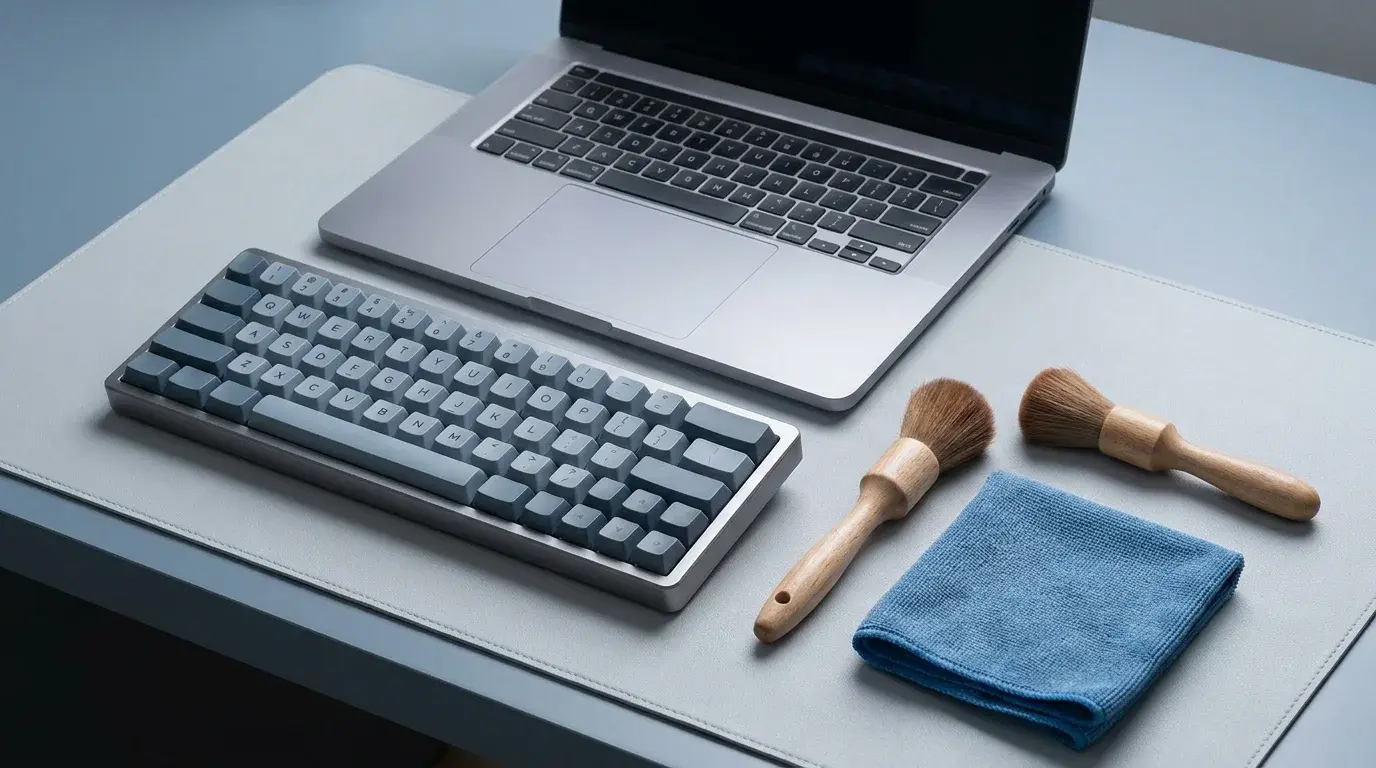
Laptop and external keyboard being prepared for careful cleaning on a clean desk
Table of Contents (15 sections)
- What you need
- Step 1: Turn it off and disconnect it
- Step 2: Remove loose dust and crumbs
- Step 3: Wipe the keys and outer surface
- Step 4: Let everything dry fully
- How to clean a laptop keyboard vs. a desktop keyboard
- Laptop keyboard
- External desktop keyboard
- What if you spill liquid on the keyboard?
- What not to do when cleaning a keyboard
- How often should you clean a keyboard?
- When cleaning does not solve the problem
- Final checklist
- Related guides
- Official sources
A keyboard collects dust, crumbs, skin oils, and everyday grime. Cleaning it regularly can make it more pleasant to use, but the right method depends on whether you have a laptop keyboard, a compact wireless keyboard, or a separate desktop keyboard.
The most important rule is simple: power the device off and disconnect the keyboard before cleaning it, and never spray or pour liquid directly onto it. Manufacturer instructions can differ, so check the guidance for your exact device before using a cleaning product or removing keycaps.
This guide covers routine cleaning for laptop and desktop keyboards. If one key is physically sticking or not returning properly, see the more specific guidance in our guide on how to fix sticky keyboard keys.
What you need
For ordinary dust and surface grime, gather only a few basic items:
- A soft, lint-free cloth.
- A clean, soft brush suitable for electronics.
- Compressed air, if the keyboard manufacturer permits it and the can's directions can be followed safely.
- A small amount of water or a manufacturer-approved cleaning solution for the cloth, when needed.
- A dry, clean surface where you can work without spilling anything.
Do not use abrasive pads, household glass cleaner, bleach, hydrogen peroxide, or an unapproved solvent. Avoid paper towels and rough cloths that can scratch surfaces or leave lint. Product-specific guidance matters: Apple and Microsoft provide instructions for their own hardware, and those instructions should take precedence over general advice.
Step 1: Turn it off and disconnect it
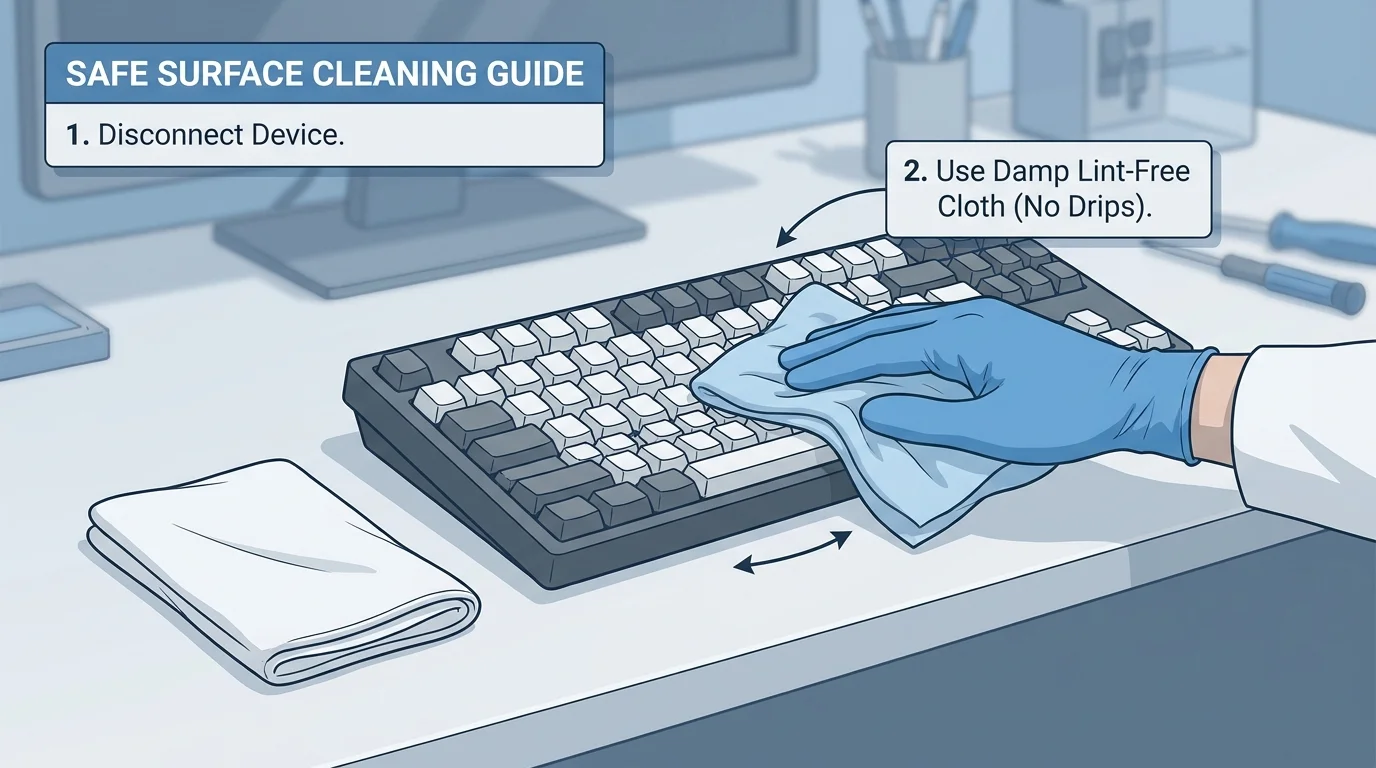
Before cleaning, shut down a laptop or turn off the keyboard if it has a power switch. Unplug a wired keyboard from the computer. For a wireless keyboard, turn it off and remove its batteries if the manufacturer recommends doing so. Disconnecting power reduces the chance of accidental input or electrical damage while you clean.
If you are cleaning a laptop, shut it down fully and disconnect its charger and connected accessories. Do not clean the keyboard while the laptop is running or charging. If the device has a special maintenance mode or a manufacturer-specific cleaning procedure, follow its documentation.
Step 2: Remove loose dust and crumbs
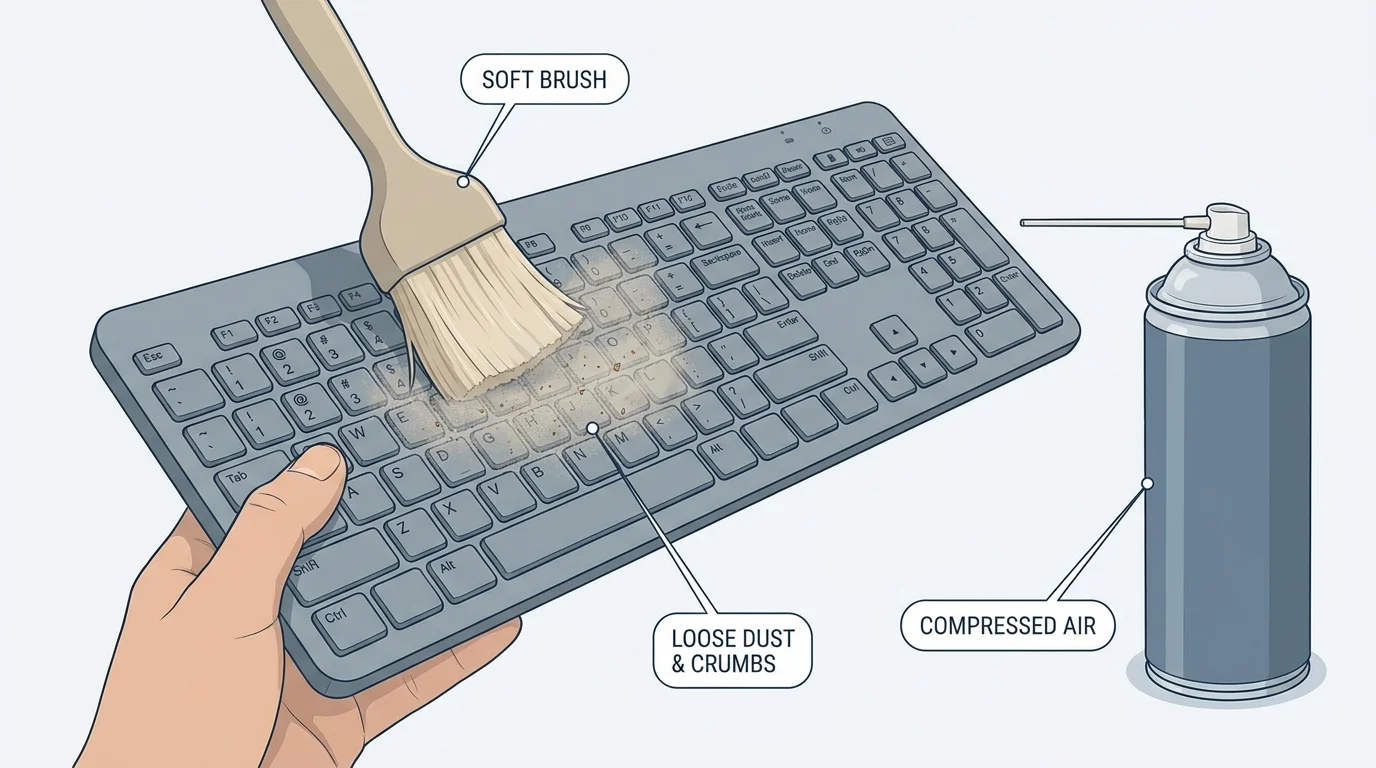
For a separate keyboard, hold it at a comfortable angle or turn it upside down and gently tap the case to let loose debris fall out. Do not shake it violently or strike it against a desk. Use a soft brush to lift debris from around the key edges.
If the manufacturer allows compressed air, follow the can's directions and use short, controlled bursts. Keep the can in the orientation specified on its label and do not force debris deeper into the keyboard. Avoid spraying close enough to damage key mechanisms. For a laptop, be especially cautious: do not invert, shake, or spray it in a way that conflicts with the device manufacturer's instructions.
Step 3: Wipe the keys and outer surface
Lightly moisten a lint-free cloth with water or a cleaning solution specifically allowed by the device manufacturer. The cloth should be damp, not wet. Wipe the tops and sides of the keys gently, then clean the keyboard frame and palm-rest area where applicable. Use a dry part of the cloth to remove remaining moisture.
Never spray cleaner directly onto the keyboard. Keep liquid away from key gaps, ports, switches, connectors, and other openings. Do not let moisture pool around the keys, and do not pour cleaning solution over the surface. If the manufacturer's documentation permits disinfectant wipes, use only the stated type and technique for that particular product.
Apple's general product guidance recommends disconnecting external power and cables, using a soft lint-free cloth, keeping moisture out of openings, and not spraying cleaning products directly on the device. Microsoft likewise advises disconnecting or removing batteries before cleaning its keyboards and applying permitted cleaning liquid to a cloth rather than directly to the keyboard. Read the current instructions for your exact model before using alcohol or any disinfectant.
Step 4: Let everything dry fully
Leave the keyboard switched off and disconnected while it dries. Check that the key surfaces and surrounding case are dry before reconnecting it. Do not use a hair dryer, heater, or other high heat to speed up drying, and do not reconnect a keyboard that has moisture inside or around its openings.
For a laptop, if liquid has entered the keyboard or you suspect moisture has reached the internal components, keep the computer powered off and seek help from the manufacturer or a qualified repair service. Do not turn it on just to test whether it still works.
How to clean a laptop keyboard vs. a desktop keyboard
Laptop keyboard
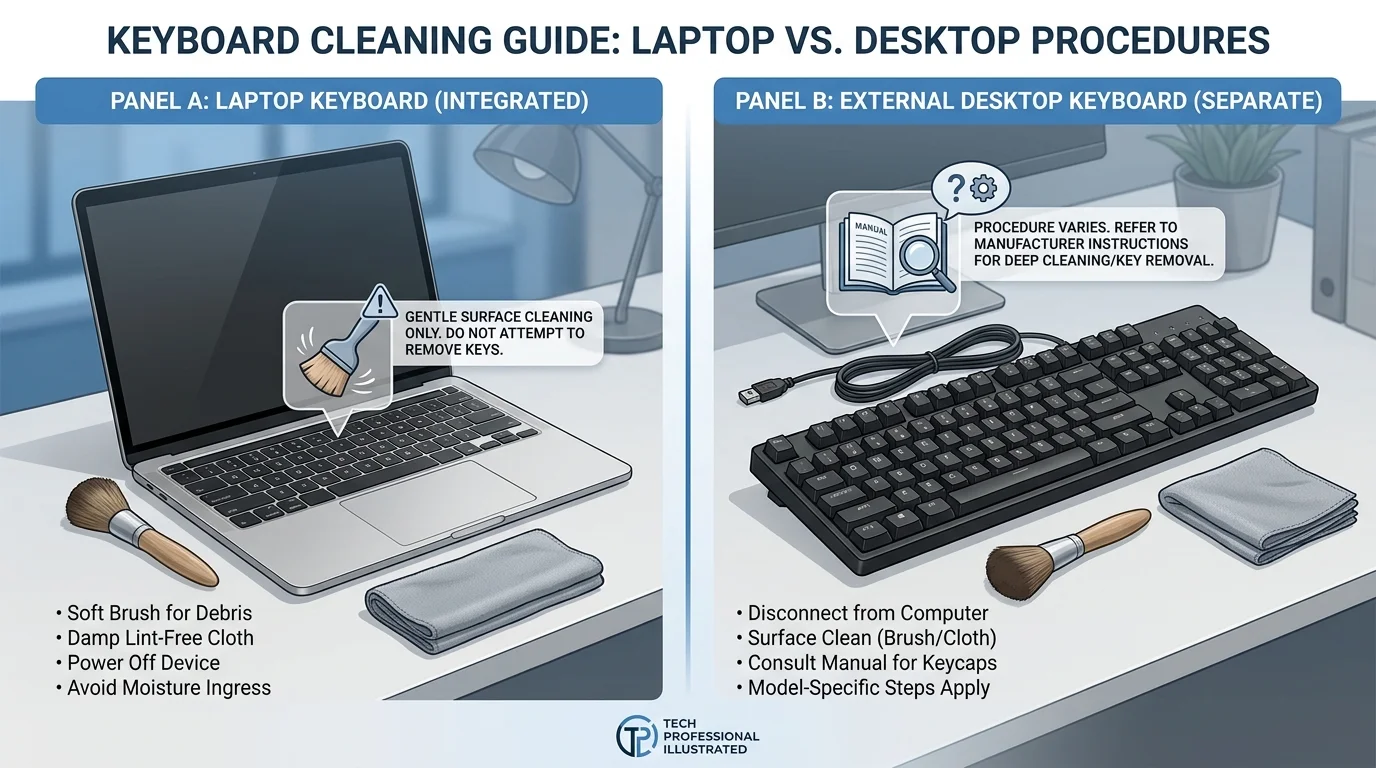
Laptop keys and their mechanisms are often more delicate and harder to replace than keys on some desktop keyboards. Use a gentle brush and an almost-dry cloth, and follow the laptop maker's exact recommendations. Do not pull laptop keycaps off unless the manufacturer explicitly provides a safe procedure for your model. A keycap or scissor mechanism can break easily.
Avoid tipping a laptop in an unusual position, spraying compressed air underneath keys without checking model-specific advice, or allowing fluid to run toward the display hinge, trackpad, or ports. If debris is trapped under a key and does not come out with gentle cleaning, professional service may be safer than prying the key up.
External desktop keyboard
A separate wired or wireless keyboard can usually be disconnected and cleaned on a clear work surface. Follow its manual for removable batteries, keycaps, and compressed air. Some mechanical keyboards are designed for keycap removal, but not all keyboards are; do not assume that a keycap puller is appropriate for a low-profile or membrane keyboard.
If the manufacturer supports removing the keycaps, take a photo of the layout before removing anything and keep the keys organized. Never remove keycaps while the keyboard is connected or powered on, and do not submerge the keyboard unless its manufacturer specifically identifies it as washable and gives instructions for doing so.
What if you spill liquid on the keyboard?
A spill is different from routine cleaning. Stop typing immediately. Turn off the device if you can do so safely, disconnect the charger and external power, and unplug a separate keyboard. For a wireless keyboard, turn it off and remove the batteries if possible without risk.
Blot visible liquid from the surface with an absorbent lint-free cloth. Do not press keys repeatedly, shake the device, use heat, or pour more liquid on it to clean it. For a laptop or any keyboard where liquid may have reached internal components, leave it off and contact the manufacturer or a qualified repair service. Waiting until the outside looks dry does not guarantee that the inside is dry.
If the spill contains a sugary drink, milk, or another residue-forming liquid, do not try to fix it by spraying a household cleaner into the keys. Sticky residue may require professional cleaning.
What not to do when cleaning a keyboard
Avoid these common mistakes:
- Do not spray liquid directly onto keys. Apply an approved cleaner to a cloth, when the manufacturer allows it.
- Do not clean while powered. Turn the device off and disconnect it first.
- Do not force keycaps off. Laptop mechanisms can break, and many keyboards are not designed for casual keycap removal.
- Do not flood the gaps between keys. A damp cloth is not the same as a wet surface.
- Do not use abrasive household products or unapproved chemicals. They can damage key legends, coatings, or materials.
- Do not reconnect a wet keyboard. If a liquid spill may have reached internal components, seek device-specific advice.
How often should you clean a keyboard?
For many people, a light surface wipe and debris check every few weeks is a reasonable routine, with more frequent cleaning if the keyboard is used heavily or in a dusty environment. Microsoft's guidance for its own keyboard accessories recommends cleaning monthly or when needed, but the best interval depends on use and the manufacturer's care instructions. Do not interpret a suggested interval as permission to use the same chemical on every keyboard.
Wash and dry your hands before typing, avoid eating directly over the keyboard, and keep drinks away from it. These habits can reduce residue and make routine cleaning easier.
When cleaning does not solve the problem
If a key remains sticky, fails to return, repeats characters, or stops responding after the keyboard is dry and clean, the issue may be residue under the key, a damaged switch, a broken scissor mechanism, or another hardware fault. Do not keep forcing the key or flooding it with cleaner. Check the manufacturer's troubleshooting instructions and consider repair or replacement.
If the keyboard is not typing at all rather than physically dirty, use a separate troubleshooting process: our guide to troubleshooting a keyboard that is not working in Windows 11 can help you distinguish a software or connection issue from a cleaning problem. For keys that simply do not register, see our keyboard-not-typing troubleshooting guide.
Final checklist
- Turn the keyboard or laptop off and disconnect power.
- Remove loose debris gently with a brush or controlled compressed air.
- Wipe with a soft, lint-free cloth using only an approved cleaning method.
- Keep liquid away from gaps, switches, and openings.
- Let the keyboard dry completely before reconnecting.
- Follow device-specific guidance if a key remains sticky or liquid has entered the device.
A little careful maintenance can keep a keyboard cleaner, but the safest procedure is always the one approved for your specific device. When in doubt, avoid disassembly and consult the manufacturer.
Related guides
- How to Fix Sticky Keyboard Keys on a Laptop or PC
- Why Is My Keyboard Not Working? How to Fix It in Windows 11
- How to Fix a Keyboard That Is Not Typing in Windows 11
- How to Unlock a Keyboard in Windows 11
- How to Change Keyboard Language in Windows 11
Official sources
Verified Primary Sources & Citations
NextTechExplained verifies facts against official documentation, engineering whitepapers, and regulatory filings.
- Microsoft Support: How do I clean my Microsoft mouse or keyboard?View Official Source
- Microsoft Support: Clean and care for your SurfaceView Official Source
- Apple Support: How to clean your Apple productsView Official Source
Published by NextTechExplained
Editorial Team • Institutional Publication Byline
Articles published under this byline are prepared through rigorous research and verified against official engineering specifications, standards documentation, and primary sources. Learn more about our process on our About page and Editorial Policy.
Related Explanations & Guides
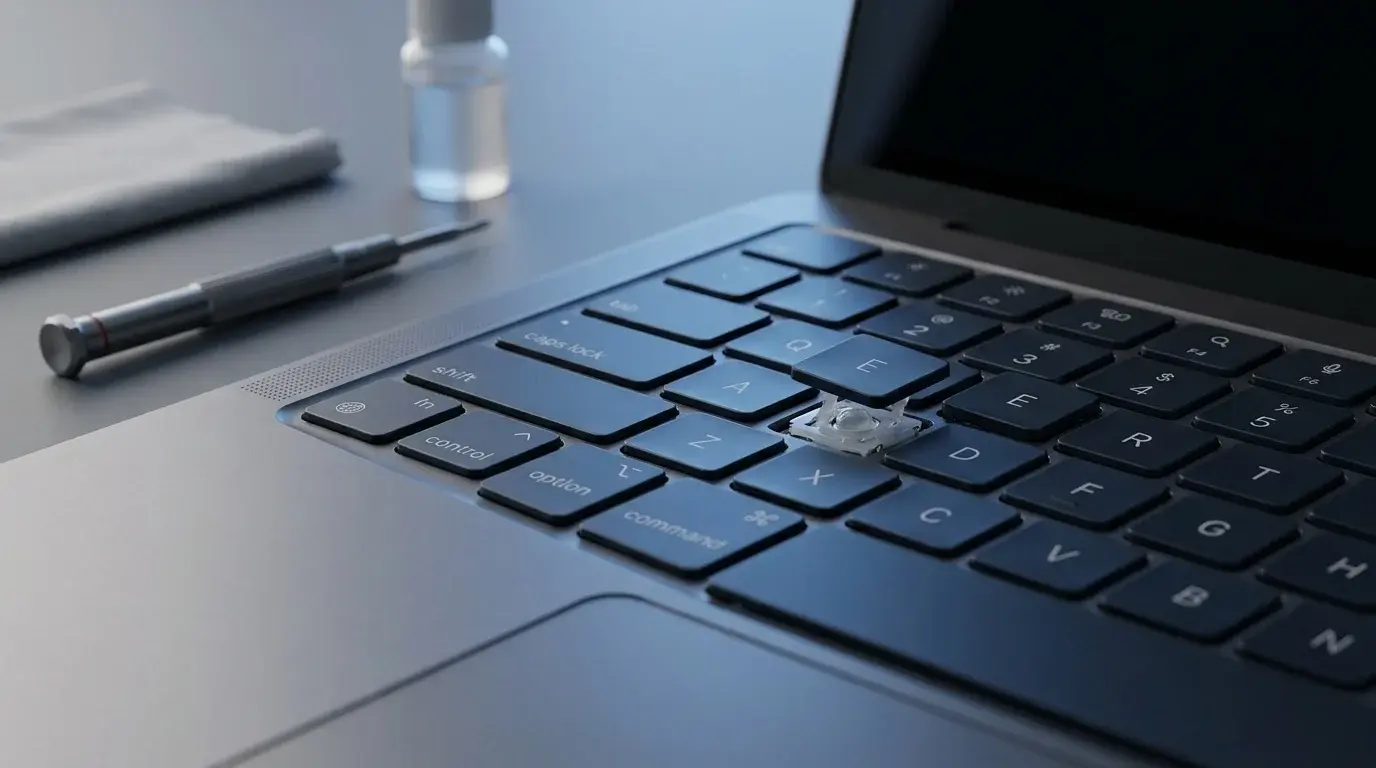
How to Fix Sticky Keyboard Keys on a Laptop or PC
Fix sticky keyboard keys safely with step-by-step cleaning, connection checks, and spill advice for laptops and external keyboards.
How to Change Keyboard Language in Windows 11
Switch keyboard languages in Windows 11, add a new layout, use the Windows + Space shortcut, and fix missing language options.
How to Change the Keyboard on Android (Gboard and Samsung)
Learn how to change your Android keyboard, set Gboard or Samsung Keyboard as default, switch back, and troubleshoot missing keyboard options.