
How to Fix Sticky Keyboard Keys on a Laptop or PC
Fix sticky keyboard keys safely with step-by-step cleaning, connection checks, and spill advice for laptops and external keyboards.
Editorial Team
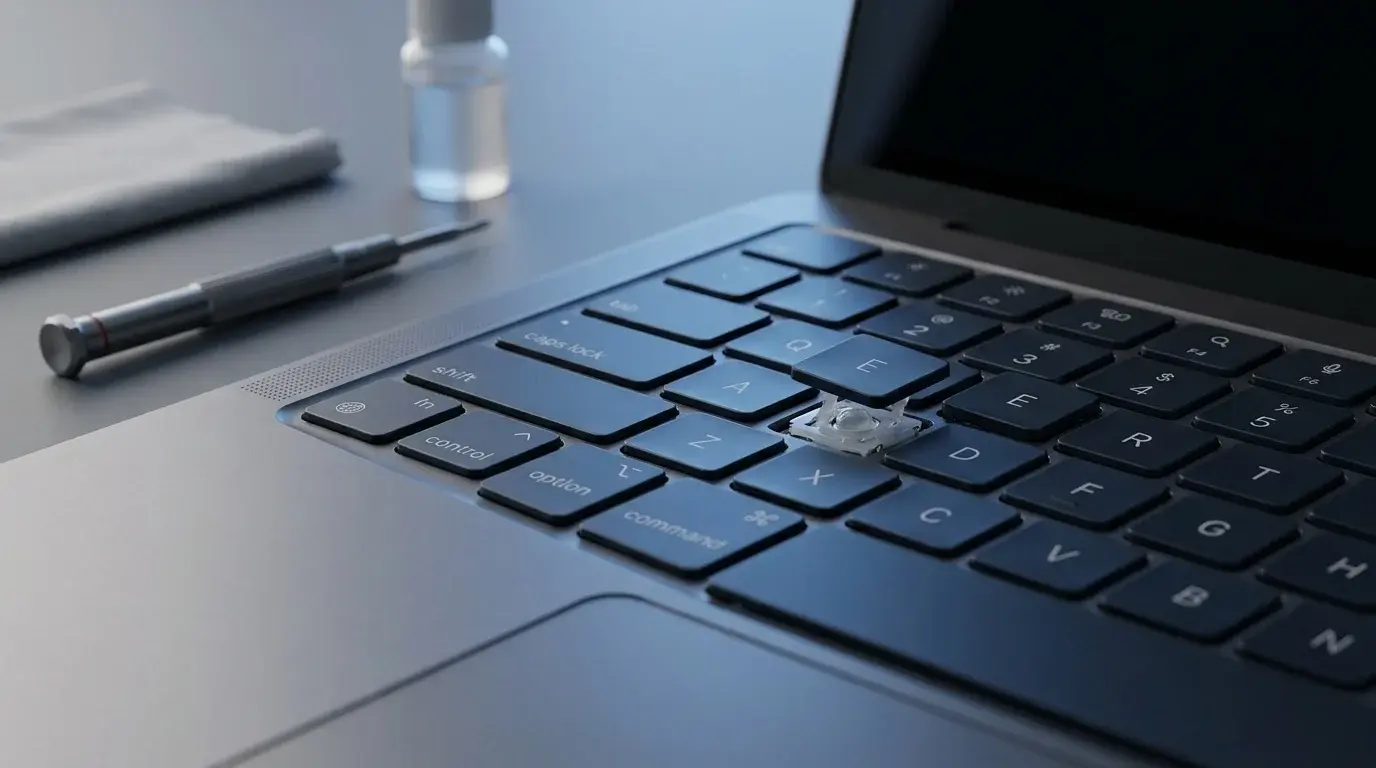
Close-up of a laptop keyboard with a key sticking above the keyboard deck, illustrating how to troubleshoot sticky keys
Table of Contents (15 sections)
- 1. Identify what is happening
- 2. Turn the keyboard off before cleaning
- 3. Remove loose crumbs and dust
- 4. Clean residue from the key surface
- 5. What to do if a drink was spilled
- 6. Check whether the problem is physical or software-related
- 7. When to repair or replace the keyboard
- Frequently asked questions
- Can I use rubbing alcohol on a sticky keyboard key?
- Can I remove a laptop keycap to clean underneath it?
- Why does a keyboard key keep repeating letters?
- Is Windows Sticky Keys the same as a physically sticky key?
- Conclusion
- Related guides
- Sources
A keyboard key that feels gummy, takes extra force to press, or stays down after you release it can make typing frustrating. The cause may be dust and crumbs around the key, residue from a small spill, or a worn or damaged mechanism. The safest fix depends on the keyboard type and what caused the problem.
This guide focuses on physically sticky keyboard keys on laptop and external keyboards. It is different from Windows' Sticky Keys accessibility feature, which lets you press shortcut keys one at a time. If you need routine maintenance and dust removal across your entire keyboard rather than fixing a single stuck key, see our guide on how to clean a keyboard safely. If your keys are physically sticking, start with the safe checks below. If a drink was spilled on the device, skip to the spill section before trying to clean the key.
1. Identify what is happening
Before cleaning anything, check the symptom:
- A key feels gummy or returns slowly: Dirt, skin oils, or dried residue may be around the key mechanism.
- A key is difficult to press but still works: There may be debris beneath the key, or the key mechanism could be damaged.
- A key repeats or registers without a normal press: Debris or liquid may be affecting the mechanism, but software or hardware faults can also cause repeated input.
- Several keys stopped working after a spill: Treat this as possible liquid damage. Power the device down and do not continue testing every key.
- Keys physically feel normal, but Windows behaves as though a modifier key is held: Check keyboard accessibility settings separately. Microsoft's Surface keyboard troubleshooting guide (opens in new tab) explains how Sticky Keys and Filter Keys can change typing behavior on Windows.
2. Turn the keyboard off before cleaning
For an external wired keyboard, shut down or disconnect the computer if appropriate, then unplug the keyboard. For a wireless keyboard, turn it off and remove its batteries if they are user-removable. For a laptop, shut it down completely, unplug the charger, and follow the manufacturer's cleaning instructions. Do not remove a laptop battery unless the device is designed for safe user removal.
This reduces the chance of accidental input or an electrical problem while you clean. Never spray or pour liquid directly onto a keyboard. Microsoft specifically advises disconnecting its keyboards before cleaning and keeping liquid out of the device in its keyboard cleaning instructions (opens in new tab).
3. Remove loose crumbs and dust
For a dry, dusty, or crumb-filled keyboard, start with the least invasive method:
- Hold a detachable external keyboard at a gentle angle or upside down, if its design allows it.
- Tap the case lightly to loosen loose debris. Do not hit it against a table.
- Use short bursts of compressed air according to the can's instructions, directing debris out from around the affected key. Keep the nozzle at a sensible distance and do not force it beneath the keycap.
- If the manufacturer's instructions allow it, use a soft keyboard brush or a vacuum attachment designed for delicate electronics.
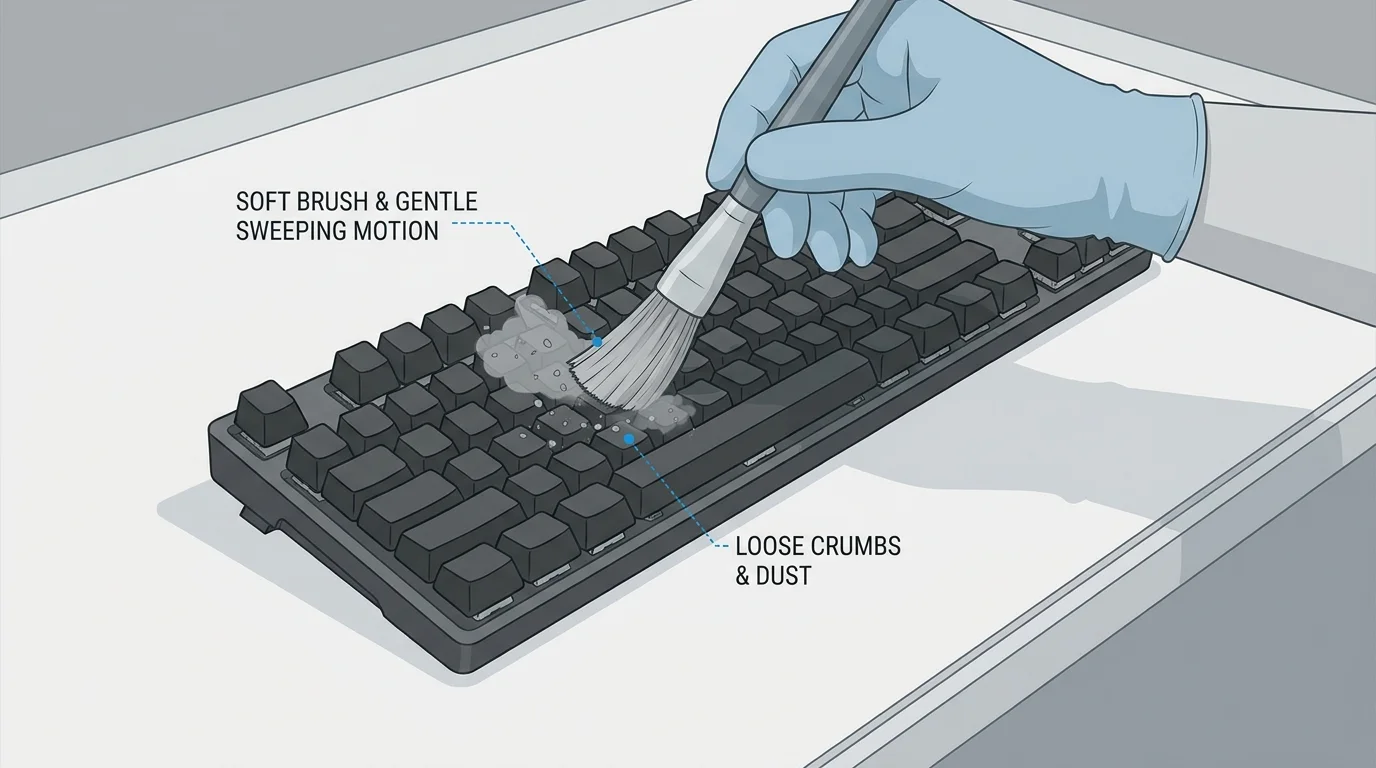
Do not use a high-powered vacuum directly on fragile parts, force an object under a key, or pry off laptop keycaps just to reach dust. Laptop scissor mechanisms and low-profile keycaps can break easily, and replacement methods vary by model. Microsoft recommends gentle tapping and compressed air or a soft dusting-brush vacuum for supported keyboards. See its official cleaning guidance (opens in new tab).
4. Clean residue from the key surface
If the top of the key or the surrounding keyboard deck feels greasy, power the keyboard off first. Use a soft, lint-free cloth that is only slightly damp with a cleaner permitted by the keyboard's manufacturer. Wipe the key surface and surrounding area gently, then use a dry section of the cloth to remove remaining moisture. Let the keyboard dry fully before reconnecting it.
For Microsoft keyboards, the manufacturer permits a soft, lint-free cloth lightly dampened with isopropyl alcohol (IPA) at 70% or less for specified cleaning use; other products may have different rules. Check the manufacturer's guidance for your exact device before using alcohol or any other cleaning product. Never spray liquid directly onto the keyboard, allow drops to seep between keys, or use abrasive cleaners.
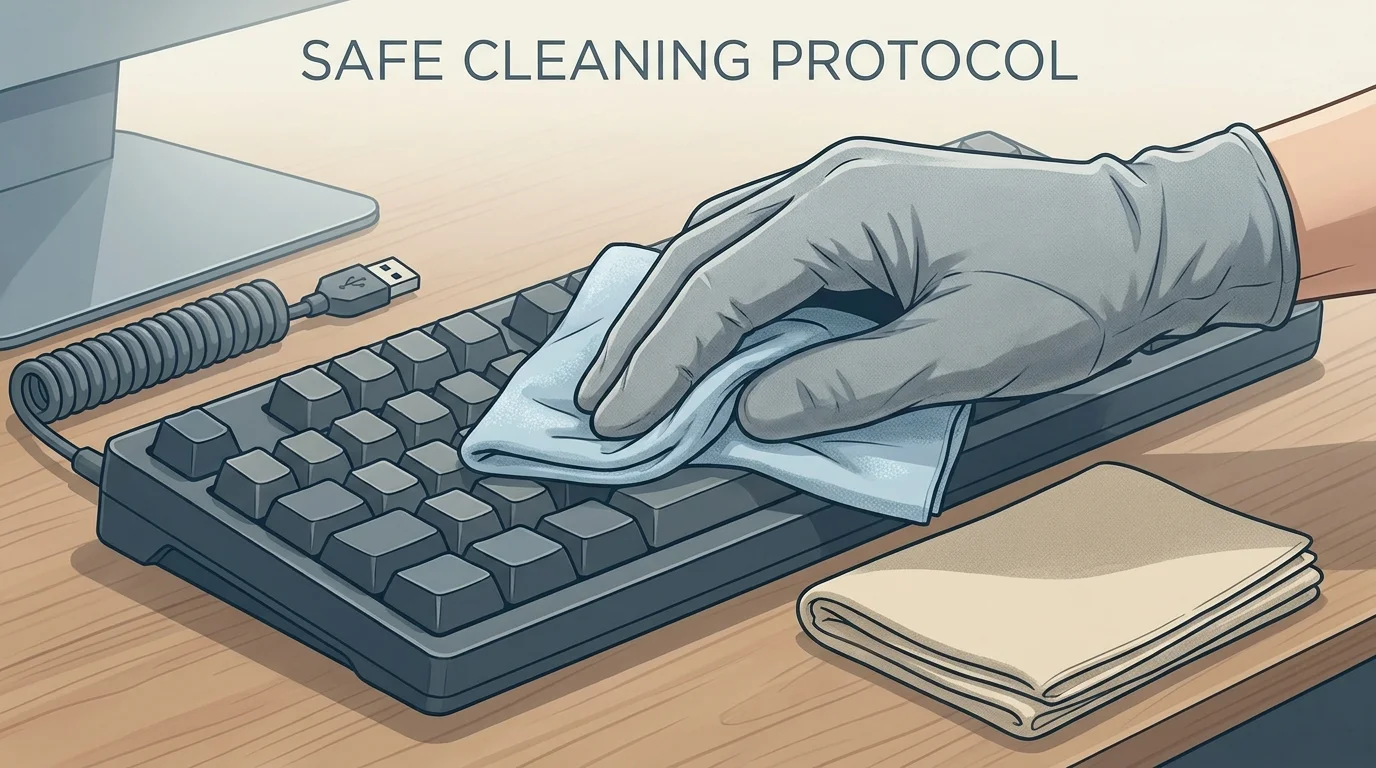
Important: Wiping the top of a key will not necessarily remove residue underneath its mechanism. Do not flood the area with cleaner in an attempt to reach beneath the key. If the key remains gummy after gentle surface cleaning, use the manufacturer's repair instructions or seek professional service rather than forcing the cap off.
5. What to do if a drink was spilled
Liquid spills need a different response from ordinary dust. Sugary drinks can leave sticky residue, while liquid that reaches the internal circuitry may cause corrosion or short circuits.
- Turn the laptop off immediately if you can do so safely, and disconnect the charger. For an external keyboard, unplug it or switch it off and remove its batteries where possible.
- Do not keep pressing keys to test whether they still work.
- Blot visible liquid around the outside with a lint-free cloth. Do not shake the device aggressively or use a hair dryer, heater, or other high heat.
- Do not pour alcohol, water, or another cleaning solution into the keyboard.
- Consult the laptop or keyboard manufacturer's spill guidance. If liquid may have entered a laptop or if the keys remain sticky, arrange professional inspection before powering it back on.
Drying the surface does not prove that the inside is dry or undamaged. If a significant amount of liquid entered the device, professional assessment is safer than trying to clean beneath laptop keys yourself.
6. Check whether the problem is physical or software-related
After cleaning and allowing the device to dry fully, reconnect it and test a few affected keys in a plain text editor. Avoid repeatedly pressing a key that still feels mechanically stuck.
If the keys feel normal but the computer repeats characters, ignores key presses, or behaves as though a modifier key is held, try these checks:
- Restart Windows and test the keyboard again.
- Open Settings > Accessibility > Keyboard and review Sticky Keys and Filter Keys. These are software features, not a way to repair a physically gummy key.
- For an external keyboard, try another compatible USB port or reconnect its wireless receiver and check its battery or pairing.
- Test the keyboard on another compatible computer, if available. If the same key sticks there too, a hardware issue is more likely.
If only one laptop key remains physically stuck, avoid removing its cap unless the laptop manufacturer explicitly documents that procedure for your model.
7. When to repair or replace the keyboard
Stop cleaning and seek repair if a key is cracked, loose, detached, severely jammed, or still repeats after gentle cleaning. A keyboard that had a substantial liquid spill may need inspection even if it appears to work again temporarily. Do not force a key up or down; that can damage the mechanism beneath it.
For a laptop, check the manufacturer's support page using the exact model number. For a detachable or external keyboard, review the maker's replacement keycap or repair options. If the keyboard is under warranty, check the warranty terms before disassembling it.
Frequently asked questions
Can I use rubbing alcohol on a sticky keyboard key?
Only if the keyboard manufacturer allows it, and only in the specified concentration and application method. For example, Microsoft permits 70% or less isopropyl alcohol on a soft, lint-free cloth for supported products. Never pour or spray it directly onto keys, and do not assume that one manufacturer's guidance applies to every keyboard.
Can I remove a laptop keycap to clean underneath it?
Do not assume that it is safe. Laptop keycaps and their scissor mechanisms are delicate and vary by model. Consult the service manual first; if the manufacturer does not document safe removal, use gentle external cleaning or seek repair.
Why does a keyboard key keep repeating letters?
A physically sticking key or liquid residue can cause repeated input, but software settings and hardware faults can also contribute. First decide whether the key physically fails to return. If it moves normally, test in another app, review Accessibility keyboard settings, and test another keyboard if available.
Is Windows Sticky Keys the same as a physically sticky key?
No. Windows Sticky Keys is an accessibility feature for entering keyboard shortcuts one key at a time. A physically sticky key is a mechanical or contamination problem. Changing the Windows setting will not remove crumbs or dried liquid from under a key.
Conclusion
Cleaning a sticky keyboard key requires a patient, measured approach. Start by powering off and disconnecting the keyboard, use compressed air or a soft brush for dry debris, and clean surface residue with a lightly dampened lint-free cloth. Never pour liquid into keys or pry delicate laptop keycaps off without authorized instructions. If keys remain jammed or liquid entered the device, seek manufacturer-authorized service.
Related guides
- How to Clean a Keyboard Safely: Laptop and Desktop Guide
- Why Is My Keyboard Not Working? How to Fix It in Windows 11
- How to Fix a Keyboard That Is Not Typing in Windows 11
- How to Unlock a Keyboard in Windows 11
- How to Change Keyboard Language in Windows 11
Sources
Verified Primary Sources & Citations
NextTechExplained verifies facts against official documentation, engineering whitepapers, and regulatory filings.
- Microsoft Support: How do I clean my Microsoft mouse or keyboard?View Official Source
- Microsoft Support: Troubleshoot Surface Pro Keyboard or Type CoverView Official Source
- HP Support: Protecting and caring for your notebookView Official Source
Published by NextTechExplained
Editorial Team • Institutional Publication Byline
Articles published under this byline are prepared through rigorous research and verified against official engineering specifications, standards documentation, and primary sources. Learn more about our process on our About page and Editorial Policy.
Related Explanations & Guides
How to Change Keyboard Language in Windows 11
Switch keyboard languages in Windows 11, add a new layout, use the Windows + Space shortcut, and fix missing language options.
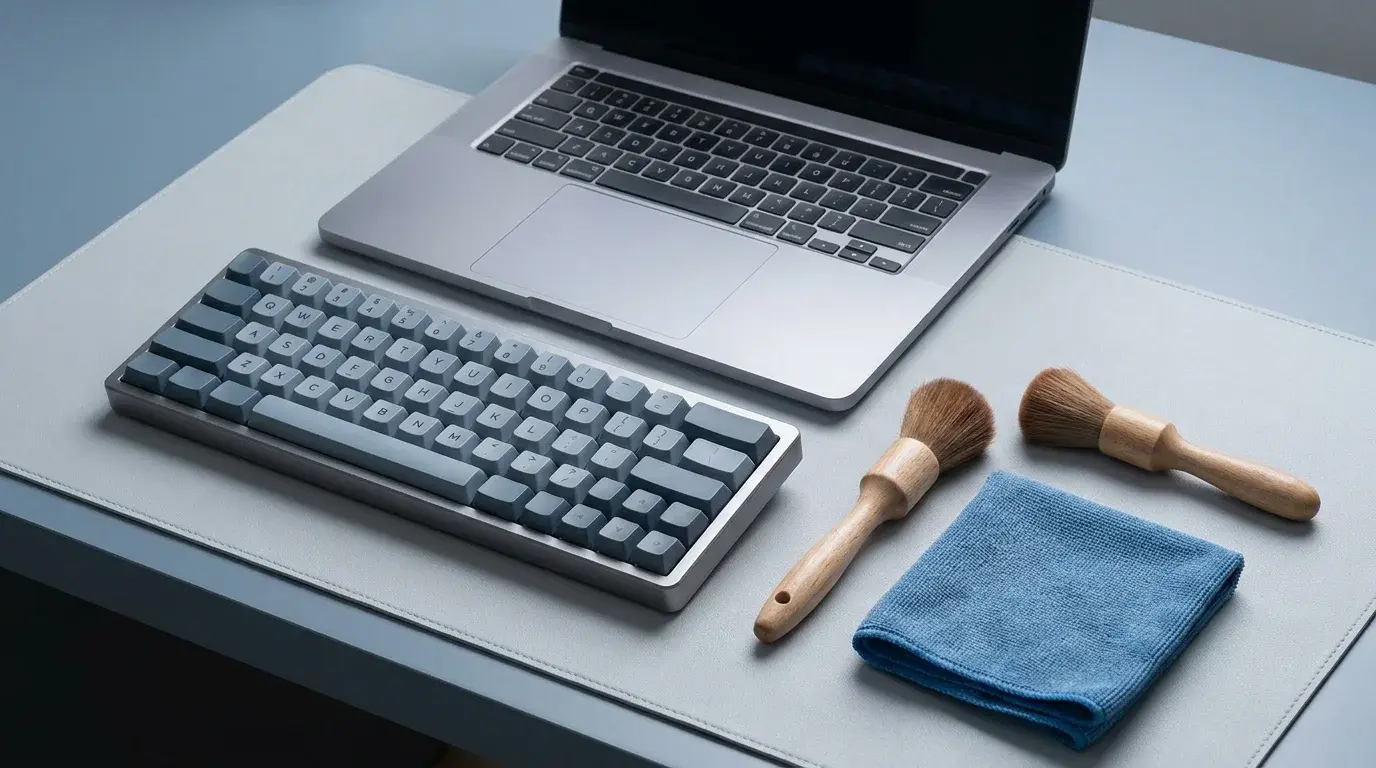
How to Clean a Keyboard Safely: Laptop and Desktop Guide
Learn how to clean a laptop or desktop keyboard safely, remove dust and crumbs, wipe the keys, and avoid liquid or keycap damage.
How to Turn On Your Keyboard Light in Windows 11
Learn how to turn on a laptop keyboard backlight, find the correct Fn shortcut, adjust brightness, and troubleshoot lighting that will not turn on.