
What Is Windows Fast Startup? Should You Disable It?
Learn how Windows Fast Startup works, how it differs from Restart, and when temporarily disabling it can help troubleshoot shutdown or device problems.
Editorial Team
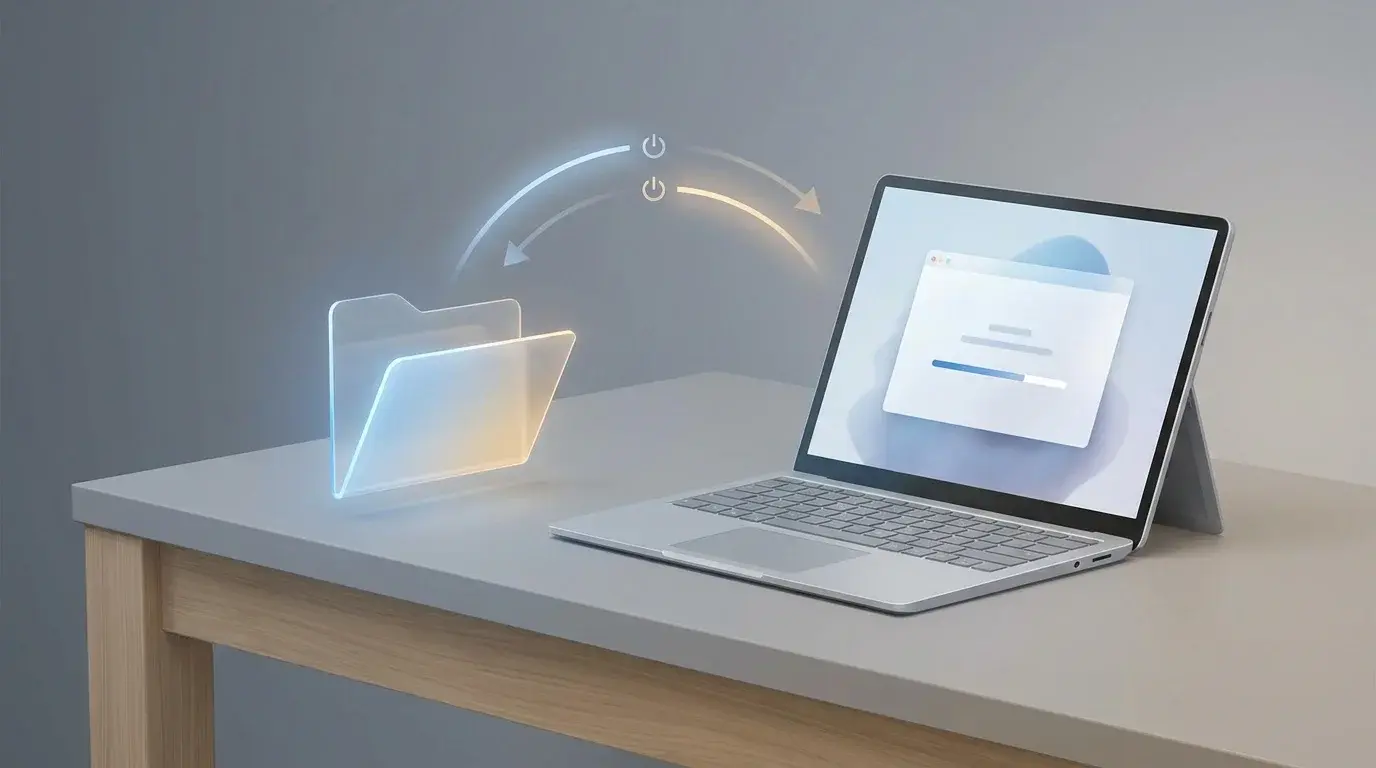
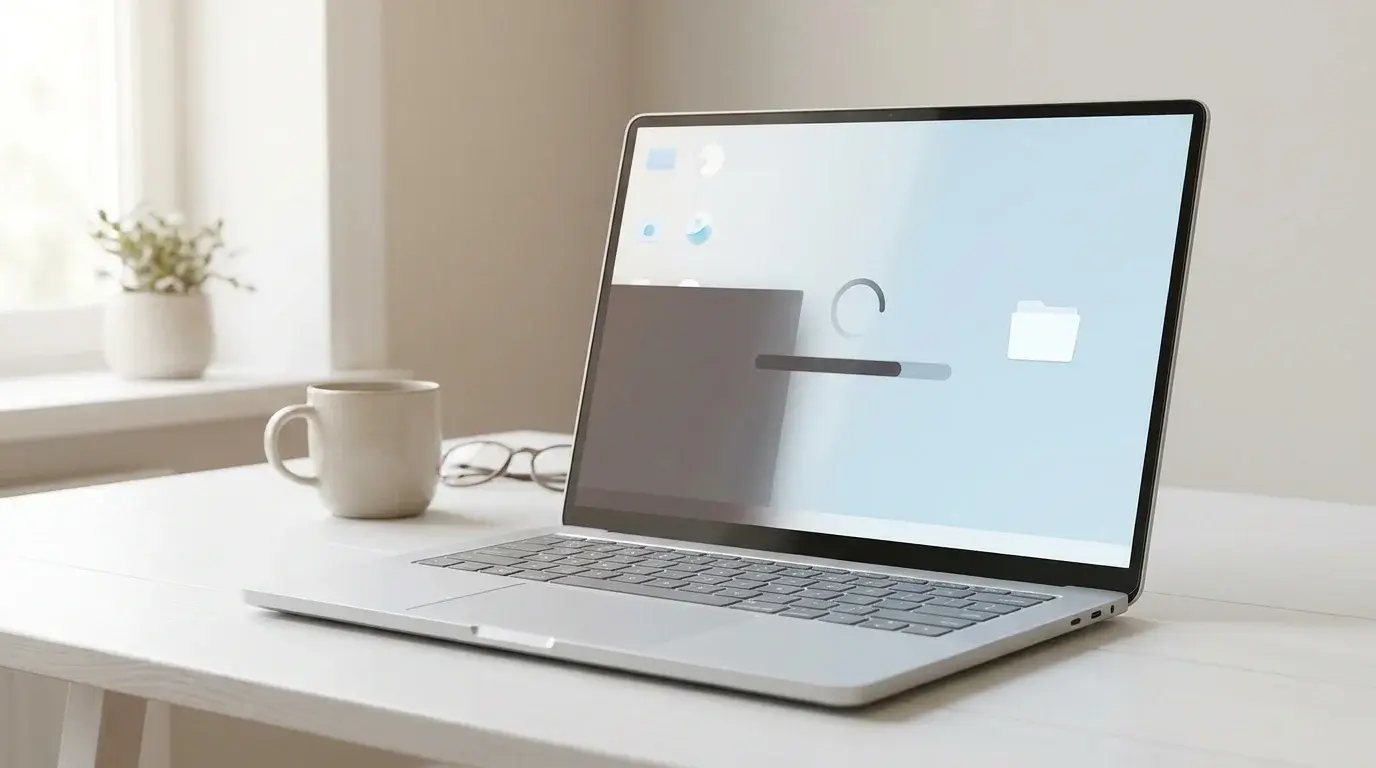
Laptop with a Windows-inspired desktop illustrating the Fast Startup process
Table of Contents (14 sections)
- What does Windows Fast Startup do?
- Fast Startup vs. Restart: what is the difference?
- Should you disable Windows Fast Startup?
- How to turn off Fast Startup in Windows 11
- How to turn Fast Startup back on
- If Fast Startup is not the cause
- Frequently asked questions
- Is Windows Fast Startup the same as sleep?
- Does Restart use Fast Startup?
- Does disabling Fast Startup make a PC faster?
- Why can't I see the Fast Startup checkbox?
- The bottom line
- Related guides
- Sources
Windows Fast Startup is a power feature designed to help a PC start more quickly after you shut it down. Instead of closing the Windows kernel session completely, Windows saves that session and driver state to a hibernation file, then restores it the next time you power on the computer. Your apps are still closed and your user session is logged off; Fast Startup does not simply leave your desktop running in the background.
For most people, there is no need to turn it off just because the option exists. But if your PC behaves differently after Shut down than it does after Restart, Fast Startup is worth understanding as one possible troubleshooting factor. Microsoft generally advises against disabling it without a specific reason. Microsoft explains the behavior and limitations here (opens in new tab).
What does Windows Fast Startup do?
Fast Startup combines a shutdown with a limited hibernation process. During shutdown, Windows logs off user sessions and saves the kernel session and loaded driver information to the hibernation file (hiberfil.sys). On the next power-on, it restores that saved system state rather than performing every part of a traditional cold boot from scratch.
This is different from putting your PC to sleep. Sleep keeps the session available for a quick resume; Fast Startup closes your apps and signs you out, then saves part of the system state to disk.
Fast Startup vs. Restart: what is the difference?
The difference matters when troubleshooting updates, drivers, or devices.
| Action | What generally happens | When it is useful |
|---|---|---|
| Shut down with Fast Startup enabled | Windows logs you out and saves the kernel and driver state to the hibernation file. | Everyday shutdown when you want a quicker next startup. |
| Restart | Windows performs a full restart and does not use Fast Startup for that transition. | Applying updates, refreshing system state, and troubleshooting issues that survive shutdown. |
| Shut down with Fast Startup disabled | Windows performs a full shutdown rather than the hybrid Fast Startup shutdown. | Testing whether a shutdown-related issue is connected to Fast Startup. |
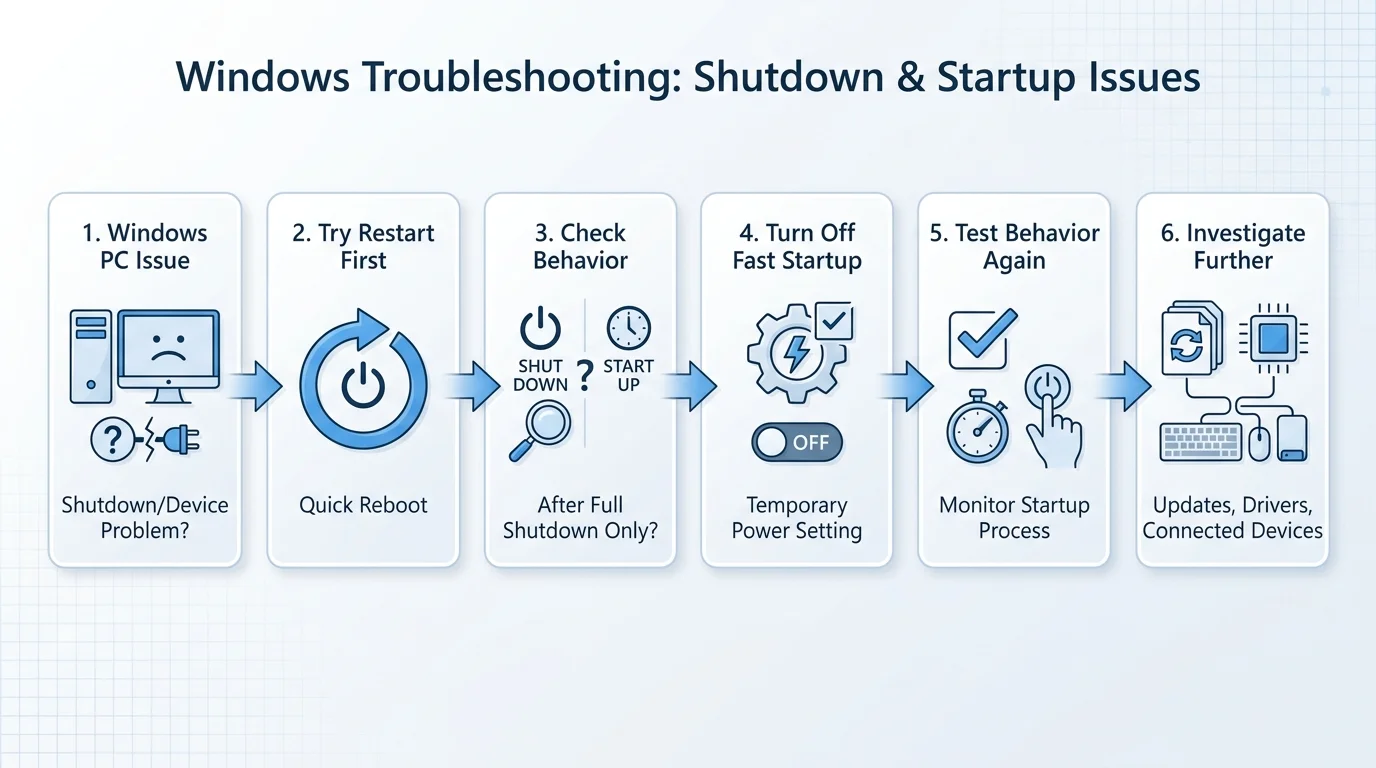
If a device or system issue disappears after you choose Restart but comes back after Shut down and powering on again, that difference can be a useful clue. It does not prove Fast Startup is the cause, but it gives you a sensible test to try before making more invasive changes.
Should you disable Windows Fast Startup?
Usually, leave it enabled unless you are troubleshooting a specific problem. Fast Startup exists to reduce startup time, and disabling it means the next power-on after shutdown may take longer. The effect varies by hardware and system configuration.
Consider testing with Fast Startup temporarily disabled when:
- A device, driver, or peripheral behaves incorrectly after shutdown but works after Restart.
- The PC appears not to complete a shutdown reliably.
- You are diagnosing a problem where a full shutdown is needed to refresh the kernel and driver state.
- A support guide for your particular issue specifically asks you to test a full shutdown.
Do not disable it expecting a universal performance improvement. It is not a general fix for a slow computer, high memory use, or an overloaded startup-app list. If Windows is slow after sign-in, investigate startup apps and resource usage separately.
Microsoft documents particular cases involving shutdown or hibernation failures and notes that Fast Startup does not apply to the Restart command. See the Microsoft troubleshooting guidance (opens in new tab).
How to turn off Fast Startup in Windows 11
The setting is available through the classic Control Panel Power Options interface on systems that support it. You may need administrator permission to change it.
- Save your work and open Start.
- Type Control Panel, then open it.
- Select Hardware and Sound and then Power Options. If the categories are not shown, open Power Options directly.
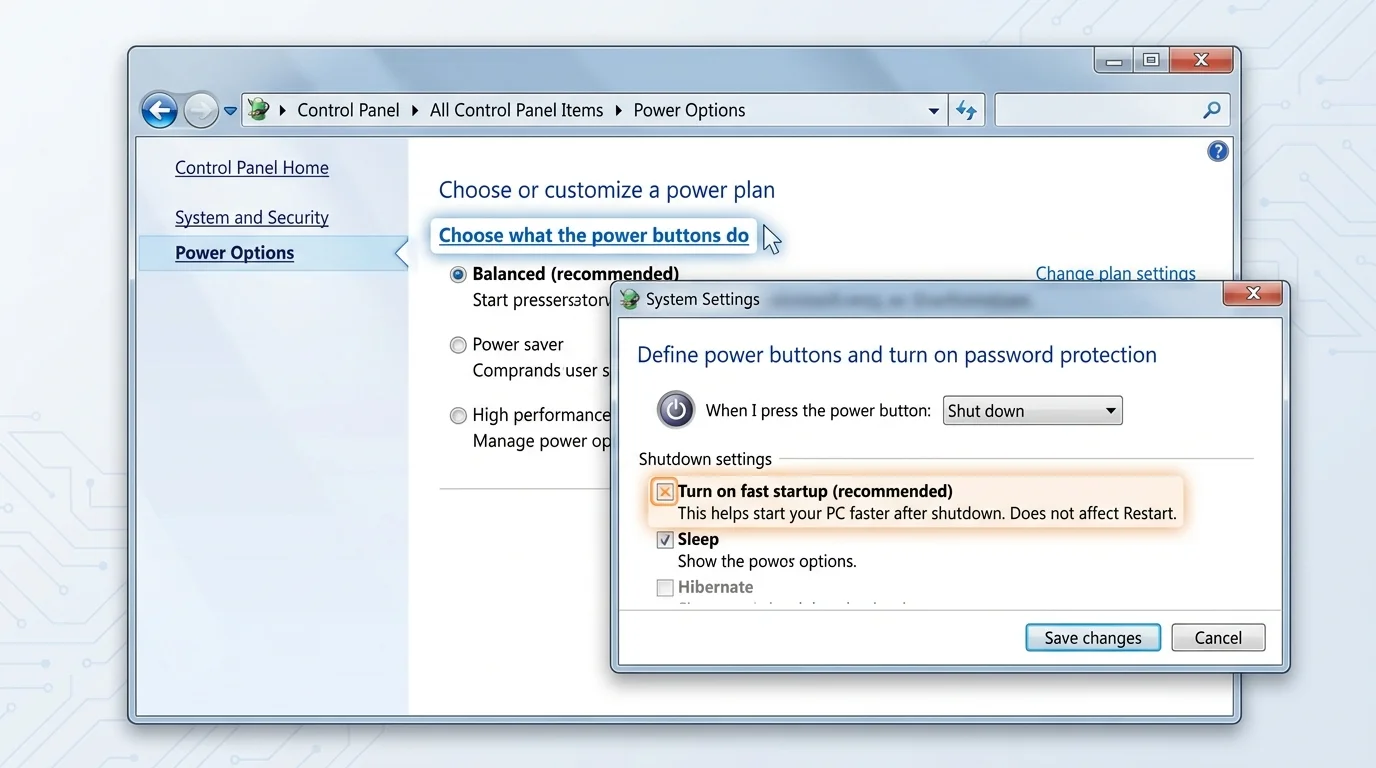
- In the left pane, select Choose what the power buttons do.
- Select Change settings that are currently unavailable if that link appears.
- Under Shutdown settings, clear Turn on fast startup (recommended).
- Select Save changes.
- Choose Shut down, power the PC back on, and test whether the original issue changes.
If the Fast Startup checkbox is missing, do not change registry settings to force it to appear. The option may not be available because of the system's power configuration, hibernation support, or device policy. Continue with the other troubleshooting steps relevant to your problem.
How to turn Fast Startup back on
If disabling the setting does not help, restore the previous configuration:
- Open Control Panel > Hardware and Sound > Power Options.
- Select Choose what the power buttons do.
- Select Change settings that are currently unavailable, if needed.
- Check Turn on fast startup (recommended).
- Select Save changes.
If the option was not present before, there is no need to force it on. You can leave the configuration as your system provides it.
If Fast Startup is not the cause
If your PC still has the same problem after testing with Fast Startup disabled, turn the setting back on if that was your usual configuration and investigate the actual symptom. Depending on what is failing, sensible next steps may include:
- Install pending Windows updates, then choose Restart to complete the installation cycle.
- Check for the correct driver from Windows Update or your PC or device manufacturer's support page if a particular device is affected.
- Disconnect nonessential peripherals temporarily to see whether a connected device is involved.
- Review the specific error message or symptom rather than changing unrelated power settings.
- Seek help from the PC manufacturer or Microsoft support if shutdown repeatedly fails or the computer returns to the lock screen unexpectedly.
Avoid registry edits and broad driver-removal steps unless you have a specific, reliable procedure for the problem you are diagnosing. Make one change at a time so you can tell whether it helped.
Frequently asked questions
Is Windows Fast Startup the same as sleep?
No. Sleep keeps the active session ready to resume. Fast Startup closes user apps and signs you out, while saving the kernel session and driver state to a hibernation file for the next power-on.
Does Restart use Fast Startup?
No. Restart performs a full restart transition and does not use the Fast Startup hybrid shutdown path. This is why Restart is a useful first test when a system or driver issue appears after shutdown.
Does disabling Fast Startup make a PC faster?
Not generally. Fast Startup is designed to make startup after shutdown faster. Turning it off can make that startup take longer. It may help diagnose particular shutdown-related problems, but it is not a universal performance optimization.
Why can't I see the Fast Startup checkbox?
It may be unavailable because of your system's power configuration, hibernation support, or a policy managed by your organization. Do not use registry edits to force the option to appear; troubleshoot the original issue directly.
The bottom line
Windows Fast Startup can make a normal shutdown-to-power-on cycle quicker by restoring part of the system state from a hibernation file. For everyday use, you can usually leave it enabled. If a device or shutdown problem happens only after Shut down and a power-on, try Restart first, then temporarily disable Fast Startup as a controlled troubleshooting test. If it does not help, restore the setting and focus on the specific driver, update, or device involved.
Related guides
Sources
Verified Primary Sources & Citations
NextTechExplained verifies facts against official documentation, engineering whitepapers, and regulatory filings.
- Microsoft Learn: Fast startup causes hibernation or shutdown to fail in WindowsView Official Source
- Microsoft Learn: System power statesView Official Source
- Microsoft Learn: Updates may not install with Fast Startup in Windows 10View Official Source
Published by NextTechExplained
Editorial Team • Institutional Publication Byline
Articles published under this byline are prepared through rigorous research and verified against official engineering specifications, standards documentation, and primary sources. Learn more about our process on our About page and Editorial Policy.
Related Explanations & Guides
Why Is My Keyboard Not Working? How to Fix It in Windows 11
Fix a keyboard that will not type in Windows 11. Check USB and wireless connections, accessibility settings, keyboard layout, Windows updates, and drivers safely.
How to Fix Slow Startup in Windows 11
Is your Windows PC taking too long to start? Use these safe steps to check startup apps, free storage, install updates, and narrow down the cause of a slow Windows 11 startup.
Secure Boot Violation: What It Means and How to Fix It Safely
Seeing a Secure Boot Violation at startup? Learn what the error means, common causes, safe checks, and when to use official PC recovery guidance.