
How to Fix a Keyboard That Is Not Typing in Windows 11
Keyboard keys not typing in Windows 11? Check the connection, test another app, review Filter Keys, use the On-Screen Keyboard, and troubleshoot drivers safely.
Editorial Team
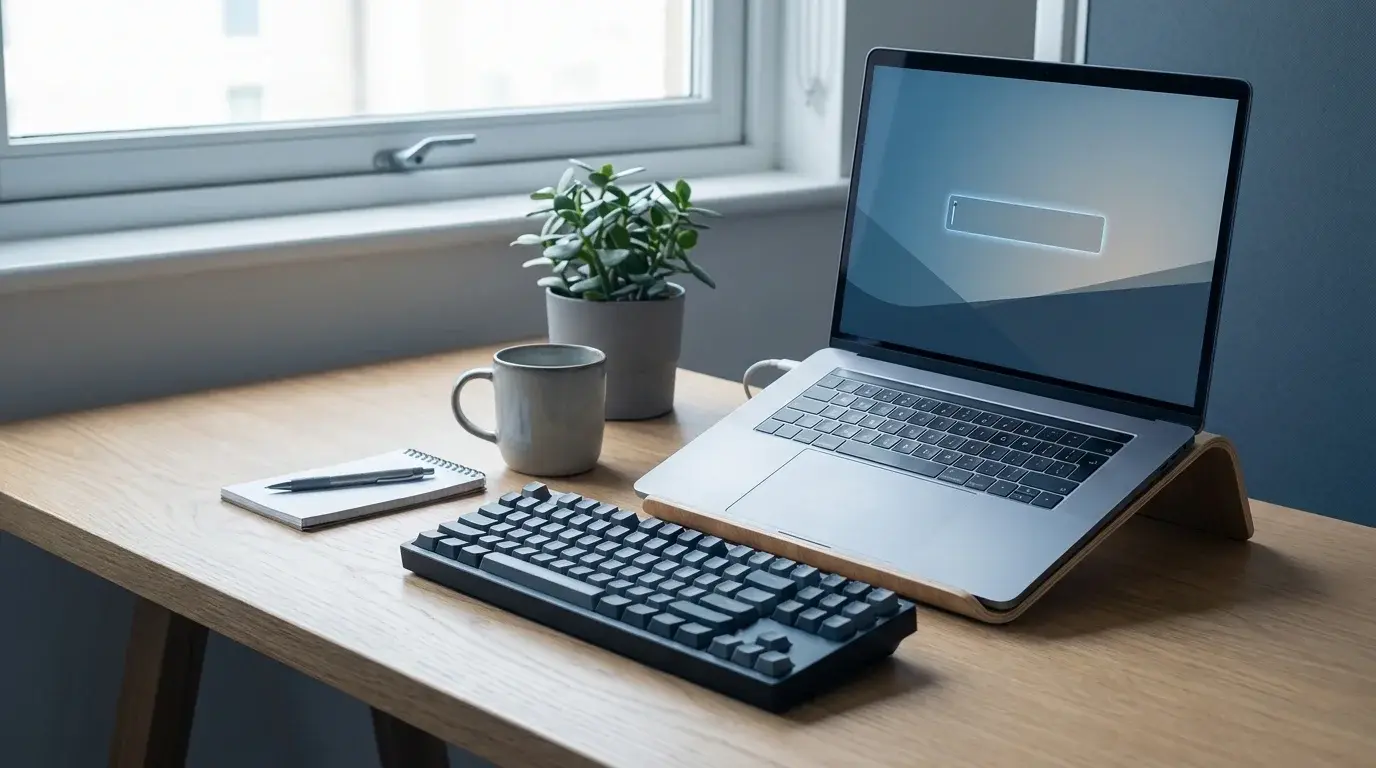
A laptop and external keyboard on a desk while troubleshooting keyboard input in Windows 11
Table of Contents (14 sections)
- 1. Check whether the problem affects one app or all of Windows
- 2. Check the keyboard connection and power
- For a wired USB keyboard
- For a wireless or Bluetooth keyboard
- 3. Restart the computer
- 4. Check Filter Keys and other keyboard accessibility settings
- 5. Use the On-Screen Keyboard as a temporary workaround
- 6. Check Windows Update
- 7. Check the keyboard entry in Device Manager
- 8. Check whether the problem is hardware-related
- Quick troubleshooting checklist
- When to contact support
- Related guides
- Sources
When a keyboard powers on but does not type, the cause may be a loose connection, a wireless pairing problem, an accessibility setting, a temporary Windows issue, or a faulty keyboard. Work through the checks below in order, starting with the simplest ones. You usually do not need to remove drivers or reset Windows as a first step.
This guide focuses on a keyboard that does not enter letters or numbers when you type. If your keyboard works but produces the wrong characters, the keyboard layout may be the issue instead.
1. Check whether the problem affects one app or all of Windows
Before changing settings, test the keyboard in more than one place. Click a text field in a different app, such as Notepad, or use the Windows search box if it is available. If typing works in one app but not another, the keyboard itself may be fine; the issue could be limited to the application, a dialog box, or the field that has focus.
If nothing accepts input, continue with the hardware and Windows checks below. If only a few keys fail, note which keys are affected because that can point toward debris, physical damage, or a keyboard-specific problem.
2. Check the keyboard connection and power
Start with the physical connection. A keyboard can light up while its connection or input signal is still unreliable.
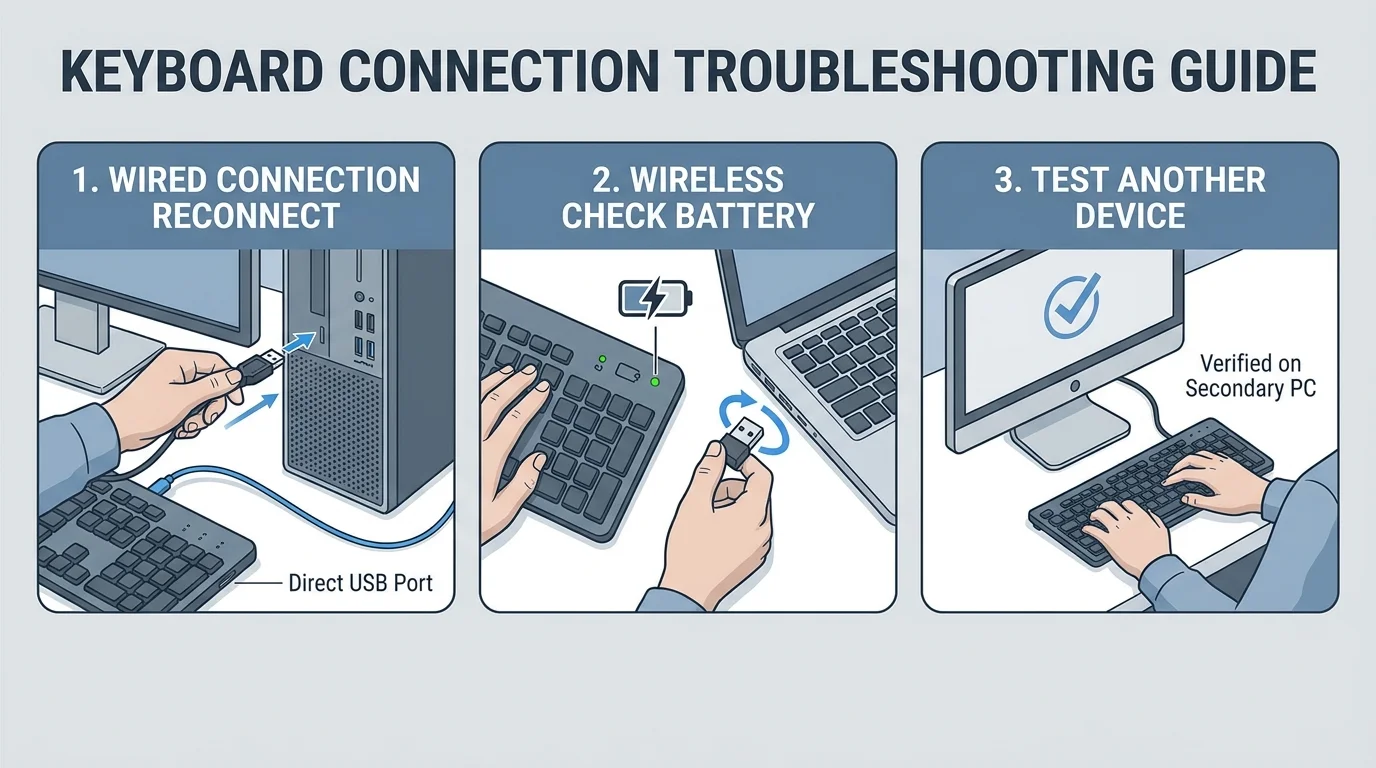
For a wired USB keyboard
- Unplug the keyboard from the USB port.
- Wait several seconds, then reconnect it.
- Try another USB port on the computer.
- If it is connected through a USB hub or dock, connect it directly to the computer for the test.
- Check the cable and plug for visible damage. Do not keep using a damaged cable.
For a wireless or Bluetooth keyboard
- Turn the keyboard off and back on, following its own instructions.
- Check its battery level or recharge it. Replace disposable batteries if needed.
- If it uses a USB receiver, unplug the receiver, wait about 10 seconds, and reconnect it.
- If it uses Bluetooth, check that Bluetooth is enabled and the keyboard is connected in Windows Settings. Reconnect or pair it again using the keyboard manufacturer's instructions if necessary.
If possible, test the keyboard on another compatible computer. If it also fails there, the keyboard or its connection may be the cause. Some devices need their manufacturer-provided software or driver to work fully, so take that into account when testing another computer.
3. Restart the computer
A restart can clear a temporary Windows or device-state problem. Save work first, then use Start > Power > Restart. When Windows returns, test typing again.
If the physical keyboard is completely unresponsive, use the mouse to open Start and choose Restart. Avoid repeatedly forcing the computer off unless Windows is frozen and no normal restart is possible, because an unexpected shutdown can interrupt work.
4. Check Filter Keys and other keyboard accessibility settings
Windows accessibility features can change how keystrokes are handled. Filter Keys can ignore brief or repeated keystrokes, which may make it seem as though a key is not registering. Sticky Keys changes how modifier-key shortcuts work.
Using your mouse:
- Open Start > Settings.
- Select Accessibility > Keyboard.
- Review Filter Keys and Sticky Keys.
- If you do not need a feature and it may have been enabled accidentally, switch it off and test typing again.
Do not turn accessibility features off automatically if you rely on them. The goal is to check whether a setting explains the behavior, not to remove a useful accommodation.
5. Use the On-Screen Keyboard as a temporary workaround
The On-Screen Keyboard (OSK) lets you enter text by clicking keys with the mouse. It can help you sign in to accounts, search Settings, or finish basic troubleshooting while the physical keyboard is unavailable.
To open it with a working keyboard, press Windows logo key + Ctrl + O. If your physical keyboard does not work, open Start > Settings > Accessibility > Keyboard, then turn on On-Screen Keyboard with the mouse. You do not need a touchscreen to use it.
If the On-Screen Keyboard types normally while the physical keyboard does not, that is useful evidence that Windows can accept text input, but it does not by itself prove whether the physical keyboard, connection, or driver is at fault.
6. Check Windows Update
Windows Update may provide system fixes or relevant device drivers. Before installing optional driver updates, read their descriptions and prefer updates intended for your device.
- Open Start > Settings > Windows Update.
- Select Check for updates and install applicable updates.
- Restart if Windows asks you to do so, then test the keyboard again.
Not every keyboard has a separate driver update available through Windows Update. If you use a laptop or a keyboard with special keys, also check the PC or keyboard manufacturer's support page for instructions that match your exact model.
7. Check the keyboard entry in Device Manager
If connection checks and Windows settings did not help, inspect the device entry. Use this step carefully and avoid removing unrelated devices.
- Right-click Start and select Device Manager.
- Expand the relevant keyboard category.
- If an entry clearly corresponds to your keyboard, right-click it and select Update driver, then follow the available instructions.
- Restart if requested and test typing.
Windows may report that the best driver is already installed. If the keyboard started failing immediately after a driver update, check the device manufacturer's instructions before attempting a rollback or reinstall. Do not download drivers from untrusted driver-update sites, and do not uninstall a device when you have no practical way to restore input or follow the manufacturer's recovery instructions.
8. Check whether the problem is hardware-related
These observations can help narrow down the cause:
- A USB keyboard works, but the laptop's built-in keyboard does not: the built-in keyboard or its connection may need manufacturer diagnostics or service.
- The keyboard fails on more than one compatible computer: the keyboard itself may be faulty, provided the other computer supports it correctly.
- Only a few keys fail or repeat: check for visible debris or damage. If keys feel gummy, jammed, or physically sticky, follow our guide on how to fix sticky keyboard keys on a laptop or PC. Follow the manufacturer's cleaning guidance; do not pour liquid onto the keyboard or force keys off.
- The keyboard works in some apps but not others: investigate the affected app and focus state before changing system-wide drivers.
If the keyboard stopped working after a spill, impact, or other physical damage, power the affected device down if safe to do so and follow the manufacturer's support instructions. Liquid damage can worsen if the device continues to be used.
Quick troubleshooting checklist
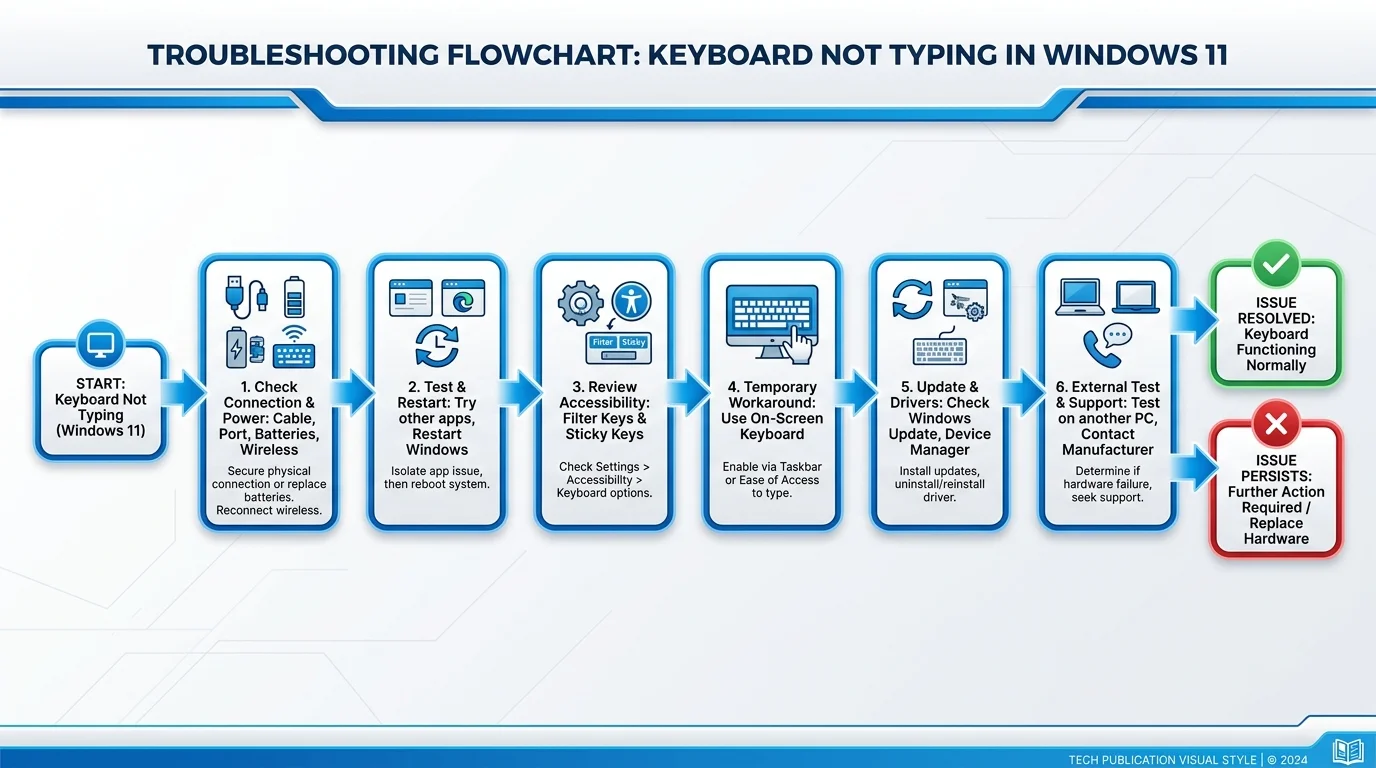
- Reconnect the keyboard or try a different USB port.
- Check batteries, charging, Bluetooth pairing, or the wireless receiver.
- Test typing in another app and restart Windows.
- Review Filter Keys and Sticky Keys in Accessibility settings.
- Use the On-Screen Keyboard temporarily if needed.
- Check Windows Update and the correct keyboard entry in Device Manager.
- Test another keyboard or computer to help separate a hardware problem from a Windows problem.
When to contact support
Contact the computer or keyboard manufacturer if the device still does not type after these checks, especially if it has visible damage, fails on another compatible computer, or is a built-in laptop keyboard. Provide the exact PC or keyboard model and describe which checks you have already tried.
Avoid jumping straight to registry edits, random driver tools, or a Windows reset. Start with connection, settings, and supported updates; escalate to model-specific guidance if the simpler steps do not resolve the issue.
Related guides
- How to Clean a Keyboard Safely: Laptop and Desktop Guide
- How to Fix Sticky Keyboard Keys on a Laptop or PC
- Why Is My Keyboard Not Working? How to Fix It in Windows 11
- How to Unlock a Keyboard in Windows 11
- How to Change Keyboard Language in Windows 11
Sources
Verified Primary Sources & Citations
NextTechExplained verifies facts against official documentation, engineering whitepapers, and regulatory filings.
- Microsoft Support: Mouse and keyboard problems in WindowsView Official Source
- Microsoft Support: Make your mouse, keyboard, and other input devices easier to useView Official Source
- Microsoft Support: Use the On-Screen Keyboard (OSK) to typeView Official Source
Published by NextTechExplained
Editorial Team • Institutional Publication Byline
Articles published under this byline are prepared through rigorous research and verified against official engineering specifications, standards documentation, and primary sources. Learn more about our process on our About page and Editorial Policy.
Related Explanations & Guides
How to Unlock a Keyboard in Windows 11
Keyboard not responding in Windows 11? Check Filter Keys, laptop function shortcuts, USB or Bluetooth connections, and safe ways to restore typing.
Why Is My Keyboard Not Working? How to Fix It in Windows 11
Fix a keyboard that will not type in Windows 11. Check USB and wireless connections, accessibility settings, keyboard layout, Windows updates, and drivers safely.
How to Stop Apps from Opening on Startup in Windows
Stop unwanted apps from opening automatically when you sign in to Windows 11. Use Startup settings, Task Manager, and the Startup folders safely.