
Touchpad Not Working? How to Fix a Laptop Touchpad in Windows 11
Fix a laptop touchpad that will not move, click, or respond in Windows 11. Check touchpad settings, function keys, connected mice, and drivers safely.
Editorial Team
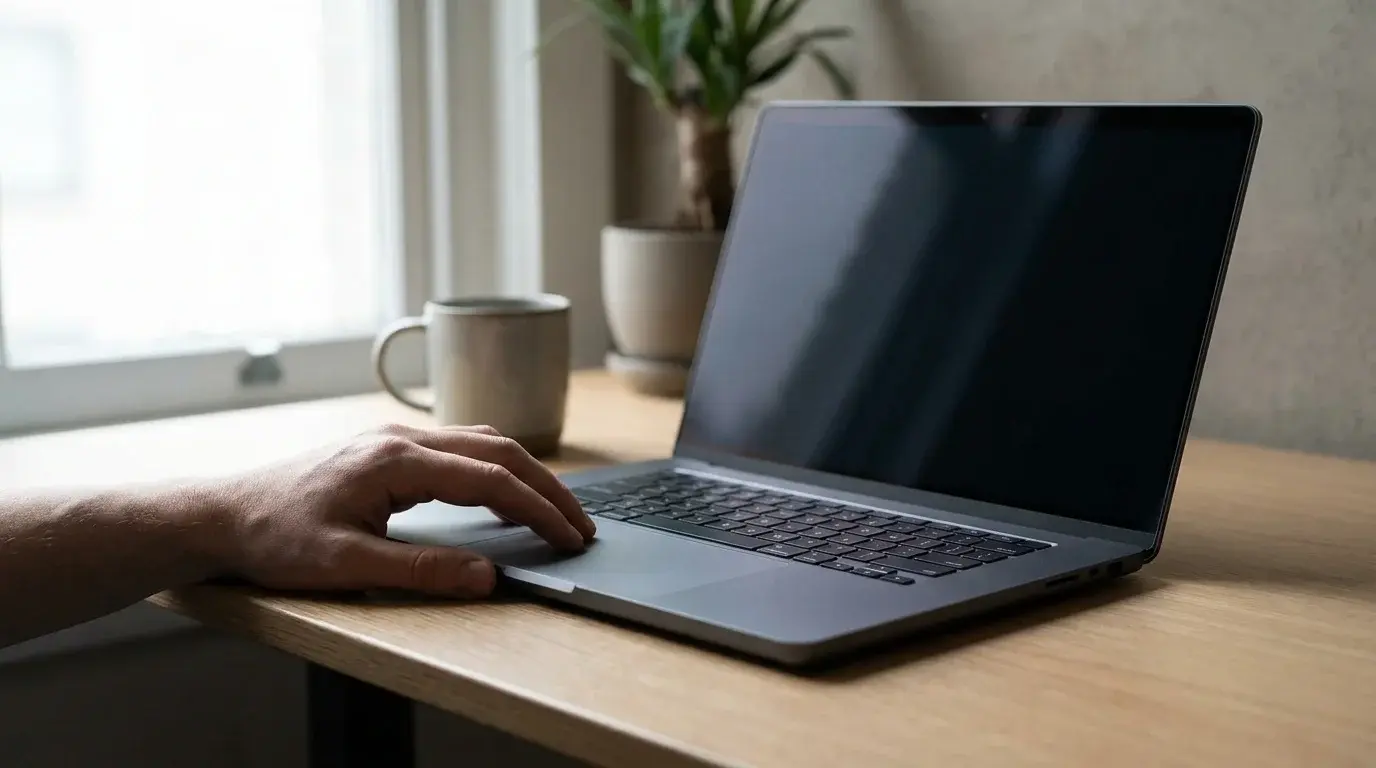
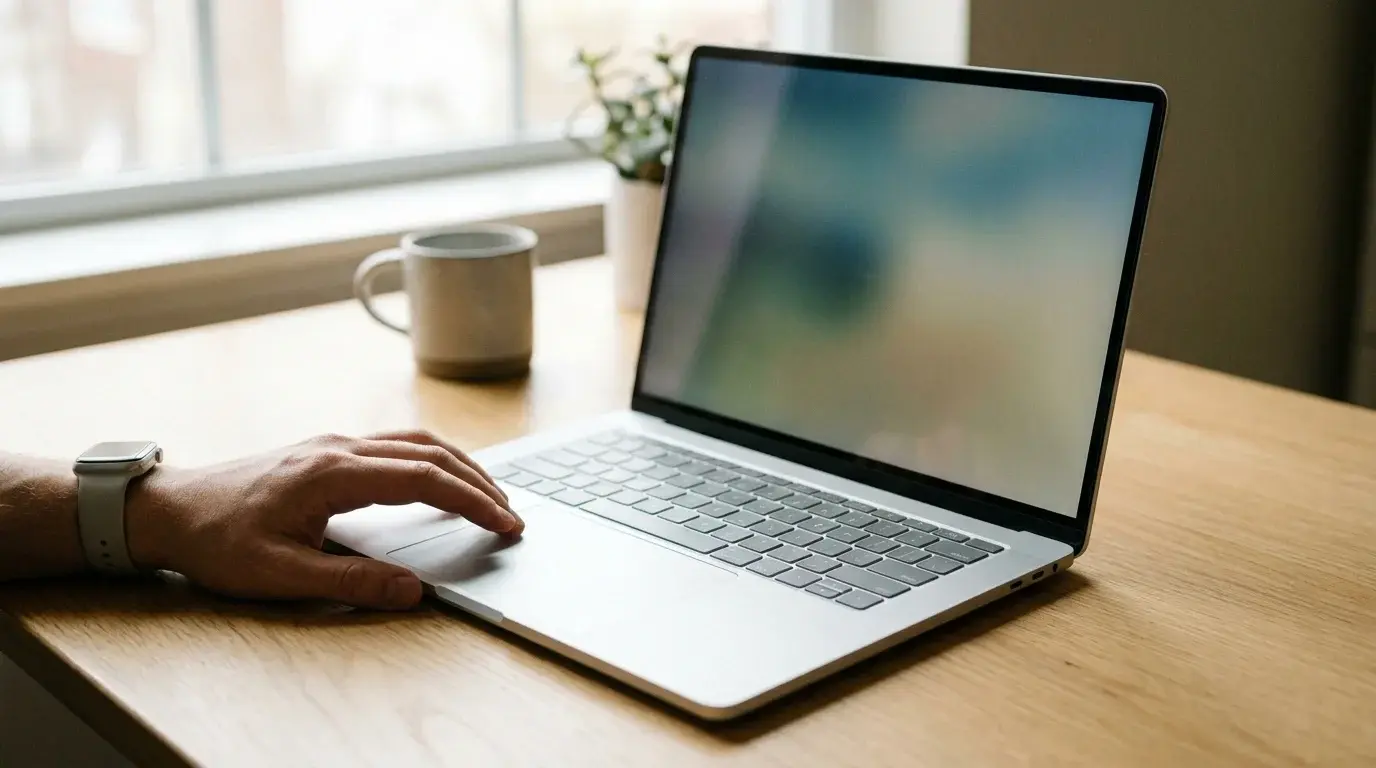
An open laptop on a clean desk, illustrating troubleshooting for an unresponsive laptop touchpad
Table of Contents (16 sections)
- First, identify what is not working
- 1. Check the touchpad keyboard shortcut
- 2. Turn on the touchpad in Windows 11 Settings
- 3. Check the mouse-connected setting
- 4. Restart Windows and test again
- 5. Update the touchpad driver
- 6. Reinstall the touchpad driver if updating does not help
- 7. If the touchpad is missing from Device Manager
- 8. When only scrolling or gestures fail
- Frequently asked questions
- Why did my laptop touchpad suddenly stop working?
- How do I turn my touchpad back on without a mouse?
- Should I uninstall the touchpad driver?
- Why does my touchpad move the cursor but not scroll?
- What if the touchpad is missing from Settings and Device Manager?
- Official sources
If your laptop touchpad is not working, start with the simple checks before changing drivers or firmware. The touchpad may have been switched off by a keyboard shortcut, disabled in Windows settings, affected by an attached mouse setting, or left without a working driver. The steps below focus on Windows 11; the exact function key and manufacturer controls vary by laptop model.
First, identify what is not working
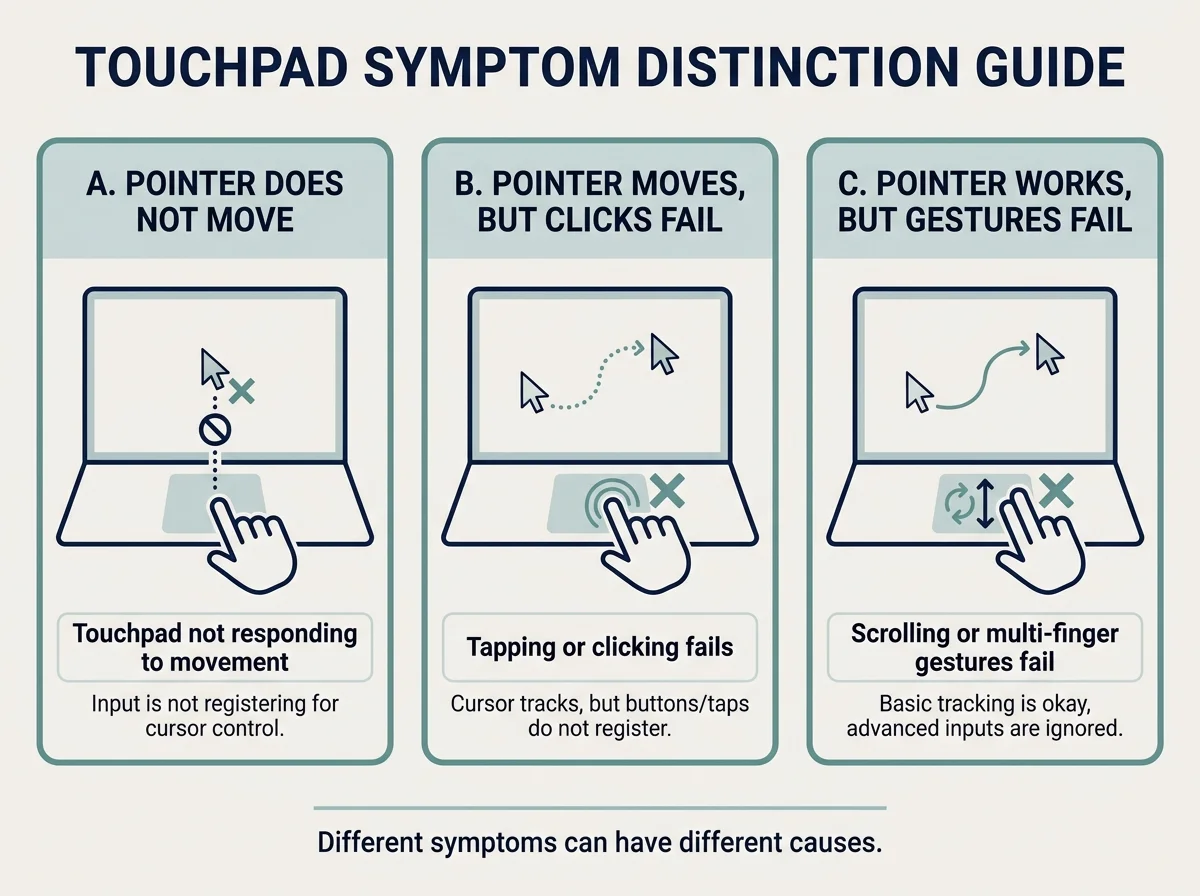
Check the symptom before changing anything:
- The pointer will not move: the touchpad may be disabled, disconnected at the driver level, or experiencing a hardware problem.
- The pointer moves but taps or clicks do not work: check touchpad button settings and test a physical click if the laptop has one.
- The touchpad works, but scrolling or gestures do not: check gesture settings and whether your device supports the gesture you are trying to use.
- The touchpad works until a mouse is connected: look for a setting that keeps the touchpad enabled when a mouse is attached.
If possible, connect a USB mouse temporarily so you can navigate Settings and Device Manager. If you cannot use one, many steps below can be completed with the keyboard.
1. Check the touchpad keyboard shortcut
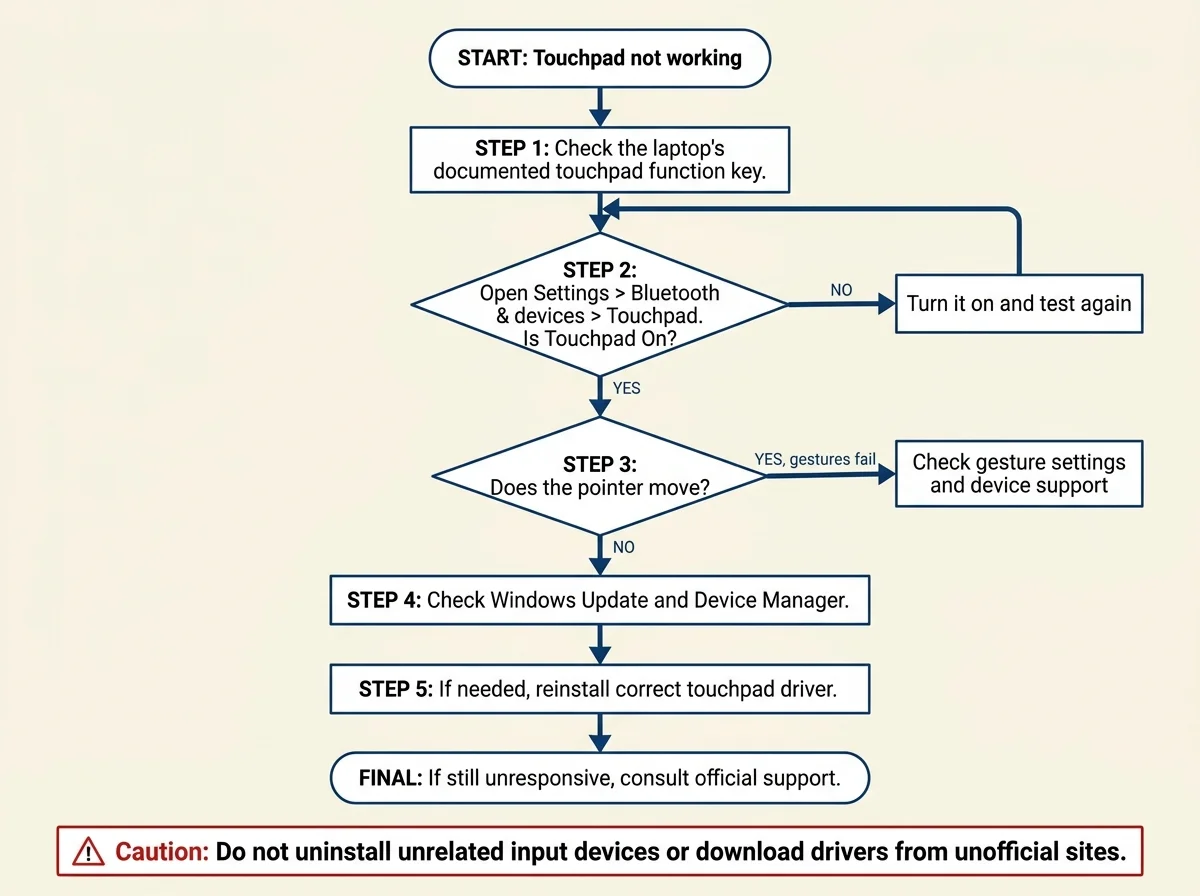
Many laptops have a function key that turns the touchpad on or off. Its symbol and shortcut vary by manufacturer and model, and some laptops require holding Fn while pressing the key.
- Look across the function-key row for a touchpad symbol. It may resemble a small touchpad or a crossed-out rectangle.
- If you find one, press the corresponding key. If nothing changes, try it with Fn held down, provided that matches your keyboard's function-key behavior.
- Wait a moment, then move a finger across the touchpad to test it.
Do not assume a specific F-key works on every laptop. If there is no obvious touchpad symbol, check the manual or official support page for your exact model rather than cycling through random shortcuts.
2. Turn on the touchpad in Windows 11 Settings
The touchpad can be disabled in Windows even when the hardware is working.
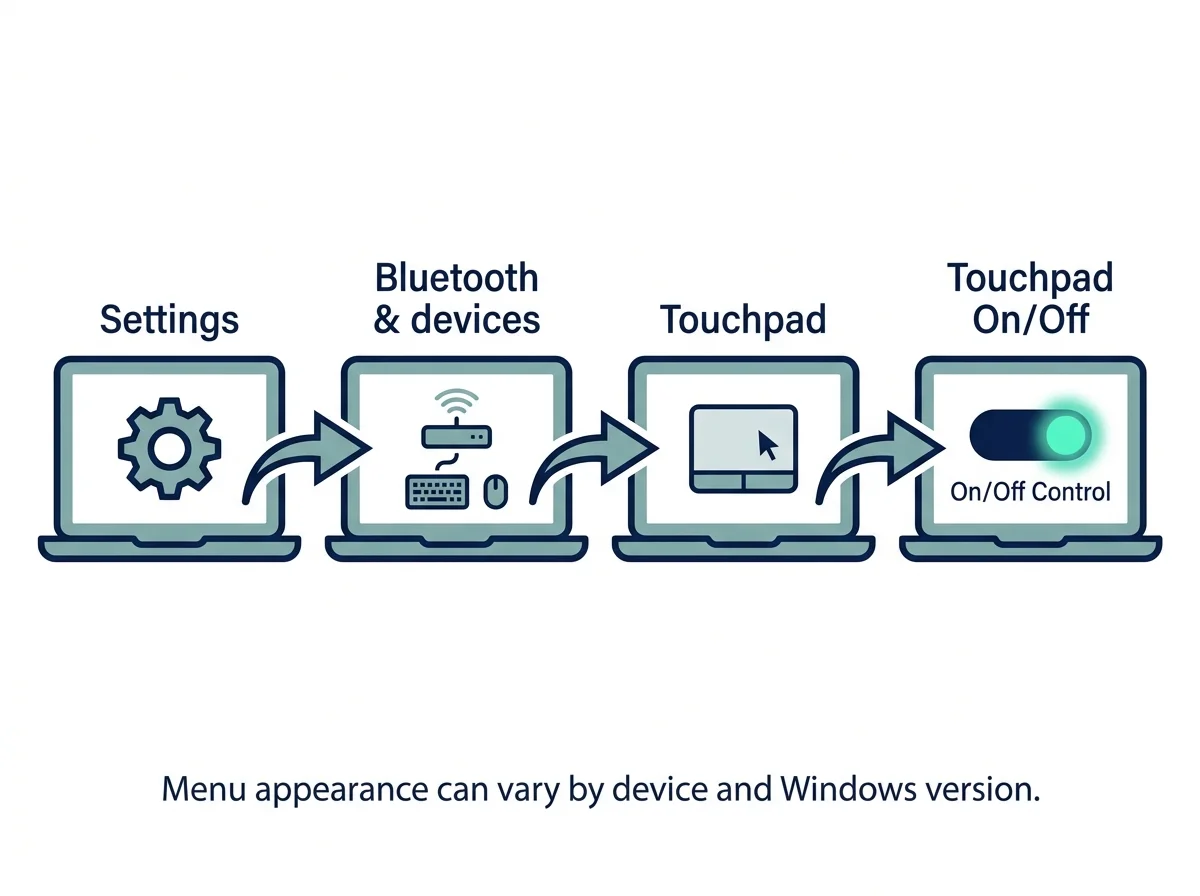
- Press Windows + I to open Settings.
- Select Bluetooth & devices.
- Select Touchpad.
- Turn the Touchpad switch On if it is off.
- Test the pointer again.
If you cannot find the Touchpad page, Windows may not currently recognize the device or its driver. Continue with the driver checks below. Menu wording can vary slightly by Windows build and laptop configuration.
3. Check the mouse-connected setting
Some Windows touchpad configurations can leave the touchpad on or off when a mouse is connected. If the touchpad stops responding only after you attach a mouse, check the available options on the Touchpad settings page.
Look for a setting with wording similar to Leave touchpad on when a mouse is connected, if your device exposes it. The exact availability and wording depend on the laptop and touchpad driver. Change only this relevant option, then disconnect and reconnect the mouse to test the result.
4. Restart Windows and test again
A normal restart can clear a temporary device or driver state. Save your work first, then select Start > Power > Restart. After signing back in, test the touchpad before changing other settings.
If the touchpad stopped working immediately after a Windows or driver update, note that timing. It may help you decide whether a driver update or rollback is relevant, but it does not by itself prove the update caused the issue.
5. Update the touchpad driver
Microsoft recommends using Windows Update as the preferred route for supported driver updates. Device Manager is another option.
- Open Settings > Windows Update and select Check for updates.
- Install applicable updates, including any optional driver updates that are appropriate for your device.
- Restart if Windows requests it, then test the touchpad.
If no relevant driver is offered or the problem persists, check Device Manager:
- Right-click Start and open Device Manager.
- Look under Human Interface Devices and Mice and other pointing devices for a touchpad-related entry. The name varies by manufacturer and driver.
- If the device appears, right-click it and choose Update driver, then follow the available prompts.
- Restart if asked and test again.
Do not download drivers from unofficial driver-download sites. If Windows cannot find an appropriate driver, use the support page for your exact laptop model.
6. Reinstall the touchpad driver if updating does not help
If the touchpad is listed in Device Manager and updating its driver did not fix the problem, reinstalling the device may help Windows reload the driver.
- Open Device Manager.
- Find the touchpad under Human Interface Devices or Mice and other pointing devices.
- Confirm you have a way to control the computer without the touchpad, if possible, such as a USB mouse.
- Right-click the touchpad device and choose Uninstall device if that option is available.
- Follow any prompts carefully. Do not select an option to remove driver software unless you have confirmed how to obtain the correct replacement driver.
- Restart the PC and let Windows attempt to detect the device again.
The exact device name and options differ by laptop. If the touchpad is absent from Device Manager, do not uninstall unrelated HID or mouse devices at random. Check the manufacturer's support instructions for the model.
7. If the touchpad is missing from Device Manager
If you cannot find any touchpad-related entry, first check View > Show hidden devices in Device Manager. A greyed-out entry may indicate that Windows is not currently detecting the device, but it does not prove the hardware has failed.
Next:
- Check your laptop maker's official support site using the full model or serial/product identification details requested by that site.
- Look for touchpad, chipset, or input-device drivers specifically offered for your model and version of Windows.
- Follow the manufacturer's installation order and restart guidance.
- If the touchpad remains absent, check the manufacturer's diagnostics or contact support. A hardware or firmware problem may require model-specific investigation.
Do not change BIOS/UEFI settings or install random chipset packages unless the manufacturer's instructions for your exact model call for that step.
8. When only scrolling or gestures fail
If pointer movement and clicking work but two-finger scrolling or multi-finger gestures do not, the touchpad itself may be functioning. The issue could be a disabled gesture, a driver limitation, or a touchpad that does not support that gesture.
- Open Settings > Bluetooth & devices > Touchpad.
- Expand the relevant gesture sections and review the available options.
- Test a basic one-finger movement and click separately from scrolling or multi-finger gestures.
- If gesture settings are missing, consult your laptop maker's documentation to see which features the touchpad supports.
Not every touchpad supports every Precision Touchpad gesture, and gesture options can differ by device.
Frequently asked questions
Why did my laptop touchpad suddenly stop working?
It may have been switched off with a keyboard shortcut, disabled in Settings, affected by a driver issue, or stopped being detected by Windows. Start by checking the touchpad switch and the laptop's documented function key.
How do I turn my touchpad back on without a mouse?
Press Windows + I, use the keyboard to navigate to Bluetooth & devices > Touchpad, and turn it on if the switch is available. You can use Tab, the arrow keys, and Space or Enter to navigate controls. Some laptops also have a touchpad function key; its location varies by model.
Should I uninstall the touchpad driver?
Only try reinstalling it after simpler checks and driver updates have failed, and after confirming you can navigate the PC another way. Use Device Manager and the manufacturer's instructions; do not remove unrelated input devices or driver software without a recovery plan.
Why does my touchpad move the cursor but not scroll?
Scrolling or multi-finger gestures may be disabled, customized, or unsupported by the touchpad. Check the available options under Settings > Bluetooth & devices > Touchpad and verify which gestures your hardware supports.
What if the touchpad is missing from Settings and Device Manager?
Windows may not be detecting it. Check hidden devices and the official support page for your exact laptop model. If the device remains absent after the recommended driver steps, contact the manufacturer for hardware-specific diagnostics.
Official sources
Verified Primary Sources & Citations
NextTechExplained verifies facts against official documentation, engineering whitepapers, and regulatory filings.
- Microsoft Support: Fix touchpad problems in WindowsView Official Source
- Microsoft Support: Touch gestures for WindowsView Official Source
- Lenovo Support: Touchpad or trackpad is not working - ThinkPadView Official Source
- Dell Support: Fixing Your Laptop Touchpad not Working in WindowsView Official Source
Published by NextTechExplained
Editorial Team • Institutional Publication Byline
Articles published under this byline are prepared through rigorous research and verified against official engineering specifications, standards documentation, and primary sources. Learn more about our process on our About page and Editorial Policy.
Related Explanations & Guides
Touchpad Cursor Disappears in Windows 11: How to Fix It
If your touchpad cursor disappears in Windows 11, check Hide pointer while typing, locate a hidden pointer with Ctrl, improve pointer visibility, and troubleshoot touchpad settings or drivers.
Lenovo Touchpad Not Working? How to Fix It
Fix a Lenovo laptop touchpad that will not respond in Windows 11. Check the model-specific shortcut, touchpad settings, mouse connection options, and the correct Lenovo driver.
Realtek Audio Driver for Windows 11: Download, Install, and Update Safely
Find the correct Realtek audio driver for Windows 11 using Windows Update, Device Manager, or your PC maker's official support page.