
How to Audit and Lock Down App Permissions on iOS and Android
A step-by-step security walkthrough to stop apps from tracking your location in the background, eavesdropping on your local network, or scanning your entire photo library.
Editorial Team
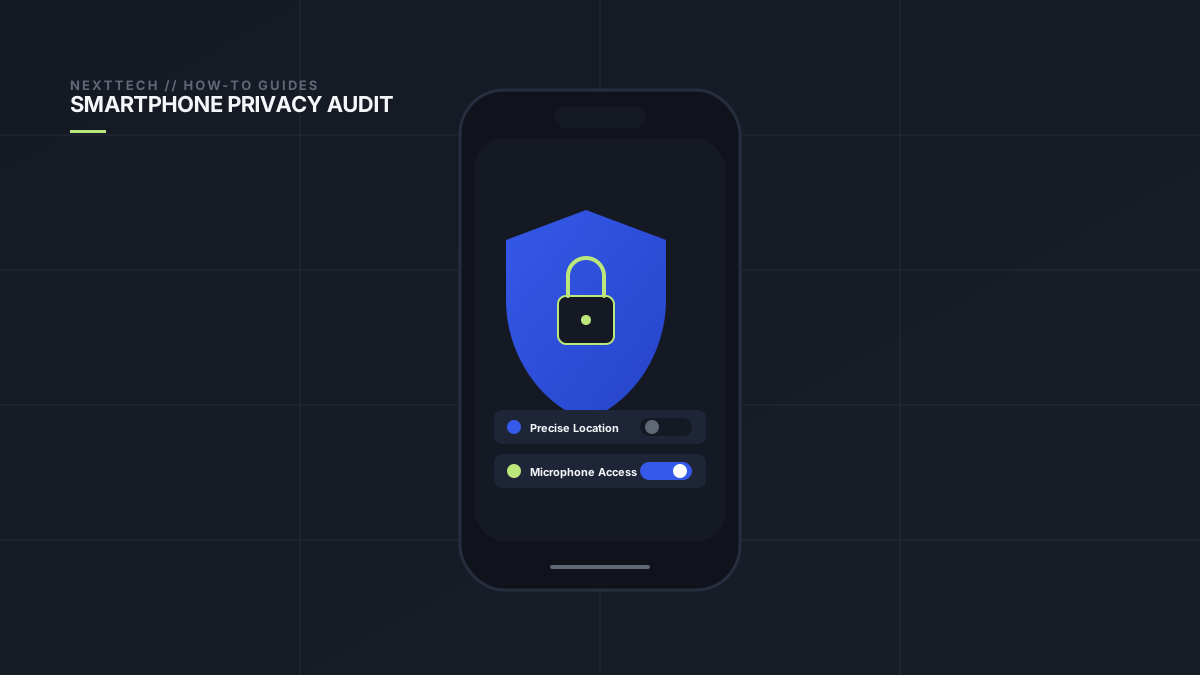
Stylized smartphone silhouette with a glowing cryptographic privacy shield and toggle switches
Table of Contents (11 sections)
- Step 1: Clamp Down on Location Tracking
- The Two Rules of Mobile Location:
- How to configure:
- Step 2: Restrict Full Access to Your Photo Library
- How to configure:
- Step 3: Block Local Network Snooping
- How to configure:
- Step 4: Revoke Microphone and Camera Privileges
- How to configure:
- Step 5: Enable Automatic Permission Auto-Reset
- Summary Routine
When you install a new app, it is easy to hastily tap "Allow" on every pop-up prompt just to get to the main screen. Over months and years, your phone accumulates dozens of games, shopping tools, travel apps, and social utilities that retain 24/7 access to your precise physical coordinates, microphone, contacts, and personal photos.
Modern smartphone operating systems provide robust tools to audit and revoke these privileges. Taking fifteen minutes every few months to review your permissions helps protect your personal data, reduces background battery drain, and limits corporate surveillance.
Follow this step-by-step walkthrough for both iPhone and Android devices.
Step 1: Clamp Down on Location Tracking
Location data is the most valuable commodity collected by data brokers. Most apps do not need to know which street address you are standing on.
The Two Rules of Mobile Location:
- Never grant "Always Allow" unless the application is a dedicated navigation turn-by-turn tool, a family safety tracker, or a lost-device finder.
- Turn off "Precise Location" for apps that only need your general city (such as weather forecasts or local restaurant recommendations).
How to configure:
- On iOS: Go to
Settings > Privacy & Security > Location Services. Scroll through the list. Change any app set to "Always" to "While Using the App." For weather and retail apps, toggle off "Precise Location" so the app only receives an approximate regional bubble. - On Android: Open
Settings > Location > App location permissions. Review the "Allowed all the time" group. Move non-essential apps to "Allowed only while in use." Select "Use approximate location" where exact street coordinates are unnecessary.
Step 2: Restrict Full Access to Your Photo Library
Does a marketplace app or customer support chat really need unrestricted access to every family portrait, receipt screenshot, and medical document stored on your camera roll? Absolutely not.
Both iOS and Android support "Limited Photo Access."
How to configure:
- On iOS: Open
Settings > Privacy & Security > Photos. For apps that you only occasionally share pictures to, change the permission from "Full Access" to "Limited Access." You can then select only the two or three specific images you want that app to see. - On Android: Android uses the Photo Picker API. When an app asks for images, select only the files you intend to share. Check
Settings > Apps > Special app access > All files accessto ensure no third-party game has total storage control.
Step 3: Block Local Network Snooping
Have you ever wondered why a video streaming app or a fast-food ordering app asks for permission to "Find and connect to devices on your local network"?
Many advertising SDKs scan your home Wi-Fi network to identify the smart TVs, game consoles, and IoT devices sharing your connection. By correlating which devices exist on your home router, ad networks build a detailed household graph without your explicit consent.
How to configure:
- On iOS: Go to
Settings > Privacy & Security > Local Network. - Turn the switch OFF for every app except those that genuinely cast media to your television (like Chromecast, Spotify, or Netflix) or control local hardware (like your printer or smart-home hub). Revoking local network access from a shopping app will not break the app.
Step 4: Revoke Microphone and Camera Privileges
Microphone and camera permissions should only be granted to applications whose primary purpose involves voice communication, video recording, or barcode scanning.
How to configure:
- On iOS: Navigate to
Settings > Privacy & Security > MicrophoneandSettings > Privacy & Security > Camera. Immediately switch off any torch utilities, calculators, games, or social apps that you do not actively use for voice notes. - On Android: Go to
Settings > Security & privacy > Privacy > Permission manager. Tap Camera and Microphone to see a clean breakdown of apps sorted by frequency of access. Set them to "Ask every time" or "Don't allow."
Step 5: Enable Automatic Permission Auto-Reset
If you haven't opened a parking meter app or an airline booking app in six months, it should not continue reading your location in the background.
Both platforms feature an automated cleanup tool:
- Android: Supports "Remove permissions if app is unused." Under
Settings > Apps > [App Name], confirm this toggle is enabled. Android will automatically revoke all sensitive permissions if the app sits idle for 90 days. - iOS: While iOS does not have a single master auto-reset button, it periodically surfaces system notifications asking: "App X has used your location Y times in the background over the past 3 days. Do you want to continue allowing this?" Always select "Change to Only While Using."
Summary Routine
Perform this five-minute audit once per quarter. By restricting background location, switching photos to limited access, and cutting off local network reconnaissance, you immediately reclaim control over your personal privacy without sacrificing functionality.
Verified Primary Sources & Citations
NextTechExplained verifies facts against official documentation, engineering whitepapers, and regulatory filings.
- Apple Support — Control access to information in apps on iPhoneView Official Source
- Google Android Help — Change app permissions on your Android phoneView Official Source
- Electronic Frontier Foundation — Protecting Your Mobile PrivacyView Official Source
Published by NextTechExplained
Editorial Team • Institutional Publication Byline
Articles published under this byline are prepared through rigorous research and verified against official engineering specifications, standards documentation, and primary sources. Learn more about our process on our About page and Editorial Policy.
Related Explanations & Guides

What to Check Before Enabling On-Device AI Features on Your Phone
From automated call transcripts to generative writing tools, modern smartphones are packing artificial intelligence into everyday apps. Here is how to verify what stays private.
How to Assess Smart-Home Device Compatibility Before You Buy
A practical guide to cutting through the confusion of Matter, Thread, Zigbee, and platform ecosystems so your smart plugs, bulbs, and sensors work together reliably.
How to Compare Laptop Processors in 2026: NPU, Architecture, and Real Battery Life
Choosing a laptop used to be a simple duel between Intel and AMD. Today, with ARM architecture, Apple Silicon, and dedicated neural processors (NPUs), here is what actually matters for daily performance and battery endurance.