
How to Import Bookmarks in Chrome
Import bookmarks into Google Chrome from another browser or an HTML backup file, find imported links, and troubleshoot missing or misplaced bookmarks.
Editorial Team
Laptop displaying a browser bookmarks import workflow in Chrome
Table of Contents (25 sections)
- Before you import bookmarks
- Method 1: Import bookmarks from an HTML file
- Step 1: Open Chrome on your computer
- Step 2: Open the import command
- Step 3: Choose the bookmarks HTML file
- Step 4: Find and verify your imported bookmarks
- Method 2: Import bookmarks directly from another browser
- How to get imported bookmarks on your phone
- Where did my imported bookmarks go?
- How to fix Chrome bookmark import problems
- The HTML file is missing
- Chrome does not show an HTML file option
- The import command is missing or disabled
- The bookmarks are in the wrong profile
- Some bookmarks do not open or show outdated pages
- Duplicates appear after importing
- Importing bookmarks versus Chrome Sync
- Frequently asked questions
- Can I import Chrome bookmarks without an HTML file?
- Where do imported bookmarks appear in Chrome?
- Can I import bookmarks into Chrome on Android or iPhone?
- Will importing bookmarks overwrite my existing bookmarks?
- Does importing bookmarks also import saved passwords?
- Why can't I import bookmarks on my work computer?
- Final checklist
You can import bookmarks into Google Chrome from another browser or from an HTML file that contains saved links. This is useful when you switch browsers, set up Chrome on a new computer, or restore bookmarks from a backup.
On a computer, Chrome offers an import option for compatible browsers and a way to choose a saved bookmarks HTML file. Once the import finishes, check Bookmark Manager to locate the links. Depending on whether Chrome already had bookmarks, the imported links may appear in a bookmarks folder rather than directly on the bookmarks bar.
This guide covers importing from another browser, importing an HTML file, finding the imported links, and fixing common problems. The menu names can vary slightly by version or device, so use the options actually shown in your Chrome installation.
Before you import bookmarks
If you already exported bookmarks from Chrome or another browser, find the HTML file first. It may be in Downloads, Documents, or the folder you selected when exporting. An exported bookmarks file normally uses the .html extension.
If the bookmarks are still stored in another browser on the same computer, you may be able to import them directly without creating an HTML file. If you are moving bookmarks from a different computer, an HTML export is often the more practical option.
Before importing, consider these checks:
- Find the source: Identify the browser or HTML file that contains the bookmarks you want.
- Choose the correct Chrome profile: If you have separate personal and work profiles, open the profile where you want the bookmarks added.
- Keep a backup: If the bookmarks are important, keep the original HTML export until you have checked the imported links.
- Know what is being imported: Bookmark import is not the same as restoring your entire browser profile. Passwords, extensions, open tabs, and other data use different import or sync options (for credential security and passkey management, see our guide on how passkeys work and setup recovery).
If you still need to create an HTML backup from your previous browser or computer, follow our step-by-step guide on how to export bookmarks in Chrome.
Method 1: Import bookmarks from an HTML file
Use this method when you have a bookmarks file saved from another browser or exported earlier. These steps are for desktop Chrome; mobile Chrome interfaces do not provide the same direct file-import workflow.
Step 1: Open Chrome on your computer
Launch Chrome and select the profile where you want the imported bookmarks to live. If you use more than one Chrome profile, double-check the profile icon before continuing. Importing into the wrong profile can make bookmarks seem to disappear when you switch profiles later.
Step 2: Open the import command
- Select the three-dot More menu in Chrome.
- Open Bookmarks and lists.
- Select Import bookmarks and settings if it is shown.
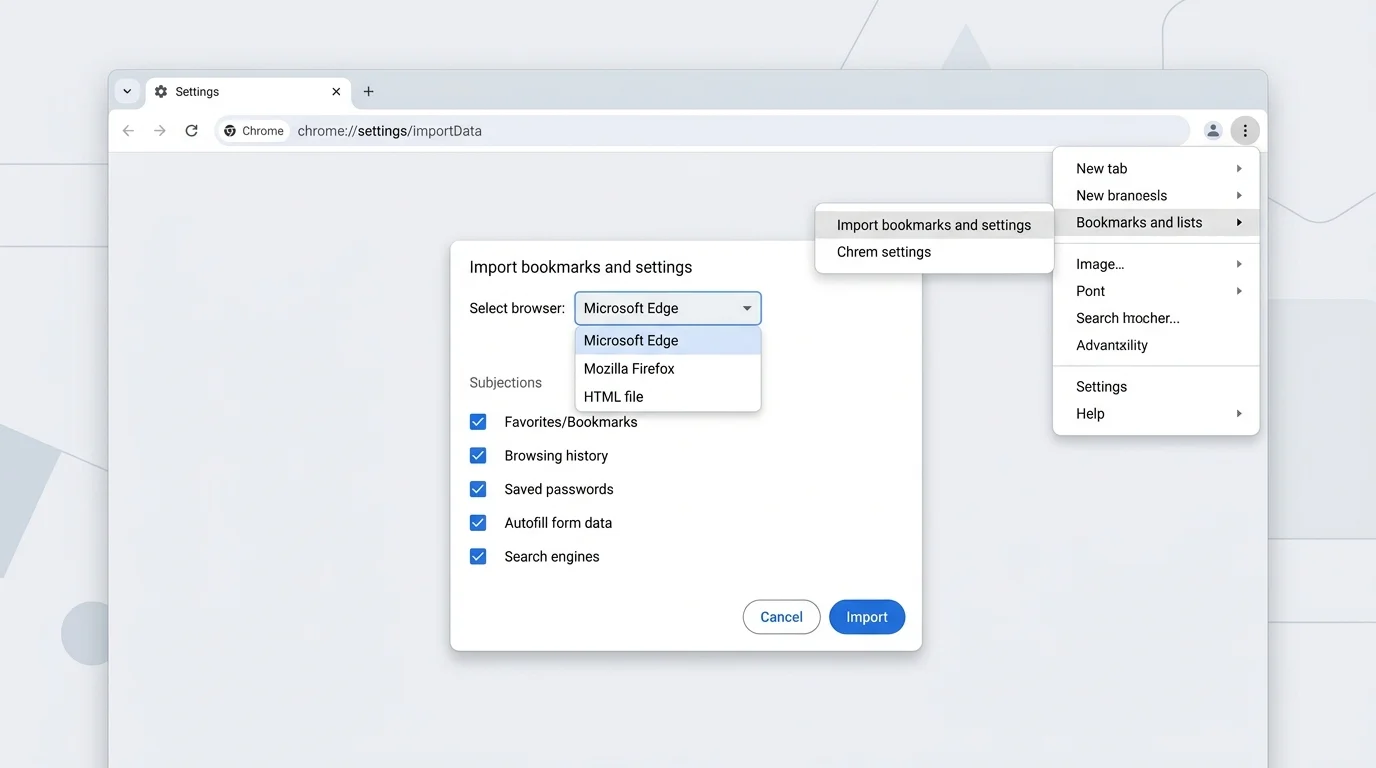
In some ChromeOS and newer desktop workflows, the HTML import action may also be located directly inside Bookmark Manager (chrome://bookmarks or shortcut Ctrl + Shift + O on Windows/Linux, Command + Option + B on macOS). Under Bookmark Manager's top-right three-dot menu, you can choose Import bookmarks.
Step 3: Choose the bookmarks HTML file
When Chrome presents the import dialog, select Bookmarks HTML File from the dropdown menu, then click Choose File. Browse to the folder where you saved the HTML file, select it, and choose Open. Follow any remaining prompts and wait for the import to complete.
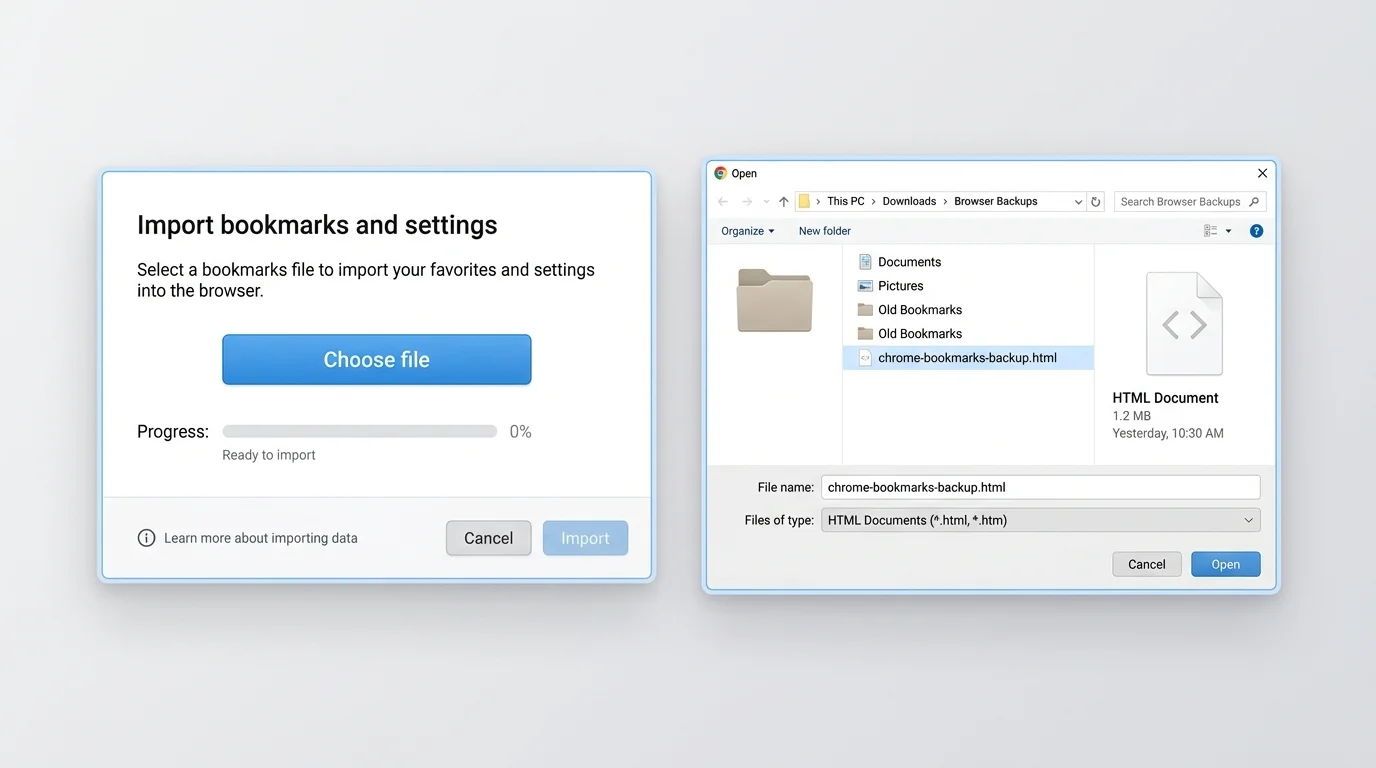
Choose the actual bookmarks export, not an unrelated HTML webpage or a file from an unknown source. If you have multiple backups, check the filename and date so you import the intended version.
Step 4: Find and verify your imported bookmarks
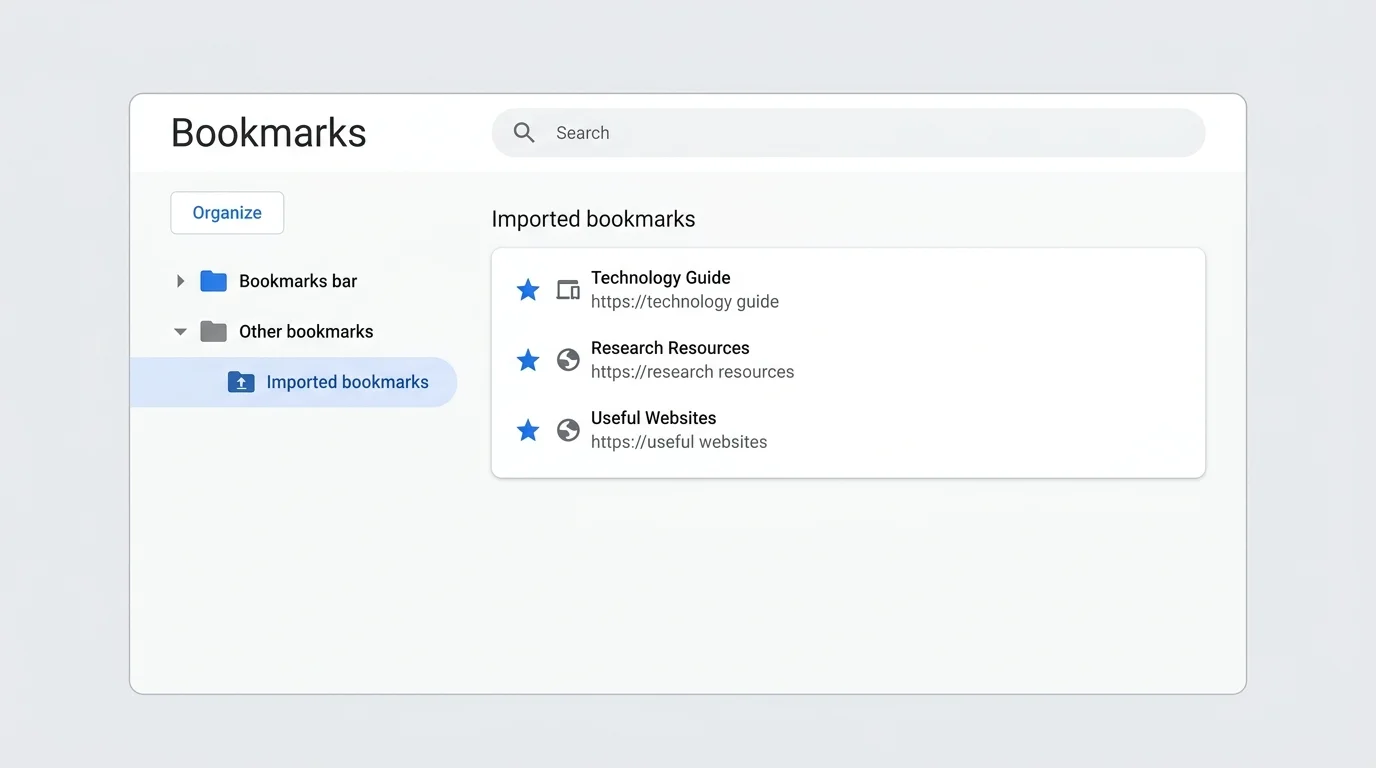
Open Bookmark Manager from More > Bookmarks and lists > Bookmark Manager. Look for the imported links in the bookmarks bar or in a folder such as Imported or Other bookmarks. The exact location can depend on whether the profile already contained bookmarks and on the Chrome workflow you used.
Open a few links to make sure they work. You can move bookmarks into existing folders or reorder them from Bookmark Manager. Keep your original HTML file until you are confident the import is complete.
Method 2: Import bookmarks directly from another browser
If the source browser (such as Microsoft Edge, Mozilla Firefox, or Apple Safari) is installed on the same computer, Chrome may offer a direct browser-import workflow. The available source browsers and data categories depend on your operating system and the browsers installed.
- Close the source browser completely so Chrome can access its data files without database locks.
- Open Chrome on your computer.
- Open More > Bookmarks and lists > Import bookmarks and settings.
- Choose the source browser in the dialog dropdown.
- Select the data categories you actually want to import. If you only need bookmarks, check Favorites/Bookmarks and deselect browsing history, search engines, or saved passwords.
- Click Import and follow any on-screen prompts.
- Open Bookmark Manager and verify the imported links.
Some source browsers or portable browser installations require you to export bookmarks as an HTML file first. If the browser is not listed in Chrome's dropdown, use that browser's own export feature and then import the resulting HTML file using Method 1.
Do not assume that choosing a browser imports every type of information. The fields available for import vary, and saved passwords may require a separate process through Google Password Manager.
How to get imported bookmarks on your phone
The computer workflow is the simplest way to import an HTML bookmarks file. After importing, you can access synced bookmarks on other devices by signing in to Chrome with the same Google Account and enabling bookmark sync.
On the computer:
- Sign in to Chrome with the Google Account you intend to use across devices.
- Check that Bookmarks sync is toggled on under Settings > You and Google > Sync and Google services.
- Keep Chrome connected to the internet while it synchronizes.
On your phone or tablet, open Chrome and sign in with that same account. Check that bookmark syncing is enabled, then open the bookmarks section. Sync availability and settings can vary by account, device, and organization policy.
If you do not want to sync bookmarks through a Google Account, keep in mind that an HTML import performed on one device does not automatically copy the bookmarks file to all of your other devices. You will need to use a supported transfer method for those devices.
Where did my imported bookmarks go?
Imported bookmarks do not always appear directly on the bookmarks bar. Their location depends on the Chrome workflow and the bookmarks already in the profile.
Try these checks in order:
- Open Bookmark Manager (
Ctrl + Shift + Oon Windows,Command + Option + Bon Mac) and inspect the folders in the sidebar. - Look for folders labeled Imported, Other bookmarks, or a folder using the source browser's name.
- Confirm that you imported bookmarks into the intended Chrome profile.
- Use Bookmark Manager's search bar to search for a bookmark title or URL you recognize.
- If you expected the bookmarks on your phone, check the Google Account and bookmark sync settings on both devices.
If Chrome reports that the import finished but you cannot find the links, avoid importing repeatedly until you have inspected the folders. Importing the same file more than once can create extra copies or similarly named folders.
How to fix Chrome bookmark import problems
The HTML file is missing
Check the Downloads and Documents folders and the location used by the source browser's export dialog. Search your file manager for files ending in .html. If you cannot find the export, return to the original browser or computer and create a fresh bookmarks export if possible.
Chrome does not show an HTML file option
Make sure you are using desktop Chrome and the expected import dialog. In the Import bookmarks and settings dropdown, choose Bookmarks HTML File. If the dropdown only lists other browsers, open Bookmark Manager directly, click the three-dot menu in the upper right, and select Import bookmarks.
The import command is missing or disabled
A work or school administrator can restrict bookmark import through Chrome policies (ImportBookmarks). If you are using a managed device, contact your IT administrator instead of trying to bypass the restriction. On a personal computer, check that Chrome is up to date and reopen the import command from the main menu.
The bookmarks are in the wrong profile
Switch profiles using Chrome's profile menu in the upper-right corner and inspect Bookmark Manager in each relevant profile. Bookmarks stored in one profile do not appear in another profile unless you move or sync them using a supported method. Avoid deleting a profile until you have confirmed that important bookmarks are backed up.
Some bookmarks do not open or show outdated pages
An import preserves saved URLs, but destination websites can change their address structure or serve stale resources. If a bookmarked website displays broken layouts or refuses to load fresh assets, see our guide on how to clear cache in Chrome. If the page has moved permanently, edit the bookmark URL in Bookmark Manager.
Duplicates appear after importing
Repeated imports can produce duplicate links or multiple folders. Review Bookmark Manager before importing the same HTML file again. Chrome provides tools to edit, move, and delete bookmarks, but deletion cannot be undone with an undo button. Keep the original HTML export file until you have finished organizing your collection.
Importing bookmarks versus Chrome Sync
These features solve related but different problems:
| Feature | What it is for | Key limitation |
|---|---|---|
| Import from HTML | Adds bookmarks from a saved export file | It is a snapshot and does not update automatically when the old browser changes |
| Import from another browser | Copies supported items from a compatible local browser | Available browsers and import categories vary |
| Chrome Sync | Keeps supported Chrome data available across signed-in devices | Requires the same account and appropriate sync settings |
Use an HTML file when you need a portable backup or are moving between different browser vendors. Use Chrome Sync when you want supported bookmarks to stay available across Chrome devices. These approaches can complement each other, but they are not interchangeable.
Frequently asked questions
Can I import Chrome bookmarks without an HTML file?
Yes, when Chrome detects a compatible browser on the same computer (like Edge, Firefox, or Safari) and offers it in Import bookmarks and settings. Otherwise, use the source browser's export feature to create an HTML file.
Where do imported bookmarks appear in Chrome?
They may appear directly on the bookmarks bar if it was empty, or inside a folder such as Imported or Other bookmarks if bookmarks already existed. Open Bookmark Manager and inspect its sidebar folders.
Can I import bookmarks into Chrome on Android or iPhone?
The standard HTML-file import workflow is designed for desktop or Chromebook environments. The most reliable approach is to import the file on a computer and then turn on Chrome Sync to access the bookmarks on mobile devices.
Will importing bookmarks overwrite my existing bookmarks?
No. Chrome adds imported links without overwriting your existing collection. When existing bookmarks are present, Chrome places the incoming links into a dedicated "Imported" folder to keep them organized.
Does importing bookmarks also import saved passwords?
Not when importing from an HTML file. The standard Netscape bookmark HTML format only contains website links and folder titles, not passwords or session tokens. Saved passwords must be exported and imported separately through Google Password Manager or a dedicated credential manager.
Why can't I import bookmarks on my work computer?
Some organizations enforce Chrome enterprise policies that disable bookmark imports. If the command is disabled or missing on a managed device, consult your organization's IT department.
Final checklist
- Locate your source browser or confirm the location of your bookmarks
.htmlfile. - Close the source browser if performing a direct browser-to-browser import.
- Open Chrome in the intended user profile.
- Access Import bookmarks and settings or Bookmark Manager's Import bookmarks option.
- Select your file or browser and complete the import.
- Inspect Bookmark Manager (
Ctrl + Shift + Oon Windows,Command + Option + Bon Mac) to verify your folders and test your links.
For official guidance, see Google's help center on importing Chrome bookmarks and settings (opens in new tab) and its guide on creating, finding, and editing bookmarks (opens in new tab).
Verified Primary Sources & Citations
NextTechExplained verifies facts against official documentation, engineering whitepapers, and regulatory filings.
- Google Chrome Help: Import Chrome bookmarks and settingsView Official Source
- Google Chrome Help: Create, find, and edit bookmarks in ChromeView Official Source
- Google Chrome Help: Get your bookmarks, passwords, and more on all your devicesView Official Source
- Google Chrome Help: Create and personalize your Chrome profileView Official Source
- Chrome Enterprise Help: Set Chrome policies for users or browsersView Official Source
Published by NextTechExplained
Editorial Team • Institutional Publication Byline
Articles published under this byline are prepared through rigorous research and verified against official engineering specifications, standards documentation, and primary sources. Learn more about our process on our About page and Editorial Policy.
Related Explanations & Guides
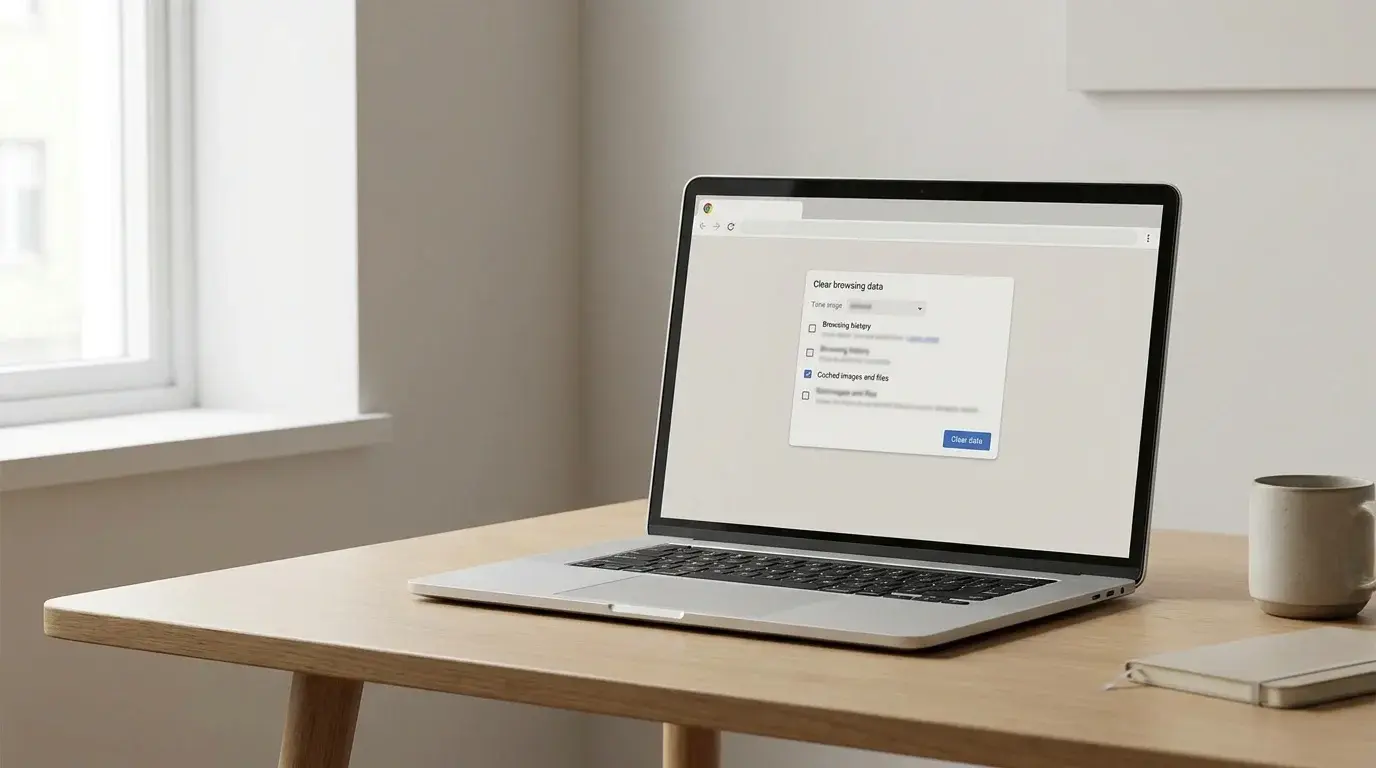
How to Clear Cache in Chrome
Learn how to clear cached images and files in Google Chrome on Windows, Mac, Android, and iPhone, without deleting more browsing data than you need.
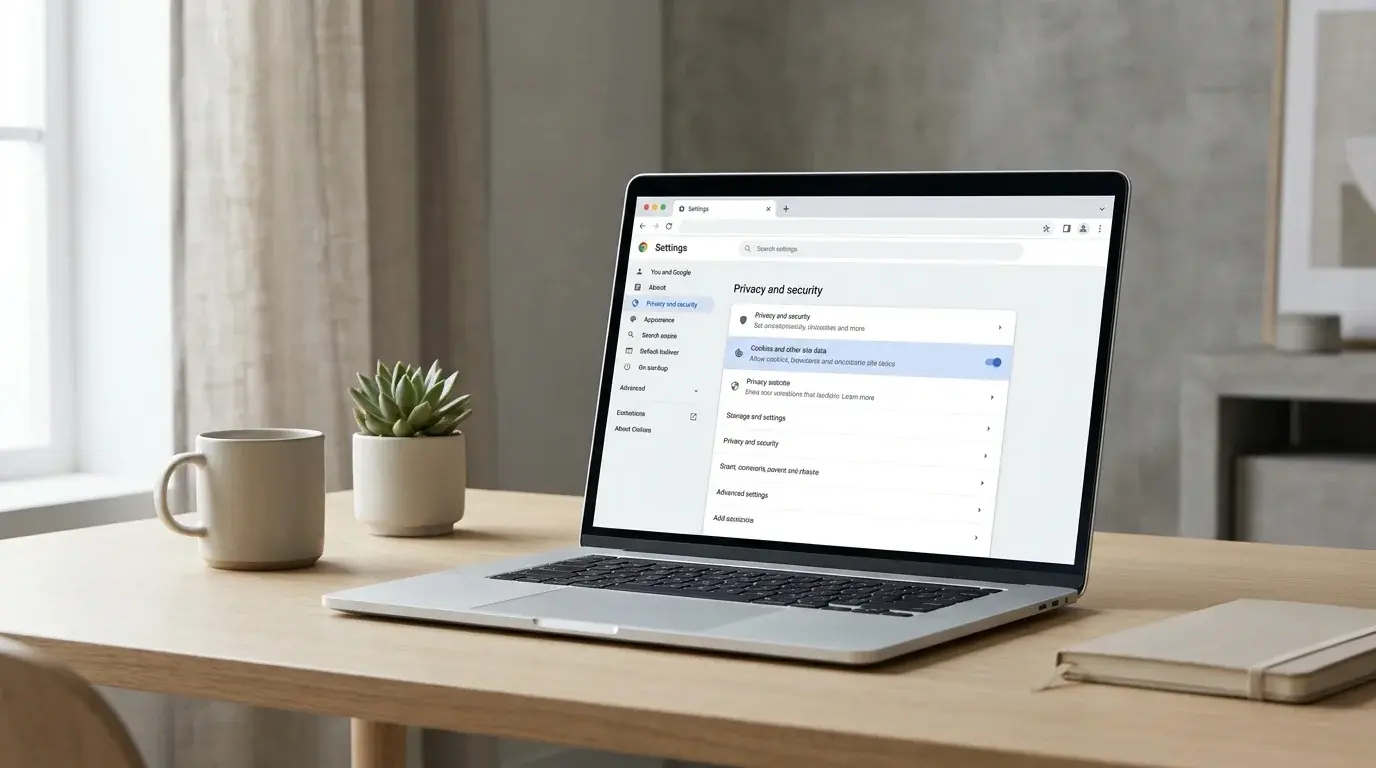
How to Delete Cookies in Chrome on Desktop and Mobile
Learn how to delete all cookies in Chrome or remove data for one website on Windows, Mac, Android, and iPhone without clearing more browsing data than you intend.
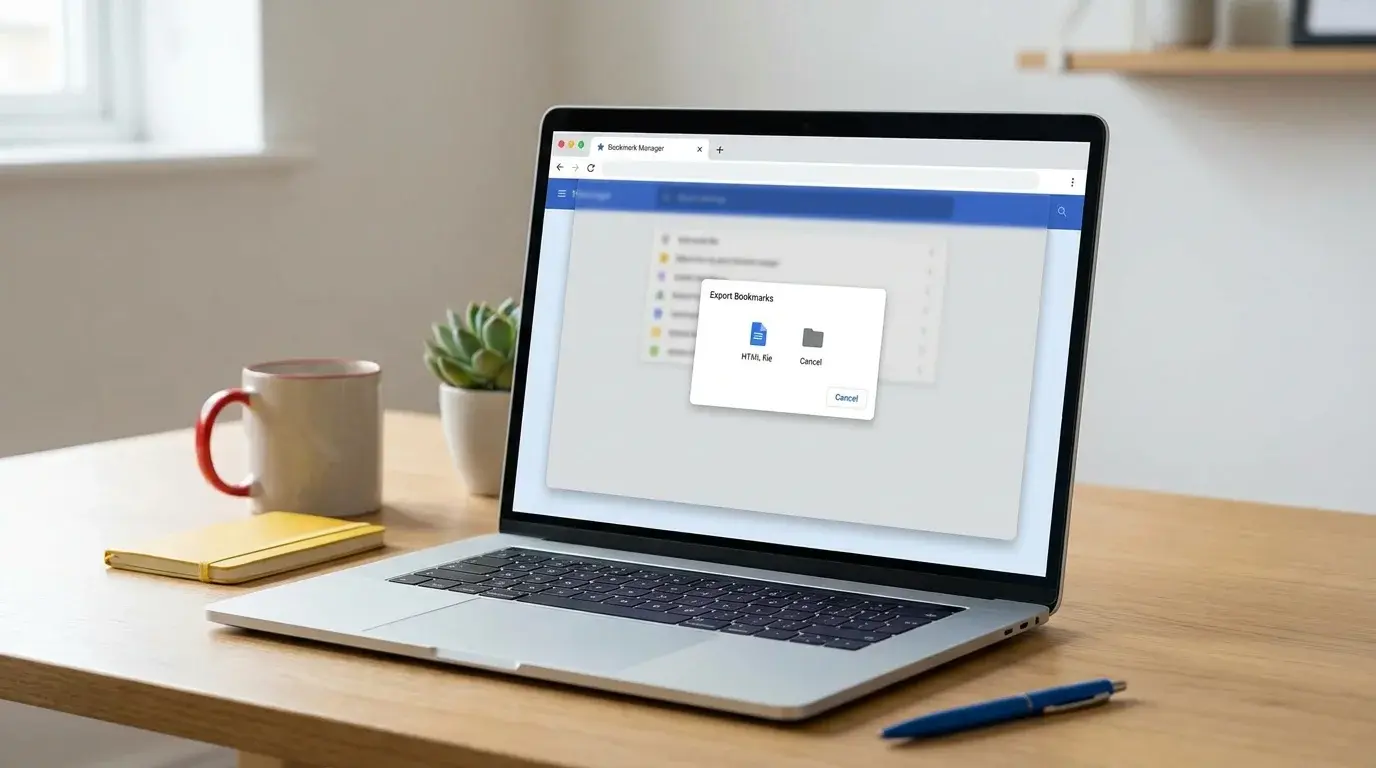
How to Export Bookmarks in Chrome
Export Chrome bookmarks to an HTML file, save a backup, and import your links into another browser or Chrome profile with this step-by-step guide.