
Daylight Saving Time 2026: Check Your Phone, Computer, and Smart-Home Settings
Before US clocks fall back on November 1, check automatic time settings on your phone, computer, calendar, and smart-home devices. Learn how to fix clocks that do not update.
Editorial Team
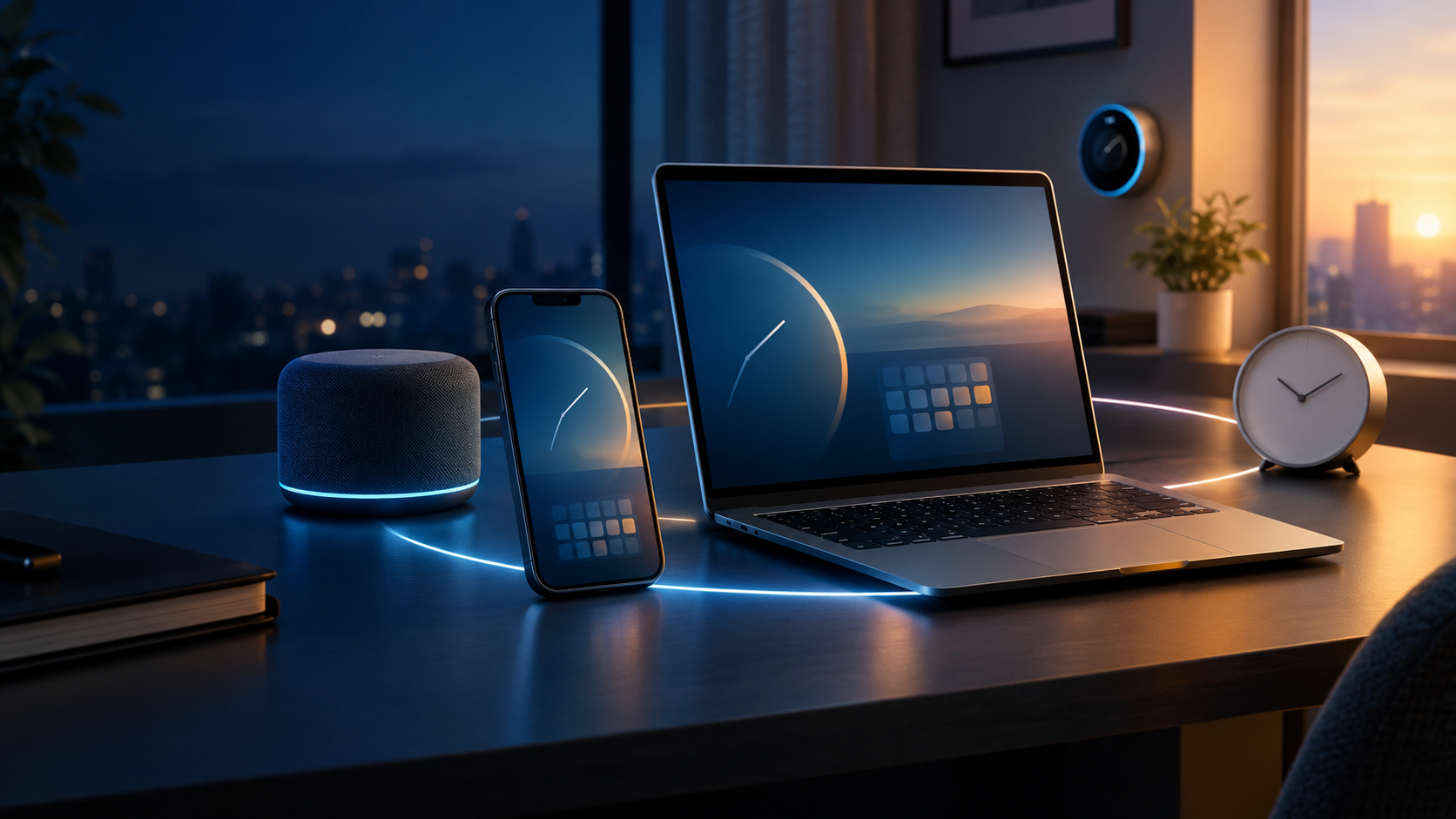
A smartphone, laptop, smart-home hub, and analog clock arranged in a refined technology workspace to represent automatic time updates
Table of Contents (11 sections)
- The quick checklist for November 1
- Why devices usually update automatically
- Check an iPhone or iPad
- Check an Android phone
- Check Windows 11 or Windows 10
- Check a Mac
- Check calendars, alarms, and recurring meetings
- Check smart-home routines and scheduled devices
- Troubleshooting: a clock is still one hour wrong
- Final checklist
- Sources and further reading
If you live in a part of the United States that observes daylight saving time, clocks will move back one hour on Sunday, November 1, 2026. At 2:00 a.m. local time, clocks return to 1:00 a.m., repeating that hour. Most modern phones and computers should make the change automatically, but the result depends on having the right time zone, automatic time settings, and current software.
You usually do not need to change every clock by hand. Instead, check the settings that let your devices follow local time rules, then review the calendars, alarms, and smart-home schedules you rely on.
The quick checklist for November 1
Before the time change, check these five things:
- Confirm your phone and computer are set to update the time automatically and use the correct time zone.
- Install pending operating system updates, especially if a device has been offline for a long time.
- Review important calendar events and recurring meetings scheduled around the transition.
- Check smart-home routines, thermostat schedules, security systems, and timed lights that need to run at a specific local time.
- After the change, compare one device with a trusted time source before manually changing any clock.
The US does not observe daylight saving time everywhere. Hawaii, most of Arizona, and several US territories do not follow the November clock change. The Navajo Nation observes daylight saving time in its Arizona lands. If you live in one of these areas, do not change your time zone to force a seasonal shift. The National Institute of Standards and Technology (NIST) (opens in new tab) publishes the current US dates and exceptions.
Why devices usually update automatically
Your phone or computer uses a time zone and a set of local rules to convert the system time into the time shown on screen. Operating systems receive updates to time-zone rules when governments change them. NIST explains that the time services it provides distribute Coordinated Universal Time (UTC); the device operating system applies the local time-zone and daylight saving rules.
That is why setting the correct time zone matters more than manually changing the clock by an hour. If a device is set to the wrong region, has automatic time disabled, or is running outdated software, it may show an incorrect local time even when its clock is otherwise working.
For devices that support it, leave both automatic date and time and automatic time-zone settings enabled. If you intentionally keep a device on a fixed time zone for work or travel, confirm that choice rather than changing it just for daylight saving time.
Check an iPhone or iPad
On current iPhone and iPad software, start here:
- Open Settings.
- Tap General, then Date & Time.
- Turn on Set Automatically.
- Confirm the displayed time zone is the one where you are actually located.
Apple says the time zone can be set automatically, and its troubleshooting guidance recommends checking connectivity and software updates if a device does not adjust after a clock change. Depending on your device and settings, automatic time-zone detection may also depend on Location Services.
If the time is still wrong, connect to the internet, install available system updates, and restart the device. Check that Location Services is enabled if your time zone relies on location. If the automatic setting is unavailable or dimmed, restrictions or device-management settings may be controlling it. Follow Apple's time and time-zone troubleshooting steps (opens in new tab) before setting the clock manually.
Do not turn off automatic time and move the clock back by hand as a first step. That can leave the device out of sync again when it receives updated time information.
Check an Android phone
Android menu names vary between manufacturers, device models, and software versions. On many Android phones, the relevant options are under Settings > System > Date & time. Some phones place them under a menu such as General management instead.
Look for settings with names like these:
- Set time automatically or Automatic date and time
- Set time zone automatically or Automatic time zone
Enable automatic settings where available, and confirm the selected time zone matches your location. Google's Android time and time-zone instructions (opens in new tab) note that some devices use location to determine the time zone and that not every device offers the same automatic options.
If your Android phone remains an hour out, connect it to the internet, check for system updates, and restart it. If only one device is wrong, compare its time-zone setting with a correctly configured phone or computer. On managed work devices, an organization policy may restrict some settings.
Avoid following instructions for a different Android manufacturer unless the menu labels match your phone. The setting you need is the automatic time and time-zone behavior, not necessarily a menu with an identical name.
Check Windows 11 or Windows 10
Windows separates automatic clock synchronization, time-zone selection, and daylight saving behavior. Microsoft documents these options in its date and time settings guide (opens in new tab).
- Open Start > Settings.
- Select Time & language > Date & time.
- Turn on Set time automatically.
- Turn on Set time zone automatically if that option correctly identifies your region. Otherwise, choose the correct time zone from the list.
- If automatic time-zone selection is off, check whether Adjust for daylight saving time automatically is available and enabled.
The exact options can vary depending on Windows version and configuration. If your PC uses a manually selected time zone, make sure it is the correct zone for your current location and that daylight saving adjustment is enabled where appropriate.
If the displayed time is still wrong, use the available synchronization option in Date & time settings, install Windows updates, and restart the PC. Microsoft notes that Windows updates can include changes to time-zone and daylight saving rules, so keeping the operating system current matters. If the computer is managed by work or school, contact the administrator before changing restricted settings.
Check a Mac
On a recent version of macOS:
- Open System Settings.
- Select General > Date & Time.
- Enable Set time and date automatically.
- Enable Set time zone automatically using your current location, if it is appropriate for your setup.
Apple's Mac time-setting guide (opens in new tab) explains these options. The automatic date and time setting uses a network time server, while automatic time-zone selection uses your current location.
If your Mac does not update, confirm that it can connect to the internet, verify the time zone, install available macOS updates, and restart it. A manually selected time zone can be correct for a fixed-location workstation, but it should match the location whose local time you want to see.
Check calendars, alarms, and recurring meetings
The clock on your phone can be correct while a calendar event or scheduled task still appears at an unexpected time. This is more likely when an event was created in another time zone, imported from another calendar, or set up as a recurring event across multiple time zones.
Google Calendar displays events in the local time zone and supports events assigned to specific time zones. Google also warns that events in the past or future may sometimes display incorrectly when time-zone rules change. See Google Calendar's time-zone guidance (opens in new tab).
Before the transition, pay attention to:
- Recurring meetings: Check the next occurrence after November 1 if it is important that the meeting stays at a specific local time.
- Travel and remote meetings: Confirm which time zone the event uses, rather than relying on a remembered UTC offset.
- Calendar imports: Recheck events copied from another calendar or scheduling service.
- Alarms and reminders: Confirm the next important alarm is enabled and scheduled for the intended local time.
- Overnight schedules: Remember that the hour from 1:00 to 1:59 a.m. occurs twice when clocks fall back. If a task depends on that exact hour, check how the specific app handles the repeated time.
Do not move every event an hour earlier or later without checking its time-zone setting first. Many events adjust correctly on their own. Changing a recurring series unnecessarily can create new errors or affect later occurrences.
Check smart-home routines and scheduled devices
Smart-home timing is spread across multiple products: the controller or hub, mobile app, connected device, and sometimes a third-party service. A lamp, thermostat, smart plug, camera, or security system may rely on a schedule stored in a different place from the one that controls its clock.
For essential routines, review the schedule before the change and confirm the device's location or time zone is correct. Then check it once after November 1. Focus on routines that must run at a particular local time, such as:
- Thermostat changes for waking up or going to bed.
- Porch and security lights scheduled for a clock time rather than sunset or sunrise.
- Smart plugs controlling coffee makers or other appliances.
- Camera, alarm, or monitoring schedules.
- Automations that combine devices from different manufacturers.
If a routine runs an hour early or late, check the controller's time zone, the device's region setting, the routine's schedule, and available firmware or app updates. Some products offer sunrise or sunset scheduling; those schedules are not the same as a fixed time such as 7:00 p.m., so inspect the option actually selected.
Do not assume that every smart-home brand handles the transition identically. If a routine is safety-critical, consult the manufacturer's instructions and test the schedule rather than relying only on the phone's clock. Our smart-home compatibility guide explains why the hub, device, and ecosystem can all affect how a connected setup behaves.
Troubleshooting: a clock is still one hour wrong
If a device has not adjusted after the change, work through these steps in order.
1. Check the time zone first. Compare it with the time zone of a device that is correct. A wrong zone can create a one-hour or multi-hour difference.
2. Confirm automatic time settings. Enable automatic date and time and automatic time-zone selection where supported. If you intentionally set the zone manually, verify that the chosen zone follows the rules for your location.
3. Connect and update. Connect the device to the internet and install pending operating system, app, or firmware updates. Operating systems use updated time-zone rules to determine local time.
4. Restart and synchronize. Restart the device and use its built-in time synchronization option if available. Do not repeatedly change the clock manually while it is syncing.
5. Find where the error starts. If the device clock is right but one calendar or smart-home routine is wrong, troubleshoot that app or automation rather than changing the entire device's time zone. If only a work-managed device is affected, ask the administrator before changing policy-controlled settings.
6. Verify the next scheduled action. After making a correction, check the next calendar event, alarm, or routine. This confirms that you fixed the schedule itself, not just the visible clock.
Final checklist
Before bed on Saturday, October 31, check that your phone and main computer use the correct time zone and automatic time settings. Review the first important meeting, alarm, or smart-home routine on Sunday, November 1. After clocks fall back in areas that observe daylight saving time, confirm that the displayed time is correct before changing anything manually.
Most devices should handle the change without intervention. The most reliable preparation is to keep software up to date, use the correct time zone, and review the handful of schedules that would cause a real problem if they ran an hour early or late.
Sources and further reading
- NIST: Daylight Saving Time Rules (opens in new tab)
- Apple Support: Time and time-zone troubleshooting (opens in new tab)
- Apple Support: Change the date and time on iPhone (opens in new tab)
- Google Android Help: Set time, date, and time zone (opens in new tab)
- Microsoft Support: Windows date and time settings (opens in new tab)
- Apple Support: Set the date and time automatically on Mac (opens in new tab)
- Google Calendar Help: Use Google Calendar in different time zones (opens in new tab)
Verified Primary Sources & Citations
NextTechExplained verifies facts against official documentation, engineering whitepapers, and regulatory filings.
- National Institute of Standards and Technology: Daylight Saving Time RulesView Official Source
- Apple Support: If You Can't Change the Time or Time Zone on Your Apple DeviceView Official Source
- Apple Support: Change the Date and Time on iPhoneView Official Source
- Google Android Help: Set Time, Date, and Time ZoneView Official Source
- Microsoft Support: Set Time, Date, and Time Zone Settings in WindowsView Official Source
- Apple Support: Set the Date and Time Automatically on Your MacView Official Source
- Google Calendar Help: Use Google Calendar in Different Time ZonesView Official Source
Published by NextTechExplained
Editorial Team • Institutional Publication Byline
Articles published under this byline are prepared through rigorous research and verified against official engineering specifications, standards documentation, and primary sources. Learn more about our process on our About page and Editorial Policy.
Related Explanations & Guides
How to Choose the Right USB-C Cable: Charging, Data Speeds, and Thunderbolt Explained
Two identical USB-C cables can deliver completely different charging wattages, data rates, and display capabilities. Here is how to pick the right cable for phones, laptops, SSDs, and docks without overpaying.
How to Compare Laptop Processors in 2026: NPU, Architecture, and Real Battery Life
Choosing a laptop used to be a simple duel between Intel and AMD. Today, with ARM architecture, Apple Silicon, and dedicated neural processors (NPUs), here is what actually matters for daily performance and battery endurance.
How Passkeys Work: Setup, Recovery, and What to Do If You Lose Your Phone
A complete guide to WebAuthn mechanics, synced vs hardware passkeys, Apple and Google recovery paths, and protecting accounts when a device is lost.