
How Many USB Ports Does a Motherboard Have?
Learn how to count a motherboard's rear USB ports, front-panel headers, and supported connections, and find the exact count for your PC model.
Editorial Team
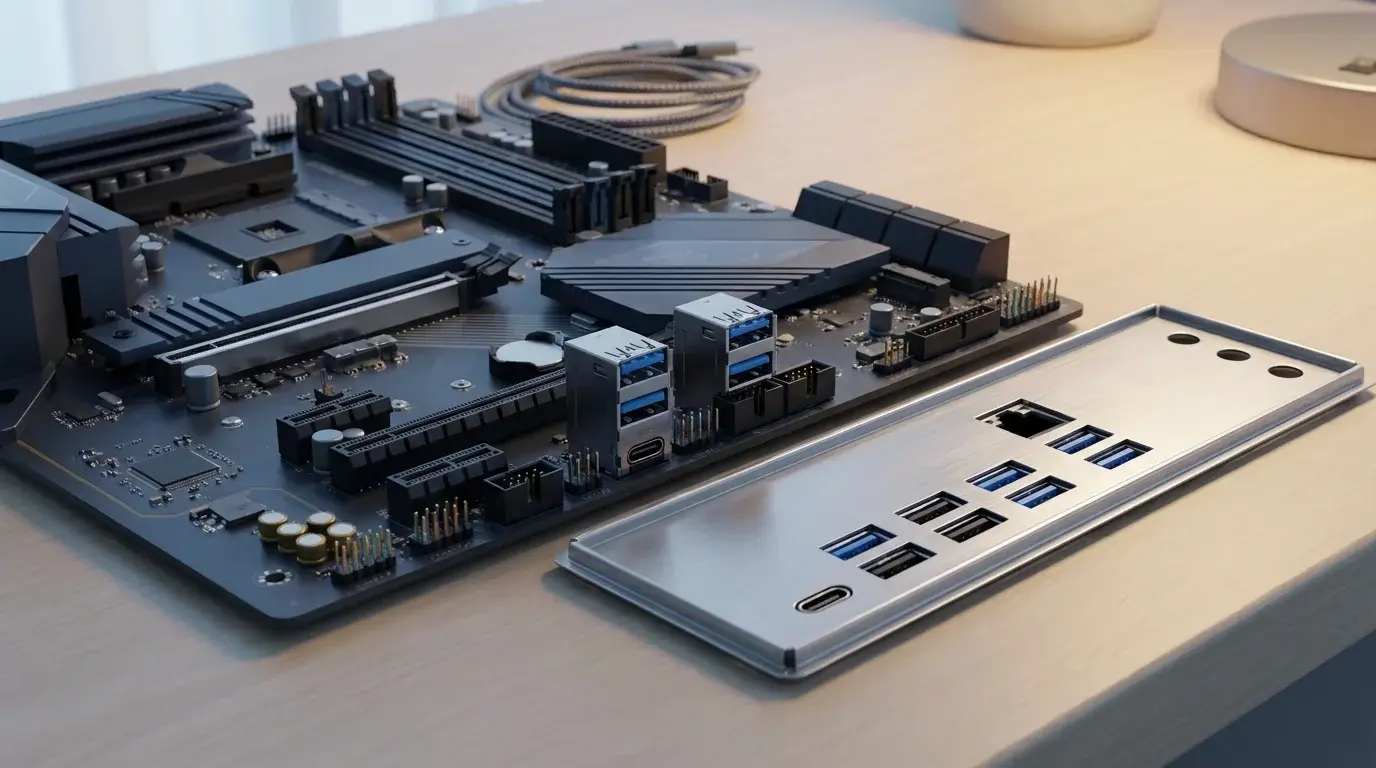
A desktop motherboard's rear I/O panel and internal USB headers illustrated beside a PC case front panel
Table of Contents (21 sections)
- What counts as a motherboard USB port?
- Rear USB ports
- Front-panel USB ports
- Internal headers are not external sockets
- So, how many USB ports does a motherboard usually have?
- How to check how many USB ports your motherboard has
- 1. Find the exact motherboard model
- 2. Open the manufacturer's official specification page
- 3. Count the rear sockets physically
- 4. Check the front-panel USB headers and case ports
- 5. Check the manual for model-specific limits
- Does USB-A or USB-C change the number of ports?
- What if your PC does not have enough USB ports?
- How many USB ports can a motherboard support through headers?
- Frequently asked questions
- Can I count USB ports in Windows?
- Do all USB ports on a motherboard have the same speed?
- Does a motherboard's USB count include the ports on my PC case?
- Will a USB hub increase the number of ports on the motherboard?
- Where can I find the most accurate USB port count?
- Official sources
A motherboard does not have one standard number of USB ports. The count depends on the exact board, its rear input/output (I/O) panel, its internal USB headers, and how many of those headers your PC case uses. Some boards offer only a handful of rear ports; others provide eight or more at the back plus additional connections for the front or top of a PC case.
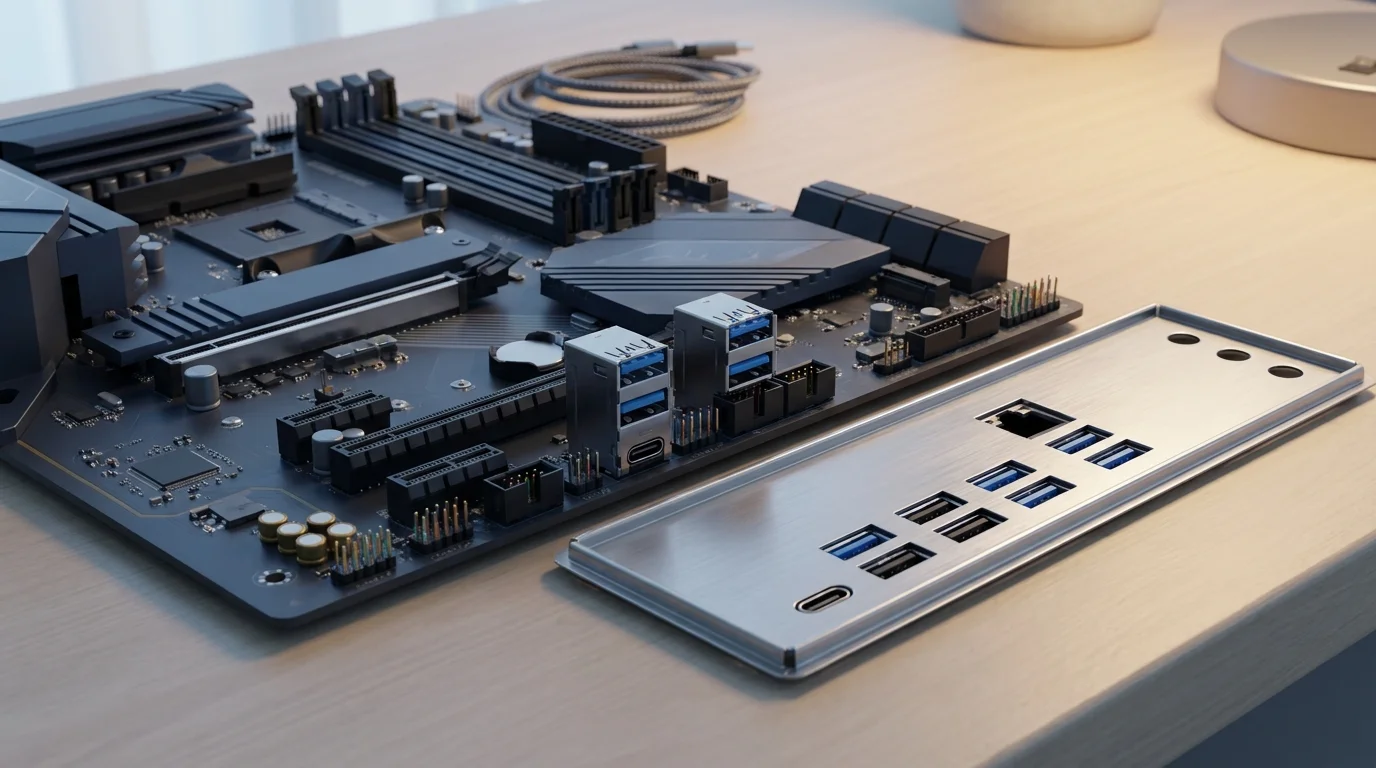
To find the number for your computer, count the physical USB sockets on the rear panel, then check the motherboard's official specifications for the front-panel ports supported through internal headers. Do not count an internal header as a ready-to-use external socket unless the case or an accessory actually connects to it.
What counts as a motherboard USB port?
Motherboard specifications may describe several different things as USB ports. Knowing the difference helps you avoid adding the wrong numbers together.
Rear USB ports
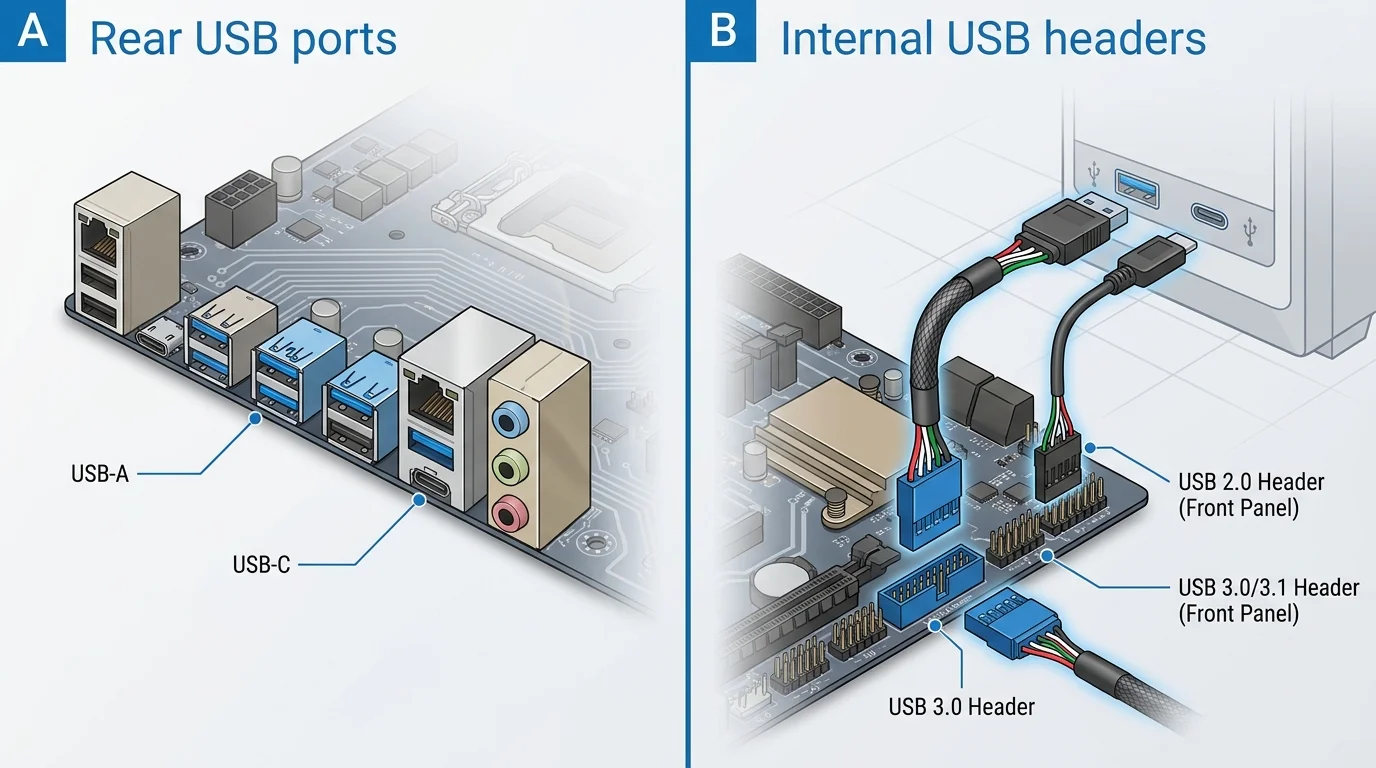
These are the USB sockets built into the motherboard's rear I/O panel, where you typically connect a mouse, keyboard, flash drive, webcam, or external storage device. The rear panel may include USB-A ports, USB-C ports, or both. The ports can also support different USB data rates.
Front-panel USB ports
Many desktop cases have USB sockets on the front, top, or side. Cables from the case connect these sockets to compatible headers on the motherboard. The number that can be connected depends on the board's headers and the case's own ports and cables.
A motherboard specification might say that one internal header supports two additional USB ports. That is the header's capacity, not proof that two sockets are already installed on your case. Some cases also provide a front USB-C socket, which requires a compatible motherboard header or a suitable supported expansion solution.
Internal headers are not external sockets
Internal USB headers are connectors on the motherboard's surface. They attach to case ports, some liquid-cooler displays, card readers, or other accessories. You usually do not plug a flash drive directly into an internal header.
So, how many USB ports does a motherboard usually have?
There is no reliable universal average to apply to every motherboard generation or form factor. The most accurate answer comes from the exact model's specification page. A small motherboard may have fewer rear sockets and fewer headers than a full-size board, but size alone does not determine the final count.
For a real example, MSI lists the PRO B850M-A with eight rear USB ports: three USB 5Gbps Type-A ports, three USB 10Gbps Type-A ports, and two USB 10Gbps Type-C ports. The same specification also lists front-accessible USB support through internal connections: four USB 2.0 ports, two USB 5Gbps Type-A ports, and one USB 10Gbps Type-C port. That is a model-specific specification, not a count that applies to all motherboards.
The ASUS TUF GAMING B650EM-E WIFI specification likewise distinguishes eight rear USB ports from seven front-accessible ports supported through its headers. Both examples show why a product page may list a rear count and a separate front count.
The case still matters: if it does not have the matching front USB sockets or the required cables, the supported front connections may not be available for everyday use.
How to check how many USB ports your motherboard has
1. Find the exact motherboard model
If you built the desktop yourself, the model name may be printed on the motherboard. You can also check the original box, purchase invoice, or the system information provided by the PC manufacturer.
In Windows, you can try this PowerShell command:
Get-CimInstance Win32_BaseBoard | Select-Object Manufacturer, Product, Version
Open PowerShell from the Start menu, run the command, and note the manufacturer and product fields. Some prebuilt PCs may return incomplete or generic information. If that happens, use the PC maker's support page, the system documentation, or the model printed on the board. Avoid opening a laptop or compact prebuilt PC just to identify a board unless you are qualified to do so.
2. Open the manufacturer's official specification page
Search the motherboard manufacturer's support site for the exact model, then open its Specifications or Tech Specs page. MSI's support guide, for example, directs users to their model's specifications and the back-panel I/O section to identify the external connections.
Record the rear-panel USB count and the types of ports. Look for separate entries for USB 2.0, USB 5Gbps, USB 10Gbps, and USB Type-C where listed. These labels describe supported standards or connector types; they are not additional physical sockets by themselves.
3. Count the rear sockets physically
Look at the rear I/O panel of the computer. Count the actual USB sockets, including both USB-A and USB-C. Do not count HDMI, DisplayPort, Ethernet, audio jacks, or the round PS/2 port as USB connections.
If the PC has a graphics card, its video outputs are usually lower on the case and are not USB ports. Only count a connector as USB if the motherboard or device documentation identifies it as one.
4. Check the front-panel USB headers and case ports
Return to the official motherboard specification or manual and find the internal USB connectors or headers. The manual should explain how many additional ports each header supports. Then compare that information with the sockets physically present on your case and the cables connected to the motherboard.
Do not connect a cable to a header based only on its shape. Use the motherboard manual to confirm the connector and pin orientation before working inside the case, and shut the computer down and disconnect power before opening it.
5. Check the manual for model-specific limits
Some product specifications distinguish between ports controlled by the processor and those provided by the chipset, and the number or speed supported can vary with the system configuration. Use the manual for your exact motherboard and supported CPU configuration rather than assuming every board with the same socket has identical ports.
Does USB-A or USB-C change the number of ports?
No. USB-A and USB-C describe connector shapes, not extra port counts or guaranteed speed. If a rear panel has four USB-A sockets and two USB-C sockets, that is six physical USB sockets. Their data rates and other capabilities should be checked separately in the specifications.
USB-C does not automatically mean that a port supports the fastest USB data rate, display output, or a particular charging power. The motherboard, connected device, and cable all affect which features are available. For a foundational primer, see our guide explaining what USB stands for and how connector types differ. For guidance on cable capabilities, read our USB-C cable buying guide.
What if your PC does not have enough USB ports?
If your case and motherboard have fewer convenient sockets than you need, consider these options:
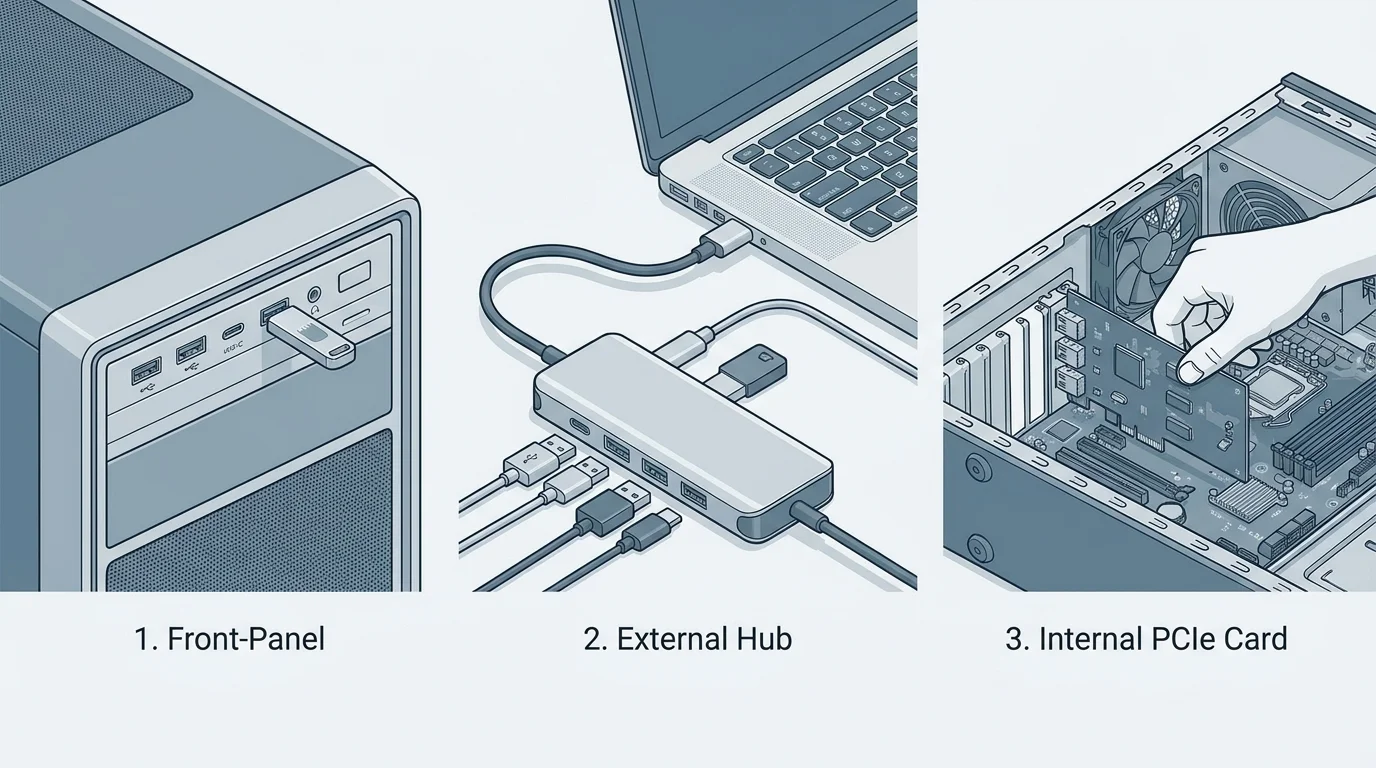
- Use a USB hub: A hub can add more connection points, but devices share the hub's upstream connection and available power. Choose a powered hub if your devices need more power, and check its supported data speed.
- Use a front-panel port: If your case has front USB sockets that are already wired to the motherboard, they may be easier to reach than the rear panel.
- Add a compatible expansion card: A desktop PC may support a PCIe USB expansion card, but check available slots, operating-system support, power requirements, and case clearance first.
- Check the motherboard manual: Some headers are unused or the case's front-panel cable may not be connected. Do not open the PC or reconnect internal headers while it is powered on.
Adding more ports does not guarantee that every connected device gets its own full-speed bandwidth. High-bandwidth storage, capture devices, and other demanding peripherals may perform differently when they share a hub or controller. If you are connecting bootable installer media or flash drives for firmware recovery, using direct rear motherboard ports avoids potential hub power drops; see our guide on how to boot from USB on a Windows PC.
How many USB ports can a motherboard support through headers?
There is no single answer. Each board has a defined set of internal USB headers, and the specifications describe what those headers support. For example, some boards have a header that can provide two front USB ports, while USB 2.0 headers may support more than one port through the case wiring or compatible accessories. The correct total depends on the specific board, its controllers, any supported hubs, and connected case accessories.
Count usable sockets separately from theoretical connections supported. The first tells you how many devices you can plug in right now. The second tells you what the motherboard may support when compatible case ports or accessories are attached.
Frequently asked questions
Can I count USB ports in Windows?
Windows can show connected USB devices and controllers, but it does not reliably give a simple count of every physical socket on a motherboard. The exact motherboard specifications and a physical check are better ways to count rear sockets and front-panel connections.
Do all USB ports on a motherboard have the same speed?
No. A motherboard may combine different USB generations and connector types. Check the manual or specification page for each port's data rate and any additional features.
Does a motherboard's USB count include the ports on my PC case?
Specifications may list rear ports separately from front-accessible USB ports supported through internal headers. The final number of sockets on your assembled PC also depends on the case and the cables that are actually connected.
Will a USB hub increase the number of ports on the motherboard?
A hub increases the number of devices you can connect at once, but it does not create additional native motherboard ports. The connected devices may share bandwidth and power from the hub's upstream connection.
Where can I find the most accurate USB port count?
Use the official specification page and manual for your exact motherboard model. Manufacturer documentation distinguishes rear I/O ports from internal headers and can list each port's connector type and supported speed.
Official sources
Verified Primary Sources & Citations
NextTechExplained verifies facts against official documentation, engineering whitepapers, and regulatory filings.
- MSI: How to Check I/O Port SpecificationsView Official Source
- MSI: PRO B850M-A SpecificationsView Official Source
- ASUS: TUF GAMING B650EM-E WIFI SpecificationsView Official Source
- Supermicro: C9Z890-MW Motherboard Manual (USB Ports)View Official Source
Published by NextTechExplained
Editorial Team • Institutional Publication Byline
Articles published under this byline are prepared through rigorous research and verified against official engineering specifications, standards documentation, and primary sources. Learn more about our process on our About page and Editorial Policy.
Related Explanations & Guides
How to Boot from USB on a Windows PC
Learn how to boot a Windows PC from a USB drive using the one-time boot menu, create official Windows installation media, and troubleshoot when the USB is not listed.
How to Format a USB Drive to FAT32 in Windows 11
Format a USB flash drive as FAT32 in Windows 11, understand why FAT32 may be missing for larger drives, and choose the right file system safely.
How to Change Keyboard Language in Windows 11
Switch keyboard languages in Windows 11, add a new layout, use the Windows + Space shortcut, and fix missing language options.