
VALORANT Secure Boot Error: How to Check UEFI, TPM 2.0, and Vanguard
Fix VALORANT Vanguard security errors by checking Secure Boot, UEFI mode, TPM 2.0, and the exact VAN code before changing BIOS settings.
Editorial Team

An unbranded gaming PC and motherboard on a dark desk, representing Windows startup security troubleshooting
Table of Contents (14 sections)
- First, identify the exact Vanguard error
- Check Secure Boot and BIOS mode in Windows
- Check whether TPM 2.0 is available
- What to do if Secure Boot is off
- If Secure Boot and TPM are already enabled
- Quick troubleshooting table
- Frequently asked questions
- Does VALORANT require Secure Boot on every PC?
- What does VAN 9001 mean?
- What does VAN 9003 mean?
- Why does VALORANT still show an error when Secure Boot is on?
- Should I disable Secure Boot to get VALORANT working?
- Can changing BIOS settings stop Windows from booting?
- Sources and further reading
If VALORANT will not launch because Riot Vanguard says Secure Boot or TPM 2.0 is missing, start by checking what Windows actually reports. The error can indicate different things: VAN 9001 points to TPM 2.0, while VAN 9003 means Vanguard does not detect Secure Boot as enabled. Other restriction messages can name additional requirements, so do not treat every VAN error as the same problem. See Riot's official guides for VAN 9001 (opens in new tab), VAN 9003 (opens in new tab), and Vanguard security requirements (opens in new tab).
On Windows 11, Riot lists both TPM 2.0 and UEFI Secure Boot among VALORANT's security requirements. Requirements can depend on the exact Windows version and Vanguard message, so use the error code as your starting point rather than changing several firmware settings at once. Riot's current PC specifications (opens in new tab) lists supported operating systems and the Windows 11-specific security requirements.
First, identify the exact Vanguard error
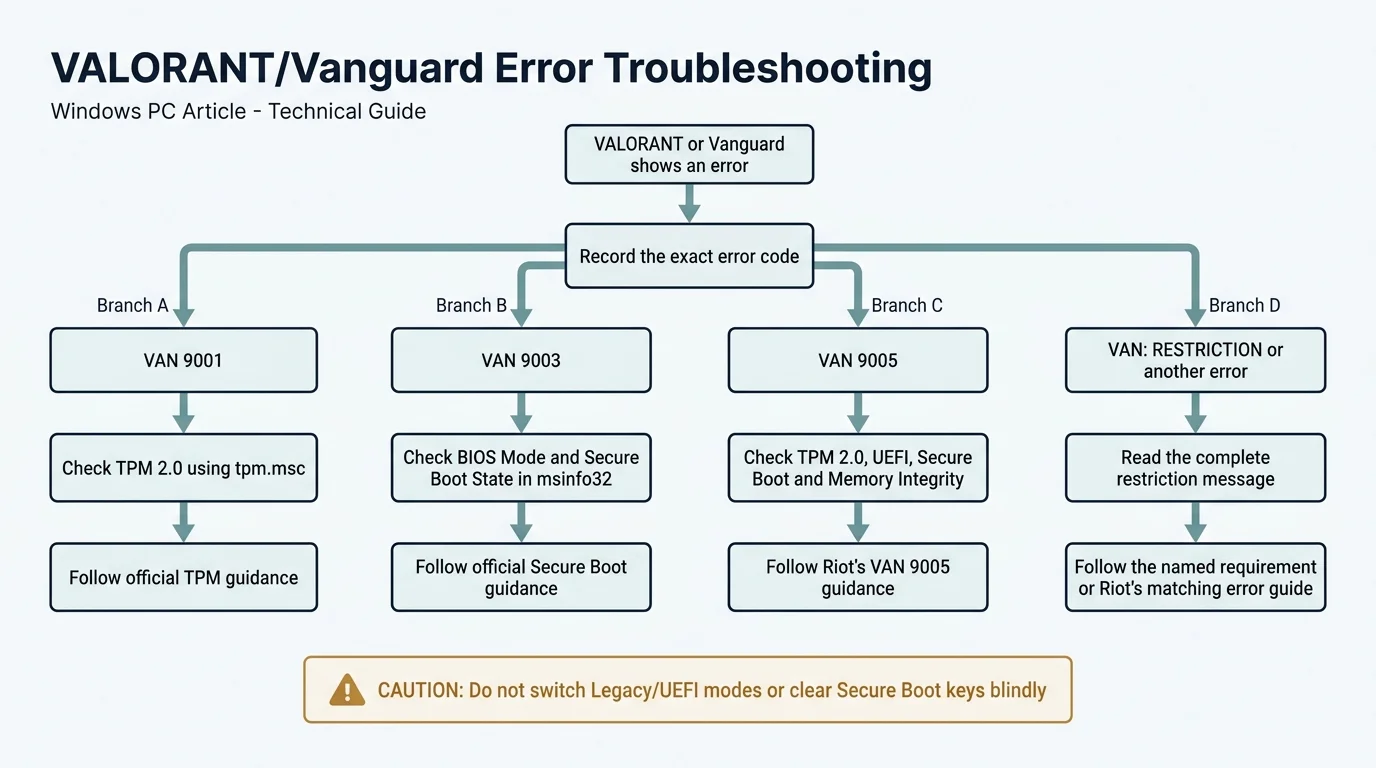
Before changing BIOS or UEFI settings, write down the complete message and code displayed by VALORANT or Vanguard. Different codes identify different checks:
| Message or code | What Riot says it points to | Start here |
|---|---|---|
| VAN 9001 | TPM 2.0 is required but is not detected as enabled | Check tpm.msc and TPM specification version |
| VAN 9003 | Secure Boot is required but is not detected as enabled | Check BIOS Mode and Secure Boot State in msinfo32 |
| VAN 9005 | This Vanguard configuration requires TPM 2.0 and UEFI-compliant firmware for VBS | Check TPM, Secure Boot, and Memory Integrity as Riot directs |
| VAN: RESTRICTION | Vanguard is requesting one or more Windows or hardware security requirements | Read the exact restriction text and follow the linked requirement-specific guidance |
| Another VAN code | A different Vanguard or client issue may be involved | Search Riot's official error-code catalog for the exact code |
Riot explains that VAN 9001 is a TPM 2.0 detection issue, VAN 9003 concerns Secure Boot, and VAN 9005 may involve TPM 2.0, UEFI firmware, and Virtualization-Based Security (VBS). Check the current official pages before acting: VAN 9001 (opens in new tab), VAN 9003 (opens in new tab), VAN 9005 (opens in new tab), and Vanguard restriction errors (opens in new tab).
Check Secure Boot and BIOS mode in Windows
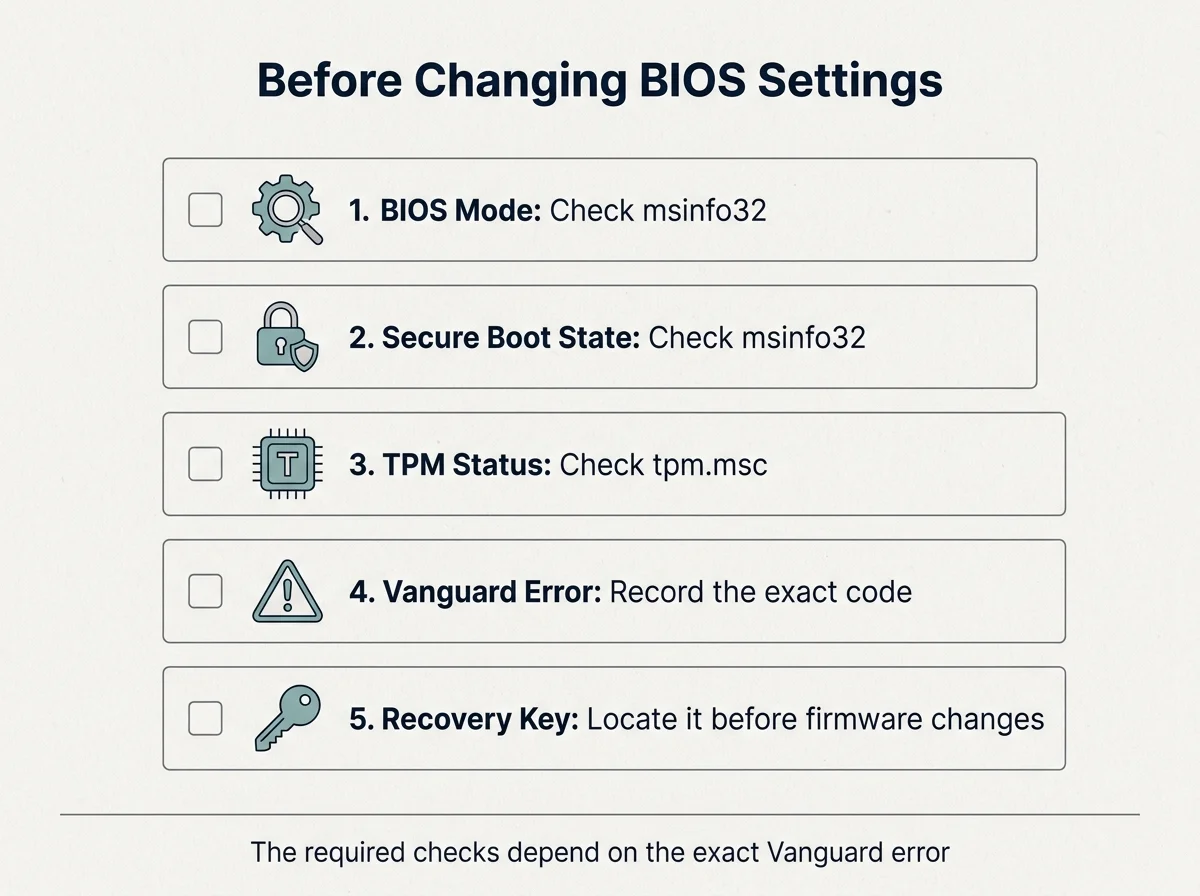
Windows includes a built-in System Information tool. It lets you check whether the current Windows installation is running in UEFI mode and whether Windows reports Secure Boot as on.
- Press
Windows + Rto open Run. - Type
msinfo32and press Enter. - In System Summary, find BIOS Mode.
- Find Secure Boot State and record the value shown.
The results help choose the next step:
- BIOS Mode: UEFI and Secure Boot State: On: Windows detects Secure Boot as enabled. If Vanguard still complains, restart once and check the exact error again before changing more settings.
- BIOS Mode: UEFI and Secure Boot State: Off: Secure Boot may be disabled in firmware, not fully configured, or not being reported as active. If Windows reports the setting as inactive despite being enabled in BIOS, see our Secure Boot enabled but not active guide. Check your PC or motherboard manufacturer's official instructions.
- BIOS Mode: Legacy: Do not simply toggle Legacy/CSM off. The Windows installation may use an MBR system disk and might not boot if you change firmware mode without preparing it first.
- Secure Boot State: Unsupported: Check the device specifications and firmware configuration. Do not assume this can be fixed with one universal BIOS option.
Riot's Secure Boot guide (opens in new tab) and Microsoft's Windows 11 and Secure Boot guidance (opens in new tab) both advise checking the current mode and following the computer manufacturer's instructions because firmware menus vary.
Check whether TPM 2.0 is available
If Vanguard reports VAN 9001, or its message explicitly names TPM 2.0, check the TPM before changing Secure Boot options.
- Press
Windows + R. - Enter
tpm.mscand press Enter. - Check the status message in the TPM Management window.
- If TPM is ready for use, look under TPM Manufacturer Information for Specification Version. For TPM 2.0, that value should be
2.0.
If Windows says a compatible TPM cannot be found, it does not automatically prove your PC lacks TPM hardware. The feature may be disabled in firmware, or the system may not support it. Microsoft notes that firmware TPM settings may have names such as Intel PTT, AMD fTPM, Security Device Support, or TPM State, depending on the manufacturer. Follow Microsoft's TPM 2.0 guide (opens in new tab) and your exact computer or motherboard manual.
TPM and Secure Boot are separate protections. TPM 2.0 provides hardware-backed security functions, while Secure Boot checks trusted startup software. For a full breakdown of their technical differences, see our explainer on what Secure Boot is and how it works in Windows. Enabling one does not automatically mean the other is enabled.
What to do if Secure Boot is off
If msinfo32 shows BIOS Mode: UEFI and Secure Boot State: Off, follow our step-by-step walkthrough on how to enable Secure Boot in Windows 11. Some systems require particular UEFI settings or platform keys before Secure Boot can become active, but menu names and procedures vary. Consult your PC or motherboard documentation.
For Windows 11, the usual Windows route into firmware settings is:
- Save open work and open Settings.
- Go to System > Recovery.
- Under Advanced startup, select Restart now.
- Choose Troubleshoot > Advanced options > UEFI Firmware Settings, if this option is available, and select Restart.
- In firmware setup, consult the exact manufacturer's manual for Secure Boot options. Save changes only after confirming the relevant settings.
Before making firmware changes, locate your BitLocker or device-encryption recovery key if encryption is enabled. Firmware or boot-configuration changes can trigger a recovery prompt. Microsoft explains how to find your BitLocker recovery key (opens in new tab).
Do not clear Secure Boot keys, load factory keys, disable CSM, convert a disk, or switch from Legacy to UEFI without checking model-specific guidance and your current boot configuration. If your motherboard reports that Platform Key enrollment is required, read our guide on what the Secure Boot User Mode message means. For Gigabyte and AORUS systems, see our Gigabyte Secure Boot guide. If your computer halts at startup with a signature error, see how to troubleshoot a Secure Boot Violation. If Windows currently uses Legacy mode, first determine the disk partition style and follow a documented migration process if one is appropriate. A wrong sequence can leave Windows unable to start.
If Secure Boot and TPM are already enabled
If Windows reports BIOS Mode: UEFI, Secure Boot State: On, and tpm.msc confirms TPM 2.0, avoid repeating BIOS changes without a reason. Instead:
- Restart Windows normally and try launching VALORANT again.
- Check the Vanguard tray icon or the full error message for another named requirement, such as Memory Integrity (HVCI/VBS) or IOMMU.
- Install relevant Windows updates and restart if required.
- Check whether your PC or motherboard manufacturer offers a relevant, officially documented firmware update. Do not flash a BIOS merely because an error appeared; read the release notes and instructions for your exact model.
- If the listed security requirements appear satisfied but the error persists, use Riot's current error guide or submit a support ticket with the exact code and requested logs.
Riot's Vanguard Security Requirements (opens in new tab) lists security features that Vanguard may require depending on configuration. Its VAN 9005 instructions specifically include TPM 2.0, UEFI-compliant firmware, Secure Boot, and Memory Integrity checks. Other modern competitive titles feature similar anti-cheat requirements; for comparison, see our Battlefield 6 Secure Boot guide. Follow the requirement named in your error rather than turning on unrelated options indiscriminately.
Quick troubleshooting table
| What you see | Recommended next step |
|---|---|
| VAN 9001 | Run tpm.msc; verify TPM is ready and specification version is 2.0. Follow Microsoft's or Riot's TPM guide if not. |
| VAN 9003 | Run msinfo32; check BIOS Mode and Secure Boot State, then consult the manufacturer's instructions if required. |
| VAN 9005 | Follow Riot's steps for TPM 2.0, UEFI firmware, Secure Boot, and Memory Integrity/VBS. |
| Secure Boot is on in firmware, but Windows says Off | Check UEFI/CSM configuration and model-specific firmware/key guidance; do not clear keys blindly. |
| BIOS Mode shows Legacy | Stop before switching modes. Verify the system disk layout and read official migration guidance. |
| Requirements appear satisfied but launch still fails | Restart, recheck the exact message, consult Riot's error page, and contact Player Support with logs if needed. |
Frequently asked questions
Does VALORANT require Secure Boot on every PC?
Riot's current minimum PC specifications explicitly list TPM 2.0 and UEFI Secure Boot as requirements for Windows 11. The exact steps or security checks involved can depend on the Windows configuration and the Vanguard error shown. For Windows 10 or a specific error, follow Riot's current requirement-specific support instructions rather than applying the Windows 11 rule without checking.
What does VAN 9001 mean?
Riot says VAN 9001 means the current Vanguard build requires TPM 2.0 but does not detect it as enabled. Check tpm.msc and follow Riot's or Microsoft's TPM 2.0 instructions.
What does VAN 9003 mean?
Riot says VAN 9003 means Secure Boot is not enabled as required by Vanguard. Check BIOS Mode and Secure Boot State in msinfo32, then follow the manufacturer's firmware instructions if a setting needs attention.
Why does VALORANT still show an error when Secure Boot is on?
The displayed message may concern TPM 2.0, VBS/Memory Integrity, IOMMU, a particular Vanguard restriction, or a difference between firmware settings and what Windows reports. Read the full error and troubleshoot the specific requirement.
Should I disable Secure Boot to get VALORANT working?
No. If Vanguard says Secure Boot is required, disabling it works against the stated requirement and reduces boot-time protection. Use the exact Riot and manufacturer guidance for the problem shown.
Can changing BIOS settings stop Windows from booting?
Yes. Changes such as switching between Legacy/CSM and UEFI, altering Secure Boot keys, or changing boot configuration can make an existing Windows installation unbootable if performed in the wrong order. Back up important data, locate any BitLocker recovery key, and follow instructions for the exact model before changing settings.
Sources and further reading
- Riot Games Support: VALORANT minimum and recommended PC specs (opens in new tab)
- Riot Games Support: Error VAN 9001 (opens in new tab)
- Riot Games Support: Error VAN 9003 (opens in new tab)
- Riot Games Support: Error VAN 9005 (opens in new tab)
- Riot Games Support: Vanguard Security Requirements (opens in new tab)
- Riot Games Support: Secure Boot (opens in new tab)
- Riot Games Support: Enable TPM 2.0 (opens in new tab)
- Microsoft Support: Windows 11 and Secure Boot (opens in new tab)
- Microsoft Support: Enable TPM 2.0 on your PC (opens in new tab)
- Microsoft Support: Find your BitLocker recovery key (opens in new tab)
Verified Primary Sources & Citations
NextTechExplained verifies facts against official documentation, engineering whitepapers, and regulatory filings.
- Riot Games Support: VALORANT minimum and recommended PC specsView Official Source
- Riot Games Support: Error VAN 9001View Official Source
- Riot Games Support: Error VAN 9003View Official Source
- Riot Games Support: Error VAN 9005View Official Source
- Riot Games Support: Vanguard Security RequirementsView Official Source
- Riot Games Support: Secure BootView Official Source
- Riot Games Support: Enable TPM 2.0View Official Source
- Microsoft Support: Windows 11 and Secure BootView Official Source
- Microsoft Support: Enable TPM 2.0 on your PCView Official Source
- Microsoft Support: Find your BitLocker recovery keyView Official Source
Published by NextTechExplained
Editorial Team • Institutional Publication Byline
Articles published under this byline are prepared through rigorous research and verified against official engineering specifications, standards documentation, and primary sources. Learn more about our process on our About page and Editorial Policy.
Related Explanations & Guides
Gigabyte Secure Boot: How to Enable It and Fix Common Errors
Learn how to check Secure Boot on Gigabyte and AORUS PCs, understand UEFI and key settings, and troubleshoot common BIOS messages safely.
How to Enable Secure Boot in Windows 11: Step-by-Step Guide
Check whether Secure Boot is supported, enable it safely in UEFI firmware, and troubleshoot common Windows 11 Secure Boot issues without risking your boot setup.
Secure Boot Can Be Enabled When System Is in User Mode: What It Means
Seeing the Secure Boot user mode or Platform Key message in BIOS? Learn what it means and how to check your Windows PC safely.