
Secure Boot Can Be Enabled When System Is in User Mode: What It Means
Seeing the Secure Boot user mode or Platform Key message in BIOS? Learn what it means and how to check your Windows PC safely.
Editorial Team
A modern PC and motherboard on a dark desk, illustrating UEFI firmware and Secure Boot key configuration
Table of Contents (17 sections)
- What does "Secure Boot can be enabled in User Mode" mean?
- Check Windows' current boot mode first
- Before you enter BIOS or UEFI setup
- How to address the Platform Key message safely
- 1. Open the firmware settings using the manufacturer's method
- 2. Find the Secure Boot status and key-management section
- 3. Check whether the Platform Key is enrolled
- 4. Save changes and verify after a restart
- Common causes and the next safe step
- Frequently asked questions
- Is User Mode the same as logging into Windows with a user account?
- Does enrolling the Platform Key delete my files?
- Should I restore factory Secure Boot keys?
- Should I disable CSM to fix the message?
- Is this the same as the 2026 Secure Boot certificate update?
- What if I cannot find the setting in BIOS?
- Sources and further reading
If your PC's firmware says "Secure Boot can be enabled when the system is in User Mode" or asks you to enroll the Platform Key (PK), it is usually telling you that Secure Boot's required key configuration is not complete. The wording varies by motherboard and firmware version. In a common implementation, the platform is in Setup Mode because no Platform Key is enrolled; enrolling an appropriate key moves the firmware to User Mode. The UEFI specification describes this relationship, and some GIGABYTE firmware manuals show a matching message.
This is a firmware configuration issue, not a Windows account setting. Before changing anything, confirm that Windows is installed to boot in UEFI mode, make sure you can access any BitLocker recovery key you may need, and follow instructions for your exact PC or motherboard. Do not clear Secure Boot keys or change boot modes just to experiment.
What does "Secure Boot can be enabled in User Mode" mean?
Secure Boot is a UEFI firmware security feature. During startup, firmware checks the signatures of boot components against trusted entries in its signature databases. This helps stop untrusted boot software from running before Windows loads. Microsoft's Secure Boot overview (opens in new tab) explains its purpose and relationship to Windows startup.
The firmware maintains several key databases. The Platform Key (PK) establishes the platform owner's trust relationship with firmware. The Key Exchange Key (KEK) authorizes updates to the signature databases. The allowed database (DB) contains trusted certificates or signatures, while the forbidden database (DBX) contains revoked or blocked signatures.
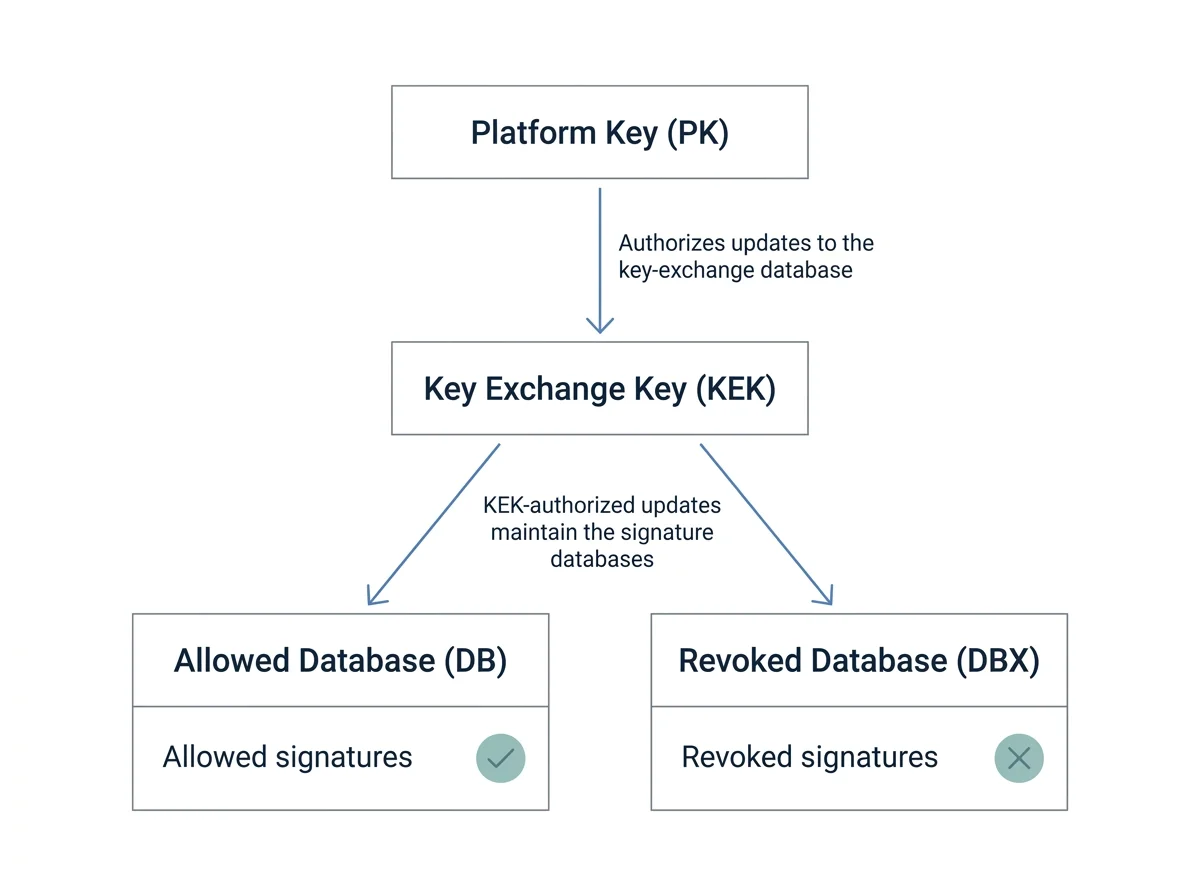
Illustration: Secure Boot uses enrolled keys and signature databases to decide which startup software is trusted. The exact contents depend on the PC and its firmware.
The UEFI specification explains that when no Platform Key is enrolled, the firmware is in Setup Mode. Once a Platform Key is successfully enrolled, the platform transitions to User Mode. In User Mode, changes to Secure Boot policy are restricted to authorized updates. See the official UEFI Secure Boot specification (opens in new tab) for the underlying behavior.
The message therefore often points to a missing Platform Key or incomplete default-key setup. It does not, by itself, identify why the keys are missing or prove that the rest of your boot configuration is correct.
Check Windows' current boot mode first
Before changing firmware settings, find out how Windows currently starts. This is an important safety check because enabling Secure Boot commonly requires UEFI boot and compatible firmware settings. A computer currently booting in legacy BIOS mode may need additional preparation first.
- Press Windows + R.
- Type
msinfo32and press Enter. - In System Information, find BIOS Mode and Secure Boot State.
- Record what both fields say before making changes.
Microsoft documents the System Information tool (opens in new tab), and its Windows 11 Secure Boot guidance (opens in new tab) explains that firmware settings can affect whether Secure Boot is available.
Use the results as a guide:
| What System Information shows | What to do next |
|---|---|
| BIOS Mode: UEFI and Secure Boot State: Off | Continue with the documentation for your exact PC or motherboard. The platform may need key enrollment or another supported firmware setting. |
| BIOS Mode: Legacy | Stop before disabling CSM or changing boot mode. Check the Windows installation's partition style and follow a supported migration procedure if a change is required. |
| Secure Boot State: On | Windows reports Secure Boot as active. The original message may relate to another firmware screen or a different issue; record the exact wording and check the manufacturer's guidance. |
| Secure Boot State: Unsupported | This can reflect the current boot mode or platform configuration. Check the exact hardware and firmware documentation before changing settings. |
Do not change Legacy/UEFI mode or convert a system disk as a quick fix. Microsoft explains the relationship between UEFI and GPT in its MBR and GPT installation guidance (opens in new tab). Changing boot mode without preparing the Windows installation can leave it unable to start.
Before you enter BIOS or UEFI setup
Make these checks first:
- Identify the exact model. In
msinfo32, record System Manufacturer, System Model, and BIOS Version/Date. For a custom-built PC, identify the motherboard model and firmware version. - Read the matching manual. Secure Boot menus differ across manufacturers, product families, and firmware revisions. Do not assume a menu path from another PC applies to yours.
- Prepare for drive-encryption recovery. If BitLocker or Windows device encryption is enabled, make sure the recovery key is available from another device or a secure offline copy before making firmware or boot-configuration changes. Microsoft documents cases in which Secure Boot changes can lead to BitLocker recovery. See Microsoft's Secure Boot troubleshooting guide (opens in new tab).
- Check for custom keys or dual boot. If the PC runs Linux alongside Windows, uses custom Secure Boot keys, or is managed by an employer or school, do not replace key databases without advice from the administrator, distribution, or manufacturer.
- Save important work and back up important files. Key enrollment should not normally erase personal files, but incorrect firmware changes can prevent the operating system from booting until the settings are corrected.
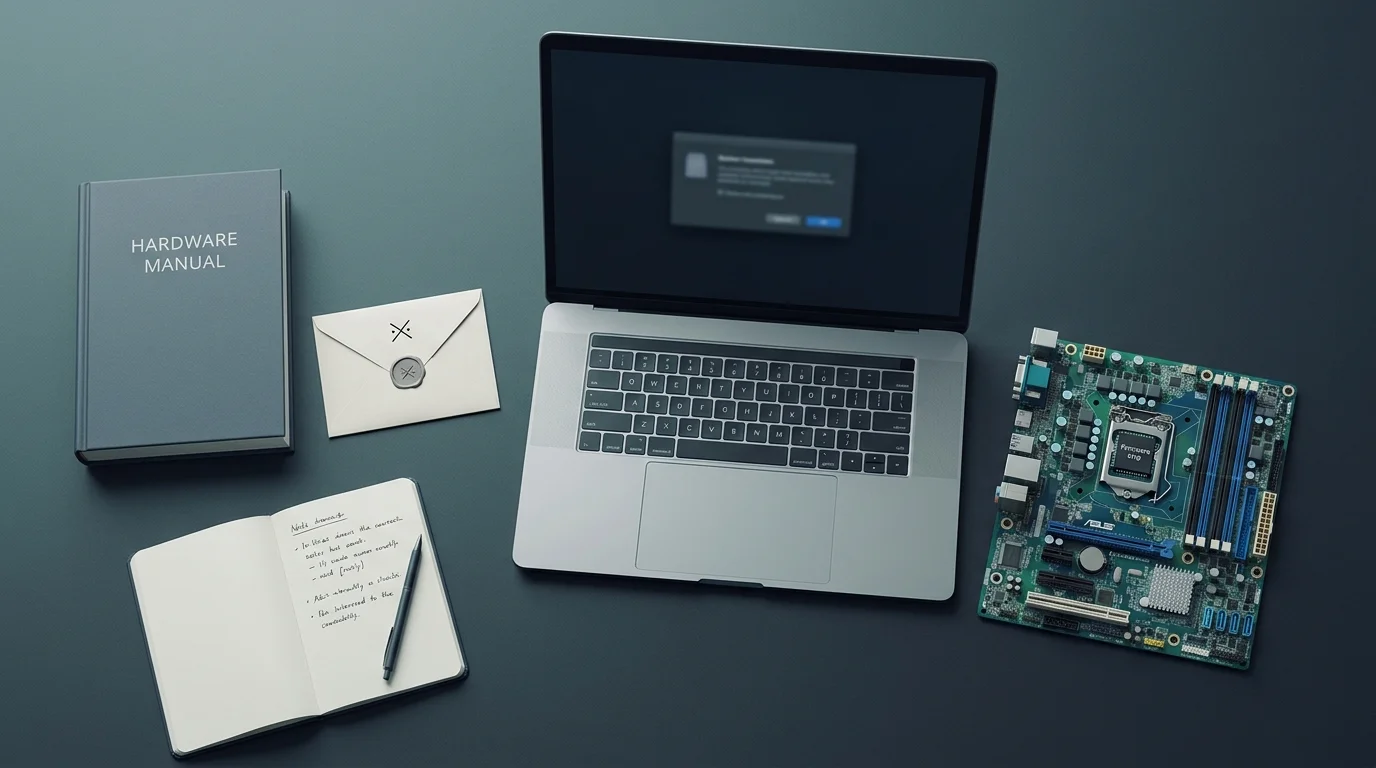
Before changing Secure Boot settings, identify the exact hardware, check its manual, and prepare for possible recovery prompts.
How to address the Platform Key message safely
There is no universal set of BIOS steps for every PC. The safe action depends on the exact message, firmware design, installed operating system, and whether the device uses custom keys.
1. Open the firmware settings using the manufacturer's method
Use the PC or motherboard manual to enter UEFI setup. Many Windows PCs also offer Settings > System > Recovery > Advanced startup, followed by Restart now > Troubleshoot > Advanced options > UEFI Firmware Settings. The option may not be available on every configuration.
2. Find the Secure Boot status and key-management section
Look for entries such as System Mode, Secure Boot, Secure Boot Mode, Key Management, or Platform Key (PK). Names and locations vary. On some firmware, Secure Boot can be configured as enabled but remain Not Active until the Platform Key is enrolled and other prerequisites are met. Some implementations also require the Compatibility Support Module (CSM) to be disabled, but do not change CSM until you have verified that Windows is set up to boot in UEFI mode.
For example, a GIGABYTE BIOS manual describes Secure Boot as active when it is enabled, the Platform Key is enrolled, the system is in User or Deployed Mode, and CSM is disabled. That is an example of one firmware implementation, not a universal menu layout. For dedicated steps on GIGABYTE and AORUS hardware, see our Gigabyte Secure Boot guide. Check the GIGABYTE manual example (opens in new tab) and, more importantly, the manual for your own model.
3. Check whether the Platform Key is enrolled
If the firmware explicitly says that the platform is in Setup Mode or asks for the Platform Key, consult the manufacturer instructions for the documented key-enrollment process. Depending on the firmware, an option may be named Install Default Secure Boot Keys, Restore Factory Keys, or Enroll Factory Default Keys.
Only use such an option if the instructions for your exact model say it is appropriate for your situation and you understand whether it replaces existing keys. On a system using custom keys, dual boot, or managed security policies, restoring factory keys can change which boot components are trusted. If you are not certain, stop and ask the manufacturer or administrator.
Do not select "Clear Secure Boot Keys" or "Reset to Setup Mode" as an experimental first step. Those options can remove existing key databases. Some manufacturer procedures may include a key-reset step as part of a specific recovery sequence, but follow that exact documented sequence rather than improvising.
ASUS, for instance, publishes model-dependent instructions for enabling Secure Boot and managing keys (opens in new tab). Its steps illustrate why instructions should be matched to the model instead of copied blindly across brands.
4. Save changes and verify after a restart
If you made a change specifically recommended by the manufacturer's guide, save and exit firmware setup, then allow the PC to restart. Reopen msinfo32 in Windows and check BIOS Mode and Secure Boot State again. A firmware menu can show a setting as enabled without Windows reporting Secure Boot as active, so verify the state from Windows as well.
If the message persists, take a photo or write down the exact error text and note the firmware version. Do not repeat key resets or change unrelated firmware options. Contact the manufacturer if the documented key-enrollment process does not resolve it.
Common causes and the next safe step
| Symptom | Possible explanation | Recommended next step |
|---|---|---|
| Message says to enroll the Platform Key | The firmware may be in Setup Mode because the PK is not enrolled | Check the model-specific key-enrollment instructions before changing keys. |
| Secure Boot is Enabled but Not Active | A required condition, such as Platform Key enrollment or a firmware-specific prerequisite, may be missing | Check Secure Boot status, system mode, key status, and the OEM manual. |
| BIOS Mode says Legacy in Windows | Windows currently starts through the legacy boot path | Do not simply disable CSM or switch to UEFI. Check the partition style and a supported conversion procedure first. |
| Secure Boot changed after a firmware update | Firmware defaults or key configuration may have changed | Review the update notes and the manufacturer's recovery instructions. |
| Windows asks for a BitLocker recovery key after a change | The measured boot configuration may have changed | Use the recovery key, then check Microsoft's and the OEM's guidance if the prompt repeats. |
| The PC dual-boots Windows and Linux or uses custom keys | Factory keys may not match the platform's intended trust configuration | Stop before restoring or clearing keys. Check the operating system and hardware documentation. |
Frequently asked questions
Is User Mode the same as logging into Windows with a user account?
No. User Mode here refers to a UEFI Secure Boot key-management state. It does not refer to whether you are signed in to Windows with a standard or administrator account.
Does enrolling the Platform Key delete my files?
Key enrollment is a firmware security operation and is not intended to erase personal files. However, changing boot settings can affect whether Windows starts, and firmware changes can trigger a BitLocker recovery prompt. Prepare your recovery key and follow the exact model-specific instructions before proceeding.
Should I restore factory Secure Boot keys?
Only if your PC or motherboard manufacturer's instructions recommend that procedure for your exact issue. It can replace the current trust configuration and may affect custom keys or some dual-boot configurations. Do not choose it merely because the option is visible.
Should I disable CSM to fix the message?
Not automatically. Some systems require CSM to be disabled for Secure Boot to become active, but a Windows installation configured for legacy boot may fail to start after changing that setting. Check BIOS Mode in msinfo32 first and follow the motherboard's documented procedure.
Is this the same as the 2026 Secure Boot certificate update?
Not necessarily. The Platform Key/User Mode message concerns the firmware's Secure Boot key configuration. The 2026 certificate update concerns newer Secure Boot certificates and boot trust. They are related to the same security system but are distinct problems. For the certificate update, read our Windows Secure Boot certificate status guide.
What if I cannot find the setting in BIOS?
Firmware layouts differ, and some settings are hidden until another mode is selected. Use the manual for the exact model and BIOS version. If your device is managed by an organization, or uses custom Secure Boot keys, contact its IT administrator instead of experimenting with the firmware.
Sources and further reading
- UEFI Forum: Secure Boot and Driver Signing (opens in new tab)
- Microsoft Support: Windows 11 and Secure Boot (opens in new tab)
- Microsoft Learn: Windows Setup and MBR or GPT partition style (opens in new tab)
- Microsoft Support: System Information (MSInfo32) (opens in new tab)
- ASUS Support: How to Enable/Disable Secure Boot (opens in new tab)
- Microsoft Support: Secure Boot troubleshooting guide (opens in new tab)
Verified Primary Sources & Citations
NextTechExplained verifies facts against official documentation, engineering whitepapers, and regulatory filings.
- UEFI Forum: Secure Boot and Driver SigningView Official Source
- Microsoft Support: Windows 11 and Secure BootView Official Source
- Microsoft Learn: Windows Setup and MBR or GPT partition styleView Official Source
- Microsoft Support: System Information (MSInfo32)View Official Source
- ASUS Support: How to Enable/Disable Secure BootView Official Source
- GIGABYTE: Secure Boot BIOS manual exampleView Official Source
Published by NextTechExplained
Editorial Team • Institutional Publication Byline
Articles published under this byline are prepared through rigorous research and verified against official engineering specifications, standards documentation, and primary sources. Learn more about our process on our About page and Editorial Policy.
Related Explanations & Guides

Secure Boot Enabled but Not Active? How to Diagnose It in Windows 11
If Secure Boot is enabled in firmware but Windows or your BIOS says it is not active, check UEFI mode, Secure Boot keys, and firmware settings safely.

Gigabyte Secure Boot: How to Enable It and Fix Common Errors
Learn how to check Secure Boot on Gigabyte and AORUS PCs, understand UEFI and key settings, and troubleshoot common BIOS messages safely.

How to Enable Secure Boot in Windows 11: Step-by-Step Guide
Check whether Secure Boot is supported, enable it safely in UEFI firmware, and troubleshoot common Windows 11 Secure Boot issues without risking your boot setup.